> ## Documentation Index
> Fetch the complete documentation index at: https://support.entegrata.com/llms.txt
> Use this file to discover all available pages before exploring further.
# System Versions
> Manage Entegrata platform versions and perform system upgrades
## Overview
System Versions allows you to view your current Entegrata platform version, check for available updates, and upgrade your instance to newer releases. Keeping your system up to date ensures access to the latest features, security patches, and performance improvements.
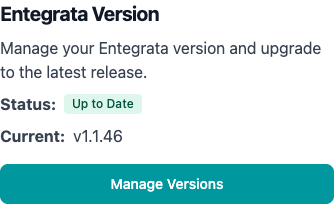 Entegrata uses semantic versioning (e.g., v2.4.1) to clearly communicate the nature and impact of each release. All upgrades are performed through automated infrastructure-as-code, ensuring consistent and reliable deployments.
## Understanding System Versions
### Version Numbering Scheme
Entegrata follows semantic versioning (SemVer) to provide clear information about each release:
Significant platform changes that may include:
* New core functionality or architectural changes
* Breaking changes to APIs or data structures
* Major feature additions requiring infrastructure updates
* Potential migration steps or configuration changes
**Example**: `v2.0.0` → `v3.0.0`
Feature additions and enhancements that are backward compatible:
* New features and capabilities
* Enhanced existing functionality
* Performance improvements
* New integrations or data sources
* No breaking changes to existing functionality
**Example**: `v2.3.0` → `v2.4.0`
Bug fixes and small improvements:
* Bug fixes and stability improvements
* Security patches
* Minor performance optimizations
* Documentation updates
* No new features or breaking changes
**Example**: `v2.4.0` → `v2.4.1`
### Understanding Status Badges
The System Version card displays status badges to communicate your update status at a glance:
**Badge**:
**Blue "Upgrade Available"**
**Meaning**: A newer version of the Entegrata platform is available for your instance.
**Action**: You can upgrade to the latest version at your convenience.
When you see this badge, review the release notes for the newer version to understand what features and improvements are available.
**Badge**:
**Green "Up to Date"**
**Meaning**: Your instance is running the latest available version of the Entegrata platform.
**Action**: No action needed. Your system is current.
Even when up to date, the system continues to check for new releases automatically.
## Checking for Available Updates
### Automatic Update Checks
The Entegrata platform automatically checks for new versions:
* **Frequency**: Checks occur when you access the System Version settings
* **Caching**: Results are cached for 12 hours to optimize performance
* **Background**: Checks happen without requiring manual intervention
The 12-hour cache means you may not immediately see new versions within 12 hours of their release. You can manually trigger a check to bypass the cache.
### Manual Update Check
To check for updates immediately:
Navigate to **Instance** → **Additional Settings** → **System Version** card.
Click the **Check For Updates** button on the System Version card.
Entegrata uses semantic versioning (e.g., v2.4.1) to clearly communicate the nature and impact of each release. All upgrades are performed through automated infrastructure-as-code, ensuring consistent and reliable deployments.
## Understanding System Versions
### Version Numbering Scheme
Entegrata follows semantic versioning (SemVer) to provide clear information about each release:
Significant platform changes that may include:
* New core functionality or architectural changes
* Breaking changes to APIs or data structures
* Major feature additions requiring infrastructure updates
* Potential migration steps or configuration changes
**Example**: `v2.0.0` → `v3.0.0`
Feature additions and enhancements that are backward compatible:
* New features and capabilities
* Enhanced existing functionality
* Performance improvements
* New integrations or data sources
* No breaking changes to existing functionality
**Example**: `v2.3.0` → `v2.4.0`
Bug fixes and small improvements:
* Bug fixes and stability improvements
* Security patches
* Minor performance optimizations
* Documentation updates
* No new features or breaking changes
**Example**: `v2.4.0` → `v2.4.1`
### Understanding Status Badges
The System Version card displays status badges to communicate your update status at a glance:
**Badge**:
**Blue "Upgrade Available"**
**Meaning**: A newer version of the Entegrata platform is available for your instance.
**Action**: You can upgrade to the latest version at your convenience.
When you see this badge, review the release notes for the newer version to understand what features and improvements are available.
**Badge**:
**Green "Up to Date"**
**Meaning**: Your instance is running the latest available version of the Entegrata platform.
**Action**: No action needed. Your system is current.
Even when up to date, the system continues to check for new releases automatically.
## Checking for Available Updates
### Automatic Update Checks
The Entegrata platform automatically checks for new versions:
* **Frequency**: Checks occur when you access the System Version settings
* **Caching**: Results are cached for 12 hours to optimize performance
* **Background**: Checks happen without requiring manual intervention
The 12-hour cache means you may not immediately see new versions within 12 hours of their release. You can manually trigger a check to bypass the cache.
### Manual Update Check
To check for updates immediately:
Navigate to **Instance** → **Additional Settings** → **System Version** card.
Click the **Check For Updates** button on the System Version card.
 This bypasses the 12-hour cache and queries for the latest available versions immediately.
The system retrieves the latest version information from Entegrata's release servers.
* If newer versions exist, the status updates to **"Upgrade Available"**
* If you're on the latest version, the badge remains **"Up to Date"**
This bypasses the 12-hour cache and queries for the latest available versions immediately.
The system retrieves the latest version information from Entegrata's release servers.
* If newer versions exist, the status updates to **"Upgrade Available"**
* If you're on the latest version, the badge remains **"Up to Date"**
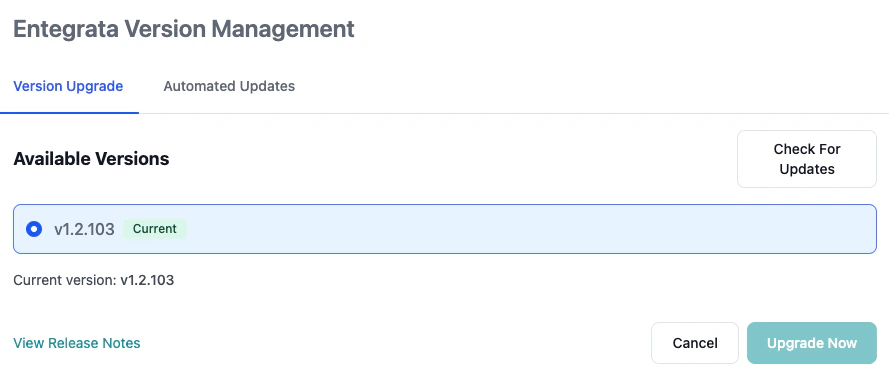 Click **Manage Versions** to see all available versions you can upgrade to.
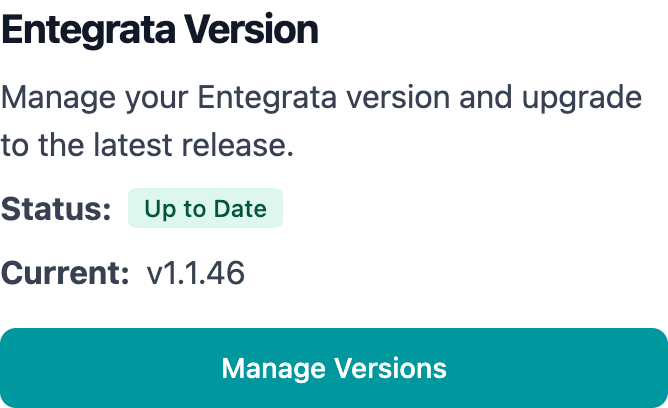 If you're expecting a specific version release, use the **Check For Updates** button to immediately see if it's available rather than waiting for the cache to expire.
### Downtime and Impact
Entegrata version upgrades are designed for minimal disruption:
**Minimal Impact Operations:**
* ✅ Viewing dashboards and reports
* ✅ Accessing historical data
* ✅ Reading documentation and settings
* ✅ Monitoring system status
**Temporarily Unavailable:**
* ❌ Making instance configuration changes
* ❌ Creating or modifying firewall rules
* ❌ Uploading customer-managed keys
* ❌ Modifying network connections
* ❌ Initiating additional upgrades
For mission-critical environments, schedule upgrades during maintenance windows to avoid any potential impact on business operations.
### Upgrade Duration
Typical upgrade times by version type:
| Version Type | Typical Duration | What's Happening |
| :---------------- | :--------------- | :--------------------------------- |
| **Patch** (X.X.1) | 5-10 minutes | Service restarts, minor updates |
| **Minor** (X.1.0) | 10-20 minutes | Feature rollout, database updates |
| **Major** (1.0.0) | 20-45 minutes | Significant infrastructure changes |
Actual upgrade times depend on your instance size, infrastructure complexity, and Azure region. The loading screen provides real-time status updates throughout the process.
## Rollback Considerations
### When to Consider Rollback
In rare cases, you may need to revert to a previous version:
Version rollbacks are not self-service and require coordination with Entegrata Support. Rollbacks should only be considered for critical issues that cannot be resolved through configuration or patches. Database rollbacks may not be possible if the newer version included schema changes or data migrations. Entegrata support will advise on feasibility during the assessment.
## Troubleshooting
### Common Version Management Issues
**Symptoms**: System shows "Up to Date" but you've confirmed a newer version is released
**Possible causes:**
1. 12-hour cache hasn't expired yet
2. New version not yet rolled out to your region
3. Your instance has a version hold (rare, support-initiated)
**Solutions:**
* Click **Check For Updates** to bypass cache
* Wait 12 hours for automatic cache expiration
* Verify version release on Entegrata support site
* Contact support if issue persists beyond 24 hours of release
New versions may take several hours to propagate to all Azure regions after release.
**Symptoms**: Cannot click the Upgrade button in version selection modal
**Possible causes:**
1. Infrastructure is in **Transitioning** state
2. Another administrator is performing an operation
3. Insufficient permissions
4. Network connectivity issue
**Solutions:**
* Check if infrastructure state is **Idle** (not **Transitioning**)
* Wait for any ongoing operations to complete
* Verify you have administrative privileges
* Refresh the page and try again
* Check browser console for JavaScript errors
**Symptoms**: Upgrade initiated but status doesn't change for extended period
**Possible causes:**
1. Complex infrastructure changes taking longer than usual
2. Azure service delays
3. Network connectivity issue with status polling
4. Backend service issue
**Solutions:**
* Wait at least 30-45 minutes for complex upgrades
* Refresh the browser to ensure you're seeing latest status
* Check the loading screen for any error messages
* Verify network connectivity
* If stuck beyond 1 hour, contact Entegrata support
The system polls status every 30 seconds. If you don't see updates for several minutes, try refreshing your browser.
**Symptoms**: Upgrade succeeded but features don't work as expected
**Possible causes:**
1. Browser cache serving old JavaScript/CSS
2. New feature requires configuration
3. Breaking change requires updates to integrations
4. Bug in new version
**Solutions:**
* Hard refresh browser (Ctrl+Shift+R or Cmd+Shift+R)
* Clear browser cache and cookies
* Review release notes for configuration changes needed
* Check Entegrata support site for known issues
* Try accessing from incognito/private browsing mode
* Contact support with specific behavior descriptions
Always hard refresh your browser after completing a version upgrade to ensure you're running the latest client code.
**Symptoms**: Version card shows upgraded version but new features aren't visible
**Possible causes:**
1. Features require feature flags to be enabled
2. Features specific to certain instance types
3. Permissions don't grant access to new features
4. Incomplete upgrade (partial rollout)
**Solutions:**
* Review release notes to verify feature availability
* Check if features require additional configuration
* Verify your user role has permissions for new features
* Contact support to enable feature flags if needed
* Wait 24 hours and check again (some features activate gradually)
**Symptoms**: Only current version is visible, no history of previous versions
**Possible causes:**
1. Version history not tracked in UI (by design)
2. Looking in wrong location
**Solutions:**
* Current design only shows current and available future versions
* Version history can be requested from Entegrata support
* Check Azure infrastructure logs for deployment history
* For audit purposes, contact support for upgrade history report
The System Version interface focuses on forward-looking version management. Historical version data is maintained in backend systems and available through support.
**Symptoms**: Upgrade process returned an error and didn't complete
**Possible causes:**
1. Pre-requisite check failed
2. Infrastructure resource conflict
3. Database migration issue
4. Network or connectivity problem
**Solutions:**
* Note the exact error message displayed
* Verify infrastructure health in Azure portal
* Check if instance was in healthy state before upgrade
* Review recent changes to instance configuration
* Contact Entegrata support with error details and timestamp
**Information to provide support:**
* Exact error message
* Source version and target version
* Timestamp of upgrade attempt
* Recent changes to instance configuration
* Screenshots of error messages
## Related Documentation
Learn about instance administration concepts and infrastructure state management
Manage firewall rules that may be updated during version upgrades
Configure network connectivity for your instance
Get help with version upgrades or rollback assistance
If you're expecting a specific version release, use the **Check For Updates** button to immediately see if it's available rather than waiting for the cache to expire.
### Downtime and Impact
Entegrata version upgrades are designed for minimal disruption:
**Minimal Impact Operations:**
* ✅ Viewing dashboards and reports
* ✅ Accessing historical data
* ✅ Reading documentation and settings
* ✅ Monitoring system status
**Temporarily Unavailable:**
* ❌ Making instance configuration changes
* ❌ Creating or modifying firewall rules
* ❌ Uploading customer-managed keys
* ❌ Modifying network connections
* ❌ Initiating additional upgrades
For mission-critical environments, schedule upgrades during maintenance windows to avoid any potential impact on business operations.
### Upgrade Duration
Typical upgrade times by version type:
| Version Type | Typical Duration | What's Happening |
| :---------------- | :--------------- | :--------------------------------- |
| **Patch** (X.X.1) | 5-10 minutes | Service restarts, minor updates |
| **Minor** (X.1.0) | 10-20 minutes | Feature rollout, database updates |
| **Major** (1.0.0) | 20-45 minutes | Significant infrastructure changes |
Actual upgrade times depend on your instance size, infrastructure complexity, and Azure region. The loading screen provides real-time status updates throughout the process.
## Rollback Considerations
### When to Consider Rollback
In rare cases, you may need to revert to a previous version:
Version rollbacks are not self-service and require coordination with Entegrata Support. Rollbacks should only be considered for critical issues that cannot be resolved through configuration or patches. Database rollbacks may not be possible if the newer version included schema changes or data migrations. Entegrata support will advise on feasibility during the assessment.
## Troubleshooting
### Common Version Management Issues
**Symptoms**: System shows "Up to Date" but you've confirmed a newer version is released
**Possible causes:**
1. 12-hour cache hasn't expired yet
2. New version not yet rolled out to your region
3. Your instance has a version hold (rare, support-initiated)
**Solutions:**
* Click **Check For Updates** to bypass cache
* Wait 12 hours for automatic cache expiration
* Verify version release on Entegrata support site
* Contact support if issue persists beyond 24 hours of release
New versions may take several hours to propagate to all Azure regions after release.
**Symptoms**: Cannot click the Upgrade button in version selection modal
**Possible causes:**
1. Infrastructure is in **Transitioning** state
2. Another administrator is performing an operation
3. Insufficient permissions
4. Network connectivity issue
**Solutions:**
* Check if infrastructure state is **Idle** (not **Transitioning**)
* Wait for any ongoing operations to complete
* Verify you have administrative privileges
* Refresh the page and try again
* Check browser console for JavaScript errors
**Symptoms**: Upgrade initiated but status doesn't change for extended period
**Possible causes:**
1. Complex infrastructure changes taking longer than usual
2. Azure service delays
3. Network connectivity issue with status polling
4. Backend service issue
**Solutions:**
* Wait at least 30-45 minutes for complex upgrades
* Refresh the browser to ensure you're seeing latest status
* Check the loading screen for any error messages
* Verify network connectivity
* If stuck beyond 1 hour, contact Entegrata support
The system polls status every 30 seconds. If you don't see updates for several minutes, try refreshing your browser.
**Symptoms**: Upgrade succeeded but features don't work as expected
**Possible causes:**
1. Browser cache serving old JavaScript/CSS
2. New feature requires configuration
3. Breaking change requires updates to integrations
4. Bug in new version
**Solutions:**
* Hard refresh browser (Ctrl+Shift+R or Cmd+Shift+R)
* Clear browser cache and cookies
* Review release notes for configuration changes needed
* Check Entegrata support site for known issues
* Try accessing from incognito/private browsing mode
* Contact support with specific behavior descriptions
Always hard refresh your browser after completing a version upgrade to ensure you're running the latest client code.
**Symptoms**: Version card shows upgraded version but new features aren't visible
**Possible causes:**
1. Features require feature flags to be enabled
2. Features specific to certain instance types
3. Permissions don't grant access to new features
4. Incomplete upgrade (partial rollout)
**Solutions:**
* Review release notes to verify feature availability
* Check if features require additional configuration
* Verify your user role has permissions for new features
* Contact support to enable feature flags if needed
* Wait 24 hours and check again (some features activate gradually)
**Symptoms**: Only current version is visible, no history of previous versions
**Possible causes:**
1. Version history not tracked in UI (by design)
2. Looking in wrong location
**Solutions:**
* Current design only shows current and available future versions
* Version history can be requested from Entegrata support
* Check Azure infrastructure logs for deployment history
* For audit purposes, contact support for upgrade history report
The System Version interface focuses on forward-looking version management. Historical version data is maintained in backend systems and available through support.
**Symptoms**: Upgrade process returned an error and didn't complete
**Possible causes:**
1. Pre-requisite check failed
2. Infrastructure resource conflict
3. Database migration issue
4. Network or connectivity problem
**Solutions:**
* Note the exact error message displayed
* Verify infrastructure health in Azure portal
* Check if instance was in healthy state before upgrade
* Review recent changes to instance configuration
* Contact Entegrata support with error details and timestamp
**Information to provide support:**
* Exact error message
* Source version and target version
* Timestamp of upgrade attempt
* Recent changes to instance configuration
* Screenshots of error messages
## Related Documentation
Learn about instance administration concepts and infrastructure state management
Manage firewall rules that may be updated during version upgrades
Configure network connectivity for your instance
Get help with version upgrades or rollback assistance