> ## Documentation Index
> Fetch the complete documentation index at: https://support.entegrata.com/llms.txt
> Use this file to discover all available pages before exploring further.
# Overview
> Learn how to manage users in your Entegrata instance
## User Overview
Understand how user accounts work in Entegrata and how they integrate with Azure Entra ID.
## Key Concepts
### User Record
Each user in Entegrata has the following core attributes:
The display name of the user as it appears throughout the system
The primary email address used for authentication and login
An alternative email address for communications (defaults to account email if not specified)
The current state of the user account:
* **Active** - User can log in and access the system
* **Inactive** - User account is temporarily disabled
* **Pending** - User has been invited but not yet activated
* **Deleted** - User has been soft-deleted and cannot access the system
### User Lifecycle
A user typically moves through four stages:
**Creation → Active Use → Modification → Deactivation or Deletion.**
Deactivated or deleted users lose access but their data and audit history remain for compliance.
## Azure Entra ID Integration
Entegrata integrates with **Azure Entra ID** (formerly Azure Active Directory) for enterprise SSO.
Create users with the same email address they use in Entra ID to ensure correct mapping.
## Navigation
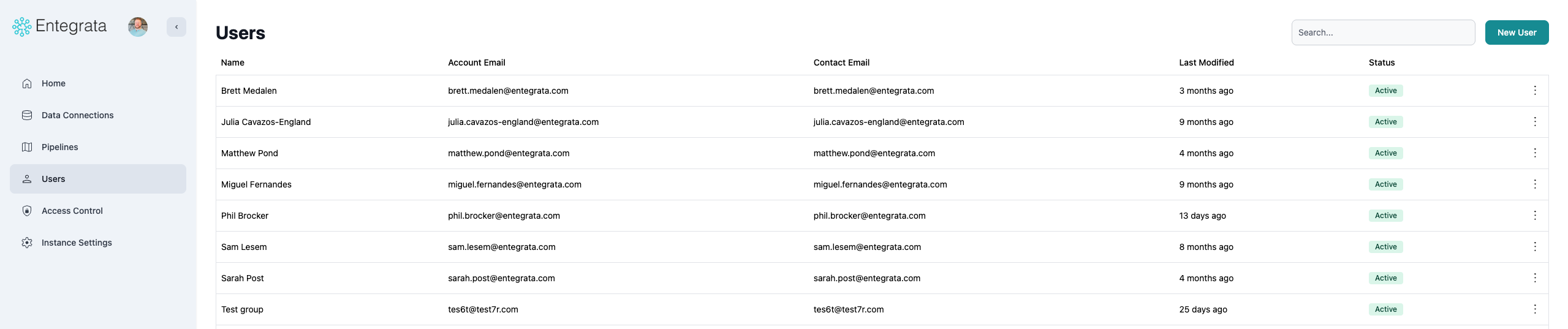
To access User Management:
1. Log into the Entegrata Admin Portal ([https://admin.entegrata.com](https://admin.entegrata.com))
2. Select **Users** from the left sidebar
 ## What's Next?
Learn how to view, add, edit, deactivate, and delete users
Common issues and solutions for user management
## What's Next?
Learn how to view, add, edit, deactivate, and delete users
Common issues and solutions for user management