> ## Documentation Index
> Fetch the complete documentation index at: https://support.entegrata.com/llms.txt
> Use this file to discover all available pages before exploring further.
# Default Permissions
> Configure base-level access permissions for canonical objects in your Lakehouse
## Overview
Default permissions define the base-level access control for each canonical object (entity type) in your Entegrata Lakehouse. These permissions apply to all resources of a specific entity type unless overridden by more specific access rules. Understanding and properly configuring default permissions is crucial for establishing a secure foundation for your data access control.
**Critical Configuration Required:** All canonical objects default to **Deny (false)** permissions when first mapped. This means no users will have access to the data until you explicitly configure permissions.
## How Default Permissions Work
Default permissions operate at the entity level and provide a baseline for access control:
1. **Entity-Level Application**: Each canonical object type (e.g., Client, Matter, Timekeeper) has its own default permission setting
2. **Global Scope**: Default permissions apply to all resources within an entity type across your entire instance
3. **Override Capability**: Specific access rules can override default permissions for targeted subjects and resources
4. **Permission Inheritance**: New resources automatically inherit the default permissions of their entity type
Default permissions are the starting point for access control. They should be set based on your organization's general access philosophy - either "default open" (allow by default) or "default closed" (deny by default).
## Access Requirements
To configure default permissions, you must have:
* Administrative privileges in the Entegrata Admin Portal
* Access to the Data Mapping configuration
* At least one mapped entity in your system
* Understanding of your organization's data access policies
## Configuring Default Permissions
### Step 1: Navigate to Entity Access Control
1. Go to **Data** → **Mapping** in the main navigation
2. Select the mapping configuration you want to modify
3. Click on the specific entity you want to configure
4. Navigate to the **Access Control** tab
 ### Step 2: View Current Default Permissions
The Access Control tab displays a card showing the current default permission setting:
### Step 2: View Current Default Permissions
The Access Control tab displays a card showing the current default permission setting:
 The permission level for viewing resources of this entity type. Can be set to:
* **Allow**: All users can view resources by default
* **Deny**: No users can view resources by default (requires explicit rules to grant access)
### Step 3: Modify Default Permissions
1. Click the **Configure** button on the Default Permissions card
2. The configuration modal will open
The permission level for viewing resources of this entity type. Can be set to:
* **Allow**: All users can view resources by default
* **Deny**: No users can view resources by default (requires explicit rules to grant access)
### Step 3: Modify Default Permissions
1. Click the **Configure** button on the Default Permissions card
2. The configuration modal will open
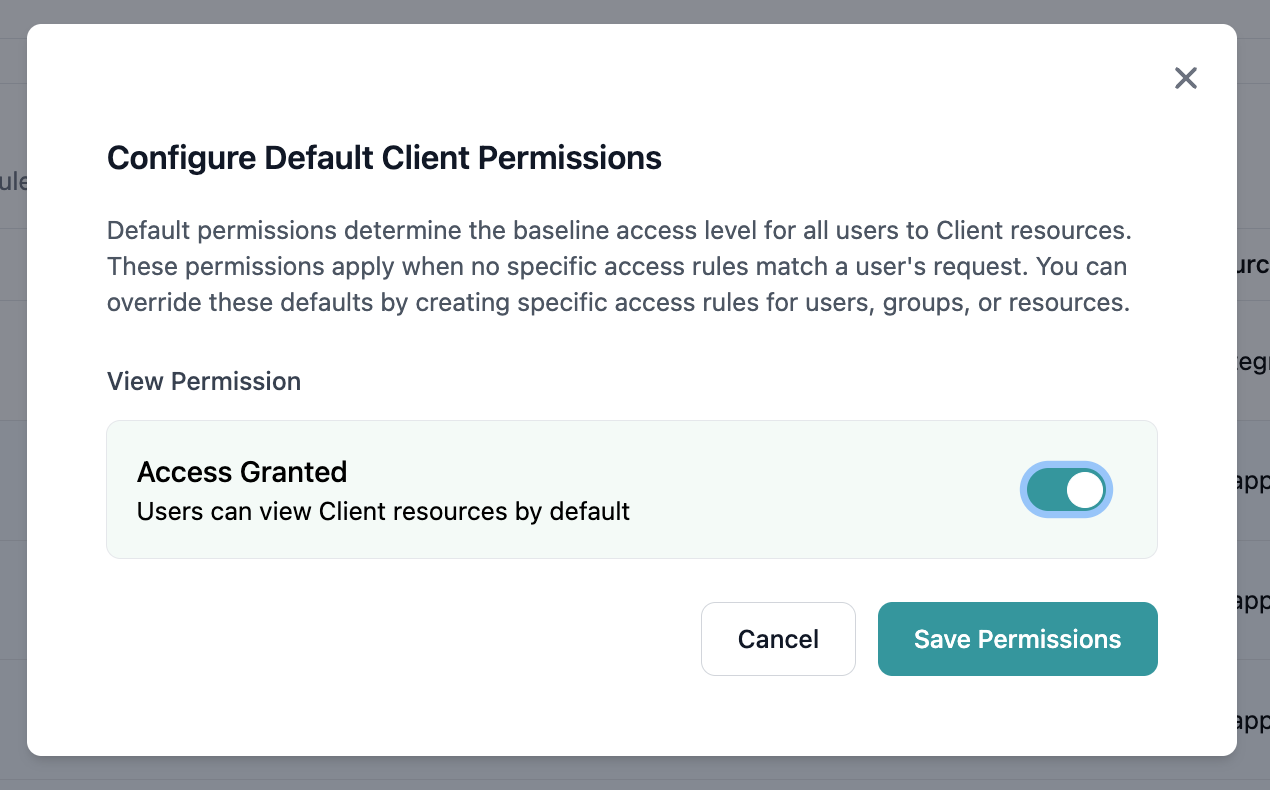
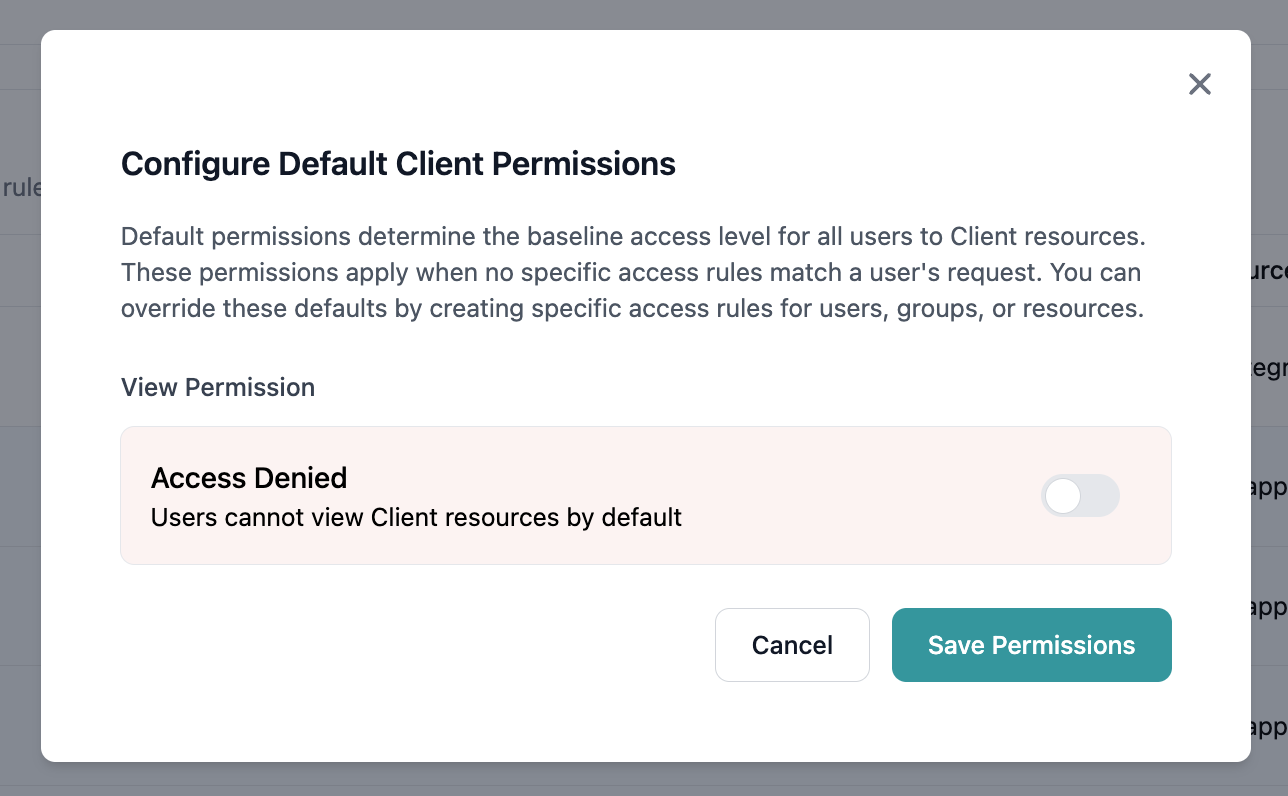 3. Toggle the permission setting:
* **Enable** (Green) = Allow access by default
* **Disable** (Red) = Deny access by default
4. Review the impact statement that explains how this setting affects access
5. Click **Save** to apply the changes
3. Toggle the permission setting:
* **Enable** (Green) = Allow access by default
* **Disable** (Red) = Deny access by default
4. Review the impact statement that explains how this setting affects access
5. Click **Save** to apply the changes
 Changing default permissions affects all resources of this entity type immediately. Ensure you understand the impact before making changes, especially when switching from Allow to Deny.
### Step 4: Verify Changes
After saving:
1. The default permissions card will update to reflect the new setting
2. The permission badge will show the current state (green for Allow, red for Deny)
3. The change is logged in the audit trail with timestamp and user information
Changing default permissions affects all resources of this entity type immediately. Ensure you understand the impact before making changes, especially when switching from Allow to Deny.
### Step 4: Verify Changes
After saving:
1. The default permissions card will update to reflect the new setting
2. The permission badge will show the current state (green for Allow, red for Deny)
3. The change is logged in the audit trail with timestamp and user information
 ## Permission Precedence
Understanding how default permissions interact with specific rules is crucial:
When a user attempts to access a resource, the system first checks the default permission for that entity type
The system then evaluates any specific rules that apply to the user (directly or through groups) and the resource
More specific rules override default permissions. A rule targeting a specific user and resource takes precedence over entity-level defaults
If multiple rules apply, an explicit Deny permission always takes precedence over Allow permissions
## Best Practices
### Choosing Your Default Strategy
**For Law Firms:** Always use Default Deny (Restrictive) approach. Law firms handle sensitive client data that requires maximum security. Starting with permissive defaults poses unacceptable risks for client confidentiality and regulatory compliance.
**When to use:**
* **Always for law firms and legal data**
* Sensitive or regulated data
* Compliance requirements
* Production environments with strict security
**Advantages:**
* Maximum security by default
* No accidental data exposure
* Explicit grants required for all access
* Clear audit trail of permissions
* Meets compliance requirements
**Implementation:**
* Set all canonical objects to Deny by default
* Create explicit rules for necessary access
* Use groups to manage access efficiently
* Document all permission grants
**Warning:** This approach is not recommended for law firms.
**Limited use cases:**
* Non-production test environments only
* Public or non-sensitive data
* Temporary development setups
**Risks:**
* Potential data exposure
* Compliance violations
* Client confidentiality breaches
* Regulatory penalties
**If used temporarily:**
* Must transition to Default Deny before production
* Requires extensive auditing
* Document why this approach was chosen
### Configuration Guidelines
**Start with Entity Classification**: Group your entities by sensitivity level and apply consistent default permissions to similar entity types.
**Document Your Decisions**: Keep a record of why specific default permissions were chosen for each entity type to help future administrators.
**Review Regularly**: Periodically review default permissions as your data and access requirements evolve.
**Test Before Production**: Use the permission testing tools to verify that default permissions work as expected before applying them to production data.
## Common Scenarios
### Scenario 1: Public Reference Data
For entity types containing non-sensitive reference data (e.g., office locations, practice areas):
* Set default permission to **Allow**
* No additional rules needed for basic access
* Add deny rules only for specific exceptions
### Scenario 2: Client Confidential Data
For entity types containing sensitive client information:
* Set default permission to **Deny**
* Create rules to grant access to authorized teams
* Use group-based rules for easier management
### Scenario 3: Mixed Sensitivity Data
For entity types with varying sensitivity levels:
* Set default permission based on the most common case
* Use rules to handle exceptions
* Consider splitting into multiple entity types if complexity grows
## Impact on Other Features
Default permissions affect several aspects of the system:
* **Data Discovery**: Users can only discover resources they have permission to view
* **Reporting**: Reports only include data the user has permission to access
* **API Access**: API calls respect default permissions and rules
* **Search Results**: Search returns only permitted resources
## Troubleshooting
### Users Can't Access Expected Data
1. Check the default permission for the entity type
2. Verify no deny rules are blocking access
3. Test permissions using the testing tools
4. Review group memberships if using group-based rules
### Users Have Unexpected Access
1. Review default permissions (may be set to Allow)
2. Check for overly broad allow rules
3. Audit group memberships
4. Use permission explorer to trace access path
### Changes Not Taking Effect
1. Allow 1-2 minutes for propagation
2. Clear user session cache if immediate update needed
3. Verify the change was saved successfully
4. Check for conflicting rules that might override defaults
## Related Topics
* [Creating Access Rules](/data/access_control/managing-rules) - Override defaults with specific rules
* [Testing Permissions](/data/access_control/testing-permissions) - Verify your configuration
* [Managing Groups](/data/access_control/managing-groups) - Organize users for rule application
* [Enabling Access Control](/data/access_control/enabling-access-control) - Initial setup steps
## Permission Precedence
Understanding how default permissions interact with specific rules is crucial:
When a user attempts to access a resource, the system first checks the default permission for that entity type
The system then evaluates any specific rules that apply to the user (directly or through groups) and the resource
More specific rules override default permissions. A rule targeting a specific user and resource takes precedence over entity-level defaults
If multiple rules apply, an explicit Deny permission always takes precedence over Allow permissions
## Best Practices
### Choosing Your Default Strategy
**For Law Firms:** Always use Default Deny (Restrictive) approach. Law firms handle sensitive client data that requires maximum security. Starting with permissive defaults poses unacceptable risks for client confidentiality and regulatory compliance.
**When to use:**
* **Always for law firms and legal data**
* Sensitive or regulated data
* Compliance requirements
* Production environments with strict security
**Advantages:**
* Maximum security by default
* No accidental data exposure
* Explicit grants required for all access
* Clear audit trail of permissions
* Meets compliance requirements
**Implementation:**
* Set all canonical objects to Deny by default
* Create explicit rules for necessary access
* Use groups to manage access efficiently
* Document all permission grants
**Warning:** This approach is not recommended for law firms.
**Limited use cases:**
* Non-production test environments only
* Public or non-sensitive data
* Temporary development setups
**Risks:**
* Potential data exposure
* Compliance violations
* Client confidentiality breaches
* Regulatory penalties
**If used temporarily:**
* Must transition to Default Deny before production
* Requires extensive auditing
* Document why this approach was chosen
### Configuration Guidelines
**Start with Entity Classification**: Group your entities by sensitivity level and apply consistent default permissions to similar entity types.
**Document Your Decisions**: Keep a record of why specific default permissions were chosen for each entity type to help future administrators.
**Review Regularly**: Periodically review default permissions as your data and access requirements evolve.
**Test Before Production**: Use the permission testing tools to verify that default permissions work as expected before applying them to production data.
## Common Scenarios
### Scenario 1: Public Reference Data
For entity types containing non-sensitive reference data (e.g., office locations, practice areas):
* Set default permission to **Allow**
* No additional rules needed for basic access
* Add deny rules only for specific exceptions
### Scenario 2: Client Confidential Data
For entity types containing sensitive client information:
* Set default permission to **Deny**
* Create rules to grant access to authorized teams
* Use group-based rules for easier management
### Scenario 3: Mixed Sensitivity Data
For entity types with varying sensitivity levels:
* Set default permission based on the most common case
* Use rules to handle exceptions
* Consider splitting into multiple entity types if complexity grows
## Impact on Other Features
Default permissions affect several aspects of the system:
* **Data Discovery**: Users can only discover resources they have permission to view
* **Reporting**: Reports only include data the user has permission to access
* **API Access**: API calls respect default permissions and rules
* **Search Results**: Search returns only permitted resources
## Troubleshooting
### Users Can't Access Expected Data
1. Check the default permission for the entity type
2. Verify no deny rules are blocking access
3. Test permissions using the testing tools
4. Review group memberships if using group-based rules
### Users Have Unexpected Access
1. Review default permissions (may be set to Allow)
2. Check for overly broad allow rules
3. Audit group memberships
4. Use permission explorer to trace access path
### Changes Not Taking Effect
1. Allow 1-2 minutes for propagation
2. Clear user session cache if immediate update needed
3. Verify the change was saved successfully
4. Check for conflicting rules that might override defaults
## Related Topics
* [Creating Access Rules](/data/access_control/managing-rules) - Override defaults with specific rules
* [Testing Permissions](/data/access_control/testing-permissions) - Verify your configuration
* [Managing Groups](/data/access_control/managing-groups) - Organize users for rule application
* [Enabling Access Control](/data/access_control/enabling-access-control) - Initial setup steps