> ## Documentation Index
> Fetch the complete documentation index at: https://support.entegrata.com/llms.txt
> Use this file to discover all available pages before exploring further.
# Enabling Access Control Ingestion
> Import existing access controls from Intapp Walls, Aderant, and Microsoft Entra.
## Overview
Access control ingestion is an **optional feature** that allows you to import and synchronize existing permission configurations from supported source systems. This feature is currently available only for **Aderant**, **Intapp Walls**, and **Microsoft Entra** data sources.
**Important:** This feature is NOT required to use access control in Entegrata. You can create system rules and groups within the admin app without enabling ingestion from one of these data sources.. This feature specifically imports existing permissions from supported sources to provide centralized visibility and management.
## Supported Data Sources
### Currently Supported
* **Intapp Walls** - Imports ethical wall configurations and restrictions
* **Aderant** - Synchronizes security rules from the FMS database
* **Microsoft Entra** - Imports groups and group memberships for use in access control
## Connection-Specific Requirements
Before enabling access control ingestion, ensure your source system meets the specific requirements for your connection type:
### Aderant Connection Requirements
The Aderant connection supports access control ingestion based on the **REVOKED flag** in the **CMS\_SECURE\_ROW** table.
**What This Means:** Access control rules are ingested by reading the REVOKED flag from CMS\_SECURE\_ROW. This flag indicates whether a user's access to a specific Aderant table or a record in an Aderant table has been revoked.
**Limitation:** Only access control rules based on the REVOKED flag are supported. Other security mechanisms in Aderant (if present) will not be synchronized at this time.
**Requirements:**
* The CMS\_SECURE\_ROW table and its parent CMS\_SECURE\_PLAN table must contain valid access control data
* The REVOKED flag in the CMS\_SECURE\_ROW table must be maintained in your Aderant database
### Intapp Walls Connection Requirements
The Intapp Walls connection requires the **Generic Extension** to be enabled in your Intapp Walls application.
**Critical Requirement:** The Generic Extension must be enabled in Intapp Walls. Without this extension, access control ingestion will not function.
**Why This Matters:** The Generic Extension populates the necessary access control tables in Intapp Walls that Entegrata uses for rule ingestion. This is the same extension used by other applications like NetDocuments to integrate with Intapp Walls.
**Requirements:**
* Generic Extension must be enabled in your Intapp Walls application
**How to Verify:**
* Check with your Intapp administrator to confirm the Generic Extension is enabled
* Verify that third-party integrations (like NetDocuments) are working, as they depend on the same extension
### Microsoft Entra Connection Requirements
The Microsoft Entra API provides **field-level governance** on its resources, and the set of activated fields is unique to each customer's configuration. Because of this, specific resources and fields must be activated **before** enabling access control data ingestion.
**Critical Requirement:** Activate the resources and fields below before enabling access control ingestion.
**Required Resources and Fields:**
| Resource | Required Fields |
| ---------------------------- | ----------------------------------- |
| `groups` | `id`, `displayName`, `description` |
| `/groups/{group-id}/members` | `__sys_id`, `__ref_groups_id`, `id` |
| `users` | `id`, `userPrincipalName` |
**User Identification:** In order to properly identify users in the access control system, map the `userPrincipalName` field to the **username** trait on the **Employment** entity. See [Mapping Fields](/data/pipeline/mapping-fields) for details on configuring entity traits.
**How to Verify:**
* Review the resource configuration for your Entra connection and confirm each resource listed above is activated with the required fields
* Confirm the `userPrincipalName` → username trait mapping exists on the Employment entity before enabling ingestion
## When to Use This Feature
Enable access control ingestion when you:
* Have Aderant, Intapp Walls, or Microsoft Entra as a data source
* Want to import existing security configurations from these systems
* Need centralized visibility of both source and custom permissions
* Want to maintain synchronization with source system permissions
Skip this feature if you:
* Only need custom access rules created in Entegrata
* Don't have existing permissions to import
## Prerequisites
Before enabling access control ingestion, ensure:
* You have administrative privileges in the Entegrata Admin Portal
* Your data source is Aderant, Intapp Walls, or Microsoft Entra
* Data mapping is complete for the connection
* Initial data collection has been completed
* You understand the access control model of your source system
## Enabling Access Control Ingestion
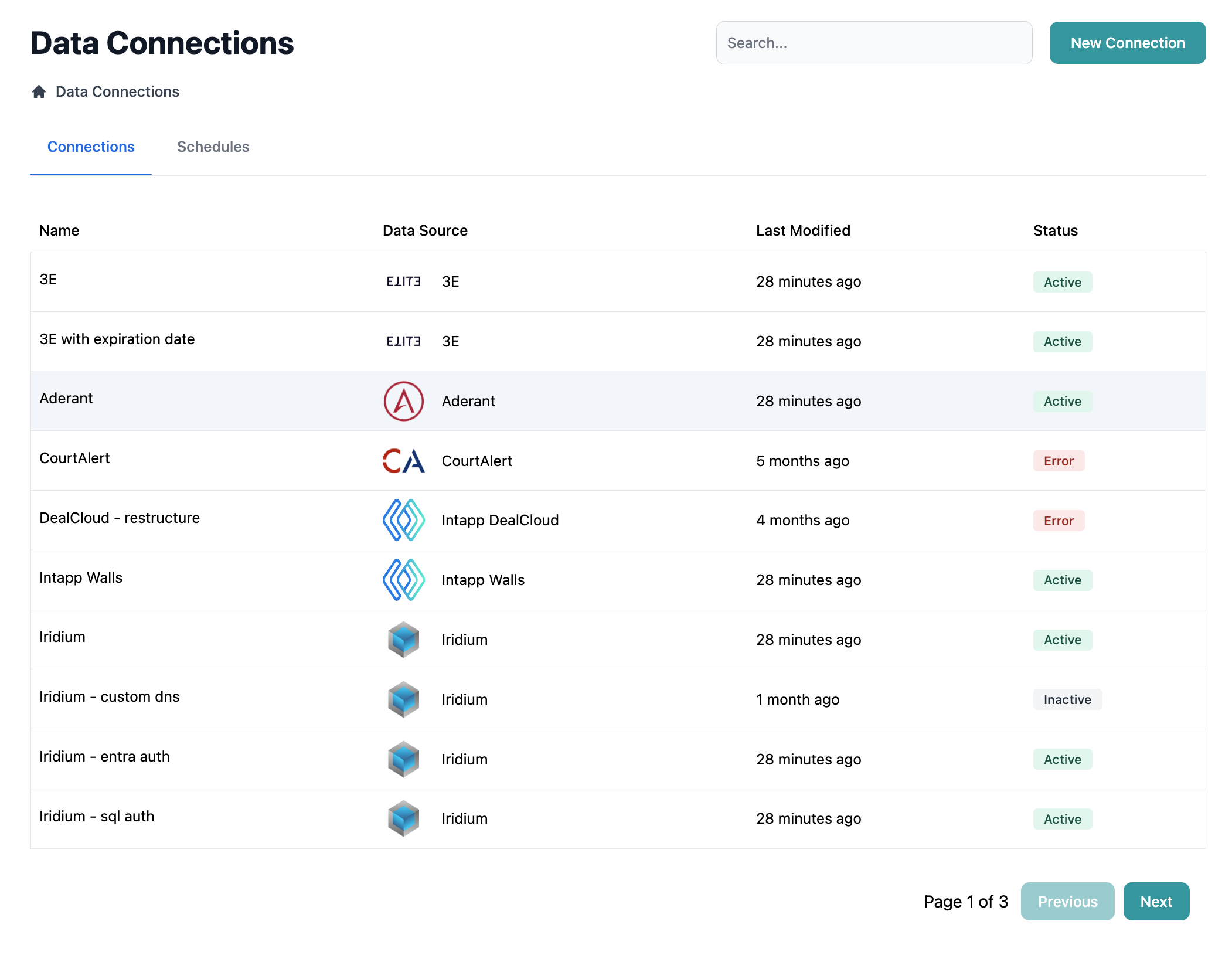
### Step 1: Navigate to Connection Settings
1. Go to **Connections** in the main navigation
2. Select the connection you want to configure
3. Click on the **Access Control** tab
 ### Step 2: Find Access Control Tab on Supported Connection
The Access Control page displays the sync status of the data source's access control resources:
### Step 2: Find Access Control Tab on Supported Connection
The Access Control page displays the sync status of the data source's access control resources:
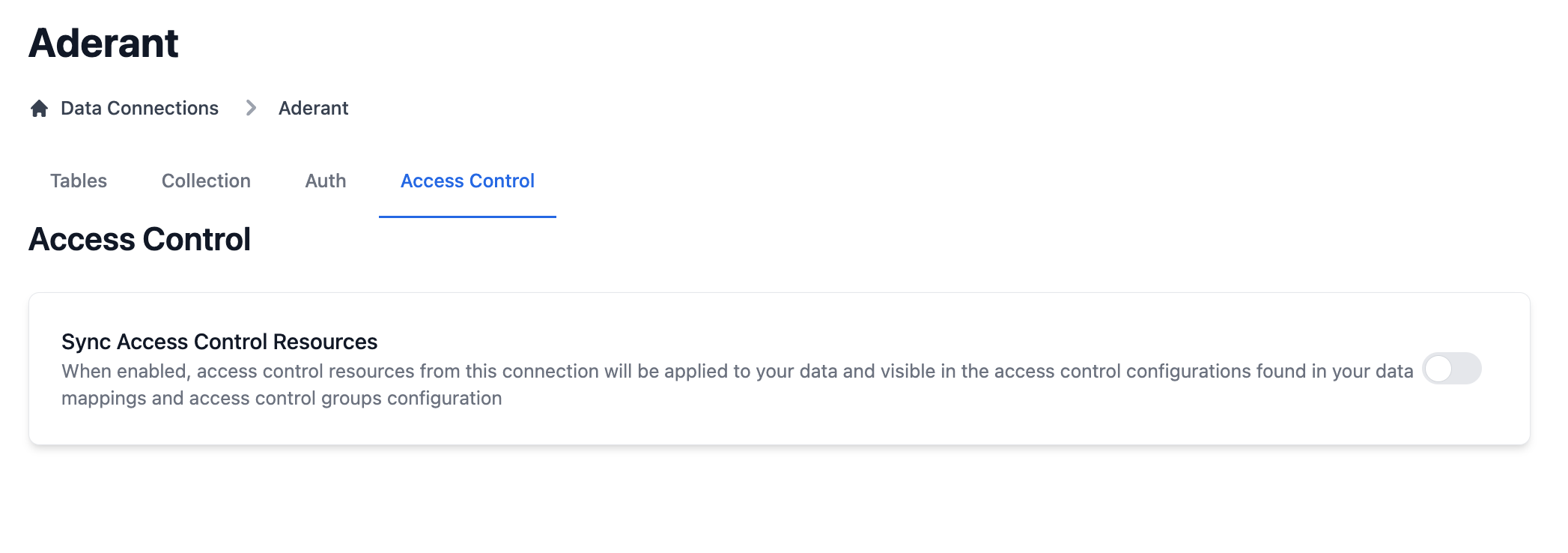 If you do not see an Access Control tab for your connection, this feature is not available for that connection type. Contact support for information about future availability.
### Step 3: Enable Access Control Sync
For supported data sources, you'll see the **Sync Access Control Resources** card:
When enabled:
* Access control resources from this connection will be collected during scheduled runs
* Permission data will be synchronized with your Entegrata instance
* Access control data will be available in data mappings and groups
To enable:
1. Toggle the **Sync Access Control Resources** switch to the enabled position
2. The system will initiate the Warden service to configure access control
3. Wait for the confirmation message
If you do not see an Access Control tab for your connection, this feature is not available for that connection type. Contact support for information about future availability.
### Step 3: Enable Access Control Sync
For supported data sources, you'll see the **Sync Access Control Resources** card:
When enabled:
* Access control resources from this connection will be collected during scheduled runs
* Permission data will be synchronized with your Entegrata instance
* Access control data will be available in data mappings and groups
To enable:
1. Toggle the **Sync Access Control Resources** switch to the enabled position
2. The system will initiate the Warden service to configure access control
3. Wait for the confirmation message
 ### Step 4: Verify Resource Discovery
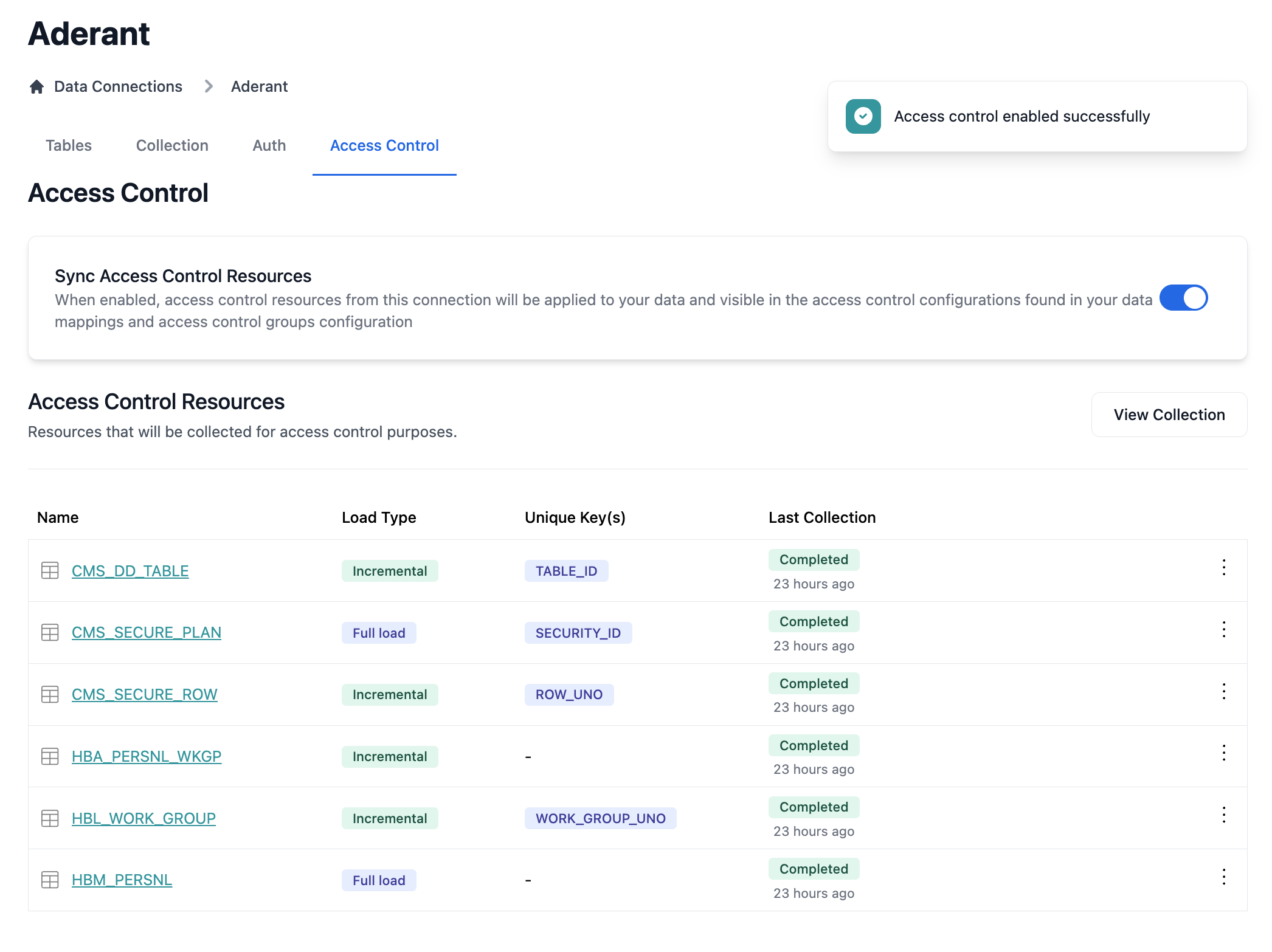
Once enabled, the system automatically discovers access control resources:
The resources table displays:
* **Name**: Resource identifier from the source system
* **Load Type**: How the resource data is collected (Full, Incremental, etc.)
* **Unique Keys**: Primary keys used for data synchronization
* **Last Collection**: When the resource was last synchronized
### Configuring Collection Settings
Access control resources can be configured using the same collection settings as regular data resources.
For detailed information on configuring collection settings, including load types, unique fields, and collection profiles, see the [Data Collection documentation](/data/collector/connections/collection-settings).
When configuring access control resources, consider:
* Using **Full Load** for permission data to ensure consistency
* Setting appropriate collection frequencies based on how often permissions change
* Selecting stable primary keys that won't change in your source system
### Troubleshooting Sync Issues
Common issues and solutions:
* Check connection credentials have sufficient permissions
* Verify source system has access control data
* Try manually refreshing the resource list
* Verify source system connectivity
* Check for permission changes in source system
* Review error logs for specific issues
* Contact support with connection ID and error details
* Ensure all required resources are enabled
* Check primary key configuration
* Verify source system data completeness
* Run full load instead of incremental
## Understanding Imported Rules and Groups
When you enable access control for a data source, Entegrata imports existing access control configurations from that system.
### How Imported Items Appear
Imported rules and groups are displayed alongside system-created items with clear visual distinctions:
* **Blue background tint** - Easily identify imported items
* **Source column** - Shows originating system (Aderant, Intapp, etc.)
* **Disabled tooltips** - Disabled editing of access control items in Entegrata
Imported rules and groups are read-only in Entegrata. To modify these configurations, you must make changes in the source system. The changes will be synchronized during the next collection run.
### Combining System and Imported Controls
Entegrata allows you to layer your own access controls on top of imported configurations:
1. **View all controls** - See both imported and system rules/groups in one place
2. **Create additional rules** - Add custom rules that work alongside imported ones
3. **Build custom groups** - Create groups that complement imported group structures
4. **Test combined permissions** - Validate how all rules work together
This hybrid approach provides:
* Complete visibility across all access controls
* Flexibility to extend source system permissions
* Centralized testing and auditing capabilities
* Preservation of source system configurations
## Impact of Enabling Access Control
### On Data Collection
* Additional resources collected during scheduled runs
* Slightly increased collection time
* More storage used for permission data
* Additional processing for permission evaluation
* Import of existing rules and groups from source systems
### On System Performance
* Initial sync may be resource-intensive
* Ongoing syncs typically have minimal impact
* Permission evaluation adds small latency to queries
* Caching minimizes performance overhead
### On User Experience
* Access control rules become available in mappings
* Permission testing tools activated
* Data filtered based on user permissions
* Group management features enabled
## Best Practices
**Plan Your Rollout**: Enable access control during a maintenance window to avoid disrupting users during initial sync.
**Start with One Source**: If you have multiple connections, enable access control for one source at a time to manage complexity.
**Document Source Permissions**: Understand how permissions work in your source system before enabling synchronization.
**Test in Non-Production**: If possible, test access control configuration in a development environment first.
## Disabling Access Control
If you need to disable access control:
1. Navigate to **Connections** → **\[Your Connection]** → **Access Control**
2. Toggle **Sync Access Control Resources** to disabled
Disabling access control:
* Stops collecting access control data
* Deletes all ingested rules and groups for the connection
## Next Steps
After enabling access control:
Set base-level permissions for your entities
Define specific permission rules
Organize users for permission management
Verify permissions work as expected
## Frequently Asked Questions
Currently, access control is only available for Aderant, Intapp Walls, and Microsoft Entra.
For most organizations, daily synchronization is sufficient. High-compliance environments may require more frequent updates.
Existing data remains unchanged. Access control only affects how users view and access data going forward.
Yes, you can configure which access control resources to collect in the resource configuration settings.
### Step 4: Verify Resource Discovery
Once enabled, the system automatically discovers access control resources:
The resources table displays:
* **Name**: Resource identifier from the source system
* **Load Type**: How the resource data is collected (Full, Incremental, etc.)
* **Unique Keys**: Primary keys used for data synchronization
* **Last Collection**: When the resource was last synchronized
### Configuring Collection Settings
Access control resources can be configured using the same collection settings as regular data resources.
For detailed information on configuring collection settings, including load types, unique fields, and collection profiles, see the [Data Collection documentation](/data/collector/connections/collection-settings).
When configuring access control resources, consider:
* Using **Full Load** for permission data to ensure consistency
* Setting appropriate collection frequencies based on how often permissions change
* Selecting stable primary keys that won't change in your source system
### Troubleshooting Sync Issues
Common issues and solutions:
* Check connection credentials have sufficient permissions
* Verify source system has access control data
* Try manually refreshing the resource list
* Verify source system connectivity
* Check for permission changes in source system
* Review error logs for specific issues
* Contact support with connection ID and error details
* Ensure all required resources are enabled
* Check primary key configuration
* Verify source system data completeness
* Run full load instead of incremental
## Understanding Imported Rules and Groups
When you enable access control for a data source, Entegrata imports existing access control configurations from that system.
### How Imported Items Appear
Imported rules and groups are displayed alongside system-created items with clear visual distinctions:
* **Blue background tint** - Easily identify imported items
* **Source column** - Shows originating system (Aderant, Intapp, etc.)
* **Disabled tooltips** - Disabled editing of access control items in Entegrata
Imported rules and groups are read-only in Entegrata. To modify these configurations, you must make changes in the source system. The changes will be synchronized during the next collection run.
### Combining System and Imported Controls
Entegrata allows you to layer your own access controls on top of imported configurations:
1. **View all controls** - See both imported and system rules/groups in one place
2. **Create additional rules** - Add custom rules that work alongside imported ones
3. **Build custom groups** - Create groups that complement imported group structures
4. **Test combined permissions** - Validate how all rules work together
This hybrid approach provides:
* Complete visibility across all access controls
* Flexibility to extend source system permissions
* Centralized testing and auditing capabilities
* Preservation of source system configurations
## Impact of Enabling Access Control
### On Data Collection
* Additional resources collected during scheduled runs
* Slightly increased collection time
* More storage used for permission data
* Additional processing for permission evaluation
* Import of existing rules and groups from source systems
### On System Performance
* Initial sync may be resource-intensive
* Ongoing syncs typically have minimal impact
* Permission evaluation adds small latency to queries
* Caching minimizes performance overhead
### On User Experience
* Access control rules become available in mappings
* Permission testing tools activated
* Data filtered based on user permissions
* Group management features enabled
## Best Practices
**Plan Your Rollout**: Enable access control during a maintenance window to avoid disrupting users during initial sync.
**Start with One Source**: If you have multiple connections, enable access control for one source at a time to manage complexity.
**Document Source Permissions**: Understand how permissions work in your source system before enabling synchronization.
**Test in Non-Production**: If possible, test access control configuration in a development environment first.
## Disabling Access Control
If you need to disable access control:
1. Navigate to **Connections** → **\[Your Connection]** → **Access Control**
2. Toggle **Sync Access Control Resources** to disabled
Disabling access control:
* Stops collecting access control data
* Deletes all ingested rules and groups for the connection
## Next Steps
After enabling access control:
Set base-level permissions for your entities
Define specific permission rules
Organize users for permission management
Verify permissions work as expected
## Frequently Asked Questions
Currently, access control is only available for Aderant, Intapp Walls, and Microsoft Entra.
For most organizations, daily synchronization is sufficient. High-compliance environments may require more frequent updates.
Existing data remains unchanged. Access control only affects how users view and access data going forward.
Yes, you can configure which access control resources to collect in the resource configuration settings.