> ## Documentation Index
> Fetch the complete documentation index at: https://support.entegrata.com/llms.txt
> Use this file to discover all available pages before exploring further.
# Testing Permissions
> Test, explore, and validate access control configurations to ensure proper permissions
## Overview
The permission testing and exploration tools allow you to validate your access control configuration, understand permission flows, and troubleshoot access issues. These tools provide visibility into how permissions are evaluated and help ensure users have appropriate access to resources.
## Testing Tools Available
Entegrata provides three main testing interfaces:
Test specific subject-object permission combinations at the entity level
View all permissions for a specific user across all resources
Test permissions for group members and understand group access patterns
## Test Permissions
### When to Use Test Permissions
Use this tool to:
* Verify if a specific user can access a specific resource
* Understand which rules determine access decisions
* Troubleshoot unexpected access grants or denials
### Accessing Test Permissions
Test Permissions can be accessed from the entity level page:
**From Entity Access Control:**
1. Navigate to **Data** → **Mapping**
2. Select your mapping and entity
3. Go to the **Access Control** tab
4. Click **Test Permissions** in the toolbar
 ### Using Test Permissions
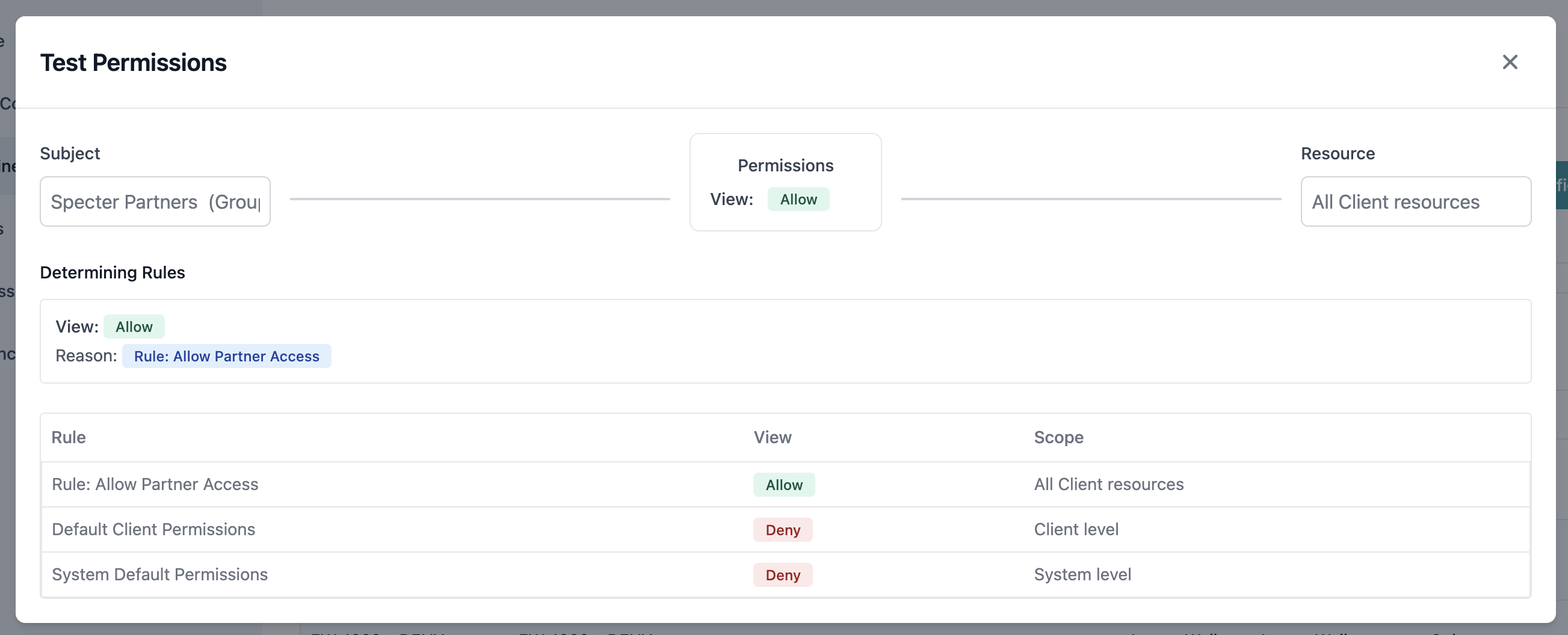
The Test Permissions modal provides a visual interface for permission testing:
### Using Test Permissions
The Test Permissions modal provides a visual interface for permission testing:
 Choose who you're testing access for:
* Start typing to search users or groups
* Select from the dropdown list
* Both actors and groups appear in the combined list
* Selected subject appears on the left side
Choose what resource to test:
* Leave empty to test entity-level permissions
* Select specific resource from dropdown
* Search by resource name or ID
* Selected resource appears on the right side
Click the **Play** button between subject and resource:
* The test executes real time evaluation of permissions
* Connection lines visualize the relationship
* Permission result displays in the center
The result shows:
* Permission badge (green Allow / red Deny)
* Which rules contributed to the decision
* Rule precedence and evaluation order
* Final permission determination
Choose who you're testing access for:
* Start typing to search users or groups
* Select from the dropdown list
* Both actors and groups appear in the combined list
* Selected subject appears on the left side
Choose what resource to test:
* Leave empty to test entity-level permissions
* Select specific resource from dropdown
* Search by resource name or ID
* Selected resource appears on the right side
Click the **Play** button between subject and resource:
* The test executes real time evaluation of permissions
* Connection lines visualize the relationship
* Permission result displays in the center
The result shows:
* Permission badge (green Allow / red Deny)
* Which rules contributed to the decision
* Rule precedence and evaluation order
* Final permission determination
 ### Understanding Test Results
The results panel displays:
* **Allow** (green badge): Subject has view access
* **Deny** (red badge): Subject is blocked from access
Shows all rules that affected the decision:
* Rule name and description
* Permission type (Allow/Deny)
* Precedence level
* Why the rule applies
Explains how the final permission was determined:
* Default permission consideration
* Rule evaluation order
* Precedence conflicts resolution
* Final decision reasoning
## Explore Actor Access
### Purpose
Actor exploration provides a comprehensive view of an individual's access to all resources across your entire system.
### Starting Actor Exploration
1. Go to **Access Control** → **Actors**
2. Click **Explore Actor** in the toolbar
3. The Actor Explorer modal opens
### Understanding Test Results
The results panel displays:
* **Allow** (green badge): Subject has view access
* **Deny** (red badge): Subject is blocked from access
Shows all rules that affected the decision:
* Rule name and description
* Permission type (Allow/Deny)
* Precedence level
* Why the rule applies
Explains how the final permission was determined:
* Default permission consideration
* Rule evaluation order
* Precedence conflicts resolution
* Final decision reasoning
## Explore Actor Access
### Purpose
Actor exploration provides a comprehensive view of an individual's access to all resources across your entire system.
### Starting Actor Exploration
1. Go to **Access Control** → **Actors**
2. Click **Explore Actor** in the toolbar
3. The Actor Explorer modal opens
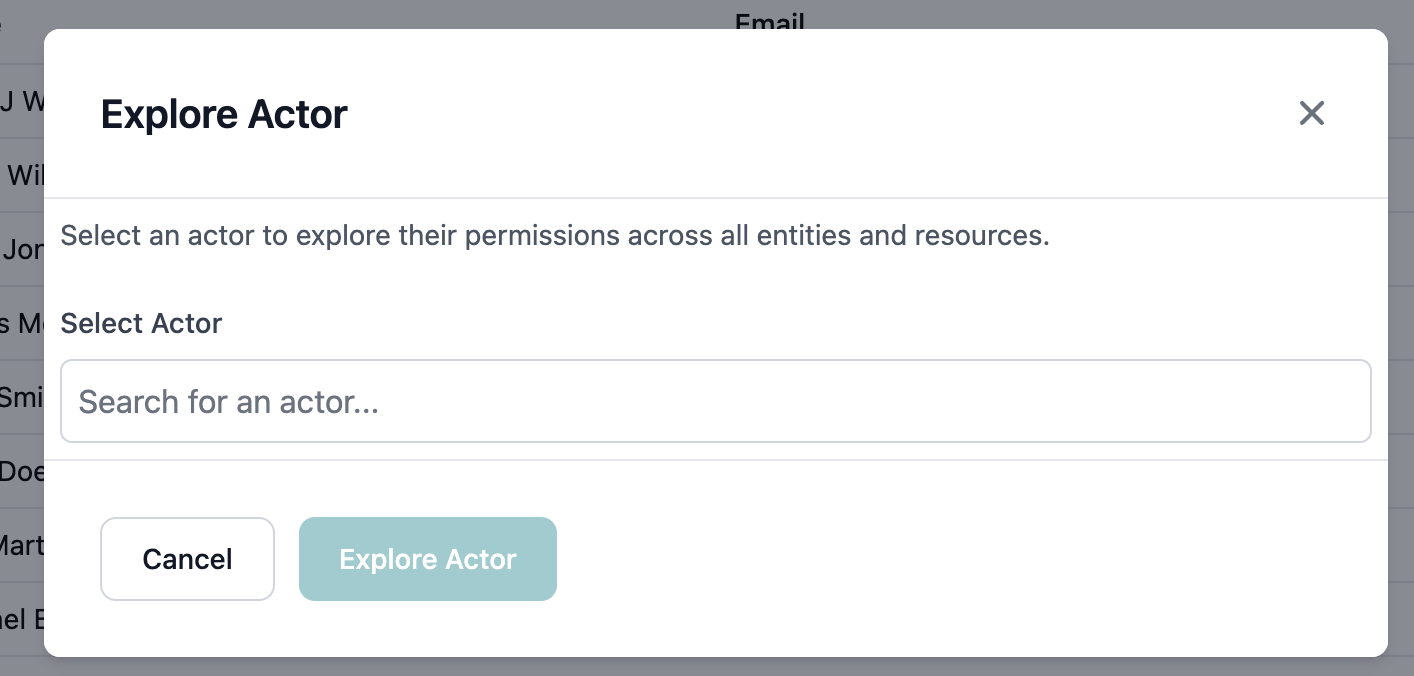 Search and select the user to explore:
* Type to search by name
* Select from the dropdown
* Click **Explore** to proceed
The exploration shows all entity types:
* Entity type and name
* Aggregated permission level
* Click an entity that shows an exception count
Click an entity to see resource details:
* List of resource exceptions
* Individual resource permissions
* Navigation breadcrumb to return
### Actor Access Views
#### Entity Level View
Search and select the user to explore:
* Type to search by name
* Select from the dropdown
* Click **Explore** to proceed
The exploration shows all entity types:
* Entity type and name
* Aggregated permission level
* Click an entity that shows an exception count
Click an entity to see resource details:
* List of resource exceptions
* Individual resource permissions
* Navigation breadcrumb to return
### Actor Access Views
#### Entity Level View
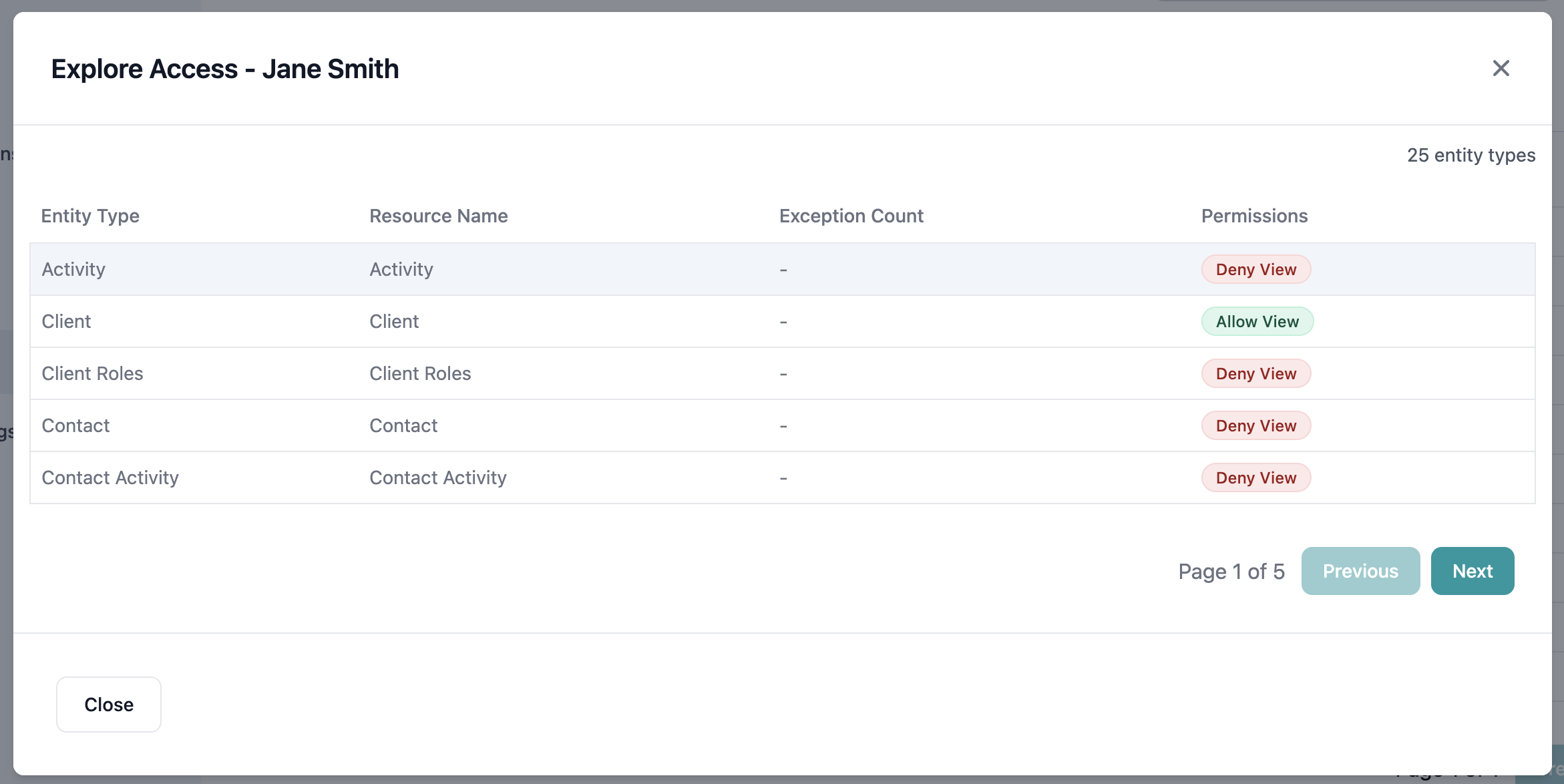 The entity view displays:
* **Entity Type**: Canonical object type
* **Resource Name**: Number of accessible resources
* **Exception Count**: Resources with access opposite of entity level
* **Permission Badge**: Aggregated access level
Navigation:
* Click any entity row to see resources
* Use pagination for large entity lists
* Sort by name or resource count
#### Resource Level View
The entity view displays:
* **Entity Type**: Canonical object type
* **Resource Name**: Number of accessible resources
* **Exception Count**: Resources with access opposite of entity level
* **Permission Badge**: Aggregated access level
Navigation:
* Click any entity row to see resources
* Use pagination for large entity lists
* Sort by name or resource count
#### Resource Level View
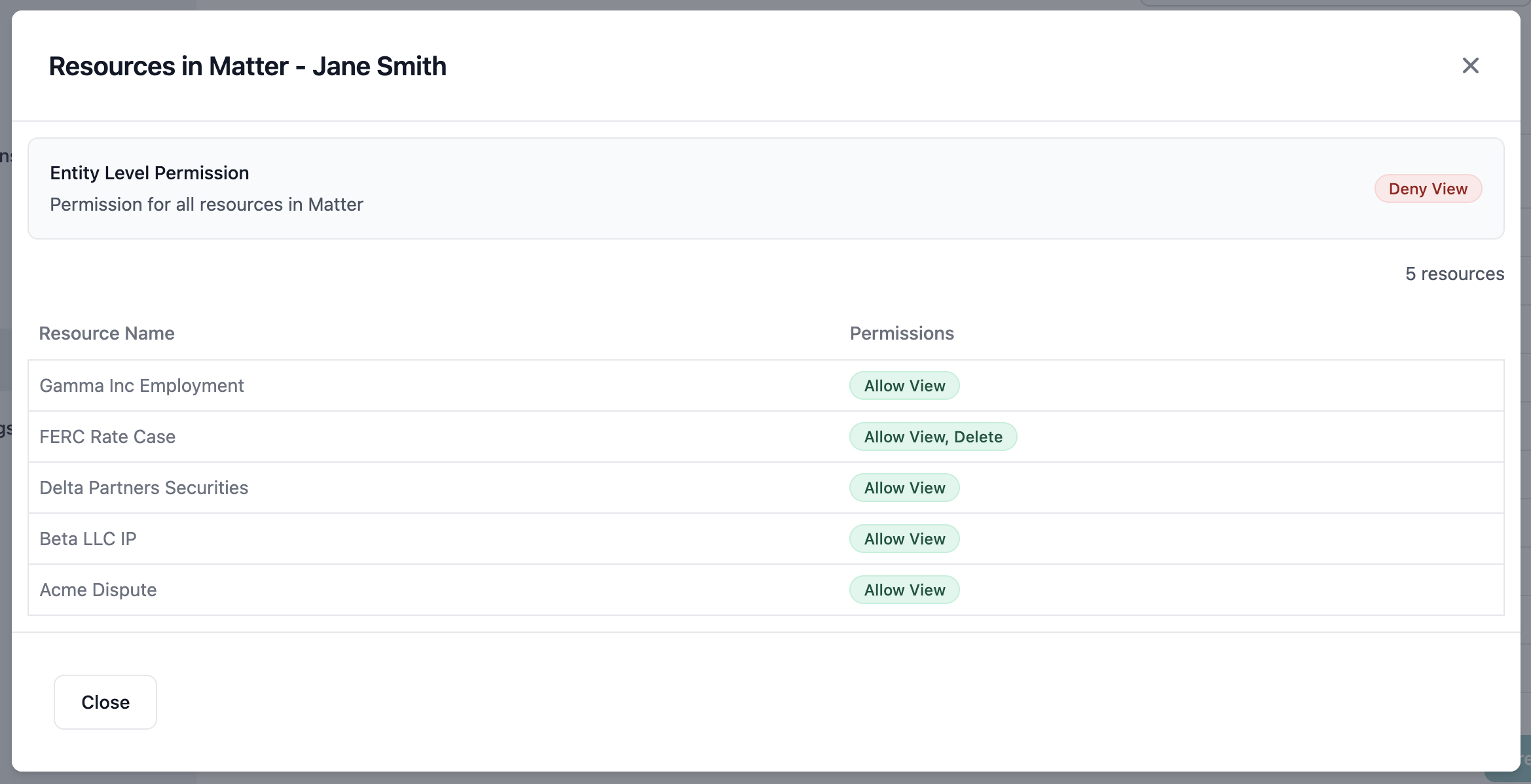 The resource view shows:
* **Breadcrumb**: Path back to entity list
* **Entity Summary**: Overall entity permissions
* **Resource List**: Individual resources
* **Resource Details**: Name and permissions
Features:
* Paginated resource list
* Individual permission badges
* Back navigation to entity view
### Interpreting Actor Exploration
Common patterns to look for:
* **Full Access**: Allow badge on all entities
* **Limited Access**: Mix of Allow and Deny badges
* **No Access**: All Deny or no entities shown
* **Exceptions**: High exception counts indicate complex rules
## Group Permission Testing
### Accessing Group Tests
To test group-level permissions:
1. Navigate to **Access Control** → **Groups**
2. Click on a group to view details
3. Click **Test Permissions** button
The resource view shows:
* **Breadcrumb**: Path back to entity list
* **Entity Summary**: Overall entity permissions
* **Resource List**: Individual resources
* **Resource Details**: Name and permissions
Features:
* Paginated resource list
* Individual permission badges
* Back navigation to entity view
### Interpreting Actor Exploration
Common patterns to look for:
* **Full Access**: Allow badge on all entities
* **Limited Access**: Mix of Allow and Deny badges
* **No Access**: All Deny or no entities shown
* **Exceptions**: High exception counts indicate complex rules
## Group Permission Testing
### Accessing Group Tests
To test group-level permissions:
1. Navigate to **Access Control** → **Groups**
2. Click on a group to view details
3. Click **Test Permissions** button
 ### Testing Options
The Group Permissions Test modal offers two modes:
### Testing Options
The Group Permissions Test modal offers two modes:
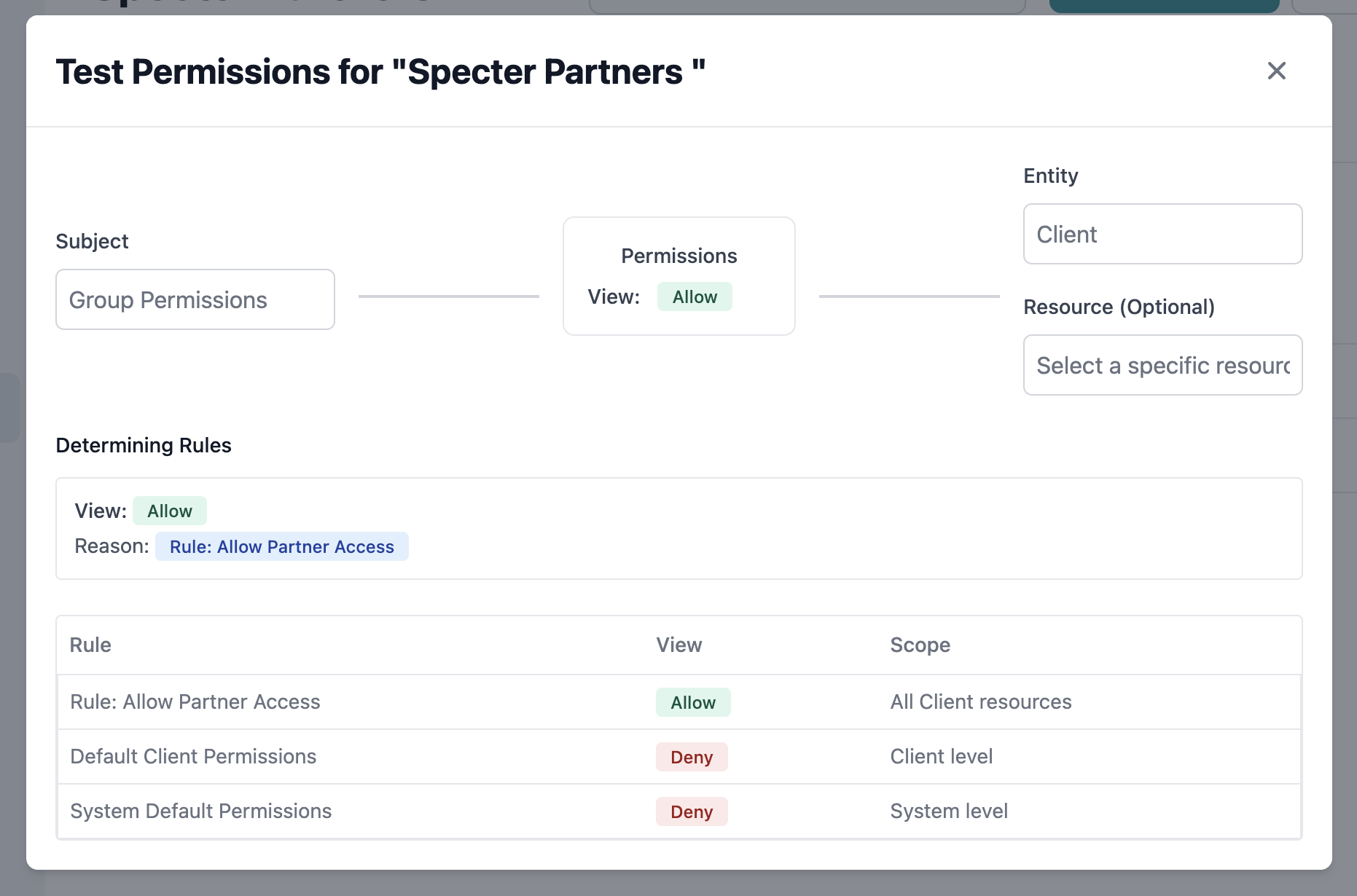 Tests permissions that apply to the group as a whole:
* Select "Group Permissions" as the subject
* Choose entity and optionally resource
* Run test to see group-level access
* Results show rules targeting the group
Tests permissions for individual group members:
* Select specific member from dropdown
* Shows member name
* Choose entity and resource to test
* Results include both individual and group rules
### Group Test Workflow
Choose between:
* Group Permissions (group as a whole)
* Specific member (individual in context of group)
Pick the entity type to test:
* Loads all available entities
* Shows entity names and types
For specific resource testing:
* Available resources load based on entity
* Leave empty for entity-level test
* Search to find specific resources
Click play button to run test:
* Visual flow shows test configuration
* Results appear immediately
* Detailed rule explanation provided
## Exploring Rules
### Rule Impact Preview
When creating or editing a rule, use the Explore tab to preview impact:
Tests permissions that apply to the group as a whole:
* Select "Group Permissions" as the subject
* Choose entity and optionally resource
* Run test to see group-level access
* Results show rules targeting the group
Tests permissions for individual group members:
* Select specific member from dropdown
* Shows member name
* Choose entity and resource to test
* Results include both individual and group rules
### Group Test Workflow
Choose between:
* Group Permissions (group as a whole)
* Specific member (individual in context of group)
Pick the entity type to test:
* Loads all available entities
* Shows entity names and types
For specific resource testing:
* Available resources load based on entity
* Leave empty for entity-level test
* Search to find specific resources
Click play button to run test:
* Visual flow shows test configuration
* Results appear immediately
* Detailed rule explanation provided
## Exploring Rules
### Rule Impact Preview
When creating or editing a rule, use the Explore tab to preview impact:
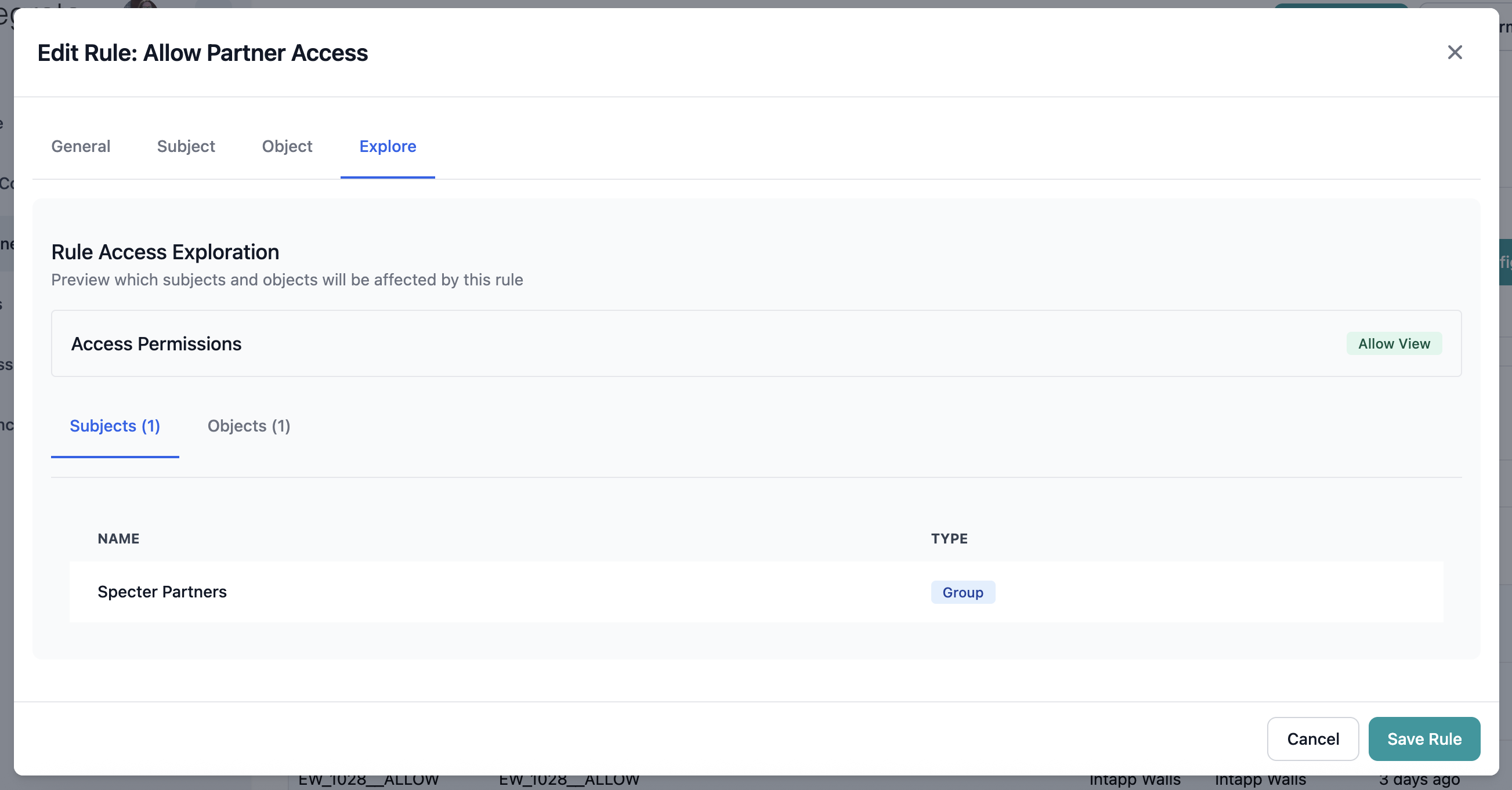 The exploration shows:
* **Affected Subjects**: Users and groups covered by the rule
* **Affected Objects**: Resources the rule applies to
* **Permission Impact**: How the rule changes access
Always review the Explore tab before saving rules to ensure they affect only intended subjects and objects.
### Understanding Rule Exploration
The Explore tab provides counts and samples:
* Total count of affected subjects
* List of affected subjects
* Groups included
* Total count of affected resources
* List of affected resources
* Resource type breakdown
## Best Practices for Testing
### Testing Strategy
**Test Early and Often**: Test permissions during configuration, not after deployment.
**Use Representative Examples**: Test with actual users and resources that represent common use cases.
**Document Test Cases**: Keep a record of test scenarios for regression testing after changes.
**Test Edge Cases**: Include tests for new users, archived resources, and boundary conditions.
### Systematic Testing Approach
Verify default permissions work as expected:
* Test with user having no specific rules
* Confirm entity-level defaults apply
* Document baseline behavior
Validate individual rules:
* Test each rule in isolation
* Verify subject selection works
* Confirm resource targeting is correct
Check rule interactions:
* Test overlapping rules
* Verify precedence works correctly
* Confirm deny overrides allow
Validate group-based access:
* Test group membership inheritance
* Verify nested groups work
* Check dynamic membership filters
Use actual use cases:
* Test common user workflows
* Verify department access patterns
* Validate compliance requirements
## Troubleshooting Access Issues
### Common Problems and Solutions
**Diagnosis steps:**
1. Use Test Permissions with user and resource
2. Check if default is Deny
3. Look for blocking Deny rules
4. Verify user group memberships
5. Check resource exists and is active
**Common fixes:**
* Add Allow rule for user/group
* Remove conflicting Deny rule
* Add user to appropriate group
* Adjust default permissions
**Diagnosis steps:**
1. Use Actor Explorer to see all access
2. Test specific concerning resources
3. Review applied rules
4. Check for overly broad Allow rules
5. Verify group memberships
**Common fixes:**
* Add specific Deny rule
* Narrow existing Allow rules
* Remove user from groups
* Change default from Allow to Deny
**Diagnosis steps:**
1. Wait 1-2 minutes for propagation
2. Re-test permissions
3. Check if changes were saved
4. Verify no errors during save
**Common fixes:**
* Clear browser cache
* Refresh the page
* Re-save the configuration
* Contact support if persists
**Diagnosis steps:**
1. Verify testing correct user
2. Check testing correct resource
3. Confirm test environment matches production
4. Review any system-level overrides
**Common fixes:**
* Ensure consistent testing parameters
* Check for environment differences
* Verify no cached permissions
* Review audit logs
## Advanced Testing Scenarios
### Scenario 1: Multi-Level Inheritance
Test complex permission inheritance:
```
User → Group A → Group B → Rule
```
Verify permissions flow correctly through nested groups.
### Scenario 2: Time-Based Access
Test temporal permissions:
* Filter-based rules with date conditions
* Verify access changes over time
* Test expiration handling
### Scenario 3: Conflicting Rules
Test precedence with conflicts:
* User-specific Deny
* Group-level Allow
* Default Allow
* Verify Deny wins
### Scenario 4: Dynamic Membership
Test filter-based groups:
* Change user attributes
* Verify group membership updates
* Test resulting permission changes
## Next Steps
Create and manage access control rules
Organize users into access control groups
Configure entity-level default permissions
Return to access control overview
## Getting Help
If you encounter issues with permission testing:
1. **Check Documentation**: Review relevant sections for your scenario
2. **Contact Support**: Include test parameters and results
3. **Provide Context**: Share rules, groups, and expected behavior
4. **Include Screenshots**: Capture test configurations and results
The exploration shows:
* **Affected Subjects**: Users and groups covered by the rule
* **Affected Objects**: Resources the rule applies to
* **Permission Impact**: How the rule changes access
Always review the Explore tab before saving rules to ensure they affect only intended subjects and objects.
### Understanding Rule Exploration
The Explore tab provides counts and samples:
* Total count of affected subjects
* List of affected subjects
* Groups included
* Total count of affected resources
* List of affected resources
* Resource type breakdown
## Best Practices for Testing
### Testing Strategy
**Test Early and Often**: Test permissions during configuration, not after deployment.
**Use Representative Examples**: Test with actual users and resources that represent common use cases.
**Document Test Cases**: Keep a record of test scenarios for regression testing after changes.
**Test Edge Cases**: Include tests for new users, archived resources, and boundary conditions.
### Systematic Testing Approach
Verify default permissions work as expected:
* Test with user having no specific rules
* Confirm entity-level defaults apply
* Document baseline behavior
Validate individual rules:
* Test each rule in isolation
* Verify subject selection works
* Confirm resource targeting is correct
Check rule interactions:
* Test overlapping rules
* Verify precedence works correctly
* Confirm deny overrides allow
Validate group-based access:
* Test group membership inheritance
* Verify nested groups work
* Check dynamic membership filters
Use actual use cases:
* Test common user workflows
* Verify department access patterns
* Validate compliance requirements
## Troubleshooting Access Issues
### Common Problems and Solutions
**Diagnosis steps:**
1. Use Test Permissions with user and resource
2. Check if default is Deny
3. Look for blocking Deny rules
4. Verify user group memberships
5. Check resource exists and is active
**Common fixes:**
* Add Allow rule for user/group
* Remove conflicting Deny rule
* Add user to appropriate group
* Adjust default permissions
**Diagnosis steps:**
1. Use Actor Explorer to see all access
2. Test specific concerning resources
3. Review applied rules
4. Check for overly broad Allow rules
5. Verify group memberships
**Common fixes:**
* Add specific Deny rule
* Narrow existing Allow rules
* Remove user from groups
* Change default from Allow to Deny
**Diagnosis steps:**
1. Wait 1-2 minutes for propagation
2. Re-test permissions
3. Check if changes were saved
4. Verify no errors during save
**Common fixes:**
* Clear browser cache
* Refresh the page
* Re-save the configuration
* Contact support if persists
**Diagnosis steps:**
1. Verify testing correct user
2. Check testing correct resource
3. Confirm test environment matches production
4. Review any system-level overrides
**Common fixes:**
* Ensure consistent testing parameters
* Check for environment differences
* Verify no cached permissions
* Review audit logs
## Advanced Testing Scenarios
### Scenario 1: Multi-Level Inheritance
Test complex permission inheritance:
```
User → Group A → Group B → Rule
```
Verify permissions flow correctly through nested groups.
### Scenario 2: Time-Based Access
Test temporal permissions:
* Filter-based rules with date conditions
* Verify access changes over time
* Test expiration handling
### Scenario 3: Conflicting Rules
Test precedence with conflicts:
* User-specific Deny
* Group-level Allow
* Default Allow
* Verify Deny wins
### Scenario 4: Dynamic Membership
Test filter-based groups:
* Change user attributes
* Verify group membership updates
* Test resulting permission changes
## Next Steps
Create and manage access control rules
Organize users into access control groups
Configure entity-level default permissions
Return to access control overview
## Getting Help
If you encounter issues with permission testing:
1. **Check Documentation**: Review relevant sections for your scenario
2. **Contact Support**: Include test parameters and results
3. **Provide Context**: Share rules, groups, and expected behavior
4. **Include Screenshots**: Capture test configurations and results