> ## Documentation Index
> Fetch the complete documentation index at: https://support.entegrata.com/llms.txt
> Use this file to discover all available pages before exploring further.
# Create Connections
> Step-by-step guide to add new data source connections
## Overview
Creating a new connection establishes the link between Entegrata and your data source. This process involves selecting a data source type, providing authentication credentials, and configuring connection parameters.
Ensure you have the necessary credentials and network access before creating a connection. Test connectivity from your network if possible.
## Access Requirements
To create connections, you must:
* Be logged into the Entegrata Admin Portal
* Have administrative privileges for your instance
* Have valid credentials for the data source you're connecting to
* Ensure the data source is accessible from Entegrata's network
## Creating a New Connection
### Step 1: Navigate to New Connection
1. Go to **Collectors** in the main navigation
2. Click the **New Connection** button in the top-right corner
 ### Step 2: Select Data Source Type
Choose your data source from the available options.
### Step 2: Select Data Source Type
Choose your data source from the available options.
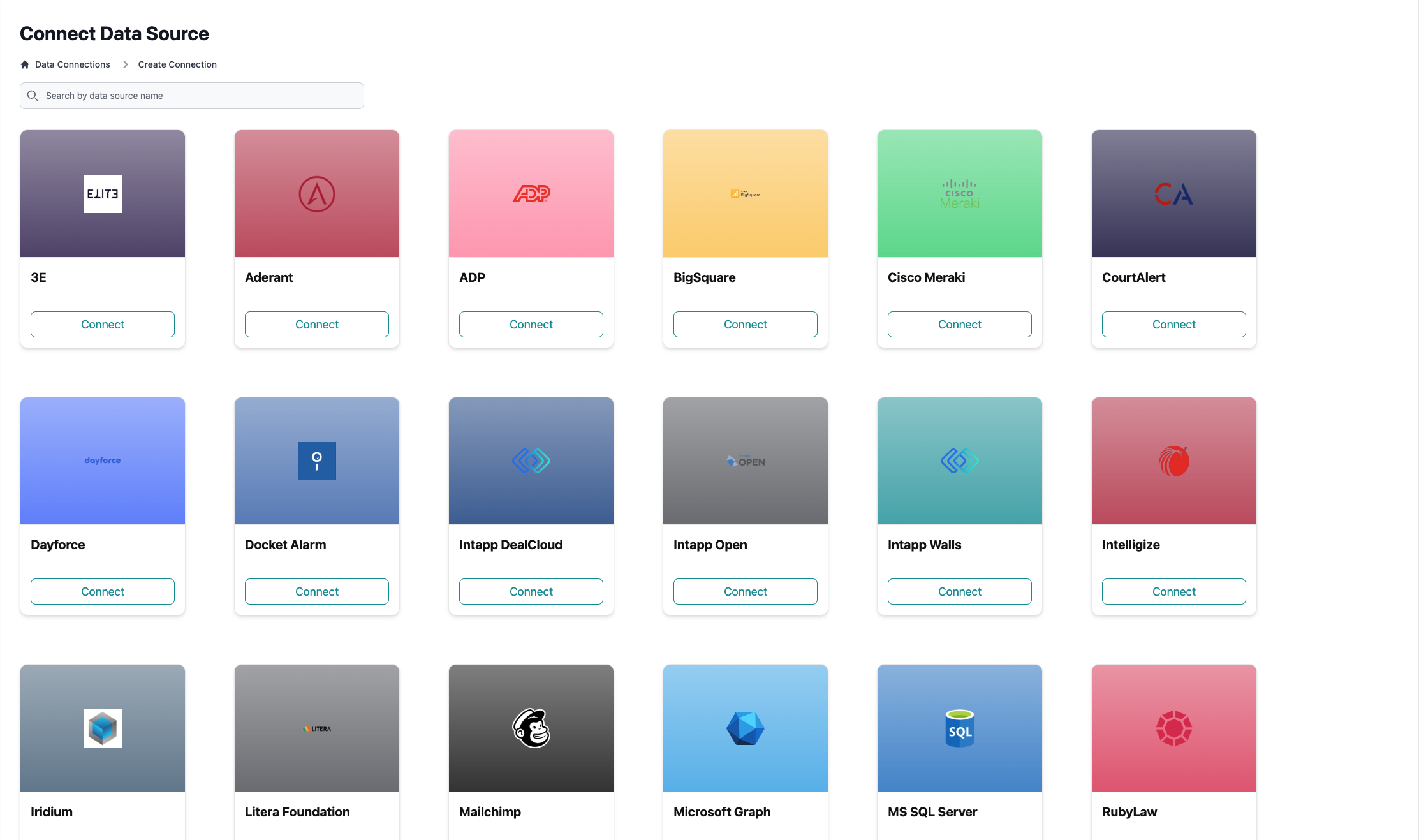 #### Available Data Sources
The full list of data connectors can be found at [https://www.entegrata.com](https://www.entegrata.com)
Don't see your data source? Contact your Entegrata Customer Experience Manager to inquire about custom connectors or upcoming integrations.
### Step 3: Configure Connection Details
After selecting a data source, you'll see a configuration form with fields specific to that source type.
#### Available Data Sources
The full list of data connectors can be found at [https://www.entegrata.com](https://www.entegrata.com)
Don't see your data source? Contact your Entegrata Customer Experience Manager to inquire about custom connectors or upcoming integrations.
### Step 3: Configure Connection Details
After selecting a data source, you'll see a configuration form with fields specific to that source type.
 #### Universal Fields
A unique, descriptive name for this connection
**Best practices**:
* Include environment: "Production SQL - Finance"
* Include purpose: "DealCloud - Deal Data"
* Avoid generic names like "Connection 1"
* Must be unique across all your connections
If you enter a nickname that already exists, you'll see an error and need to choose a different name.
When authentication credentials expire and need renewal
**Why set this**:
* Receive notifications before credentials expire
* Plan credential rotation in advance
* Avoid unexpected connection failures
#### Universal Fields
A unique, descriptive name for this connection
**Best practices**:
* Include environment: "Production SQL - Finance"
* Include purpose: "DealCloud - Deal Data"
* Avoid generic names like "Connection 1"
* Must be unique across all your connections
If you enter a nickname that already exists, you'll see an error and need to choose a different name.
When authentication credentials expire and need renewal
**Why set this**:
* Receive notifications before credentials expire
* Plan credential rotation in advance
* Avoid unexpected connection failures
 #### Database Connection Fields
For SQL databases (SQL Server, etc.):
Server hostname or IP address
Examples:
* `sqlserver.company.com`
* `192.168.1.100`
* `sql.azure.microsoft.com`
Database server port (defaults to standard port for each database type)
Default ports:
* SQL Server: 1433
Name of the database to connect to
The specific database is required and is used to determine which resources can be discovered and collected. If you need to connect to multiple databases, you can create multiple connections.
### Required SQL Permissions
To automatically throttle the collection of data based on the amount of data being collected, Entegrata needs the following permissions:
Grant VIEW DATABASE STATE
Grant VIEW SERVER STATE permissions for:
* sys.dm\_exec\_sessions
* sys.dm\_exec\_connections
* sys.dm\_exec\_requests
#### API Connection Fields
For cloud platforms (DealCloud, Zoom, ADP, UKG, etc.):
Base URL for the API (often pre-filled)
Authentication token or API key for the platform
Your organization or tenant identifier (if applicable)
This is a non-exhaustive list of fields that may be required for each data source type.
Your specific data source may require additional fields.
Please contact Entegrata Support for assistance if you need help configuring your connection.
### Step 4: Configure Authentication
Select the authentication method and provide credentials.
#### SQL Authentication
Standard username and password authentication:
#### Database Connection Fields
For SQL databases (SQL Server, etc.):
Server hostname or IP address
Examples:
* `sqlserver.company.com`
* `192.168.1.100`
* `sql.azure.microsoft.com`
Database server port (defaults to standard port for each database type)
Default ports:
* SQL Server: 1433
Name of the database to connect to
The specific database is required and is used to determine which resources can be discovered and collected. If you need to connect to multiple databases, you can create multiple connections.
### Required SQL Permissions
To automatically throttle the collection of data based on the amount of data being collected, Entegrata needs the following permissions:
Grant VIEW DATABASE STATE
Grant VIEW SERVER STATE permissions for:
* sys.dm\_exec\_sessions
* sys.dm\_exec\_connections
* sys.dm\_exec\_requests
#### API Connection Fields
For cloud platforms (DealCloud, Zoom, ADP, UKG, etc.):
Base URL for the API (often pre-filled)
Authentication token or API key for the platform
Your organization or tenant identifier (if applicable)
This is a non-exhaustive list of fields that may be required for each data source type.
Your specific data source may require additional fields.
Please contact Entegrata Support for assistance if you need help configuring your connection.
### Step 4: Configure Authentication
Select the authentication method and provide credentials.
#### SQL Authentication
Standard username and password authentication:
 Database login username
Database login password (encrypted and stored securely)
#### Windows Authentication (coming soon)
Domain-based authentication for on-premise SQL Server:
Windows domain name
Domain username
Domain password
Windows Authentication requires network connectivity to your domain controller.
#### Azure Entra ID (Managed Identity)
Passwordless authentication for Azure-hosted environments:
With Managed Identity, no credentials need to be entered. Authentication is handled automatically by your Azure tenant. Entegrata uses the managed identity assigned to the hosting environment to authenticate directly with your Azure data sources.
Managed Identity is the recommended authentication method for Azure-hosted data sources. It eliminates the need to manage and rotate credentials, reducing operational overhead and improving security.
#### Azure Entra Service Principal
Application-based authentication using Azure AD app registration credentials:
Azure Active Directory tenant identifier
Application (client) ID from Azure AD app registration
Client secret from Azure AD app registration
Client certificate from Azure AD app registration
Provide either a **Client Secret** or a **Client Certificate** — one of the two is required.
Service Principal credentials (client secrets and certificates) expire and must be rotated. Always set the **Secret Expiration** field to track when rotation is needed.
#### Selecting Authentication Type
For data sources that support multiple authentication methods (like SQL Server), choose from the dropdown:
Database login username
Database login password (encrypted and stored securely)
#### Windows Authentication (coming soon)
Domain-based authentication for on-premise SQL Server:
Windows domain name
Domain username
Domain password
Windows Authentication requires network connectivity to your domain controller.
#### Azure Entra ID (Managed Identity)
Passwordless authentication for Azure-hosted environments:
With Managed Identity, no credentials need to be entered. Authentication is handled automatically by your Azure tenant. Entegrata uses the managed identity assigned to the hosting environment to authenticate directly with your Azure data sources.
Managed Identity is the recommended authentication method for Azure-hosted data sources. It eliminates the need to manage and rotate credentials, reducing operational overhead and improving security.
#### Azure Entra Service Principal
Application-based authentication using Azure AD app registration credentials:
Azure Active Directory tenant identifier
Application (client) ID from Azure AD app registration
Client secret from Azure AD app registration
Client certificate from Azure AD app registration
Provide either a **Client Secret** or a **Client Certificate** — one of the two is required.
Service Principal credentials (client secrets and certificates) expire and must be rotated. Always set the **Secret Expiration** field to track when rotation is needed.
#### Selecting Authentication Type
For data sources that support multiple authentication methods (like SQL Server), choose from the dropdown:
 The form fields update based on your selection.
### Step 5: Test and Save Connection
1. Review all entered information for accuracy
2. Click **Connect** to test the connection and save it
The form fields update based on your selection.
### Step 5: Test and Save Connection
1. Review all entered information for accuracy
2. Click **Connect** to test the connection and save it
 #### What Happens Next
When you click Connect, Entegrata:
Checks that all required fields are filled correctly
Attempts to connect to your data source using the provided credentials
Stores the connection details securely (credentials are encrypted)
Begins discovering available resources (tables, views, endpoints)
Takes you to the Resources page to view discovered resources
## Connection Success
If the connection succeeds, you'll see a success message and be redirected to the Resources page.
The Resources page shows:
* All discovered resources
* Discovery status
* Options to enable resources for collection
Discovery may take a few seconds to a few minutes depending on the size of your data source.
## Connection Failure
If the connection fails, you'll see an error message explaining why.
### Common Error Messages
**Cause**: Incorrect username, password, or authentication credentials
**Resolution**:
* Verify credentials are correct
* Check for typos or extra spaces
* Ensure the account hasn't been locked or disabled
* Try logging in directly to the source system with the same credentials
**Cause**: Data source is not accessible from Entegrata's network
**Resolution**:
* Verify the host/IP address is correct
* Check firewall rules allow Entegrata's IP addresses
* Ensure the database or API service is running
* Test connectivity from another location on the internet
**Cause**: User account lacks necessary permissions
**Resolution**:
* Grant READ permissions on required schemas/tables
* For APIs, ensure the API key has appropriate scopes
* Check database-level and schema-level permissions
* Review the minimum permissions required for your data source type
**Cause**: Specified database name doesn't exist or isn't accessible
**Resolution**:
* Verify the database name is spelled correctly
* Check that the database exists on the server
* Ensure the user account has access to that database
**Cause**: Data source requires encrypted connection
**Resolution**:
* Enable SSL/TLS options if available in the connection form
* Contact Entegrata Support if SSL options aren't visible
* Ensure your data source is configured to accept SSL connections
After 3 failed connection attempts, you may need to wait a few minutes before trying again to prevent account lockouts.
## Post-Creation Steps
After successfully creating a connection:
Allow automatic discovery to complete (usually under 5 minutes)
Browse the resources found in your data source
Toggle on the specific tables, views, or endpoints you want to collect
See [Enabling Resources](/data/collector/resources/enabling-resources) for details
Set schedules and collection behavior for the connection
See [Collection Settings](/data/collector/connections/collection-settings) for details
## Best Practices
Create dedicated service accounts with minimum necessary permissions, not personal accounts
Keep track of which credentials are used for each connection in your organization's password manager
Always set secret expiration dates to ensure proactive credential rotation
Create test connections first to verify configuration before production deployments
Grant only SELECT/READ permissions to Entegrata - write permissions are not needed
Keep your firewall rules updated if Entegrata's IP addresses change
## Security Considerations
### Credential Storage
* All credentials are encrypted at rest using industry-standard encryption
* Passwords are never stored in plain text
* Credentials are only used for connection and collection purposes
### Network Security
* Connections use encrypted protocols (TLS/SSL) when supported
* Data in transit is encrypted
* IP allowlisting is recommended for database connections
### Permission Management
Only grant the minimum permissions required for data collection. Entegrata never needs write, delete, or schema modification permissions.
**Recommended permissions**:
* **Databases**: SELECT on required schemas/tables
* **APIs**: Read-only API scopes
* **File systems**: Read access to required directories
## Troubleshooting
If you encounter issues during connection creation, see the [Troubleshooting Guide](/data/collector/connections/troubleshooting) for detailed resolution steps.
## Next Steps
Configure schedules and collection behavior
Enable and configure resources for collection
Learn how discovery finds your data
Browse and search your connections
#### What Happens Next
When you click Connect, Entegrata:
Checks that all required fields are filled correctly
Attempts to connect to your data source using the provided credentials
Stores the connection details securely (credentials are encrypted)
Begins discovering available resources (tables, views, endpoints)
Takes you to the Resources page to view discovered resources
## Connection Success
If the connection succeeds, you'll see a success message and be redirected to the Resources page.
The Resources page shows:
* All discovered resources
* Discovery status
* Options to enable resources for collection
Discovery may take a few seconds to a few minutes depending on the size of your data source.
## Connection Failure
If the connection fails, you'll see an error message explaining why.
### Common Error Messages
**Cause**: Incorrect username, password, or authentication credentials
**Resolution**:
* Verify credentials are correct
* Check for typos or extra spaces
* Ensure the account hasn't been locked or disabled
* Try logging in directly to the source system with the same credentials
**Cause**: Data source is not accessible from Entegrata's network
**Resolution**:
* Verify the host/IP address is correct
* Check firewall rules allow Entegrata's IP addresses
* Ensure the database or API service is running
* Test connectivity from another location on the internet
**Cause**: User account lacks necessary permissions
**Resolution**:
* Grant READ permissions on required schemas/tables
* For APIs, ensure the API key has appropriate scopes
* Check database-level and schema-level permissions
* Review the minimum permissions required for your data source type
**Cause**: Specified database name doesn't exist or isn't accessible
**Resolution**:
* Verify the database name is spelled correctly
* Check that the database exists on the server
* Ensure the user account has access to that database
**Cause**: Data source requires encrypted connection
**Resolution**:
* Enable SSL/TLS options if available in the connection form
* Contact Entegrata Support if SSL options aren't visible
* Ensure your data source is configured to accept SSL connections
After 3 failed connection attempts, you may need to wait a few minutes before trying again to prevent account lockouts.
## Post-Creation Steps
After successfully creating a connection:
Allow automatic discovery to complete (usually under 5 minutes)
Browse the resources found in your data source
Toggle on the specific tables, views, or endpoints you want to collect
See [Enabling Resources](/data/collector/resources/enabling-resources) for details
Set schedules and collection behavior for the connection
See [Collection Settings](/data/collector/connections/collection-settings) for details
## Best Practices
Create dedicated service accounts with minimum necessary permissions, not personal accounts
Keep track of which credentials are used for each connection in your organization's password manager
Always set secret expiration dates to ensure proactive credential rotation
Create test connections first to verify configuration before production deployments
Grant only SELECT/READ permissions to Entegrata - write permissions are not needed
Keep your firewall rules updated if Entegrata's IP addresses change
## Security Considerations
### Credential Storage
* All credentials are encrypted at rest using industry-standard encryption
* Passwords are never stored in plain text
* Credentials are only used for connection and collection purposes
### Network Security
* Connections use encrypted protocols (TLS/SSL) when supported
* Data in transit is encrypted
* IP allowlisting is recommended for database connections
### Permission Management
Only grant the minimum permissions required for data collection. Entegrata never needs write, delete, or schema modification permissions.
**Recommended permissions**:
* **Databases**: SELECT on required schemas/tables
* **APIs**: Read-only API scopes
* **File systems**: Read access to required directories
## Troubleshooting
If you encounter issues during connection creation, see the [Troubleshooting Guide](/data/collector/connections/troubleshooting) for detailed resolution steps.
## Next Steps
Configure schedules and collection behavior
Enable and configure resources for collection
Learn how discovery finds your data
Browse and search your connections