> ## Documentation Index
> Fetch the complete documentation index at: https://support.entegrata.com/llms.txt
> Use this file to discover all available pages before exploring further.
# View Connections
> Browse, search, and filter your data source connections
## Overview
The Connections page provides a centralized view of all your configured data sources. Use this page to browse connections, check their status, and access detailed configuration.
## Accessing the Connections Page
1. Navigate to **Collectors** in the main navigation
2. The Connections page displays by default
 ## Connections List
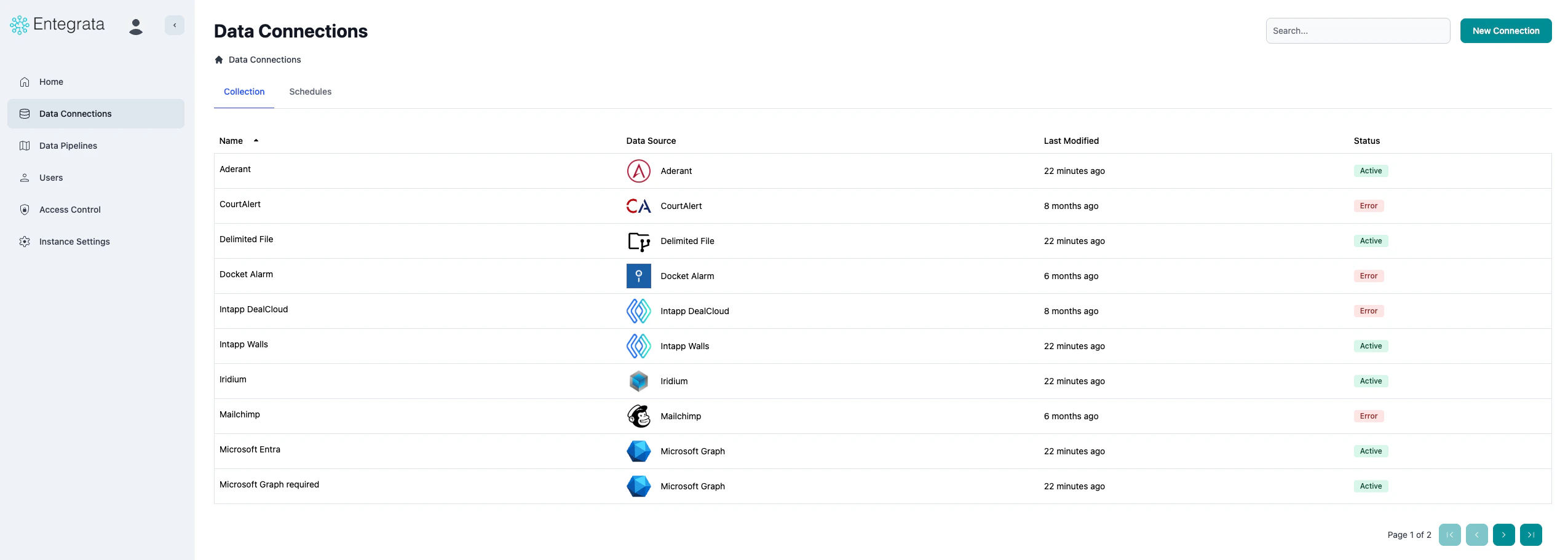
The main connections table displays all your configured data sources with key information at a glance.
## Connections List
The main connections table displays all your configured data sources with key information at a glance.
 ### Column Information
Unique identifier for the connection (hidden by default, for technical reference)
Your custom nickname for this connection, making it easy to identify
The type of data source with an icon (SQL Server, Aderant, DealCloud, etc.)
When the connection configuration was last updated
Current connection state:
* **Active** (Green) - Operational and collecting data
* **Inactive** (Gray) - Paused, not collecting
* **Error** (Red) - Authentication or connectivity issues
## Searching Connections
Use the search bar to quickly find specific connections by name or data source type.
### Using Search
Find the search input at the top of the connections list
### Column Information
Unique identifier for the connection (hidden by default, for technical reference)
Your custom nickname for this connection, making it easy to identify
The type of data source with an icon (SQL Server, Aderant, DealCloud, etc.)
When the connection configuration was last updated
Current connection state:
* **Active** (Green) - Operational and collecting data
* **Inactive** (Gray) - Paused, not collecting
* **Error** (Red) - Authentication or connectivity issues
## Searching Connections
Use the search bar to quickly find specific connections by name or data source type.
### Using Search
Find the search input at the top of the connections list
 Type any part of the connection name or data source type
Examples:
* "Production" - Finds all connections with "Production" in the name
* "SQL" - Finds all SQL Server connections
* "DealCloud" - Finds DealCloud connections
The table updates automatically as you type, showing only matching connections
Type any part of the connection name or data source type
Examples:
* "Production" - Finds all connections with "Production" in the name
* "SQL" - Finds all SQL Server connections
* "DealCloud" - Finds DealCloud connections
The table updates automatically as you type, showing only matching connections
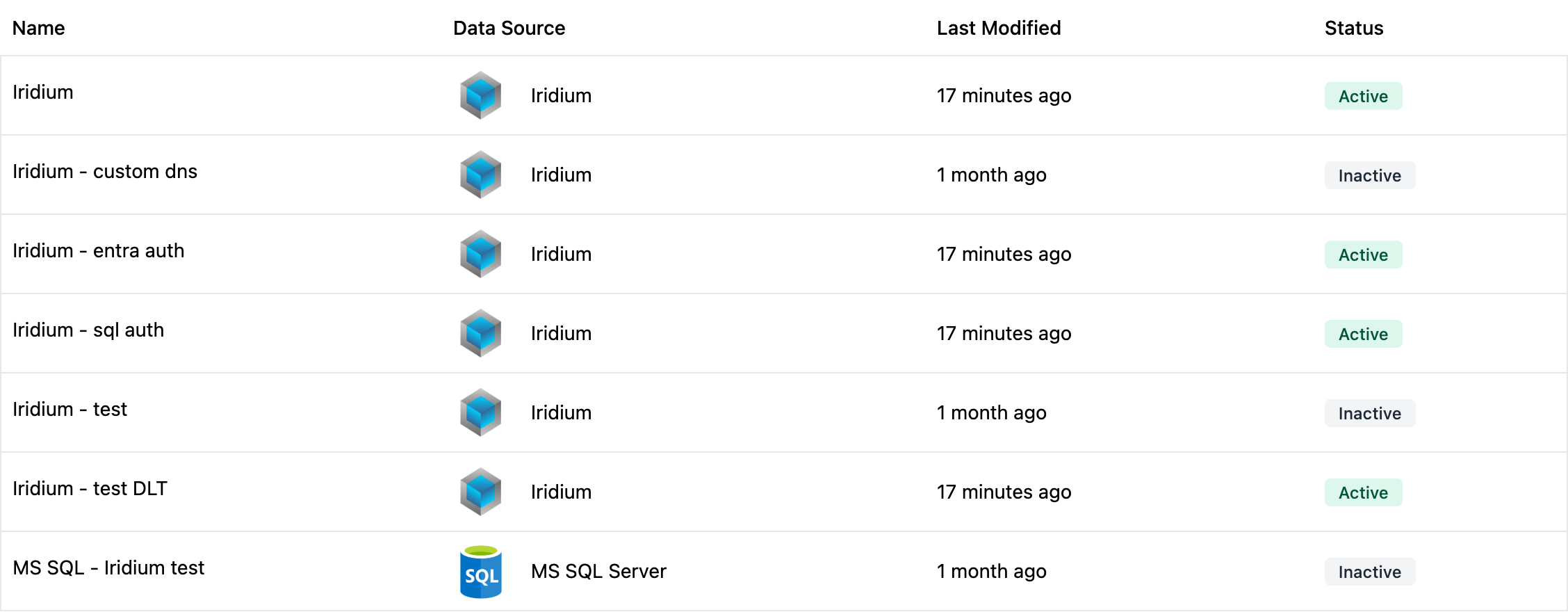 Click the X icon or clear the search field to show all connections
Search is case-insensitive and matches partial text, making it easy to find connections even if you don't remember the exact name.
## Sorting Connections
Click column headers to sort the connections list.
### Sortable Columns
* **Name** - Alphabetical A-Z or Z-A
* **Data Source** - Alphabetical by source type
* **Last Modified** - Most recent first or oldest first
* **Status** - Grouped by status type
Click the X icon or clear the search field to show all connections
Search is case-insensitive and matches partial text, making it easy to find connections even if you don't remember the exact name.
## Sorting Connections
Click column headers to sort the connections list.
### Sortable Columns
* **Name** - Alphabetical A-Z or Z-A
* **Data Source** - Alphabetical by source type
* **Last Modified** - Most recent first or oldest first
* **Status** - Grouped by status type
 The sort indicator (up/down arrow) shows which column is currently sorted and in which direction.
## Pagination
For accounts with many connections, the table uses pagination.
See how many connections are displayed and total count at the bottom of the table
The sort indicator (up/down arrow) shows which column is currently sorted and in which direction.
## Pagination
For accounts with many connections, the table uses pagination.
See how many connections are displayed and total count at the bottom of the table
 Use the page navigation controls:
* **Previous** - Go to previous page
* **Page numbers** - Jump to specific page
* **Next** - Go to next page
Use the page navigation controls:
* **Previous** - Go to previous page
* **Page numbers** - Jump to specific page
* **Next** - Go to next page
 Change how many connections appear per page (10, 20, 50, 100)
## Viewing Connection Details
Click any connection row to view its resources and detailed configuration.
Click anywhere on the connection row (except action buttons)
Change how many connections appear per page (10, 20, 50, 100)
## Viewing Connection Details
Click any connection row to view its resources and detailed configuration.
Click anywhere on the connection row (except action buttons)
 You'll be taken to the Resources page for this connection
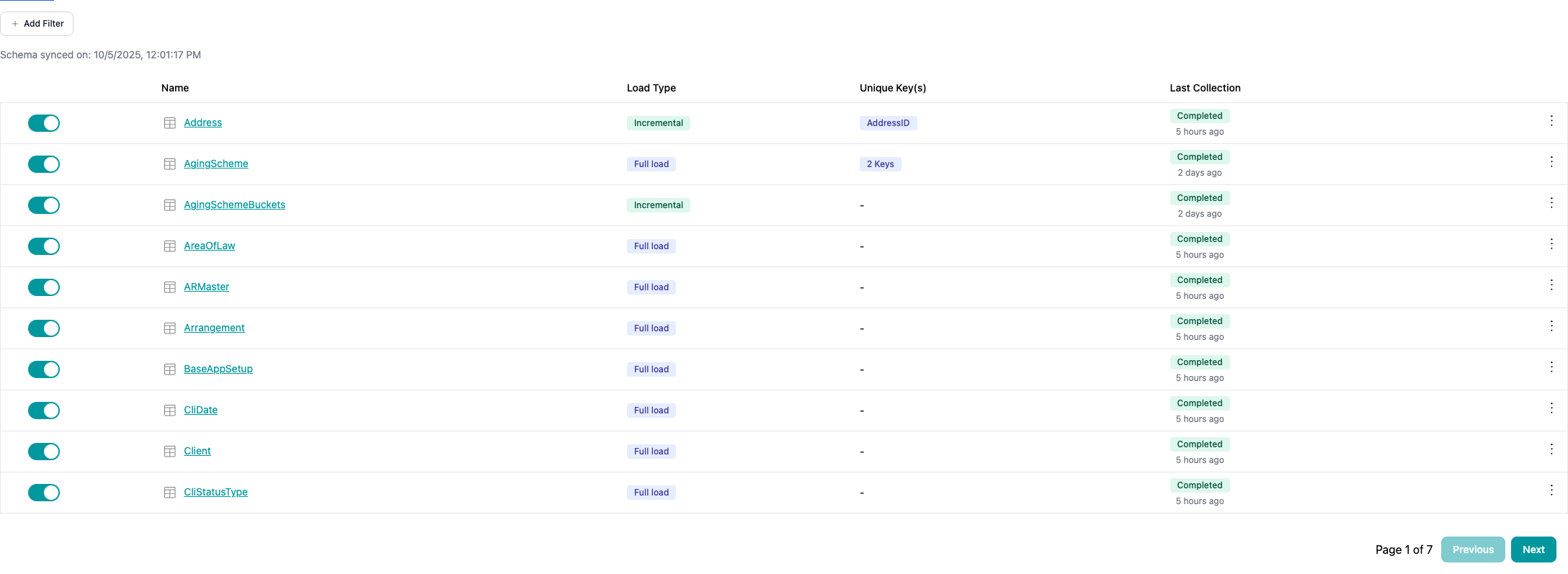 This page shows:
* All discovered resources (tables, views, endpoints, files)
* Resource collection status
* Collection jobs and history
Clicking a connection is the quickest way to start managing its resources and collection settings.
## Connection Status Indicators
Understanding status badges helps you quickly identify connection health.
### Active Status
This page shows:
* All discovered resources (tables, views, endpoints, files)
* Resource collection status
* Collection jobs and history
Clicking a connection is the quickest way to start managing its resources and collection settings.
## Connection Status Indicators
Understanding status badges helps you quickly identify connection health.
### Active Status
 **Meaning**: Connection is configured correctly and operational
* Resources can collect according to schedule
* Discovery runs automatically
* No action needed
### Inactive Status
**Meaning**: Connection is configured correctly and operational
* Resources can collect according to schedule
* Discovery runs automatically
* No action needed
### Inactive Status
 **Meaning**: Connection is intentionally paused
* No data collection occurring
* Discovery still runs
* Can be re-activated anytime
### Error Status
**Meaning**: Connection is intentionally paused
* No data collection occurring
* Discovery still runs
* Can be re-activated anytime
### Error Status
 **Meaning**: Connection has authentication or connectivity issues
* Collection failing or cannot connect
* **Action required**: Update credentials or check connectivity
* See [Troubleshooting](/data/collector/connections/troubleshooting) for resolution steps
## Quick Actions
From the connections list, you can perform quick actions without navigating away.
### Creating a New Connection
Click **New Connection** in the top-right corner to add a new data source.
**Meaning**: Connection has authentication or connectivity issues
* Collection failing or cannot connect
* **Action required**: Update credentials or check connectivity
* See [Troubleshooting](/data/collector/connections/troubleshooting) for resolution steps
## Quick Actions
From the connections list, you can perform quick actions without navigating away.
### Creating a New Connection
Click **New Connection** in the top-right corner to add a new data source.
 See [Creating Connections](/data/collector/connections/creating-connections) for detailed instructions.
### Accessing Connection Settings
Some connection types may offer quick settings access directly from the list (implementation varies).
## Empty State
If you haven't created any connections yet, you'll see an empty state with guidance.
Click **New Connection** to add your first data source.
## Best Practices
Name connections clearly (e.g., "Production SQL - Finance DB" instead of "SQL1")
Review the connections list periodically to catch errors early
Use consistent naming conventions to make searching easier
Track when connections were last updated to identify stale configurations
## Next Steps
Add a new data source connection
Update existing connection settings
Configure resources within your connections
Resolve connection issues
See [Creating Connections](/data/collector/connections/creating-connections) for detailed instructions.
### Accessing Connection Settings
Some connection types may offer quick settings access directly from the list (implementation varies).
## Empty State
If you haven't created any connections yet, you'll see an empty state with guidance.
Click **New Connection** to add your first data source.
## Best Practices
Name connections clearly (e.g., "Production SQL - Finance DB" instead of "SQL1")
Review the connections list periodically to catch errors early
Use consistent naming conventions to make searching easier
Track when connections were last updated to identify stale configurations
## Next Steps
Add a new data source connection
Update existing connection settings
Configure resources within your connections
Resolve connection issues