> ## Documentation Index
> Fetch the complete documentation index at: https://support.entegrata.com/llms.txt
> Use this file to discover all available pages before exploring further.
# View Resources
> Browse, search, and filter resources within your connections
## Overview
The Resources page displays all discovered tables, views, and endpoints within a connection. Use this page to browse available data, check collection status, and access configuration options.
## Accessing Resources
From the Connections page, click on a connection
The Resources page displays automatically
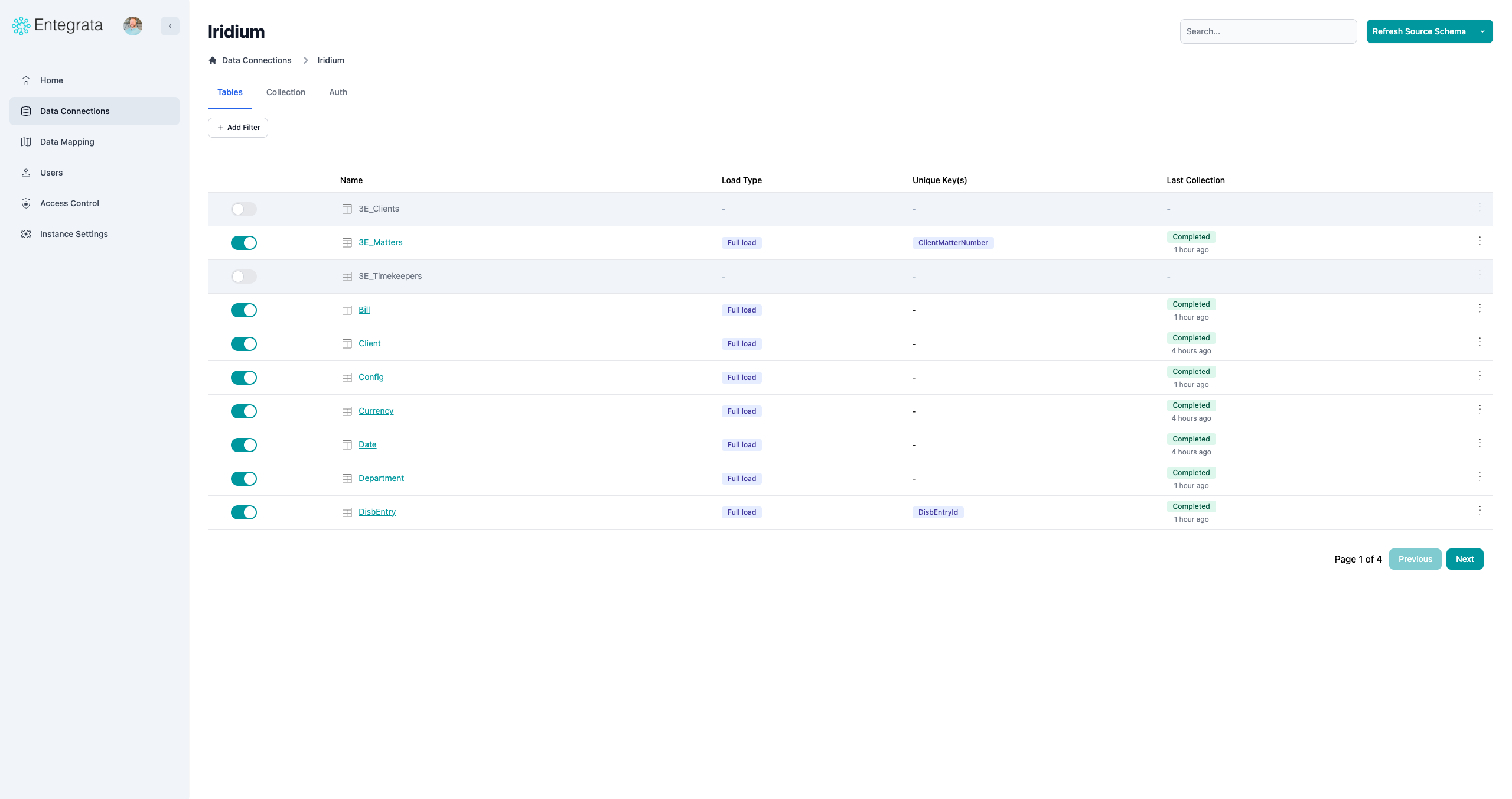 ## Resources Table
The table shows all discovered resources with key information:
## Resources Table
The table shows all discovered resources with key information:
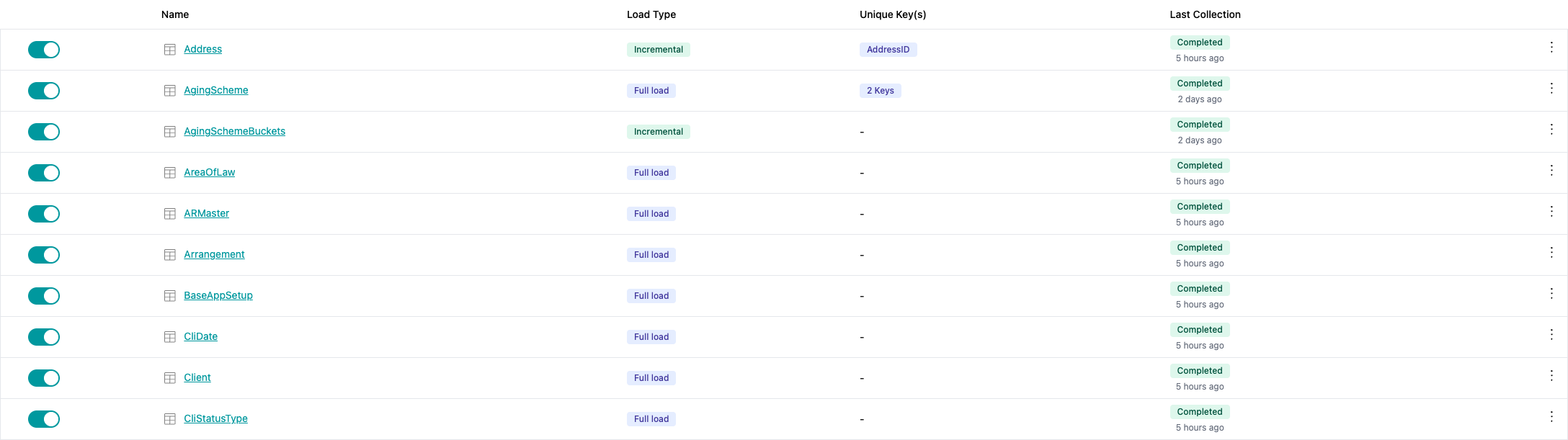 ### Column Information
Enable/disable collection for this resource (first column)
Resource name with type icon (Table, View, or Endpoint)
Current load configuration (Full or Incremental)
Fields that uniquely identify records
When resource was last collected and the job status
Quick access to collection settings (gear icon with three dots)
## Resource Type Icons
Resources are visually identified by icons:
* **Table icon** - Database table
* **View icon** - Database view
* **Endpoint icon** - API endpoint
## Searching Resources
Find specific resources using the search bar.
Type any part of the resource name in the search field
### Column Information
Enable/disable collection for this resource (first column)
Resource name with type icon (Table, View, or Endpoint)
Current load configuration (Full or Incremental)
Fields that uniquely identify records
When resource was last collected and the job status
Quick access to collection settings (gear icon with three dots)
## Resource Type Icons
Resources are visually identified by icons:
* **Table icon** - Database table
* **View icon** - Database view
* **Endpoint icon** - API endpoint
## Searching Resources
Find specific resources using the search bar.
Type any part of the resource name in the search field
 The table updates to show only matching resources
Search is case-insensitive and matches partial names. Try searching for common patterns like "customer", "order", or "trans".
## Filtering Resources
Use filters to narrow down the resources list.
### Filter by Status
The table updates to show only matching resources
Search is case-insensitive and matches partial names. Try searching for common patterns like "customer", "order", or "trans".
## Filtering Resources
Use filters to narrow down the resources list.
### Filter by Status
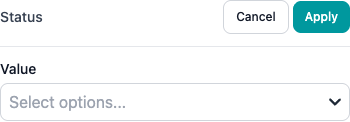 * **All Resources** - Show everything
* **Active Only** - Show enabled resources
* **Inactive Only** - Show disabled resources
### Filter by Type
* **All Resources** - Show everything
* **Active Only** - Show enabled resources
* **Inactive Only** - Show disabled resources
### Filter by Type
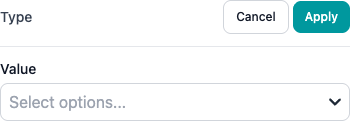 * **All Types** - Show all resource types
* **Tables** - Show only database tables
* **Views** - Show only database views
* **Endpoints** - Show only API endpoints
### Filter by Load Type
* **All Types** - Show all resource types
* **Tables** - Show only database tables
* **Views** - Show only database views
* **Endpoints** - Show only API endpoints
### Filter by Load Type
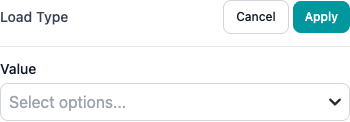 * **All Load Types**
* **Full Load Only**
* **Incremental Only**
## Pagination
For connections with many resources:
* **All Load Types**
* **Full Load Only**
* **Incremental Only**
## Pagination
For connections with many resources:
 * View page information (e.g., "Page 1 of 10")
* Navigate pages with Previous/Next buttons
## Last Discovery Timestamp
See when resources were last discovered:
* View page information (e.g., "Page 1 of 10")
* Navigate pages with Previous/Next buttons
## Last Discovery Timestamp
See when resources were last discovered:
 This indicates how current your resource catalog is. Discovery runs automatically every 3 hours.
## Clicking on Resources
Click a resource name to view detailed information.
Click anywhere on the resource name (blue link)
This indicates how current your resource catalog is. Discovery runs automatically every 3 hours.
## Clicking on Resources
Click a resource name to view detailed information.
Click anywhere on the resource name (blue link)
 Navigate to the resource detail page showing:
* All fields/columns
* Field data types and metadata
* Collection jobs for this resource
* Resource-specific collection settings
## Load Type Badges
Resources display their configured load type as a badge:
Navigate to the resource detail page showing:
* All fields/columns
* Field data types and metadata
* Collection jobs for this resource
* Resource-specific collection settings
## Load Type Badges
Resources display their configured load type as a badge:
 * **Full** - Copies all data every collection
* **Incremental** - Copies only changed data
Click the load type badge to quickly open collection settings and change it.
## Unique Keys Display
The Unique Key(s) column shows which fields identify unique records:
* **Full** - Copies all data every collection
* **Incremental** - Copies only changed data
Click the load type badge to quickly open collection settings and change it.
## Unique Keys Display
The Unique Key(s) column shows which fields identify unique records:
 * Single field: "id"
* Multiple fields: "customer\_id, order\_date"
Click the unique keys cell to quickly open collection settings and configure them.
## Last Collection Status
See when each resource was last collected and whether it succeeded:
* Single field: "id"
* Multiple fields: "customer\_id, order\_date"
Click the unique keys cell to quickly open collection settings and configure them.
## Last Collection Status
See when each resource was last collected and whether it succeeded:
 * **Green checkmark** - Last collection succeeded
* **Red X** - Last collection failed
Click the timestamp to navigate to the connection's collection jobs page.
## Empty State
If no resources are discovered:
**Possible reasons**:
* Discovery is still running
* Connection has no accessible resources
* User lacks permissions to see resources
* Connection parameters are incorrect
**Resolution**:
1. Wait a few minutes for discovery to complete
2. Trigger manual discovery
3. Check connection credentials and permissions
4. Verify database/schema names in connection settings
## Best Practices
When you have hundreds of resources, search is faster than scrolling
Focus on active resources when monitoring, or inactive when looking for new data to enable
If you don't see expected resources, check when discovery last ran
Click resource names to see full field lists and collection history
## Next Steps
Turn on collection for resources
Configure schedules, load types, and filters
Learn how resources are discovered
Resolve resource issues
* **Green checkmark** - Last collection succeeded
* **Red X** - Last collection failed
Click the timestamp to navigate to the connection's collection jobs page.
## Empty State
If no resources are discovered:
**Possible reasons**:
* Discovery is still running
* Connection has no accessible resources
* User lacks permissions to see resources
* Connection parameters are incorrect
**Resolution**:
1. Wait a few minutes for discovery to complete
2. Trigger manual discovery
3. Check connection credentials and permissions
4. Verify database/schema names in connection settings
## Best Practices
When you have hundreds of resources, search is faster than scrolling
Focus on active resources when monitoring, or inactive when looking for new data to enable
If you don't see expected resources, check when discovery last ran
Click resource names to see full field lists and collection history
## Next Steps
Turn on collection for resources
Configure schedules, load types, and filters
Learn how resources are discovered
Resolve resource issues