> ## Documentation Index
> Fetch the complete documentation index at: https://support.entegrata.com/llms.txt
> Use this file to discover all available pages before exploring further.
# Configuring Data Sources
> Learn how to add and configure primary and related data sources in your Entegrata data pipelines
## Overview
Data sources are the foundation of your data pipelines. In Entegrata, you connect to various data sources, select the specific tables or datasets you need, and configure how they relate to each other. This guide covers everything you need to know about working with data sources in the mapping editor.
## Understanding Source Types
### Primary Source
The **primary source** is the main source of data for your entity:
* Determines the base set of records
* All other sources are joined to this source
* Each entity must have exactly one primary source
* The first source you add becomes the primary source
**Example**: For a Customer entity, your CRM system's customer table would be the primary source.
### Related Sources
**Related sources** are additional data sources joined to enrich your primary data:
* Can have multiple related sources per entity
* Joined using one or more key fields (foreign key relationships)
* Can come from different systems or databases
**Example**: For a Customer entity, you might join:
* Client table (to get customer client number)
* Marketing engagement table (to get campaign responses)
 ## Adding a Primary Source
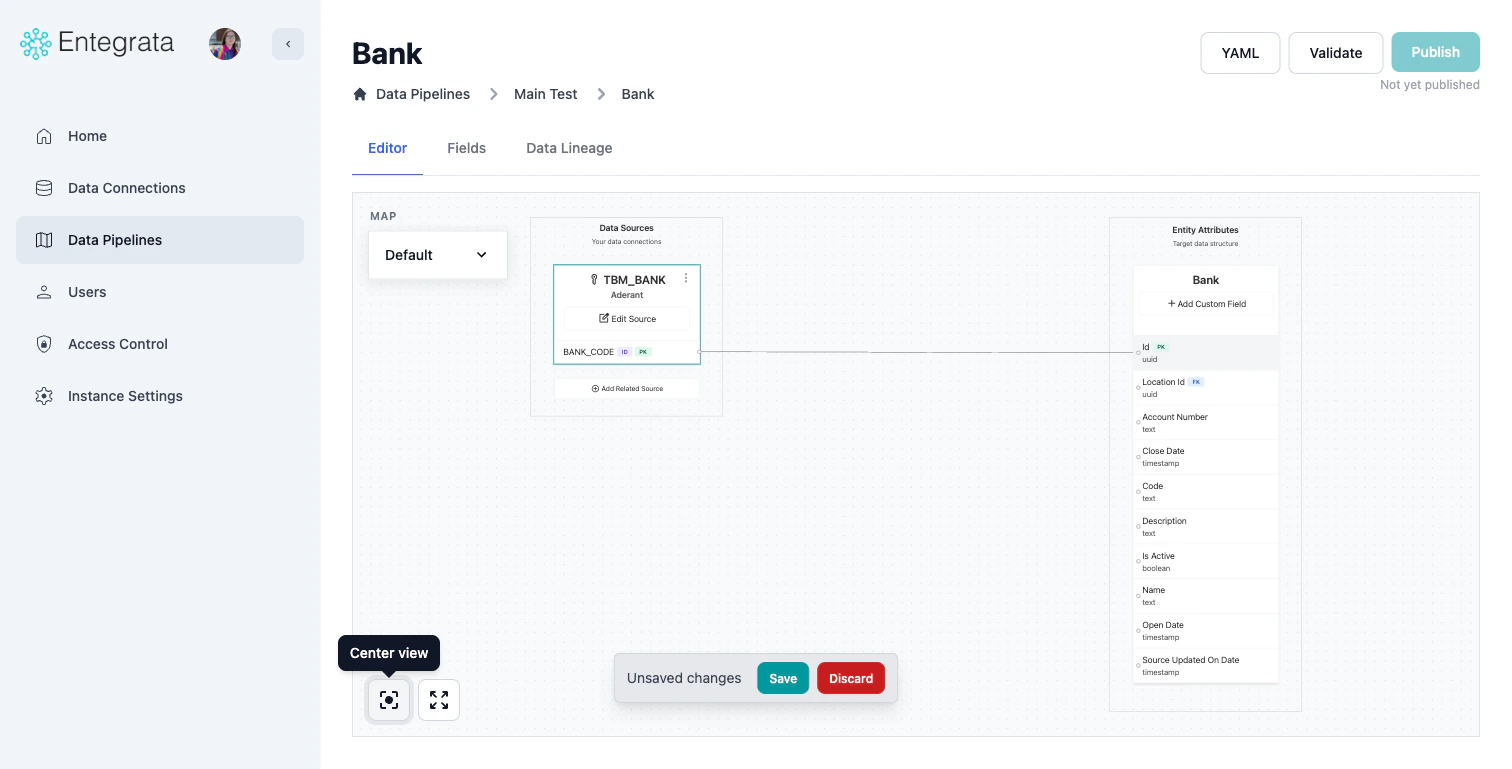
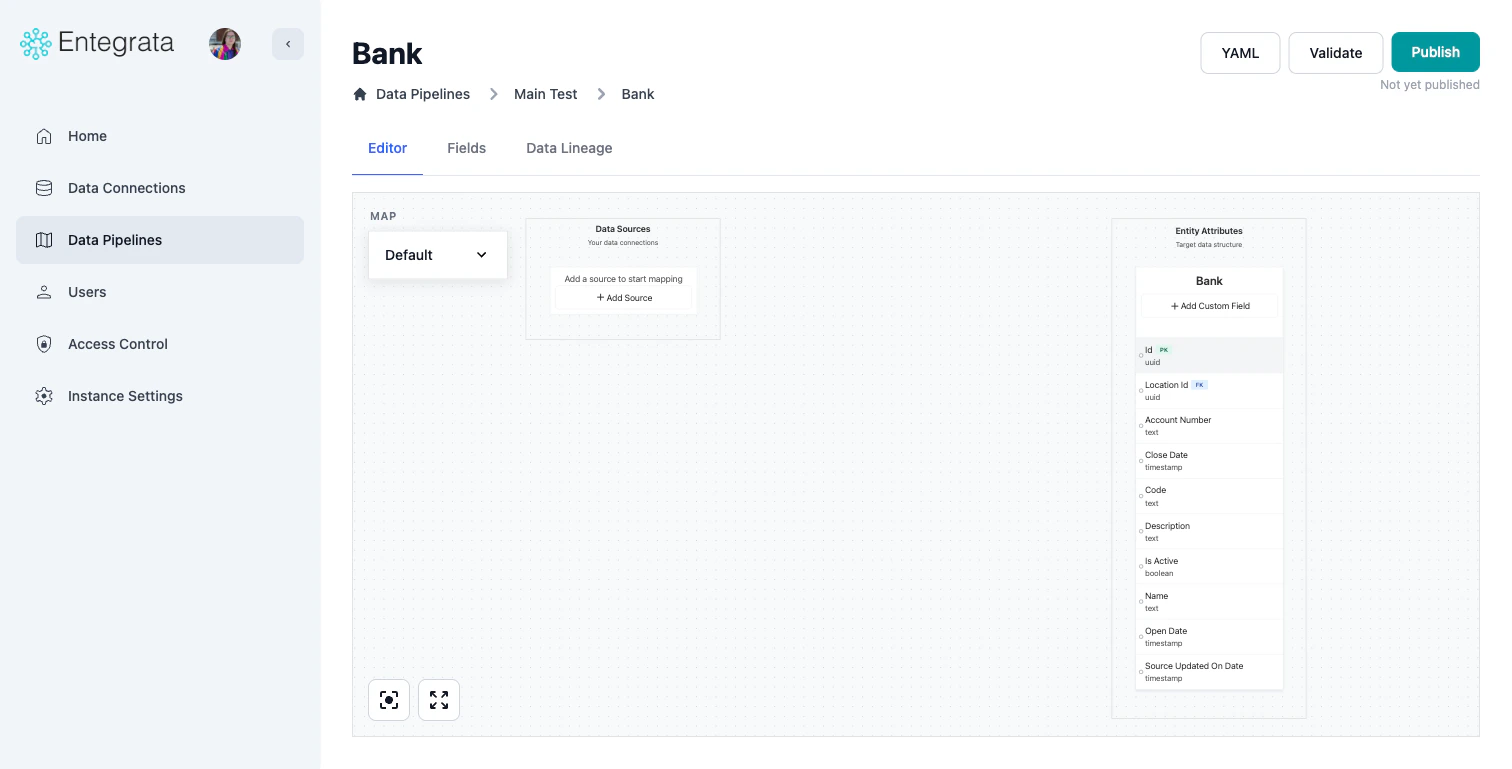
Use the **Add Source Wizard** to add your first source. The wizard walks you through three steps: selecting a source, configuring a primary key, and setting up a record identifier.
In the mapping editor, click the **+ Add Source** button in the Data Sources placeholder area.
## Adding a Primary Source
Use the **Add Source Wizard** to add your first source. The wizard walks you through three steps: selecting a source, configuring a primary key, and setting up a record identifier.
In the mapping editor, click the **+ Add Source** button in the Data Sources placeholder area.
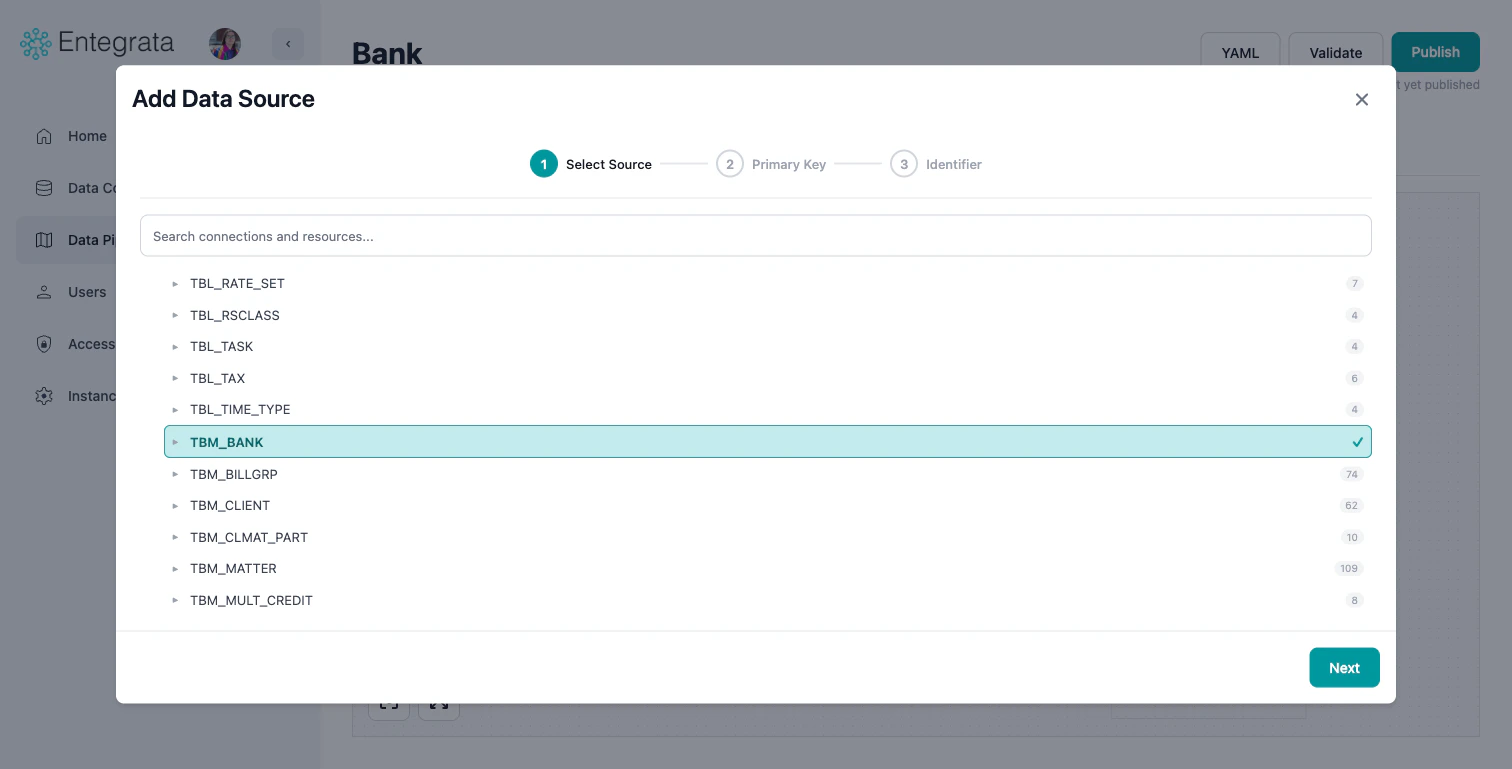
 Browse the **DataSourceBrowser** tree to find your source. Connections are listed at the top level with their logos, and each connection expands to show available resources (tables/datasets). The number next to each item shows the count of available fields.
* Use the search bar to filter connections and resources
* Click a connection to expand it and see its resources
* Click a resource to select it (highlighted in teal with a checkmark)
* Click **Next** to proceed
Browse the **DataSourceBrowser** tree to find your source. Connections are listed at the top level with their logos, and each connection expands to show available resources (tables/datasets). The number next to each item shows the count of available fields.
* Use the search bar to filter connections and resources
* Click a connection to expand it and see its resources
* Click a resource to select it (highlighted in teal with a checkmark)
* Click **Next** to proceed
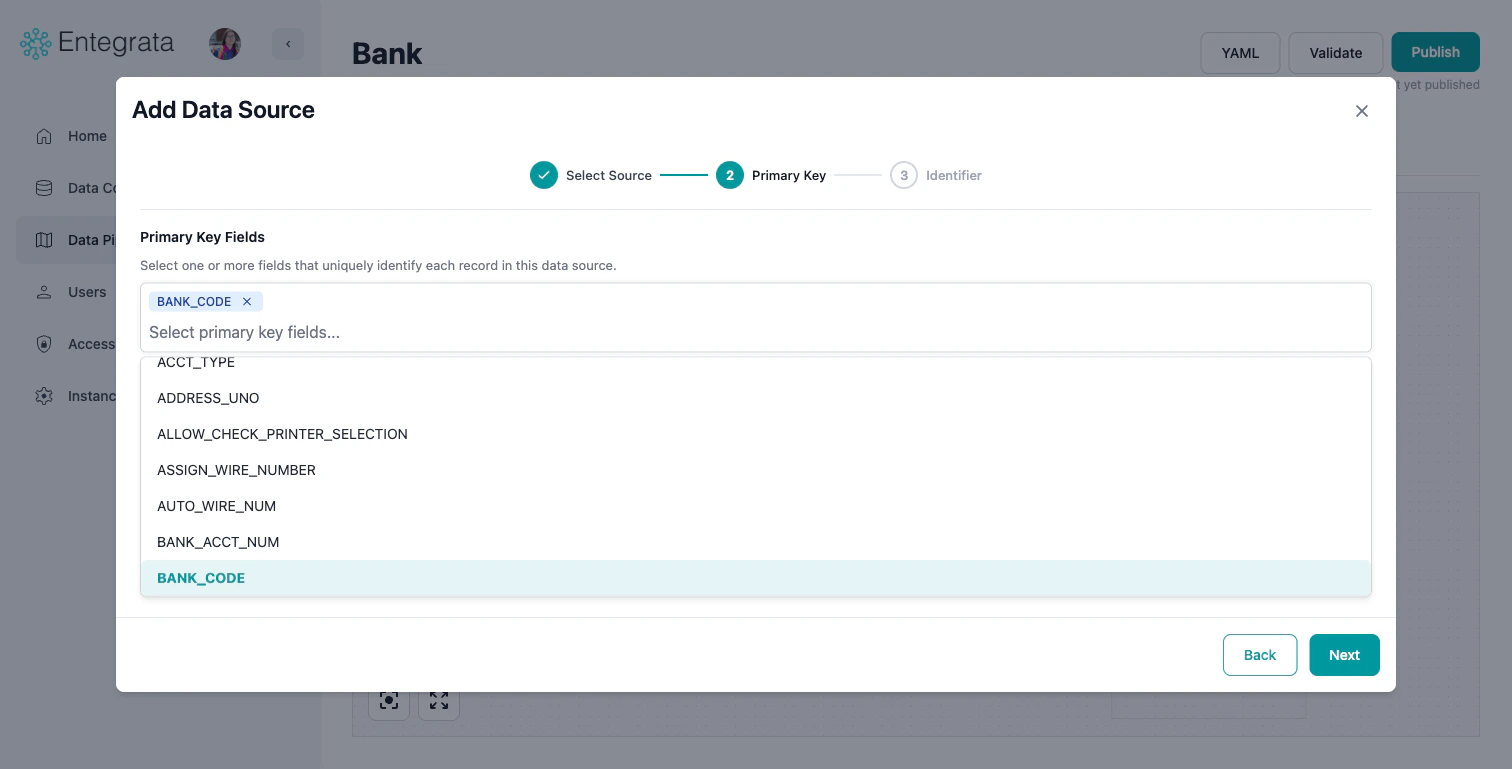
 Select one or more fields that uniquely identify each record in this data source.
* Use the multi-select dropdown to choose primary key fields
* If the source has a known primary key, it may be auto-suggested
* You can select multiple fields for composite primary keys
* Click **Next** to proceed
Select one or more fields that uniquely identify each record in this data source.
* Use the multi-select dropdown to choose primary key fields
* If the source has a known primary key, it may be auto-suggested
* You can select multiple fields for composite primary keys
* Click **Next** to proceed
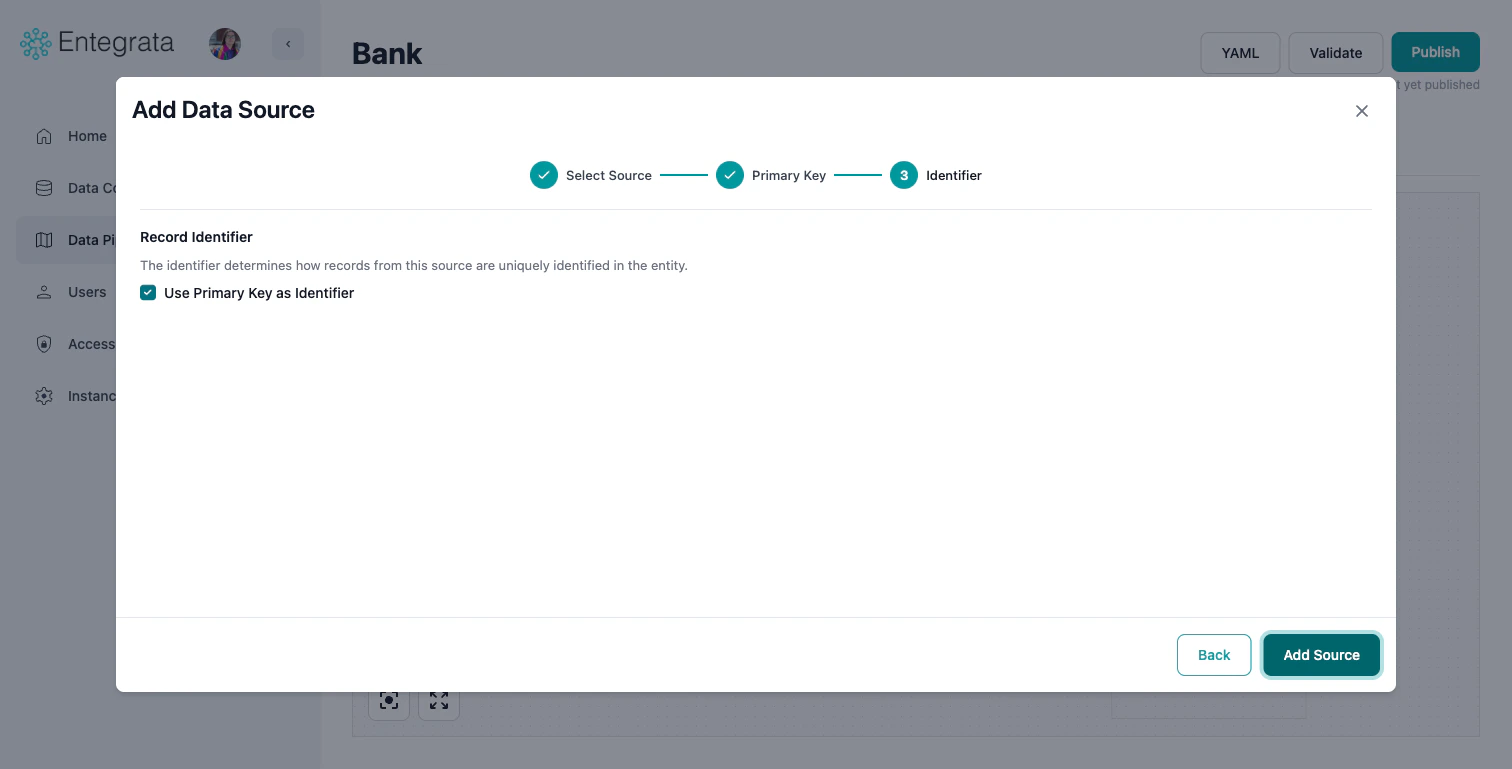
 The record identifier determines how records from this source are uniquely identified in the entity. For primary sources, you have two options:
* **Use Primary Key as Identifier** (default, recommended): Check this box to use the same field(s) you selected as the primary key.
* **Custom Identifier**: Uncheck the box to configure a custom identifier using functions like COALESCE, CONCAT, or HASH.
The first source added becomes your **primary source** automatically.
The primary source determines the base records. All other sources are joined to this.
Click **Add Source** to finish.
The record identifier determines how records from this source are uniquely identified in the entity. For primary sources, you have two options:
* **Use Primary Key as Identifier** (default, recommended): Check this box to use the same field(s) you selected as the primary key.
* **Custom Identifier**: Uncheck the box to configure a custom identifier using functions like COALESCE, CONCAT, or HASH.
The first source added becomes your **primary source** automatically.
The primary source determines the base records. All other sources are joined to this.
Click **Add Source** to finish.
 ## Adding Related Sources
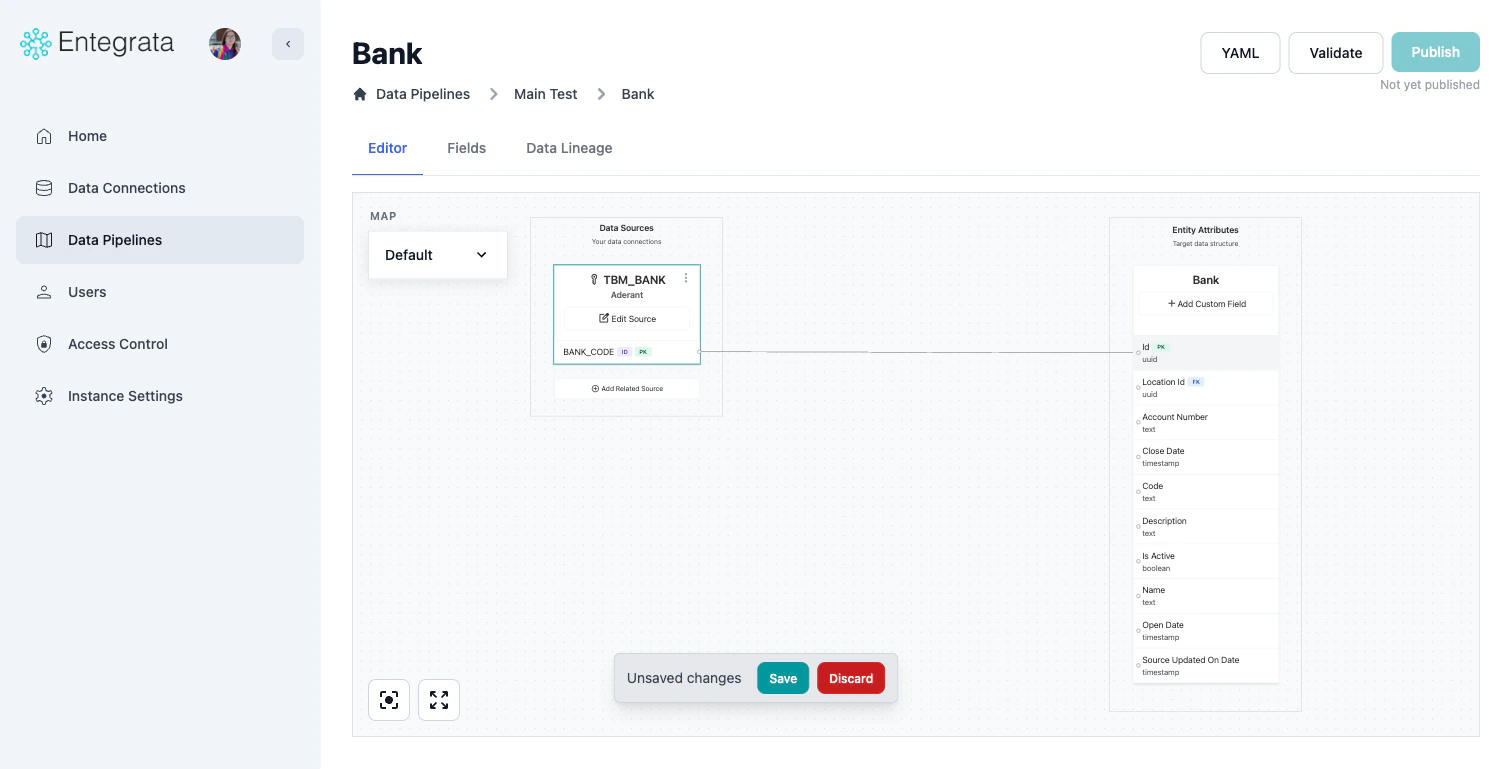
Related sources are joined to your primary source to enrich data. You can add a related source in two ways:
* Click the **+ Add Related Source** placeholder below your existing sources
* Open the source node's **three-dot menu** and select **Add Related Source**
## Adding Related Sources
Related sources are joined to your primary source to enrich data. You can add a related source in two ways:
* Click the **+ Add Related Source** placeholder below your existing sources
* Open the source node's **three-dot menu** and select **Add Related Source**
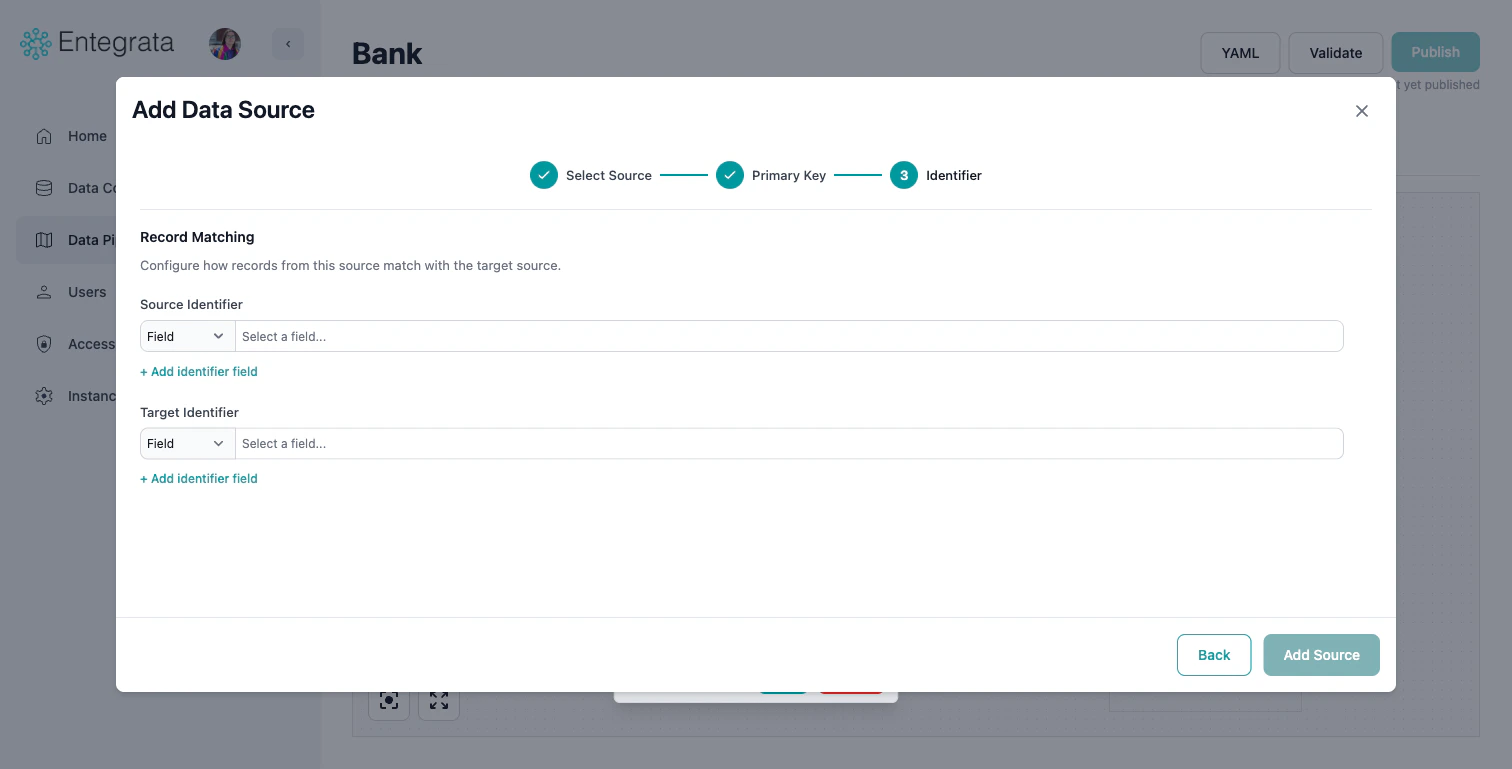
 The wizard follows the same three steps, but Step 3 shows **Record Matching** instead of Record Identifier:
Browse and select a resource from the DataSourceBrowser, the same as when adding a primary source.
Select the field(s) that uniquely identify records in this source.
Define how records from this source relate to the primary source:
* **Source Identifier**: Select a field (or custom expression) on this source whose data relates to the primary source.
* **Target Identifier**: Select the corresponding field on the primary source that matches.
* Use the **Field/Custom** dropdown to switch between selecting a field directly or writing a custom expression.
* Click **+ Add identifier field** to add additional matching conditions.
The wizard follows the same three steps, but Step 3 shows **Record Matching** instead of Record Identifier:
Browse and select a resource from the DataSourceBrowser, the same as when adding a primary source.
Select the field(s) that uniquely identify records in this source.
Define how records from this source relate to the primary source:
* **Source Identifier**: Select a field (or custom expression) on this source whose data relates to the primary source.
* **Target Identifier**: Select the corresponding field on the primary source that matches.
* Use the **Field/Custom** dropdown to switch between selecting a field directly or writing a custom expression.
* Click **+ Add identifier field** to add additional matching conditions.
 **Join Best Practices**
* Use exact match joins when possible (e.g., ID fields)
* Our system preserves all primary source records, but not necessarily all related source records.
* For complex or ambiguous cases, multiple fields can be used in combination to uniquely identify records.
## Editing Source Properties
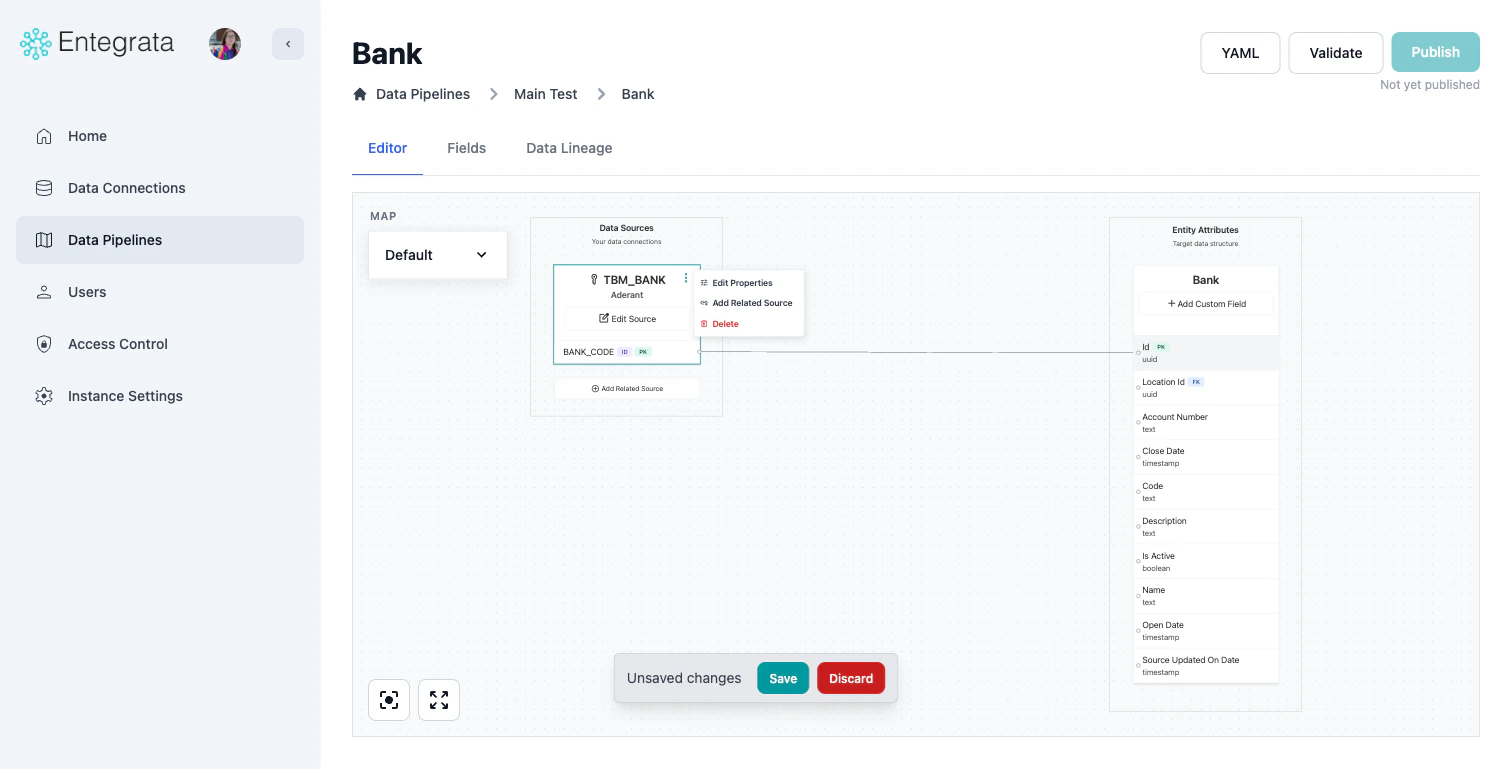
To edit an existing source's configuration, use the **three-dot context menu** on the source node and select **Edit Properties**, or click the **Edit Source** button on the source node.
**Join Best Practices**
* Use exact match joins when possible (e.g., ID fields)
* Our system preserves all primary source records, but not necessarily all related source records.
* For complex or ambiguous cases, multiple fields can be used in combination to uniquely identify records.
## Editing Source Properties
To edit an existing source's configuration, use the **three-dot context menu** on the source node and select **Edit Properties**, or click the **Edit Source** button on the source node.
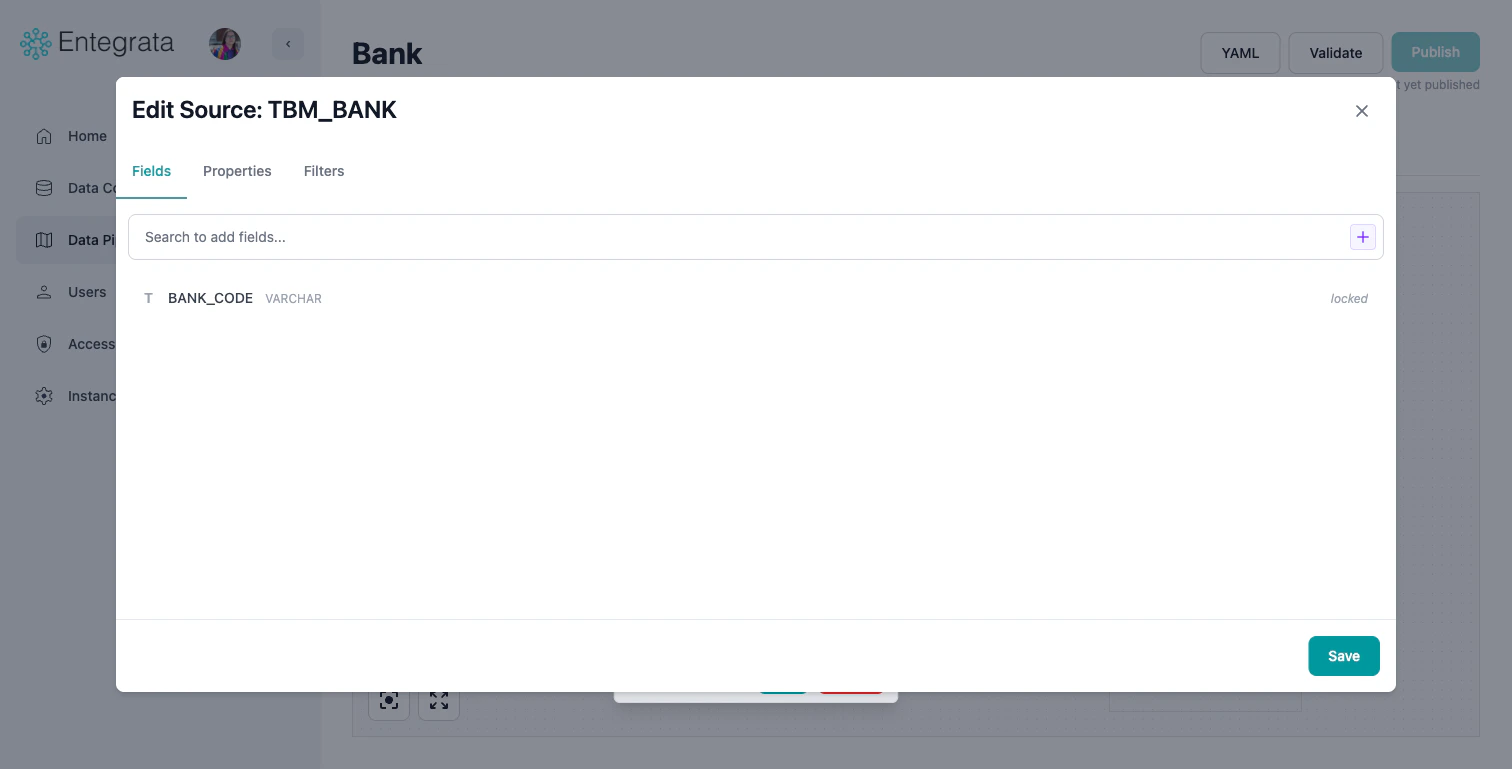
 The **Edit Source** modal has three tabs:
### Fields Tab
Add or remove fields (columns) available from this source. Use the search bar to find fields, or click the **+** button to add a custom expression.
The **Edit Source** modal has three tabs:
### Fields Tab
Add or remove fields (columns) available from this source. Use the search bar to find fields, or click the **+** button to add a custom expression.
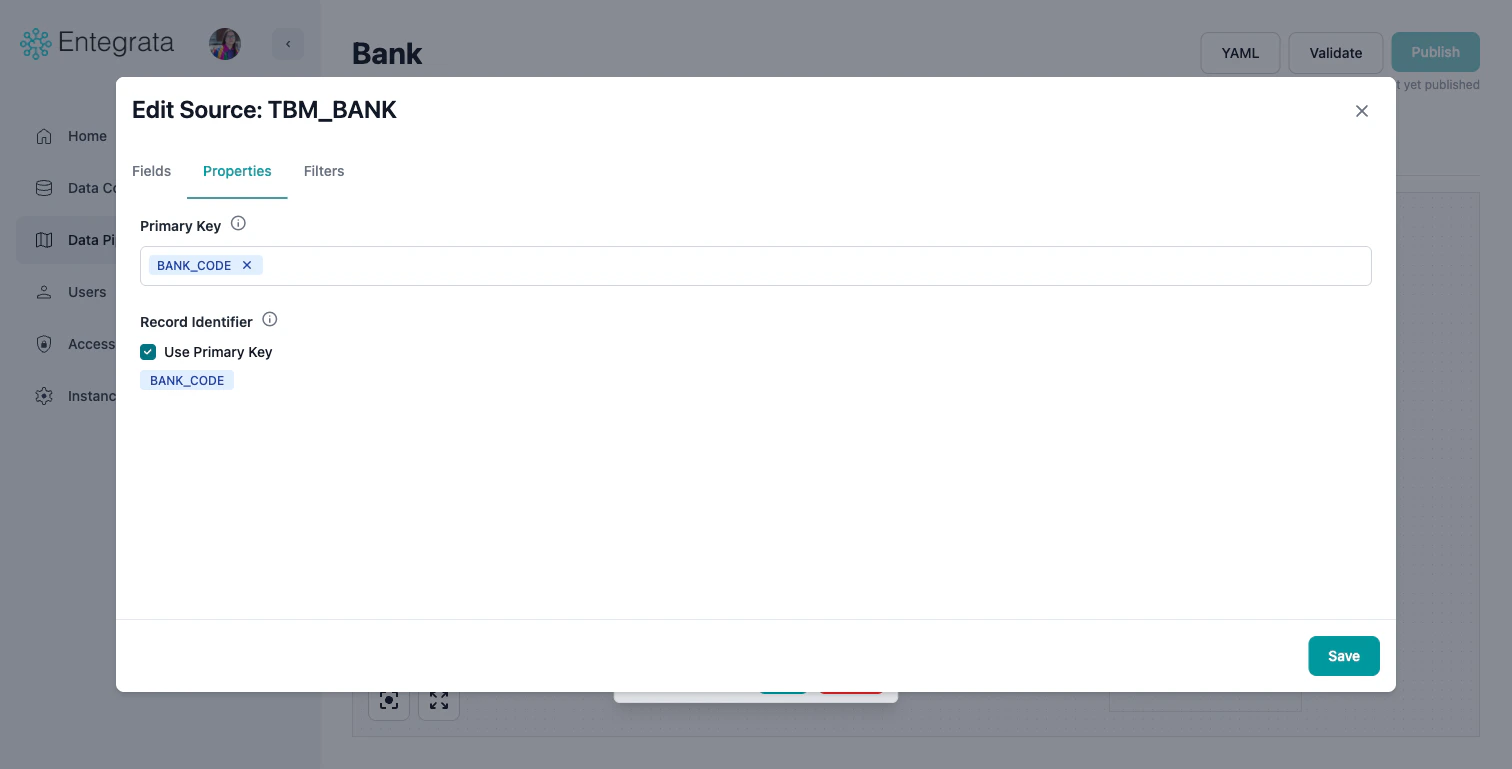
 ### Properties Tab
View and modify the source's primary key and record identifier settings.
* **Primary Key**: Change the field(s) used to uniquely identify records
* **Record Identifier**: Toggle "Use Primary Key" or configure a custom identifier
### Properties Tab
View and modify the source's primary key and record identifier settings.
* **Primary Key**: Change the field(s) used to uniquely identify records
* **Record Identifier**: Toggle "Use Primary Key" or configure a custom identifier
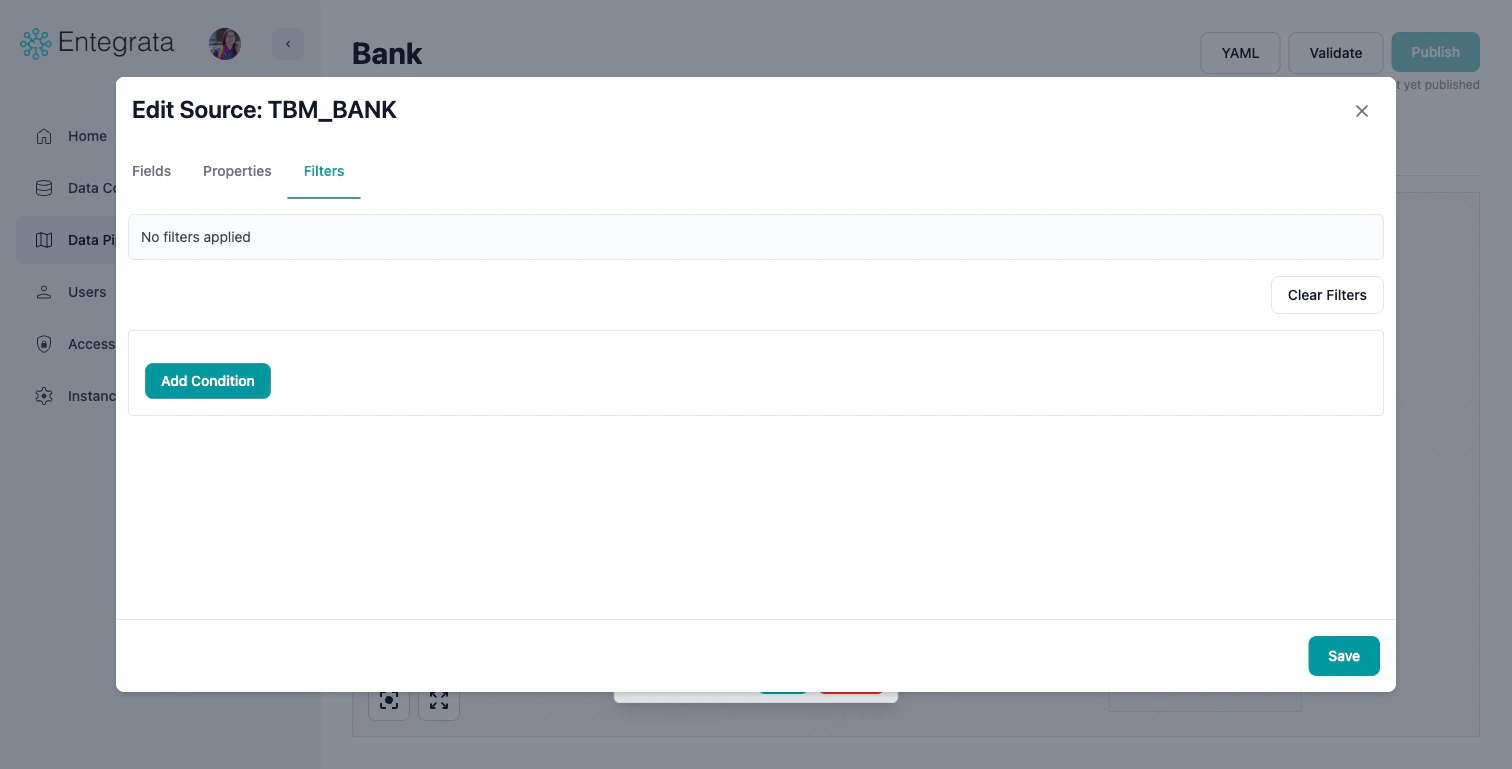
 ### Filters Tab
Add filter conditions to restrict which records are included from this source. This is equivalent to adding a WHERE clause.
### Filters Tab
Add filter conditions to restrict which records are included from this source. This is equivalent to adding a WHERE clause.
 ## Managing Multiple Related Sources
When working with many related sources:
### Nested Joins
Related sources can join to other related sources (not just the primary):
Join a related source to your primary source using the Add Source Wizard.
When configuring record matching, select the first related source instead of the primary source as the target.
Set up the matching condition between the two related sources using the Source Identifier and Target Identifier fields.
**Example**:
* Primary: Customers
* Related 1: Orders (joined to Customers)
* Related 2: OrderItems (joined to Orders, not Customers)
## Troubleshooting
### Source Connection Failed
**Issue**: Cannot connect to the data source.
**Solutions**:
* Verify the connection credentials are current
* Check network connectivity
* Ensure you have permission to access the source
* Contact your administrator to refresh the connection
### No Tables Visible
**Issue**: Can't see any tables or datasets in the source.
**Solutions**:
* Verify you have read permissions
* Check if you're looking in the correct schema/database
* Refresh the connection in the admin portal
* Some sources may require specific catalog configuration
### Too Many Records After Join
**Issue**: Join produces more records than expected.
**Solutions**:
* Check for duplicate values in join keys
* Verify you're joining on the correct fields
* Look for one-to-many relationships
* Add additional join conditions to make relationship unique
* Consider if this is actually correct (e.g., one customer, many orders)
## Best Practices
**Source Configuration**
* Always use filters at the source level when possible
* Choose the most specific table/view available
* Ensure you are joining to other tables with at most 1 record for each primary source record.
**Data Quality**
* Verify join keys have good cardinality
* Check for nulls in join fields
* Test edge cases (no matches, duplicates)
* Validate against expected record counts
## Related Topics
Learn about the visual mapping editor interface
Map source fields to your entity fields
Advanced transformations with multiple source fields
Deploy your configured mappings to production
## Managing Multiple Related Sources
When working with many related sources:
### Nested Joins
Related sources can join to other related sources (not just the primary):
Join a related source to your primary source using the Add Source Wizard.
When configuring record matching, select the first related source instead of the primary source as the target.
Set up the matching condition between the two related sources using the Source Identifier and Target Identifier fields.
**Example**:
* Primary: Customers
* Related 1: Orders (joined to Customers)
* Related 2: OrderItems (joined to Orders, not Customers)
## Troubleshooting
### Source Connection Failed
**Issue**: Cannot connect to the data source.
**Solutions**:
* Verify the connection credentials are current
* Check network connectivity
* Ensure you have permission to access the source
* Contact your administrator to refresh the connection
### No Tables Visible
**Issue**: Can't see any tables or datasets in the source.
**Solutions**:
* Verify you have read permissions
* Check if you're looking in the correct schema/database
* Refresh the connection in the admin portal
* Some sources may require specific catalog configuration
### Too Many Records After Join
**Issue**: Join produces more records than expected.
**Solutions**:
* Check for duplicate values in join keys
* Verify you're joining on the correct fields
* Look for one-to-many relationships
* Add additional join conditions to make relationship unique
* Consider if this is actually correct (e.g., one customer, many orders)
## Best Practices
**Source Configuration**
* Always use filters at the source level when possible
* Choose the most specific table/view available
* Ensure you are joining to other tables with at most 1 record for each primary source record.
**Data Quality**
* Verify join keys have good cardinality
* Check for nulls in join fields
* Test edge cases (no matches, duplicates)
* Validate against expected record counts
## Related Topics
Learn about the visual mapping editor interface
Map source fields to your entity fields
Advanced transformations with multiple source fields
Deploy your configured mappings to production