> ## Documentation Index
> Fetch the complete documentation index at: https://support.entegrata.com/llms.txt
> Use this file to discover all available pages before exploring further.
# Data Mapping Overview
> Introduction to Entegrata data mapping capabilities and the visual mapping editor
## Introduction
Data mapping is the core of Entegrata pipelines. It defines how source data from your Collector systems transforms into standardized data types in your warehouse. The visual mapping editor provides an intuitive interface for configuring these transformations without writing code.
Data mapping in Entegrata uses a declarative, configuration-based approach. You define **what** the mapping should do, and the system generates optimized DLT (Delta Live Tables) scripts that execute the transformations.
## What is Data Mapping?
Data mapping consists of configuring:
1. **Data Types (Entities)** - The standardized schemas you're populating (e.g., Client, Contact, Account)
2. **Data Sources** - The Collector tables or resources providing source data
3. **Field Mappings** - How individual source fields map to data type fields
4. **Transformations** - Logic applied during mapping (formatting, concatenation, conditional logic)
5. **Default Values** - Values used when source data is missing or null
## Key Concepts
### Data Types vs. Entities
Throughout Entegrata, you'll see these terms used interchangeably:
* **Data Type** - The standardized schema definition (preferred term in user interface)
* **Entity** - Technical term for the same concept (used in backend systems)
We use "data types" in documentation to align with business terminology. Think of them as the types of data your organization works with: Clients, Accounts, Transactions, etc.
### Primary vs. Related Sources
Each data type mapping can use multiple sources:
The main table or resource containing the core data for this data type. Every data type mapping must have exactly one primary source.
Additional tables joined to the primary source to enrich data. You can have zero or more related sources.
**Example:**
* **Primary Source**: `CRM_Clients` table (contains client IDs, names, status)
* **Related Source 1**: `CRM_Addresses` table (joined by client\_id for address information)
* **Related Source 2**: `CRM_Industries` table (joined by industry\_id for industry details)
### Data Type Fields
Each data type has a defined schema with fields that must be populated:
Fields that must have a value (either from a mapping or default value). Pipeline cannot deploy if required fields are unmapped.
Fields that can be left unmapped or null without blocking deployment.
Fields automatically populated by Entegrata (e.g., record IDs, timestamps). Cannot be manually mapped.
## The Mapping Workflow
A typical data mapping workflow follows these stages:
Select which data type this pipeline should process (e.g., Client, Contact, Account).
Use the **Add Source Wizard** to select a source from your Collector, configure its primary key, and set up a record identifier.
Add additional sources through the wizard and configure record matching to define how they join to the primary source.
Map all required fields from source to target, ensuring no required fields are left unmapped.
Map additional fields as needed for your use case.
Add business logic like concatenation, conditional mapping, or data formatting.
Configure default values for fields that might be missing in source data.
Run in dry-run mode to validate mappings without writing to production.
Publish the mapping to generate DLT scripts and enable execution.
## Mapping Editor Interface
The mapping editor is organized into several sections:
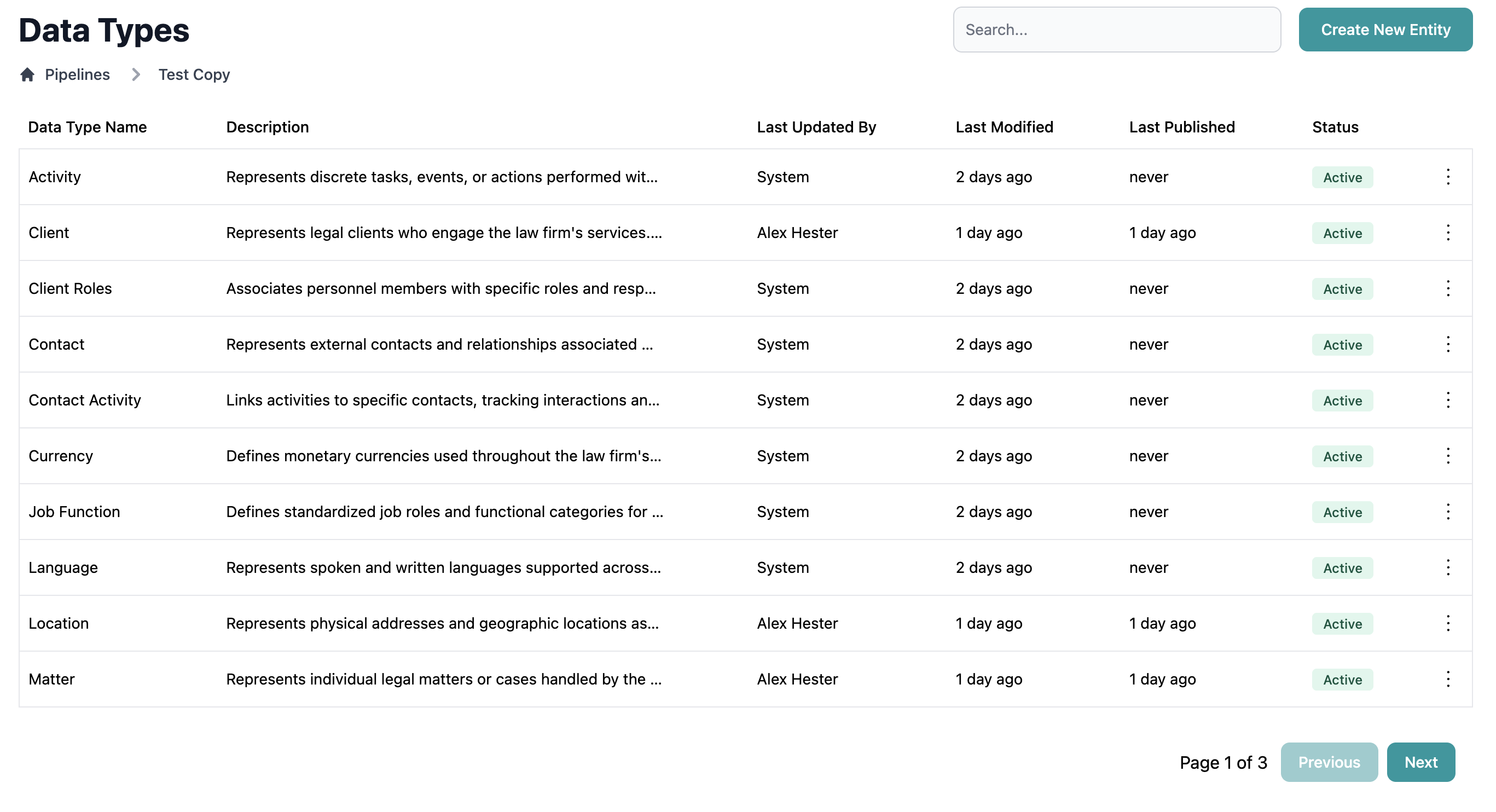
### Data Type List (Left Panel)
Shows all data types configured in the current pipeline:
* Click a data type to view/edit its mappings
* Add new data types with the "+" button
* See deployment status and configuration completeness
 ### Mapping Editor
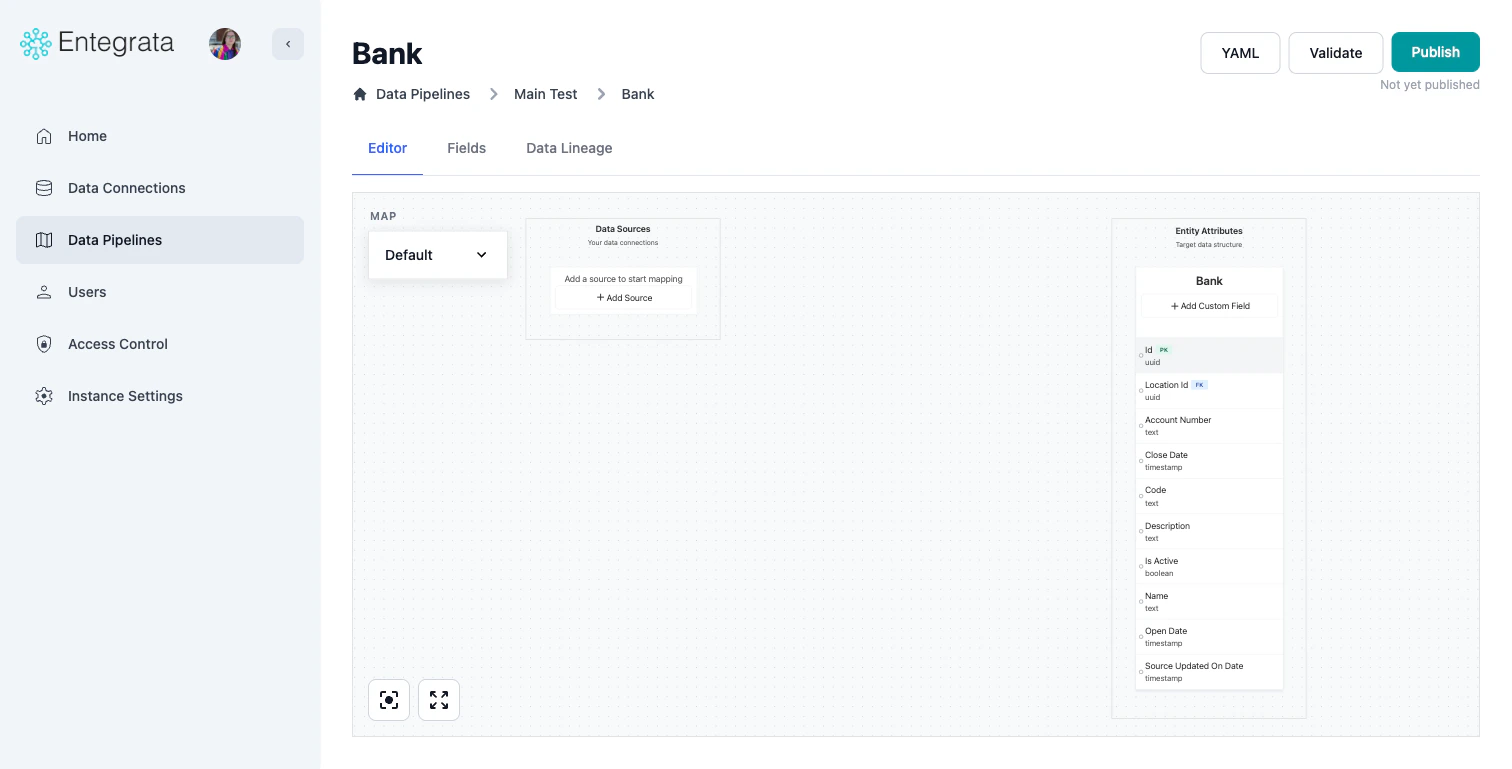
Primary interface for configuring data mappings per entity:
* Configure sources and fields
* Identify and configure relationships between sources
* Map source fields to entity fields
* Setup complex field mapping logic
### Mapping Editor
Primary interface for configuring data mappings per entity:
* Configure sources and fields
* Identify and configure relationships between sources
* Map source fields to entity fields
* Setup complex field mapping logic
 ### Entity Field List Mapping
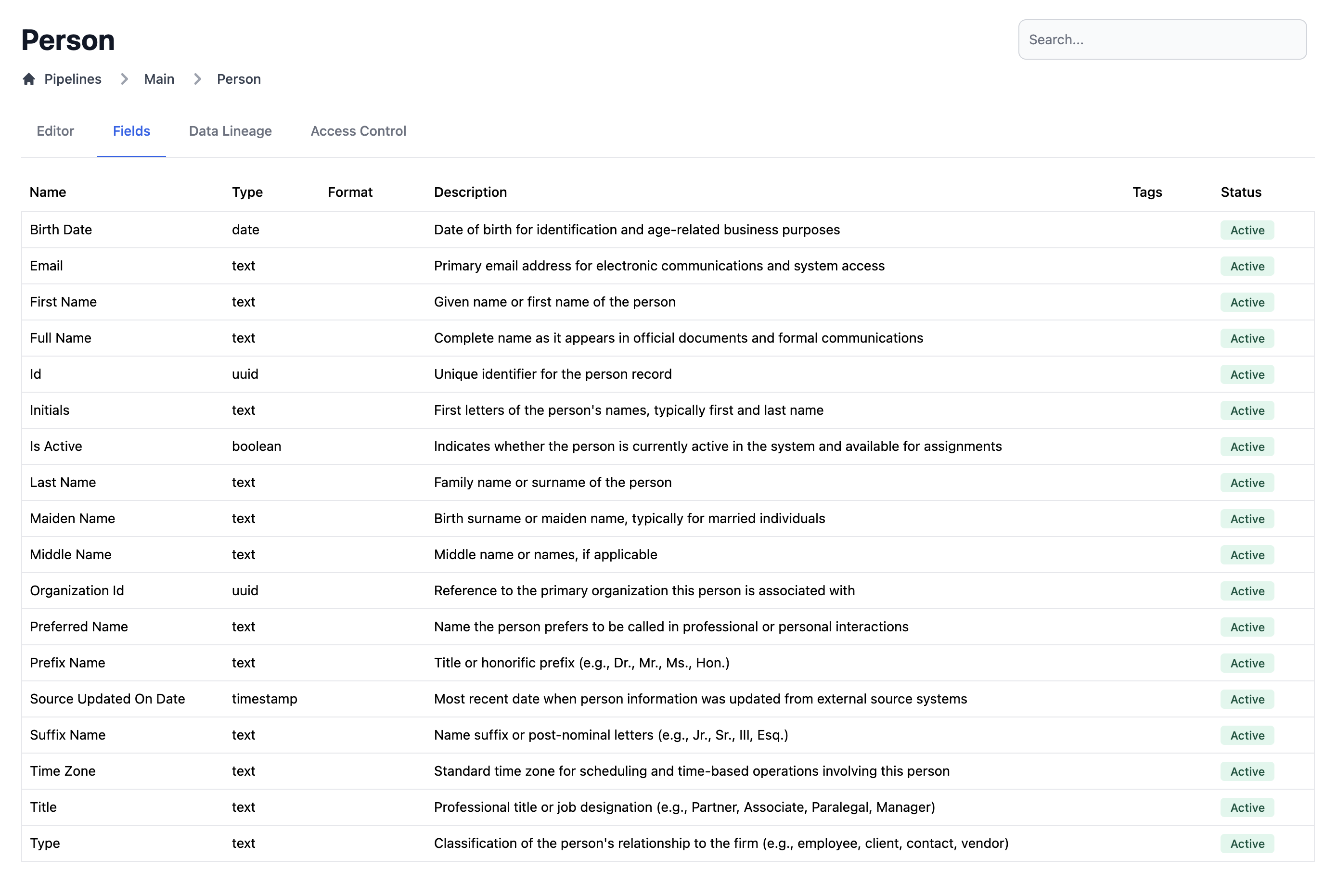
A table view of all fields for an entity:
* Quick view of all metadata for all fields on an entity
* Shows all fields on an entity across all data maps
### Entity Field List Mapping
A table view of all fields for an entity:
* Quick view of all metadata for all fields on an entity
* Shows all fields on an entity across all data maps
 ### Entity Lineage
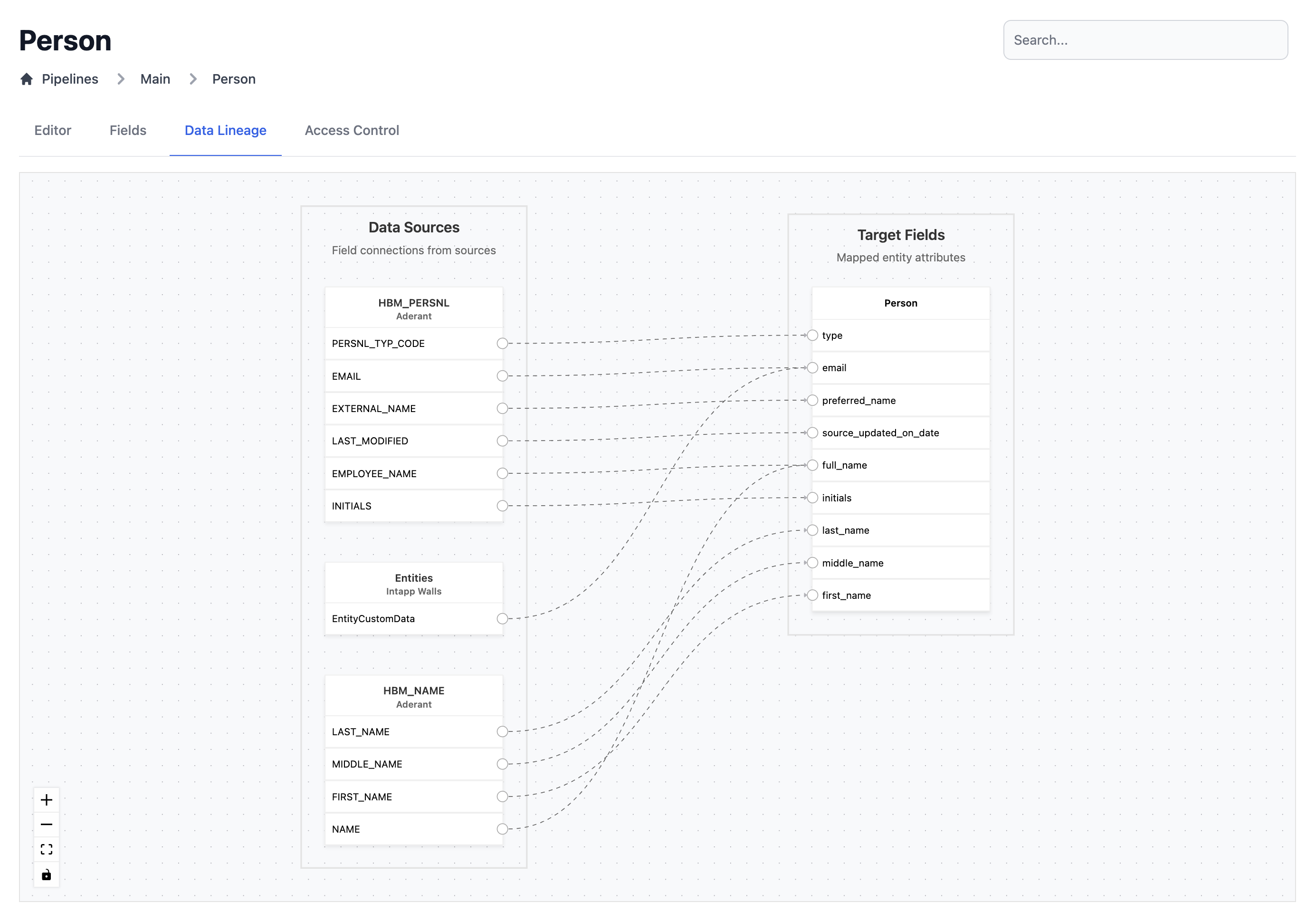
A view of the sources and fields mapped to an entity:
* A convenient, clutter-free way to view source to entity mappings
### Entity Lineage
A view of the sources and fields mapped to an entity:
* A convenient, clutter-free way to view source to entity mappings
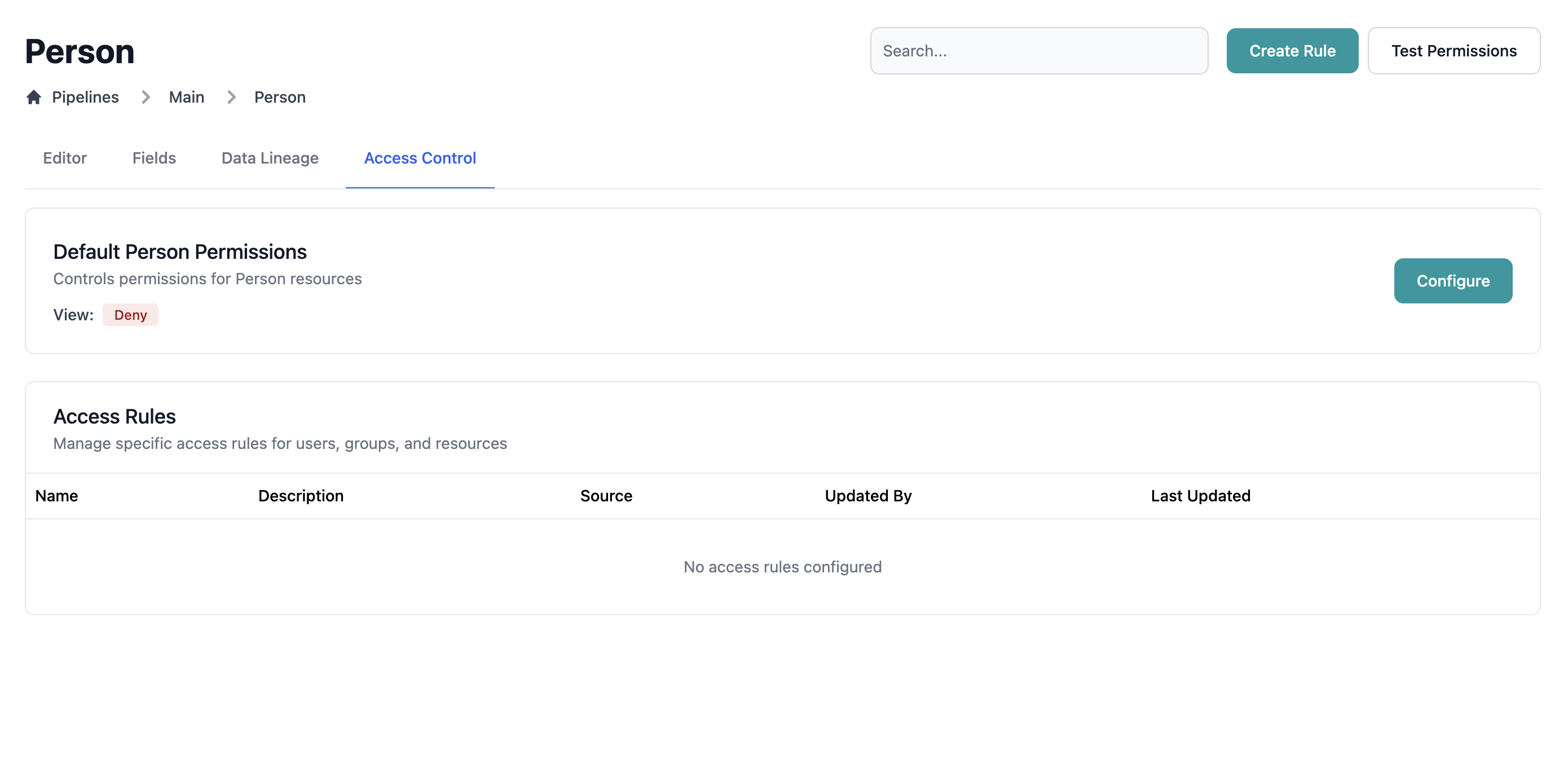
 ### Entity Access Control
A view of access controls rules applied to an entity:
* Explore access control rules applied to an entity
* Check source of access control rules applied to an entity
### Entity Access Control
A view of access controls rules applied to an entity:
* Explore access control rules applied to an entity
* Check source of access control rules applied to an entity
 ## Mapping Capabilities
### Simple Direct Mapping
Map a single source field directly to a data type field:
**Example:** Map `CRM_Clients.client_name` to `Client.name`
### Multi-Field Mapping
Combine multiple source fields into one target field:
**COALESCE Example:** Use the first non-null value from multiple sources
```
COALESCE(email_primary, email_work, email_personal)
```
**CONCAT Example:** Combine multiple fields with a separator
```
CONCAT(first_name, ' ', last_name)
```
### Conditional Mapping
Apply different logic based on source data values:
**CASE Example:** Map status codes to descriptive values
```
CASE
WHEN status = 'A' THEN 'Active'
WHEN status = 'I' THEN 'Inactive'
ELSE 'Unknown'
END
```
### Type Conversion
Automatically convert between data types:
* String to number
* String to date/timestamp
* Number to string
* Date format conversions
### Default Values
Provide fallback values when source data is missing:
**Static Default:** Use a fixed value (e.g., "Unknown", 0, current timestamp)
**Expression Default:** Use a SQL expression (e.g., `CURRENT_DATE()`, `UUID()`)
## Data Quality and Validation
Entegrata provides several data quality features:
### Required Field Validation
* Ensures all required fields have mappings or defaults
* Prevents deployment of incomplete configurations
* Highlights missing mappings in the editor
### Type Compatibility Checking
* Validates source and target data types are compatible
* Warns about potential type conversion issues
* Suggests appropriate type casting
### Null Handling
* Configure how NULL values are handled
* Use COALESCE for multiple fallback options
* Set defaults for fields that can't be null
### Data Preview
* See sample data from sources before mapping
* Verify transformations work with real data
* Identify data quality issues early
Always use dry-run mode to validate mappings with actual data before deploying to production.
## Mapping Strategies
### Start-to-Finish Approach
Best for new data types or simple mappings:
1. Map all required fields first
2. Map commonly-used optional fields
3. Add transformations and defaults
4. Test and deploy
### Incremental Approach
Best for complex data types or evolving requirements:
1. Map minimal required fields to get started
2. Deploy and test with real data
3. Add more fields incrementally
4. Redeploy after each addition
### Template-Based Approach
Best for similar data types across multiple pipelines:
1. Create a reference mapping in one pipeline
2. Duplicate pipeline to new environments or regions
3. Adjust source connections and field specifics
4. Maintain consistency across deployments
## Common Mapping Patterns
### Full Name from Components
Combine first, middle, and last names:
```
CONCAT_WS(' ', first_name, middle_name, last_name)
```
### Email with Fallback
Use primary email, falling back to secondary:
```
COALESCE(email_primary, email_secondary, 'noemail@company.com')
```
### Status Normalization
Convert various status codes to standard values:
```
CASE
WHEN status IN ('A', 'Active', '1') THEN 'Active'
WHEN status IN ('I', 'Inactive', '0') THEN 'Inactive'
WHEN status IN ('P', 'Pending') THEN 'Pending'
ELSE 'Unknown'
END
```
### Date Formatting
Convert string dates to proper date types:
```
TO_DATE(date_string, 'YYYY-MM-DD')
```
### ID Generation
Create unique identifiers from multiple fields:
```
CONCAT(source_system, '_', source_id)
```
## Performance Considerations
### Efficient Source Queries
* Use filters in source configuration to reduce data volume
* Select only needed columns from sources
* Leverage indexes on join columns
### Transformation Complexity
* Simple mappings perform better than complex CASE statements
* Pre-aggregate data in sources when possible
* Use materialized views for frequently-joined related sources
### Incremental Processing
* Configure change tracking to process only new/modified records
* Use timestamp fields for incremental logic
* Balance frequency vs. data volume
## Best Practices
**Map Required Fields First**
Always start by mapping all required fields. This ensures your configuration can deploy and prevents wasted effort on optional fields if required fields can't be satisfied.
**Test with Real Data Early**
Don't wait until all fields are mapped to test. Run dry-run mode early and often to catch:
* Data quality issues in sources
* Type conversion problems
* Unexpected NULL values
* Performance bottlenecks
**Document Complex Transformations**
For complex CASE statements or business logic:
* Add comments in the pipeline description
* Document the reasoning behind specific mappings
* Include examples of input → output transformations
* Note any business rules or regulatory requirements
**Use Meaningful Source Aliases**
When adding related sources, use clear aliases:
* Good: `addresses`, `industry_lookup`, `contact_emails`
* Poor: `table1`, `t2`, `rel1`
This makes field mappings easier to understand and maintain.
**Start Simple, Add Complexity**
Begin with simple direct mappings and add transformations only when needed:
1. Direct field-to-field mappings first
2. Add COALESCE for NULL handling
3. Add CASE for conditional logic
4. Add CONCAT for combining fields
This approach makes troubleshooting easier.
## Exploring Data Mapping
Ready to start mapping data? Explore these detailed guides:
Learn how to add and configure data types in your pipeline
Connect primary and related data sources
Map individual fields between source and target
Use COALESCE, CONCAT, and CASE for complex mappings
Understand data type field properties and requirements
Configure fallback values for missing data
## Related Topics
Deploy mappings to generate DLT scripts
View data flow and transformation lineage
Understand data type access controls
Execute pipelines to process mapped data
## Mapping Capabilities
### Simple Direct Mapping
Map a single source field directly to a data type field:
**Example:** Map `CRM_Clients.client_name` to `Client.name`
### Multi-Field Mapping
Combine multiple source fields into one target field:
**COALESCE Example:** Use the first non-null value from multiple sources
```
COALESCE(email_primary, email_work, email_personal)
```
**CONCAT Example:** Combine multiple fields with a separator
```
CONCAT(first_name, ' ', last_name)
```
### Conditional Mapping
Apply different logic based on source data values:
**CASE Example:** Map status codes to descriptive values
```
CASE
WHEN status = 'A' THEN 'Active'
WHEN status = 'I' THEN 'Inactive'
ELSE 'Unknown'
END
```
### Type Conversion
Automatically convert between data types:
* String to number
* String to date/timestamp
* Number to string
* Date format conversions
### Default Values
Provide fallback values when source data is missing:
**Static Default:** Use a fixed value (e.g., "Unknown", 0, current timestamp)
**Expression Default:** Use a SQL expression (e.g., `CURRENT_DATE()`, `UUID()`)
## Data Quality and Validation
Entegrata provides several data quality features:
### Required Field Validation
* Ensures all required fields have mappings or defaults
* Prevents deployment of incomplete configurations
* Highlights missing mappings in the editor
### Type Compatibility Checking
* Validates source and target data types are compatible
* Warns about potential type conversion issues
* Suggests appropriate type casting
### Null Handling
* Configure how NULL values are handled
* Use COALESCE for multiple fallback options
* Set defaults for fields that can't be null
### Data Preview
* See sample data from sources before mapping
* Verify transformations work with real data
* Identify data quality issues early
Always use dry-run mode to validate mappings with actual data before deploying to production.
## Mapping Strategies
### Start-to-Finish Approach
Best for new data types or simple mappings:
1. Map all required fields first
2. Map commonly-used optional fields
3. Add transformations and defaults
4. Test and deploy
### Incremental Approach
Best for complex data types or evolving requirements:
1. Map minimal required fields to get started
2. Deploy and test with real data
3. Add more fields incrementally
4. Redeploy after each addition
### Template-Based Approach
Best for similar data types across multiple pipelines:
1. Create a reference mapping in one pipeline
2. Duplicate pipeline to new environments or regions
3. Adjust source connections and field specifics
4. Maintain consistency across deployments
## Common Mapping Patterns
### Full Name from Components
Combine first, middle, and last names:
```
CONCAT_WS(' ', first_name, middle_name, last_name)
```
### Email with Fallback
Use primary email, falling back to secondary:
```
COALESCE(email_primary, email_secondary, 'noemail@company.com')
```
### Status Normalization
Convert various status codes to standard values:
```
CASE
WHEN status IN ('A', 'Active', '1') THEN 'Active'
WHEN status IN ('I', 'Inactive', '0') THEN 'Inactive'
WHEN status IN ('P', 'Pending') THEN 'Pending'
ELSE 'Unknown'
END
```
### Date Formatting
Convert string dates to proper date types:
```
TO_DATE(date_string, 'YYYY-MM-DD')
```
### ID Generation
Create unique identifiers from multiple fields:
```
CONCAT(source_system, '_', source_id)
```
## Performance Considerations
### Efficient Source Queries
* Use filters in source configuration to reduce data volume
* Select only needed columns from sources
* Leverage indexes on join columns
### Transformation Complexity
* Simple mappings perform better than complex CASE statements
* Pre-aggregate data in sources when possible
* Use materialized views for frequently-joined related sources
### Incremental Processing
* Configure change tracking to process only new/modified records
* Use timestamp fields for incremental logic
* Balance frequency vs. data volume
## Best Practices
**Map Required Fields First**
Always start by mapping all required fields. This ensures your configuration can deploy and prevents wasted effort on optional fields if required fields can't be satisfied.
**Test with Real Data Early**
Don't wait until all fields are mapped to test. Run dry-run mode early and often to catch:
* Data quality issues in sources
* Type conversion problems
* Unexpected NULL values
* Performance bottlenecks
**Document Complex Transformations**
For complex CASE statements or business logic:
* Add comments in the pipeline description
* Document the reasoning behind specific mappings
* Include examples of input → output transformations
* Note any business rules or regulatory requirements
**Use Meaningful Source Aliases**
When adding related sources, use clear aliases:
* Good: `addresses`, `industry_lookup`, `contact_emails`
* Poor: `table1`, `t2`, `rel1`
This makes field mappings easier to understand and maintain.
**Start Simple, Add Complexity**
Begin with simple direct mappings and add transformations only when needed:
1. Direct field-to-field mappings first
2. Add COALESCE for NULL handling
3. Add CASE for conditional logic
4. Add CONCAT for combining fields
This approach makes troubleshooting easier.
## Exploring Data Mapping
Ready to start mapping data? Explore these detailed guides:
Learn how to add and configure data types in your pipeline
Connect primary and related data sources
Map individual fields between source and target
Use COALESCE, CONCAT, and CASE for complex mappings
Understand data type field properties and requirements
Configure fallback values for missing data
## Related Topics
Deploy mappings to generate DLT scripts
View data flow and transformation lineage
Understand data type access controls
Execute pipelines to process mapped data