> ## Documentation Index
> Fetch the complete documentation index at: https://support.entegrata.com/llms.txt
> Use this file to discover all available pages before exploring further.
# Duplicating Pipelines
> How to create copies of existing pipelines with all data mappings and configurations
## Overview
Duplicating a pipeline creates a complete copy including all data type mappings, field configurations, and transformation logic. This is useful for creating variations of existing pipelines, testing changes without affecting production, or setting up similar pipelines for different data sources.
Duplication copies the pipeline structure and mappings but creates a new, independent pipeline. Changes to the duplicate won't affect the original, and vice versa.
## What Gets Duplicated
When you duplicate a pipeline, the following are copied:
* **Pipeline Metadata** - Name (with "Copy of" prefix) and description
* **Data Type Mappings** - All configured data types in the pipeline
* **Data Sources** - Primary and related source configurations
* **Field Mappings** - All field-to-field mappings and transformations
* **Default Values** - Any default values configured for fields
* **Transformation Logic** - COALESCE, CONCAT, CASE expressions, and custom SQL
## What Is NOT Duplicated
The following are NOT copied when duplicating:
* **Execution History** - The duplicate has no run history
* **Deployment Status** - Duplicate starts in Draft status (not deployed)
* **Pipeline Key** - A new unique key is generated
* **Created/Modified Dates** - Duplicate has its own timestamps
## Duplicating a Pipeline
Log in to the [Entegrata Admin Portal](https://admin.entegrata.com) and go to the **Pipelines** tab.
Locate the pipeline you want to duplicate using the search bar or by browsing the list.
 Click the three-dot menu (⋮) in the Actions column for the pipeline you want to duplicate.
From the actions menu, click **Duplicate** to open the Duplicate Pipeline dialog.
The Duplicate Pipeline dialog opens with information from the source pipeline:
**Pipeline Name:** Automatically prefixed with "Copy of " plus the original name
* Example: "Copy of Client Data Processing Pipeline"
**Pipeline Key:** Auto-generated from the new name
* Example: `copy_of_client_data_processing_pipeline`
**Description:** Copied from the source pipeline
Click the three-dot menu (⋮) in the Actions column for the pipeline you want to duplicate.
From the actions menu, click **Duplicate** to open the Duplicate Pipeline dialog.
The Duplicate Pipeline dialog opens with information from the source pipeline:
**Pipeline Name:** Automatically prefixed with "Copy of " plus the original name
* Example: "Copy of Client Data Processing Pipeline"
**Pipeline Key:** Auto-generated from the new name
* Example: `copy_of_client_data_processing_pipeline`
**Description:** Copied from the source pipeline
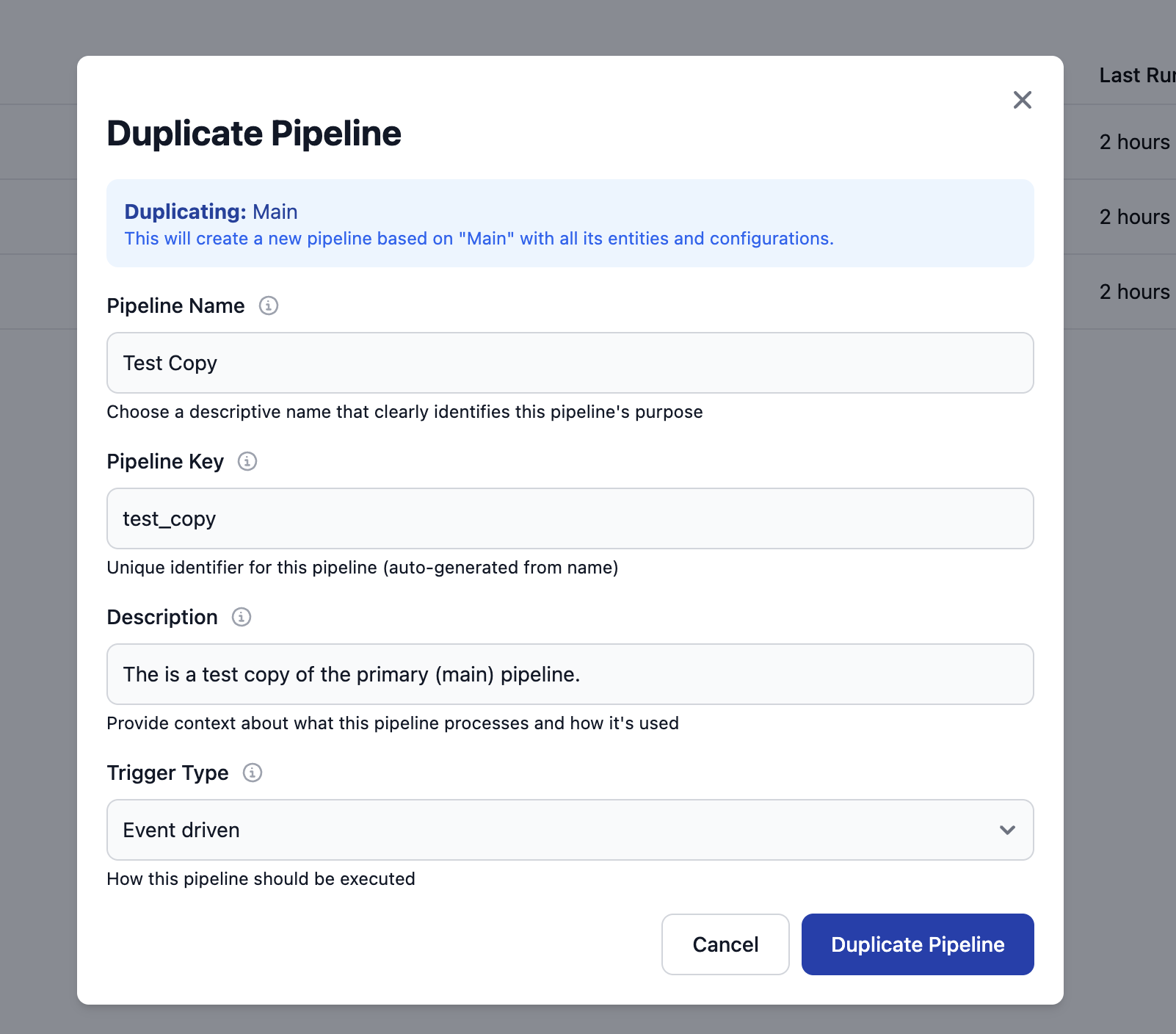 Update the fields to customize your duplicate:
### Update Pipeline Name
Change the name to something more meaningful than "Copy of...". Consider:
* Purpose of the duplicate (testing, different environment, etc.)
* Differences from the original
* Version indicators if applicable
**Examples:**
* "Client Data Processing Pipeline - Test"
* "Client Data Processing Pipeline v2"
* "Client Data Processing Pipeline - UK Region"
### Update Pipeline Key
The key auto-generates from the name, but you can customize it if needed. Ensure it's unique and follows naming conventions (lowercase, underscores, no special characters).
### Update Description
Modify the description to explain:
* Relationship to the source pipeline
* Purpose of this duplicate
* Key differences or customizations
* Intended use case
**Example Description:**
"Testing version of Client Data Processing Pipeline. Used to validate new transformation logic before deploying to production. Do not activate for scheduled runs."
Set the trigger type for your duplicate:
* **No Trigger** - Manual execution only (recommended for test pipelines)
* **Manual** - Explicitly manual (same as No Trigger)
* **Event Driven** - Triggered by events
After reviewing and customizing all fields, click **Create Pipeline** to duplicate.
The duplication process may take a few moments as all mappings are copied.
After successful duplication, you'll see a confirmation message. The new pipeline appears in the pipeline list with:
* Your custom name
* **Draft** status (not deployed)
* No execution history
* Current date as Created date
Update the fields to customize your duplicate:
### Update Pipeline Name
Change the name to something more meaningful than "Copy of...". Consider:
* Purpose of the duplicate (testing, different environment, etc.)
* Differences from the original
* Version indicators if applicable
**Examples:**
* "Client Data Processing Pipeline - Test"
* "Client Data Processing Pipeline v2"
* "Client Data Processing Pipeline - UK Region"
### Update Pipeline Key
The key auto-generates from the name, but you can customize it if needed. Ensure it's unique and follows naming conventions (lowercase, underscores, no special characters).
### Update Description
Modify the description to explain:
* Relationship to the source pipeline
* Purpose of this duplicate
* Key differences or customizations
* Intended use case
**Example Description:**
"Testing version of Client Data Processing Pipeline. Used to validate new transformation logic before deploying to production. Do not activate for scheduled runs."
Set the trigger type for your duplicate:
* **No Trigger** - Manual execution only (recommended for test pipelines)
* **Manual** - Explicitly manual (same as No Trigger)
* **Event Driven** - Triggered by events
After reviewing and customizing all fields, click **Create Pipeline** to duplicate.
The duplication process may take a few moments as all mappings are copied.
After successful duplication, you'll see a confirmation message. The new pipeline appears in the pipeline list with:
* Your custom name
* **Draft** status (not deployed)
* No execution history
* Current date as Created date
 Click on the duplicate pipeline name to open it and verify that all data type mappings were copied correctly:
* All data types present
* Source configurations intact
* Field mappings preserved
* Transformation logic copied
It's good practice to review critical mappings before deploying a duplicate, especially if you're planning to make modifications.
## Common Use Cases for Duplication
### 1. Testing Changes
Duplicate a production pipeline to test modifications without risking the production configuration.
**Workflow:**
1. Duplicate the production pipeline
2. Name it "Pipeline Name - Test"
3. Make your changes to the duplicate
4. Test thoroughly in dry-run mode
5. Once validated, apply the same changes to production
6. Delete or keep the test pipeline for future use
### 2. Environment-Specific Pipelines
Create pipeline variations for different environments (Development, Staging, Production).
**Example:**
* Original: "Client Processing - Production"
* Duplicate: "Client Processing - Staging"
* Modify source connections to point to staging data sources
### 3. Regional Variations
Duplicate pipelines for processing data from different regions or business units.
**Example:**
* Original: "Client Pipeline - US"
* Duplicate: "Client Pipeline - EMEA"
* Adjust source connections and any region-specific transformations
### 4. Version Control
Create versioned copies when making significant architectural changes.
**Example:**
* Original: "Portfolio Pipeline v1"
* Duplicate: "Portfolio Pipeline v2"
* Implement new mapping approach in v2 while keeping v1 available for rollback
### 5. Historical Archive
Duplicate a pipeline before major refactoring to preserve the original configuration.
**Example:**
* Original: "Legacy Client Pipeline"
* Duplicate: "Legacy Client Pipeline - Archive 2024-Q3"
* Refactor the original, keeping the archive for reference
## After Duplication
Once you've duplicated a pipeline, typical next steps include:
### 1. Modify as Needed
Make any necessary changes to the duplicate:
* Update data sources to point to different systems
* Adjust field mappings or transformations
* Add or remove data types
* Change business logic
### 2. Test Thoroughly
Run the duplicate in dry-run mode to ensure it works as expected:
Learn how to test and execute pipelines
### 3. Deploy When Ready
Once tested and validated, deploy the duplicate to production:
Learn how to deploy pipelines to production
### 4. Manage the Original
Decide what to do with the original pipeline:
* Keep both if serving different purposes
* Delete the original if the duplicate replaces it
* Archive the original for reference
## Duplication Best Practices
**Use Clear Naming Conventions**
When duplicating, use names that clearly indicate:
* Purpose of the duplicate
* Relationship to the original
* Environment or version
Examples:
* "\[Original Name] - Test"
* "\[Original Name] - v2"
* "\[Original Name] - US-East"
* "\[Original Name] - Archive 2024-01"
**Document the Relationship**
In the description field, note:
* Which pipeline this was duplicated from
* Why the duplicate was created
* Key differences from the original
* When the duplicate was created
Example: "Duplicated from 'Client Data Processing Pipeline' on 2024-10-02. Used for testing new validation rules before production deployment."
**Test Before Activating**
Always test duplicated pipelines in dry-run mode before:
* Deploying to production
* Processing live data
Duplication copies configurations, but issues can arise if source connections or data have changed.
**Clean Up Unused Duplicates**
Regularly review and delete duplicates that are no longer needed:
* Test pipelines after changes are synced to production
* Old versions after new versions are validated
* Regional variations if business requirements change
This keeps your pipeline list manageable and reduces confusion.
## Troubleshooting
### Duplication Fails
**Problem:** Error message when trying to duplicate a pipeline.
**Solution:**
* Verify you have permissions to create pipelines
* Check if the proposed pipeline name or key already exists
* Ensure the source pipeline is not corrupted or partially configured
* Try duplicating a different pipeline to see if the issue is specific to one pipeline
### Missing Mappings After Duplication
**Problem:** Some data types or field mappings didn't copy to the duplicate.
**Solution:**
* Verify the source pipeline had complete mappings before duplication
* Check if archived or deleted data types were excluded from duplication
* Re-duplicate if mappings are critical, or manually recreate missing mappings
* Contact support if duplication consistently misses mappings
### Duplicate Runs Against Wrong Data Source
**Problem:** Duplicate pipeline is processing data from the original's sources instead of new sources.
**Solution:**
* Open the duplicate pipeline's mapping editor
* For each data type, verify and update the source connections
* Check both primary and related sources
* Save changes and test in dry-run mode
### Can't Edit Duplicate After Creation
**Problem:** Unable to modify the duplicate pipeline after creation.
**Solution:**
* Refresh the page to ensure the duplicate was fully created
* Verify you have edit permissions
* Check if the pipeline is locked by another operation
* Try accessing the pipeline after a few moments (background processes may still be completing)
### Duplicate Has Same Key as Original
**Problem:** Error about duplicate pipeline key.
**Solution:**
* The system should auto-generate a unique key, but if not:
* Customize the pipeline key in the duplication dialog
* Ensure the key is unique across all pipelines in your instance
* Use underscores instead of spaces or special characters
## Related Topics
Learn how to create pipelines from scratch
How to modify pipeline metadata
Learn how to delete pipelines safely
Test and execute duplicated pipelines
Click on the duplicate pipeline name to open it and verify that all data type mappings were copied correctly:
* All data types present
* Source configurations intact
* Field mappings preserved
* Transformation logic copied
It's good practice to review critical mappings before deploying a duplicate, especially if you're planning to make modifications.
## Common Use Cases for Duplication
### 1. Testing Changes
Duplicate a production pipeline to test modifications without risking the production configuration.
**Workflow:**
1. Duplicate the production pipeline
2. Name it "Pipeline Name - Test"
3. Make your changes to the duplicate
4. Test thoroughly in dry-run mode
5. Once validated, apply the same changes to production
6. Delete or keep the test pipeline for future use
### 2. Environment-Specific Pipelines
Create pipeline variations for different environments (Development, Staging, Production).
**Example:**
* Original: "Client Processing - Production"
* Duplicate: "Client Processing - Staging"
* Modify source connections to point to staging data sources
### 3. Regional Variations
Duplicate pipelines for processing data from different regions or business units.
**Example:**
* Original: "Client Pipeline - US"
* Duplicate: "Client Pipeline - EMEA"
* Adjust source connections and any region-specific transformations
### 4. Version Control
Create versioned copies when making significant architectural changes.
**Example:**
* Original: "Portfolio Pipeline v1"
* Duplicate: "Portfolio Pipeline v2"
* Implement new mapping approach in v2 while keeping v1 available for rollback
### 5. Historical Archive
Duplicate a pipeline before major refactoring to preserve the original configuration.
**Example:**
* Original: "Legacy Client Pipeline"
* Duplicate: "Legacy Client Pipeline - Archive 2024-Q3"
* Refactor the original, keeping the archive for reference
## After Duplication
Once you've duplicated a pipeline, typical next steps include:
### 1. Modify as Needed
Make any necessary changes to the duplicate:
* Update data sources to point to different systems
* Adjust field mappings or transformations
* Add or remove data types
* Change business logic
### 2. Test Thoroughly
Run the duplicate in dry-run mode to ensure it works as expected:
Learn how to test and execute pipelines
### 3. Deploy When Ready
Once tested and validated, deploy the duplicate to production:
Learn how to deploy pipelines to production
### 4. Manage the Original
Decide what to do with the original pipeline:
* Keep both if serving different purposes
* Delete the original if the duplicate replaces it
* Archive the original for reference
## Duplication Best Practices
**Use Clear Naming Conventions**
When duplicating, use names that clearly indicate:
* Purpose of the duplicate
* Relationship to the original
* Environment or version
Examples:
* "\[Original Name] - Test"
* "\[Original Name] - v2"
* "\[Original Name] - US-East"
* "\[Original Name] - Archive 2024-01"
**Document the Relationship**
In the description field, note:
* Which pipeline this was duplicated from
* Why the duplicate was created
* Key differences from the original
* When the duplicate was created
Example: "Duplicated from 'Client Data Processing Pipeline' on 2024-10-02. Used for testing new validation rules before production deployment."
**Test Before Activating**
Always test duplicated pipelines in dry-run mode before:
* Deploying to production
* Processing live data
Duplication copies configurations, but issues can arise if source connections or data have changed.
**Clean Up Unused Duplicates**
Regularly review and delete duplicates that are no longer needed:
* Test pipelines after changes are synced to production
* Old versions after new versions are validated
* Regional variations if business requirements change
This keeps your pipeline list manageable and reduces confusion.
## Troubleshooting
### Duplication Fails
**Problem:** Error message when trying to duplicate a pipeline.
**Solution:**
* Verify you have permissions to create pipelines
* Check if the proposed pipeline name or key already exists
* Ensure the source pipeline is not corrupted or partially configured
* Try duplicating a different pipeline to see if the issue is specific to one pipeline
### Missing Mappings After Duplication
**Problem:** Some data types or field mappings didn't copy to the duplicate.
**Solution:**
* Verify the source pipeline had complete mappings before duplication
* Check if archived or deleted data types were excluded from duplication
* Re-duplicate if mappings are critical, or manually recreate missing mappings
* Contact support if duplication consistently misses mappings
### Duplicate Runs Against Wrong Data Source
**Problem:** Duplicate pipeline is processing data from the original's sources instead of new sources.
**Solution:**
* Open the duplicate pipeline's mapping editor
* For each data type, verify and update the source connections
* Check both primary and related sources
* Save changes and test in dry-run mode
### Can't Edit Duplicate After Creation
**Problem:** Unable to modify the duplicate pipeline after creation.
**Solution:**
* Refresh the page to ensure the duplicate was fully created
* Verify you have edit permissions
* Check if the pipeline is locked by another operation
* Try accessing the pipeline after a few moments (background processes may still be completing)
### Duplicate Has Same Key as Original
**Problem:** Error about duplicate pipeline key.
**Solution:**
* The system should auto-generate a unique key, but if not:
* Customize the pipeline key in the duplication dialog
* Ensure the key is unique across all pipelines in your instance
* Use underscores instead of spaces or special characters
## Related Topics
Learn how to create pipelines from scratch
How to modify pipeline metadata
Learn how to delete pipelines safely
Test and execute duplicated pipelines