> ## Documentation Index
> Fetch the complete documentation index at: https://support.entegrata.com/llms.txt
> Use this file to discover all available pages before exploring further.
# Entity Lineage
> Understand and visualize data lineage to track how data flows through your Entegrata pipelines
## Overview
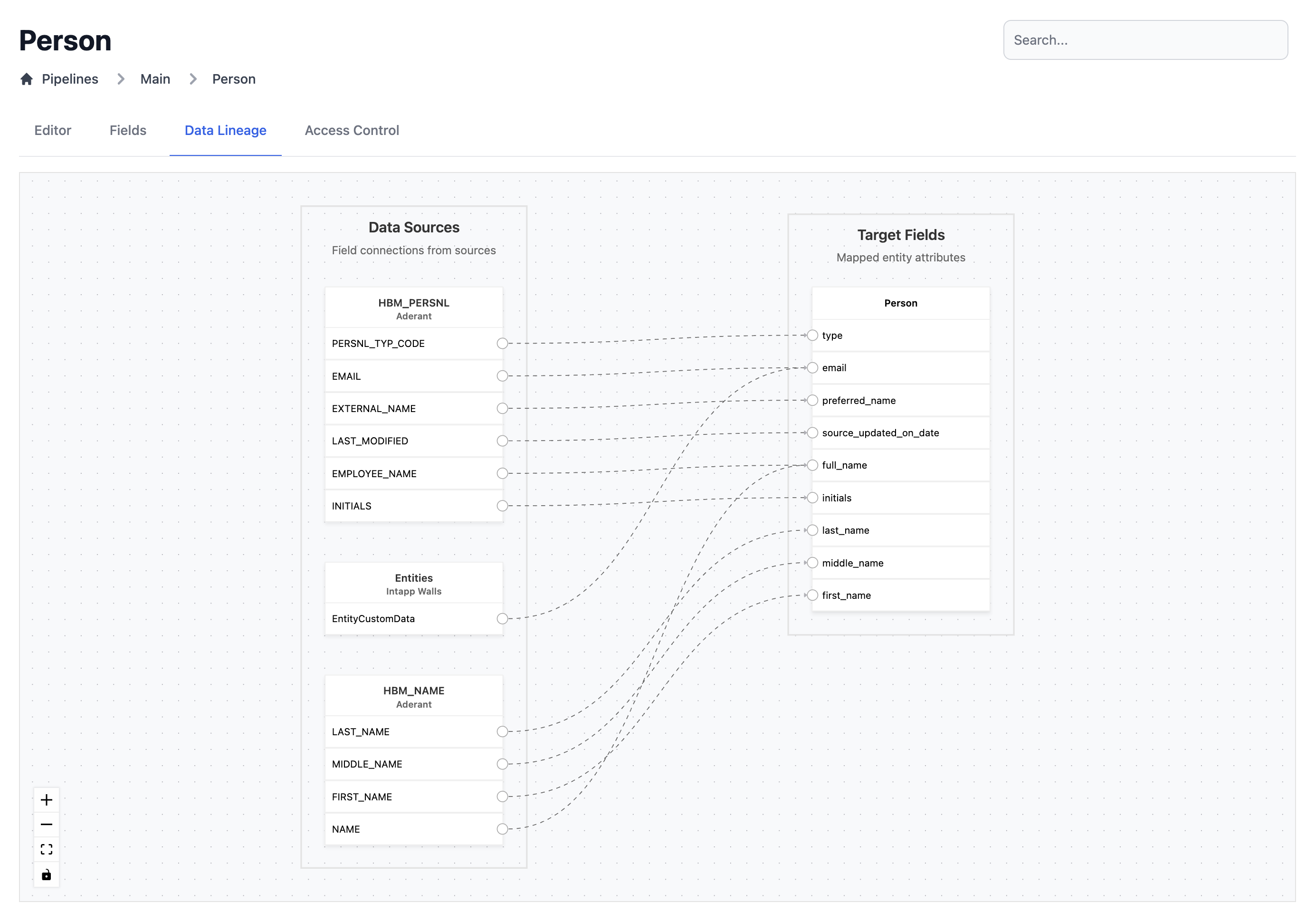
Data lineage shows the complete journey of your data - from source systems through transformations to final entities. Entegrata provides visual lineage tracking to help you understand data flow, troubleshoot issues, and maintain compliance.
This guide covers how to view and interpret lineage information for your entities and fields.
## Understanding Data Lineage
### What is Data Lineage?
Data lineage traces the lifecycle of data:
* **Origin**: Where data comes from (source systems, tables, fields)
* **Transformations**: How data is modified (CONCAT, CASE, COALESCE, etc.)
* **Dependencies**: What data depends on other data
* **Destination**: Where data ends up (entities, fields, downstream systems)
 ### Why Lineage Matters
**Troubleshooting:**
* Trace data quality issues back to source
* Understand unexpected values
**Impact Analysis:**
* See what breaks if you change a source
* Identify downstream dependencies before changes
* Plan migrations and updates safely
**Compliance:**
* Document data provenance for regulations
* Track sensitive data through systems
* Audit data access and usage
**Documentation:**
* Understand existing pipelines
* Onboard new team members
* Maintain institutional knowledge
## Viewing Entity Lineage
### Accessing Lineage View
Navigate to your entity in the data pipeline section.
In the entity view, click the **Lineage** tab or the lineage icon.
The lineage visualization appears, showing:
* Source systems and tables (left)
* Your entity and fields (right)
* Flow connections between all elements
## Using Lineage for Troubleshooting
### Tracing Data Quality Issues
You notice incorrect data in an entity field.
Example: Customer names are showing as "NULL NULL"
Navigate to the entity and open lineage view for the problematic field.
Follow the lineage upstream to identify:
* Which source field(s) provide the data
* Where the issue is introduced
Examine each node in the path:
* Check transformation logic (is CONCAT handling nulls correctly?)
* Verify join conditions (are records matching?)
The lineage helps pinpoint:
* Bad source data
* Incorrect transformation logic
* Failed joins
* Missing default values
Make corrections and use lineage to verify the fix flows through correctly.
### Impact Analysis for Changes
You need to modify a source field or table.
Example: Renaming a source column
Open downstream lineage for the source field.
The lineage shows:
* All entities using this source field
* Indirect dependencies
Create a list of all mappings that need updating:
* Direct field mappings
* Transformations using the field
* Validation rules referencing it
Update each affected mapping, using the lineage as your checklist.
## Lineage for Compliance
### Data Privacy Compliance
Track sensitive data through your systems:
In source systems or entity fields, add tags like "PII", "PHI", "Confidential".
Filter lineage to show only fields with specific tags.
Follow lineage to see:
* Where sensitive data originates
* Where it's stored
* Who has access
Export lineage as compliance documentation showing handling of regulated data.
### Audit Trail
Lineage includes audit information:
* Who created each mapping
* When it was created or modified
* What changes were made
* Why (from publish notes)
## Lineage Best Practices
**Documentation**
* Add descriptions to all entities and fields
* Document transformation logic clearly
* Tag fields appropriately
* Keep publish notes detailed
**Troubleshooting**
* Start with field-level lineage to narrow down issues
* Check each node in the path systematically
* Verify source data quality first
* Look for null handling issues in transformations
**Change Management**
* Always check downstream impact before changes
* Use lineage to create update checklists
* Communicate changes to affected stakeholders
* Verify changes with lineage after updates
**Compliance**
* Tag sensitive data at the source
* Regularly review lineage for compliance
* Export lineage for audit documentation
* Track data retention through lineage
* Monitor access patterns through lineage metadata
## Lineage Limitations
**Current Limitations:**
* Lineage shows design-time flow, not runtime data paths
* External transformations (outside Entegrata) not included
* Very complex transformations may be simplified in visualization
* Cross-workspace lineage requires additional configuration
* Historical lineage shows current state only, not previous versions
## Troubleshooting Lineage
### Lineage Not Showing
**Issue**: Lineage view is blank or incomplete.
**Solutions:**
* Ensure entity has been published at least once
* Refresh the page
* Check that you have permission to view lineage
* Verify sources are still connected
* Try exporting - may show more than visualization
### Missing Connections
**Issue**: Some connections don't appear in lineage.
**Solutions:**
* Check if fields are actually mapped
* Verify transformations are saved
* Republish the entity to refresh lineage
* Look for indirect connections (via intermediate transformations)
## Related Topics
Learn how mappings create lineage
Understand entity structure for lineage
See how sources appear in lineage
Lineage is created when you publish
### Why Lineage Matters
**Troubleshooting:**
* Trace data quality issues back to source
* Understand unexpected values
**Impact Analysis:**
* See what breaks if you change a source
* Identify downstream dependencies before changes
* Plan migrations and updates safely
**Compliance:**
* Document data provenance for regulations
* Track sensitive data through systems
* Audit data access and usage
**Documentation:**
* Understand existing pipelines
* Onboard new team members
* Maintain institutional knowledge
## Viewing Entity Lineage
### Accessing Lineage View
Navigate to your entity in the data pipeline section.
In the entity view, click the **Lineage** tab or the lineage icon.
The lineage visualization appears, showing:
* Source systems and tables (left)
* Your entity and fields (right)
* Flow connections between all elements
## Using Lineage for Troubleshooting
### Tracing Data Quality Issues
You notice incorrect data in an entity field.
Example: Customer names are showing as "NULL NULL"
Navigate to the entity and open lineage view for the problematic field.
Follow the lineage upstream to identify:
* Which source field(s) provide the data
* Where the issue is introduced
Examine each node in the path:
* Check transformation logic (is CONCAT handling nulls correctly?)
* Verify join conditions (are records matching?)
The lineage helps pinpoint:
* Bad source data
* Incorrect transformation logic
* Failed joins
* Missing default values
Make corrections and use lineage to verify the fix flows through correctly.
### Impact Analysis for Changes
You need to modify a source field or table.
Example: Renaming a source column
Open downstream lineage for the source field.
The lineage shows:
* All entities using this source field
* Indirect dependencies
Create a list of all mappings that need updating:
* Direct field mappings
* Transformations using the field
* Validation rules referencing it
Update each affected mapping, using the lineage as your checklist.
## Lineage for Compliance
### Data Privacy Compliance
Track sensitive data through your systems:
In source systems or entity fields, add tags like "PII", "PHI", "Confidential".
Filter lineage to show only fields with specific tags.
Follow lineage to see:
* Where sensitive data originates
* Where it's stored
* Who has access
Export lineage as compliance documentation showing handling of regulated data.
### Audit Trail
Lineage includes audit information:
* Who created each mapping
* When it was created or modified
* What changes were made
* Why (from publish notes)
## Lineage Best Practices
**Documentation**
* Add descriptions to all entities and fields
* Document transformation logic clearly
* Tag fields appropriately
* Keep publish notes detailed
**Troubleshooting**
* Start with field-level lineage to narrow down issues
* Check each node in the path systematically
* Verify source data quality first
* Look for null handling issues in transformations
**Change Management**
* Always check downstream impact before changes
* Use lineage to create update checklists
* Communicate changes to affected stakeholders
* Verify changes with lineage after updates
**Compliance**
* Tag sensitive data at the source
* Regularly review lineage for compliance
* Export lineage for audit documentation
* Track data retention through lineage
* Monitor access patterns through lineage metadata
## Lineage Limitations
**Current Limitations:**
* Lineage shows design-time flow, not runtime data paths
* External transformations (outside Entegrata) not included
* Very complex transformations may be simplified in visualization
* Cross-workspace lineage requires additional configuration
* Historical lineage shows current state only, not previous versions
## Troubleshooting Lineage
### Lineage Not Showing
**Issue**: Lineage view is blank or incomplete.
**Solutions:**
* Ensure entity has been published at least once
* Refresh the page
* Check that you have permission to view lineage
* Verify sources are still connected
* Try exporting - may show more than visualization
### Missing Connections
**Issue**: Some connections don't appear in lineage.
**Solutions:**
* Check if fields are actually mapped
* Verify transformations are saved
* Republish the entity to refresh lineage
* Look for indirect connections (via intermediate transformations)
## Related Topics
Learn how mappings create lineage
Understand entity structure for lineage
See how sources appear in lineage
Lineage is created when you publish