> ## Documentation Index
> Fetch the complete documentation index at: https://support.entegrata.com/llms.txt
> Use this file to discover all available pages before exploring further.
# Field Management
> Learn how to add, edit, and configure entity fields and their properties in Entegrata data pipelines
## Overview
Entity fields define the structure of your data types. Each field has properties like name, data type, and validation rules that determine how data is stored and used. This guide covers everything you need to know about managing fields in your entities.
## Understanding Entity Fields
### What is an Entity Field?
An entity field represents a single piece of information in your data type:
* **Customer Entity**: Name, Email, Phone, Address fields
* **Order Entity**: OrderID, OrderDate, Amount, Status fields
* **Product Entity**: SKU, Name, Price, Category fields
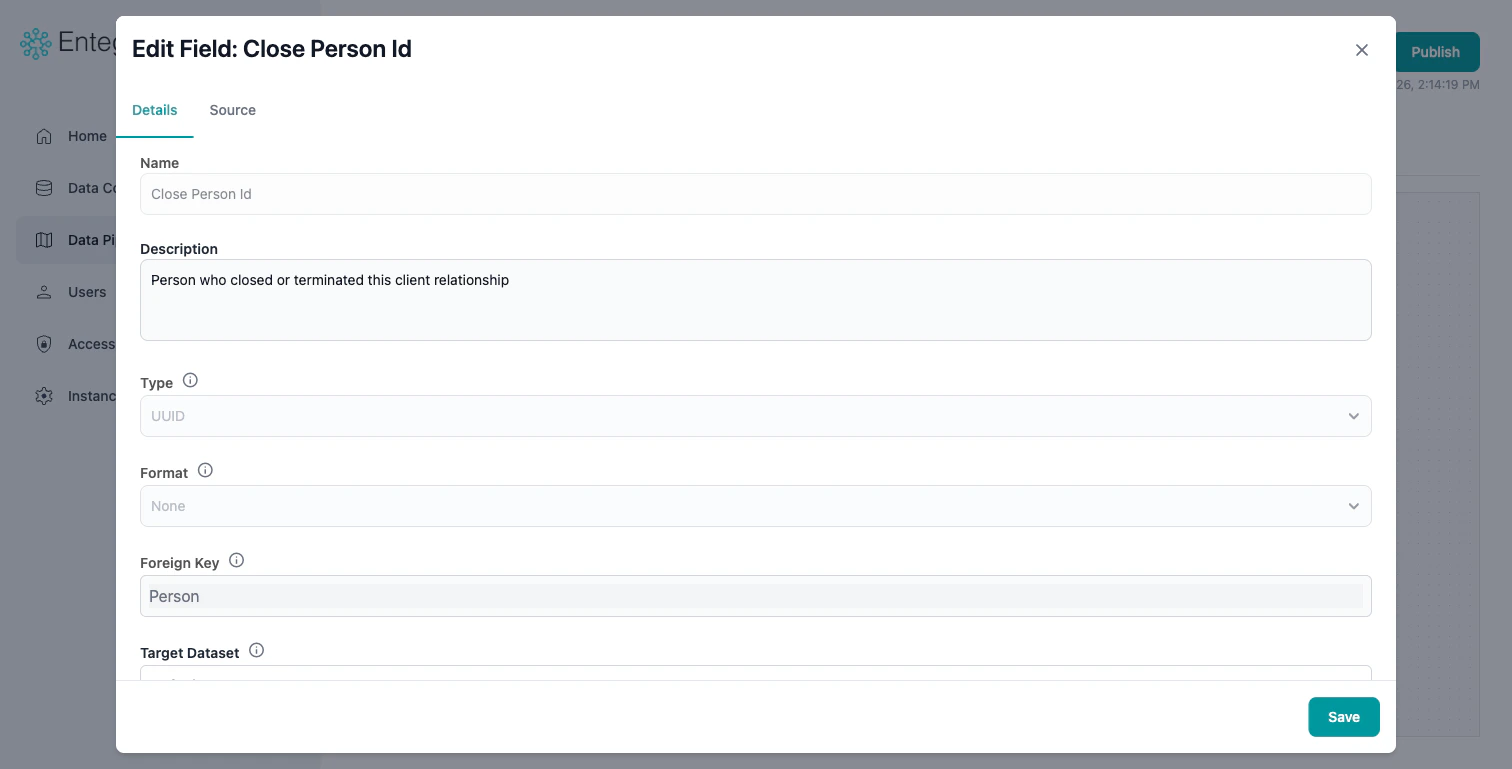
Each field has:
* **Name**: The field identifier
* **Description**: Any comments or documentation for the field
* **Type**: What kind of data it holds (UUID, Text, Integer, Timestamp, etc.)
* **Format**: Display formatting rule (Currency, Percent, Email, etc.)
* **Foreign Key**: Link to another entity type
* **Tags**: Custom labels for categorization
 ## Viewing Entity Fields
### Field List View
Access the complete field list for your entity:
Navigate to your entity in the data pipeline section.
## Viewing Entity Fields
### Field List View
Access the complete field list for your entity:
Navigate to your entity in the data pipeline section.
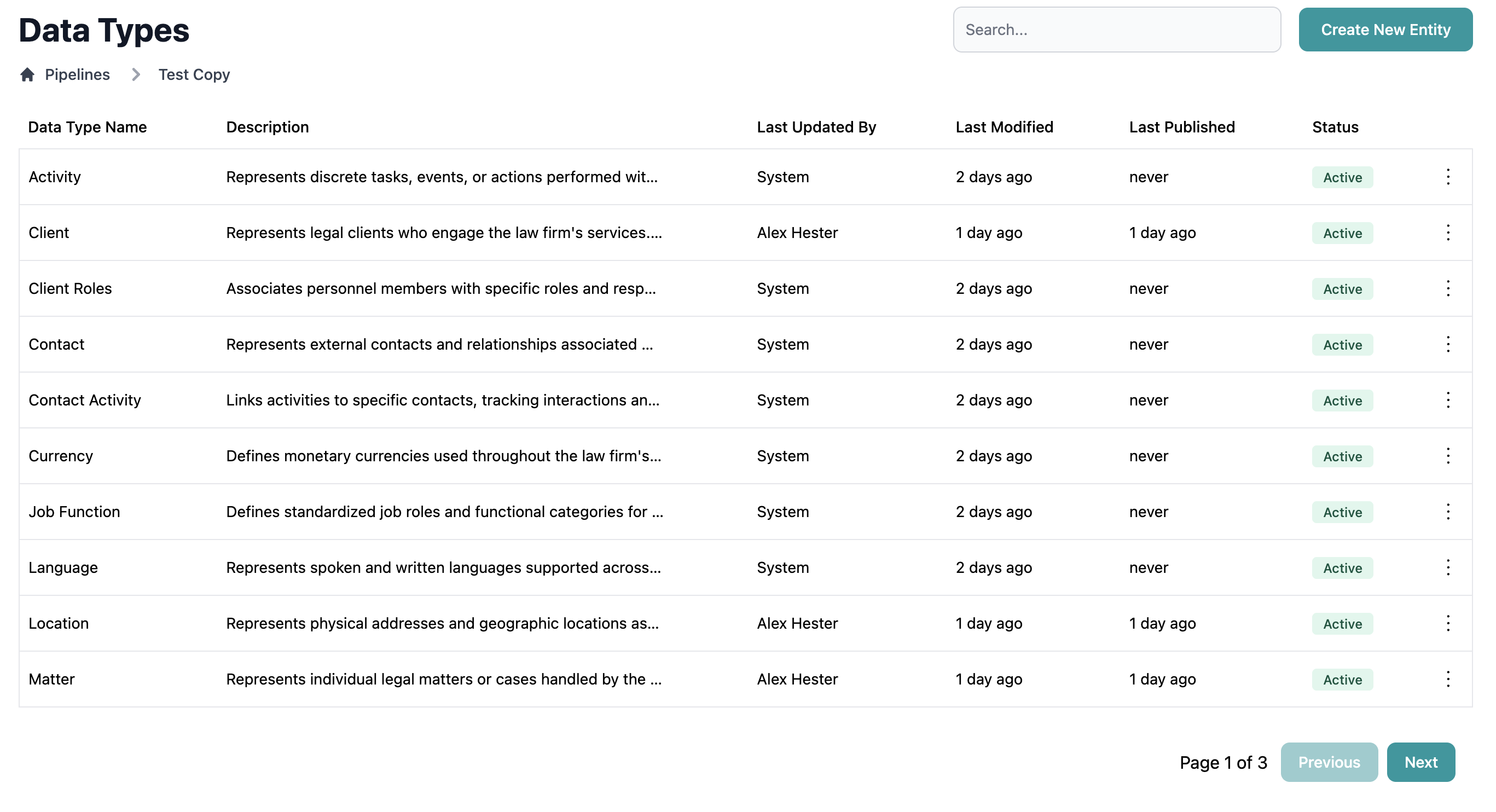 Navigate to the **Fields** tab at the top of the page.
The field list appears in a table showing the following information:
* Field name
* Data type
* Data Formatting Rule
* Description
* Tags
* Status
Navigate to the **Fields** tab at the top of the page.
The field list appears in a table showing the following information:
* Field name
* Data type
* Data Formatting Rule
* Description
* Tags
* Status
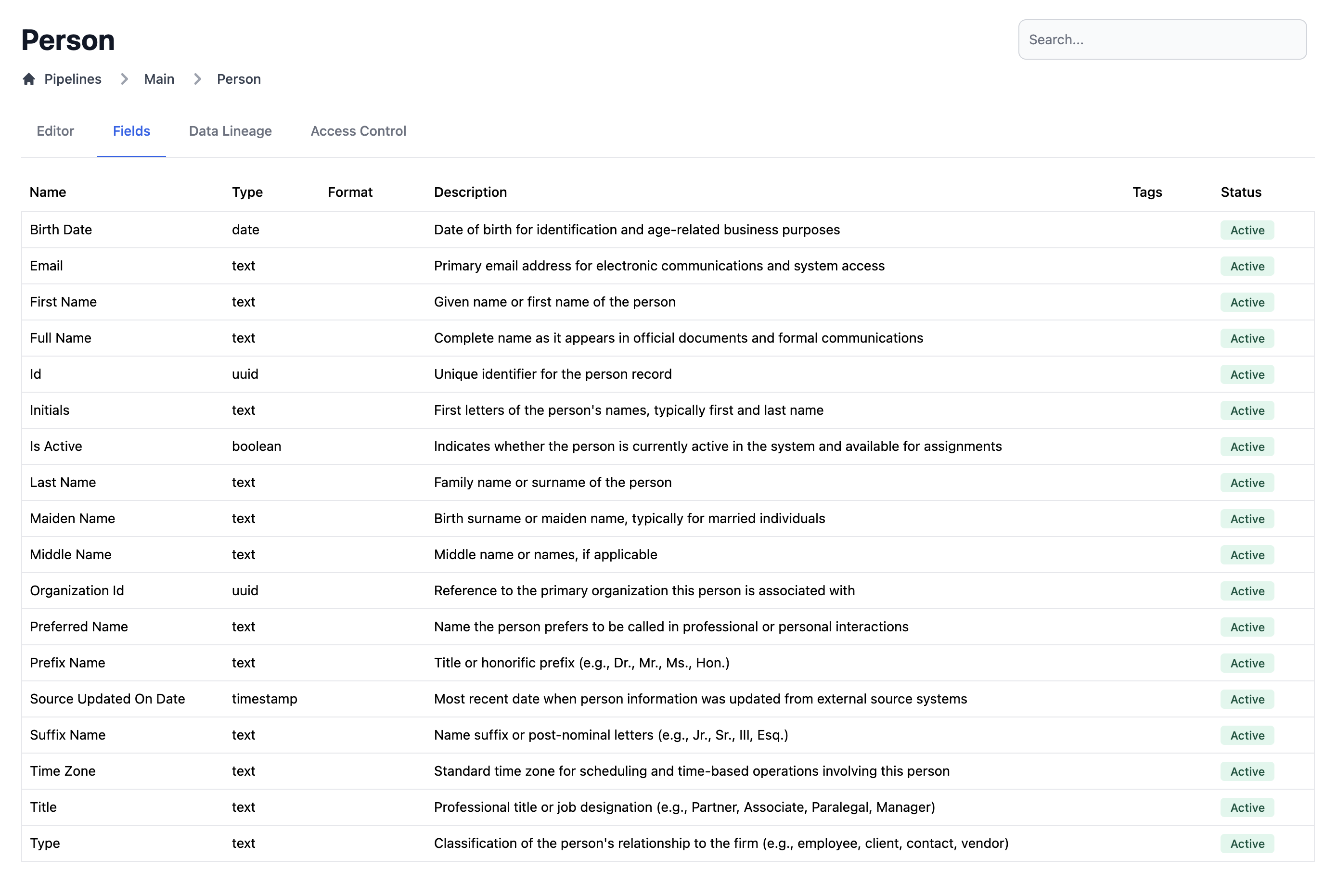 Use the search box to quickly find fields by name.
### Visual Canvas View
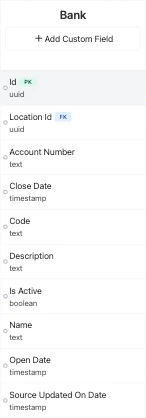
Fields also appear in the visual mapping editor:
* On the entity node (right side of canvas)
* With connection lines showing mappings
Use the search box to quickly find fields by name.
### Visual Canvas View
Fields also appear in the visual mapping editor:
* On the entity node (right side of canvas)
* With connection lines showing mappings
 ## Adding New Fields
Click **Add Custom Field** button in the entity node (right side).
Provide a clear, descriptive name:
* Use business-friendly terms
* Avoid technical abbreviations
* Use consistent naming conventions (camelCase or snake\_case)
* Example: "CustomerName" not "cust\_nm"
Choose the appropriate data type for your field. See [Data Types](#data-types) section below for details.
Set additional properties:
* **Description**: Document the field's purpose
* **Format**: The formatting rule to be applied to values displayed for this field
Provide a default value used when source data is null. See [Default Values](/data/pipeline/default-values) guide for details.
## Data Types
### Available Data Types
Entegrata supports comprehensive data types for various data scenarios:
#### String
For any data you wish to be represented as text.
| Type | Description | Example | Max Length |
| ------------- | ----------- | ------------------------------------------------------------------------------------- | ------------ |
| **shorttext** | Short Text | "John Smith" | 255 chars |
| **text** | Text | "Some kind of descriptive text." | 65,535 chars |
| **longtext** | Long Text | "This is used for a long body of text, with data too large for normal text fields..." | MAX |
#### Numeric Types
| Type | Description | Example | Range |
| ---------------- | --------------------------- | -------------------------- | ---------------------- |
| **tinyint** | Tiny Integer | 0, 1, -65 | +/- 2^8 - 1 |
| **smallint** | Small Integer | 42, -1,200, 653 | +/- 2^16 - 1 |
| **integer** | Integer | 34, -532, 34,011 | +/- 2^32 - 1 |
| **biginteger** | Big Integer | 17, -14,987,200, 9,450 | +/- 2^64 - 1 |
| **shortdecimal** | Short Decimal | 123.45, -67.89 | Configurable precision |
| **decimal** | Decimal | 123.4589, -67.8923 | Configurable precision |
| **longdecimal** | Long Decimal | 123.45123409, -67.00194409 | Configurable precision |
| **float** | Floating Point Number | 123.45, -67.89 | Configurable precision |
| **double** | Large Floating Point Number | 123.45, -67.89 | Configurable precision |
#### Date and Time Types
| Type | Description | Example | Format |
| ------------- | ----------------- | ------------------------ | ---------- |
| **Date** | Date only | 2024-01-15 | YYYY-MM-DD |
| **Timestamp** | Precise timestamp | 2024-01-15T14:30:00.000Z | ISO 8601 |
#### Boolean
| Type | Description | Example | Values |
| ----------- | ----------- | ----------- | ----------- |
| **Boolean** | True/false | true, false | true, false |
#### Complex Types
| Type | Description | Example | Use Case |
| -------- | ----------------- | -------------------------------------- | --------------- |
| **JSON** | Structured data | `{"key": "value"}` | Complex objects |
| **UUID** | Unique identifier | "123e4567-e89b-12d3-a456-426614174000" | System IDs |
### Choosing the Right Data Type
**Selection Guidelines**
* Match the source data type when possible
* Use most specific type (Small Int vs. Int)
* Consider downstream usage
## Editing Existing Fields
Click on the field in the entity node on the canvas, or click a field in the Fields tab list. This opens the **Edit Field** modal.
On the **Field Configuration** tab, update properties:
* Name (with caution - may break existing mappings)
* Description
* Format
* Tags
**Changing Data Type**: Changing a field's data type may break existing mappings or cause data loss. Always preview data after type changes.
On the **Data Source** tab, change how the field gets its value:
* Select a different source field
* Change the operator (Use First Available, Join Text, Apply Conditions, etc.)
* Adjust field priority order or conditions
### Safe vs. Risky Changes
**Safe Changes** (no impact on data):
* Updating description
* Changing display name
**Risky Changes** (may break things):
* Changing field name
* Changing data type
## Deleting Fields
You may delete custom fields on your entities if you no longer need them or have made breaking updates to your source data systems. Entegrata's canonical fields may not be deleted, but they can be unmapped.
**Permanent Action**: Deleting a field removes it from the entity definition and all historical data. This cannot be undone.
Click on the field you want to delete.
Make sure this field is a custom field that you created. Non-custom fields may not be deleted.
Right-click and select **Delete Field**.
Type the field name to confirm deletion and click **Delete Permanently**.
### Alternatives to Deletion
Consider these alternatives:
* **Archive**: Hide field from views but preserve data
* **Remove Mapping**: Keep field definition but stop populating it
## System Fields
Entegrata automatically adds system fields to every entity. These fields are the minimum required fields for Entegrata to operate as intended.
System fields cannot be edited or deleted. They're automatically maintained by Entegrata.
## Best Practices
**Naming Conventions**
* Use clear, business-friendly names
* Be consistent (all camelCase or all snake\_case)
* Avoid abbreviations unless universally understood
* Use full words (e.g., "CustomerName" not "CustNm")
**Data Types**
* Choose most specific type available
* Use validation rules to enforce quality
* Document any special formats or requirements
* Consider downstream system compatibility
**Maintenance**
* Review field usage regularly
* Archive unused fields rather than delete
* Document the purpose of custom fields
* Keep field names stable (avoid frequent changes)
## Troubleshooting
### Cannot Add Field
**Issue**: Add Field button is disabled or not working.
**Solutions**:
* Verify you have edit permissions
* Check if entity is currently publishing (wait for completion)
* Ensure entity is not archived
* Try refreshing the page
### Field Changes Not Reflected
**Issue**: Modified field properties don't seem to take effect.
**Solutions**:
* Clear browser cache and refresh
* Verify changes were saved (look for save indicator)
* Check if you need to republish entity
* Try logging out and back in
### Data Type Mismatch Errors
**Issue**: Errors when mapping source data to field after changing data type.
**Solutions**:
* Preview source data to verify compatibility
* Add type conversion in mapping
* Use CASE expression to handle edge cases
* Consider reverting data type change
* Check for null values causing issues
## Related Topics
Map source data to entity fields
Set default values for fields
Advanced transformations with multiple fields
Create and manage data types
## Adding New Fields
Click **Add Custom Field** button in the entity node (right side).
Provide a clear, descriptive name:
* Use business-friendly terms
* Avoid technical abbreviations
* Use consistent naming conventions (camelCase or snake\_case)
* Example: "CustomerName" not "cust\_nm"
Choose the appropriate data type for your field. See [Data Types](#data-types) section below for details.
Set additional properties:
* **Description**: Document the field's purpose
* **Format**: The formatting rule to be applied to values displayed for this field
Provide a default value used when source data is null. See [Default Values](/data/pipeline/default-values) guide for details.
## Data Types
### Available Data Types
Entegrata supports comprehensive data types for various data scenarios:
#### String
For any data you wish to be represented as text.
| Type | Description | Example | Max Length |
| ------------- | ----------- | ------------------------------------------------------------------------------------- | ------------ |
| **shorttext** | Short Text | "John Smith" | 255 chars |
| **text** | Text | "Some kind of descriptive text." | 65,535 chars |
| **longtext** | Long Text | "This is used for a long body of text, with data too large for normal text fields..." | MAX |
#### Numeric Types
| Type | Description | Example | Range |
| ---------------- | --------------------------- | -------------------------- | ---------------------- |
| **tinyint** | Tiny Integer | 0, 1, -65 | +/- 2^8 - 1 |
| **smallint** | Small Integer | 42, -1,200, 653 | +/- 2^16 - 1 |
| **integer** | Integer | 34, -532, 34,011 | +/- 2^32 - 1 |
| **biginteger** | Big Integer | 17, -14,987,200, 9,450 | +/- 2^64 - 1 |
| **shortdecimal** | Short Decimal | 123.45, -67.89 | Configurable precision |
| **decimal** | Decimal | 123.4589, -67.8923 | Configurable precision |
| **longdecimal** | Long Decimal | 123.45123409, -67.00194409 | Configurable precision |
| **float** | Floating Point Number | 123.45, -67.89 | Configurable precision |
| **double** | Large Floating Point Number | 123.45, -67.89 | Configurable precision |
#### Date and Time Types
| Type | Description | Example | Format |
| ------------- | ----------------- | ------------------------ | ---------- |
| **Date** | Date only | 2024-01-15 | YYYY-MM-DD |
| **Timestamp** | Precise timestamp | 2024-01-15T14:30:00.000Z | ISO 8601 |
#### Boolean
| Type | Description | Example | Values |
| ----------- | ----------- | ----------- | ----------- |
| **Boolean** | True/false | true, false | true, false |
#### Complex Types
| Type | Description | Example | Use Case |
| -------- | ----------------- | -------------------------------------- | --------------- |
| **JSON** | Structured data | `{"key": "value"}` | Complex objects |
| **UUID** | Unique identifier | "123e4567-e89b-12d3-a456-426614174000" | System IDs |
### Choosing the Right Data Type
**Selection Guidelines**
* Match the source data type when possible
* Use most specific type (Small Int vs. Int)
* Consider downstream usage
## Editing Existing Fields
Click on the field in the entity node on the canvas, or click a field in the Fields tab list. This opens the **Edit Field** modal.
On the **Field Configuration** tab, update properties:
* Name (with caution - may break existing mappings)
* Description
* Format
* Tags
**Changing Data Type**: Changing a field's data type may break existing mappings or cause data loss. Always preview data after type changes.
On the **Data Source** tab, change how the field gets its value:
* Select a different source field
* Change the operator (Use First Available, Join Text, Apply Conditions, etc.)
* Adjust field priority order or conditions
### Safe vs. Risky Changes
**Safe Changes** (no impact on data):
* Updating description
* Changing display name
**Risky Changes** (may break things):
* Changing field name
* Changing data type
## Deleting Fields
You may delete custom fields on your entities if you no longer need them or have made breaking updates to your source data systems. Entegrata's canonical fields may not be deleted, but they can be unmapped.
**Permanent Action**: Deleting a field removes it from the entity definition and all historical data. This cannot be undone.
Click on the field you want to delete.
Make sure this field is a custom field that you created. Non-custom fields may not be deleted.
Right-click and select **Delete Field**.
Type the field name to confirm deletion and click **Delete Permanently**.
### Alternatives to Deletion
Consider these alternatives:
* **Archive**: Hide field from views but preserve data
* **Remove Mapping**: Keep field definition but stop populating it
## System Fields
Entegrata automatically adds system fields to every entity. These fields are the minimum required fields for Entegrata to operate as intended.
System fields cannot be edited or deleted. They're automatically maintained by Entegrata.
## Best Practices
**Naming Conventions**
* Use clear, business-friendly names
* Be consistent (all camelCase or all snake\_case)
* Avoid abbreviations unless universally understood
* Use full words (e.g., "CustomerName" not "CustNm")
**Data Types**
* Choose most specific type available
* Use validation rules to enforce quality
* Document any special formats or requirements
* Consider downstream system compatibility
**Maintenance**
* Review field usage regularly
* Archive unused fields rather than delete
* Document the purpose of custom fields
* Keep field names stable (avoid frequent changes)
## Troubleshooting
### Cannot Add Field
**Issue**: Add Field button is disabled or not working.
**Solutions**:
* Verify you have edit permissions
* Check if entity is currently publishing (wait for completion)
* Ensure entity is not archived
* Try refreshing the page
### Field Changes Not Reflected
**Issue**: Modified field properties don't seem to take effect.
**Solutions**:
* Clear browser cache and refresh
* Verify changes were saved (look for save indicator)
* Check if you need to republish entity
* Try logging out and back in
### Data Type Mismatch Errors
**Issue**: Errors when mapping source data to field after changing data type.
**Solutions**:
* Preview source data to verify compatibility
* Add type conversion in mapping
* Use CASE expression to handle edge cases
* Consider reverting data type change
* Check for null values causing issues
## Related Topics
Map source data to entity fields
Set default values for fields
Advanced transformations with multiple fields
Create and manage data types