> ## Documentation Index
> Fetch the complete documentation index at: https://support.entegrata.com/llms.txt
> Use this file to discover all available pages before exploring further.
# Managing Data Types
> Learn how to create, edit, and archive data types (entities) in your Entegrata data pipelines
## Overview
Data types (also called entities) are the foundation of your data pipeline. Each data type represents a business concept like customers, orders, or products. In Entegrata, you define data types and map them to your source data, creating a unified view across all your systems.
This guide covers the complete lifecycle of managing data types in your Entegrata instance.
## Understanding Data Types
A data type in Entegrata represents:
* A unified business concept (e.g., "Customer", "Invoice", "Product")
* The fields and structure of that concept
* Mappings to one or more data sources
* Access controls determining who can view the data
* Lineage information showing data flow
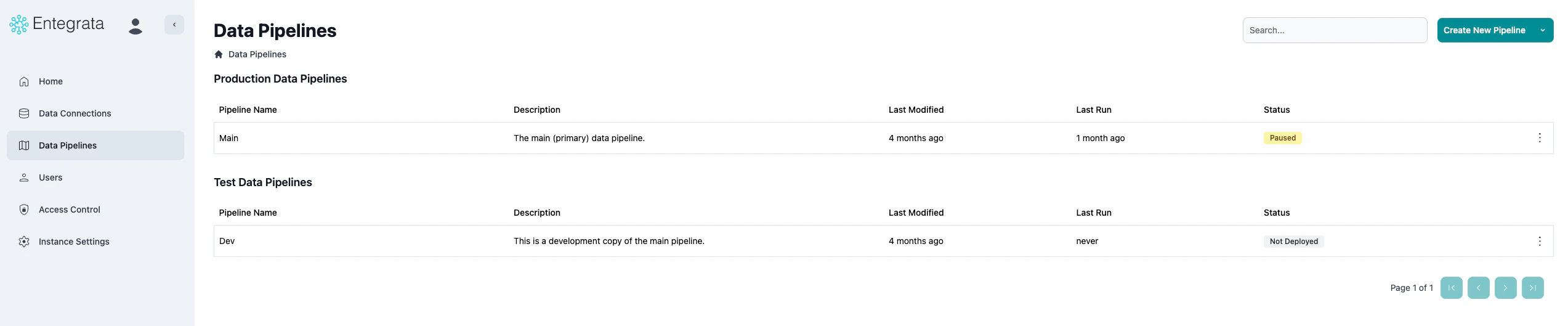
## Creating a New Data Type
From the admin portal navigation, select **Data Mappings** or **Pipelines** to access the data type management interface.
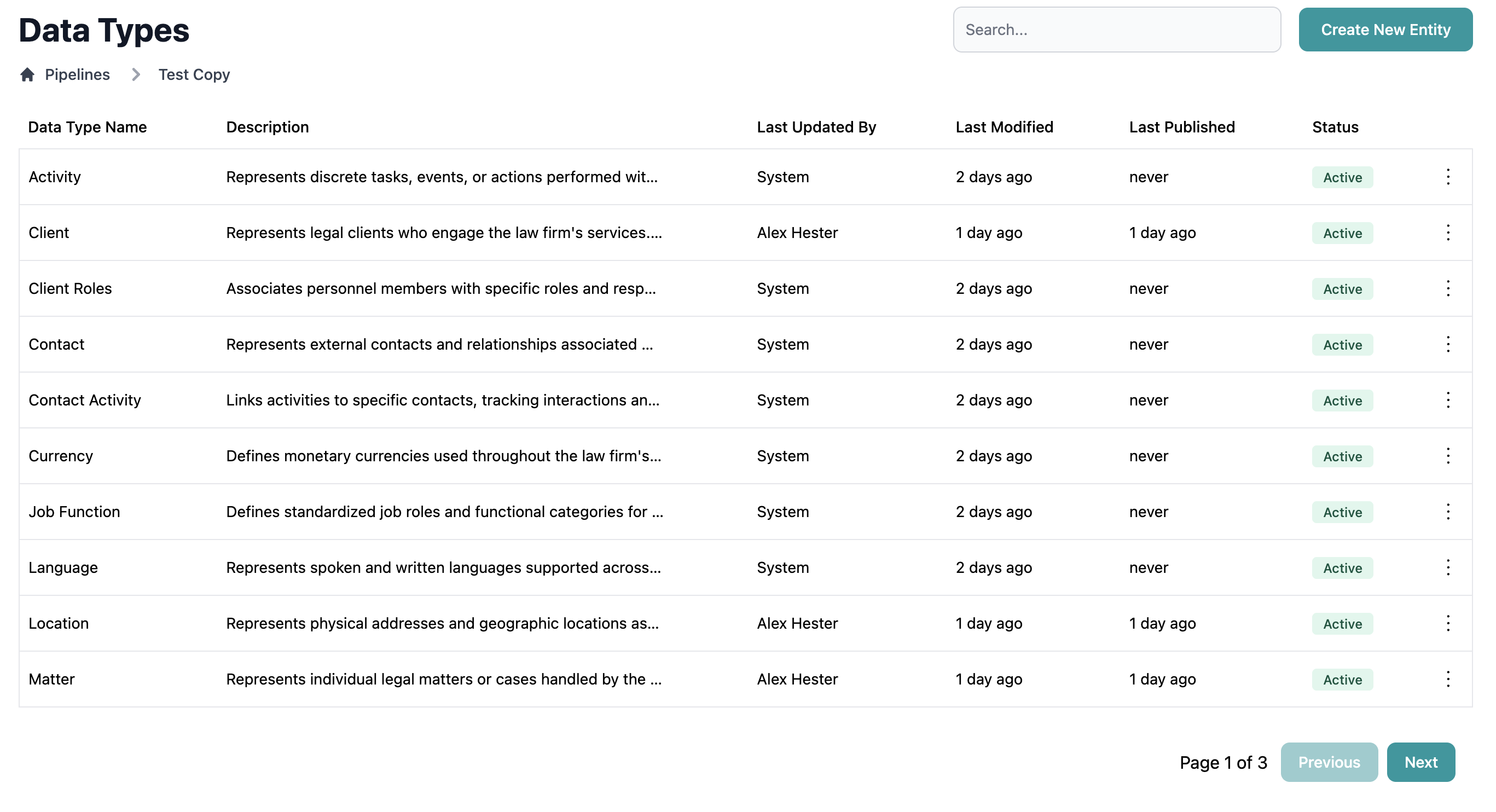 Click the **New Data Type** or **Create Entity** button in the top right corner of the data types list.
 In the creation dialog, provide:
* **Name**: A clear, singular name for your data type (e.g., "Customer", "Order")
* **Description**: A brief explanation of what this data type represents
* **Icon** (optional): Select an icon to help identify this data type visually
* **Category** (optional): Group related data types together
In the creation dialog, provide:
* **Name**: A clear, singular name for your data type (e.g., "Customer", "Order")
* **Description**: A brief explanation of what this data type represents
* **Icon** (optional): Select an icon to help identify this data type visually
* **Category** (optional): Group related data types together
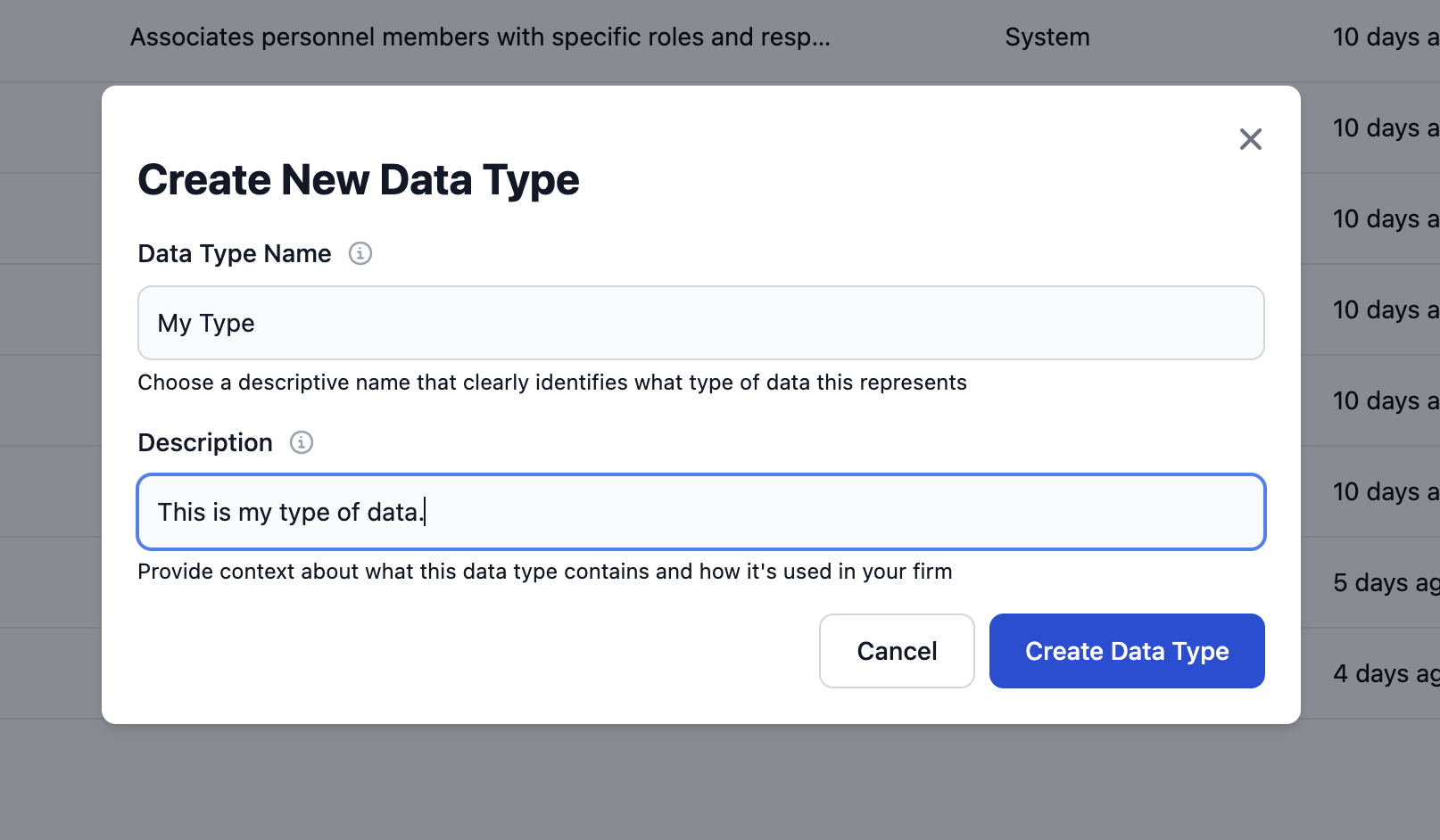 Click **Create** to save your new data type. You'll be taken to the entity list view.
## Editing an Existing Data Type
### Updating Basic Properties
Find the entity you want to edit in the list view.
Click the **Edit** option under the entity's option menu.
Click **Create** to save your new data type. You'll be taken to the entity list view.
## Editing an Existing Data Type
### Updating Basic Properties
Find the entity you want to edit in the list view.
Click the **Edit** option under the entity's option menu.
 Update any of the following:
* Name
* Description
Update any of the following:
* Name
* Description
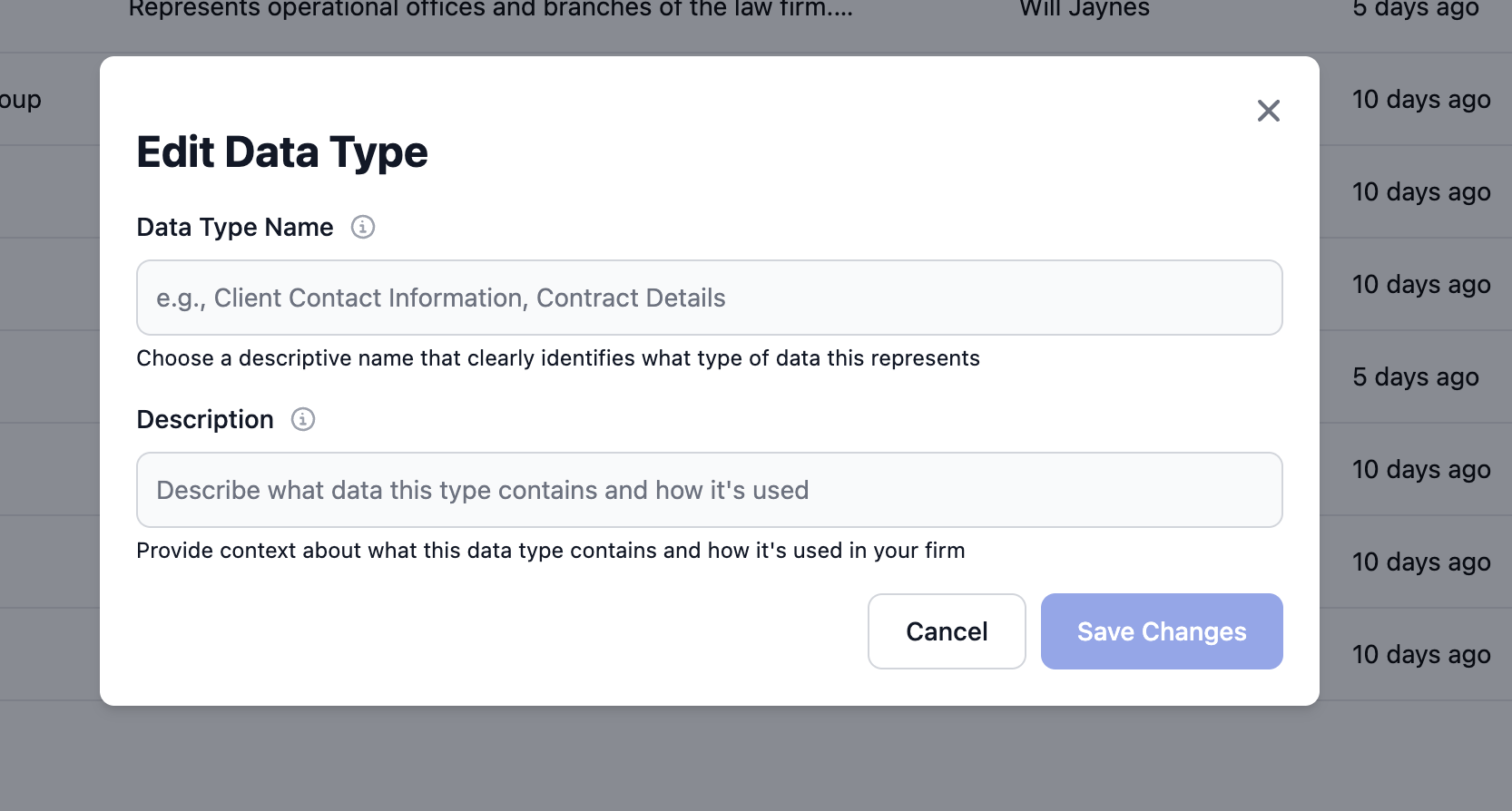 Click **Save** to apply your changes. These updates take effect immediately and don't require republishing.
### Modifying Field Structure
To add, remove, or change fields in your data type, see the [Field Management](/data/pipeline/field-management) guide.
### Updating Mappings
To change how source data maps to your data type fields, see the [Mapping Fields](/data/pipeline/mapping-fields) guide.
## Archiving Data Types
Archiving removes a data type from active use without deleting historical data.
Archiving a data type will:
* Stop all data processing for this data type
* Hide it from most users' views
* Preserve historical data and lineage
* Allow restoration if needed
Archived data types can be unarchived, but the process may require reconfiguration.
Navigate to the data type you want to archive.
Click the **Archive** option in the options menu for the entity.
Click **Save** to apply your changes. These updates take effect immediately and don't require republishing.
### Modifying Field Structure
To add, remove, or change fields in your data type, see the [Field Management](/data/pipeline/field-management) guide.
### Updating Mappings
To change how source data maps to your data type fields, see the [Mapping Fields](/data/pipeline/mapping-fields) guide.
## Archiving Data Types
Archiving removes a data type from active use without deleting historical data.
Archiving a data type will:
* Stop all data processing for this data type
* Hide it from most users' views
* Preserve historical data and lineage
* Allow restoration if needed
Archived data types can be unarchived, but the process may require reconfiguration.
Navigate to the data type you want to archive.
Click the **Archive** option in the options menu for the entity.
 Review the warning message and confirm that you want to archive this data type.
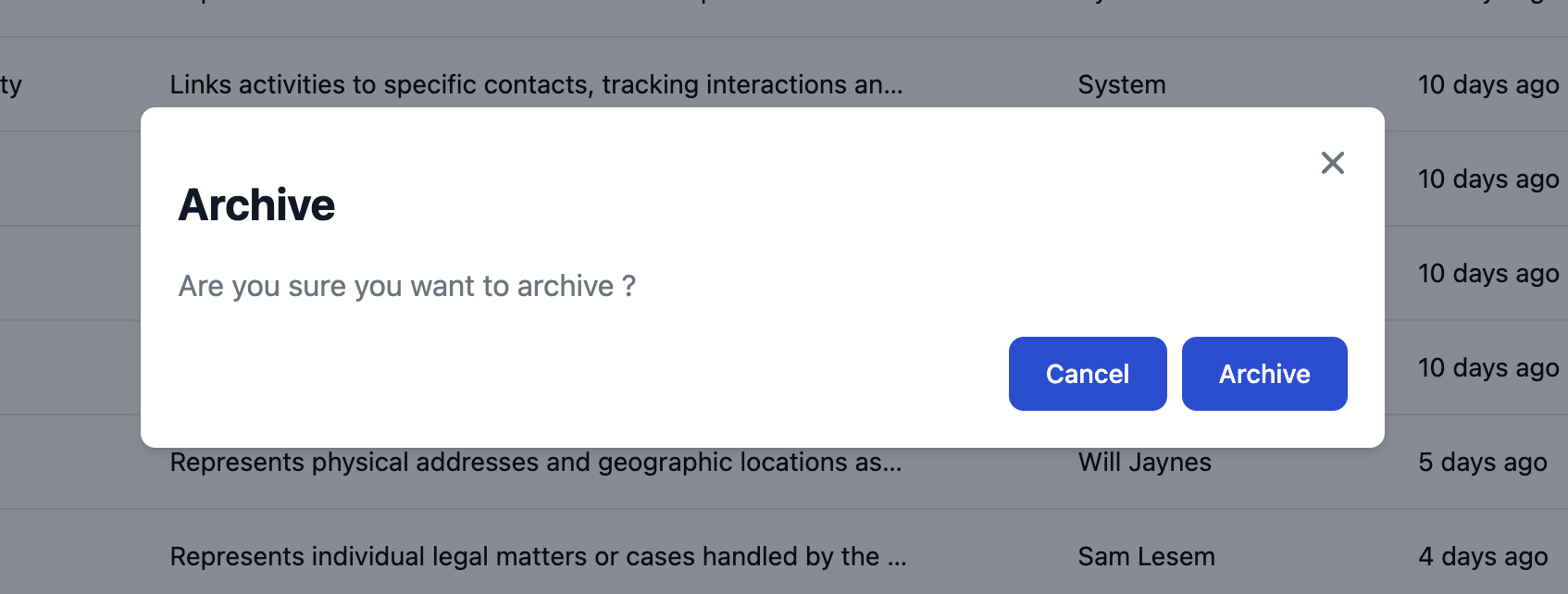 Click **Archive** to complete the process. The data type will be moved to the archived status.
## Best Practices
**Naming Conventions**
* Use singular nouns (e.g., "Customer" not "Customers")
* Be descriptive but concise
* Avoid technical abbreviations
* Use consistent casing (recommend Title Case)
**Organization**
* Group related data types with categories
* Use clear, business-friendly descriptions
* Maintain a logical hierarchy (e.g., Orders before OrderItems)
* Document dependencies between data types
**Lifecycle Management**
* Start with draft status and test thoroughly
* Archive instead of delete when possible
* Document why data types are archived
* Regularly review and clean up unused data types
## Troubleshooting
### Cannot Archive Data Type
**Issue**: The archive option is grayed out or unavailable.
**Solutions**:
* Check if you have admin permissions
* Verify no active dependencies exist
* Ensure the data type is published (only published types can be archived)
### Archive Failed with Dependencies
**Issue**: Archive fails with message about dependent objects.
**Solutions**:
* Check for reports or dashboards using this data type
* Look for other data types with relationships to this one
* Remove or update dependencies first, then archive
### Unarchive Not Restoring Data
**Issue**: After unarchiving, no data appears in the data type.
**Solutions**:
* Verify source connections are still active
* Check that credentials haven't expired
* Republish the mapping to restart data processing
* Review field mappings for any broken references
## Related Topics
Learn how to add and configure fields in your data types
Map source data to your data type fields
Control who can view and edit your data types
Deploy your data type mappings to production
Click **Archive** to complete the process. The data type will be moved to the archived status.
## Best Practices
**Naming Conventions**
* Use singular nouns (e.g., "Customer" not "Customers")
* Be descriptive but concise
* Avoid technical abbreviations
* Use consistent casing (recommend Title Case)
**Organization**
* Group related data types with categories
* Use clear, business-friendly descriptions
* Maintain a logical hierarchy (e.g., Orders before OrderItems)
* Document dependencies between data types
**Lifecycle Management**
* Start with draft status and test thoroughly
* Archive instead of delete when possible
* Document why data types are archived
* Regularly review and clean up unused data types
## Troubleshooting
### Cannot Archive Data Type
**Issue**: The archive option is grayed out or unavailable.
**Solutions**:
* Check if you have admin permissions
* Verify no active dependencies exist
* Ensure the data type is published (only published types can be archived)
### Archive Failed with Dependencies
**Issue**: Archive fails with message about dependent objects.
**Solutions**:
* Check for reports or dashboards using this data type
* Look for other data types with relationships to this one
* Remove or update dependencies first, then archive
### Unarchive Not Restoring Data
**Issue**: After unarchiving, no data appears in the data type.
**Solutions**:
* Verify source connections are still active
* Check that credentials haven't expired
* Republish the mapping to restart data processing
* Review field mappings for any broken references
## Related Topics
Learn how to add and configure fields in your data types
Map source data to your data type fields
Control who can view and edit your data types
Deploy your data type mappings to production