> ## Documentation Index
> Fetch the complete documentation index at: https://support.entegrata.com/llms.txt
> Use this file to discover all available pages before exploring further.
# Managing Pipeline Status
> How to pause, activate, and monitor pipeline execution status
## Overview
Pipeline status controls whether a pipeline can execute automatically on its configured schedule. Managing status allows you to temporarily disable pipelines, control resource usage, and prevent unintended executions during maintenance or troubleshooting.
## Pipeline Status Types
Pipelines can have several status states:
### Run Status
Pipeline is deployed and enabled for automatic execution based on its trigger configuration. Scheduled pipelines will run at their configured times.
Pipeline is deployed but disabled from automatic execution. Can still be run manually but won't execute on schedule.
### Deployment Status
Pipeline has not been deployed to production. Cannot execute with real data.
Pipeline has been published to production and is ready to execute.
### Execution Status
Pipeline is currently executing a job.
Last execution completed without errors.
Last execution encountered errors.
A pipeline can be Deployed and Paused simultaneously. This means it's ready to run but won't execute automatically until activated.
## Pausing a Pipeline
Pausing a pipeline temporarily disables automatic execution while keeping the deployment intact.
### When to Pause
Pause pipelines when:
* **Maintenance Required** - Source systems are undergoing maintenance
* **Data Quality Issues** - Source data has known problems that need resolution
* **Resource Management** - Reducing processing load during peak times
* **Troubleshooting** - Investigating errors without impacting schedules
* **Temporary Disable** - Business process changes require temporary halt
* **Cost Control** - Reducing compute costs during low-priority periods
Log in to the [Entegrata Admin Portal](https://admin.entegrata.com) and go to the **Pipelines** tab.
Find the pipeline you want to pause. Look for pipelines with **Active** status.
 Click the three-dot menu (⋮) in the Actions column for the pipeline.
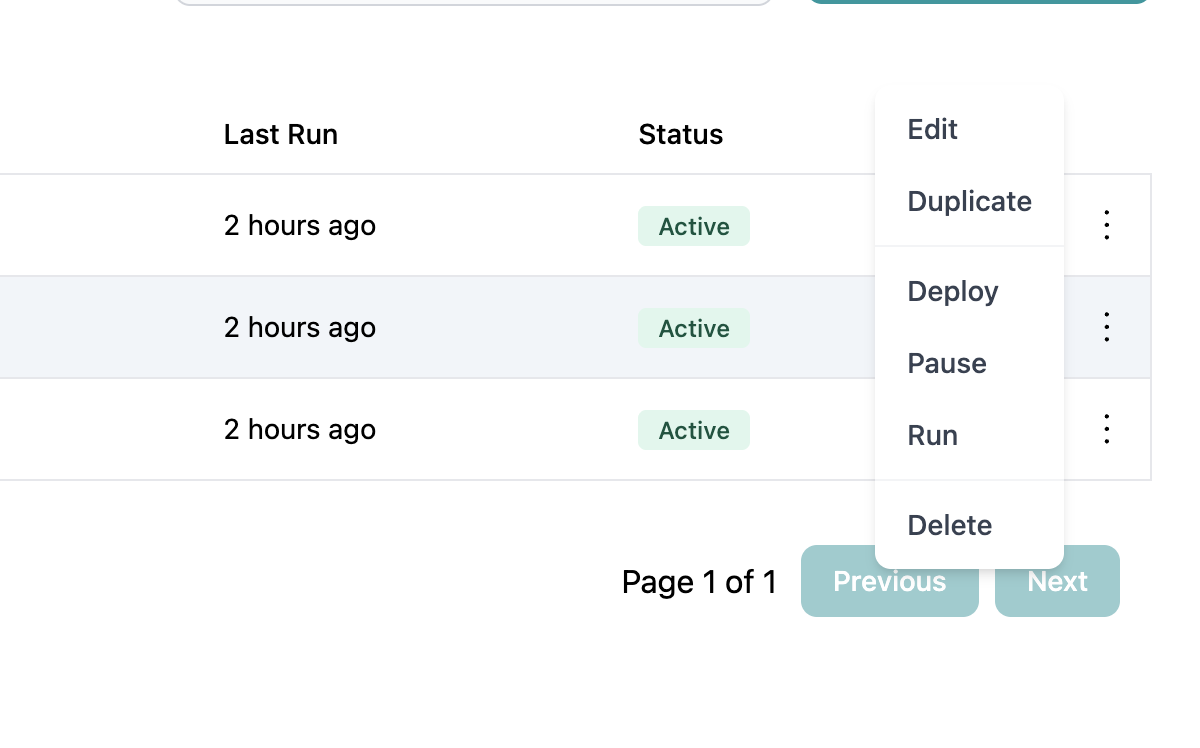 From the actions menu, click **Pause** to disable automatic execution.
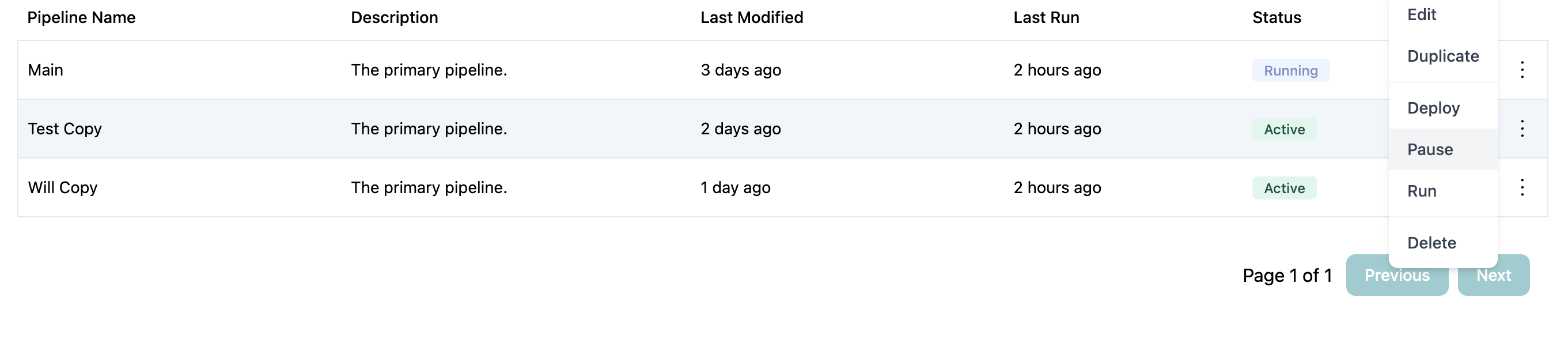 The pipeline status immediately changes to **Paused**. You'll see:
* Status badge updates to show Paused
* Success confirmation message
* Pipeline remains deployed and can be run manually
The pipeline status immediately changes to **Paused**. You'll see:
* Status badge updates to show Paused
* Success confirmation message
* Pipeline remains deployed and can be run manually
 Pausing a pipeline does not stop a currently running execution. It only prevents future scheduled runs. If a pipeline is running when you pause it, that execution will complete normally.
## Activating a Pipeline
Activating a pipeline enables automatic execution based on its trigger configuration.
### When to Activate
Activate pipelines when:
* **Initial Deployment** - After deploying and testing a new pipeline
* **Resume After Maintenance** - Source systems are back online
* **Issues Resolved** - Data quality or configuration problems are fixed
* **Scheduled Enable** - Enabling during appropriate business hours
* **After Updates** - Reactivating after redeployment with changes
Go to the **Pipelines** tab in the [Entegrata Admin Portal](https://admin.entegrata.com).
Find the pipeline you want to activate. Look for pipelines with **Paused** status.
Before activating, ensure:
* Pipeline is deployed (not Draft)
* Mappings are complete and tested
* Source systems are accessible
* Trigger schedule is configured correctly
* You're ready for automatic execution
Run the pipeline manually first to verify it works before activating for scheduled runs.
Click the three-dot menu (⋮) in the Actions column.
From the actions menu, click **Activate** to enable automatic execution.
Pausing a pipeline does not stop a currently running execution. It only prevents future scheduled runs. If a pipeline is running when you pause it, that execution will complete normally.
## Activating a Pipeline
Activating a pipeline enables automatic execution based on its trigger configuration.
### When to Activate
Activate pipelines when:
* **Initial Deployment** - After deploying and testing a new pipeline
* **Resume After Maintenance** - Source systems are back online
* **Issues Resolved** - Data quality or configuration problems are fixed
* **Scheduled Enable** - Enabling during appropriate business hours
* **After Updates** - Reactivating after redeployment with changes
Go to the **Pipelines** tab in the [Entegrata Admin Portal](https://admin.entegrata.com).
Find the pipeline you want to activate. Look for pipelines with **Paused** status.
Before activating, ensure:
* Pipeline is deployed (not Draft)
* Mappings are complete and tested
* Source systems are accessible
* Trigger schedule is configured correctly
* You're ready for automatic execution
Run the pipeline manually first to verify it works before activating for scheduled runs.
Click the three-dot menu (⋮) in the Actions column.
From the actions menu, click **Activate** to enable automatic execution.
 The pipeline status changes to **Active**. You'll see:
* Status badge updates to show Active
* Success confirmation message
* Pipeline will now run automatically on schedule
After activating:
* Note the next scheduled execution time
* Monitor the first automatic run closely
* Verify execution completes successfully
* Check data quality in warehouse
The pipeline won't run immediately upon activation. It will execute at the next scheduled time according to its cron expression.
## Manual Execution During Pause
Even when paused, you can still run pipelines manually:
1. Paused status only affects automatic/scheduled execution
2. Manual "Run" action remains available in the actions menu
3. Useful for testing or one-off processing needs
4. Does not change the Paused status
This allows you to disable scheduled runs while maintaining the ability to run pipelines on-demand for testing or special situations.
## Status Management Best Practices
**Communicate Status Changes**
When pausing or activating pipelines:
* Notify stakeholders who depend on the data
* Document the reason in pipeline description
* Set calendar reminders to reactivate if temporary
* Update team dashboards or status pages
This prevents confusion about why data isn't updating.
**Test Before Activating**
Before activating a pipeline for scheduled runs:
1. Run manually in dry-run mode
2. Execute a full manual run
3. Verify data in warehouse
4. Check execution time is acceptable
5. Confirm schedule timing is appropriate
Only activate after successful validation.
**Use Pause for Maintenance Windows**
During planned maintenance:
1. Pause affected pipelines before maintenance starts
2. Perform maintenance work
3. Test pipeline manually after maintenance
4. Reactivate once confirmed working
This prevents failed runs and error alerts during maintenance.
**Monitor Active Pipelines**
Regularly review active pipelines:
* Check execution success rates
* Monitor execution times
* Review data quality
* Verify schedules are still appropriate
* Pause pipelines that are no longer needed
This ensures active pipelines are healthy and necessary.
**Document Pause Reasons**
When pausing a pipeline, note why:
* Update pipeline description with reason
* Add expected reactivation date/condition
* Document who to contact for reactivation
* Link to related tickets or issues
Example: "Paused 2024-10-02 due to source system migration. Reactivate after migration completes (est. 2024-10-15). Contact: [data-team@company.com](mailto:data-team@company.com)"
## Status Transition Rules
Understanding valid status transitions:
| Current Status | Can Change To | Action Required |
| -------------- | ------------- | -------------------------------- |
| Draft | Deployed | Deploy pipeline |
| Draft | Active | Deploy pipeline, then Activate |
| Deployed | Active | Activate |
| Deployed | Paused | Pause (or was Active and Paused) |
| Active | Paused | Pause |
| Paused | Active | Activate |
You cannot directly change a Draft pipeline to Active. You must first deploy the pipeline, then activate it.
## Monitoring Pipeline Status
### Status Dashboard
The pipeline list provides an at-a-glance view of all pipeline statuses:
* **Status badges** show current state with color coding
* **Last Run** column shows when pipeline last executed
* **Last Modified** column shows when configuration changed
### Filtering by Status
To find pipelines with specific statuses:
1. Use the search bar with status keywords
2. Sort by status column
3. Look for color-coded status badges
Create a spreadsheet or monitoring dashboard that tracks:
* Which pipelines should be active
* Expected execution times
* Last successful run date
* Status of dependencies
Review regularly to catch unintended pauses or failures.
## Bulk Status Management
Currently, pipelines must be paused or activated individually. For managing multiple pipelines:
### Planned Approach
1. **List Critical Pipelines** - Document which pipelines must remain active
2. **Group by Schedule** - Identify pipelines that run at similar times
3. **Coordinate Changes** - Update multiple pipelines in sequence
4. **Verify All Changes** - Check each pipeline after status update
### For Large-Scale Changes
If you need to pause/activate many pipelines:
* Plan during maintenance window
* Document sequence of operations
* Have team members assist with parallel updates
* Verify critical pipelines first
Contact your administrator if you regularly need to pause/activate many pipelines. Bulk operations may be possible through API or scripts.
## Troubleshooting Status Management
### Can't Pause Pipeline
**Problem:** Pause option is not available or disabled.
**Solutions:**
* Verify pipeline is currently Active (can't pause if already Paused or Draft)
* Check you have appropriate permissions
* Ensure you're not inside the pipeline editor (must be in list view)
* Refresh page and try again
### Pipeline Still Running After Pause
**Problem:** Paused pipeline continues executing on schedule.
**Solutions:**
* Verify status actually changed to Paused (check badge)
* Wait for current execution to complete (pause doesn't stop running jobs)
* Check if multiple pipelines with similar names exist (paused wrong one)
* Refresh page to see current status
### Can't Activate Pipeline
**Problem:** Activate option not available or pipeline won't activate.
**Solutions:**
* Verify pipeline is Deployed (must deploy Draft pipelines first)
* Check pipeline has trigger configuration (manual-only pipelines don't need activation)
* Ensure you have activation permissions
* Verify pipeline is not already Active
### Pipeline Activated But Not Running
**Problem:** Active pipeline doesn't execute on schedule.
**Solutions:**
* Verify trigger type is Scheduled (not Manual or No Trigger)
* Check cron expression is valid and next run time hasn't passed
* Ensure schedule timezone is correct
* Review execution logs for errors preventing scheduled start
* Confirm source systems are accessible
## Related Topics
Execute pipelines manually regardless of status
Deploy before activating pipelines
Configure triggers when creating pipelines
Back to pipeline management overview
The pipeline status changes to **Active**. You'll see:
* Status badge updates to show Active
* Success confirmation message
* Pipeline will now run automatically on schedule
After activating:
* Note the next scheduled execution time
* Monitor the first automatic run closely
* Verify execution completes successfully
* Check data quality in warehouse
The pipeline won't run immediately upon activation. It will execute at the next scheduled time according to its cron expression.
## Manual Execution During Pause
Even when paused, you can still run pipelines manually:
1. Paused status only affects automatic/scheduled execution
2. Manual "Run" action remains available in the actions menu
3. Useful for testing or one-off processing needs
4. Does not change the Paused status
This allows you to disable scheduled runs while maintaining the ability to run pipelines on-demand for testing or special situations.
## Status Management Best Practices
**Communicate Status Changes**
When pausing or activating pipelines:
* Notify stakeholders who depend on the data
* Document the reason in pipeline description
* Set calendar reminders to reactivate if temporary
* Update team dashboards or status pages
This prevents confusion about why data isn't updating.
**Test Before Activating**
Before activating a pipeline for scheduled runs:
1. Run manually in dry-run mode
2. Execute a full manual run
3. Verify data in warehouse
4. Check execution time is acceptable
5. Confirm schedule timing is appropriate
Only activate after successful validation.
**Use Pause for Maintenance Windows**
During planned maintenance:
1. Pause affected pipelines before maintenance starts
2. Perform maintenance work
3. Test pipeline manually after maintenance
4. Reactivate once confirmed working
This prevents failed runs and error alerts during maintenance.
**Monitor Active Pipelines**
Regularly review active pipelines:
* Check execution success rates
* Monitor execution times
* Review data quality
* Verify schedules are still appropriate
* Pause pipelines that are no longer needed
This ensures active pipelines are healthy and necessary.
**Document Pause Reasons**
When pausing a pipeline, note why:
* Update pipeline description with reason
* Add expected reactivation date/condition
* Document who to contact for reactivation
* Link to related tickets or issues
Example: "Paused 2024-10-02 due to source system migration. Reactivate after migration completes (est. 2024-10-15). Contact: [data-team@company.com](mailto:data-team@company.com)"
## Status Transition Rules
Understanding valid status transitions:
| Current Status | Can Change To | Action Required |
| -------------- | ------------- | -------------------------------- |
| Draft | Deployed | Deploy pipeline |
| Draft | Active | Deploy pipeline, then Activate |
| Deployed | Active | Activate |
| Deployed | Paused | Pause (or was Active and Paused) |
| Active | Paused | Pause |
| Paused | Active | Activate |
You cannot directly change a Draft pipeline to Active. You must first deploy the pipeline, then activate it.
## Monitoring Pipeline Status
### Status Dashboard
The pipeline list provides an at-a-glance view of all pipeline statuses:
* **Status badges** show current state with color coding
* **Last Run** column shows when pipeline last executed
* **Last Modified** column shows when configuration changed
### Filtering by Status
To find pipelines with specific statuses:
1. Use the search bar with status keywords
2. Sort by status column
3. Look for color-coded status badges
Create a spreadsheet or monitoring dashboard that tracks:
* Which pipelines should be active
* Expected execution times
* Last successful run date
* Status of dependencies
Review regularly to catch unintended pauses or failures.
## Bulk Status Management
Currently, pipelines must be paused or activated individually. For managing multiple pipelines:
### Planned Approach
1. **List Critical Pipelines** - Document which pipelines must remain active
2. **Group by Schedule** - Identify pipelines that run at similar times
3. **Coordinate Changes** - Update multiple pipelines in sequence
4. **Verify All Changes** - Check each pipeline after status update
### For Large-Scale Changes
If you need to pause/activate many pipelines:
* Plan during maintenance window
* Document sequence of operations
* Have team members assist with parallel updates
* Verify critical pipelines first
Contact your administrator if you regularly need to pause/activate many pipelines. Bulk operations may be possible through API or scripts.
## Troubleshooting Status Management
### Can't Pause Pipeline
**Problem:** Pause option is not available or disabled.
**Solutions:**
* Verify pipeline is currently Active (can't pause if already Paused or Draft)
* Check you have appropriate permissions
* Ensure you're not inside the pipeline editor (must be in list view)
* Refresh page and try again
### Pipeline Still Running After Pause
**Problem:** Paused pipeline continues executing on schedule.
**Solutions:**
* Verify status actually changed to Paused (check badge)
* Wait for current execution to complete (pause doesn't stop running jobs)
* Check if multiple pipelines with similar names exist (paused wrong one)
* Refresh page to see current status
### Can't Activate Pipeline
**Problem:** Activate option not available or pipeline won't activate.
**Solutions:**
* Verify pipeline is Deployed (must deploy Draft pipelines first)
* Check pipeline has trigger configuration (manual-only pipelines don't need activation)
* Ensure you have activation permissions
* Verify pipeline is not already Active
### Pipeline Activated But Not Running
**Problem:** Active pipeline doesn't execute on schedule.
**Solutions:**
* Verify trigger type is Scheduled (not Manual or No Trigger)
* Check cron expression is valid and next run time hasn't passed
* Ensure schedule timezone is correct
* Review execution logs for errors preventing scheduled start
* Confirm source systems are accessible
## Related Topics
Execute pipelines manually regardless of status
Deploy before activating pipelines
Configure triggers when creating pipelines
Back to pipeline management overview