> ## Documentation Index
> Fetch the complete documentation index at: https://support.entegrata.com/llms.txt
> Use this file to discover all available pages before exploring further.
# Mapping Fields
> Step-by-step procedures for mapping source fields to entity fields in Entegrata data pipelines
## Overview
Field mapping is the core of creating data pipelines in Entegrata. You define how data from your source systems maps to the standardized fields in your entities. This guide covers everything from simple direct mappings to understanding data type compatibility and handling common mapping scenarios.
## Understanding Field Mapping
### What is Field Mapping?
Field mapping creates a connection between:
* **Source Field**: A column from your data source (e.g., `customer_name` from CRM)
* **Entity Field**: A standardized field in your entity (e.g., `Name`)
When data flows through your pipeline, values are transformed from source fields to entity fields based on these mappings.
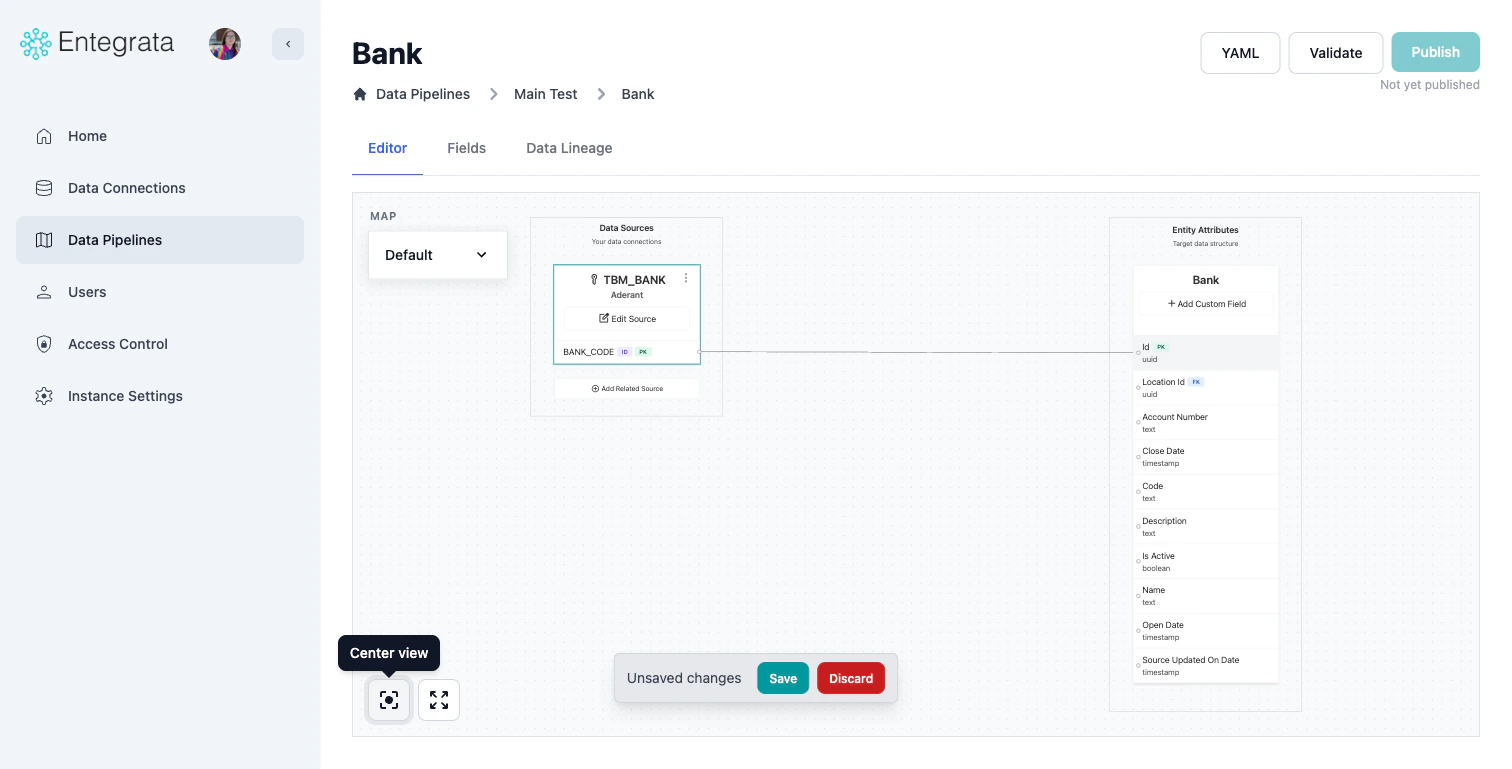
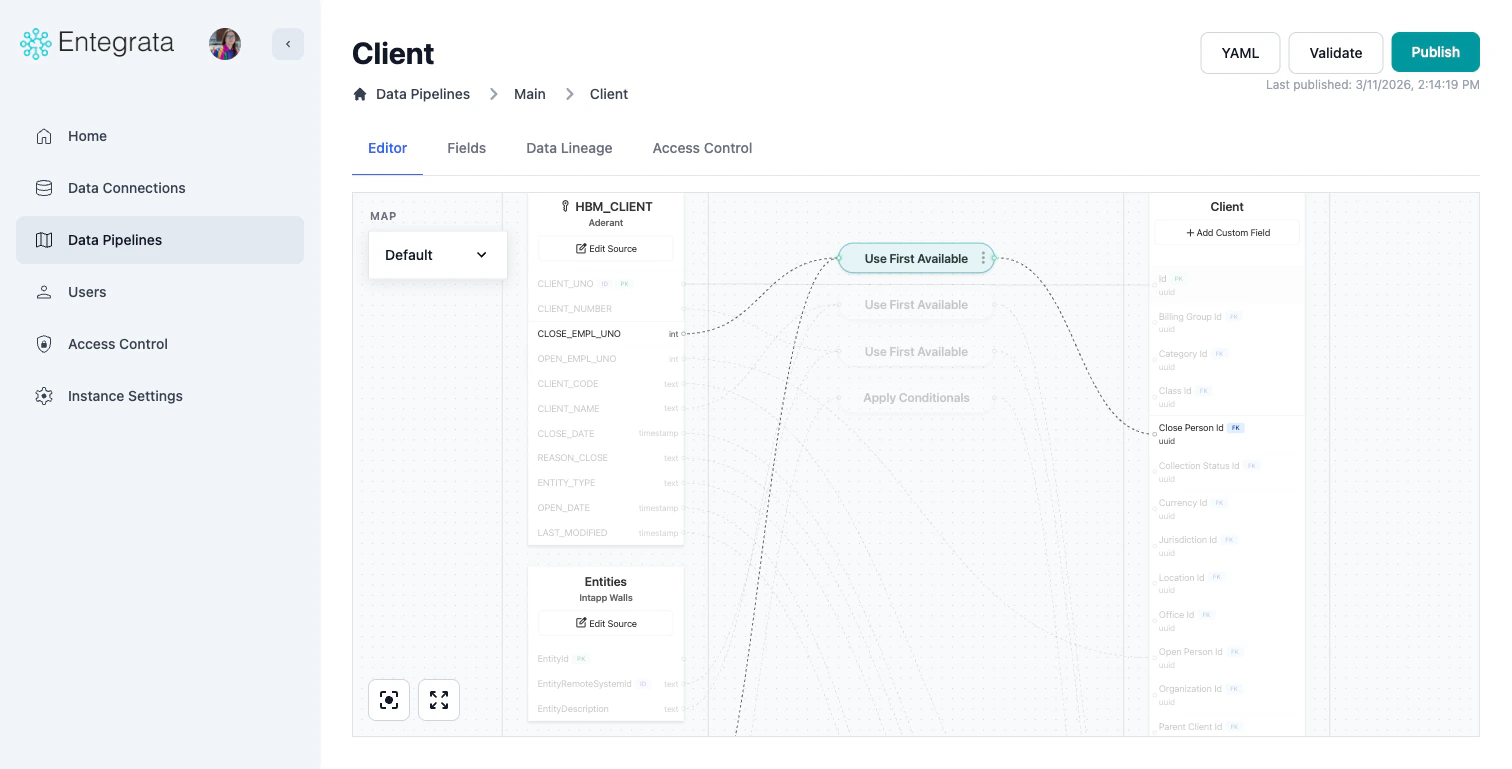 ## Direct Field Mapping (Visual View)
### Basic Connection
Navigate to your entity and open the mapping editor. Ensure you have at least one data source configured.
## Direct Field Mapping (Visual View)
### Basic Connection
Navigate to your entity and open the mapping editor. Ensure you have at least one data source configured.
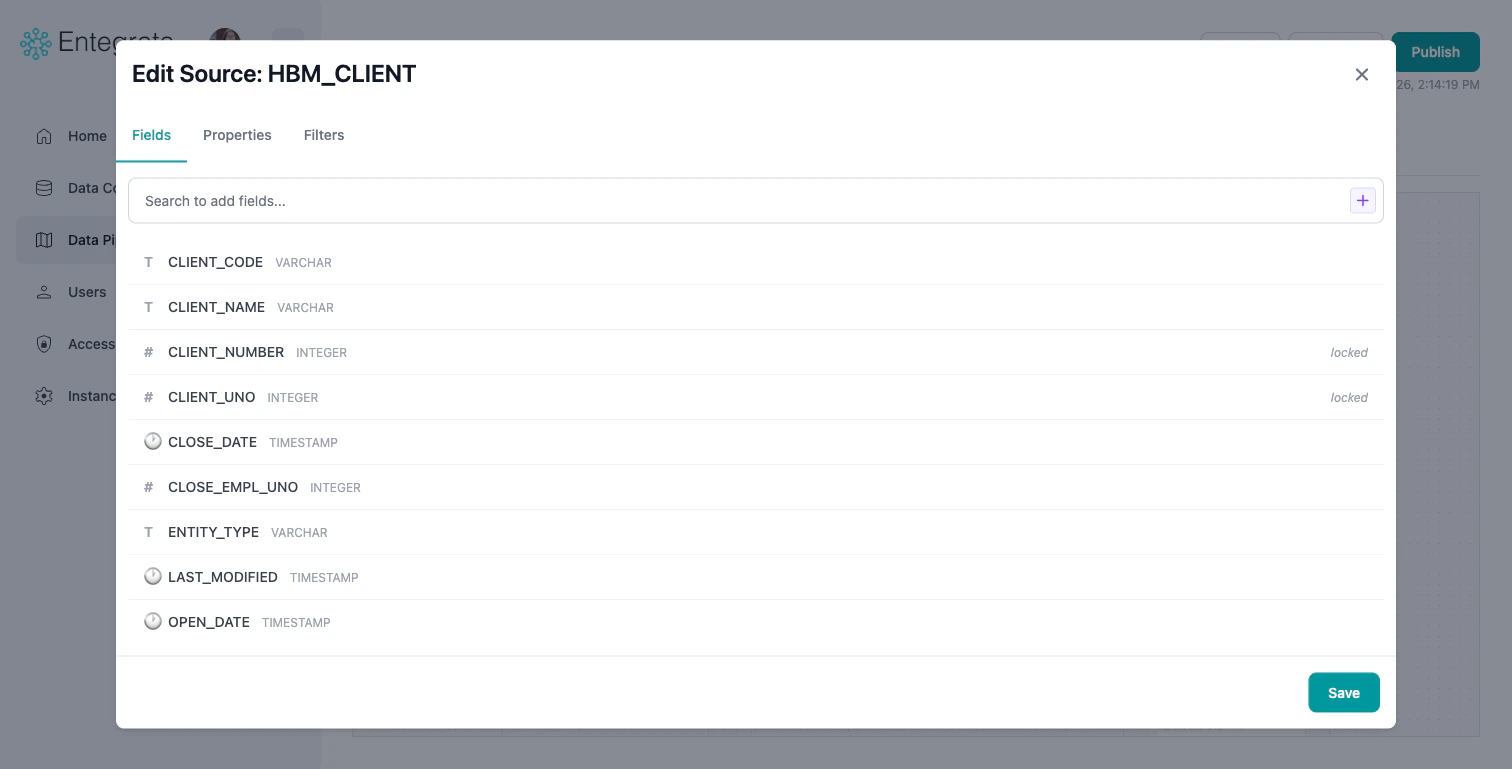
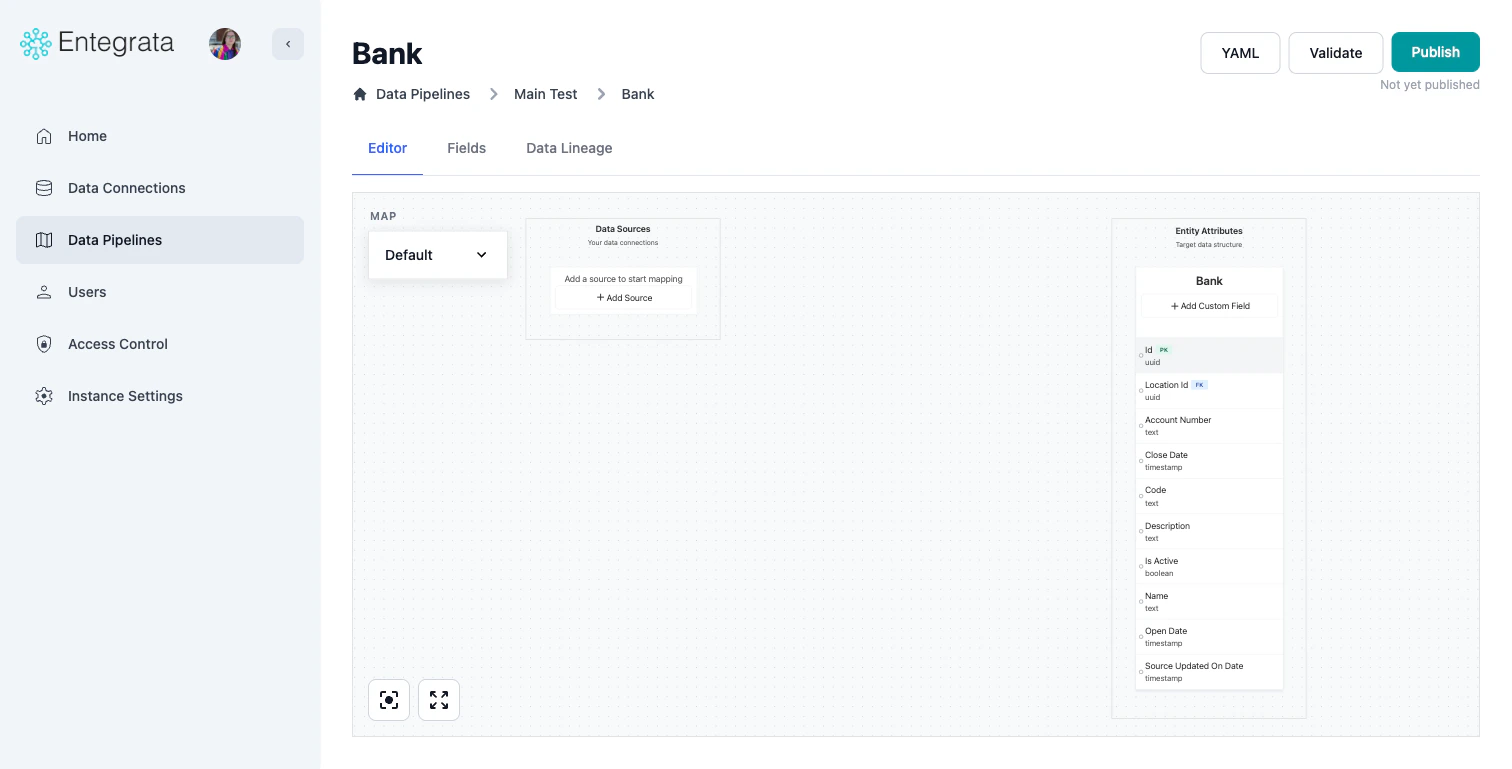 Find the source field you want to map. You can add new fields to your source node through the **Edit Source** modal's Fields tab, which lets you search and select from available columns.
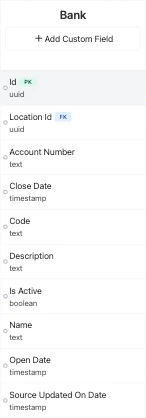
 On the right side, find the entity field you want to map to. Entity fields are shown with their data types.
 Click and hold on the source field, then drag to the entity field. Release to create the connection.
An animated line appears showing the mapping relationship.
### Alternative: Edit Field Modal
Instead of dragging, you can configure mappings through the Edit Field modal:
Click on the entity field you want to map. This opens the **Edit Field** modal.
Switch to the **Data Source** tab in the modal.
Use the source and field dropdowns to select where the data comes from. The mapping is applied when you click **Save**.
## Understanding Data Type Compatibility
### Automatic Type Conversion
Entegrata automatically converts between compatible data types:
| Source Type | Compatible Entity Types |
| ------------- | ---------------------------------------------------- |
| String/Text | String, Integer (if numeric), Decimal, Boolean, Date |
| Integer | String, Integer, Decimal, Boolean |
| Decimal/Float | String, Decimal, Integer (rounded) |
| Boolean | String, Boolean, Integer (0/1) |
| Date/DateTime | String, Date, DateTime |
| JSON | String, JSON |
## Mapping from Multiple Sources
When you have related sources, you can map fields from any of them:
Each source node is labeled. Fields show which source they come from.
Click and hold on the source field, then drag to the entity field. Release to create the connection.
An animated line appears showing the mapping relationship.
### Alternative: Edit Field Modal
Instead of dragging, you can configure mappings through the Edit Field modal:
Click on the entity field you want to map. This opens the **Edit Field** modal.
Switch to the **Data Source** tab in the modal.
Use the source and field dropdowns to select where the data comes from. The mapping is applied when you click **Save**.
## Understanding Data Type Compatibility
### Automatic Type Conversion
Entegrata automatically converts between compatible data types:
| Source Type | Compatible Entity Types |
| ------------- | ---------------------------------------------------- |
| String/Text | String, Integer (if numeric), Decimal, Boolean, Date |
| Integer | String, Integer, Decimal, Boolean |
| Decimal/Float | String, Decimal, Integer (rounded) |
| Boolean | String, Boolean, Integer (0/1) |
| Date/DateTime | String, Date, DateTime |
| JSON | String, JSON |
## Mapping from Multiple Sources
When you have related sources, you can map fields from any of them:
Each source node is labeled. Fields show which source they come from.
 Connect entity fields to fields from either:
* Primary source
* Any related source
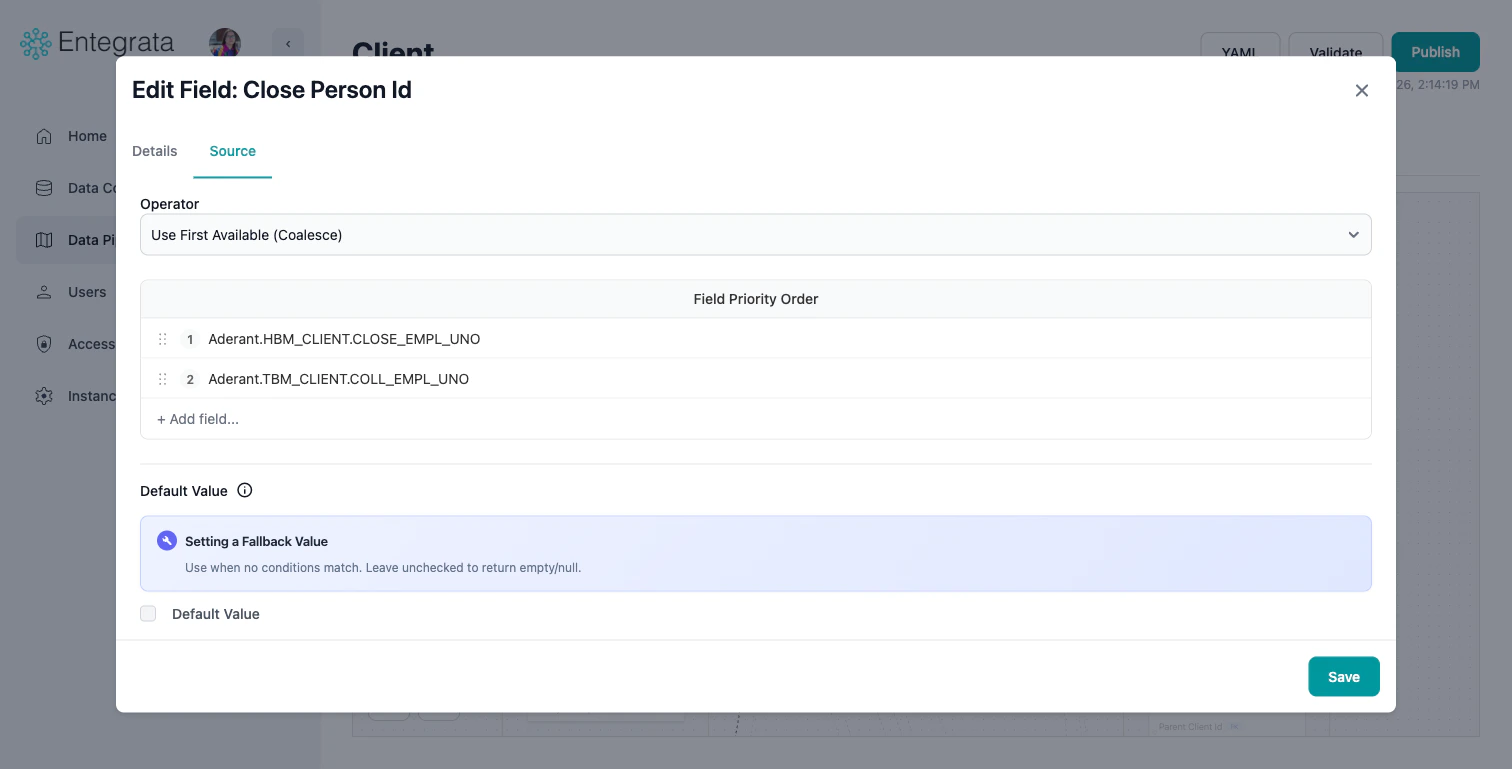
When mapping from related sources (joined with LEFT JOIN), some records may have null values.
Consider:
* Using COALESCE to provide fallback values
* Setting default values
Connect entity fields to fields from either:
* Primary source
* Any related source
When mapping from related sources (joined with LEFT JOIN), some records may have null values.
Consider:
* Using COALESCE to provide fallback values
* Setting default values
 ## Common Mapping Patterns
### Name Fields
Combining first and last name:
**Option 1: Use CONCAT transformation**
```
Source: FirstName, LastName
Combination: CONCAT(FirstName, ' ', LastName)
Entity Field: Name
```
**Option 2: Map separate fields**
```
Source: FirstName -> Entity: FirstName
Source: LastName -> Entity: LastName
```
### Address Fields
Mapping complete addresses:
**Single Field Address:**
```
Source: full_address -> Entity: Address
```
**Multi-Field Address:**
```
Source: street_address -> Entity: Street
Source: city -> Entity: City
Source: state -> Entity: State
Source: zip_code -> Entity: ZipCode
```
### Date and Time Fields
Common date/time mapping scenarios:
**Date Only:**
```
Source: created_date (DateTime) -> Entity: CreatedDate (Date)
(Time portion automatically truncated)
```
**Timestamp to Date and Time:**
```
Source: timestamp -> Entity: Date (extract date)
Source: timestamp -> Entity: Time (extract time)
```
### Boolean/Flag Fields
Mapping yes/no or true/false values:
**String to Boolean:**
```
Source: active (String: "Y"/"N") -> Entity: IsActive (Boolean)
Condition: "Y" = true, "N" = false
```
**Integer to Boolean:**
```
Source: enabled (Integer: 1/0) -> Entity: IsEnabled (Boolean)
Condition: 1 = true, 0 = false
```
**Complex Conditions:**
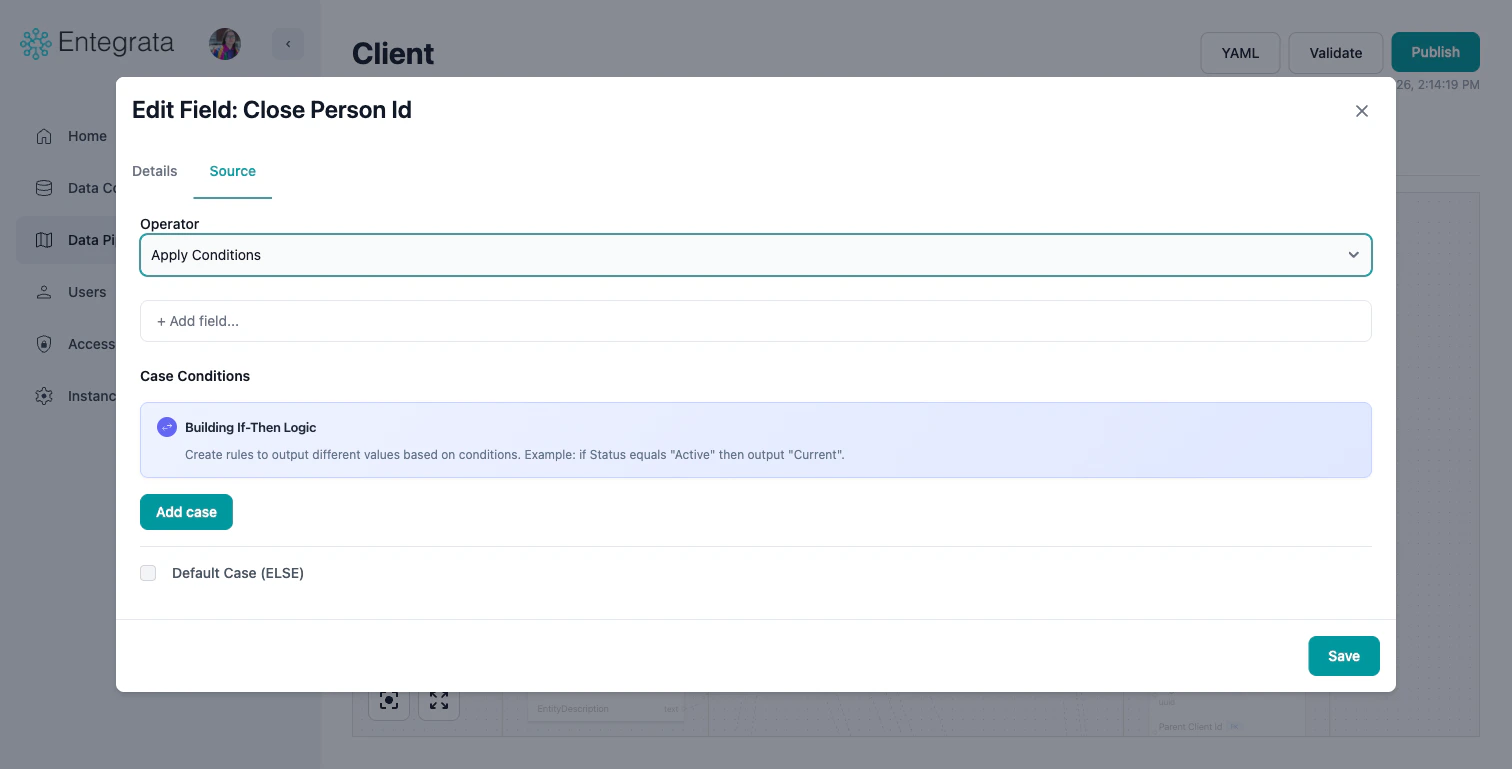
Use CASE expression for complex logic (see [Multi-Field Mapping](/data/pipeline/multi-field-mapping))
## Common Mapping Patterns
### Name Fields
Combining first and last name:
**Option 1: Use CONCAT transformation**
```
Source: FirstName, LastName
Combination: CONCAT(FirstName, ' ', LastName)
Entity Field: Name
```
**Option 2: Map separate fields**
```
Source: FirstName -> Entity: FirstName
Source: LastName -> Entity: LastName
```
### Address Fields
Mapping complete addresses:
**Single Field Address:**
```
Source: full_address -> Entity: Address
```
**Multi-Field Address:**
```
Source: street_address -> Entity: Street
Source: city -> Entity: City
Source: state -> Entity: State
Source: zip_code -> Entity: ZipCode
```
### Date and Time Fields
Common date/time mapping scenarios:
**Date Only:**
```
Source: created_date (DateTime) -> Entity: CreatedDate (Date)
(Time portion automatically truncated)
```
**Timestamp to Date and Time:**
```
Source: timestamp -> Entity: Date (extract date)
Source: timestamp -> Entity: Time (extract time)
```
### Boolean/Flag Fields
Mapping yes/no or true/false values:
**String to Boolean:**
```
Source: active (String: "Y"/"N") -> Entity: IsActive (Boolean)
Condition: "Y" = true, "N" = false
```
**Integer to Boolean:**
```
Source: enabled (Integer: 1/0) -> Entity: IsEnabled (Boolean)
Condition: 1 = true, 0 = false
```
**Complex Conditions:**
Use CASE expression for complex logic (see [Multi-Field Mapping](/data/pipeline/multi-field-mapping))
 ### Numeric Fields
Mapping numbers with precision:
**Integer to Decimal:**
```
Source: quantity (Integer) -> Entity: Quantity (Decimal)
(Automatically converted with .00 decimal places)
```
**Decimal Precision:**
```
Source: price (Decimal 10,4) -> Entity: Price (Decimal 10,2)
(Automatically rounded to 2 decimal places)
```
## Unmapping Fields
To remove a field mapping:
### Visual View
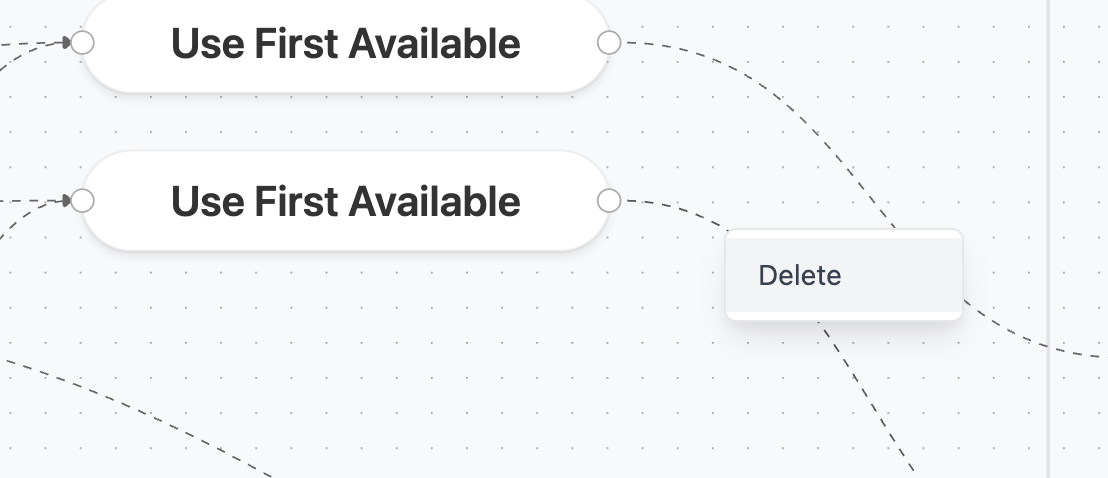
Click on the connection line between source and entity field.
Press **Delete** key, or right-click the connection line and select **Delete**.
### Numeric Fields
Mapping numbers with precision:
**Integer to Decimal:**
```
Source: quantity (Integer) -> Entity: Quantity (Decimal)
(Automatically converted with .00 decimal places)
```
**Decimal Precision:**
```
Source: price (Decimal 10,4) -> Entity: Price (Decimal 10,2)
(Automatically rounded to 2 decimal places)
```
## Unmapping Fields
To remove a field mapping:
### Visual View
Click on the connection line between source and entity field.
Press **Delete** key, or right-click the connection line and select **Delete**.
 If the field is required, you'll be asked to confirm removal.
## Remapping Fields
To change an existing mapping:
### Visual View
Remove the existing connection as described above.
Drag from the new source field to the entity field.
## Troubleshooting
### Cannot Map Field
**Issue**: Dragging a field doesn't create a connection.
**Solutions**:
* Check if entity field is already mapped (unmap first)
* Verify data types are compatible
* Ensure source node is properly connected
### Missing Fields in Dropdown
**Issue**: Expected source field doesn't appear in dropdown.
**Solutions**:
* Refresh source schema
* Verify you're looking at the correct source
* Check if field name has special characters (may be escaped)
* Ensure source connection is active
* Ensure field is enabled on the resource
## Best Practices
**Field Naming**
* Use consistent naming conventions
* Match business terminology, not technical names
* Document unusual mappings with comments
* Consider future maintainability
**Performance**
* Map only fields you need
* Avoid complex transformations when simple mapping works
* Use source-level filters to reduce data volume
* Consider data types impact on storage
## Related Topics
Learn about the visual mapping editor interface
Advanced transformations with COALESCE, CONCAT, CASE
Add, edit, and configure entity fields
Set default values for entity fields
If the field is required, you'll be asked to confirm removal.
## Remapping Fields
To change an existing mapping:
### Visual View
Remove the existing connection as described above.
Drag from the new source field to the entity field.
## Troubleshooting
### Cannot Map Field
**Issue**: Dragging a field doesn't create a connection.
**Solutions**:
* Check if entity field is already mapped (unmap first)
* Verify data types are compatible
* Ensure source node is properly connected
### Missing Fields in Dropdown
**Issue**: Expected source field doesn't appear in dropdown.
**Solutions**:
* Refresh source schema
* Verify you're looking at the correct source
* Check if field name has special characters (may be escaped)
* Ensure source connection is active
* Ensure field is enabled on the resource
## Best Practices
**Field Naming**
* Use consistent naming conventions
* Match business terminology, not technical names
* Document unusual mappings with comments
* Consider future maintainability
**Performance**
* Map only fields you need
* Avoid complex transformations when simple mapping works
* Use source-level filters to reduce data volume
* Consider data types impact on storage
## Related Topics
Learn about the visual mapping editor interface
Advanced transformations with COALESCE, CONCAT, CASE
Add, edit, and configure entity fields
Set default values for entity fields