> ## Documentation Index
> Fetch the complete documentation index at: https://support.entegrata.com/llms.txt
> Use this file to discover all available pages before exploring further.
# Multi-Field Mapping
> Advanced data transformations using COALESCE, CONCAT, CASE, ARRAY, and JSON operators in Entegrata
## Overview
Multi-field mapping allows you to combine or transform data from multiple source fields into a single entity field. Entegrata provides powerful operators that handle common data combination scenarios without requiring code.
This guide covers all multi-field operators and how to use them effectively in your data pipelines.
## Available Operators
### Operator Overview
| Operator (UI Label) | Purpose | Example Use Case |
| ---------------------------------- | ------------------------ | ---------------------------------------------------------------------------- |
| **Use First Available** (Coalesce) | Use first non-null value | Fallback from preferred to alternative fields |
| **Join Text** (Concat) | Combine text values | Build full names, addresses, or composite keys |
| **Apply Conditions** (Case) | Conditional logic | Transform values, categorize data, apply business rules |
| **Generate Hash** | Create unique hashes | Generate uniquely random text strings by combining data from multiple fields |
| **Use Highest Value** | Use highest value | Take the input whose value is the highest |
| **Use Lowest Value** | Use lowest value | Take the input whose value is the lowest |
 ## COALESCE Operator
### What is COALESCE?
COALESCE returns the first non-null value from a list of fields. It's perfect for providing fallback values when preferred data might be missing.
**Syntax**: `COALESCE(field1, field2, field3, ..., defaultValue)`
### Common Use Cases
**Email Address Fallback:**
```
COALESCE(work_email, personal_email, "no-email@example.com")
```
**Phone Number Fallback:**
```
COALESCE(mobile_phone, home_phone, work_phone)
```
**Name Fallback:**
```
COALESCE(preferred_name, first_name, username)
```
### Creating a COALESCE Transformation
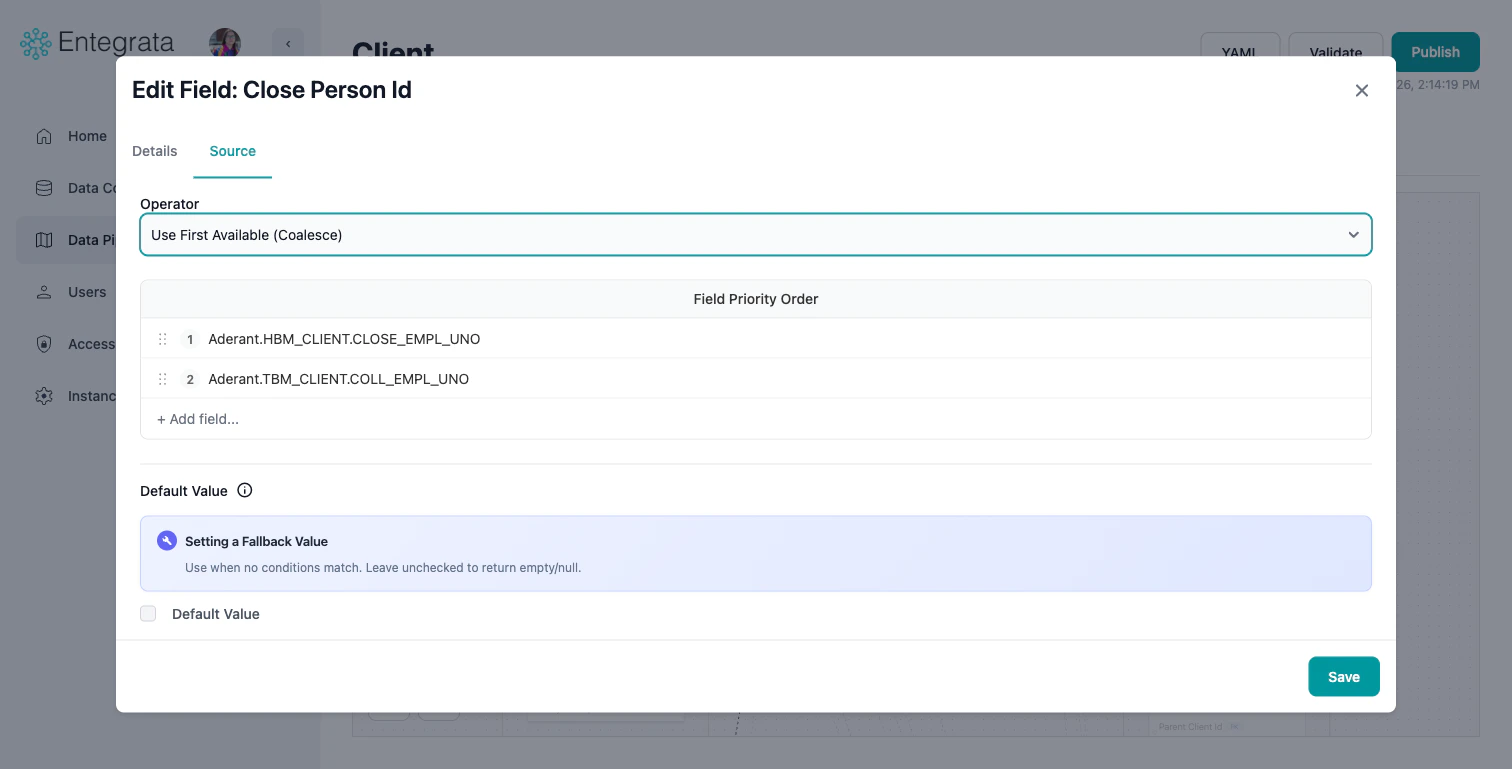
Drag a second source field to an entity field that is already mapped. This automatically creates a logic node on the canvas, defaulting to a **Use First Available (Coalesce)** operation. Alternatively, click the entity field to open the **Edit Field** modal and configure the operator on the **Data Source** tab.
The order matters - COALESCE checks fields left to right. You can view and change the order of the inputs by dragging the fields listed in the **Field Priority Order** section.
## COALESCE Operator
### What is COALESCE?
COALESCE returns the first non-null value from a list of fields. It's perfect for providing fallback values when preferred data might be missing.
**Syntax**: `COALESCE(field1, field2, field3, ..., defaultValue)`
### Common Use Cases
**Email Address Fallback:**
```
COALESCE(work_email, personal_email, "no-email@example.com")
```
**Phone Number Fallback:**
```
COALESCE(mobile_phone, home_phone, work_phone)
```
**Name Fallback:**
```
COALESCE(preferred_name, first_name, username)
```
### Creating a COALESCE Transformation
Drag a second source field to an entity field that is already mapped. This automatically creates a logic node on the canvas, defaulting to a **Use First Available (Coalesce)** operation. Alternatively, click the entity field to open the **Edit Field** modal and configure the operator on the **Data Source** tab.
The order matters - COALESCE checks fields left to right. You can view and change the order of the inputs by dragging the fields listed in the **Field Priority Order** section.
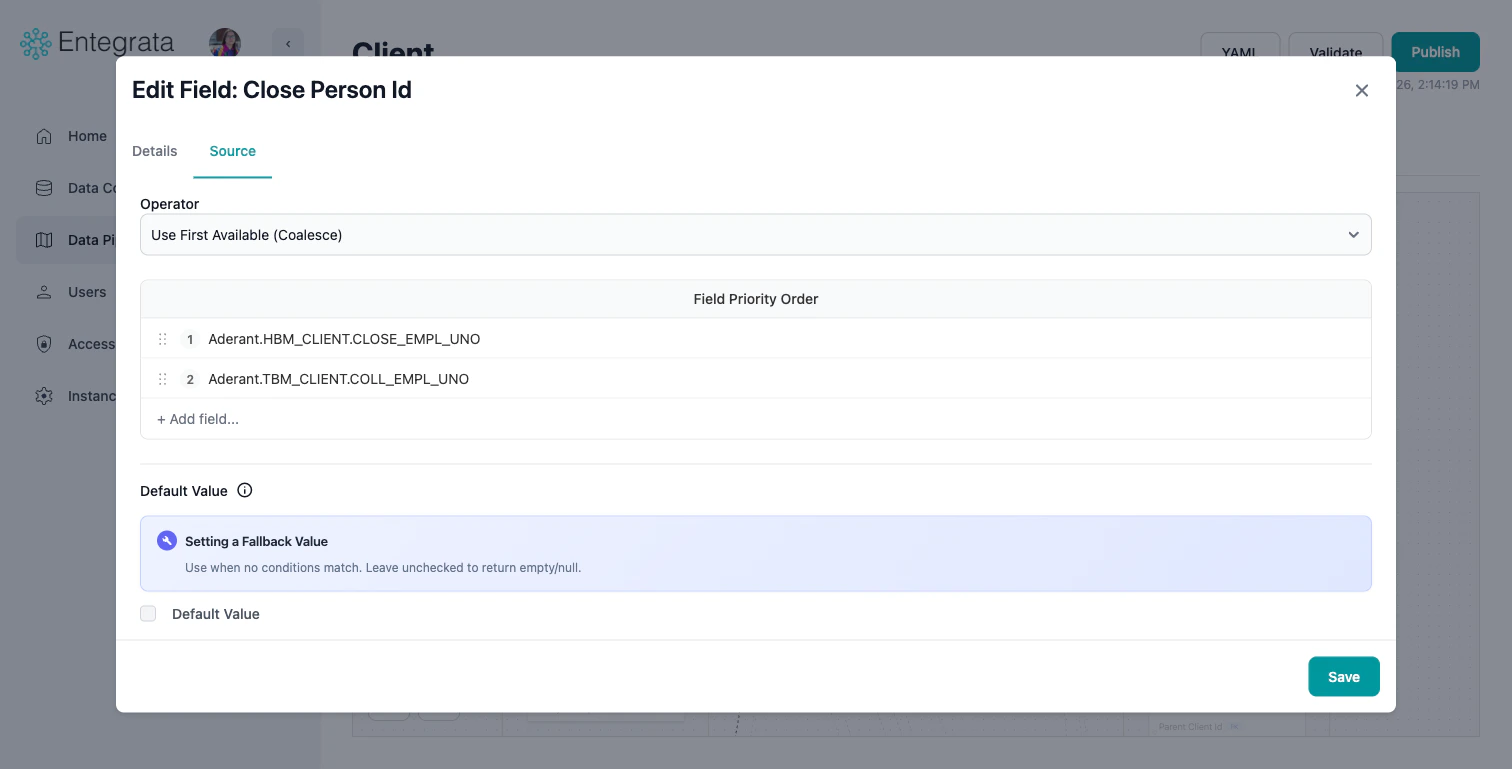 Check the **Default Value** checkbox and enter a fallback value to use if all input fields are null.
### COALESCE Best Practices
**Ordering Inputs**
* Put most reliable/preferred fields first
* Put default or fallback fields last
* Consider data quality when ordering
If all fields are null and no default is provided, the entity field will be null. For required fields, always provide a default value.
## CONCAT Operator
### What is CONCAT?
CONCAT combines multiple text values into a single string. You can add separators, prefixes, and suffixes.
**Syntax**: `CONCAT(field1, separator, field2, separator, field3, ...)`
### Common Use Cases
**Full Name:**
```
CONCAT(first_name, ' ', last_name)
Result: "John Smith"
```
**Full Address:**
```
CONCAT(street, ', ', city, ', ', state, ' ', zip_code)
Result: "123 Main St, Springfield, IL 62701"
```
**Composite Key:**
```
CONCAT(customer_id, '-', order_id)
Result: "CUST001-ORD12345"
```
**Email Construction:**
```
CONCAT(username, '@', domain)
Result: "john.smith@company.com"
```
### Creating a CONCAT Transformation
Drag a second source field to an entity field that is already mapped. This automatically creates a logic node on the canvas, defaulting to a **Use First Available (Coalesce)** operation. Alternatively, click the entity field to open the **Edit Field** modal and configure the operator on the **Data Source** tab.
In the Edit Field modal's **Data Source** tab, select **Join Text (Concat)** from the **Operator** dropdown.
The order matters - CONCAT appends fields left to right. You can view and change the order of the inputs by dragging the fields listed in the **Text Combination Order** section.
Check the **Default Value** checkbox and enter a fallback value to use if all input fields are null.
### COALESCE Best Practices
**Ordering Inputs**
* Put most reliable/preferred fields first
* Put default or fallback fields last
* Consider data quality when ordering
If all fields are null and no default is provided, the entity field will be null. For required fields, always provide a default value.
## CONCAT Operator
### What is CONCAT?
CONCAT combines multiple text values into a single string. You can add separators, prefixes, and suffixes.
**Syntax**: `CONCAT(field1, separator, field2, separator, field3, ...)`
### Common Use Cases
**Full Name:**
```
CONCAT(first_name, ' ', last_name)
Result: "John Smith"
```
**Full Address:**
```
CONCAT(street, ', ', city, ', ', state, ' ', zip_code)
Result: "123 Main St, Springfield, IL 62701"
```
**Composite Key:**
```
CONCAT(customer_id, '-', order_id)
Result: "CUST001-ORD12345"
```
**Email Construction:**
```
CONCAT(username, '@', domain)
Result: "john.smith@company.com"
```
### Creating a CONCAT Transformation
Drag a second source field to an entity field that is already mapped. This automatically creates a logic node on the canvas, defaulting to a **Use First Available (Coalesce)** operation. Alternatively, click the entity field to open the **Edit Field** modal and configure the operator on the **Data Source** tab.
In the Edit Field modal's **Data Source** tab, select **Join Text (Concat)** from the **Operator** dropdown.
The order matters - CONCAT appends fields left to right. You can view and change the order of the inputs by dragging the fields listed in the **Text Combination Order** section.
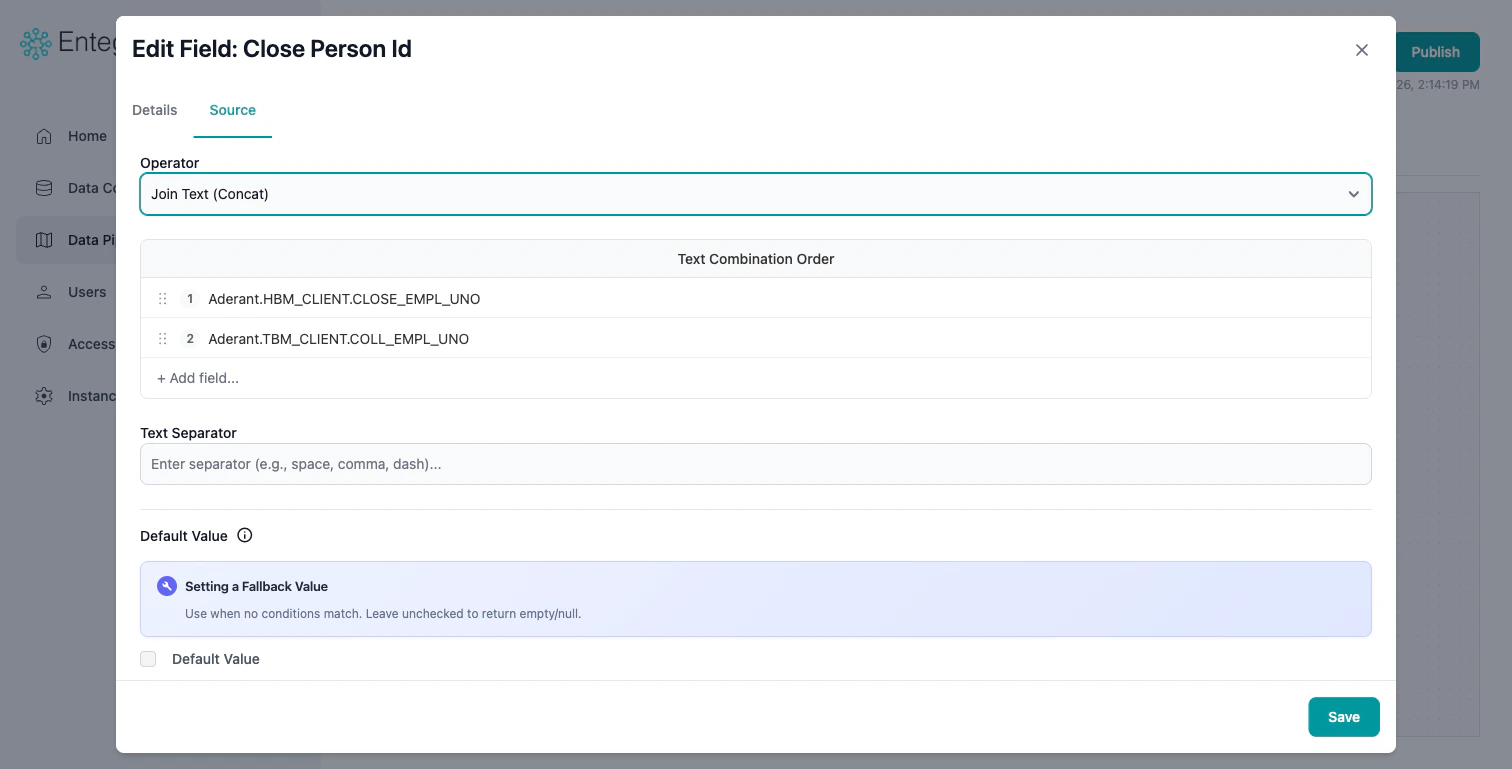 In the **Text Separator** field, enter the character(s) to insert between each field value (e.g., a space, comma, or dash).
## CASE Operator
### What is CASE?
CASE provides if-then-else conditional logic. Transform values, categorize data, or apply complex business rules based on conditions.
**Syntax**:
```
CASE
WHEN condition1 THEN result1
WHEN condition2 THEN result2
ELSE default_result
END
```
### Common Use Cases
**Status Categorization:**
```
CASE
WHEN status = 'A' THEN 'Active'
WHEN status = 'I' THEN 'Inactive'
WHEN status = 'P' THEN 'Pending'
ELSE 'Unknown'
END
```
**Value Ranges:**
```
CASE
WHEN revenue >= 1000000 THEN 'Enterprise'
WHEN revenue >= 100000 THEN 'Mid-Market'
WHEN revenue >= 10000 THEN 'SMB'
ELSE 'Small Business'
END
```
**Boolean Conversion:**
```
CASE
WHEN active_flag = 'Y' THEN true
WHEN active_flag = 'N' THEN false
ELSE null
END
```
**Multiple Conditions:**
```
CASE
WHEN country = 'US' AND state = 'CA' THEN 'California'
WHEN country = 'US' AND state = 'TX' THEN 'Texas'
WHEN country = 'CA' THEN 'Canada'
ELSE 'Other'
END
```
### Creating a CASE Transformation
Drag a second source field to an entity field that is already mapped. This automatically creates a logic node on the canvas, defaulting to a **Use First Available (Coalesce)** operation. Alternatively, click the entity field to open the **Edit Field** modal and configure the operator on the **Data Source** tab.
In the Edit Field modal's **Data Source** tab, select **Apply Conditions** from the **Operator** dropdown.
In the Edit Field modal's **Data Source** tab, click **Add case** to create a new condition:
* **When**: Define the condition to evaluate (field, operator, and value)
* **Then**: Specify the output value when the condition is true
* Check **Default Case (ELSE)** to set a fallback value when no conditions match
In the **Text Separator** field, enter the character(s) to insert between each field value (e.g., a space, comma, or dash).
## CASE Operator
### What is CASE?
CASE provides if-then-else conditional logic. Transform values, categorize data, or apply complex business rules based on conditions.
**Syntax**:
```
CASE
WHEN condition1 THEN result1
WHEN condition2 THEN result2
ELSE default_result
END
```
### Common Use Cases
**Status Categorization:**
```
CASE
WHEN status = 'A' THEN 'Active'
WHEN status = 'I' THEN 'Inactive'
WHEN status = 'P' THEN 'Pending'
ELSE 'Unknown'
END
```
**Value Ranges:**
```
CASE
WHEN revenue >= 1000000 THEN 'Enterprise'
WHEN revenue >= 100000 THEN 'Mid-Market'
WHEN revenue >= 10000 THEN 'SMB'
ELSE 'Small Business'
END
```
**Boolean Conversion:**
```
CASE
WHEN active_flag = 'Y' THEN true
WHEN active_flag = 'N' THEN false
ELSE null
END
```
**Multiple Conditions:**
```
CASE
WHEN country = 'US' AND state = 'CA' THEN 'California'
WHEN country = 'US' AND state = 'TX' THEN 'Texas'
WHEN country = 'CA' THEN 'Canada'
ELSE 'Other'
END
```
### Creating a CASE Transformation
Drag a second source field to an entity field that is already mapped. This automatically creates a logic node on the canvas, defaulting to a **Use First Available (Coalesce)** operation. Alternatively, click the entity field to open the **Edit Field** modal and configure the operator on the **Data Source** tab.
In the Edit Field modal's **Data Source** tab, select **Apply Conditions** from the **Operator** dropdown.
In the Edit Field modal's **Data Source** tab, click **Add case** to create a new condition:
* **When**: Define the condition to evaluate (field, operator, and value)
* **Then**: Specify the output value when the condition is true
* Check **Default Case (ELSE)** to set a fallback value when no conditions match
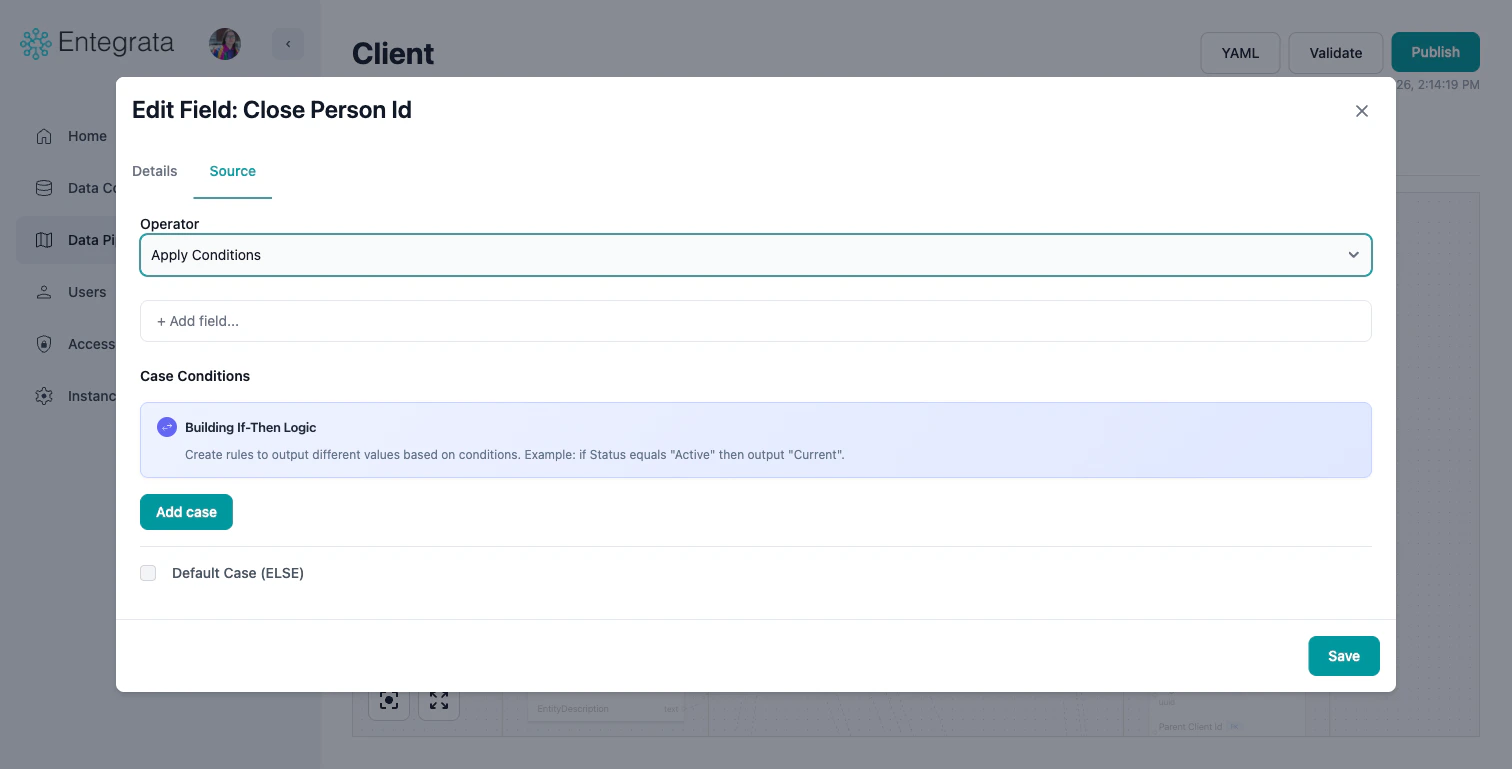 Click **Add case** to add additional conditions. Cases are evaluated in order from top to bottom.
Check **Default Case (ELSE)** at the bottom and enter the fallback value returned when no conditions match.
Always provide a default case, especially for required fields. Without it, unmatched records will be null.
### Available Operators in CASE
| Operator | Description | Example |
| ------------------------ | ------------------------- | --------------------------- |
| **=** (equals) | Exact match | status = 'Active' |
| **≠** (not equals) | Not equal to | country ≠ 'US' |
| **>** (greater than) | Numeric/date comparison | revenue > 100000 |
| **\<** (less than) | Numeric/date comparison | age \< 18 |
| **≥** (greater or equal) | Inclusive comparison | score >= 90 |
| **≤** (less or equal) | Inclusive comparison | quantity \<= 10 |
| **CONTAINS** | String contains substring | name CONTAINS 'Corp' |
| **STARTS WITH** | String starts with | email STARTS WITH 'admin' |
| **ENDS WITH** | String ends with | filename ENDS WITH '.pdf' |
| **IN** | Value in list | state IN ('CA', 'NY', 'TX') |
| **IS NULL** | Field is null | middle\_name IS NULL |
| **IS NOT NULL** | Field has value | phone IS NOT NULL |
### CASE Best Practices
**Condition Ordering**
* Put most specific conditions first
* More general conditions go later
* Always include an ELSE clause
## Troubleshooting
### COALESCE Returns Unexpected Nulls
**Issue**: COALESCE still returns null even with multiple input fields.
**Solutions**:
* Verify input field order
* Check that at least one input has non-null values in sample data
* Add a literal default value as last input
* Preview each input field separately to verify data
### CONCAT Produces Extra Separators
**Issue**: Concatenated string has separators where fields were null.
**Solutions**:
* Enable "Skip nulls" option in CONCAT settings
* Use COALESCE on inputs to convert nulls to empty strings
* Consider using CASE to handle null scenarios differently
### CASE Always Returns ELSE Value
**Issue**: No conditions seem to match.
**Solutions**:
* Verify field data types match comparison values
* Check for whitespace in string comparisons
* Use case-insensitive operators for text
* Preview source data to see actual values
* Check operator choice (= vs CONTAINS vs STARTS WITH)
## Related Topics
Learn basic field-to-field mapping
Configure entity field properties and data types
Set default values for fields
Complete guide to the mapping editor interface
Click **Add case** to add additional conditions. Cases are evaluated in order from top to bottom.
Check **Default Case (ELSE)** at the bottom and enter the fallback value returned when no conditions match.
Always provide a default case, especially for required fields. Without it, unmatched records will be null.
### Available Operators in CASE
| Operator | Description | Example |
| ------------------------ | ------------------------- | --------------------------- |
| **=** (equals) | Exact match | status = 'Active' |
| **≠** (not equals) | Not equal to | country ≠ 'US' |
| **>** (greater than) | Numeric/date comparison | revenue > 100000 |
| **\<** (less than) | Numeric/date comparison | age \< 18 |
| **≥** (greater or equal) | Inclusive comparison | score >= 90 |
| **≤** (less or equal) | Inclusive comparison | quantity \<= 10 |
| **CONTAINS** | String contains substring | name CONTAINS 'Corp' |
| **STARTS WITH** | String starts with | email STARTS WITH 'admin' |
| **ENDS WITH** | String ends with | filename ENDS WITH '.pdf' |
| **IN** | Value in list | state IN ('CA', 'NY', 'TX') |
| **IS NULL** | Field is null | middle\_name IS NULL |
| **IS NOT NULL** | Field has value | phone IS NOT NULL |
### CASE Best Practices
**Condition Ordering**
* Put most specific conditions first
* More general conditions go later
* Always include an ELSE clause
## Troubleshooting
### COALESCE Returns Unexpected Nulls
**Issue**: COALESCE still returns null even with multiple input fields.
**Solutions**:
* Verify input field order
* Check that at least one input has non-null values in sample data
* Add a literal default value as last input
* Preview each input field separately to verify data
### CONCAT Produces Extra Separators
**Issue**: Concatenated string has separators where fields were null.
**Solutions**:
* Enable "Skip nulls" option in CONCAT settings
* Use COALESCE on inputs to convert nulls to empty strings
* Consider using CASE to handle null scenarios differently
### CASE Always Returns ELSE Value
**Issue**: No conditions seem to match.
**Solutions**:
* Verify field data types match comparison values
* Check for whitespace in string comparisons
* Use case-insensitive operators for text
* Preview source data to see actual values
* Check operator choice (= vs CONTAINS vs STARTS WITH)
## Related Topics
Learn basic field-to-field mapping
Configure entity field properties and data types
Set default values for fields
Complete guide to the mapping editor interface