> ## Documentation Index
> Fetch the complete documentation index at: https://support.entegrata.com/llms.txt
> Use this file to discover all available pages before exploring further.
# Searching and Filtering Pipelines
> How to efficiently find and filter pipelines in Entegrata
## Overview
As your pipeline library grows, efficiently finding specific pipelines becomes essential. Entegrata provides search and filtering capabilities to help you quickly locate pipelines based on name, status, and other criteria.
## Search Functionality
The pipeline list includes a search bar that allows you to filter pipelines by name in real-time.
### Accessing Search
The search bar is located at the top of the pipeline list view, just below the page title and "Create New Pipeline" button.
 ### How Search Works
The search functionality provides:
* **Real-time filtering** - Results update as you type
* **Partial matching** - Find pipelines containing your search term anywhere in the name
* **Case-insensitive** - Search works regardless of capitalization
* **Instant results** - No need to press Enter or click a search button
Search currently filters by pipeline name only. Searching descriptions, keys, or other fields is not supported at this time.
## Using the Search Bar
Go to the [Entegrata Admin Portal](https://admin.entegrata.com) and click the **Pipelines** tab.
Find the search input field at the top of the pipeline list, below the page header.
Click in the search bar and start typing your search query. Results filter automatically as you type.
**Search Examples:**
* "client" - Shows all pipelines with "client" in the name
* "daily" - Shows all pipelines with "daily" in the name
* "test" - Shows all test pipelines
* "v2" - Shows all version 2 pipelines
### How Search Works
The search functionality provides:
* **Real-time filtering** - Results update as you type
* **Partial matching** - Find pipelines containing your search term anywhere in the name
* **Case-insensitive** - Search works regardless of capitalization
* **Instant results** - No need to press Enter or click a search button
Search currently filters by pipeline name only. Searching descriptions, keys, or other fields is not supported at this time.
## Using the Search Bar
Go to the [Entegrata Admin Portal](https://admin.entegrata.com) and click the **Pipelines** tab.
Find the search input field at the top of the pipeline list, below the page header.
Click in the search bar and start typing your search query. Results filter automatically as you type.
**Search Examples:**
* "client" - Shows all pipelines with "client" in the name
* "daily" - Shows all pipelines with "daily" in the name
* "test" - Shows all test pipelines
* "v2" - Shows all version 2 pipelines
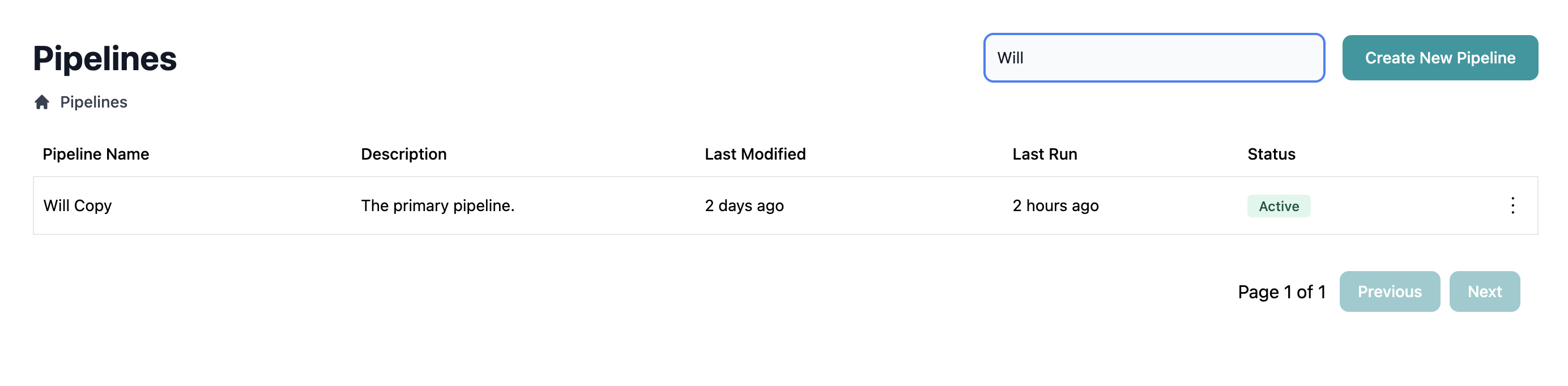 The pipeline list automatically updates to show only matching pipelines. All columns and actions remain available for filtered results.
If no pipelines match your search, the list will be empty. Try a shorter or more general search term.
## Search Strategies
### Finding Specific Pipelines
When you know the exact pipeline name or a unique part of it:
**Example:** Searching for "Client Data Processing"
* Type: "client data" or "processing"
* Result: Finds the specific pipeline quickly
### Finding Groups of Related Pipelines
Use common naming elements to find groups:
**Example:** Finding all test pipelines
* Type: "test"
* Result: All pipelines with "test" in the name
**Example:** Finding all daily pipelines
* Type: "daily"
* Result: All pipelines that run daily
### Finding Pipelines by Version
If you use version numbers in pipeline names:
**Example:** Finding all version 2 pipelines
* Type: "v2" or "version 2"
* Result: All pipelines marked as version 2
### Finding Pipelines by Data Domain
If you include data domains in names:
**Example:** Finding all client-related pipelines
* Type: "client"
* Result: Client Data Pipeline, Client Migration, etc.
**Example:** Finding all portfolio pipelines
* Type: "portfolio"
* Result: All pipelines processing portfolio data
## Search Best Practices
**Use Consistent Naming Conventions**
Establish naming patterns that make searching easier:
* **Data Domain + Frequency + Type**
* "Client Daily Refresh Pipeline"
* "Portfolio Weekly Aggregation"
* "Transaction Real-time Sync"
* **Environment + Purpose**
* "Production Client Pipeline"
* "Test Migration Pipeline"
* "Dev Data Quality Pipeline"
* **Version Indicators**
* "Client Pipeline v1"
* "Client Pipeline v2"
* "Legacy Client Pipeline"
Consistent naming makes it easier to find related pipelines using search.
**Start with Broad Searches**
If you're not sure of the exact name:
1. Start with a general term (e.g., "client")
2. Review the results
3. Add more specific terms if needed (e.g., "client daily")
This approach helps when you don't remember the full pipeline name.
**Use Keywords from Descriptions**
If you include keywords in pipeline descriptions, remember to use those same keywords in names for searchability. Since search only works on names, important identifying information should be in the name.
**Example:**
* Good: "Salesforce Client Daily Pipeline"
* Less searchable: "Pipeline 1" (with "Salesforce Client Daily" only in description)
**Document Search Terms**
For team efficiency, document common search terms in your team wiki:
* How to find test pipelines
* How to find pipelines by data source
* How to find pipelines by schedule
* Naming conventions to use
This helps team members find pipelines quickly.
## Pagination and Search
The pipeline list supports pagination to handle large numbers of pipelines efficiently.
### How Pagination Works with Search
* **Without Search** - Navigate through all pipelines using page controls
* **With Active Search** - Navigate through filtered results only
* **Page Reset** - Starting a new search resets to page 1
* **Results Per Page** - Typically 10 pipelines per page
When you search, the page automatically resets to page 1 of the filtered results. This ensures you see all matching pipelines starting from the beginning.
## Combining Search with Sorting
While viewing search results, you can still use column sorting:
1. Perform your search to filter pipelines
2. Click column headers to sort filtered results
3. Sort by:
* Name (alphabetically)
* Last Modified (most/least recent)
* Last Run (most/least recent)
* Status
Combining search with sorting is powerful:
* Search for "client" to find all client pipelines
* Sort by Last Modified to see which were updated recently
* Sort by Last Run to see which haven't run in a while
## Alternative Finding Methods
Beyond search, use these methods to locate pipelines:
### Recently Modified
Sort the full list by "Last Modified" column (click header) to see:
* Pipelines you or others recently changed
* New pipelines at the top
* Oldest pipelines at the bottom
### Recently Run
Sort by "Last Run" column to see:
* Active pipelines that ran recently
* Idle pipelines that haven't run in a while
* Never-run pipelines (useful for finding orphaned test pipelines)
### Status-Based Organization
Visually scan for status badge colors:
* **Green** - Active, successful pipelines
* **Yellow** - Paused pipelines
* **Red** - Failed pipelines
* **Gray** - Draft pipelines
* **Blue** - Running pipelines
### Manual Browsing
For smaller pipeline lists (under 50):
* Scan the full list visually
* Group mentally by naming patterns
* Use browser find (Ctrl+F or Cmd+F) to search current page
## Troubleshooting Search
### No Results Found
**Problem:** Search returns no pipelines.
**Solutions:**
* Check spelling of search terms
* Try shorter or more general search terms
* Remove extra spaces
* Try searching for different parts of the pipeline name
* Clear search and verify the pipeline exists in the full list
### Wrong Pipelines in Results
**Problem:** Search returns pipelines you didn't expect.
**Solutions:**
* Search is partial match - "test" finds "Latest Client Pipeline"
* Make search more specific
* Use unique terms from the pipeline name
* Consider if unexpected results share terminology
### Search Not Updating
**Problem:** Typing in search bar doesn't filter results.
**Solutions:**
* Ensure you're typing in the correct search input field
* Refresh the page
* Clear browser cache
* Check for JavaScript errors in browser console
* Try a different browser
### Search Cleared Unexpectedly
**Problem:** Search terms disappear or reset.
**Solutions:**
* Navigating between pages may reset search (by design)
* Leaving and returning to Pipelines tab clears search
* Page refresh clears search
* This is expected behavior - search is session-based
## Future Search Enhancements
While current search is name-only, potential future enhancements may include:
* **Description Search** - Find pipelines by description content
* **Multi-field Search** - Search across name, description, and keys
* **Advanced Filters** - Filter by status, last run date, trigger type
* **Saved Searches** - Save common search queries
* **Search History** - Quick access to recent searches
* **Regex Support** - Advanced pattern matching
Feature requests for search improvements can be submitted through the [Support Portal](https://support.entegrata.com).
## Search Tips by Use Case
### Finding Test Pipelines for Cleanup
**Goal:** Identify test pipelines to delete
**Strategy:**
1. Search "test"
2. Sort by Last Run
3. Identify pipelines that haven't run in 30+ days
4. Review and delete as appropriate
### Finding Pipelines by Source System
**Goal:** Find all pipelines using a specific data source
**Strategy:**
1. Include source system name in pipeline names
2. Search for source system (e.g., "salesforce", "sap", "workday")
3. Review all pipelines using that source
**Example Naming:** "Salesforce Client Pipeline", "SAP Finance Daily"
### Finding Pipelines to Update
**Goal:** Find pipelines that need configuration updates
**Strategy:**
1. Search for pipelines by version (e.g., "v1")
2. Or search for pipelines by data domain
3. Sort by Last Modified
4. Update outdated configurations
### Finding Failed Pipelines
**Goal:** Identify pipelines needing attention
**Strategy:**
1. Don't use search initially
2. Sort by Status to group failed pipelines
3. Or sort by Last Run and look for red badges
4. Address failures systematically
## Related Topics
Back to pipeline management overview
Name pipelines for easy searching
Update names to improve searchability
Remove pipelines found through search
The pipeline list automatically updates to show only matching pipelines. All columns and actions remain available for filtered results.
If no pipelines match your search, the list will be empty. Try a shorter or more general search term.
## Search Strategies
### Finding Specific Pipelines
When you know the exact pipeline name or a unique part of it:
**Example:** Searching for "Client Data Processing"
* Type: "client data" or "processing"
* Result: Finds the specific pipeline quickly
### Finding Groups of Related Pipelines
Use common naming elements to find groups:
**Example:** Finding all test pipelines
* Type: "test"
* Result: All pipelines with "test" in the name
**Example:** Finding all daily pipelines
* Type: "daily"
* Result: All pipelines that run daily
### Finding Pipelines by Version
If you use version numbers in pipeline names:
**Example:** Finding all version 2 pipelines
* Type: "v2" or "version 2"
* Result: All pipelines marked as version 2
### Finding Pipelines by Data Domain
If you include data domains in names:
**Example:** Finding all client-related pipelines
* Type: "client"
* Result: Client Data Pipeline, Client Migration, etc.
**Example:** Finding all portfolio pipelines
* Type: "portfolio"
* Result: All pipelines processing portfolio data
## Search Best Practices
**Use Consistent Naming Conventions**
Establish naming patterns that make searching easier:
* **Data Domain + Frequency + Type**
* "Client Daily Refresh Pipeline"
* "Portfolio Weekly Aggregation"
* "Transaction Real-time Sync"
* **Environment + Purpose**
* "Production Client Pipeline"
* "Test Migration Pipeline"
* "Dev Data Quality Pipeline"
* **Version Indicators**
* "Client Pipeline v1"
* "Client Pipeline v2"
* "Legacy Client Pipeline"
Consistent naming makes it easier to find related pipelines using search.
**Start with Broad Searches**
If you're not sure of the exact name:
1. Start with a general term (e.g., "client")
2. Review the results
3. Add more specific terms if needed (e.g., "client daily")
This approach helps when you don't remember the full pipeline name.
**Use Keywords from Descriptions**
If you include keywords in pipeline descriptions, remember to use those same keywords in names for searchability. Since search only works on names, important identifying information should be in the name.
**Example:**
* Good: "Salesforce Client Daily Pipeline"
* Less searchable: "Pipeline 1" (with "Salesforce Client Daily" only in description)
**Document Search Terms**
For team efficiency, document common search terms in your team wiki:
* How to find test pipelines
* How to find pipelines by data source
* How to find pipelines by schedule
* Naming conventions to use
This helps team members find pipelines quickly.
## Pagination and Search
The pipeline list supports pagination to handle large numbers of pipelines efficiently.
### How Pagination Works with Search
* **Without Search** - Navigate through all pipelines using page controls
* **With Active Search** - Navigate through filtered results only
* **Page Reset** - Starting a new search resets to page 1
* **Results Per Page** - Typically 10 pipelines per page
When you search, the page automatically resets to page 1 of the filtered results. This ensures you see all matching pipelines starting from the beginning.
## Combining Search with Sorting
While viewing search results, you can still use column sorting:
1. Perform your search to filter pipelines
2. Click column headers to sort filtered results
3. Sort by:
* Name (alphabetically)
* Last Modified (most/least recent)
* Last Run (most/least recent)
* Status
Combining search with sorting is powerful:
* Search for "client" to find all client pipelines
* Sort by Last Modified to see which were updated recently
* Sort by Last Run to see which haven't run in a while
## Alternative Finding Methods
Beyond search, use these methods to locate pipelines:
### Recently Modified
Sort the full list by "Last Modified" column (click header) to see:
* Pipelines you or others recently changed
* New pipelines at the top
* Oldest pipelines at the bottom
### Recently Run
Sort by "Last Run" column to see:
* Active pipelines that ran recently
* Idle pipelines that haven't run in a while
* Never-run pipelines (useful for finding orphaned test pipelines)
### Status-Based Organization
Visually scan for status badge colors:
* **Green** - Active, successful pipelines
* **Yellow** - Paused pipelines
* **Red** - Failed pipelines
* **Gray** - Draft pipelines
* **Blue** - Running pipelines
### Manual Browsing
For smaller pipeline lists (under 50):
* Scan the full list visually
* Group mentally by naming patterns
* Use browser find (Ctrl+F or Cmd+F) to search current page
## Troubleshooting Search
### No Results Found
**Problem:** Search returns no pipelines.
**Solutions:**
* Check spelling of search terms
* Try shorter or more general search terms
* Remove extra spaces
* Try searching for different parts of the pipeline name
* Clear search and verify the pipeline exists in the full list
### Wrong Pipelines in Results
**Problem:** Search returns pipelines you didn't expect.
**Solutions:**
* Search is partial match - "test" finds "Latest Client Pipeline"
* Make search more specific
* Use unique terms from the pipeline name
* Consider if unexpected results share terminology
### Search Not Updating
**Problem:** Typing in search bar doesn't filter results.
**Solutions:**
* Ensure you're typing in the correct search input field
* Refresh the page
* Clear browser cache
* Check for JavaScript errors in browser console
* Try a different browser
### Search Cleared Unexpectedly
**Problem:** Search terms disappear or reset.
**Solutions:**
* Navigating between pages may reset search (by design)
* Leaving and returning to Pipelines tab clears search
* Page refresh clears search
* This is expected behavior - search is session-based
## Future Search Enhancements
While current search is name-only, potential future enhancements may include:
* **Description Search** - Find pipelines by description content
* **Multi-field Search** - Search across name, description, and keys
* **Advanced Filters** - Filter by status, last run date, trigger type
* **Saved Searches** - Save common search queries
* **Search History** - Quick access to recent searches
* **Regex Support** - Advanced pattern matching
Feature requests for search improvements can be submitted through the [Support Portal](https://support.entegrata.com).
## Search Tips by Use Case
### Finding Test Pipelines for Cleanup
**Goal:** Identify test pipelines to delete
**Strategy:**
1. Search "test"
2. Sort by Last Run
3. Identify pipelines that haven't run in 30+ days
4. Review and delete as appropriate
### Finding Pipelines by Source System
**Goal:** Find all pipelines using a specific data source
**Strategy:**
1. Include source system name in pipeline names
2. Search for source system (e.g., "salesforce", "sap", "workday")
3. Review all pipelines using that source
**Example Naming:** "Salesforce Client Pipeline", "SAP Finance Daily"
### Finding Pipelines to Update
**Goal:** Find pipelines that need configuration updates
**Strategy:**
1. Search for pipelines by version (e.g., "v1")
2. Or search for pipelines by data domain
3. Sort by Last Modified
4. Update outdated configurations
### Finding Failed Pipelines
**Goal:** Identify pipelines needing attention
**Strategy:**
1. Don't use search initially
2. Sort by Status to group failed pipelines
3. Or sort by Last Run and look for red badges
4. Address failures systematically
## Related Topics
Back to pipeline management overview
Name pipelines for easy searching
Update names to improve searchability
Remove pipelines found through search