> ## Documentation Index
> Fetch the complete documentation index at: https://support.entegrata.com/llms.txt
> Use this file to discover all available pages before exploring further.
# Navigation Refresh
> What changed in the Admin Application navigation, and where to find the things you used before
The Admin Application has a new navigation model. The pages and data are the same, but
the page furniture around them moved: titles and tab strips gave way to a **dropdown
breadcrumb** at the top of every page, and details that used to live on their own pages
now open in a **side panel** without taking you away from your list.
This page shows the old and new side by side, so you can find anything that moved.
Nothing was renamed in your data. Connections, pipelines, entities, groups, and settings
all keep their names and values. The changes here are to layout and navigation only,
except where explicitly noted.
## The short version
| If you used to… | Now… |
| ---------------------------------------------------------- | --------------------------------------------------------------------- |
| Read the page title to know where you are | Read the breadcrumb at the top left |
| Click an underlined tab strip | Click the last breadcrumb crumb and pick from its menu |
| Go back to a list to switch connection, pipeline, or group | Click that name in the breadcrumb and pick another, with a search box |
| Open a pipeline's **Statistics** page | Click **Insights** on the entities list |
| Open a pipeline's **History** page | Click **History** on any pipeline page |
## Sidebar labels
Two sidebar items were shortened, and the Pipelines icon changed.
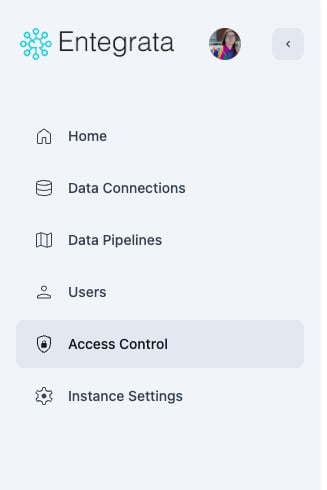
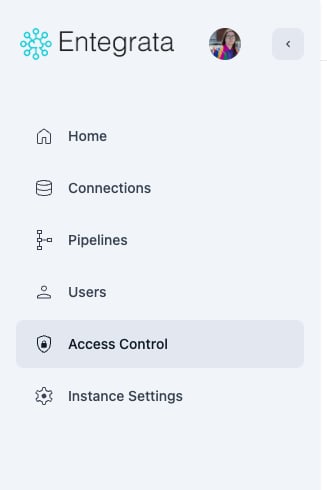 * **Data Connections** is now **Connections**
* **Data Pipelines** is now **Pipelines**
## Connections
### The connections list
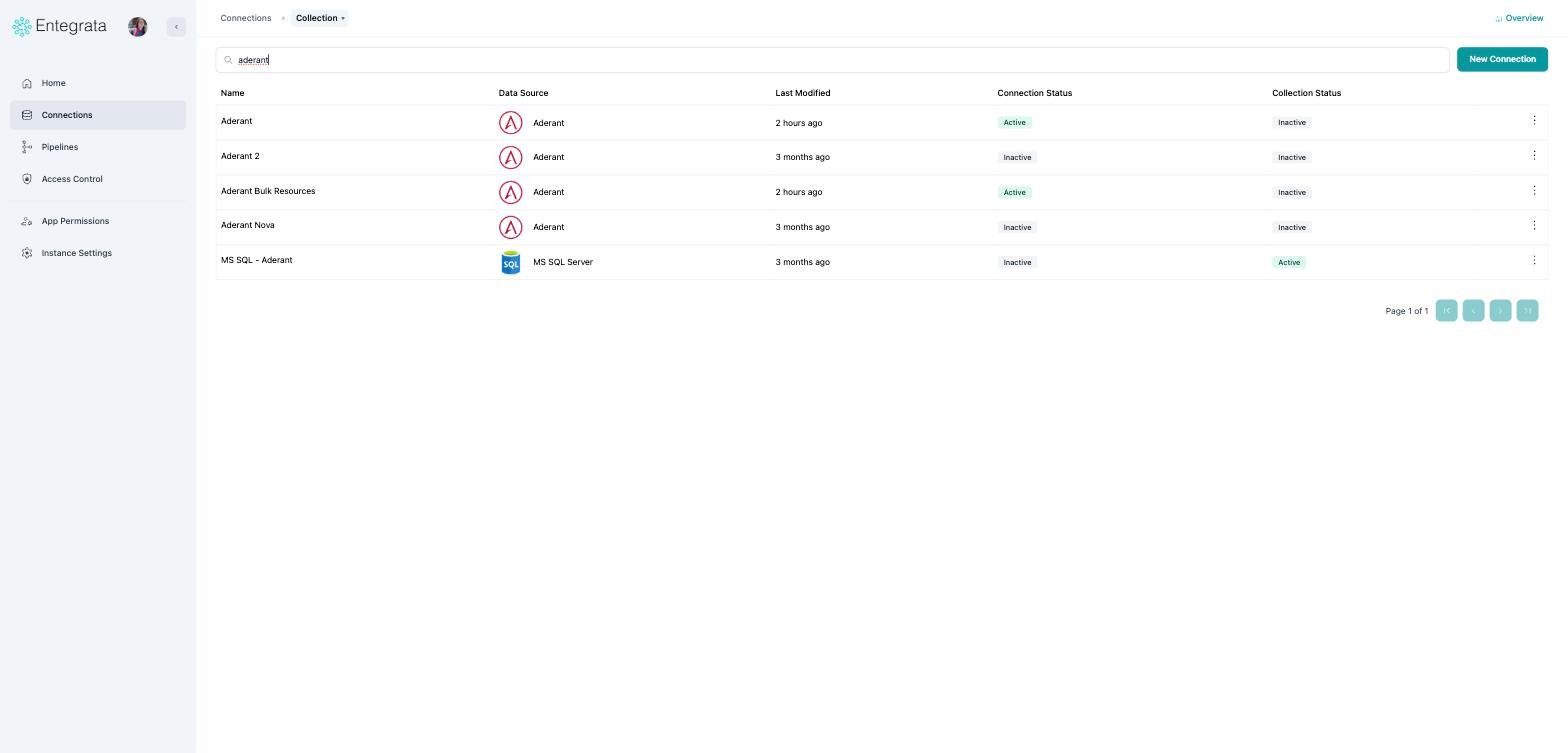
The page title and the tab strip are gone. Search moved up into the same row as
**New Connection**, which leaves noticeably more room for your connections.
* **Data Connections** is now **Connections**
* **Data Pipelines** is now **Pipelines**
## Connections
### The connections list
The page title and the tab strip are gone. Search moved up into the same row as
**New Connection**, which leaves noticeably more room for your connections.
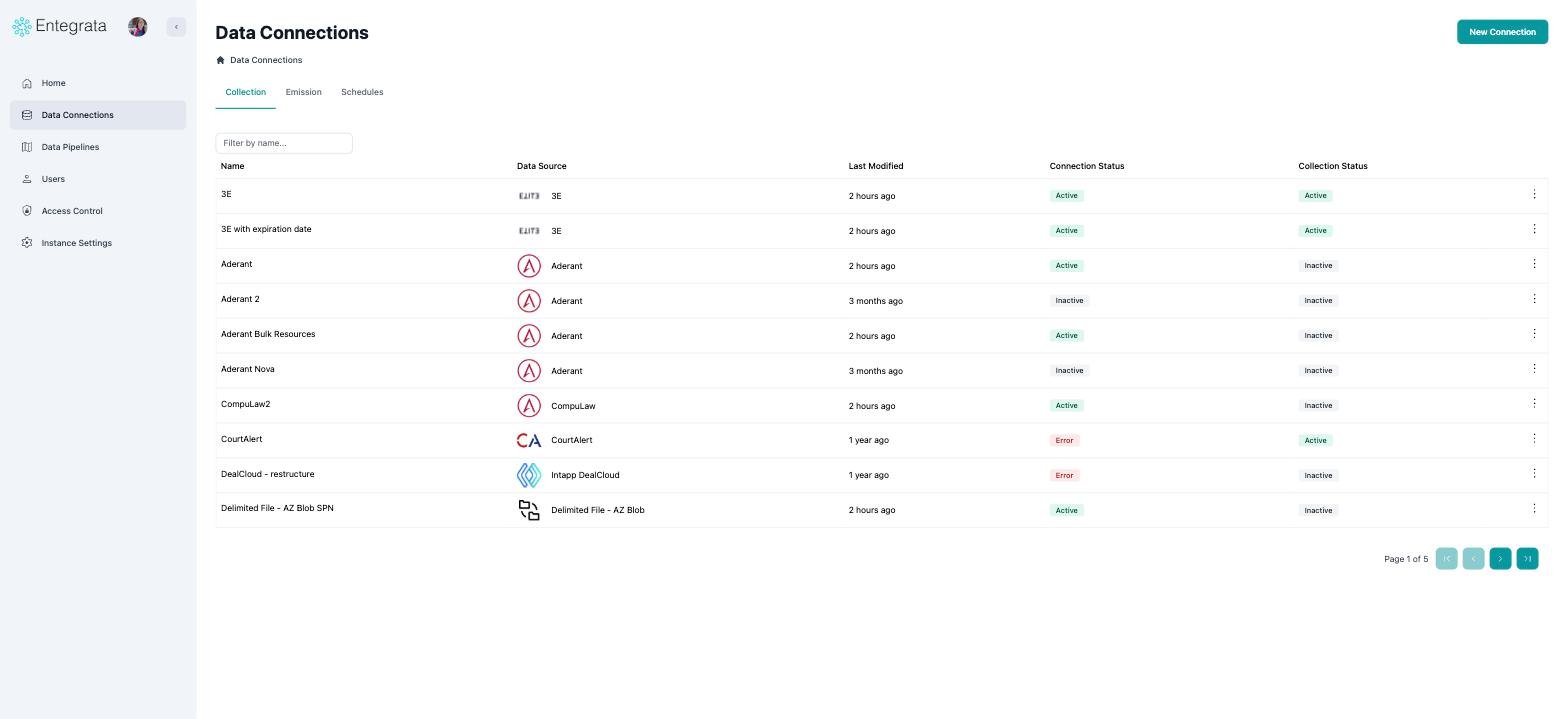
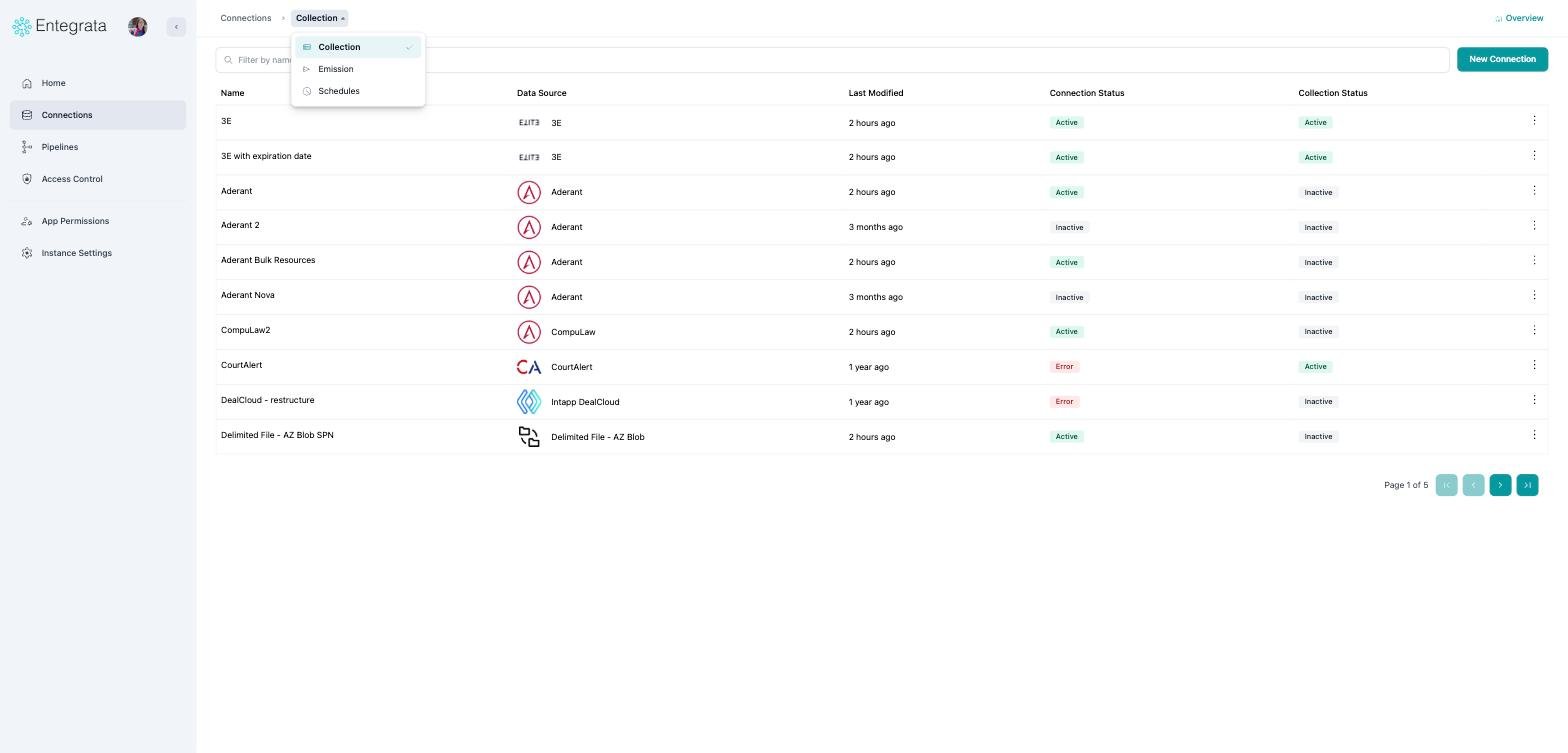
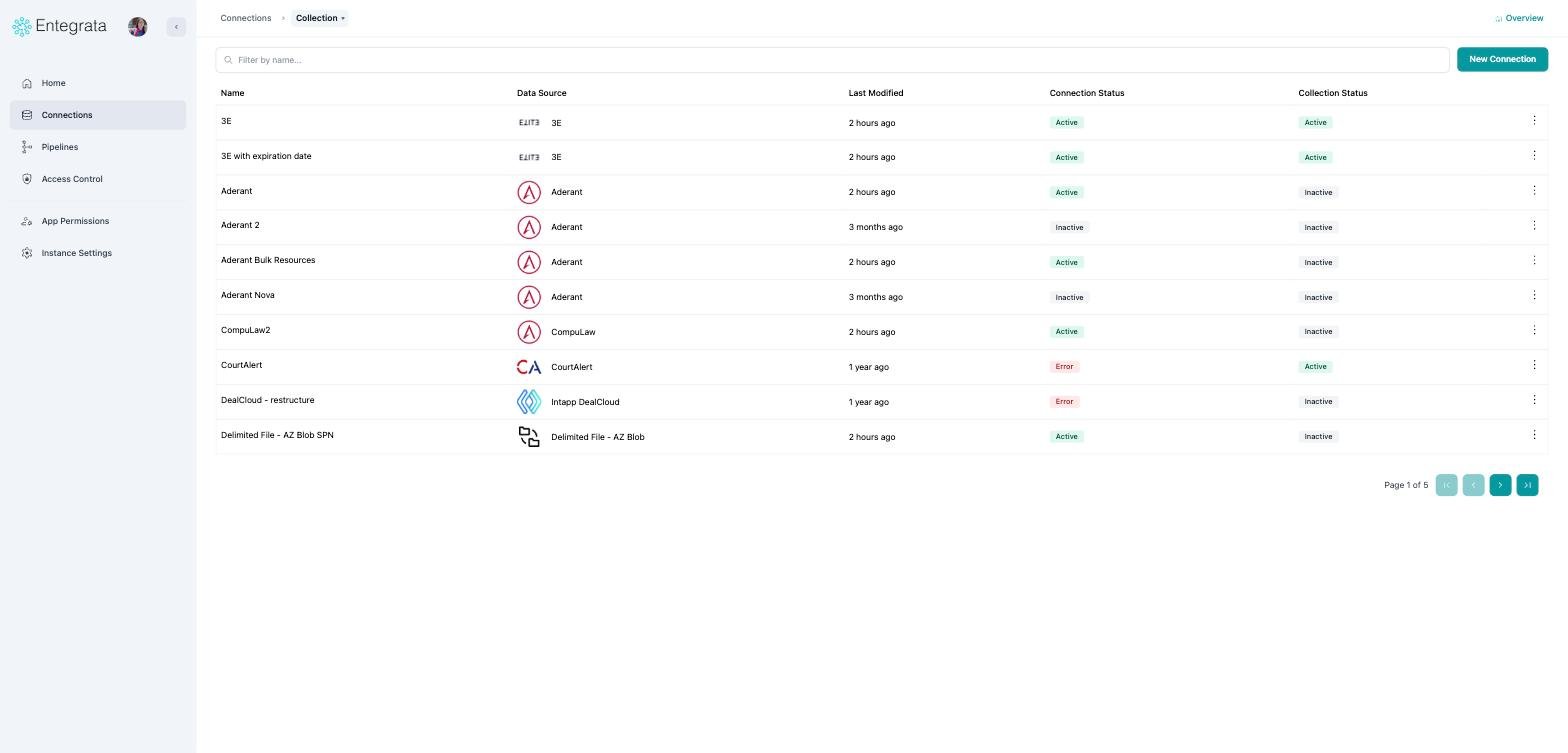 The **Collection**, **Emission**, and **Schedules** tabs are now in the breadcrumb. Click
**Collection** to switch between them.
The **Collection**, **Emission**, and **Schedules** tabs are now in the breadcrumb. Click
**Collection** to switch between them.
 ### Connector health at a glance
New: click **Overview** in the top right for a summary of your whole connection fleet, one
bar per connector, coloured by health, with counts and a short summary underneath.
### Connector health at a glance
New: click **Overview** in the top right for a summary of your whole connection fleet, one
bar per connector, coloured by health, with counts and a short summary underneath.
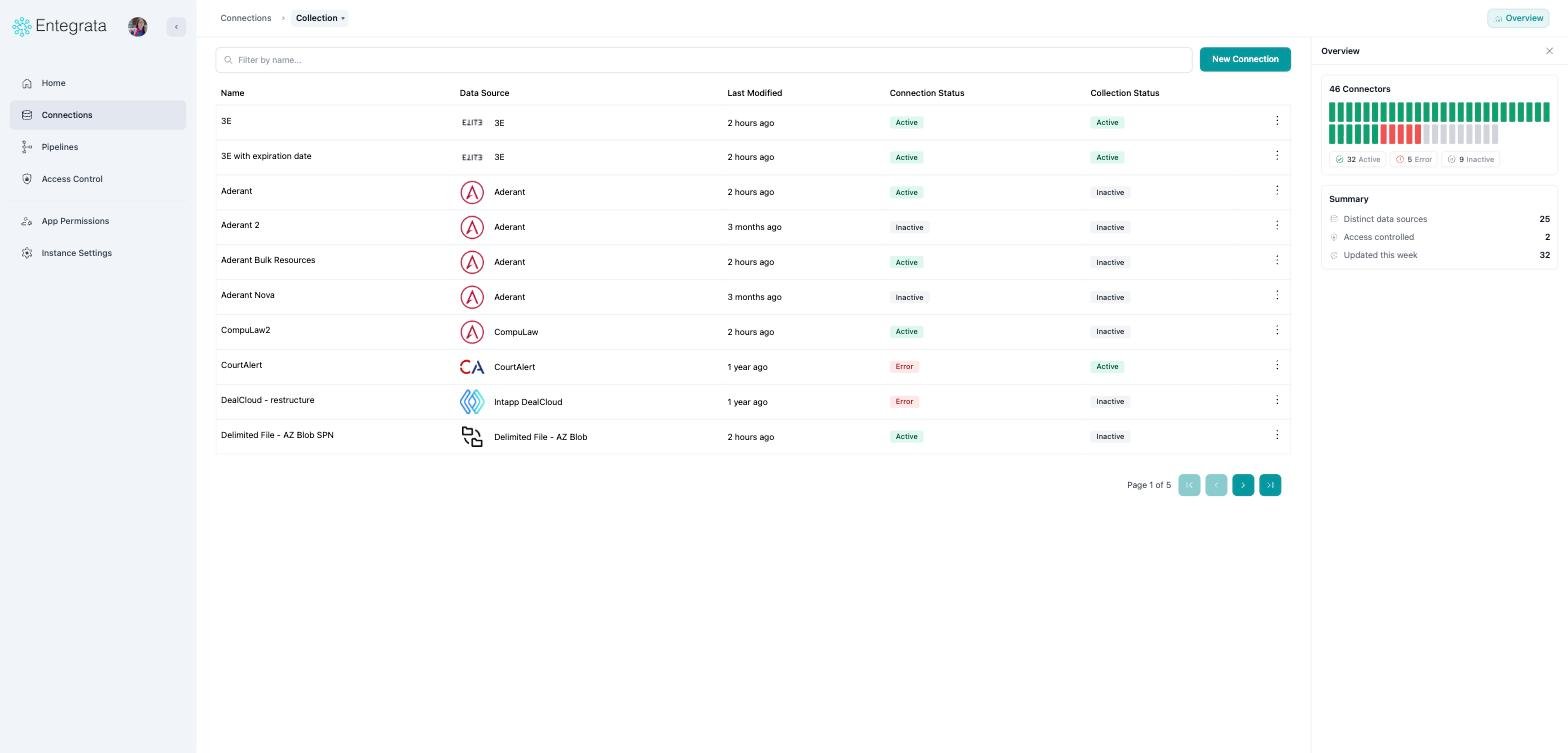 The panel opens beside your list rather than on top of it, so you can keep working with the
table while it is open.
### Searching connections
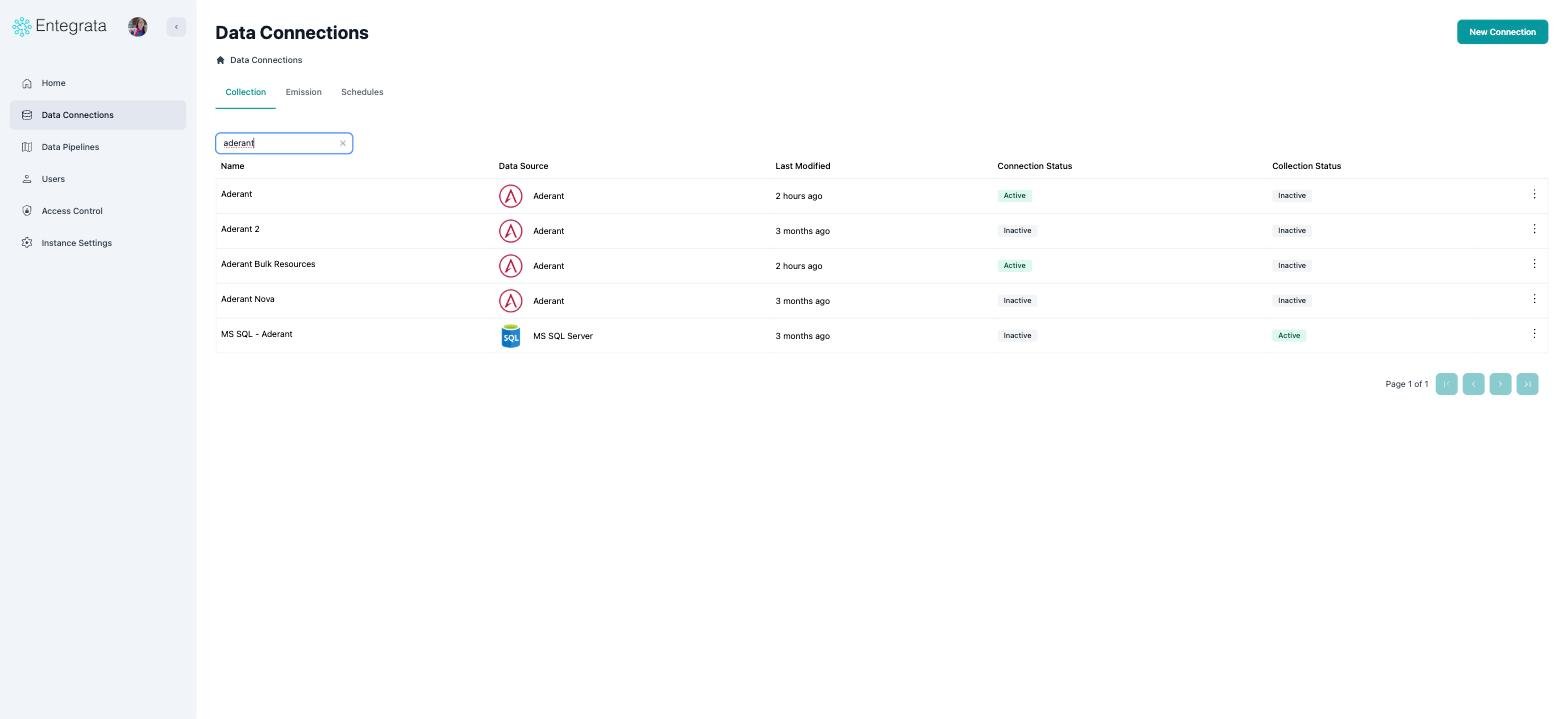
Search works the same way and still matches both the connection name and its data source.
Two things improved: results no longer re-query on every keystroke, and the term in the
address bar is now a short, shareable `?search=` value.
The panel opens beside your list rather than on top of it, so you can keep working with the
table while it is open.
### Searching connections
Search works the same way and still matches both the connection name and its data source.
Two things improved: results no longer re-query on every keystroke, and the term in the
address bar is now a short, shareable `?search=` value.
 ### A single connection
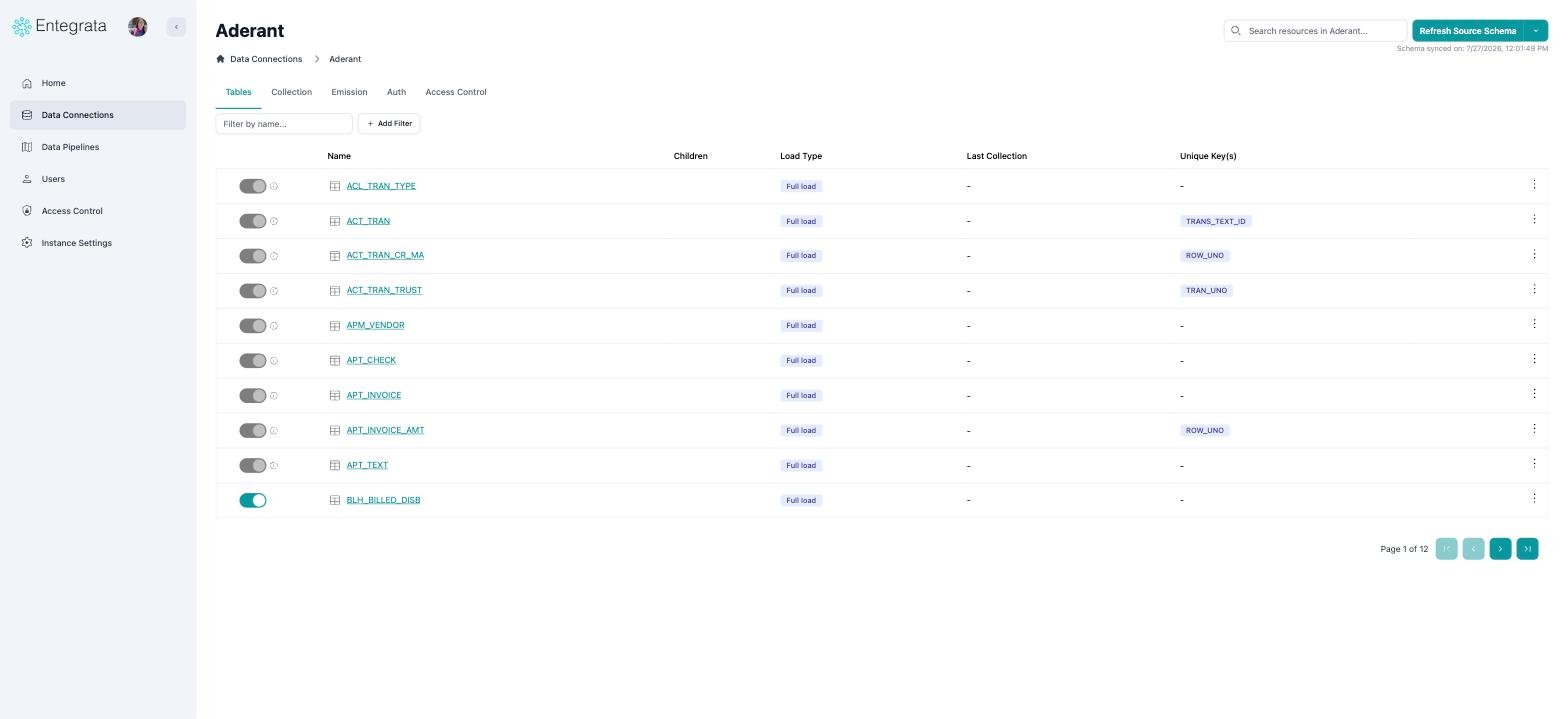
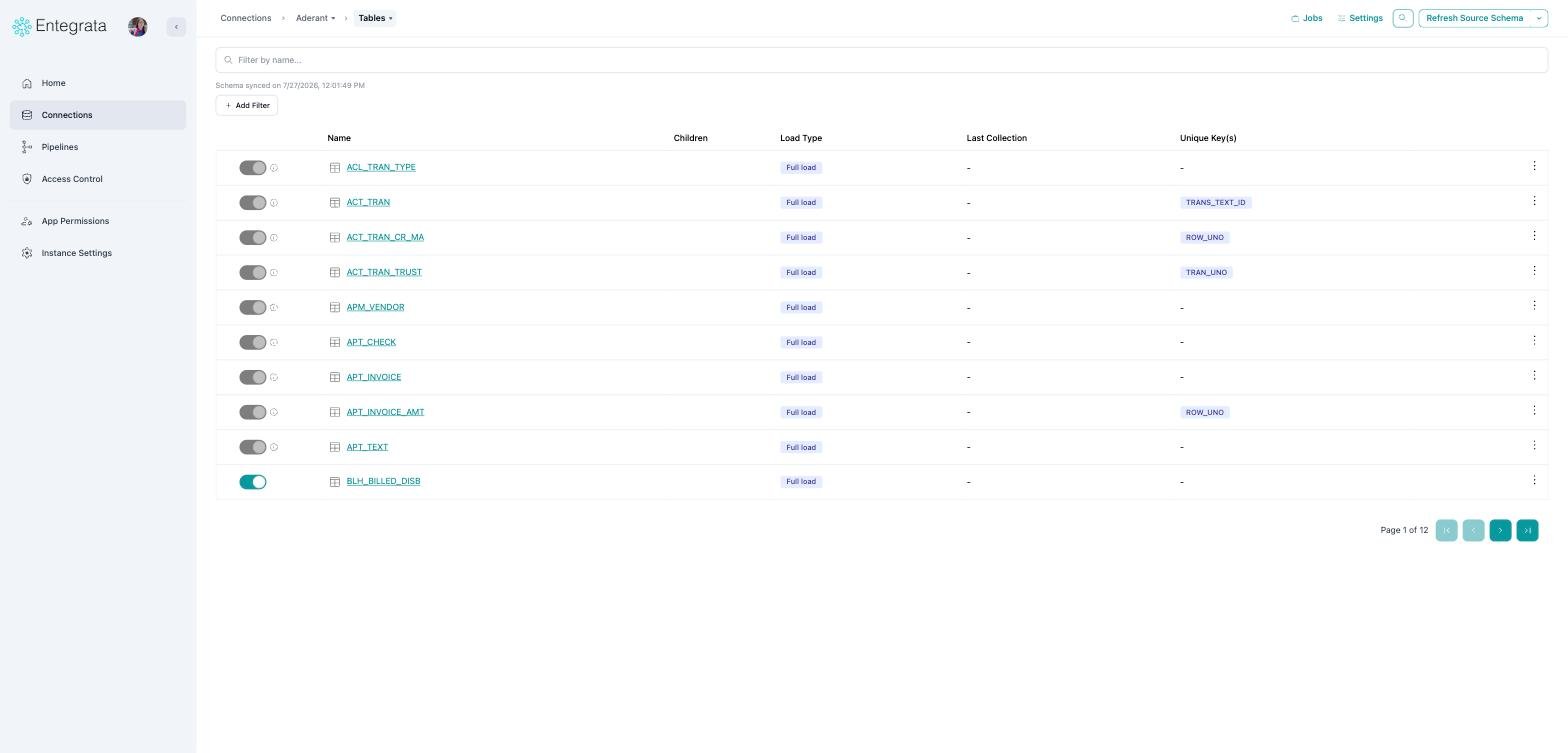
The connection name is no longer a heading; it is the middle crumb in the breadcrumb. The
five tabs became a menu on the last crumb, and the actions moved into the top-right corner.
### A single connection
The connection name is no longer a heading; it is the middle crumb in the breadcrumb. The
five tabs became a menu on the last crumb, and the actions moved into the top-right corner.
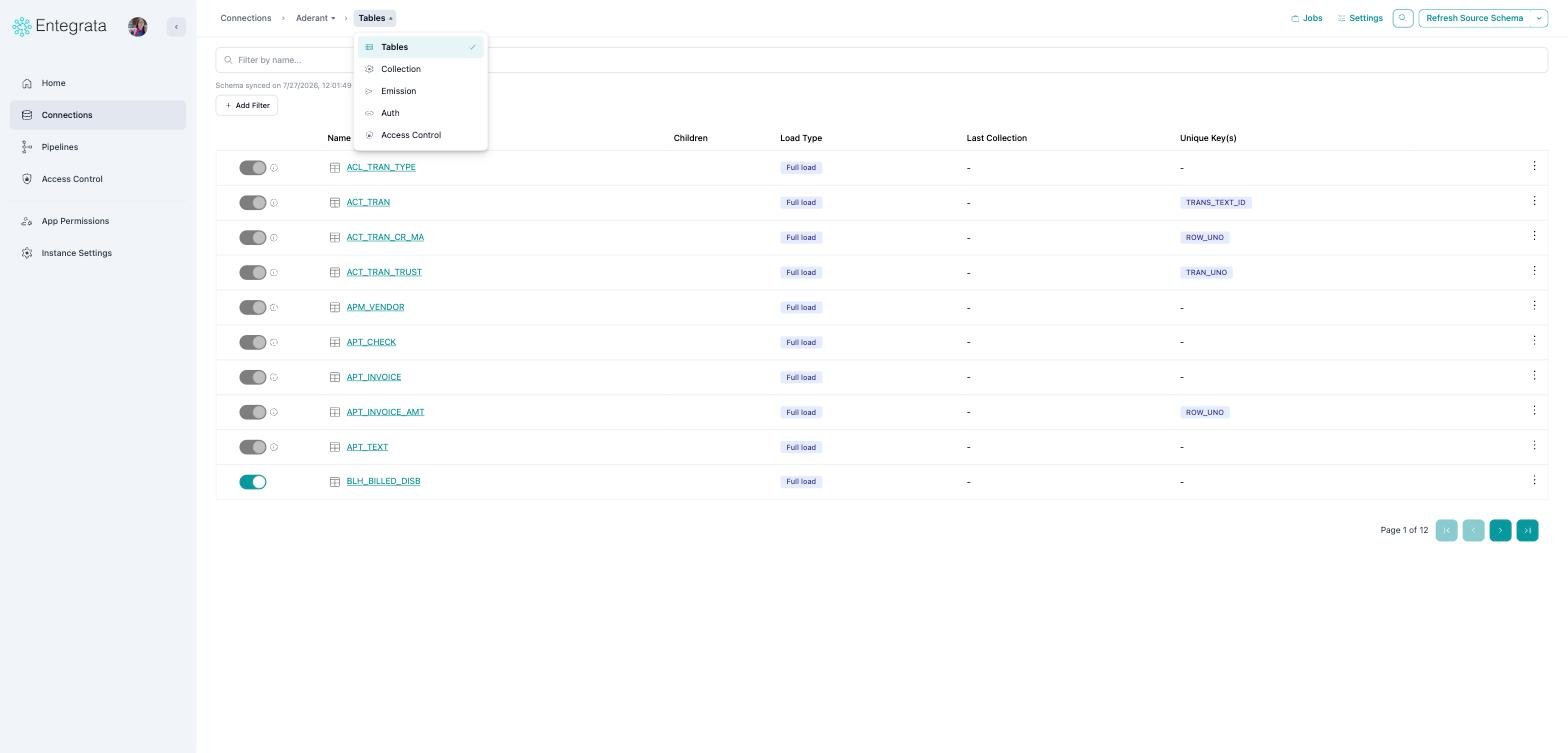 Views that do not apply to a connection are now left out of the menu instead of appearing
greyed out. If a connection is inactive, you will not see **Access Control** listed.
### Jumping between connections
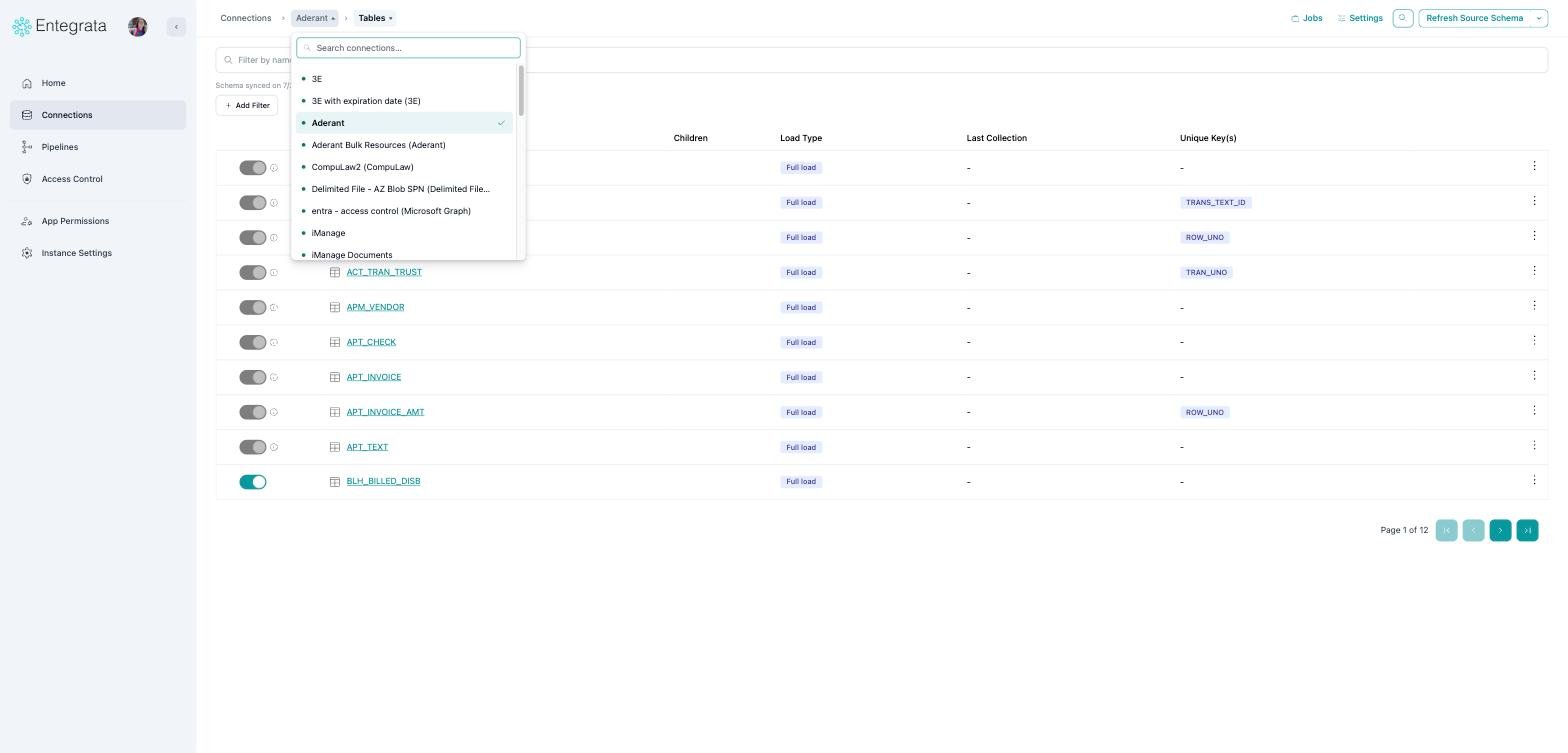
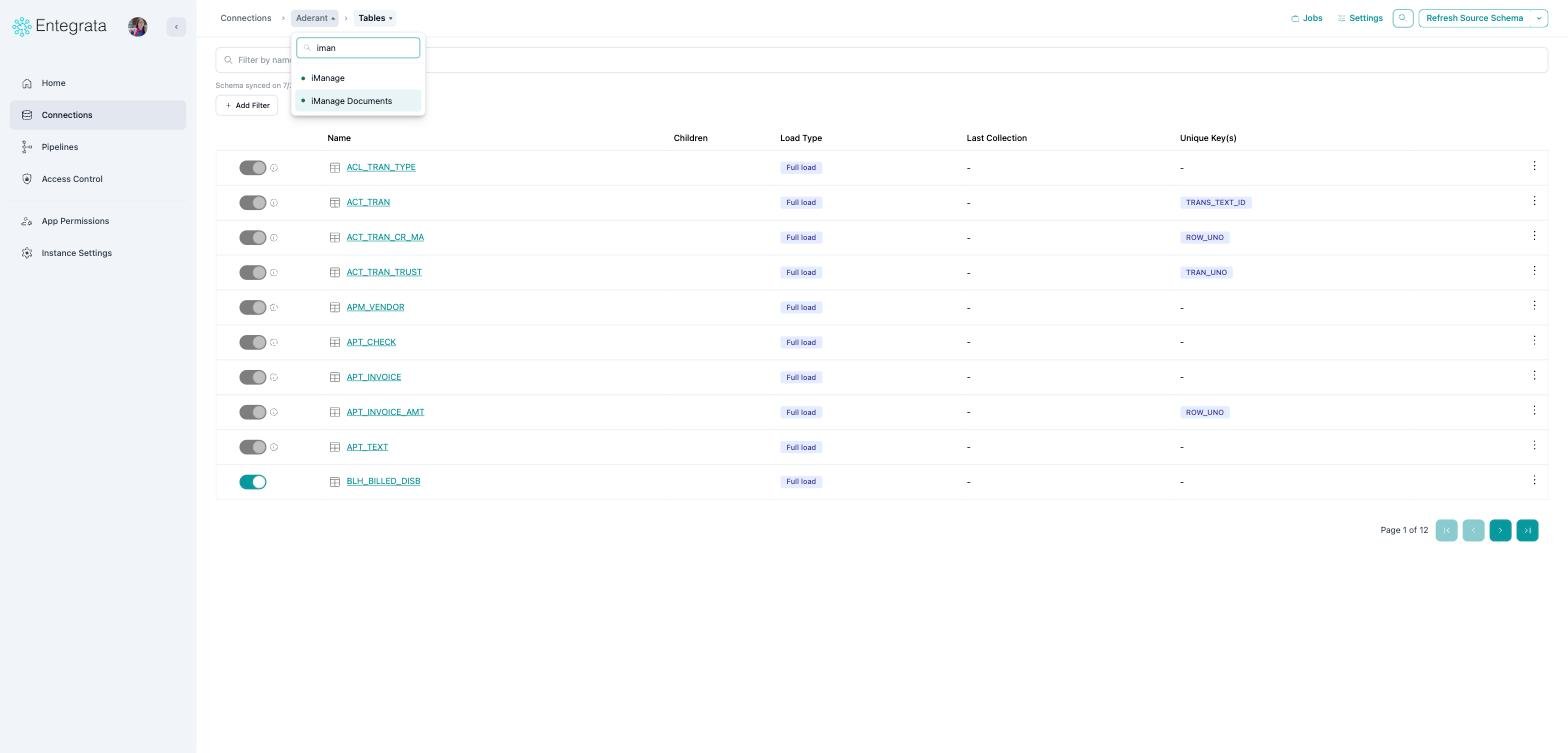
New: the connection name in the breadcrumb is a searchable switcher. You no longer need to
return to the list to open a different connection. Each entry shows a status dot, and the
data source in parentheses where it differs from the name.
Views that do not apply to a connection are now left out of the menu instead of appearing
greyed out. If a connection is inactive, you will not see **Access Control** listed.
### Jumping between connections
New: the connection name in the breadcrumb is a searchable switcher. You no longer need to
return to the list to open a different connection. Each entry shows a status dot, and the
data source in parentheses where it differs from the name.
 ### Jobs and settings without leaving the page
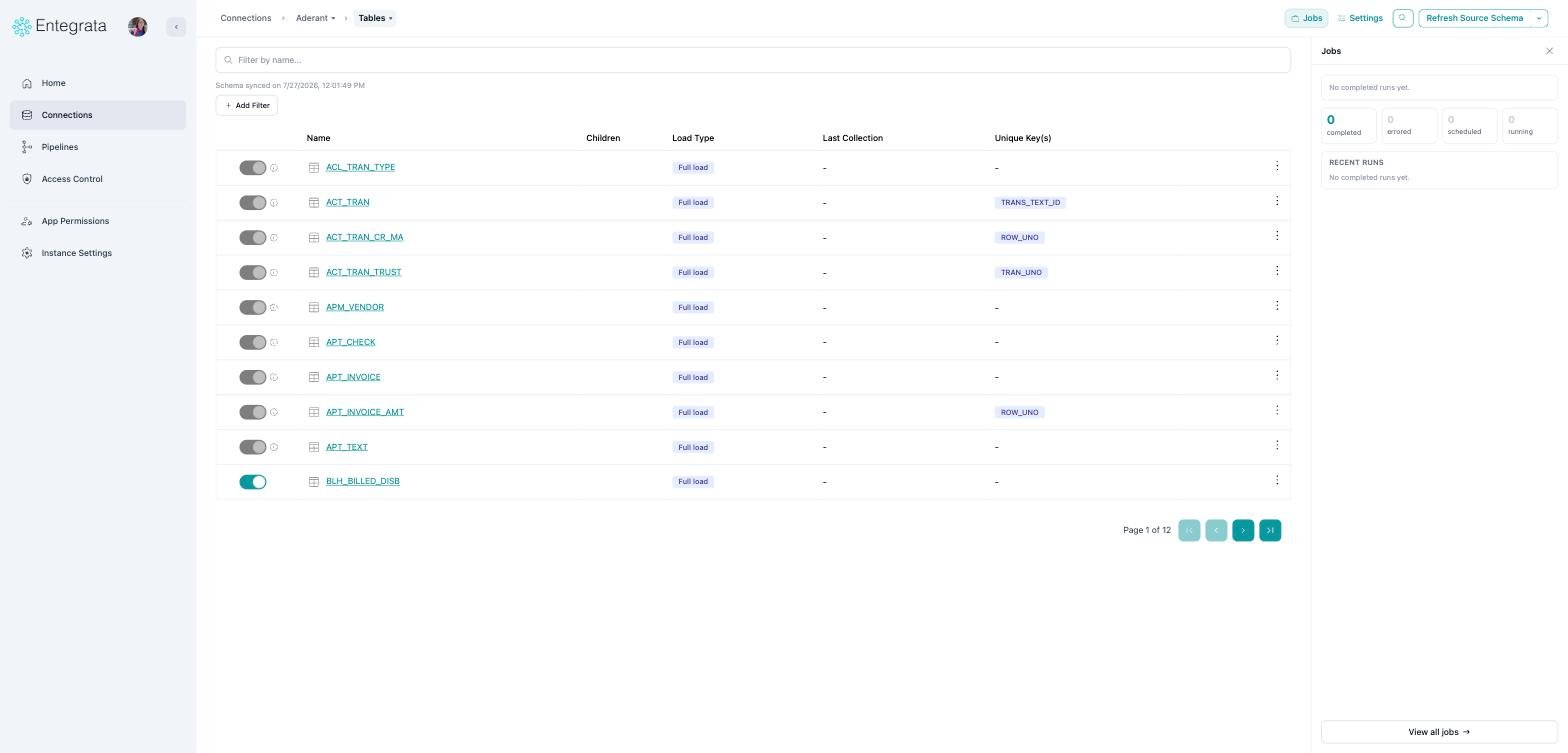
Two new panels open from the top-right of a connection.
**Jobs** shows what is running now or what ran last, counts by state, and the most recent
runs. **View all jobs** opens the full job history.
### Jobs and settings without leaving the page
Two new panels open from the top-right of a connection.
**Jobs** shows what is running now or what ran last, counts by state, and the most recent
runs. **View all jobs** opens the full job history.
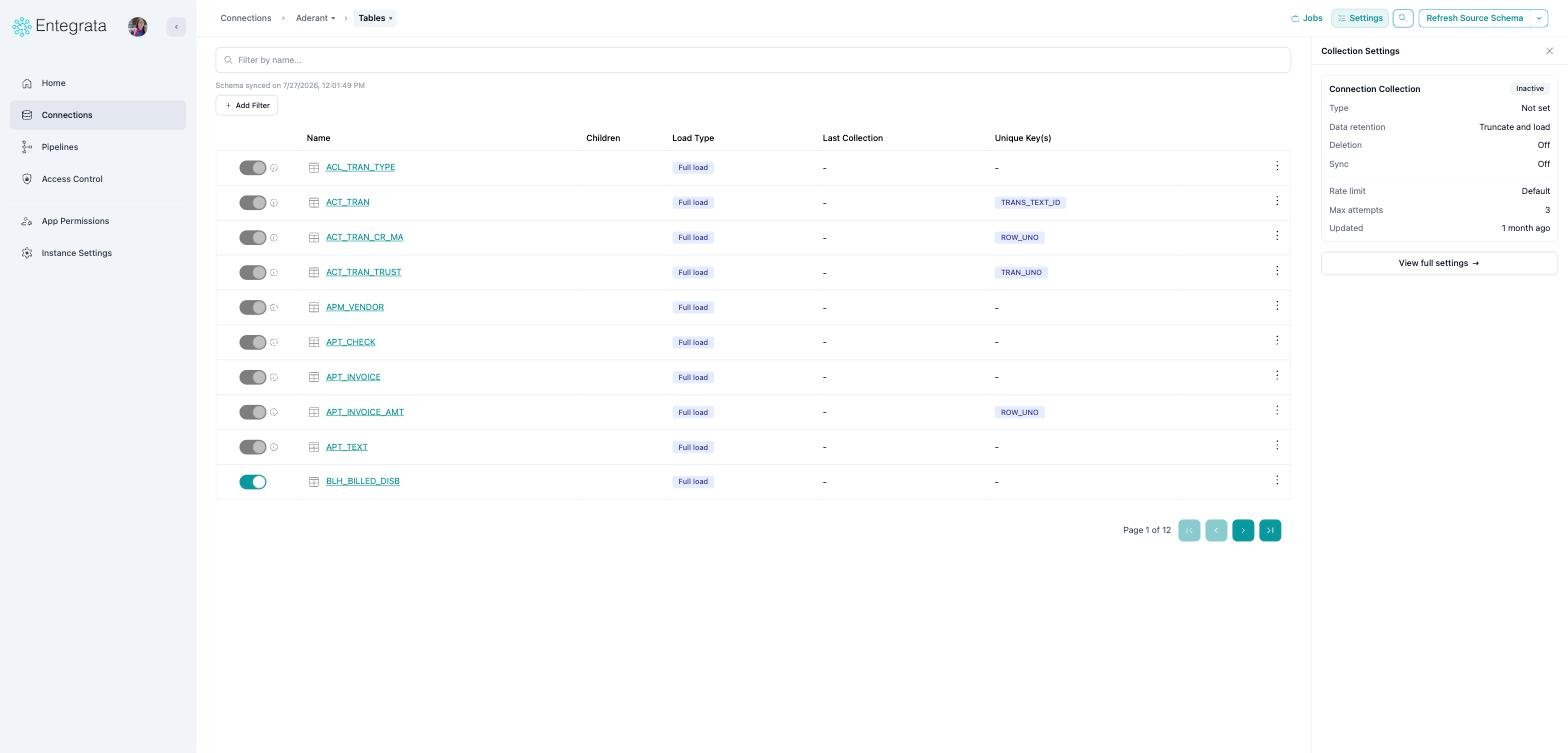
 **Settings** summarises the collection configuration as read-only text, so you can check a
value without opening the editor. **View full settings** opens the editor when you do want
to change something.
**Settings** summarises the collection configuration as read-only text, so you can check a
value without opening the editor. **View full settings** opens the editor when you do want
to change something.
 ### Finding a table or field quickly
The old **Quick navigate to resource** box in the header is now a search palette. Open it
with the magnifier in the top right, or press ⌘K (Ctrl+K on Windows).
### Finding a table or field quickly
The old **Quick navigate to resource** box in the header is now a search palette. Open it
with the magnifier in the top right, or press ⌘K (Ctrl+K on Windows).
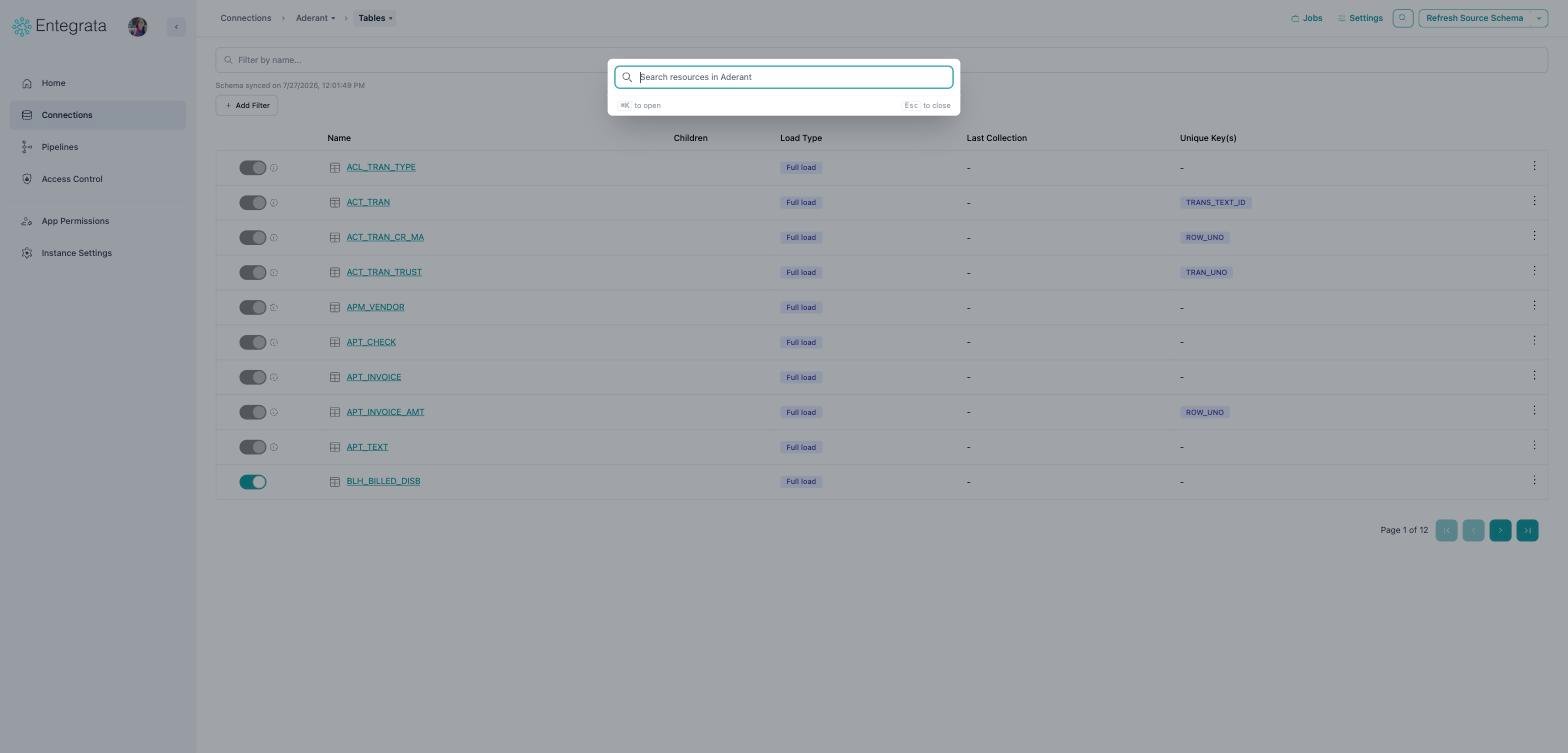
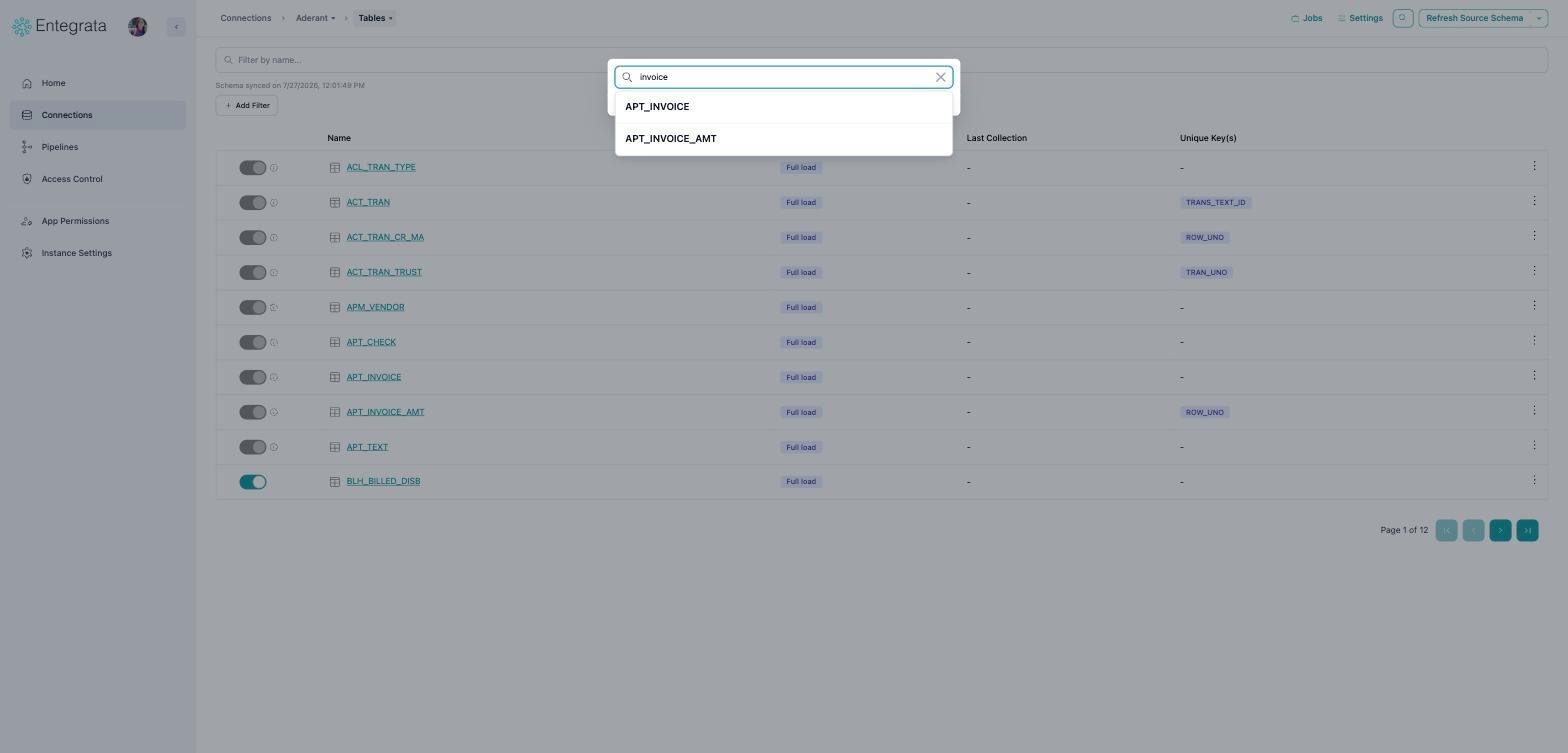 The palette searches the entire schema, not just the page you are looking at, so you can
jump straight to a table that is several pages deep.
Your filters and search on a connection's resource and field lists are now remembered when
you switch tabs and come back.
## Pipelines
### The pipelines list
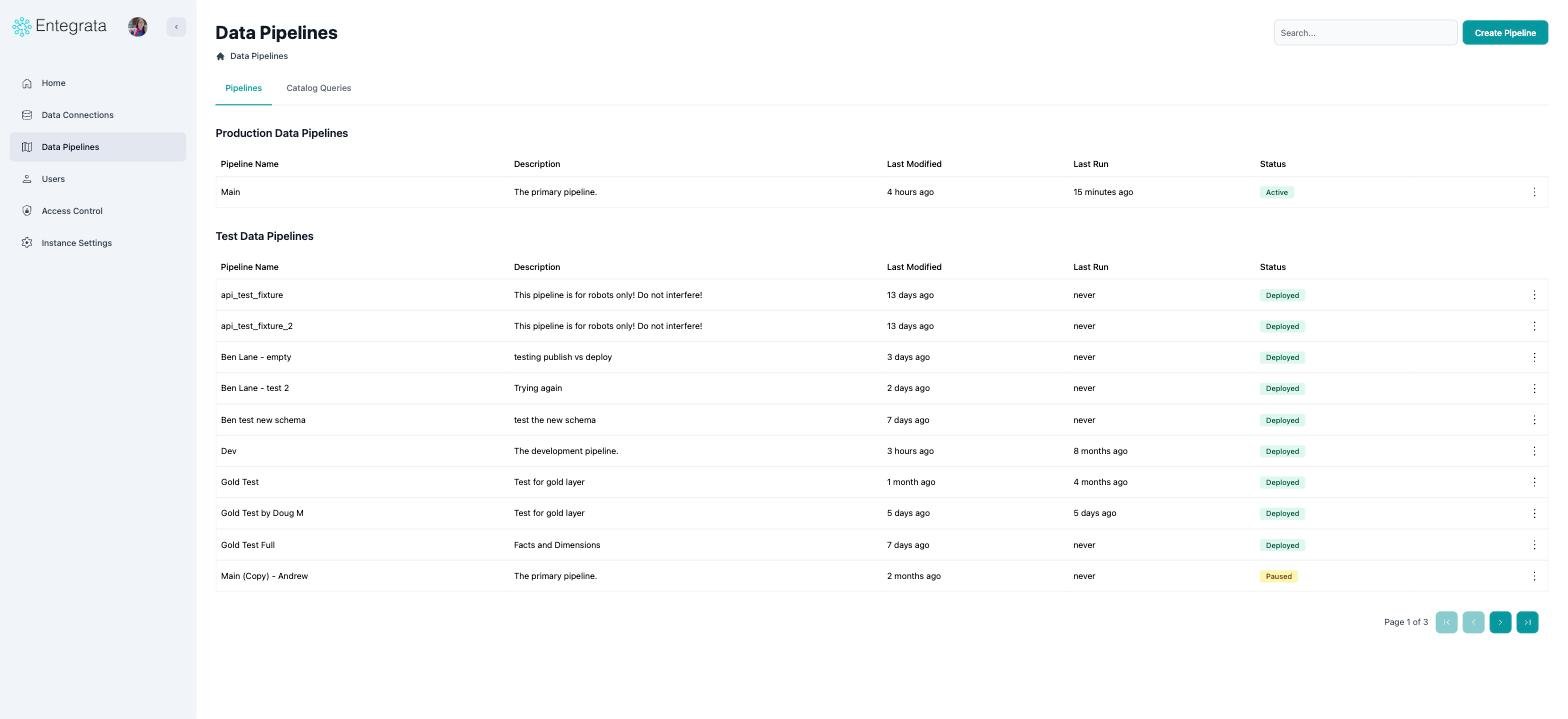
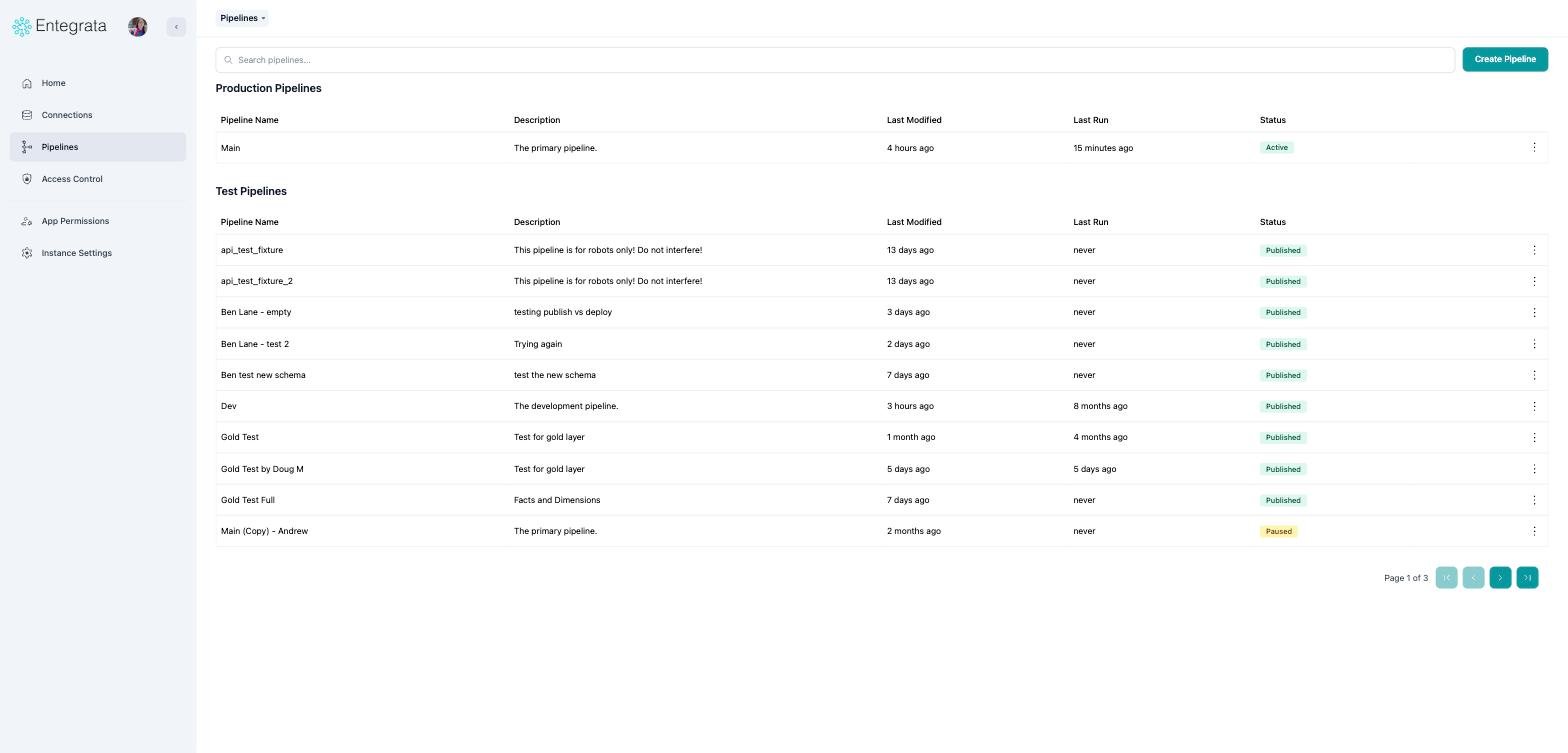
Same change as connections: no page title, no tab strip, and search sits with
**Create Pipeline**. Switch between **Pipelines** and **Catalog Queries** from the first crumb.
The palette searches the entire schema, not just the page you are looking at, so you can
jump straight to a table that is several pages deep.
Your filters and search on a connection's resource and field lists are now remembered when
you switch tabs and come back.
## Pipelines
### The pipelines list
Same change as connections: no page title, no tab strip, and search sits with
**Create Pipeline**. Switch between **Pipelines** and **Catalog Queries** from the first crumb.
 ### Opening a pipeline goes straight to its entities
Opening a pipeline used to land on a screen where you picked Silver before you could do
anything. That step is gone: you now land directly on the Silver entities list.
### Opening a pipeline goes straight to its entities
Opening a pipeline used to land on a screen where you picked Silver before you could do
anything. That step is gone: you now land directly on the Silver entities list.
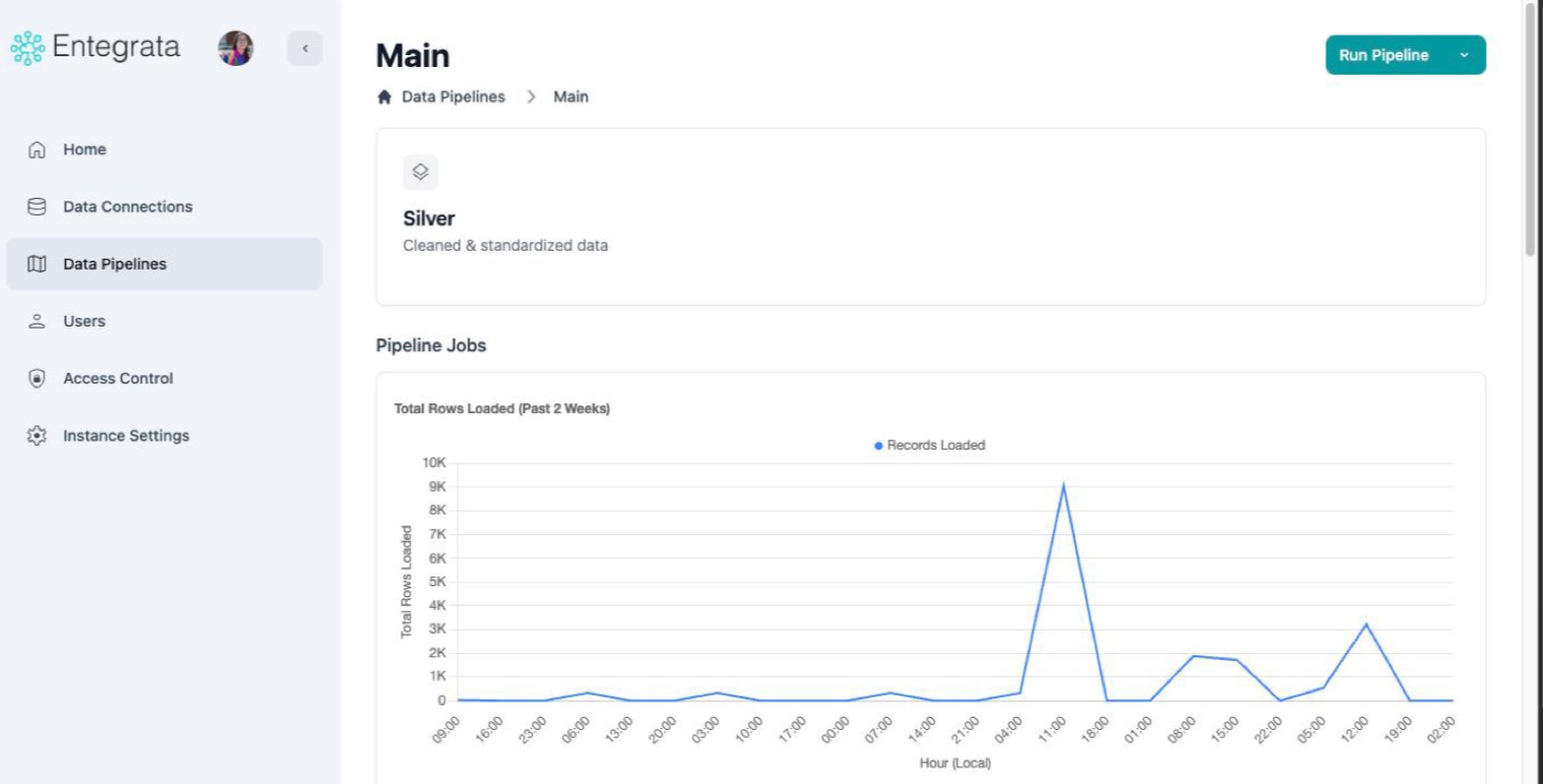
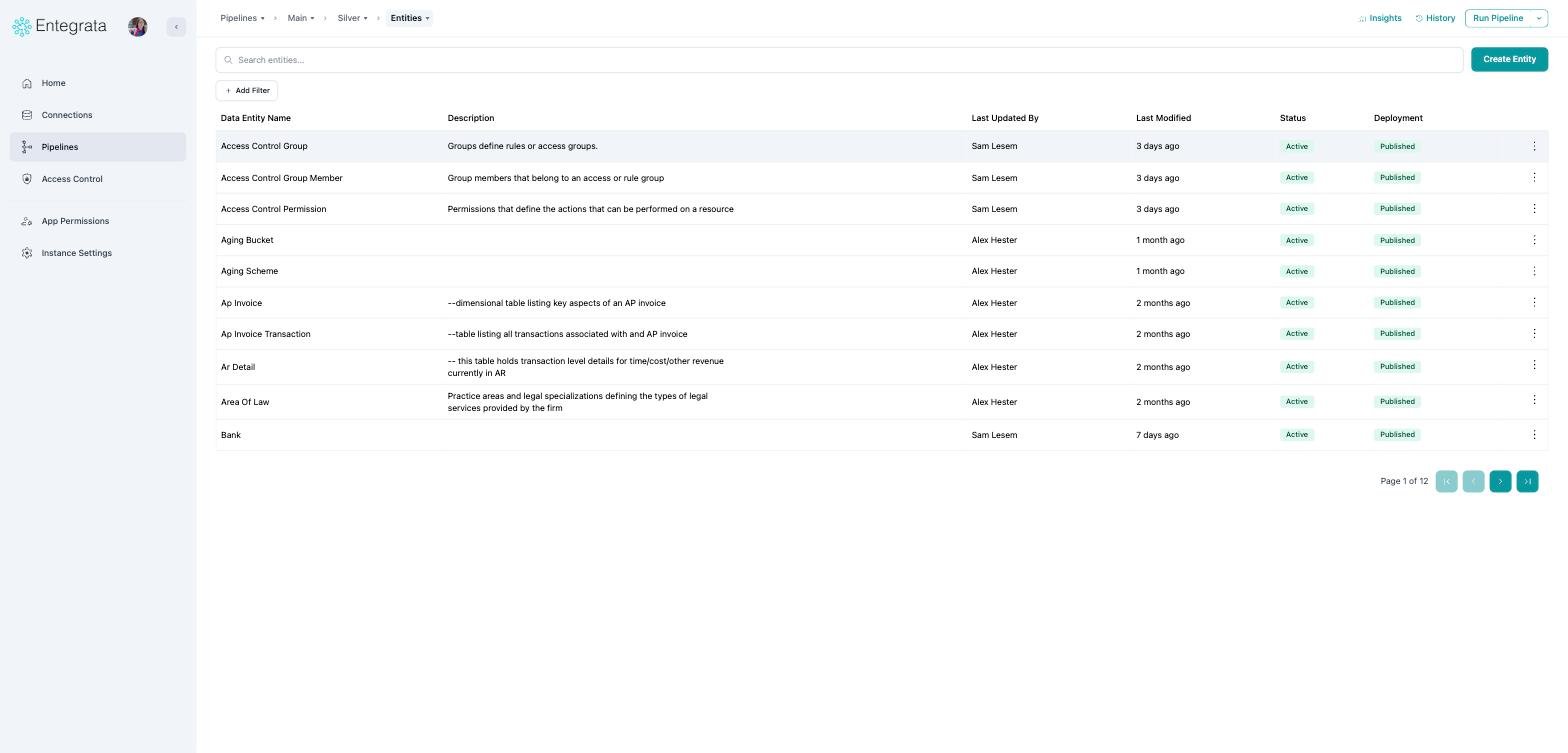 The breadcrumb now shows which pipeline and layer you are in, so you always have a way back
up without using the browser button.
Old links still work. A bookmark to a pipeline, or to `/silver`, now forwards to the
entities list.
### Running a pipeline
**Run Pipeline** used to live on the Statistics page, which meant opening a pipeline,
choosing a layer, and then switching tabs before you could start a run. It is now in the top
right of the entities list, the page you land on.
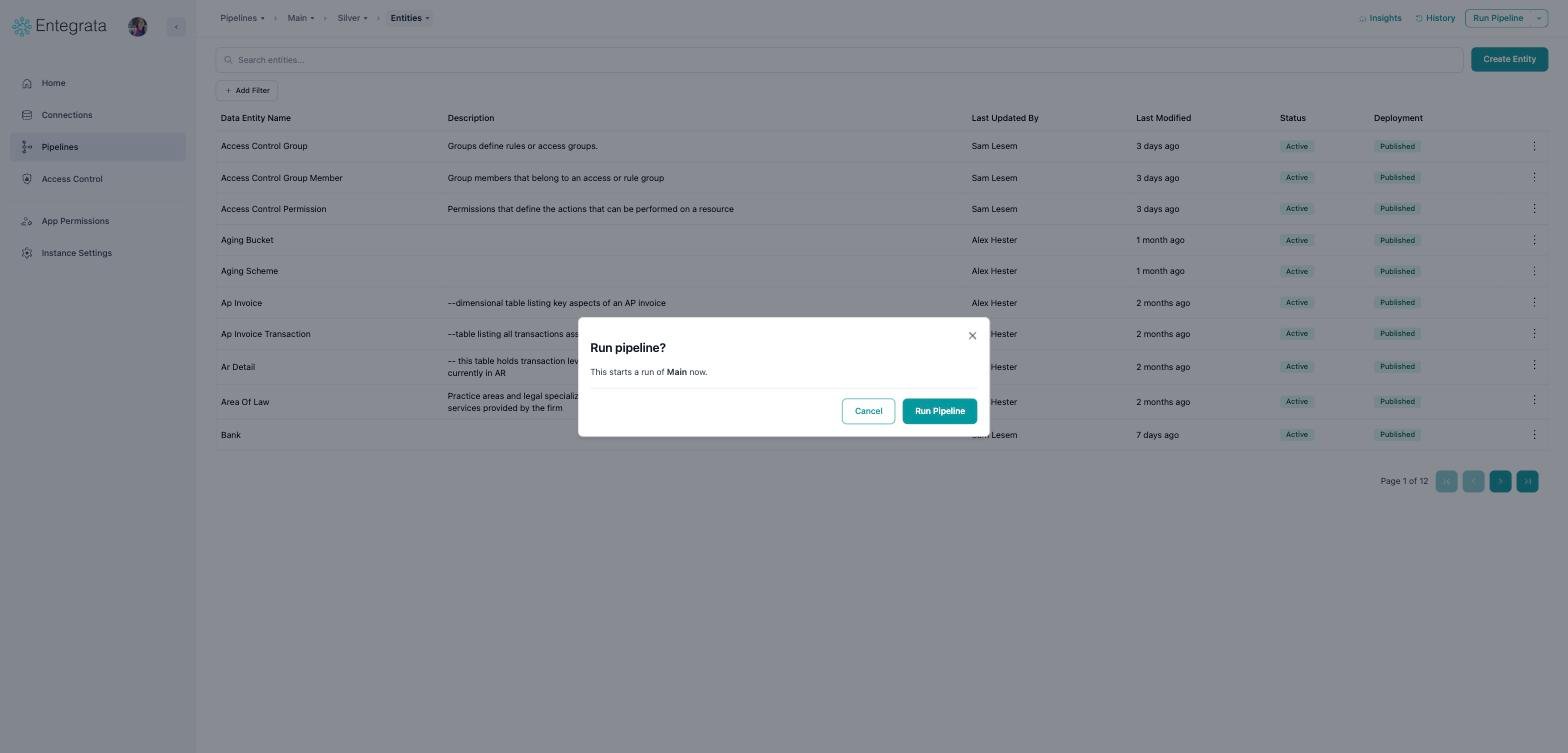
It also asks for confirmation before starting, naming the pipeline it is about to run.
The breadcrumb now shows which pipeline and layer you are in, so you always have a way back
up without using the browser button.
Old links still work. A bookmark to a pipeline, or to `/silver`, now forwards to the
entities list.
### Running a pipeline
**Run Pipeline** used to live on the Statistics page, which meant opening a pipeline,
choosing a layer, and then switching tabs before you could start a run. It is now in the top
right of the entities list, the page you land on.
It also asks for confirmation before starting, naming the pipeline it is about to run.
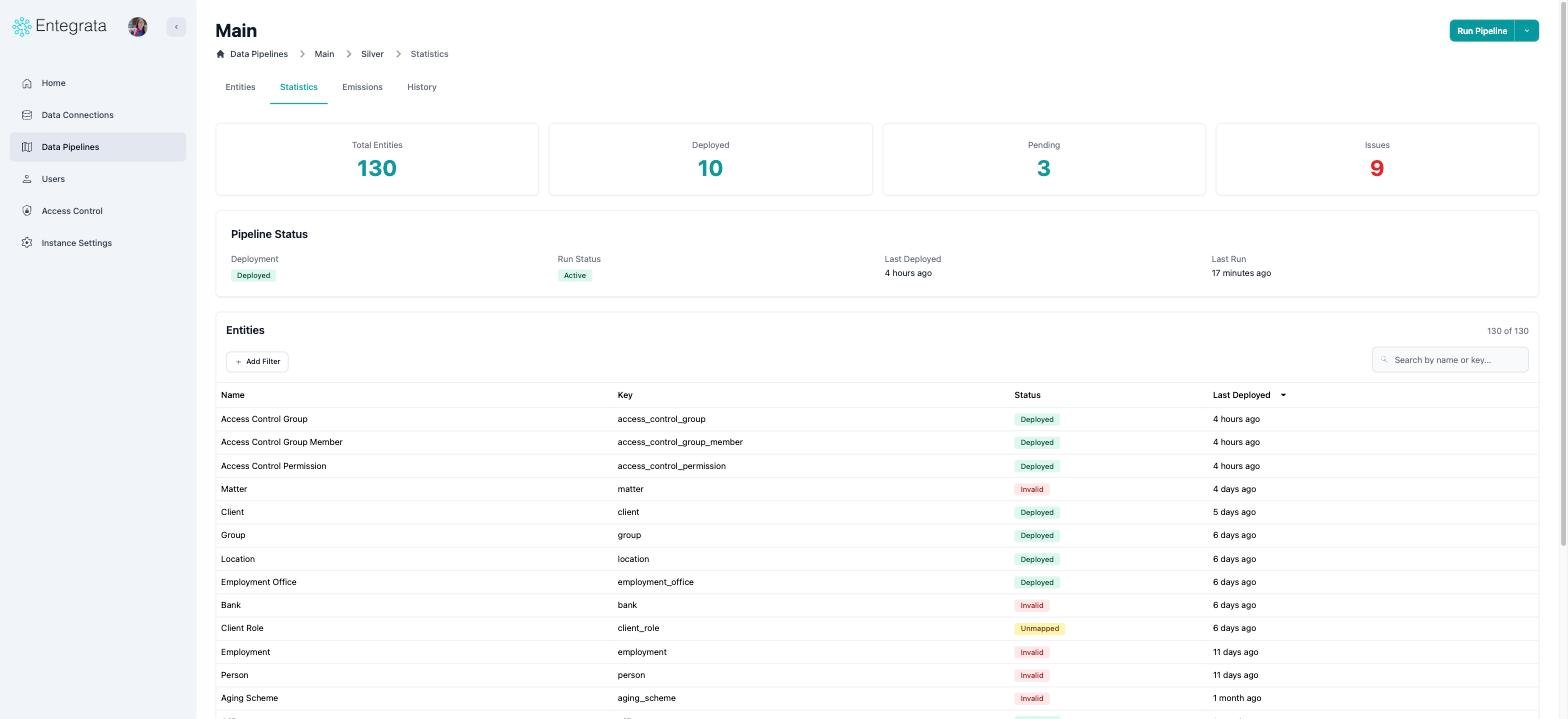
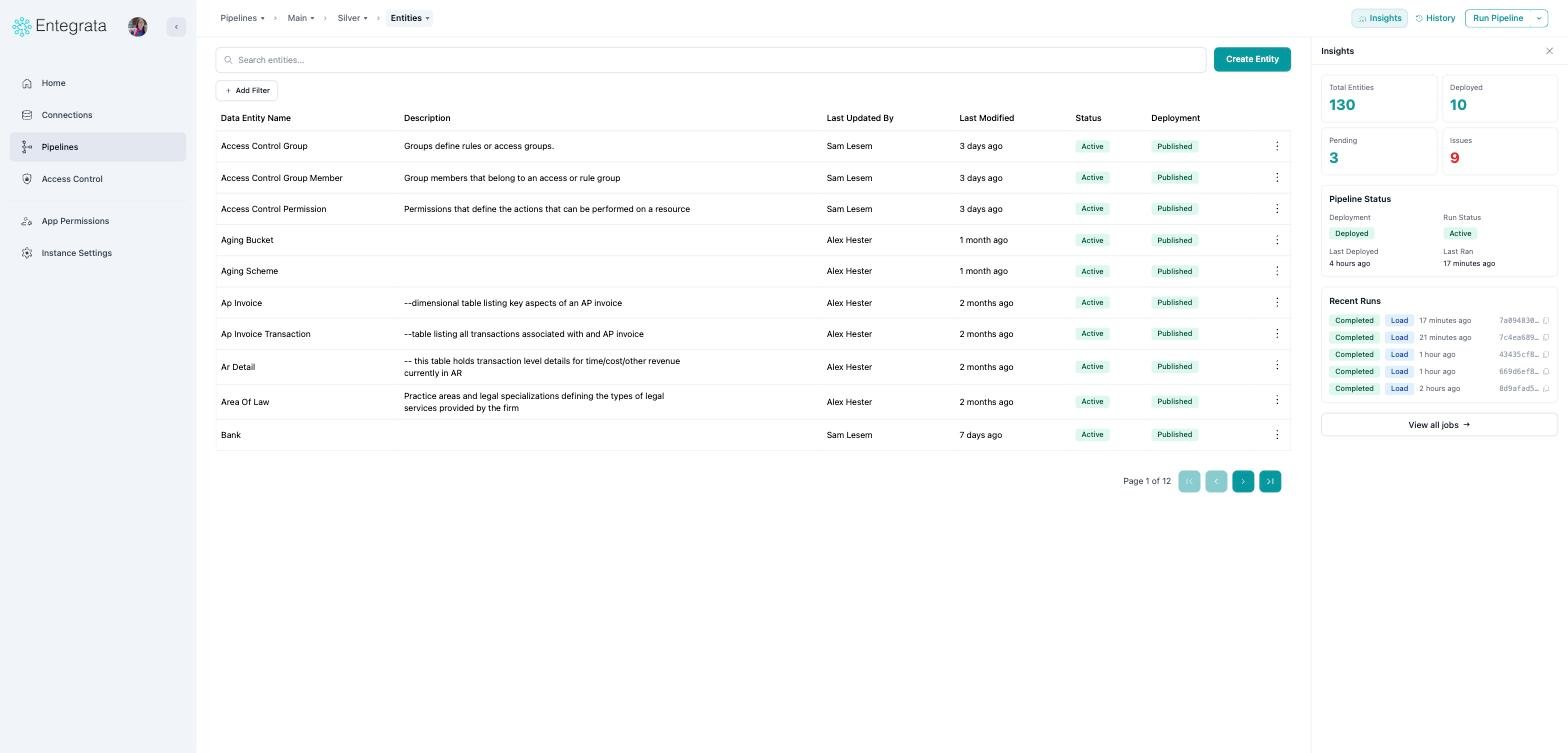
 ### Statistics is now Insights
The Statistics page became the **Insights** panel, which opens beside your entity list
instead of replacing it. The four counters and the pipeline status block carry over
unchanged, and recent runs are summarised with a link to the full job history.
### Statistics is now Insights
The Statistics page became the **Insights** panel, which opens beside your entity list
instead of replacing it. The four counters and the pipeline status block carry over
unchanged, and recent runs are summarised with a link to the full job history.
 ### History
Pipeline history moved into a **History** panel available from any pipeline page, and it is
aware of where you are: on a list it shows the pipeline's history, and on an entity it shows
just that entity's history.
### History
Pipeline history moved into a **History** panel available from any pipeline page, and it is
aware of where you are: on a list it shows the pipeline's history, and on an entity it shows
just that entity's history.
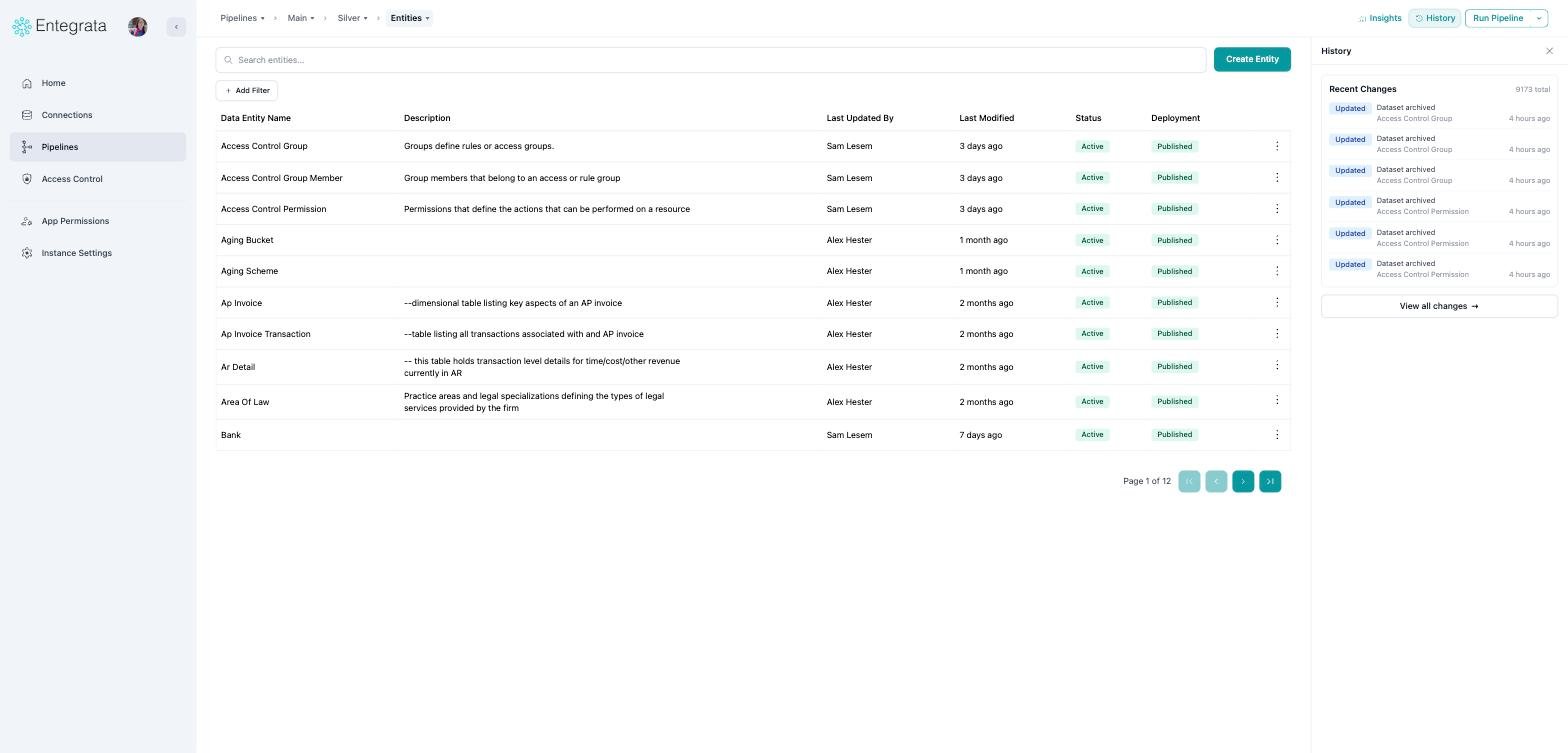 Reverting works as before; the confirmation steps now happen inside one window rather than a
chain of dialogs.
### Entity pages
On an entity, the **Editor**, **Fields**, **Data Lineage**, and **Access Control** tabs are
now a menu on the last crumb, and the entity name itself is a searchable switcher for moving
between entities. The entity's **History** tab is now the History panel described above.
## Instance Settings
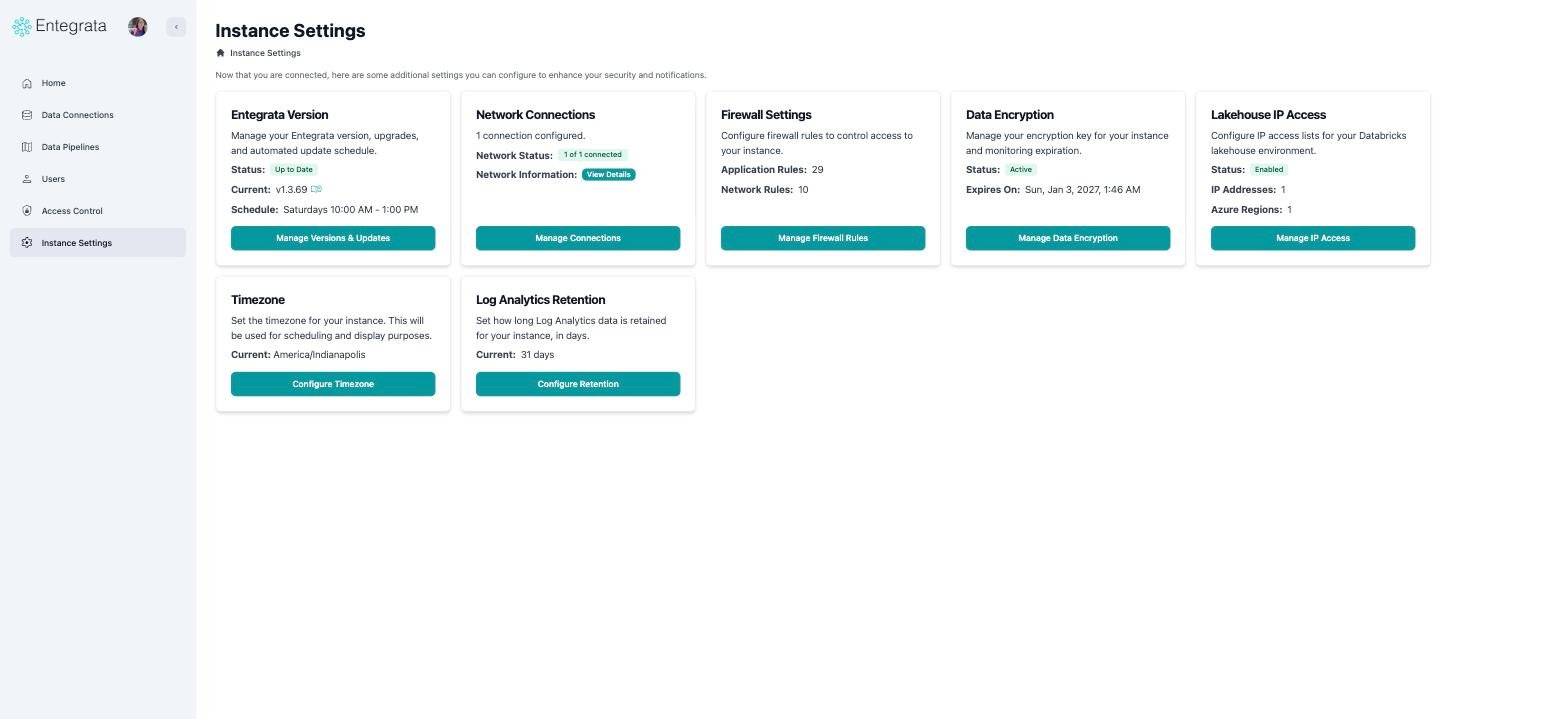
### The settings cards
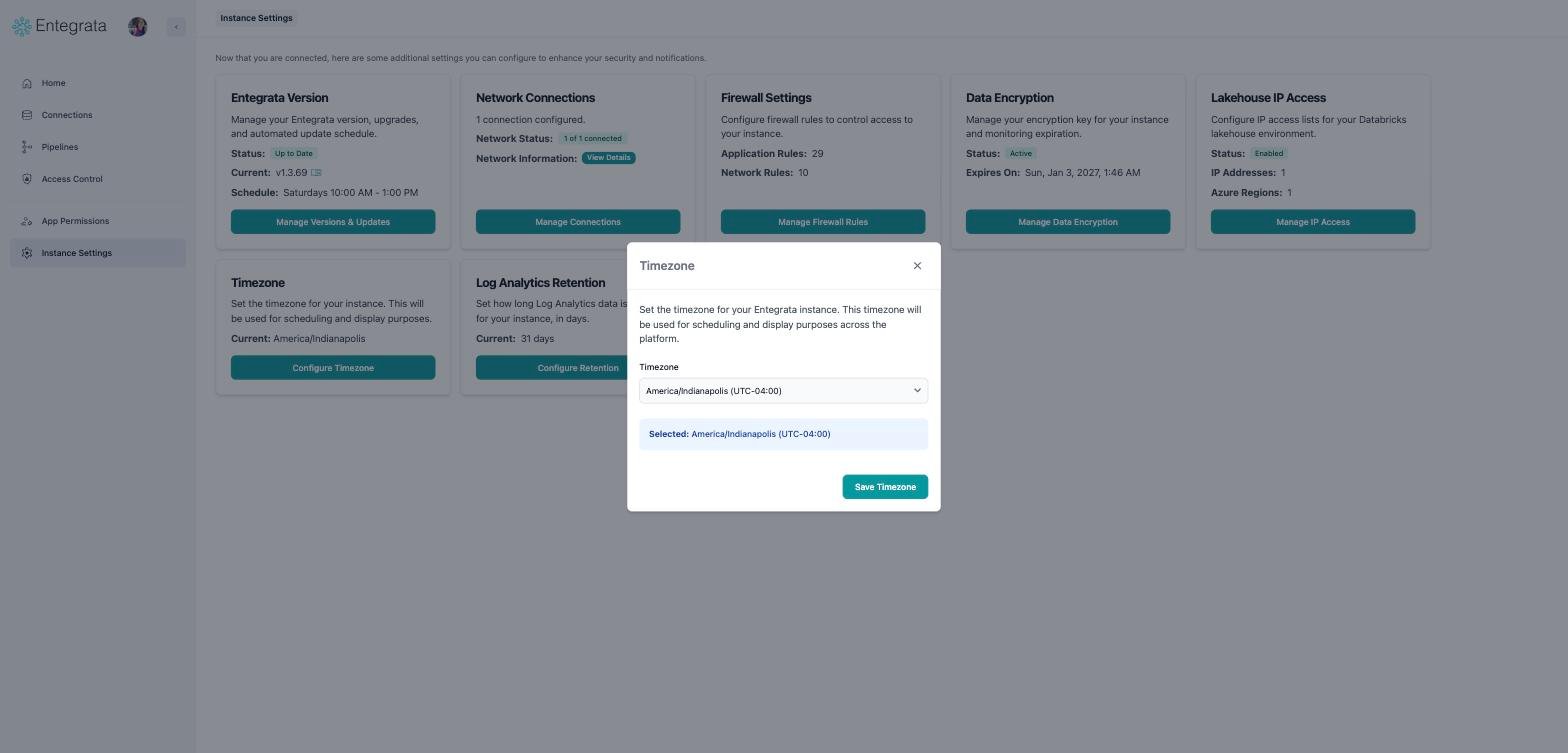
The cards are unchanged. Three of them, **Data Encryption**, **Timezone**, and **Log
Analytics Retention**, now open in a window over the grid instead of replacing the page.
Reverting works as before; the confirmation steps now happen inside one window rather than a
chain of dialogs.
### Entity pages
On an entity, the **Editor**, **Fields**, **Data Lineage**, and **Access Control** tabs are
now a menu on the last crumb, and the entity name itself is a searchable switcher for moving
between entities. The entity's **History** tab is now the History panel described above.
## Instance Settings
### The settings cards
The cards are unchanged. Three of them, **Data Encryption**, **Timezone**, and **Log
Analytics Retention**, now open in a window over the grid instead of replacing the page.
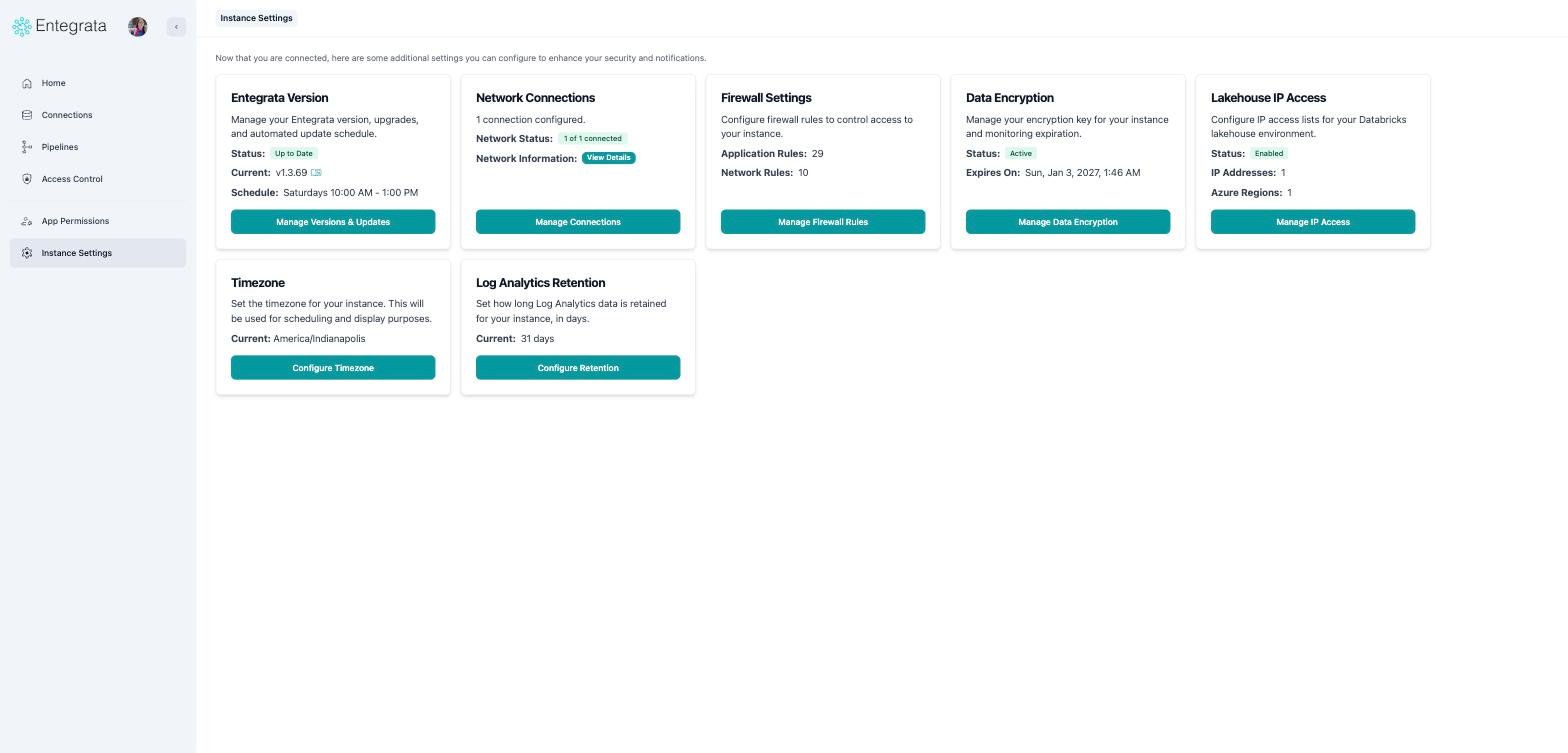 These three now have their own links, so you can bookmark or share one directly. It opens
with the card grid still behind it.
These three now have their own links, so you can bookmark or share one directly. It opens
with the card grid still behind it.
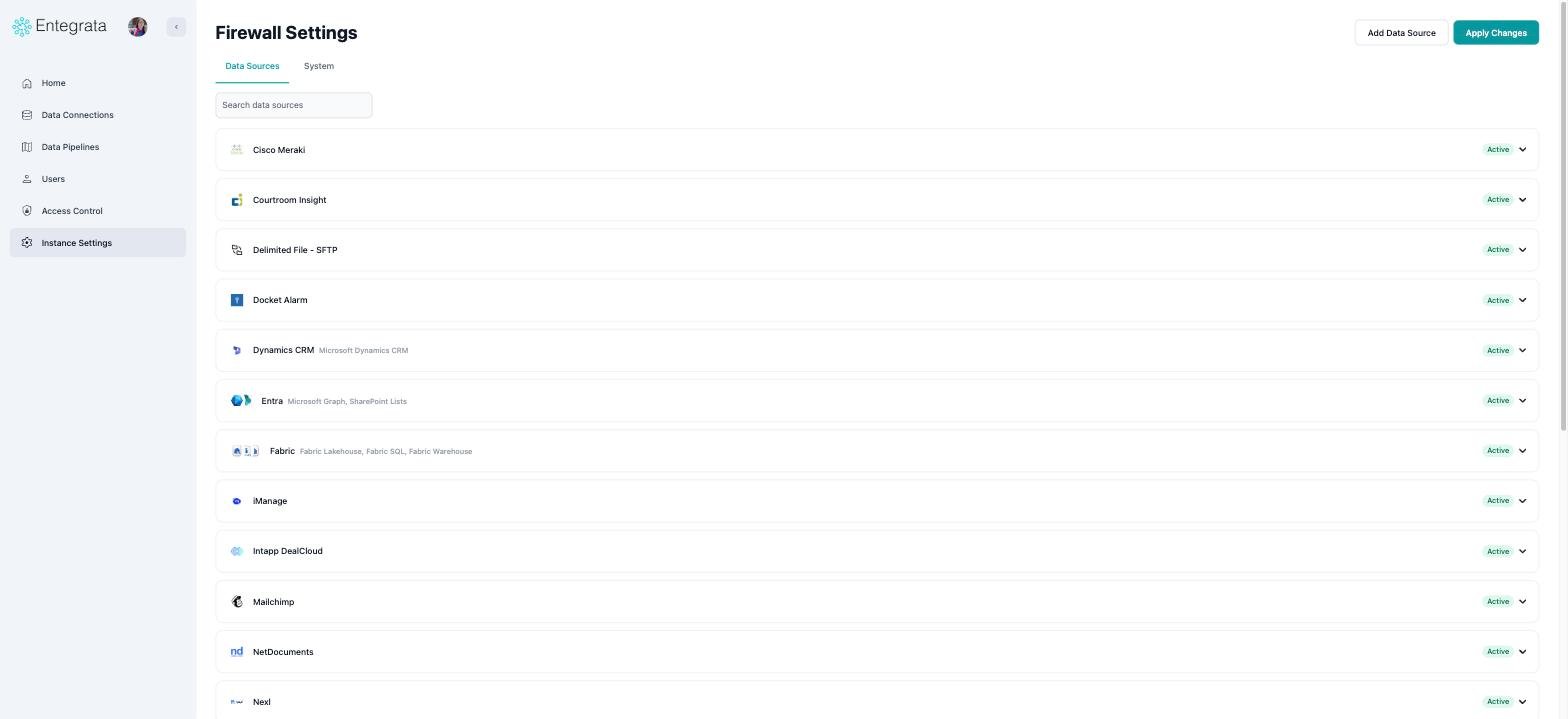
 ### Firewall settings
All firewall functionality is unchanged. The **Data Sources** and **System** tabs moved into
the breadcrumb, **Apply Changes** moved to the end of the breadcrumb row, and **Add Data
Source** now sits beside a full-width search box.
### Firewall settings
All firewall functionality is unchanged. The **Data Sources** and **System** tabs moved into
the breadcrumb, **Apply Changes** moved to the end of the breadcrumb row, and **Add Data
Source** now sits beside a full-width search box.
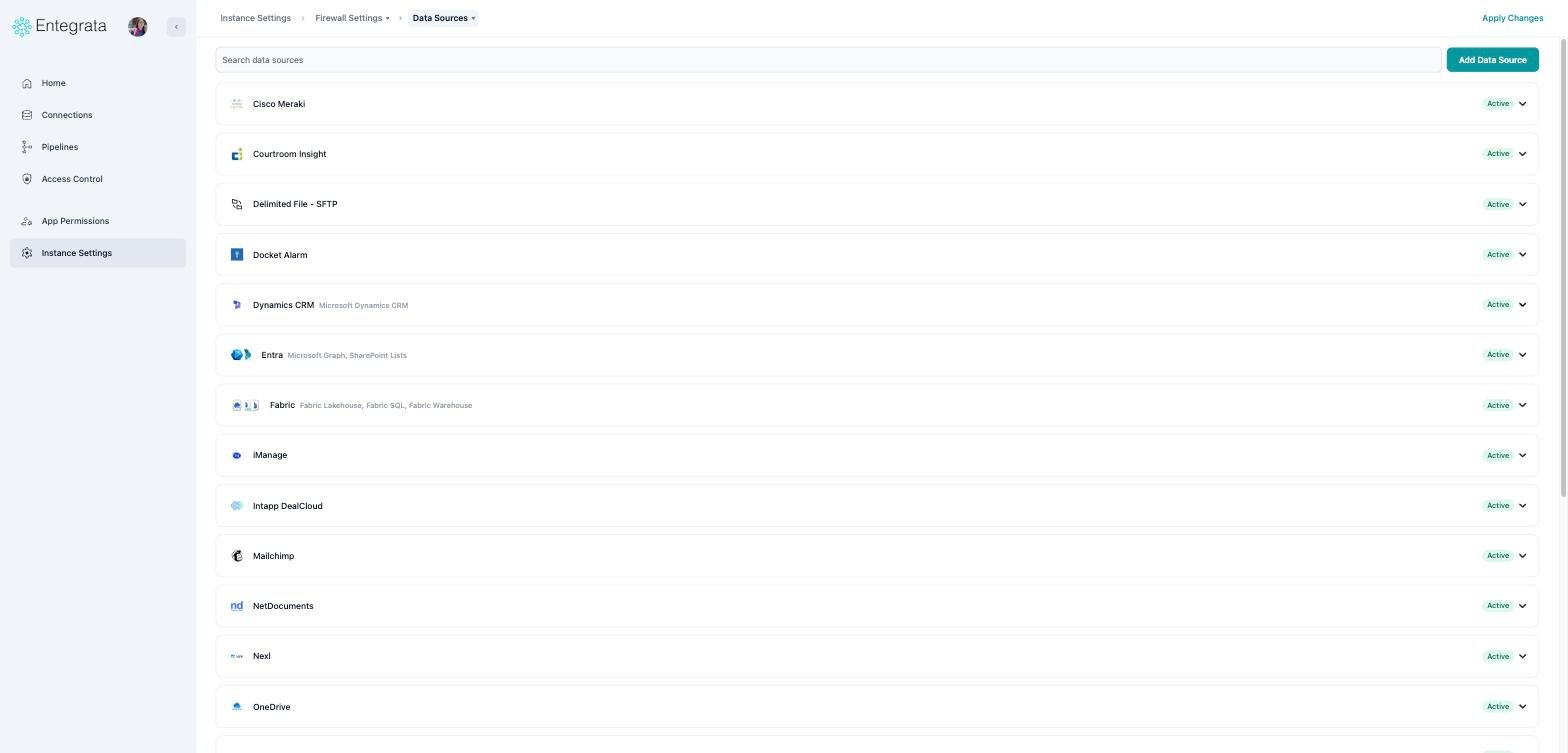 Which tab you are on is now part of the address, so you can link straight to the System tab.
### Network Connections
Network Connections is in the same place, reached from the **Network Connections** card in
Instance Settings. It picked up the same chrome as the rest of the application: the page
title gave way to a breadcrumb, and search moved into the row with **Add Connection**.
Which tab you are on is now part of the address, so you can link straight to the System tab.
### Network Connections
Network Connections is in the same place, reached from the **Network Connections** card in
Instance Settings. It picked up the same chrome as the rest of the application: the page
title gave way to a breadcrumb, and search moved into the row with **Add Connection**.
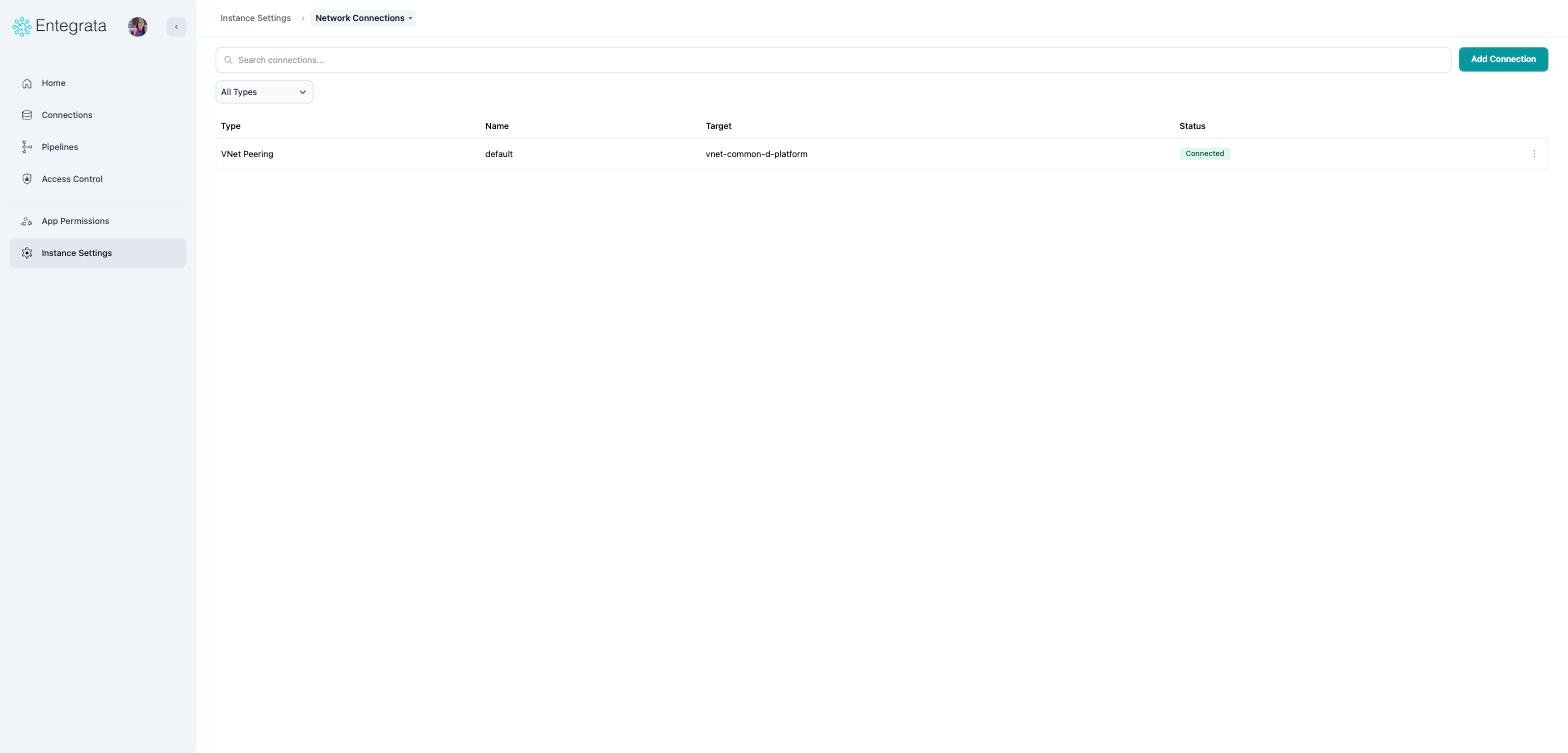 The **Network Connections** crumb is a menu, so you can jump straight to Firewall Settings
from here. Your search term is now part of the address as well.
## Users
The **Users** heading became a breadcrumb, and the generic search box became a labelled
**Search users** box next to **New User**.
The **Network Connections** crumb is a menu, so you can jump straight to Firewall Settings
from here. Your search term is now part of the address as well.
## Users
The **Users** heading became a breadcrumb, and the generic search box became a labelled
**Search users** box next to **New User**.
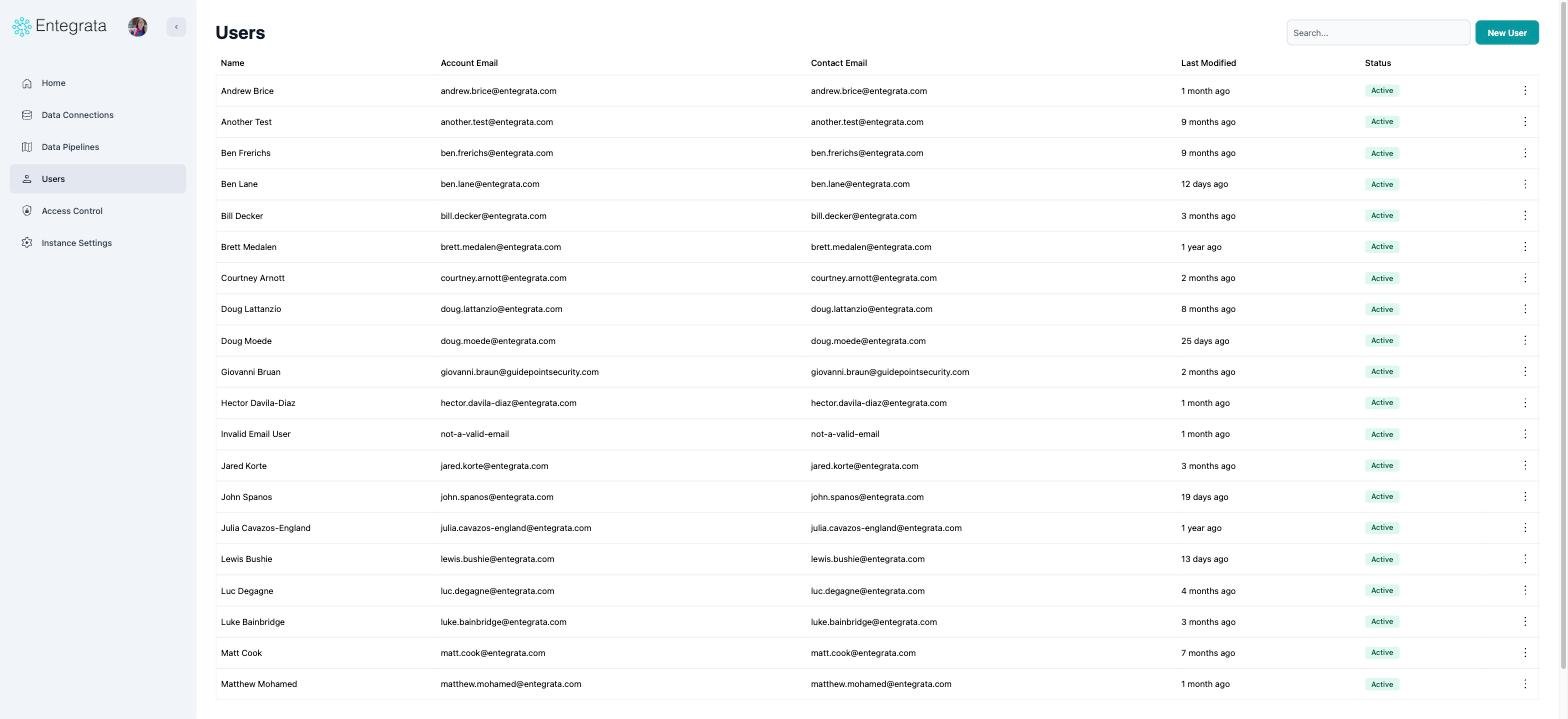
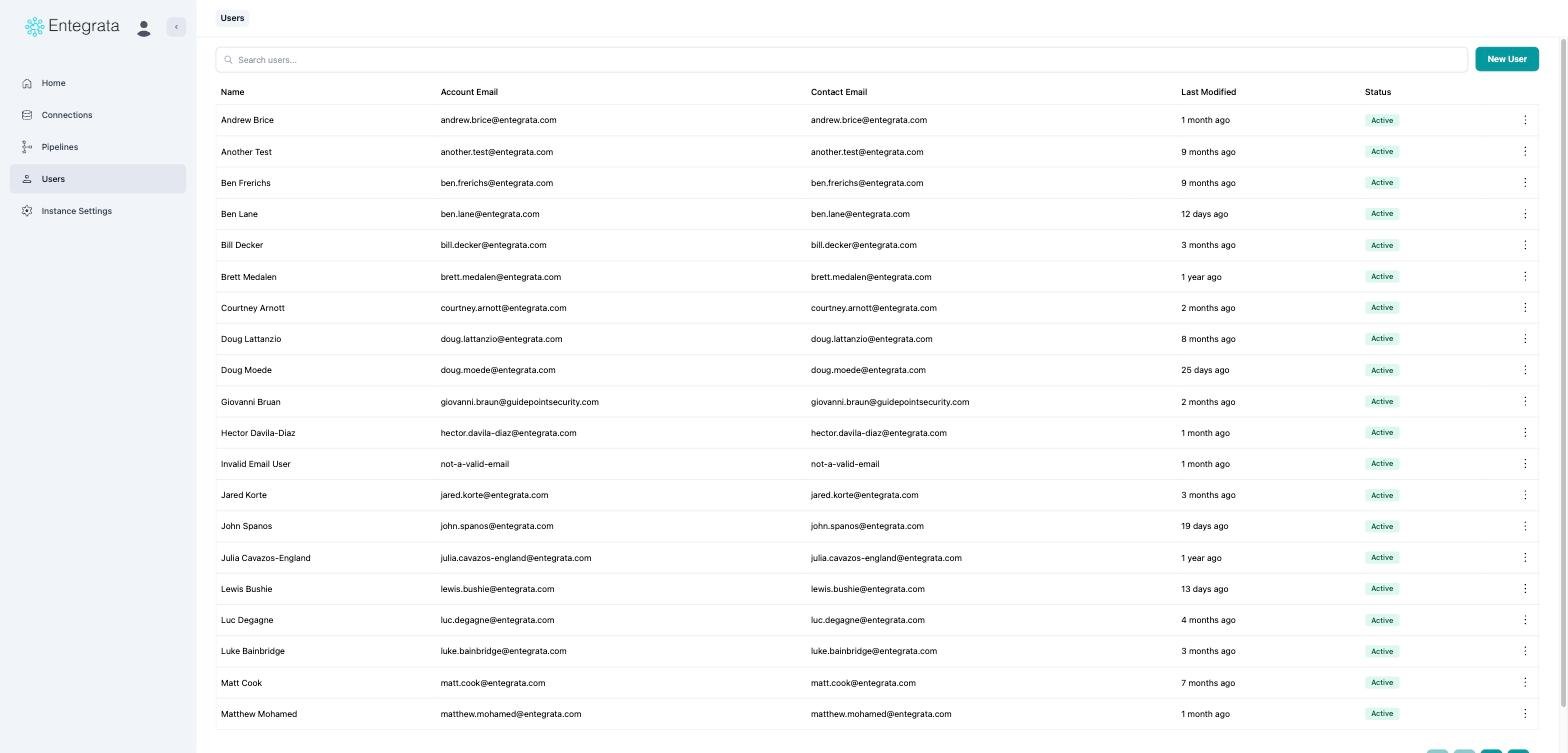 Searching now updates the address bar properly, so your browser's back button steps back
through searches and a link to a filtered list opens already filtered.
## Access Control
### Groups and Users
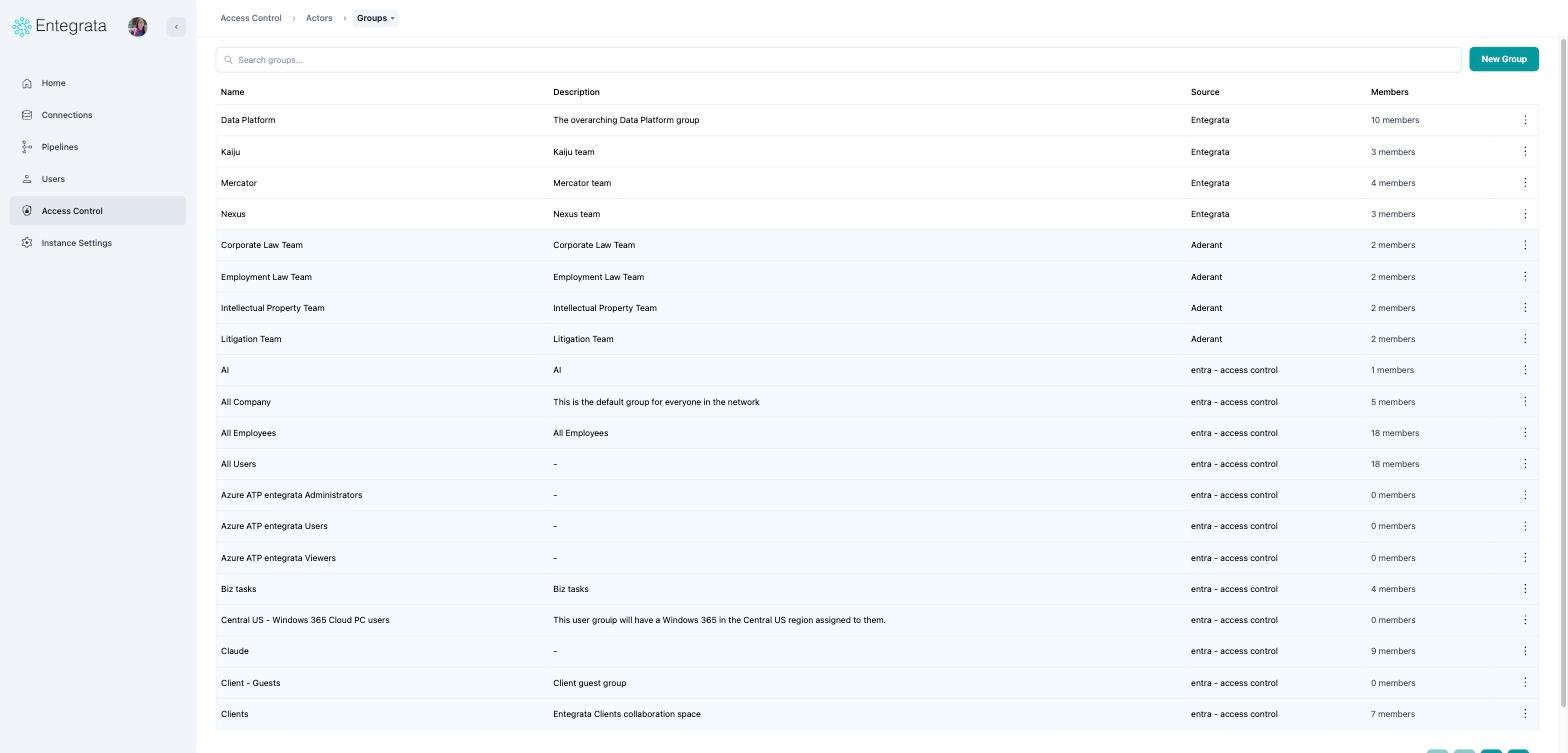
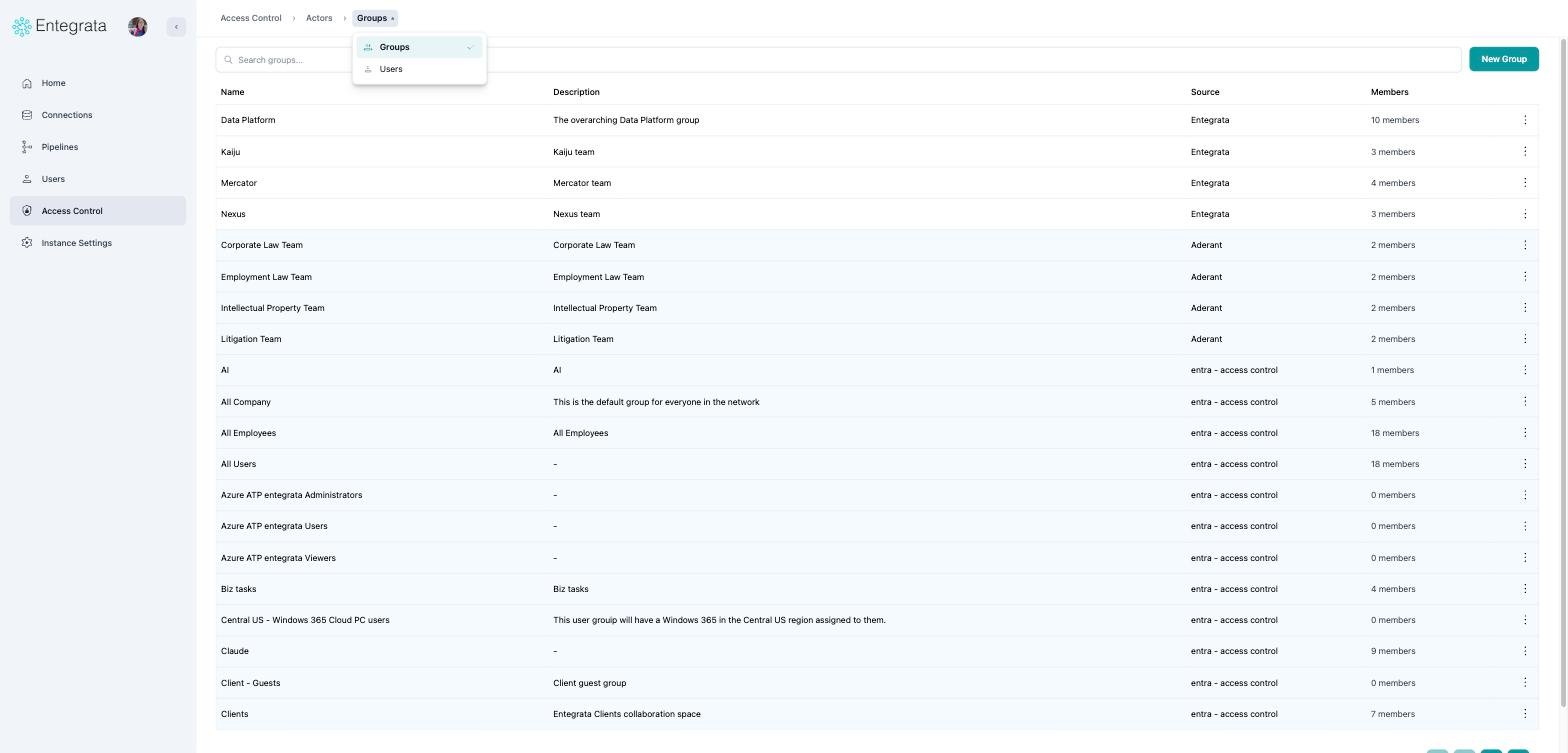
The **Groups** and **Actors** tabs became a menu on the last crumb. **Actors** is now
labelled **Users** throughout this area, including the empty states and dialogs that used to
say "actor".
Searching now updates the address bar properly, so your browser's back button steps back
through searches and a link to a filtered list opens already filtered.
## Access Control
### Groups and Users
The **Groups** and **Actors** tabs became a menu on the last crumb. **Actors** is now
labelled **Users** throughout this area, including the empty states and dialogs that used to
say "actor".
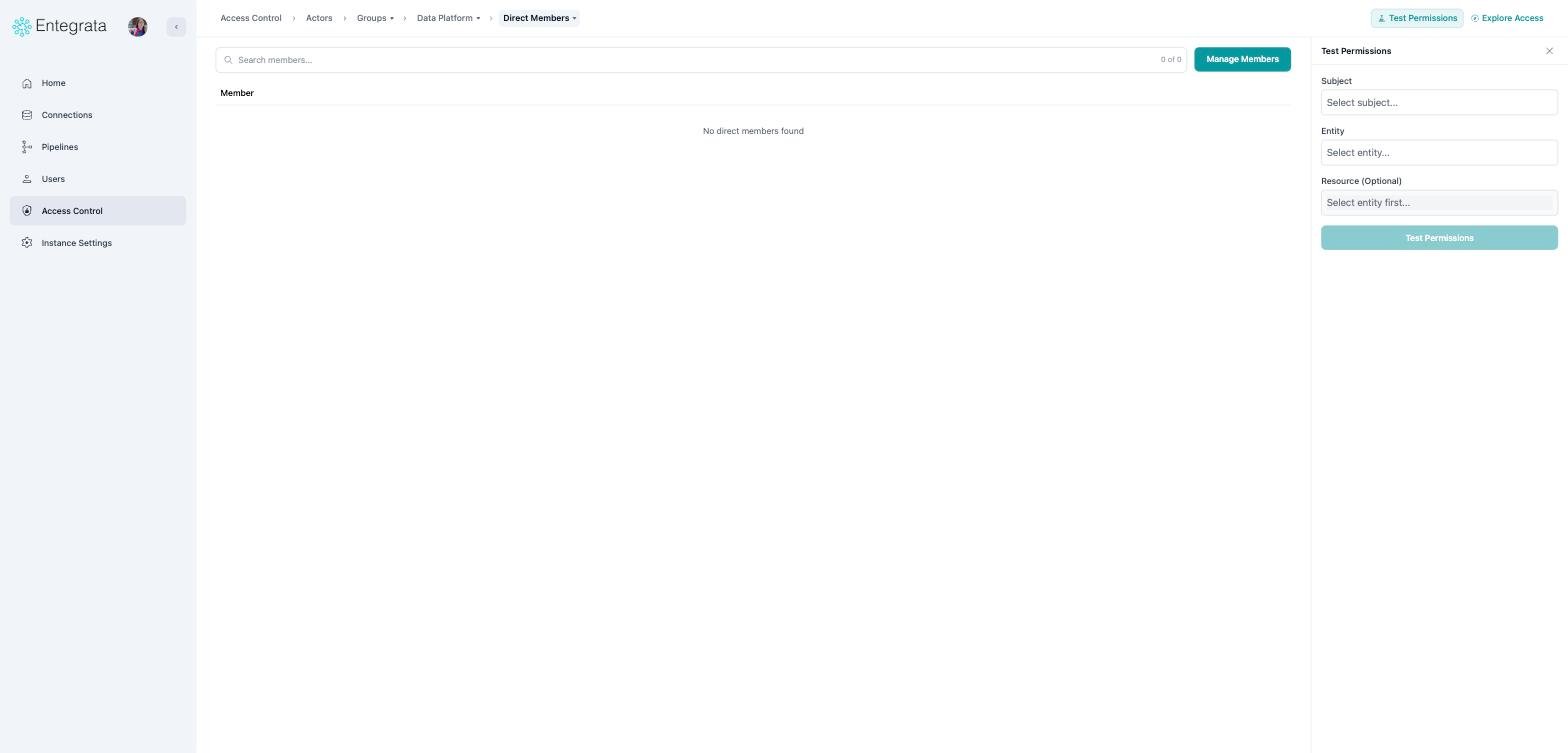
 ### A single group
The group name is a searchable switcher, the member tabs became a menu, and the two tools in
the corner now open beside the member list instead of covering it.
### A single group
The group name is a searchable switcher, the member tabs became a menu, and the two tools in
the corner now open beside the member list instead of covering it.
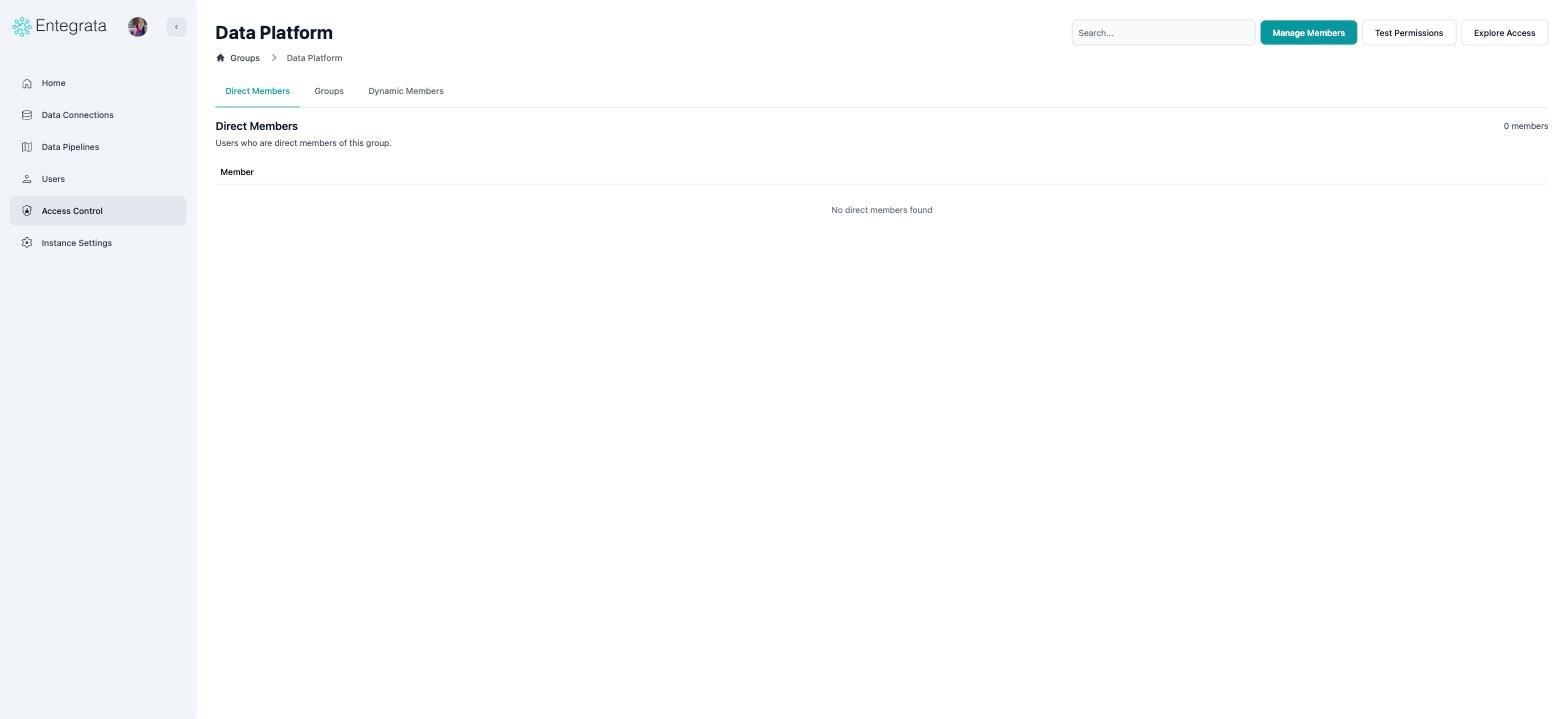
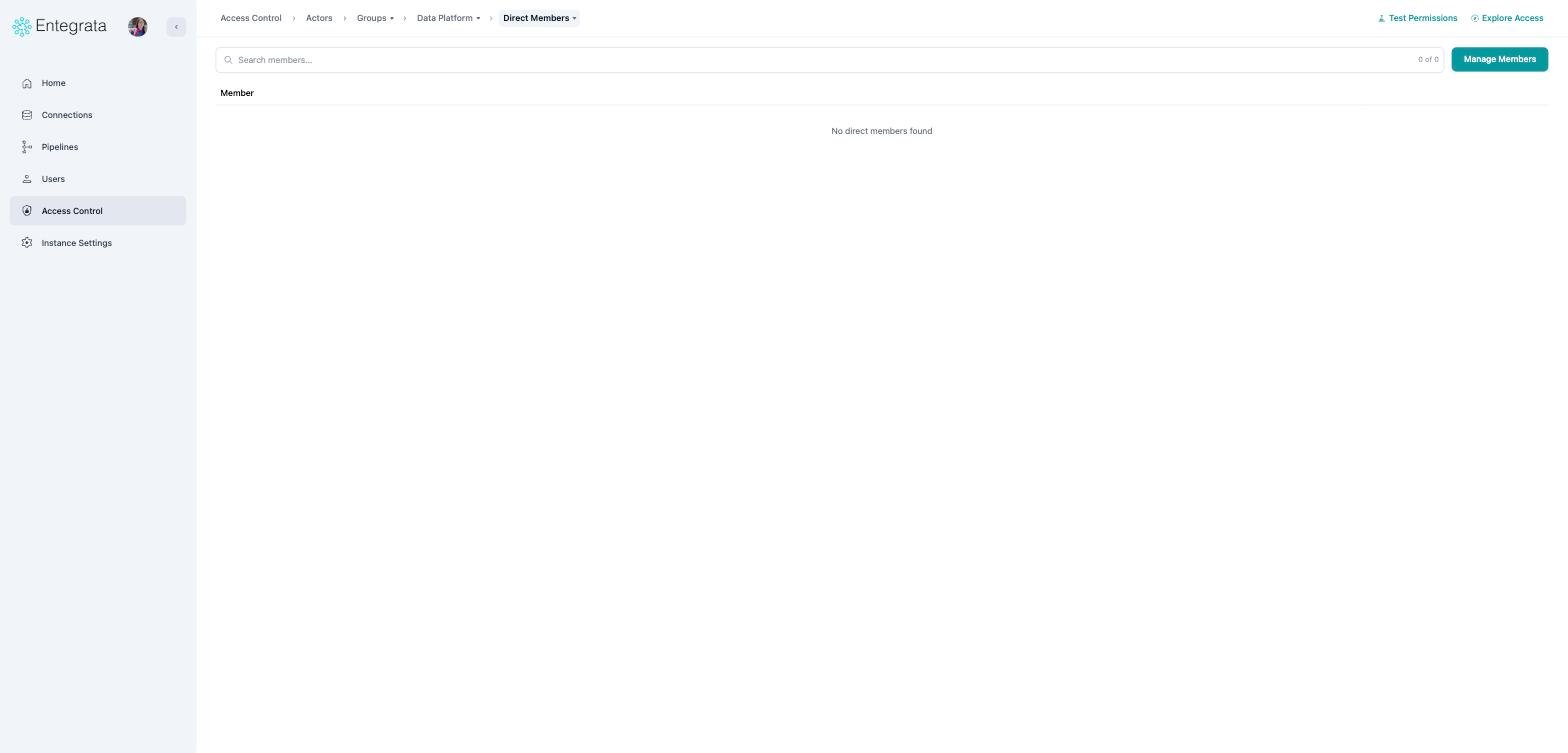 **Test Permissions** and **Explore Access** were windows that covered the page. They are now
panels, so you can read the member list and your test results at the same time.
**Test Permissions** and **Explore Access** were windows that covered the page. They are now
panels, so you can read the member list and your test results at the same time.
 ## Things to know
Most pages no longer show a large heading. The breadcrumb in the top left is now what
identifies the page, which is why lists start higher up the screen and show more rows.
Your browser tab still shows the page name.
Where a tab used to appear greyed out with an explanation on hover, it is now simply
absent from the menu. If you expect an option and cannot find it, check whether the
connection is active and whether its prerequisites are met.
On a wide screen, Insights, History, Jobs, Settings, and the Access Control panels narrow
the page rather than covering it, so your list stays readable. On a narrower screen they
slide over the content instead. They close when you navigate.
Ctrl+Space jumps to the search box on any list. On a connection's
resource pages, ⌘K opens the resource search palette.
## Questions
If something you relied on is not where you expect, let us know through the support portal.
Tell us what you were looking for and which page you expected to find it on.
## Things to know
Most pages no longer show a large heading. The breadcrumb in the top left is now what
identifies the page, which is why lists start higher up the screen and show more rows.
Your browser tab still shows the page name.
Where a tab used to appear greyed out with an explanation on hover, it is now simply
absent from the menu. If you expect an option and cannot find it, check whether the
connection is active and whether its prerequisites are met.
On a wide screen, Insights, History, Jobs, Settings, and the Access Control panels narrow
the page rather than covering it, so your list stays readable. On a narrower screen they
slide over the content instead. They close when you navigate.
Ctrl+Space jumps to the search box on any list. On a connection's
resource pages, ⌘K opens the resource search palette.
## Questions
If something you relied on is not where you expect, let us know through the support portal.
Tell us what you were looking for and which page you expected to find it on.