
Overview
Access control ingestion is an optional feature that allows you to import and synchronize existing permission configurations from supported source systems. This feature is currently available only for Aderant, Intapp Walls, and Microsoft Entra data sources.Important: This feature is NOT required to use access control in Entegrata. You can create system rules and groups within the admin app without enabling ingestion from one of these data sources.. This feature specifically imports existing permissions from supported sources to provide centralized visibility and management.
Supported Data Sources
Currently Supported
- Intapp Walls - Imports ethical wall configurations and restrictions
- Aderant - Synchronizes security rules from the FMS database
- Microsoft Entra - Imports groups and group memberships for use in access control
Connection-Specific Requirements
Before enabling access control ingestion, ensure your source system meets the specific requirements for your connection type:- Aderant
- Intapp Walls
- Microsoft Entra
Aderant Connection Requirements
The Aderant connection supports access control ingestion based on the REVOKED flag in the CMS_SECURE_ROW table.What This Means: Access control rules are ingested by reading the REVOKED flag from CMS_SECURE_ROW. This flag indicates whether a user’s access to a specific Aderant table or a record in an Aderant table has been revoked.
- The CMS_SECURE_ROW table and its parent CMS_SECURE_PLAN table must contain valid access control data
- The REVOKED flag in the CMS_SECURE_ROW table must be maintained in your Aderant database
When to Use This Feature
Enable access control ingestion when you:- Have Aderant, Intapp Walls, or Microsoft Entra as a data source
- Want to import existing security configurations from these systems
- Need centralized visibility of both source and custom permissions
- Want to maintain synchronization with source system permissions
- Only need custom access rules created in Entegrata
- Don’t have existing permissions to import
Prerequisites
Before enabling access control ingestion, ensure:- You have administrative privileges in the Entegrata Admin Portal
- Your data source is Aderant, Intapp Walls, or Microsoft Entra
- Data mapping is complete for the connection
- Initial data collection has been completed
- You understand the access control model of your source system
Enabling Access Control Ingestion
Step 1: Navigate to Connection Settings
- Go to Connections in the main navigation
- Select the connection you want to configure
- Click on the Access Control tab
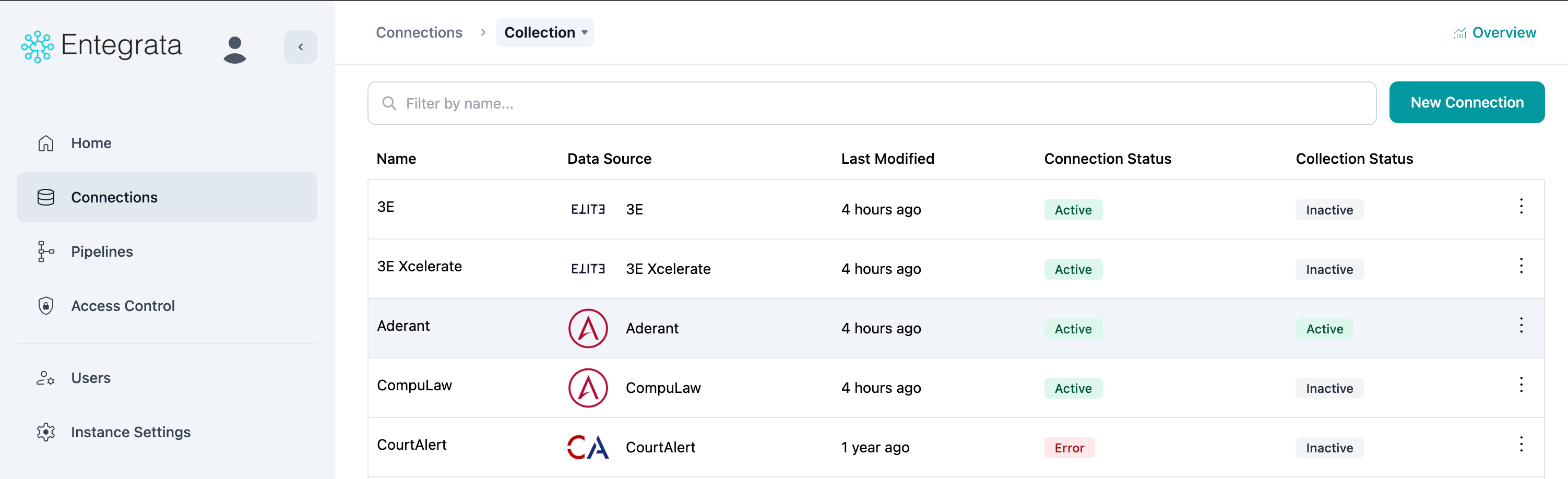
Step 2: Find Access Control Tab on Supported Connection
The Access Control page displays the sync status of the data source’s access control resources: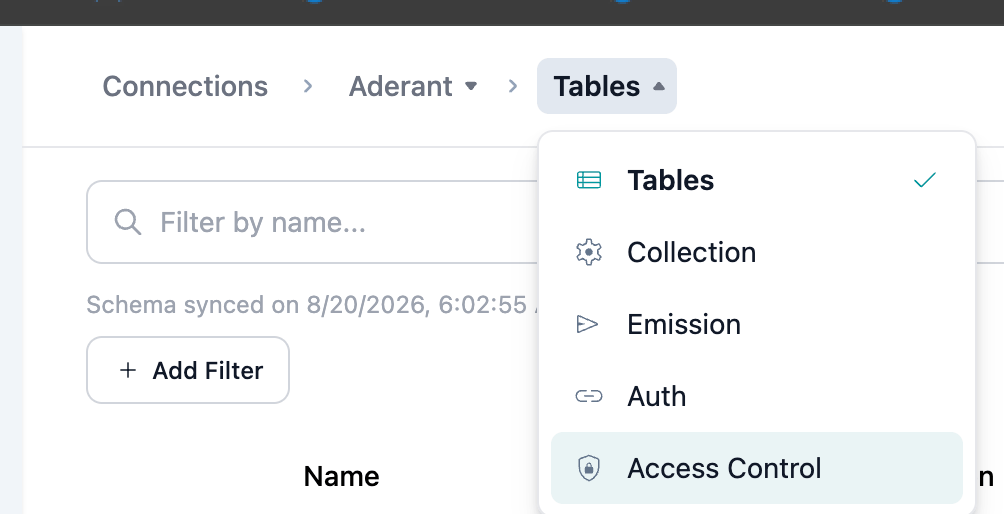
Step 3: Enable Access Control Sync
For supported data sources, you’ll see the Sync Access Control Resources card:toggle
When enabled:
- Access control resources from this connection will be collected during scheduled runs
- Permission data will be synchronized with your Entegrata instance
- Access control data will be available in data mappings and groups
- Toggle the Sync Access Control Resources switch to the enabled position
- The system will start configuring access control
- Wait for the confirmation message
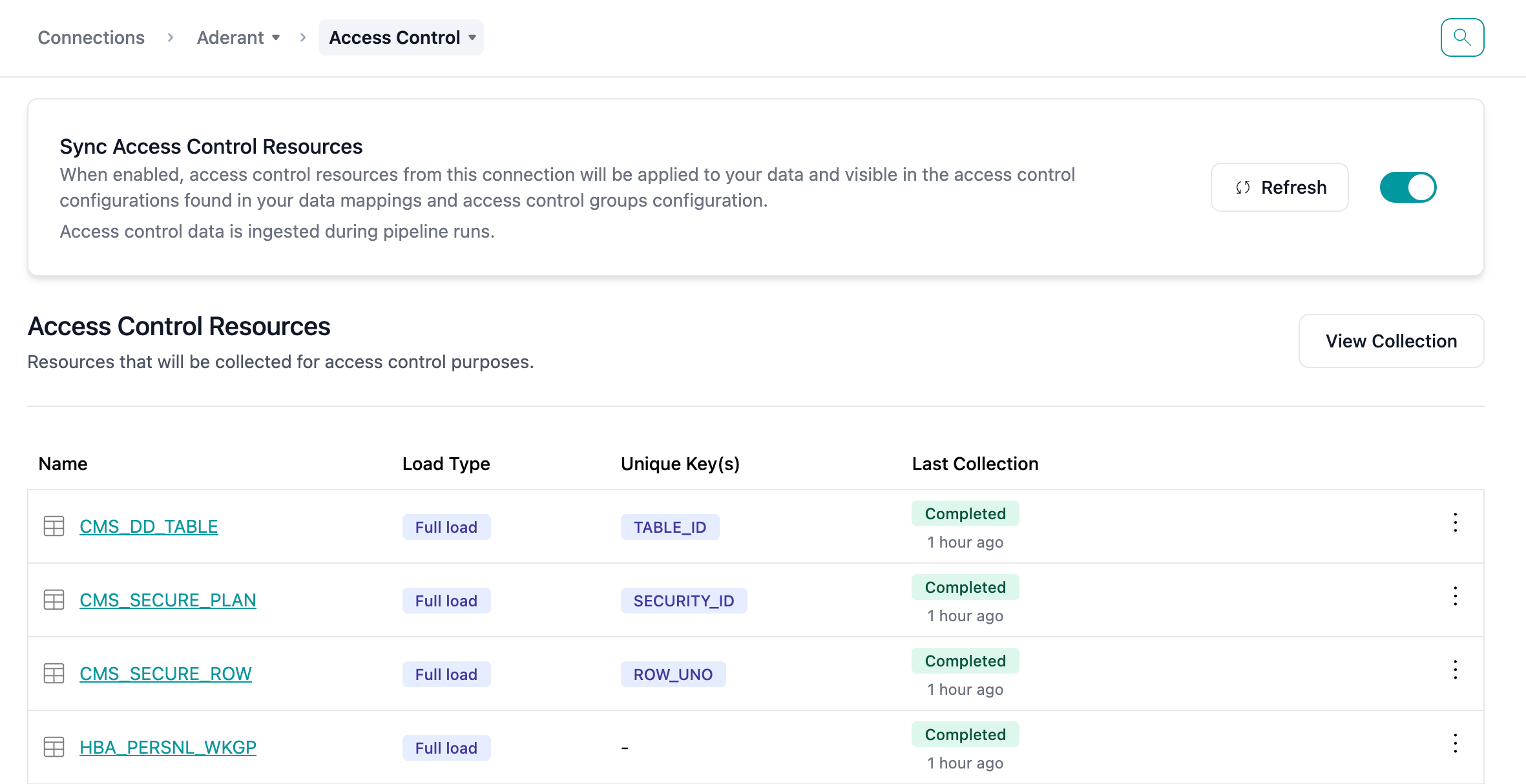
Step 4: Verify Resource Discovery
Once enabled, the system automatically discovers access control resources: The resources table displays:- Name: Resource identifier from the source system
- Load Type: How the resource data is collected (Full, Incremental, etc.)
- Unique Keys: Primary keys used for data synchronization
- Last Collection: When the resource was last synchronized
Configuring Collection Settings
Access control resources can be configured using the same collection settings as regular data resources.For detailed information on configuring collection settings, including load types, unique fields, and collection profiles, see the Data Collection documentation.
Troubleshooting Sync Issues
Common issues and solutions:Resources not appearing after enabling
Resources not appearing after enabling
- Check connection credentials have sufficient permissions
- Verify source system has access control data
- Try manually refreshing the resource list
Collection failing for access control resources
Collection failing for access control resources
- Verify source system connectivity
- Check for permission changes in source system
- Review error logs for specific issues
- Contact support with connection ID and error details
Incomplete permission data
Incomplete permission data
- Ensure all required resources are enabled
- Check primary key configuration
- Verify source system data completeness
- Run full load instead of incremental
Understanding Imported Rules and Groups
When you enable access control for a data source, Entegrata imports existing access control configurations from that system.How Imported Items Appear
Imported rules and groups are displayed alongside system-created items with clear visual distinctions:display
- Blue background tint - Easily identify imported items
- Source column - Shows originating system (Aderant, Intapp, etc.)
- Disabled tooltips - Disabled editing of access control items in Entegrata
Combining System and Imported Controls
Entegrata allows you to layer your own access controls on top of imported configurations:- View all controls - See both imported and system rules/groups in one place
- Create additional rules - Add custom rules that work alongside imported ones
- Build custom groups - Create groups that complement imported group structures
- Test combined permissions - Validate how all rules work together
- Complete visibility across all access controls
- Flexibility to extend source system permissions
- Centralized testing and auditing capabilities
- Preservation of source system configurations
Impact of Enabling Access Control
On Data Collection
- Additional resources collected during scheduled runs
- Slightly increased collection time
- More storage used for permission data
- Additional processing for permission evaluation
- Import of existing rules and groups from source systems
On System Performance
- Initial sync may be resource-intensive
- Ongoing syncs typically have minimal impact
- Permission evaluation adds small latency to queries
- Caching minimizes performance overhead
On User Experience
- Access control rules become available in mappings
- Permission testing tools activated
- Data filtered based on user permissions
- Group management features enabled
Best Practices
Disabling Access Control
If you need to disable access control:- Navigate to Connections → [Your Connection] → Access Control
- Toggle Sync Access Control Resources to disabled
Next Steps
After enabling access control:Configure Default Permissions
Set base-level permissions for your entities
Create Access Rules
Define specific permission rules
Set Up Groups
Organize users for permission management
Test Your Configuration
Verify permissions work as expected
Frequently Asked Questions
Can I enable access control for custom data sources?
Can I enable access control for custom data sources?
Currently, access control is only available for Aderant, Intapp Walls, and Microsoft Entra.
How often should access control data be synchronized?
How often should access control data be synchronized?
For most organizations, daily synchronization is sufficient. High-compliance environments may require more frequent updates.
What happens to existing data when I enable access control?
What happens to existing data when I enable access control?
Existing data remains unchanged. Access control only affects how users view and access data going forward.
Can I partially enable access control for specific resources?
Can I partially enable access control for specific resources?
Yes, you can configure which access control resources to collect in the resource configuration settings.