
Overview
Access control rules allow you to define specific permissions that override default settings for targeted subjects (users or groups) and objects (resources). Rules provide granular control over who can access what data, supporting both simple static assignments and complex dynamic filters for automatic permission management.Understanding Rules
Rule Components
Every access control rule consists of four key components:component
- Name: Descriptive identifier for the rule
- Description: Explanation of the rule’s purpose
- Permission: Allow or Deny access
component
The users or groups that the rule applies to:
- Specific Users: Individual actors selected by name
- Groups: Access control groups containing multiple users
- Dynamic Filters: Attribute-based selection using filter conditions
component
The resources that the rule governs:
- All Resources: Rule applies to entire entity type
- Specific Resources: Individual records selected by ID
- Filtered Resources: Dynamically selected using attribute filters
component
- Entity Type: The canonical object type (Client, Matter, etc.)
- Instance: Applied within your Entegrata instance
Creating a Rule
Step 1: Navigate to Rule Creation
Rules can be created by following these steps:- Go to Data → Mapping
- Click the Access Control tab
- Click Create Rule in the toolbar
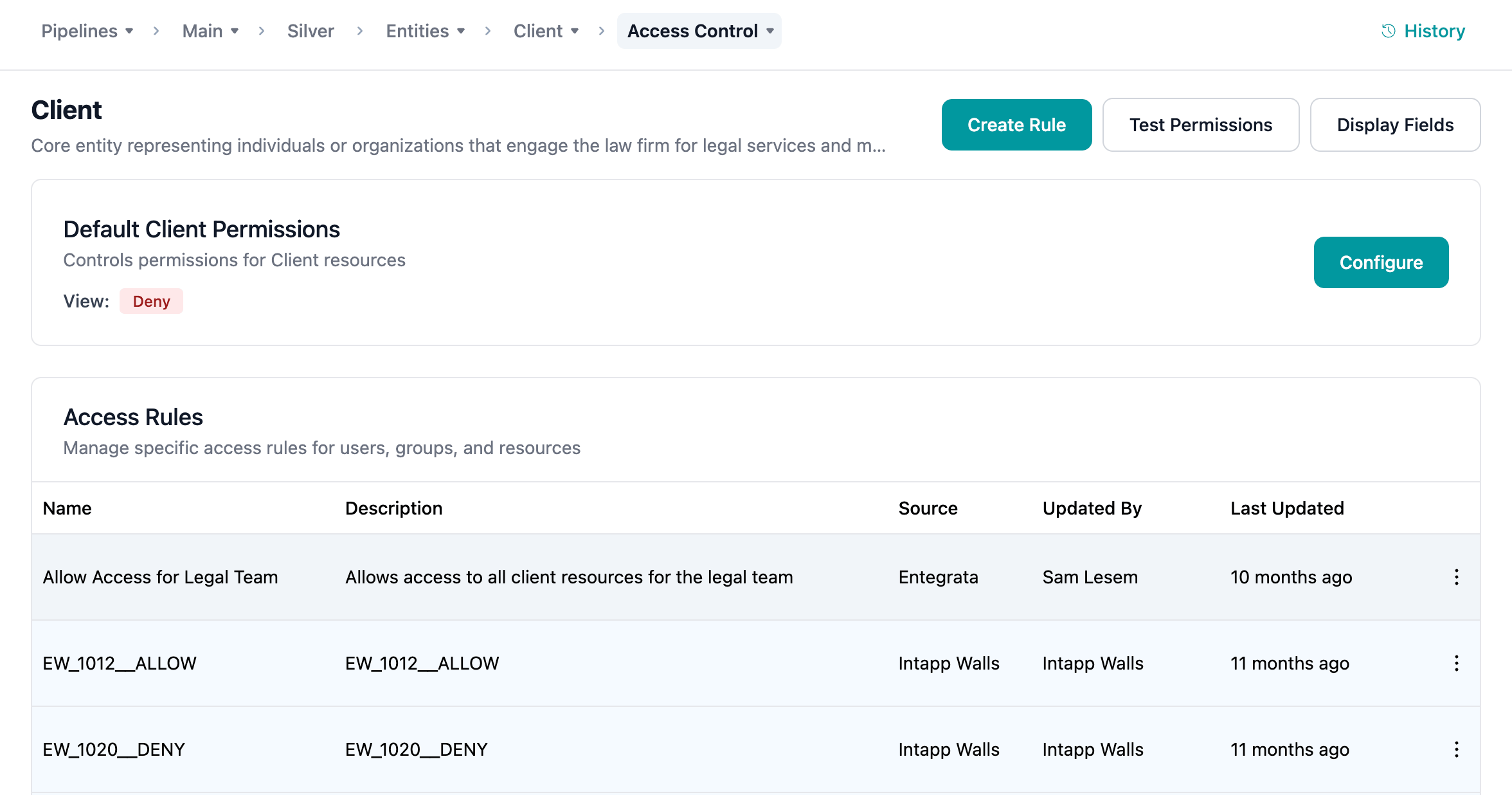
Step 2: Configure General Settings
The Rule Modal opens with the General tab active: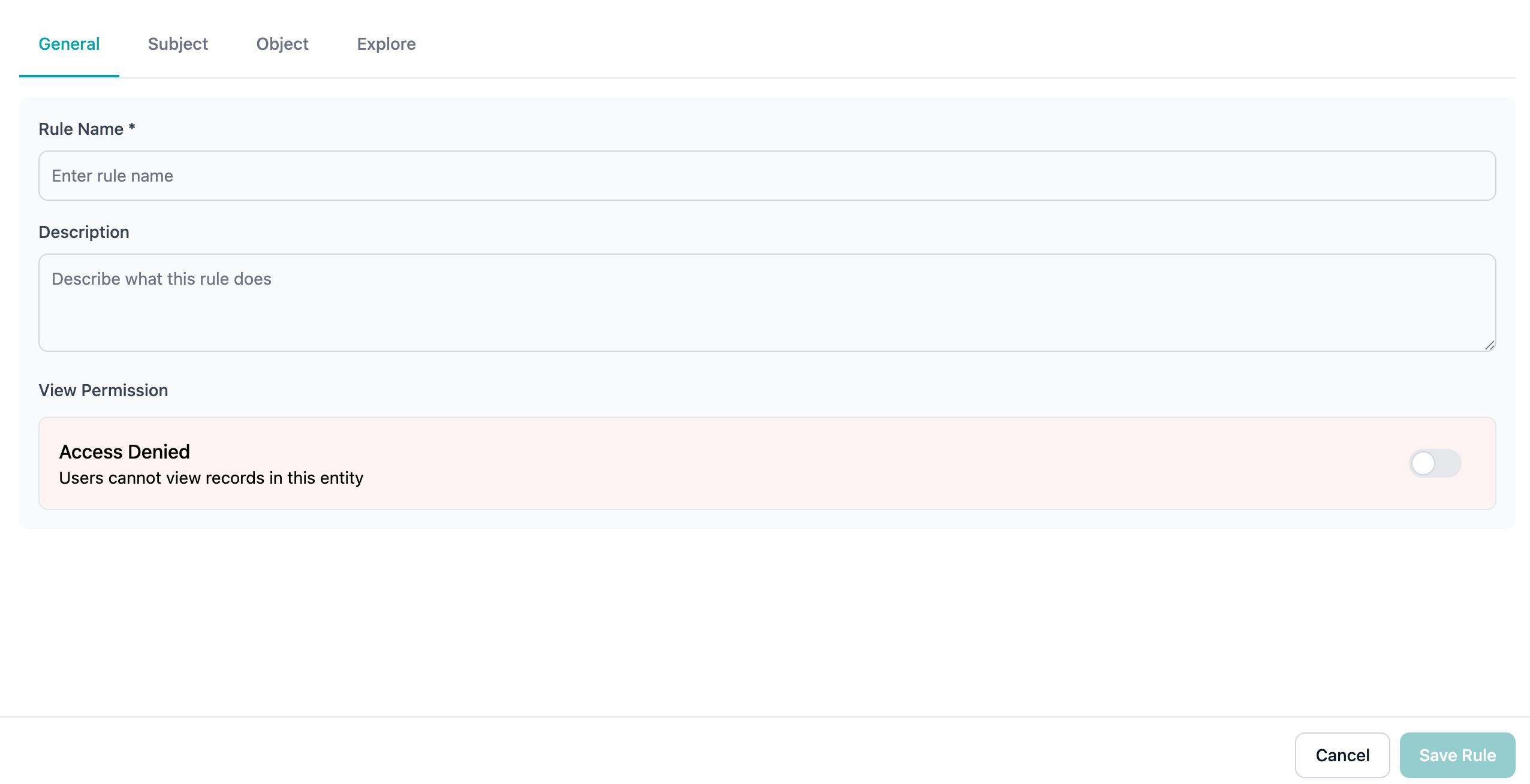
1
Enter Rule Name
Provide a clear, descriptive name that explains the rule’s purpose
- Good: “Finance Team - Budget Access”
- Poor: “Rule 1” or “Test”
2
Add Description
Write a detailed explanation of why this rule exists and what it accomplishes
3
Set Permission
Toggle the permission setting:
- Allow (Green): Grants access to specified resources
- Deny (Red): Blocks access to specified resources
The modal background changes color (green for Allow, red for Deny) to provide visual confirmation of the permission setting.
Step 3: Define Subjects (Who Has Access)
Click the Subject tab to specify who this rule applies to: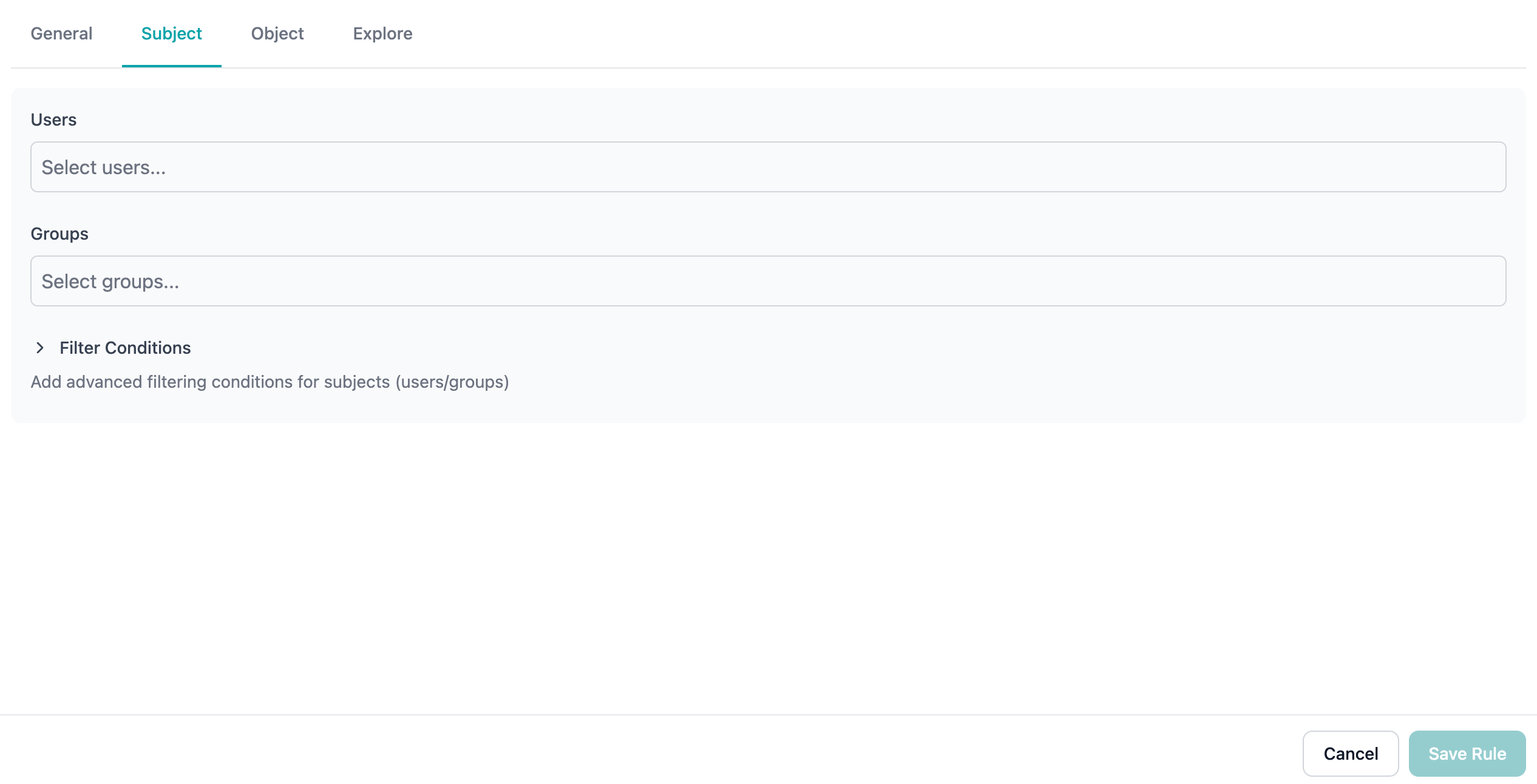
You can add users (actors) directly to rules without creating groups. Groups are optional but recommended for managing multiple users efficiently.
Option 1: Select Specific Users (Actors)
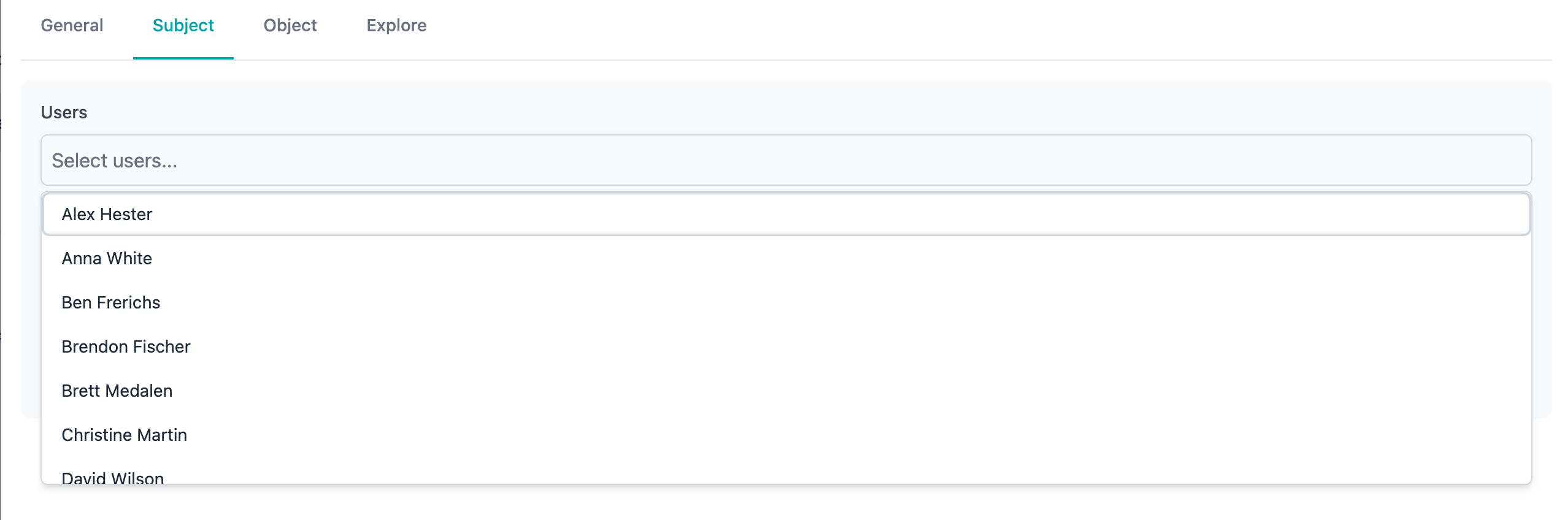
Add individual users directly to the rule:- Click the Users dropdown
- Search for users by name
- Select users as needed
- Selected users appear as tags
- Small numbers of users
- Temporary or one-off access
- User-specific exceptions
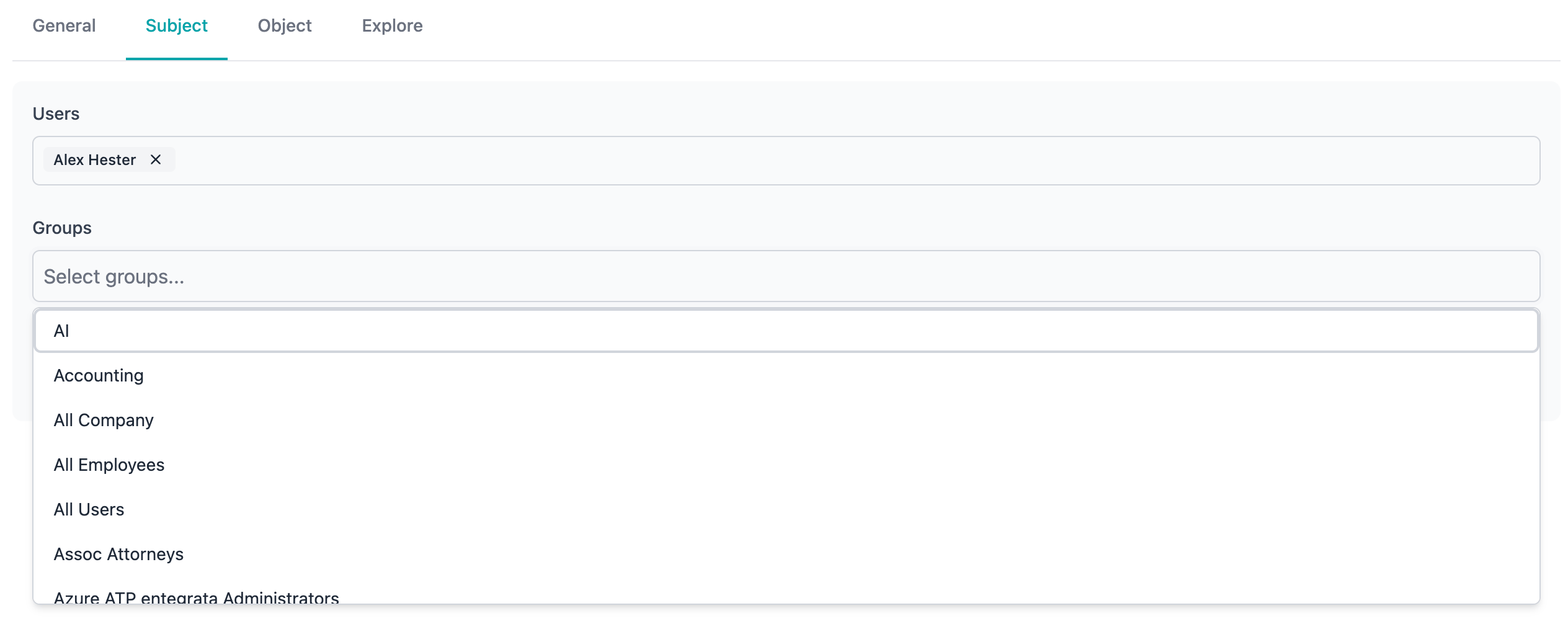
Option 2: Select Groups (Recommended for Multiple Users)
Use groups to manage multiple users more efficiently:- Click the Groups dropdown
- Search for access control groups
- Select groups as needed
- All group members inherit the rule permissions
- Easier to manage multiple users
- Changes to group membership automatically update access
- Cleaner rule configuration
- Better organization of permissions
Option 3: Use Dynamic Filters
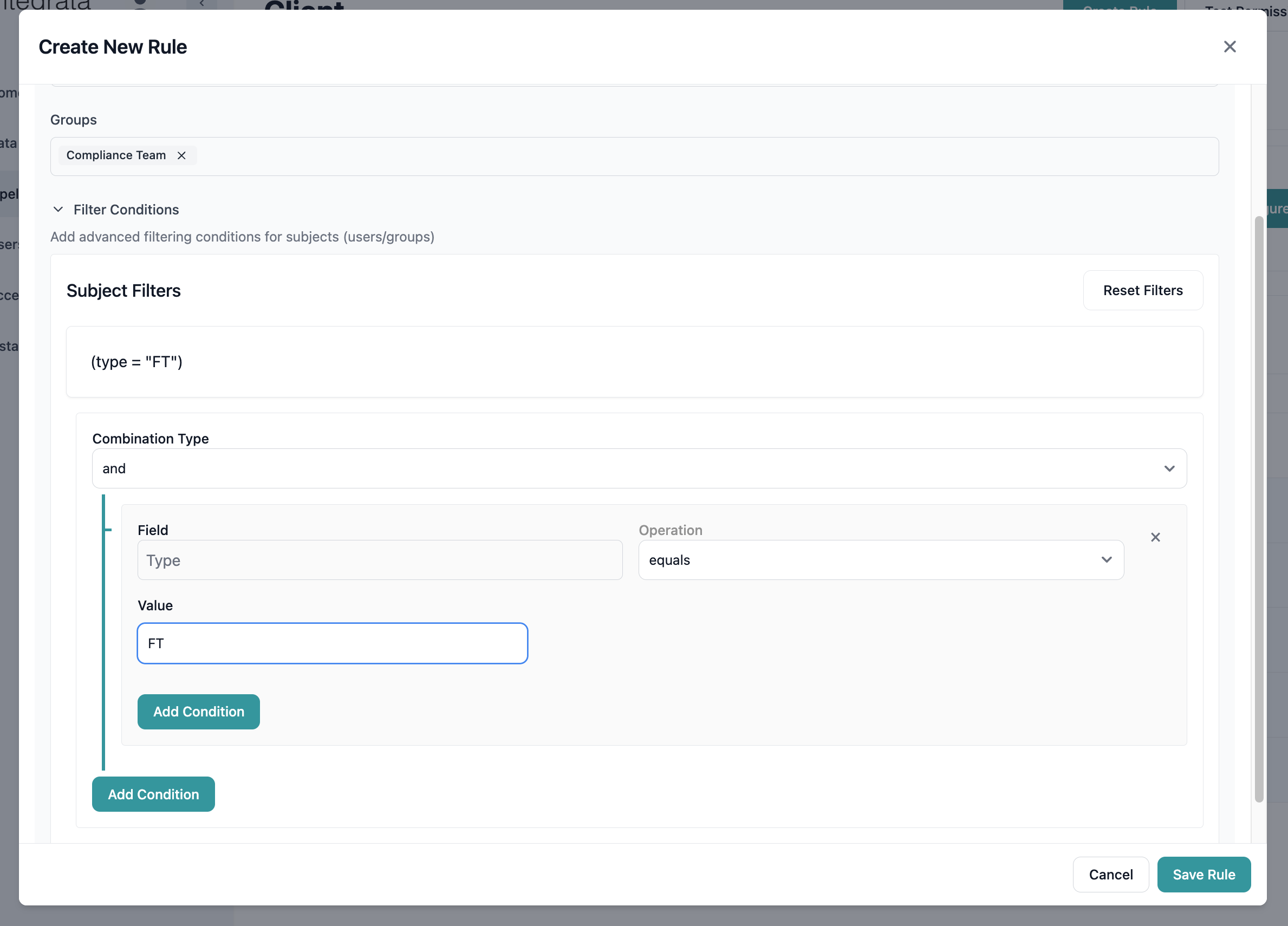
For automatic subject selection based on attributes:- Click Add Filter Condition
- Select the attribute to filter on
- Choose the operator (equals, contains, etc.)
- Enter the comparison value
- Add additional conditions with AND/OR logic
Step 4: Define Objects (What They Can Access)
Click the Object tab to specify which resources the rule covers: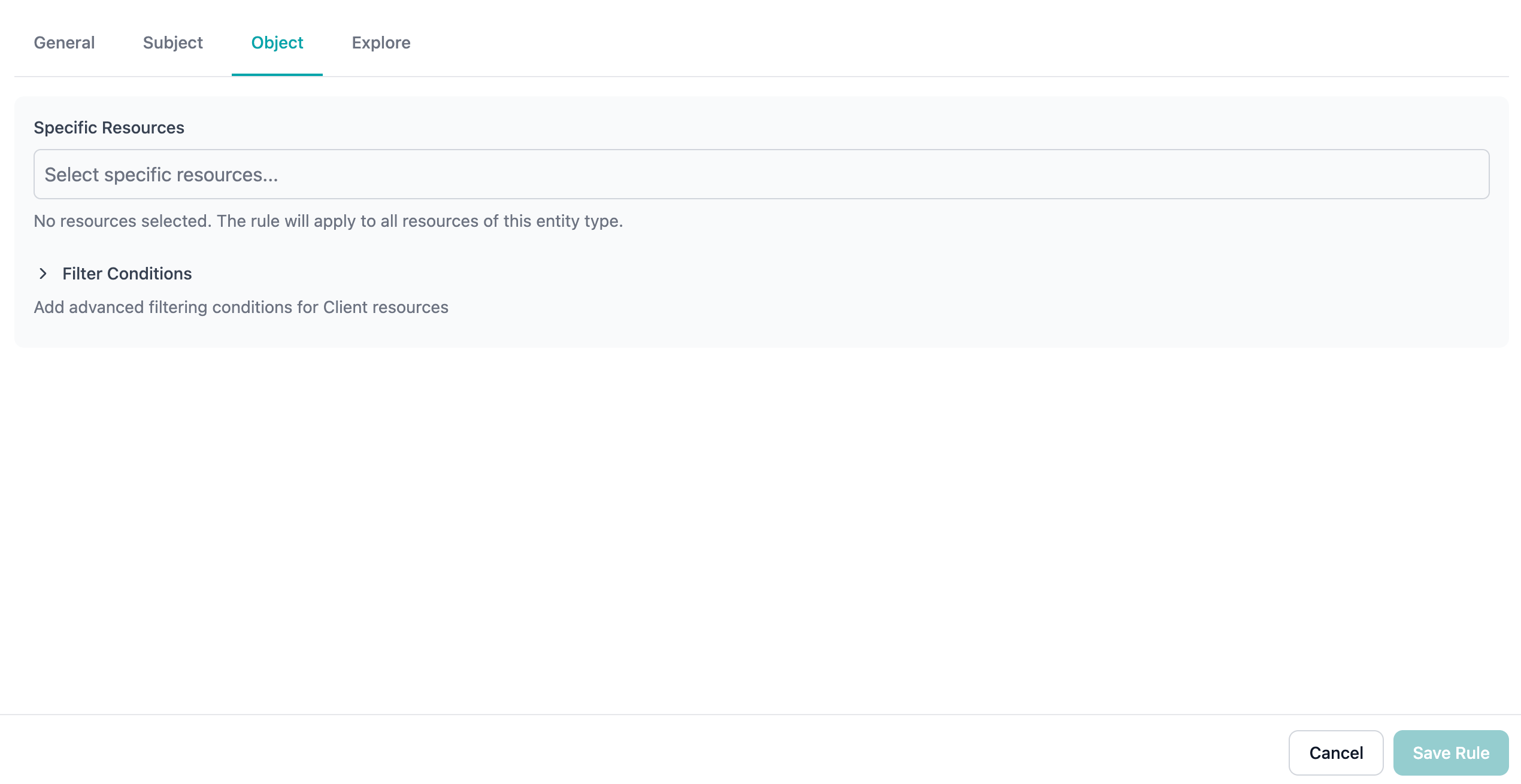
Option 1: All Resources
Leave the resource selection empty to apply the rule to all resources of the entity type.Option 2: Specific Resources
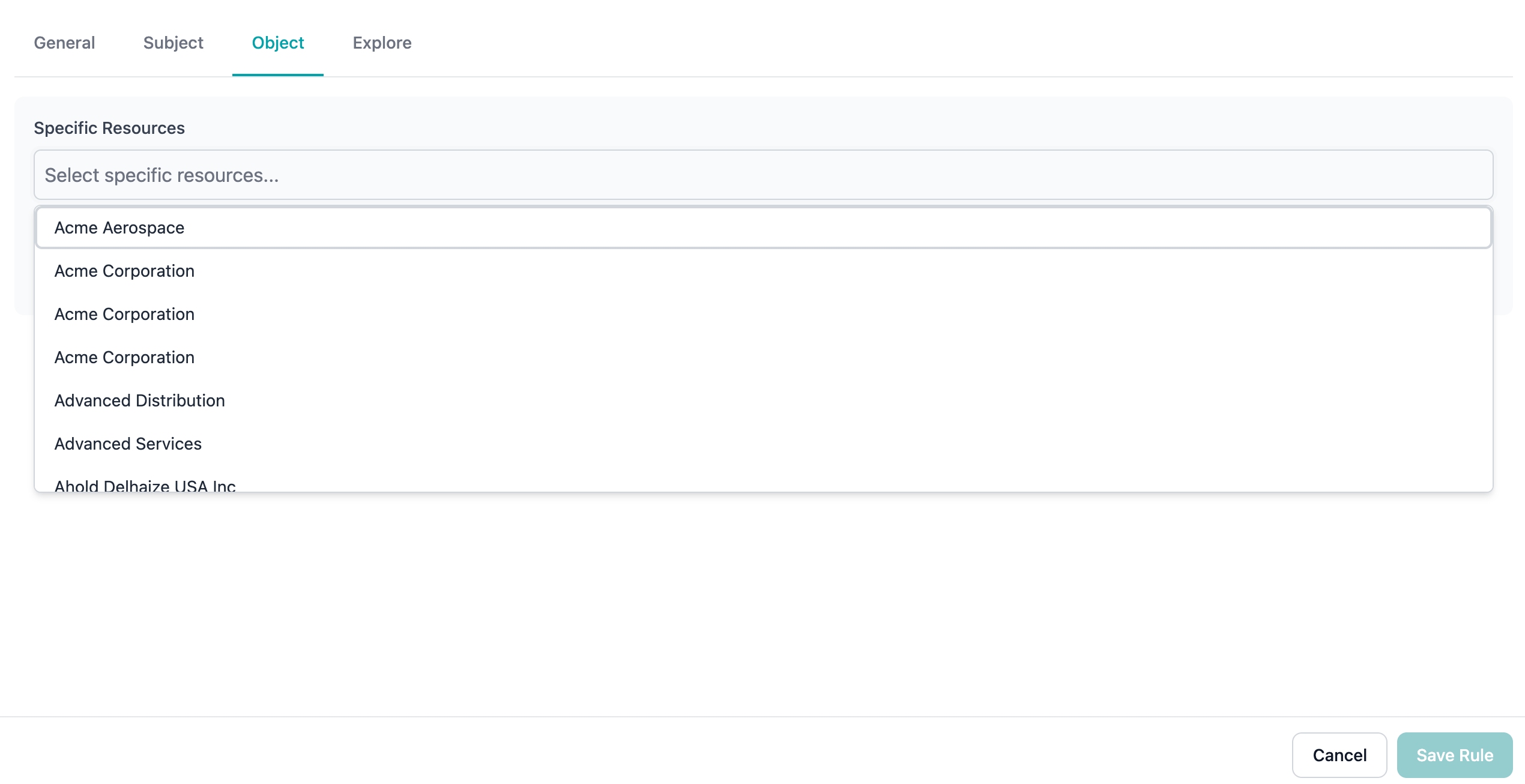
- Click the Resources dropdown
- Search for specific records by name
- Select resources as needed
- Selected resources appear as tags
Option 3: Filtered Resources
For dynamic resource selection:- Click Add Filter Condition
- Select the resource attribute
- Choose the comparison operator
- Enter the value to match
- Combine conditions as needed
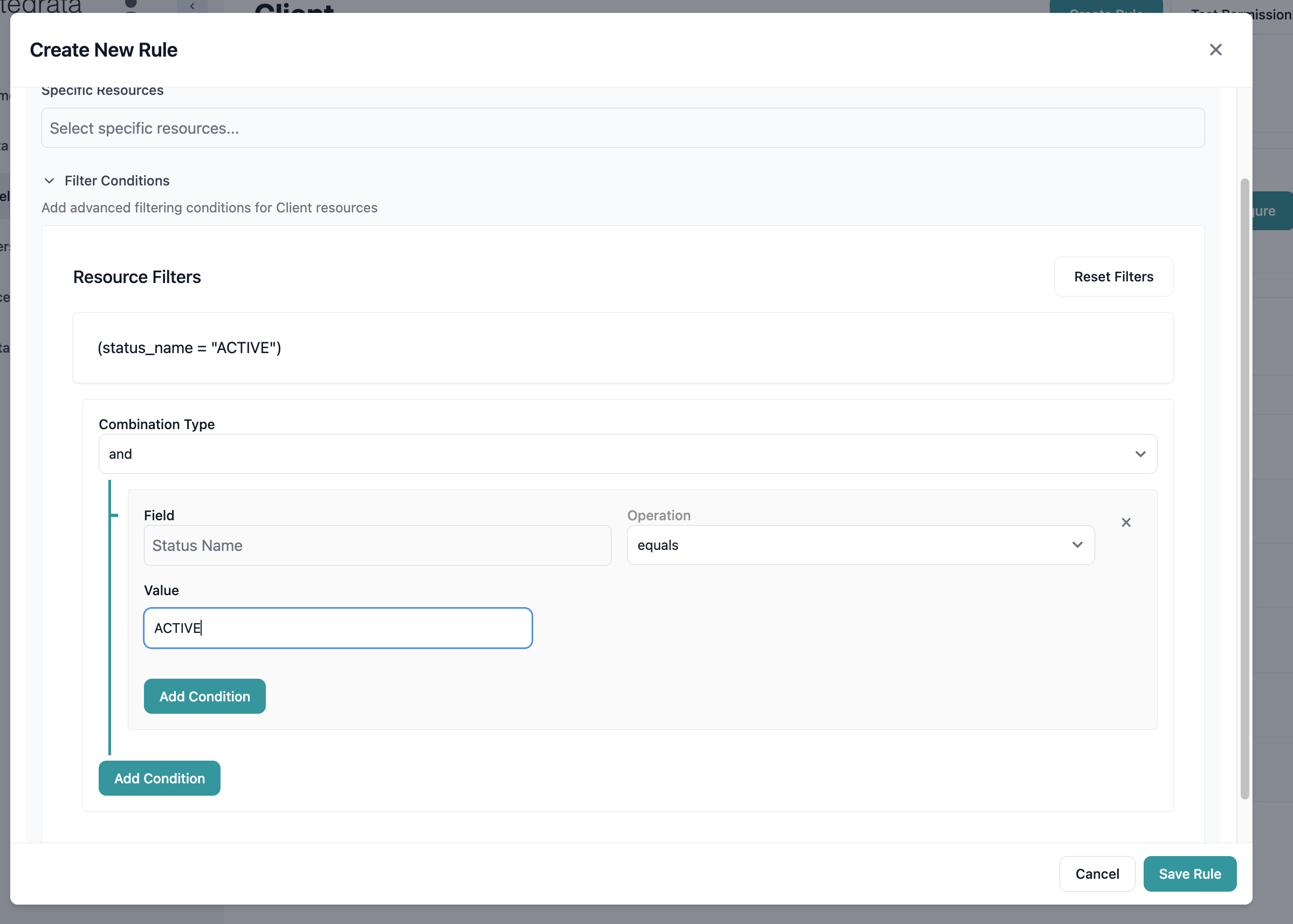
Status equals ActiveDepartment contains LegalCreatedDate after 2024-01-01
Step 5: Preview Rule Impact
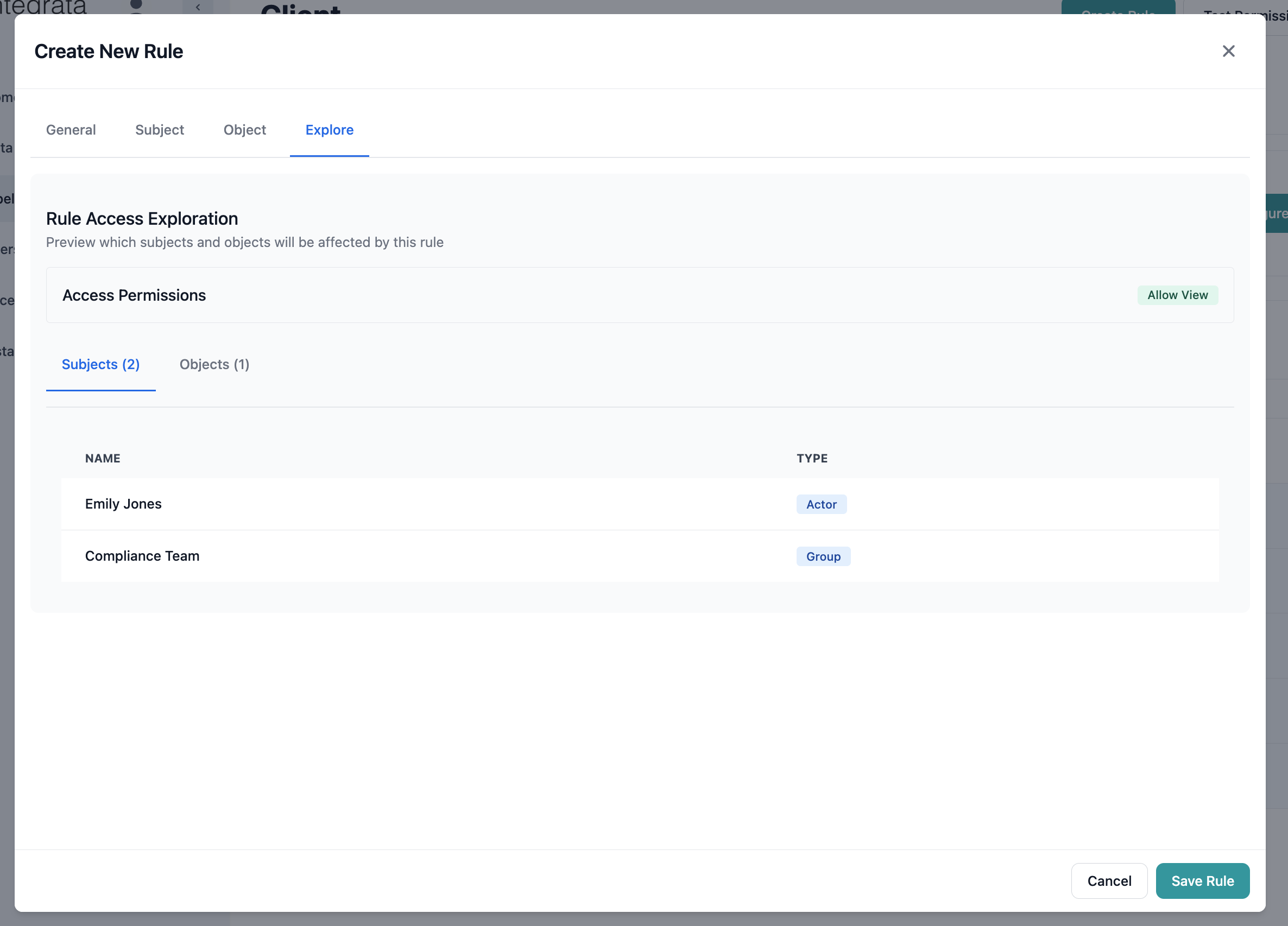
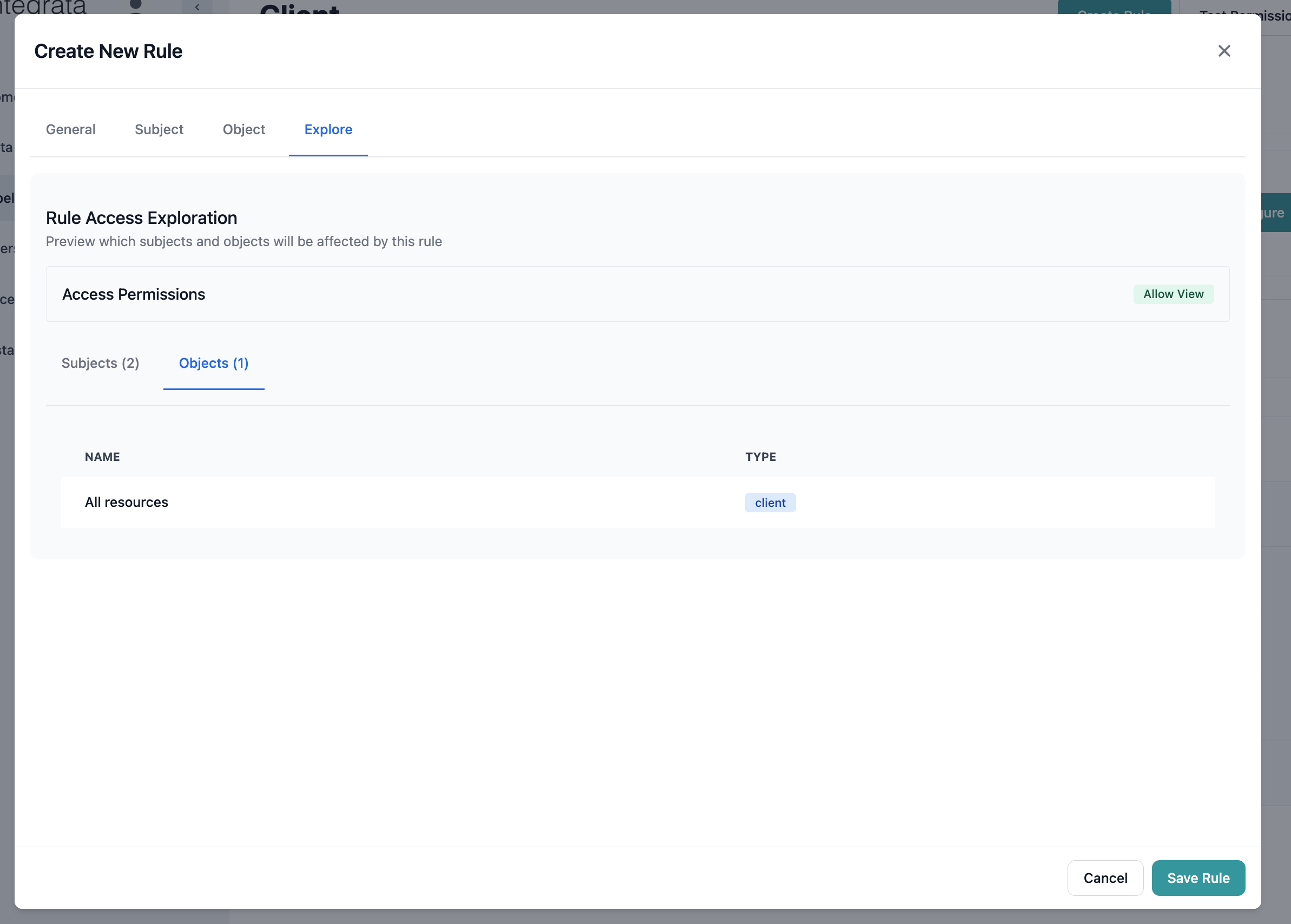
Click the Explore tab to preview which subjects and objects will be affected: The exploration shows:- Affected Subjects: Count and list of users/groups
- Affected Objects: Count and list of resources
- Effective Permissions: Resulting access levels
Step 6: Save the Rule
- Review all settings across tabs
- Click Save to create the rule
- Monitor the save progress:
- Compiling → Validating → Syncing
Understanding Rule Types
System (Native) vs Ingested Rules
Entegrata displays two types of rules in your access control configuration:- System Rules (Native)
- Ingested Rules (Read-Only)
What are System Rules?
System rules are created directly by administrators within Entegrata. These are fully manageable and form your custom access control layer on top of any ingested permissions.Characteristics:
- Created by administrators in Entegrata
- Fully editable and deletable
- Display with standard formatting (white background)
- Show “System” in the Source column
- Can be modified at any time
- Click on the rule row to open for editing
- Modify any settings as needed
- Save changes or delete if no longer needed
- Changes take effect immediately
The visual distinction (blue background tint) helps you quickly identify which rules are managed in Entegrata versus those synchronized from external systems.
Editing Rules
Making Changes
To edit an existing system rule:- Navigate to the rule list
- Click on the rule you want to edit
- The Rule Modal opens with current settings
- Make necessary changes
- Click Save to apply updates
Changes to rules take effect immediately but may require 1-2 minutes to fully propagate across the system.
Deleting Rules
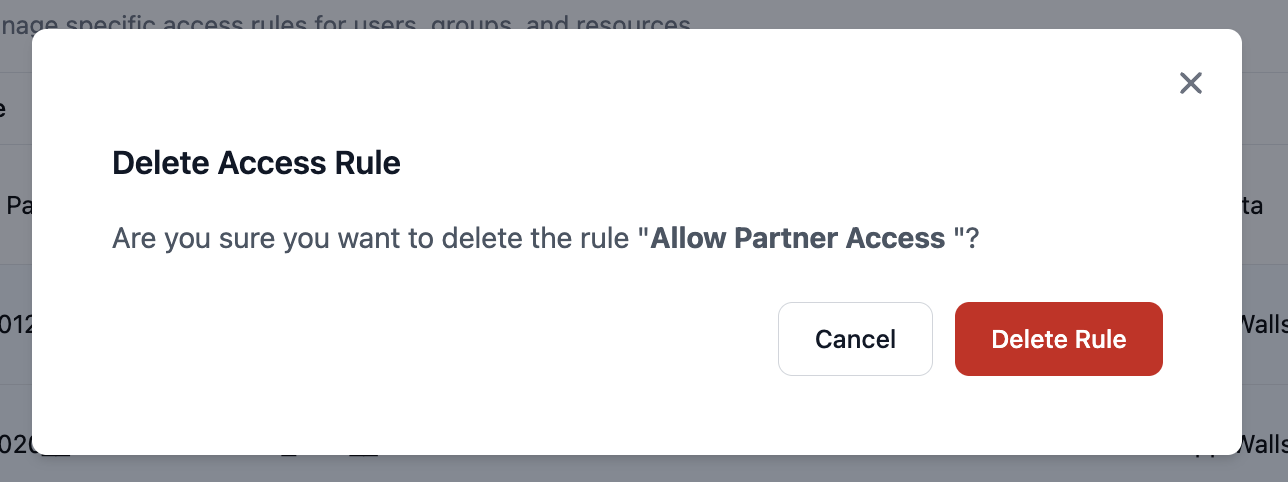
To delete a system rule:- Find the rule in the rules table
- Click the Delete action button
- Confirm deletion in the dialog
- The rule is removed immediately
Rule Management Best Practices
Naming Conventions
Establish consistent naming patterns:[Department] - [Resource Type] - [Access Level][Project] - [Team] - [Permission Type][Compliance] - [Regulation] - [Restriction]
- “Legal - Active Matters - Full Access”
- “Project Alpha - Development Team - Read Only”
- “SOX - Financial Data - Restricted”
Organization Strategies
Filter Best Practices
When using dynamic filters:- Test Thoroughly: Use the Explore tab to verify filter results
- Avoid Over-Complexity: Simple filters are easier to understand and maintain
- Consider Performance: Complex filters may impact evaluation speed
- Document Logic: Explain filter conditions in the rule description
Advanced Rule Patterns
Pattern 1: Department-Based Access
Scenario: Grant department members access to their department’s data Implementation:- Subject Filter:
Department equals "Finance" - Object Filter:
OwnerDepartment equals "Finance" - Permission: Allow
Pattern 2: Time-Based Access
Scenario: Temporary access for consultants Implementation:- Subject: Specific consultant group
- Object Filter:
ProjectEndDate after TODAY - Permission: Allow
- Review regularly to remove expired access
Pattern 3: Hierarchical Access
Scenario: Managers access their team’s data Implementation:- Subject Filter:
Role contains "Manager" - Object Filter:
TeamId in [managed_teams] - Permission: Allow
Pattern 4: Compliance Restrictions
Scenario: Implement ethical walls Implementation:- Subject: Restricted user group
- Object: Specific conflicted matters
- Permission: Deny
- Higher precedence than allow rules
Rule Precedence and Conflicts
When multiple rules apply to the same subject and object:1
Most Specific Wins
Rules targeting specific users override group rules
Rules targeting specific resources override filtered resources
2
Deny Overrides Allow
If both Allow and Deny rules apply at the same specificity level, Deny wins
3
Entity Defaults Apply Last
Default permissions only apply when no specific rules match
Conflict Resolution Example
Given these rules for User A accessing Resource X:- Default: Allow (entity level)
- Rule 1: Deny for Group B (User A is member)
- Rule 2: Allow for User A specifically
Troubleshooting Rules
Common Issues
Rule not taking effect
Rule not taking effect
- Allow 1-2 minutes for propagation
- Verify subject and object selections
- Check for conflicting higher-precedence rules
- Test using permission explorer
Too many/few subjects affected
Too many/few subjects affected
- Review filter conditions carefully
- Check group membership if using groups
- Verify attribute values in source data
- Test filters with different operators
Unexpected denials
Unexpected denials
- Look for deny rules with higher precedence
- Check if default permissions changed
- Verify user group memberships
- Use permission testing to trace the denial source
Performance issues
Performance issues
- Simplify complex filter conditions
- Reduce number of OR conditions
- Consider splitting into multiple simpler rules
- Contact support for optimization assistance
Next Steps
Test Your Rules
Use permission testing tools to verify rules work correctly
Organize with Groups
Create groups to simplify rule management
Configure Defaults
Set appropriate default permissions as rule foundation
Explore Access
Understand how rules affect overall access patterns