
Overview
The permission testing and exploration tools allow you to validate your access control configuration, understand permission flows, and troubleshoot access issues. These tools provide visibility into how permissions are evaluated and help ensure users have appropriate access to resources.Testing Tools Available
Entegrata provides three main testing interfaces:Test Permissions
Test specific subject-object permission combinations at the entity level
Explore Actor
View all permissions for a specific user across all resources
Explore Groups
Test permissions for group members and understand group access patterns
Test Permissions
When to Use Test Permissions
Use this tool to:- Verify if a specific user can access a specific resource
- Understand which rules determine access decisions
- Troubleshoot unexpected access grants or denials
Accessing Test Permissions
Test Permissions can be accessed from the entity level page: From Entity Access Control:- Navigate to Data → Mapping
- Select your mapping and entity
- Go to the Access Control tab
- Click Test Permissions in the toolbar

Using Test Permissions
The Test Permissions modal provides a visual interface for permission testing:
1
Select Subject
Choose who you’re testing access for:
- Start typing to search users or groups
- Select from the dropdown list
- Both actors and groups appear in the combined list
- Selected subject appears on the left side
2
Select Resource (Optional)
Choose what resource to test:
- Leave empty to test entity-level permissions
- Select specific resource from dropdown
- Search by resource name or ID
- Selected resource appears on the right side
3
Run Test
Click the Play button between subject and resource:
- The test executes real time evaluation of permissions
- Connection lines visualize the relationship
- Permission result displays in the center
4
Review Results
The result shows:
- Permission badge (green Allow / red Deny)
- Which rules contributed to the decision
- Rule precedence and evaluation order
- Final permission determination
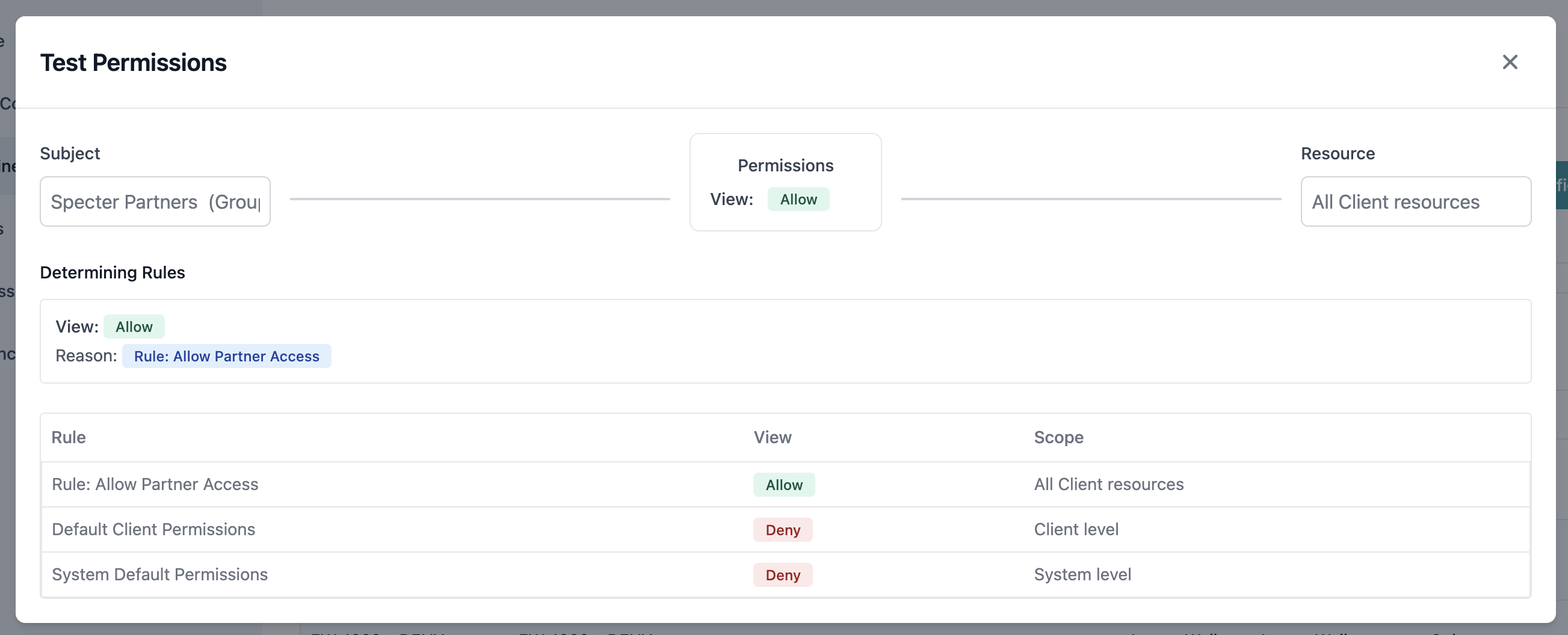
Understanding Test Results
The results panel displays:display
- Allow (green badge): Subject has view access
- Deny (red badge): Subject is blocked from access
list
Shows all rules that affected the decision:
- Rule name and description
- Permission type (Allow/Deny)
- Precedence level
- Why the rule applies
explanation
Explains how the final permission was determined:
- Default permission consideration
- Rule evaluation order
- Precedence conflicts resolution
- Final decision reasoning
Explore Actor Access
Purpose
Actor exploration provides a comprehensive view of an individual’s access to all resources across your entire system.Starting Actor Exploration
- Go to Access Control → Actors
- Click Explore Actor in the toolbar
- The Actor Explorer modal opens
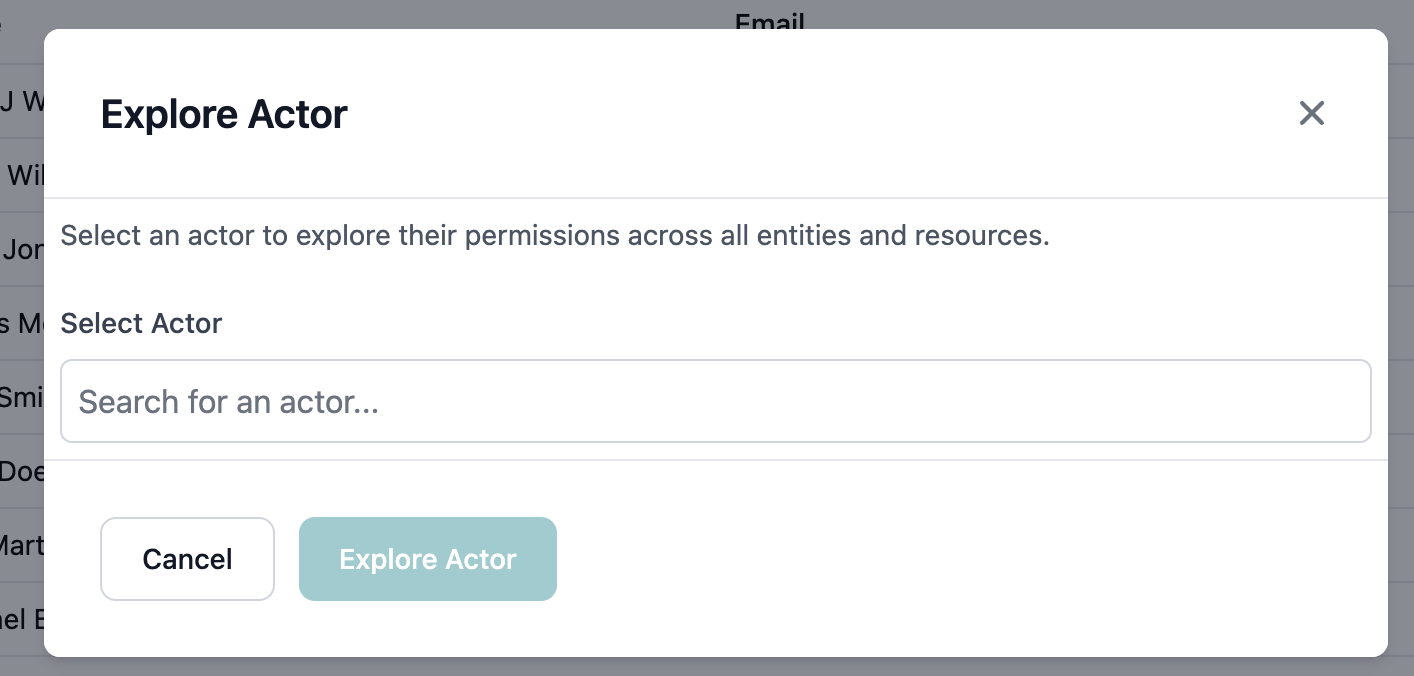
1
Select Actor
Search and select the user to explore:
- Type to search by name
- Select from the dropdown
- Click Explore to proceed
2
View Entity Access
The exploration shows all entity types:
- Entity type and name
- Aggregated permission level
- Click an entity that shows an exception count
3
Drill into Resources
Click an entity to see resource details:
- List of resource exceptions
- Individual resource permissions
- Navigation breadcrumb to return
Actor Access Views
Entity Level View
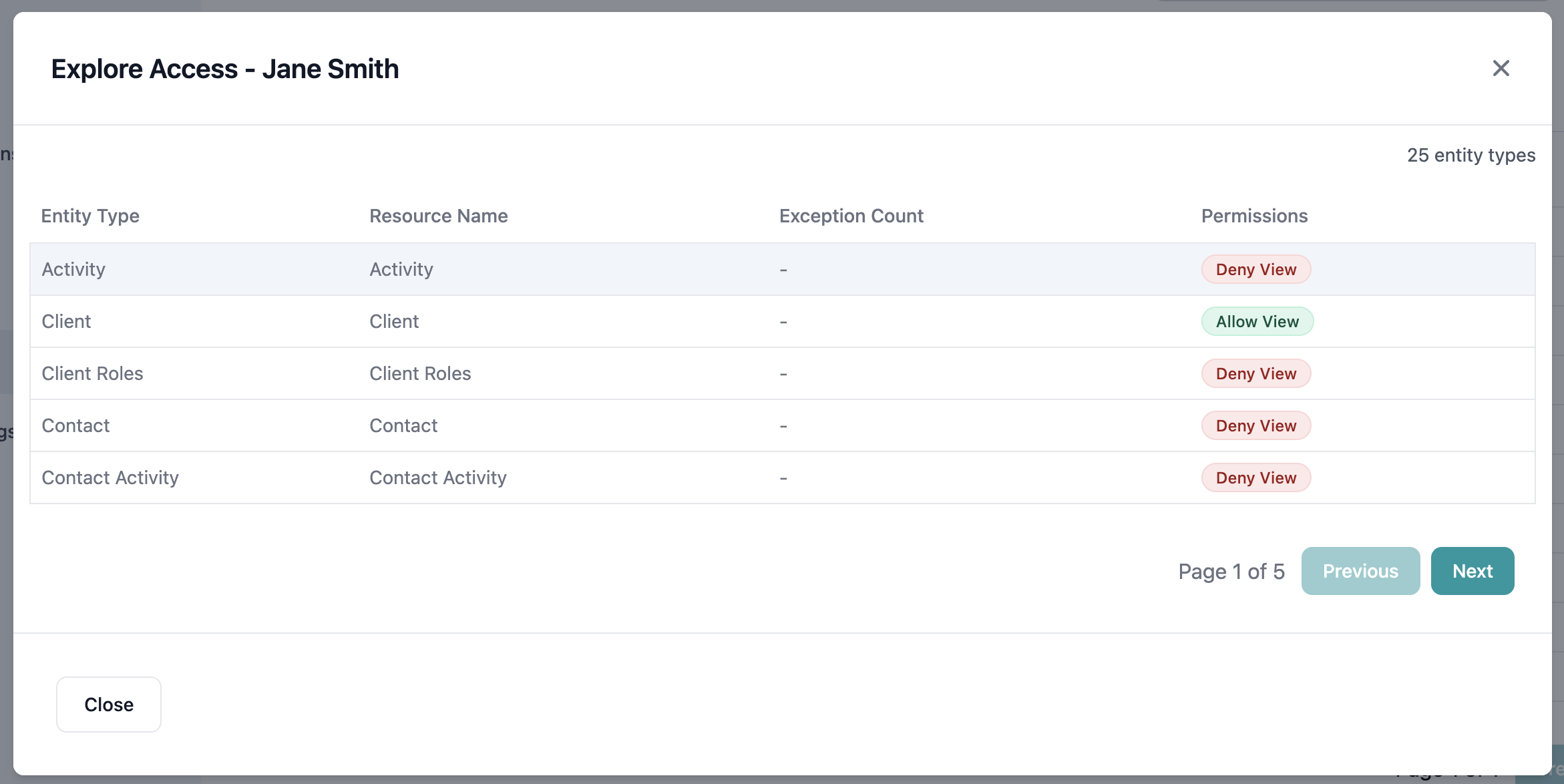
- Entity Type: Canonical object type
- Resource Name: Number of accessible resources
- Exception Count: Resources with access opposite of entity level
- Permission Badge: Aggregated access level
- Click any entity row to see resources
- Use pagination for large entity lists
- Sort by name or resource count
Resource Level View
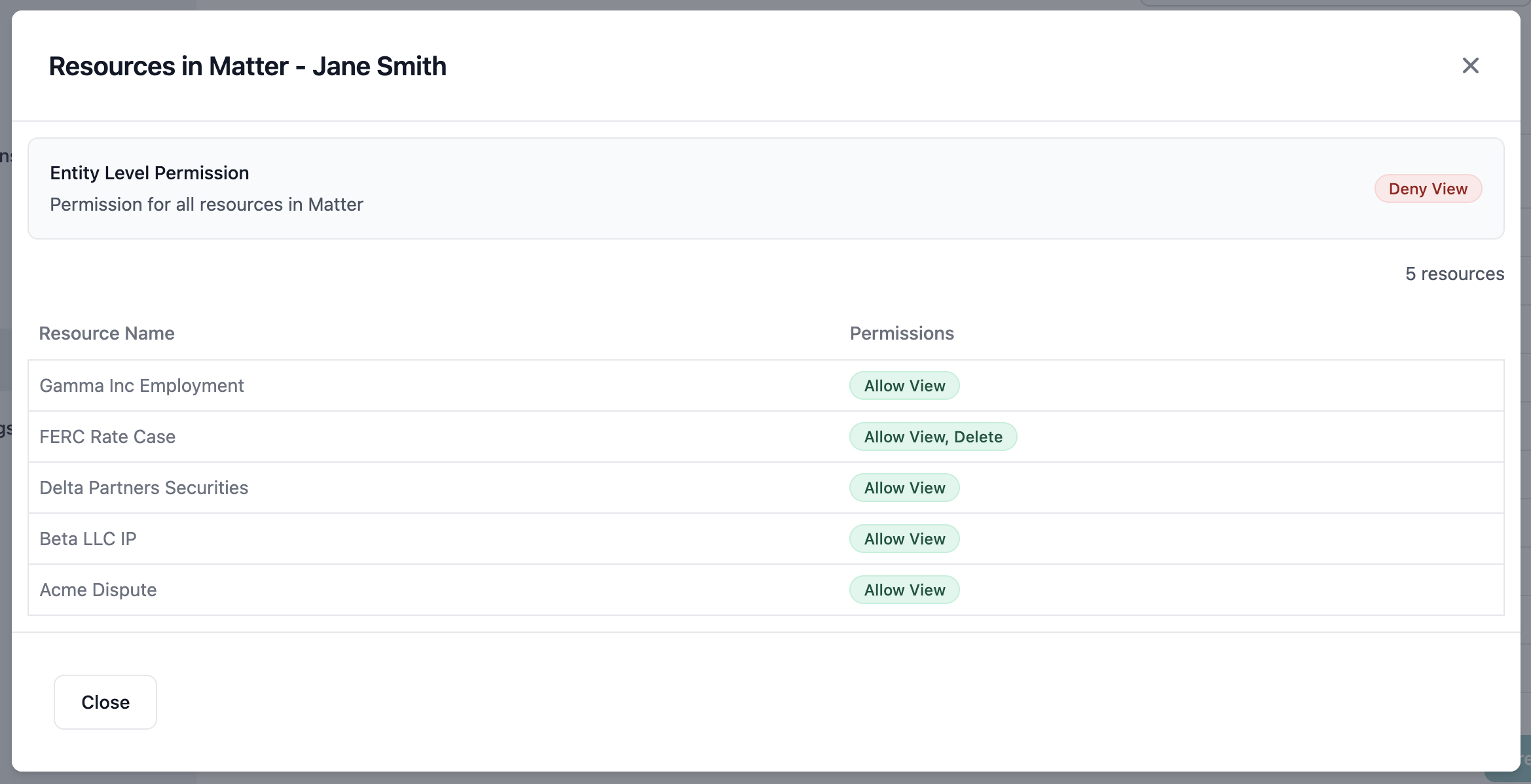
- Breadcrumb: Path back to entity list
- Entity Summary: Overall entity permissions
- Resource List: Individual resources
- Resource Details: Name and permissions
- Paginated resource list
- Individual permission badges
- Back navigation to entity view
Interpreting Actor Exploration
Common patterns to look for:- Full Access: Allow badge on all entities
- Limited Access: Mix of Allow and Deny badges
- No Access: All Deny or no entities shown
- Exceptions: High exception counts indicate complex rules
Group Permission Testing
Accessing Group Tests
To test group-level permissions:- Navigate to Access Control → Groups
- Click on a group to view details
- Click Test Permissions button

Testing Options
The Group Permissions Test modal offers two modes: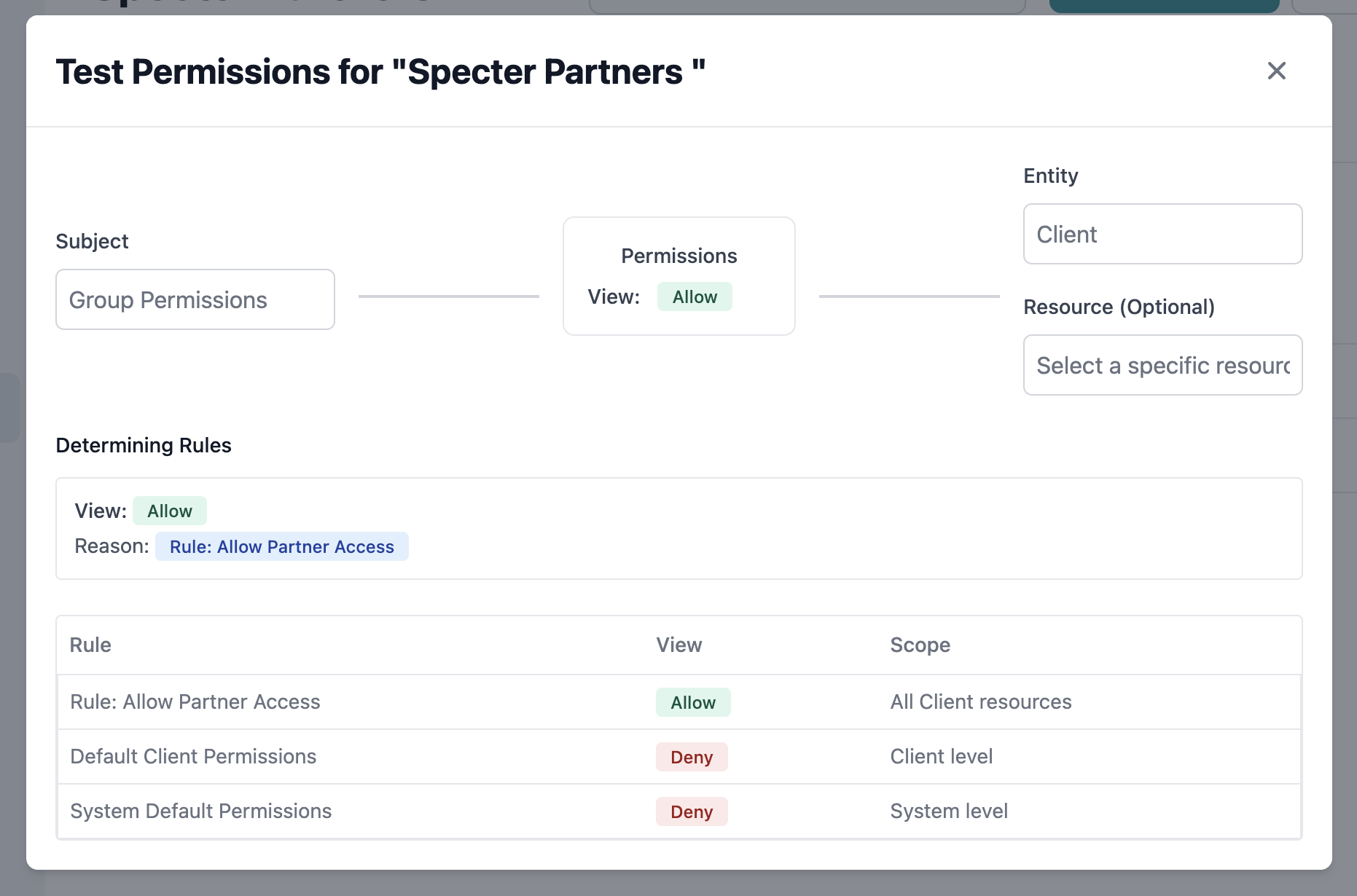
- Group Permissions
- Member Permissions
Tests permissions that apply to the group as a whole:
- Select “Group Permissions” as the subject
- Choose entity and optionally resource
- Run test to see group-level access
- Results show rules targeting the group
Group Test Workflow
1
Select Test Subject
Choose between:
- Group Permissions (group as a whole)
- Specific member (individual in context of group)
2
Select Entity
Pick the entity type to test:
- Loads all available entities
- Shows entity names and types
3
Select Resource (Optional)
For specific resource testing:
- Available resources load based on entity
- Leave empty for entity-level test
- Search to find specific resources
4
Execute Test
Click play button to run test:
- Visual flow shows test configuration
- Results appear immediately
- Detailed rule explanation provided
Exploring Rules
Rule Impact Preview
When creating or editing a rule, use the Explore tab to preview impact: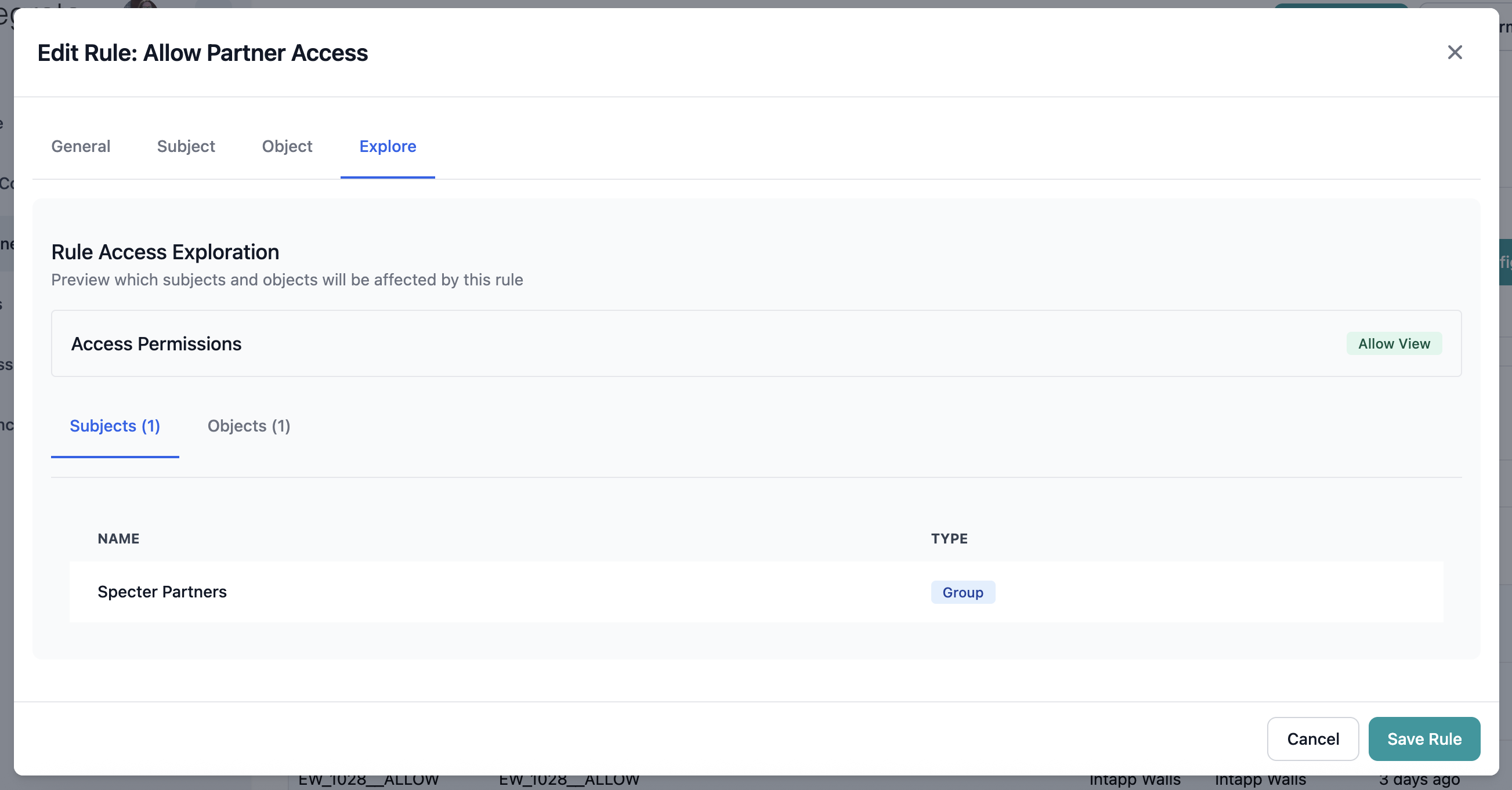
- Affected Subjects: Users and groups covered by the rule
- Affected Objects: Resources the rule applies to
- Permission Impact: How the rule changes access
Understanding Rule Exploration
The Explore tab provides counts and samples:preview
- Total count of affected subjects
- List of affected subjects
- Groups included
preview
- Total count of affected resources
- List of affected resources
- Resource type breakdown
Best Practices for Testing
Testing Strategy
Systematic Testing Approach
1
Test Defaults
Verify default permissions work as expected:
- Test with user having no specific rules
- Confirm entity-level defaults apply
- Document baseline behavior
2
Test Basic Rules
Validate individual rules:
- Test each rule in isolation
- Verify subject selection works
- Confirm resource targeting is correct
3
Test Combinations
Check rule interactions:
- Test overlapping rules
- Verify precedence works correctly
- Confirm deny overrides allow
4
Test Groups
Validate group-based access:
- Test group membership inheritance
- Verify nested groups work
- Check dynamic membership filters
5
Test Real Scenarios
Use actual use cases:
- Test common user workflows
- Verify department access patterns
- Validate compliance requirements
Troubleshooting Access Issues
Common Problems and Solutions
User cannot access expected resources
User cannot access expected resources
Diagnosis steps:
- Use Test Permissions with user and resource
- Check if default is Deny
- Look for blocking Deny rules
- Verify user group memberships
- Check resource exists and is active
- Add Allow rule for user/group
- Remove conflicting Deny rule
- Add user to appropriate group
- Adjust default permissions
User has unexpected access
User has unexpected access
Diagnosis steps:
- Use Actor Explorer to see all access
- Test specific concerning resources
- Review applied rules
- Check for overly broad Allow rules
- Verify group memberships
- Add specific Deny rule
- Narrow existing Allow rules
- Remove user from groups
- Change default from Allow to Deny
Permissions not updating after changes
Permissions not updating after changes
Diagnosis steps:
- Wait 1-2 minutes for propagation
- Re-test permissions
- Check if changes were saved
- Verify no errors during save
- Clear browser cache
- Refresh the page
- Re-save the configuration
- Contact support if persists
Test results don't match actual access
Test results don't match actual access
Diagnosis steps:
- Verify testing correct user
- Check testing correct resource
- Confirm test environment matches production
- Review any system-level overrides
- Ensure consistent testing parameters
- Check for environment differences
- Verify no cached permissions
- Review audit logs
Advanced Testing Scenarios
Scenario 1: Multi-Level Inheritance
Test complex permission inheritance:Scenario 2: Time-Based Access
Test temporal permissions:- Filter-based rules with date conditions
- Verify access changes over time
- Test expiration handling
Scenario 3: Conflicting Rules
Test precedence with conflicts:- User-specific Deny
- Group-level Allow
- Default Allow
- Verify Deny wins
Scenario 4: Dynamic Membership
Test filter-based groups:- Change user attributes
- Verify group membership updates
- Test resulting permission changes
Next Steps
Configure Rules
Create and manage access control rules
Manage Groups
Organize users into access control groups
Set Defaults
Configure entity-level default permissions
View Overview
Return to access control overview
Getting Help
If you encounter issues with permission testing:- Check Documentation: Review relevant sections for your scenario
- Contact Support: Include test parameters and results
- Provide Context: Share rules, groups, and expected behavior
- Include Screenshots: Capture test configurations and results