
Overview
You can build your own Power BI reports on the data Entegrata delivers to your Databricks environment. This page covers three ways to do it and which one to choose.Prerequisites
- Power BI Desktop. Download Power BI Desktop if you do not have it.
- Build permission. For option 1 you need Build permission on the semantic model. Ask the semantic model’s owner or a workspace admin if you are not sure.
- License. To publish and share reports, you need a Power BI Pro or Premium Per User license. Who can view them depends on your workspace; see Licensing Patterns.
- Connection details. For options 2 and 3 you need your Databricks connection details. Ask your Entegrata Customer Experience Manager for them. See Set up your connection.
Choose an Option
For Microsoft’s general guide to the Databricks connection, see Connect Power BI Desktop to Azure Databricks.
Option 1: Connect to an Existing Model
You can build on a published semantic model in the Power BI service or in Power BI Desktop. Either way, the report uses a live connection to the model, so the model itself does not change.- In the Power BI service: create a new report from your workspace, pick the published semantic model, and select Create a blank report. Entegrata recommends this over Auto-create report. See Microsoft Learn: Create reports based on semantic models from different workspaces.
- In Power BI Desktop: select Get data, then Power BI semantic models, and connect to the model. See Microsoft Learn: Connect to semantic models in the Power BI service from Power BI Desktop.
Option 2: Connect to a Databricks View
This option uses a shared query called Common Schema. It holds your connection details in one place, so every table you add uses the same connection.1
Open Transform data
In Power BI Desktop, start a blank report and open Transform data.
2
Set up your parameters
Create the four connection parameters described in Set up your connection.
3
Create the Common Schema query
Right-click in the Queries pane and select New Query, then Blank Query. Name it 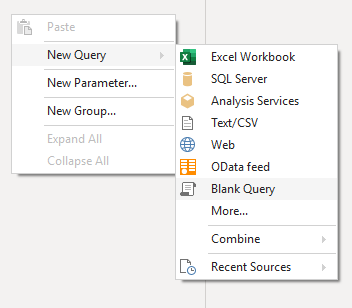
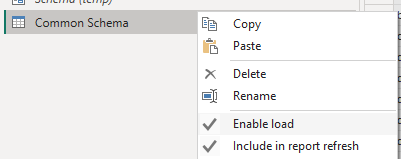
Common Schema, open the Advanced Editor, paste in the code below, and select Done. Then right-click the query and turn off Enable load.4
Add tables and views
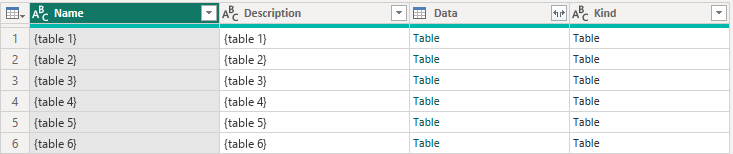
For each table or view you want in your model, right-click Common Schema and select Reference. In the new query, select the Table link in the Data column for the table or view you want.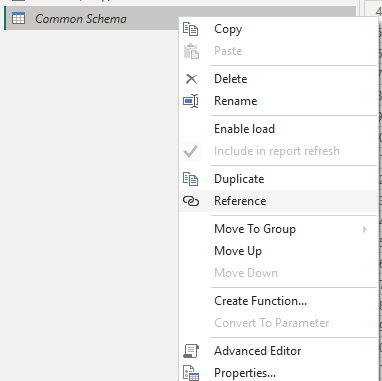
5
Adjust each table
Make any adjustments each table needs, for example setting data types.
Option 3: Run a Databricks Query
This option uses a shared function called Common Query Function. You paste a SQL query into it and it returns the result as a table.1
Set up your parameters
Create the four connection parameters described in Set up your connection, if you have not already.
2
Create the Common Query Function
Create a blank query, open the Advanced Editor, paste in the code below, and name the query 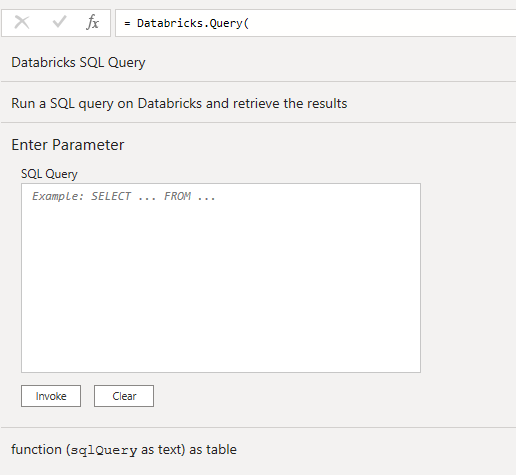
Common Query Function.3
Run your query
Paste the query you want to run into the SQL Query box of the function and select Invoke. If the query runs, the results appear.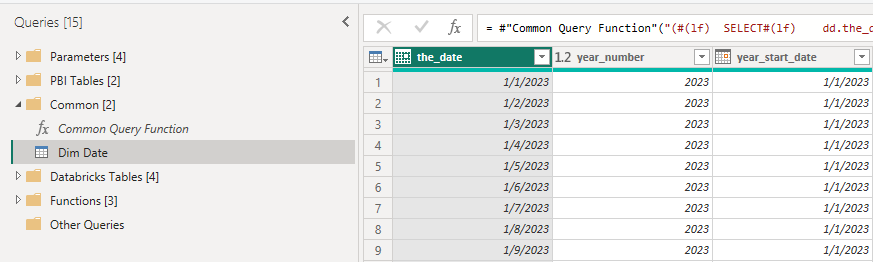
4
Repeat as needed
Repeat for each result set you want in your model. You can then load them as if they were views in Databricks.
Set Up Your Connection
Connection Details
Ask your Entegrata Customer Experience Manager for these four values.Parameters
Create one Power BI parameter for each value, using the names in the table above. The code in options 2 and 3 uses those names. See Microsoft Learn: Using parameters.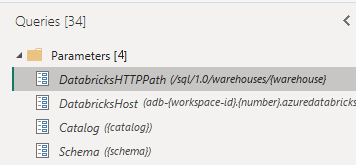
Required Connection Options
The code above already sets both of these. Keep them if you write your own queries. Both are described in Microsoft Learn: Azure Databricks connector.EnableQueryResultDownload = "0"handles firewall restrictions.Implementation = "2.0"uses the newer ADBC driver instead of the ODBC driver, which is being retired.
The ADBC driver is in preview. Databricks lists ADBC support for Power BI as a public preview, although Power BI uses it by default for new Databricks connections. See Microsoft Learn: Transition from ODBC to ADBC drivers.