
Overview
Firewall rules control which external services and resources your Entegrata instance can communicate with. Rules are organized by data source — making it easy to see exactly which policies apply to each integration — and by system-level rules for infrastructure-wide access. This is a critical security feature that:- Restricts outbound connections to only approved destinations
- Prevents unauthorized data exfiltration
- Ensures compliance with security policies
- Enables safe communication with data sources and third-party services
Firewall rules complement your network connection settings (S2S VPN or VNet Peering) by controlling what your Entegrata instance can access once connected to your infrastructure.
Navigating Firewall Settings
To access firewall settings, navigate to Instance Settings and click Manage Firewall Rules on the Firewall Settings card. The card displays a summary of your current application and network rule counts.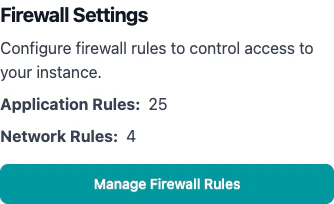
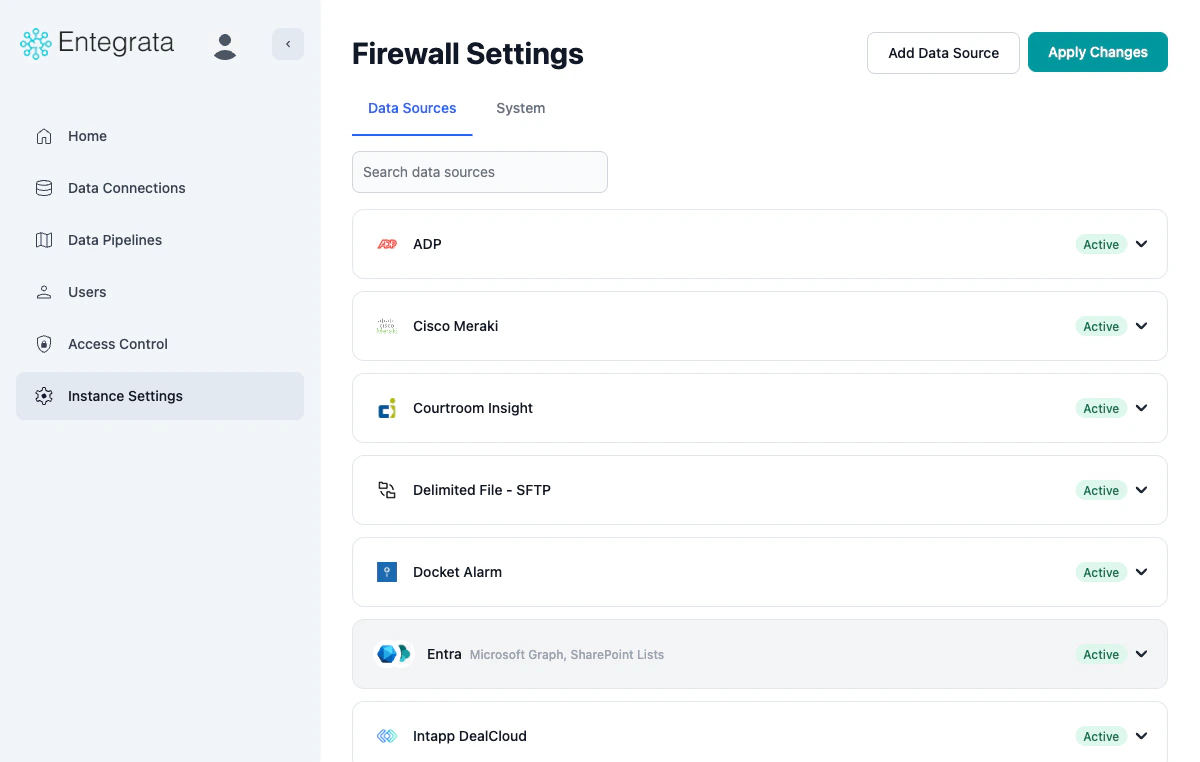
- Data Sources
- System
Lists all data sources that have firewall policies configured. Each data source appears as an expandable card showing:
- Data source icon and name — identifies the integration
- Status badge — Active (at least one policy configured) or Inactive (no policies yet)
- Expand/collapse arrow — click to view individual policies
Understanding Firewall Policies
Policy Types
Each firewall policy is one of two types:- Application Policies (FQDN)
- Network Policies (IP/CIDR)
What they are: Domain-based policies that match Fully Qualified Domain Names (FQDNs)Use cases:
- Cloud APIs (e.g.,
api.example.com) - SaaS platforms (e.g.,
app.salesforce.com) - Services with dynamic IPs
- Exact domains:
api.example.com - Wildcard subdomains:
*.example.com
Policy Display
When you expand a data source or view the System tab, each policy row shows: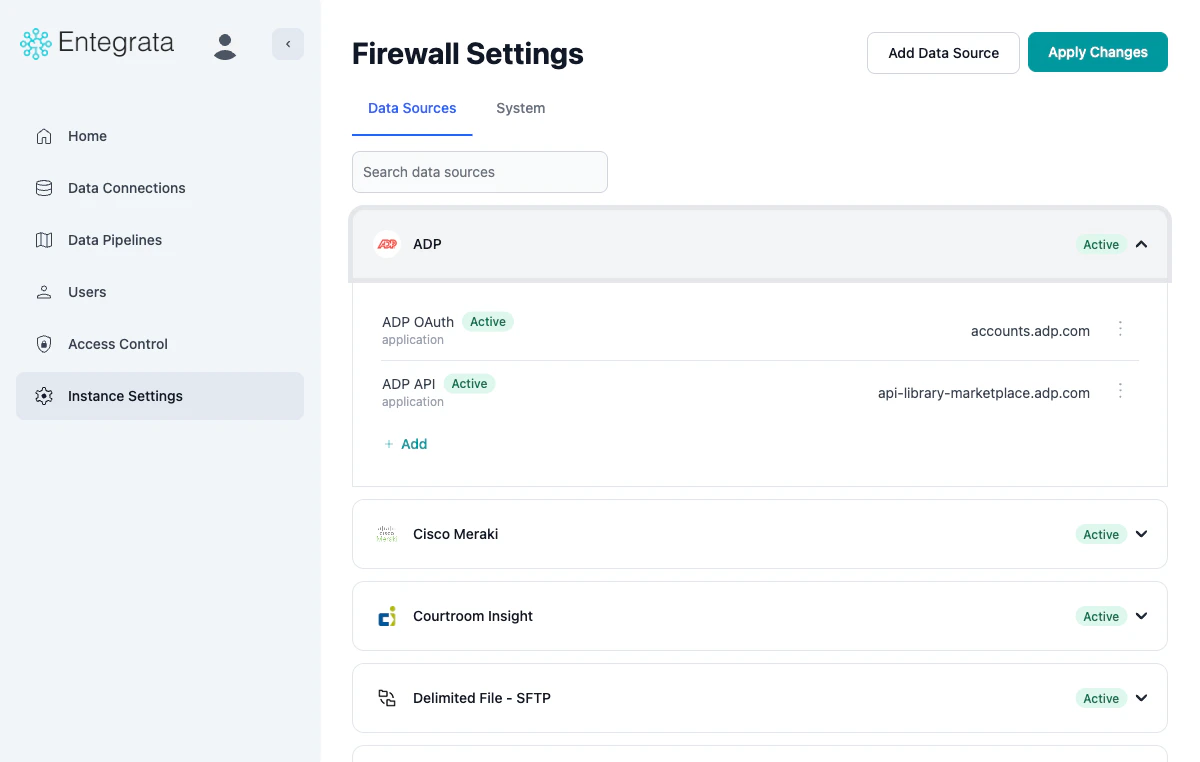
string
A descriptive label for the policy (e.g., “ADP OAuth”, “Database Server”, “Fabric”).
badge
Shows the current state of the policy:
- Pending — The policy has been saved but not yet deployed. It will become active after you click Apply Changes and the infrastructure transition completes.
- Active — The policy is deployed and enforced on your infrastructure.
label
Shows application (FQDN-based) or network (IP/CIDR-based).
string
The FQDN or IP address/CIDR range (e.g.,
accounts.adp.com, 1.2.3.4/32).menu
A three-dot menu with Edit and Delete options.
Adding a Data Source
Use this workflow to add firewall policies for a new data source integration.1
Open the Add Data Source Dialog
On the Data Sources tab, click Add Data Source in the top-right corner.A dialog appears showing all available data sources with icons. Use the search field to filter the list.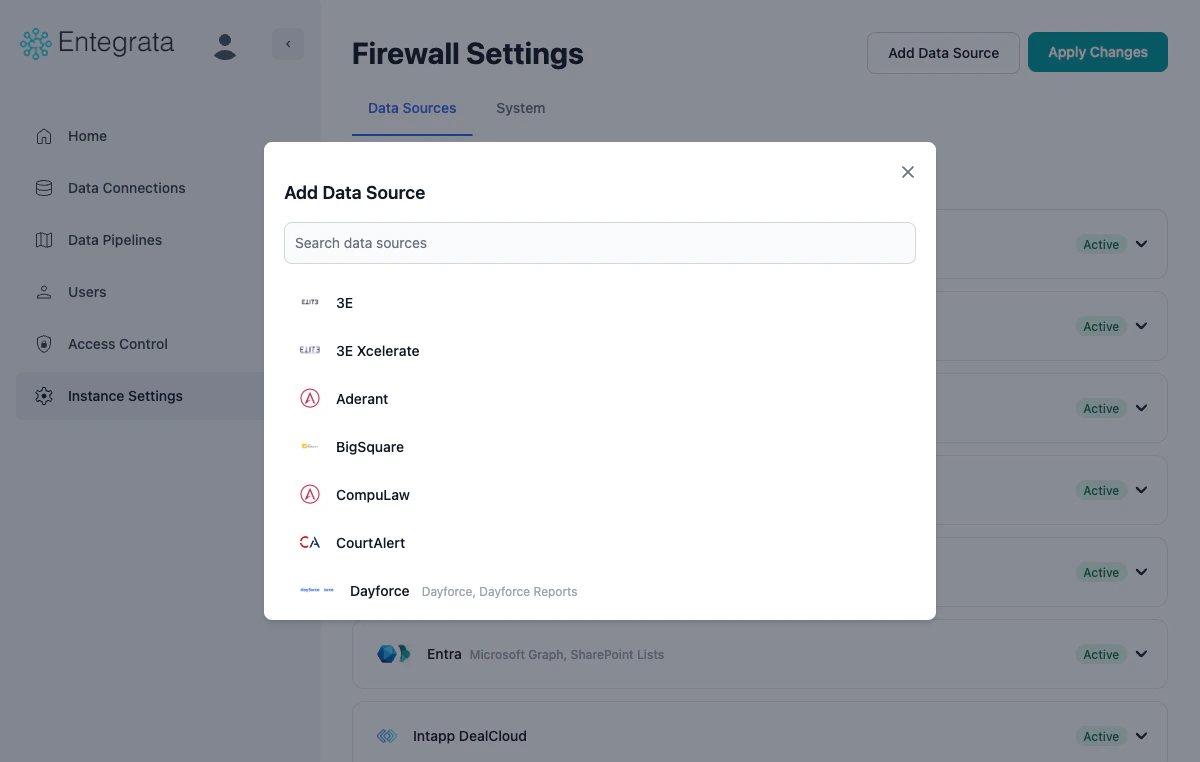
2
Select a Data Source
Click the data source you want to add (e.g., 3E, Aderant, Iridium).The data source is added to your list in an Inactive state and automatically expanded, showing the message: “This data source requires at least 1 policy to activate.”
3
Add Policies
Click Add Policies to open the guided policy configuration dialog. This dialog is tailored to the selected data source and shows:Required — Policies that must be configured for the data source to function (e.g., a database server IP address).Suggested — Optional policies that may be needed depending on your configuration (e.g., a DNS server).For each policy: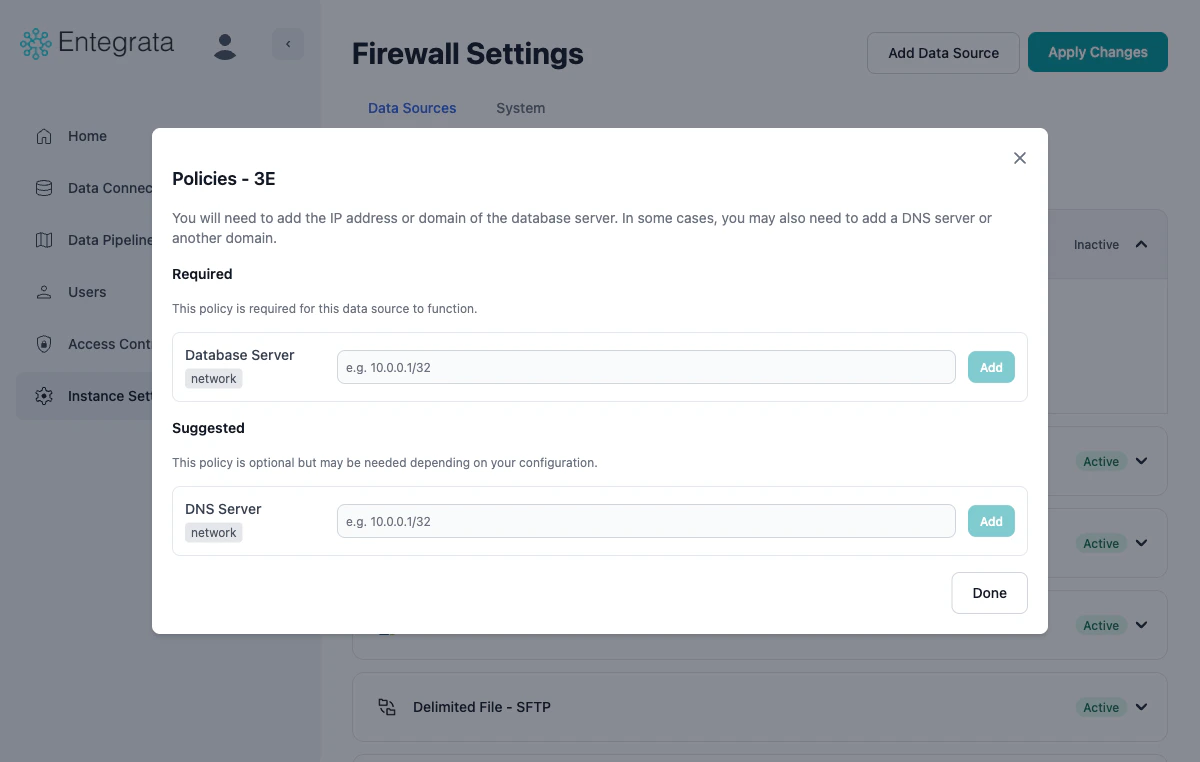
- Enter the IP address/CIDR range or domain in the text field
- Click Add to save the policy
- Click Done when finished
The policy type (network or application) is pre-selected based on what the data source requires. Placeholder text shows the expected format (e.g.,
e.g. 10.0.0.1/32).4
Review Pending Policies
Once policies are added, they appear with a Pending status. The data source is now listed but the policies are not yet enforced on your infrastructure.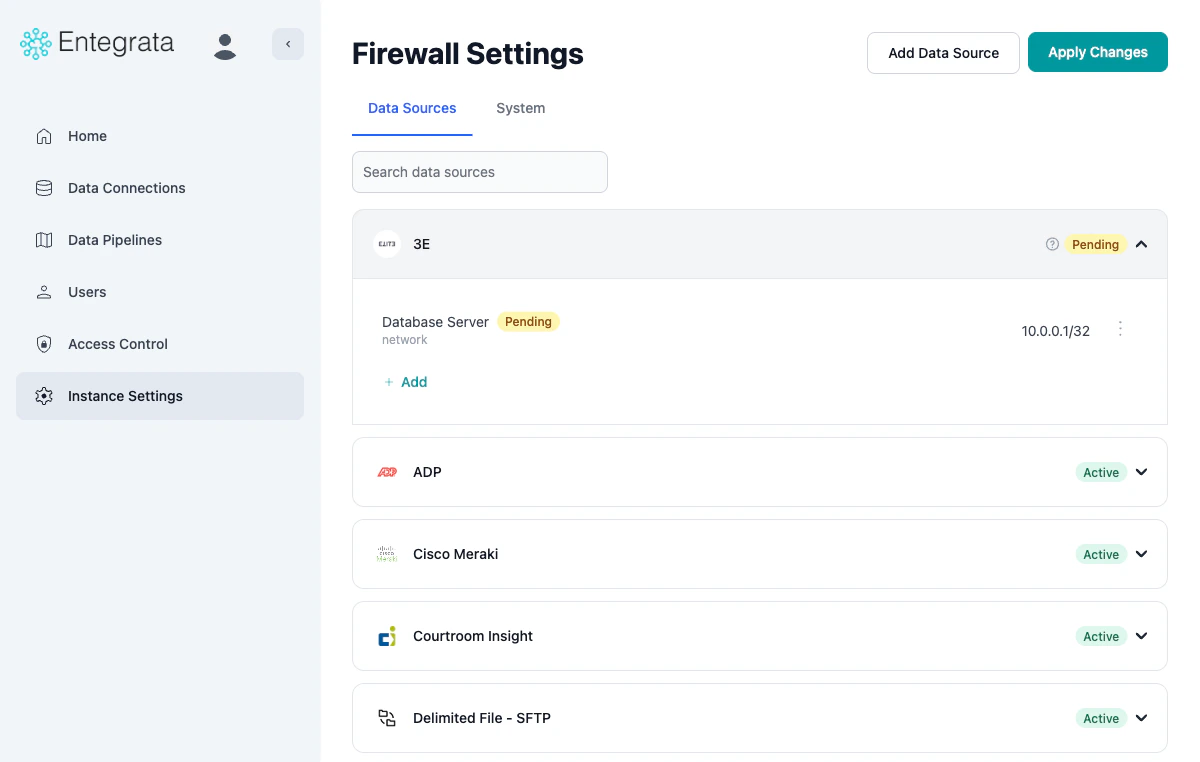
5
Apply Changes
Click Apply Changes to deploy the new policies to your infrastructure. Once the infrastructure transition completes, the policy status changes from Pending to Active and the data source becomes fully operational.
Removing a Data Source
If a newly added data source is not needed, click Remove in the expanded data source card to remove it before applying changes.Adding a System Policy
Use this workflow to add custom system-level firewall policies.1
Switch to the System Tab
Click the System tab at the top of the firewall settings page.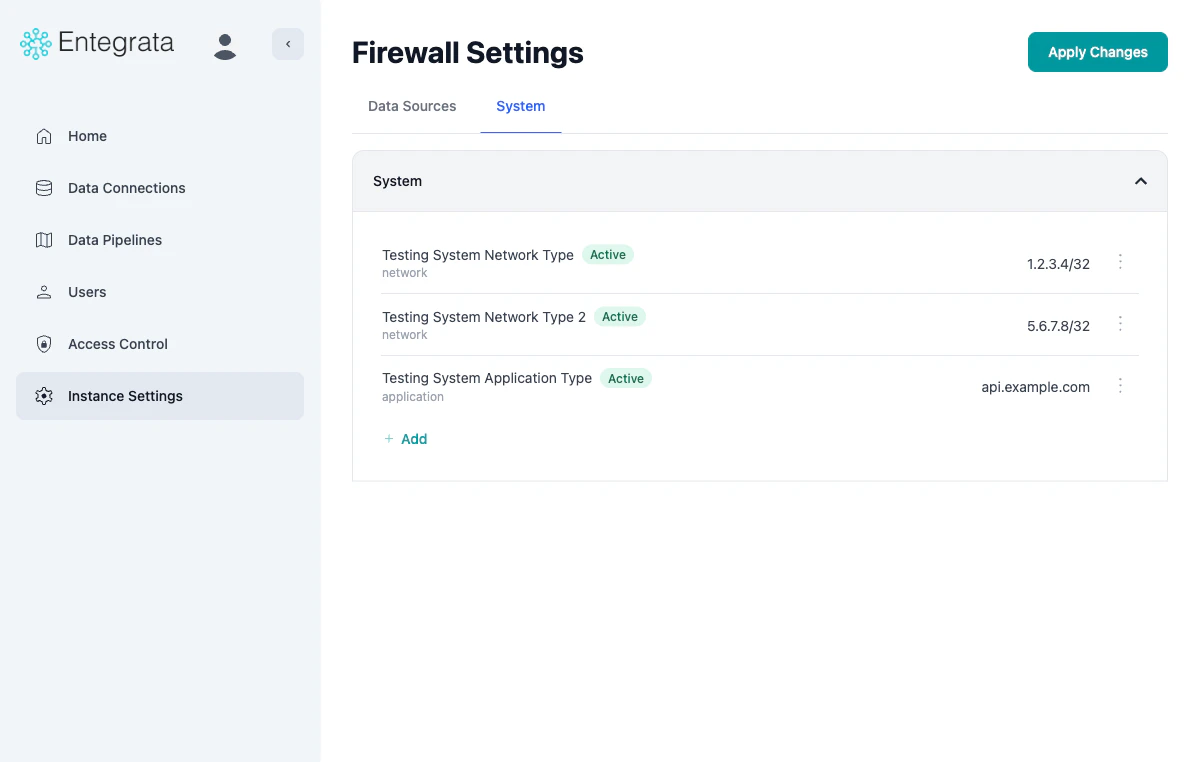
2
Open the Add Custom Policy Dialog
Click the + Add button at the bottom of the System rules list.
3
Configure the Policy
Fill in the dialog fields: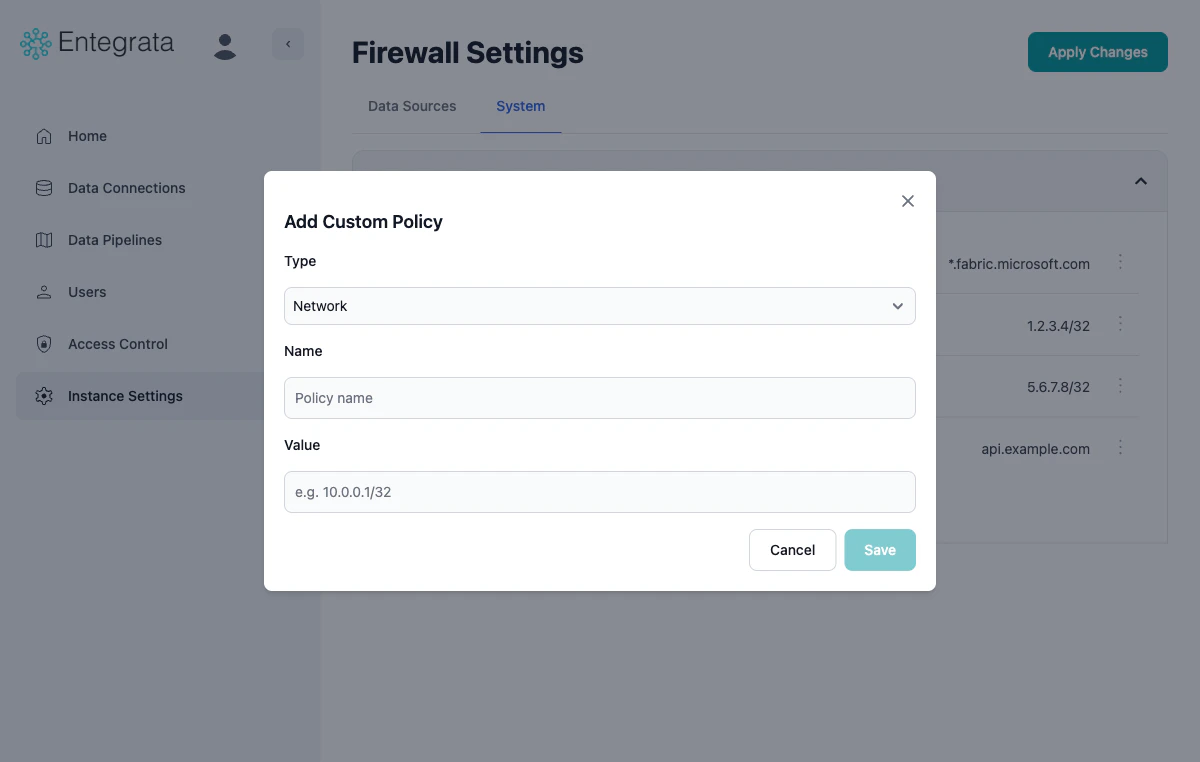
- Type: Select Network (for IP/CIDR) or Application (for FQDN)
- Name: Enter a descriptive policy name
- Value: Enter the IP address/CIDR range or domain name
The placeholder text updates based on your type selection —
e.g. 10.0.0.1/32 for Network or a domain format for Application.4
Save the Policy
Click Save to add the policy. It appears in the System rules list immediately with a Pending status.
5
Apply Changes
Click Apply Changes to deploy the policy to your infrastructure. Once the transition completes, the policy status changes from Pending to Active.
Adding a Policy to an Existing Data Source
You can add additional policies to data sources that are already configured.1
Expand the Data Source
On the Data Sources tab, click the data source card to expand it and view its current policies.
2
Click Add
Click the + Add button at the bottom of the policy list within the expanded data source.
3
Configure and Save
The Add Custom Policy dialog opens. Select the policy type, enter a name and value, then click Save. The new policy appears with a Pending status.
4
Apply Changes
Click Apply Changes to deploy the updated configuration. The policy status changes to Active once the transition completes.
Editing a Policy
1
Locate the Policy
Expand the relevant data source on the Data Sources tab, or navigate to the System tab.
2
Open the Edit Dialog
Click the three-dot menu (⋮) on the right side of the policy row and select Edit.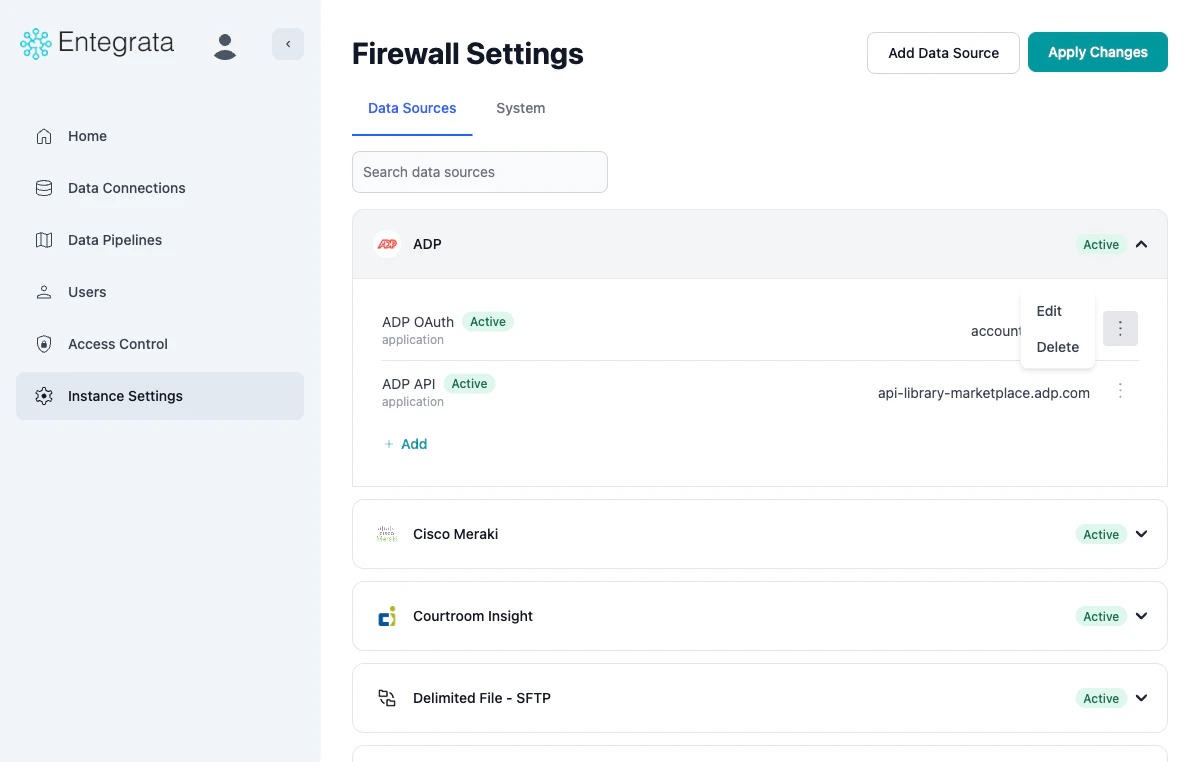
3
Update the Policy
Modify the policy details as needed. The same validation rules apply as when creating a new policy.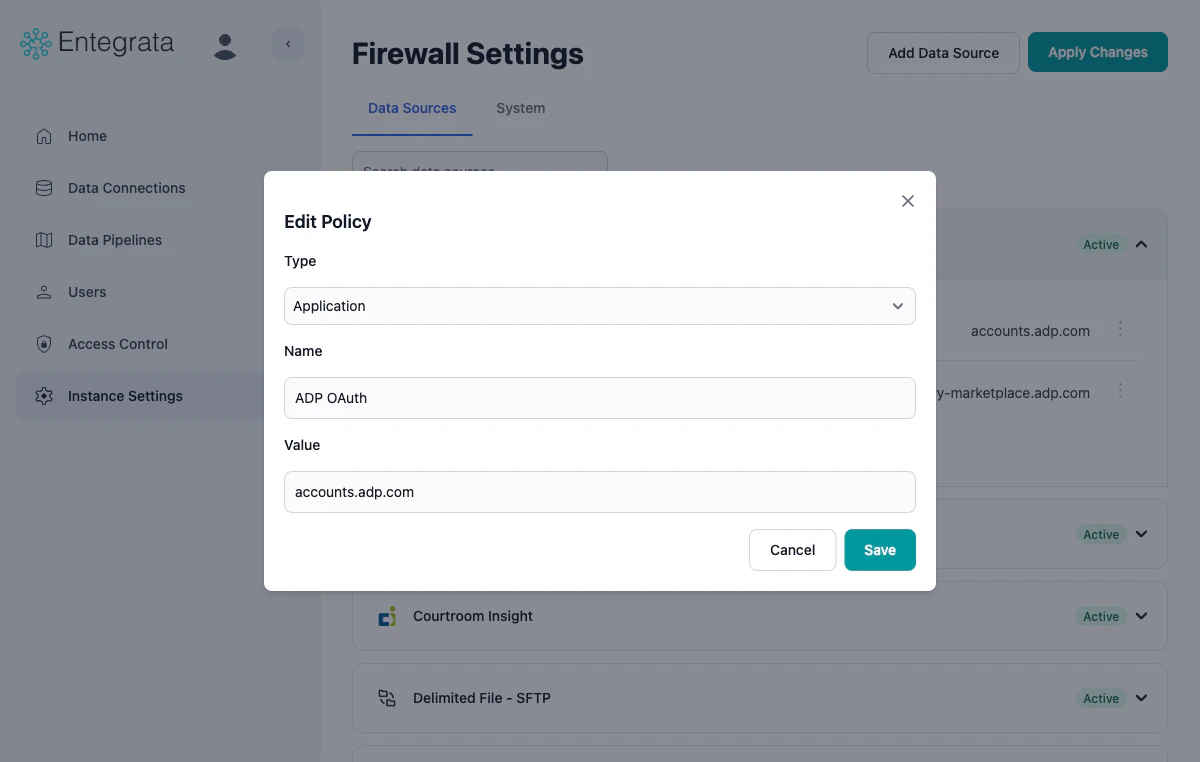
4
Save and Apply
Click Save, then click Apply Changes to deploy the update to your infrastructure.
Deleting a Policy
1
Locate the Policy
Expand the relevant data source or navigate to the System tab.
2
Delete the Policy
Click the three-dot menu (⋮) on the policy row and select Delete.
3
Apply Changes
Click Apply Changes to remove the policy from your infrastructure.
The deletion is saved to your configuration immediately but the policy remains active on your infrastructure until you apply changes.
Applying Firewall Changes
Understanding the Save-Then-Apply Workflow
Firewall management uses a save-then-apply workflow. When you add or edit a policy, it is saved with a Pending status. Pending policies are not enforced on your infrastructure until you click Apply Changes and the transition completes, at which point they become Active.1
Make Changes
Add, edit, or delete policies as needed. You can batch multiple changes together.
2
Apply Changes
Click the Apply Changes button to deploy all staged changes to Azure infrastructure.
3
Wait for Transition
The system triggers an infrastructure update:
- Status changes to Transitioning
- A loading screen displays progress
- The system polls for completion every 30 seconds
- Changes are deployed via infrastructure as code
4
Changes Active
Once the transition completes:
- Instance status returns to Idle
- All Pending policies transition to Active
- New firewall policies are now enforced
- Your instance can access newly allowed destinations
- Removed destinations are now blocked
Why Save-Then-Apply?
Safety: Review all changes before deploying to productionEfficiency: Batch multiple policy changes into a single infrastructure updateFlexibility: Experiment with policies without immediately affecting infrastructureTransparency: Clear separation between configuration and deployment
During Transition State
While your instance is in Transitioning state:- Existing firewall policies remain active
- Data collection continues normally
- You cannot make additional firewall changes
- You cannot modify other instance settings
- You cannot apply new changes until transition completes
Firewall infrastructure transitions typically take 5-15 minutes depending on the complexity of changes being deployed.
Validation Rules
Valid FQDN Examples
Valid FQDN Examples
These will be accepted:
api.salesforce.com*.azure.comapp.subdomain.example.comservice-123.cloud.provider.netmy-api.example.co.uk
Invalid FQDN Examples
Invalid FQDN Examples
These will be rejected:
*.com(wildcard too broad)example(missing TLD)http://api.example.com(includes protocol)api.example.com:443(includes port)api..example.com(double dots)
Valid IP/CIDR Examples
Valid IP/CIDR Examples
These will be accepted:
192.168.1.100192.168.1.100/3210.0.0.0/24172.16.0.0/16203.0.113.0/28
Invalid IP/CIDR Examples
Invalid IP/CIDR Examples
These will be rejected:
256.1.1.1(octet > 255)192.168.1.1/33(CIDR > 32)192.168.1(incomplete IP)2001:db8::1(IPv6 not supported)192.168.1.1-192.168.1.10(range notation not supported)
Troubleshooting
Collector fails after adding firewall policy
Collector fails after adding firewall policy
Symptoms: Collector reports connection failures despite policy being addedSolutions:
- Check if the policy status is still Pending — policies are not enforced until they reach Active status after applying changes
- Wait for any Transitioning state to complete
- Double-check the policy value matches the collector’s actual endpoint
- Ensure the policy uses the correct type (application for domains, network for IPs)
- Check collector logs for the actual connection target
Data source shows Inactive after adding policies
Data source shows Inactive after adding policies
Symptoms: Data source remains Inactive even after adding policiesSolutions:
- Ensure at least one Required policy has been added
- Verify the policy value passed validation (no error messages in the form)
- Try removing and re-adding the data source
Cannot find a data source in the Add Data Source dialog
Cannot find a data source in the Add Data Source dialog
Symptoms: The data source you need is not listedSolutions:
- Check the search field for typos
- The data source may already be added — check the Data Sources tab
- If the data source is not in the catalog, add rules manually via the System tab
Wildcard policy doesn't work as expected
Wildcard policy doesn't work as expected
Symptoms: Connection fails despite a wildcard rule that should matchSolutions:
*.example.commatchesapi.example.combut NOTapi.sub.example.com- For nested subdomains, add multiple rules or use exact domains
*.example.comdoes not matchexample.comitself — add both if needed- Verify the policy has been applied (not just saved)
Changes stuck in Transitioning state
Changes stuck in Transitioning state
Symptoms: Apply Changes triggered but state doesn’t return to IdleSolutions:
- Wait at least 15-20 minutes for infrastructure updates
- Refresh the page to see current status
- Check Azure portal for alerts in your subscription
- If it persists beyond 30 minutes, contact Entegrata support
Security Best Practices
Firewall Security Recommendations
Principle of Least Privilege
- Only allow access to services actively in use
- Use specific FQDNs over wildcards when possible
- Prefer /32 CIDR (single IP) over broad ranges
- Use the guided policy setup when adding data sources — it recommends only what’s needed
- Review firewall policies quarterly
- Remove data sources that are no longer in use
- Verify policies match active collectors and integrations
- Use the search feature to quickly audit specific data sources
- Test policy changes in non-production environments first
- Batch related changes and apply them together
- Coordinate firewall changes with your security team
- Plan changes during maintenance windows
Related Documentation
Network Connections
Configure S2S VPN or VNet Peering for network connectivity
Instance Overview
Learn about instance administration concepts
Collector Configuration
Set up data collectors that use firewall rules
Contact Support
Get help with firewall configuration issues