
What You WIll Do
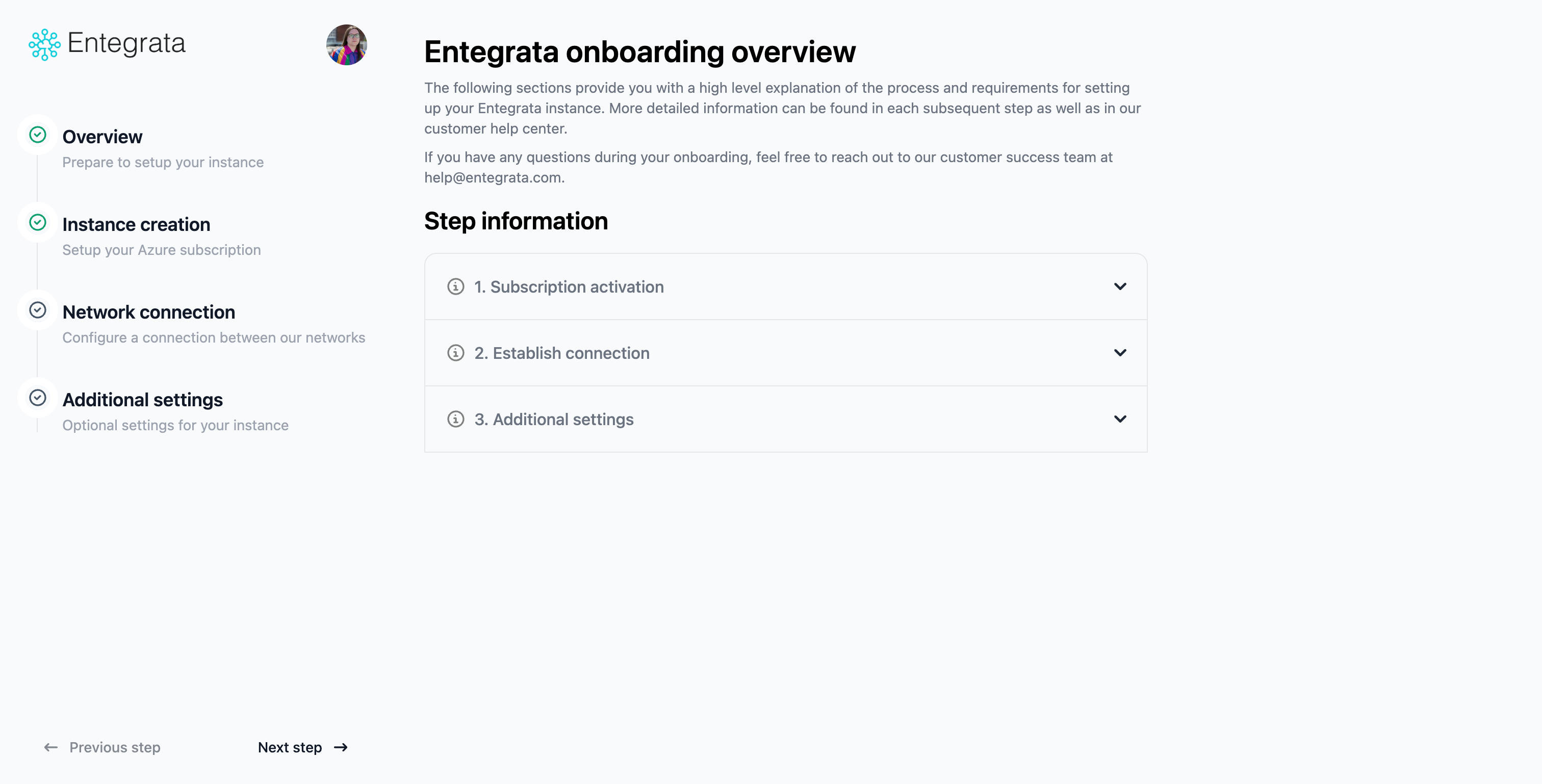
The onboarding process walks you through the essential steps to get your Entegrata instance up and running:- Activate your Azure subscription and provision infrastructure
- Establish secure network connectivity between Entegrata and your environment
- Configure optional Customer Managed Keys
- Complete setup and access the admin portal
The Onboarding Process
1
Subscription Activation
Activate your Azure subscription to provision the foundational Entegrata infrastructure. This automated process creates the initial resources needed to bootstrap your instance.
2
Network Connection Setup
Choose and configure your network connectivity method. Select between Virtual Network (VNet) Peering for Azure-based resources or Site-to-Site VPN for on-premises or hybrid environments.
3
Additional Settings (Optional)
Configure optional Customer Managed Keys (CMK) for encryption. This setting can be configured now or added later after onboarding.
4
Completion
Review your configuration and complete the onboarding process. You’ll be redirected to the admin portal where you can begin configuring users, data pipelines, and access controls.
Prerequisites
During the onboarding process, you will need:- Access to the Entegrata Admin Portal at https://admin.entegrata.com
- Azure subscription permissions to create and manage resources
- Network information for your environment (CIDR ranges, VNet details, or VPN configuration)
- For self-hosted instances, Databricks Account ID and Service Principal details
- Optional Customer-Managed Key (CMK) in unencrypted PEM format if you want to use your own encryption keys
- Azure Entra ID configured if you plan to use single sign-on (SSO)
The onboarding process can be paused and resumed at any time. Your progress through the steps is automatically saved, though any unsaved form data within a step will need to be re-entered when you return. You can gather the necessary information as you progress through each step.
Ready to Begin?
You can start the onboarding process and gather the required information as needed for each step.Start Onboarding: Subscription Activation
Begin with Step 1: Activate your Azure subscription and provision infrastructure
Need help during onboarding? Visit our support
portal or contact your Entegrata representative.