
- Give some users read-only access while others can make changes
- Limit who can manage users, roles, access control, or instance settings
- Restrict a user to specific data connections or pipelines
- Separate who can change production pipelines from who can change dev pipelines
App permissions control what users can do in the Admin Portal. They don’t control which rows of data users can see in your Lakehouse. For data-level security, see Access Control.
How permissions work
Features and permission types
Each area of the Admin Portal is a feature, such as data connections, data pipelines, access control, instance settings, users, and roles. A role grants any combination of these permission types on each feature:
Not every feature supports every permission type. The permission matrix only shows the types that apply to each feature. See the feature reference for the full list.
Feature groups
Features are organized into groups: Admin App, Application Permissions, Data Connections, Data Pipelines, Instance Settings, and Access Control. Each group has a top-level feature that controls access to the whole group, and the features inside it control specific areas.- Admin App Access controls whether the user can sign in to the Admin Portal at all. Without it, every other permission is ignored.
- Each group’s top-level feature, such as Data Connections, controls whether the user can open that part of the Admin Portal.
Roles are additive
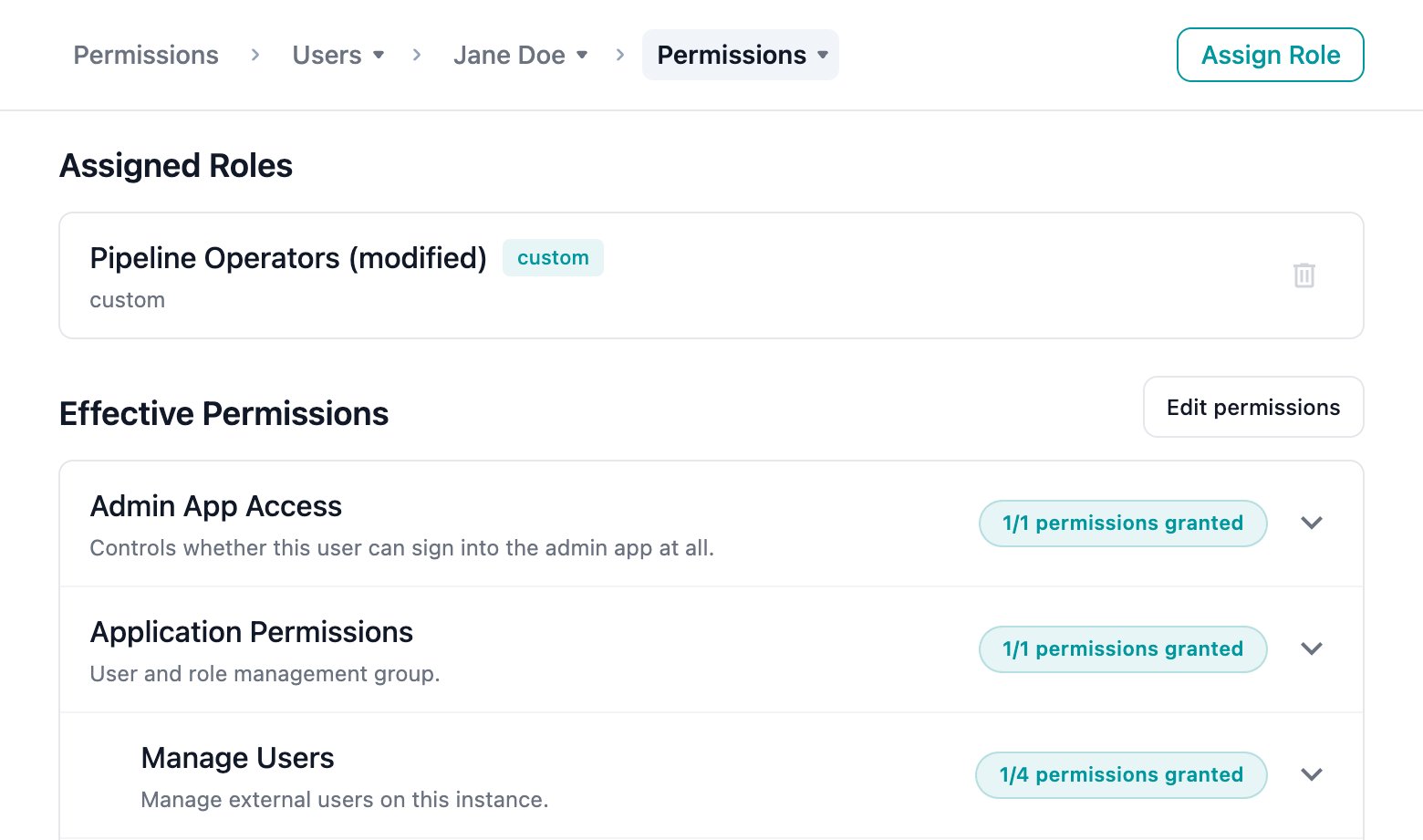
A user’s effective permissions are the combination of every role assigned to them. If any assigned role grants a permission, the user has it. Removing a permission from one role does not take it away if another assigned role still grants it.System and custom roles
- System roles are provided by Entegrata and are read-only. You can view and duplicate them, but you can’t edit or delete them.
- Custom roles are roles you create. You can edit and delete them.
All three roles can sign in to the Admin Portal. See the feature reference for the exact permissions each role grants.
New users get the Viewer system role when you don’t choose a role during creation.
Record-level scope
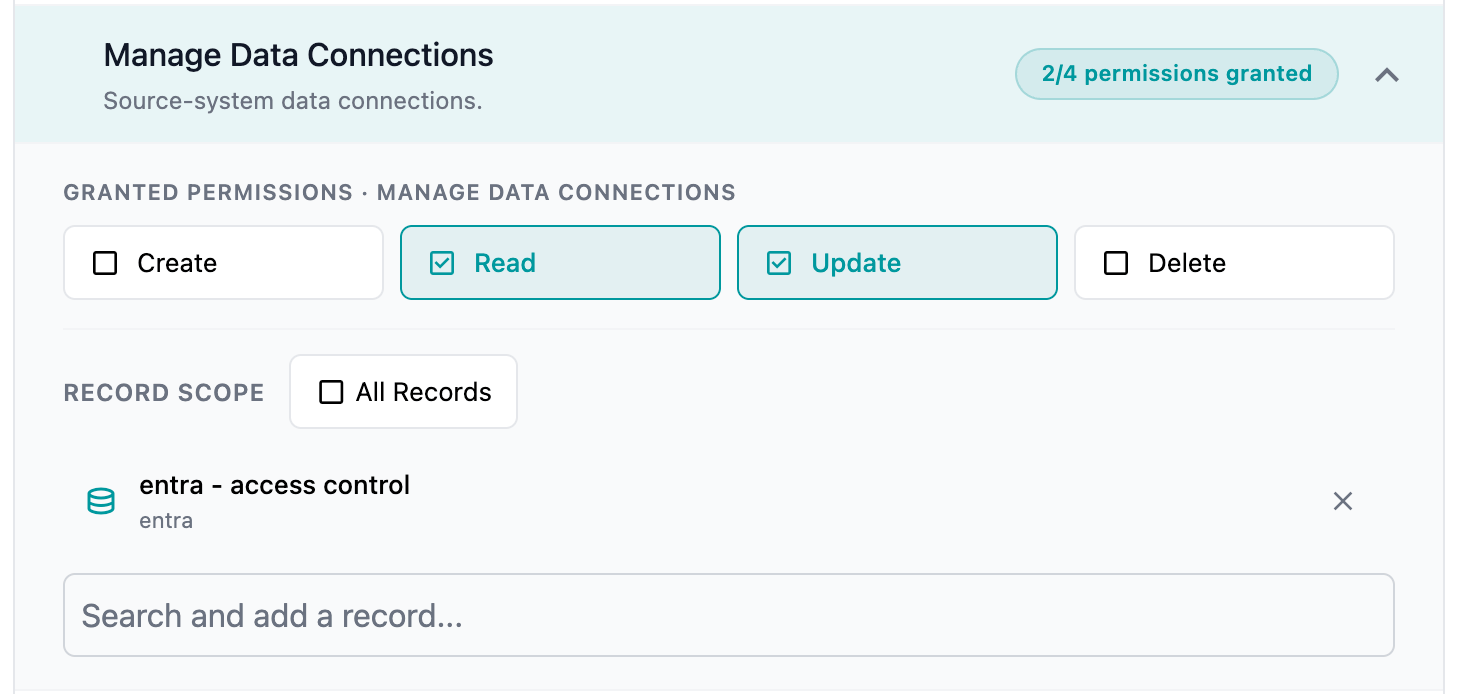
Some features support record-level scope: Manage Data Connections, Manage Production Pipelines, and Manage Dev Pipelines. In a role, the permissions on these features apply either to:- All Records: every connection or pipeline in the instance, including ones created later
- Specific records: only the connections or pipelines you add to the role
Production and dev pipelines
Pipeline permissions are split into two features:- Manage Production Pipelines governs production pipelines.
- Manage Dev Pipelines governs development and test pipelines.
main pipeline is always governed by production pipeline permissions. A user with only dev pipeline permissions can’t edit, diff, or sync main.
When changes take effect
Permissions are cached in the user’s browser session for up to one minute. When you change a role or a user’s role assignments, the affected user sees the change within about a minute. They may need to reload the page.Open the permissions pages
- In the Admin Portal sidebar, click Users.
- Use the breadcrumb at the top of the page to switch between the Users and Roles views.
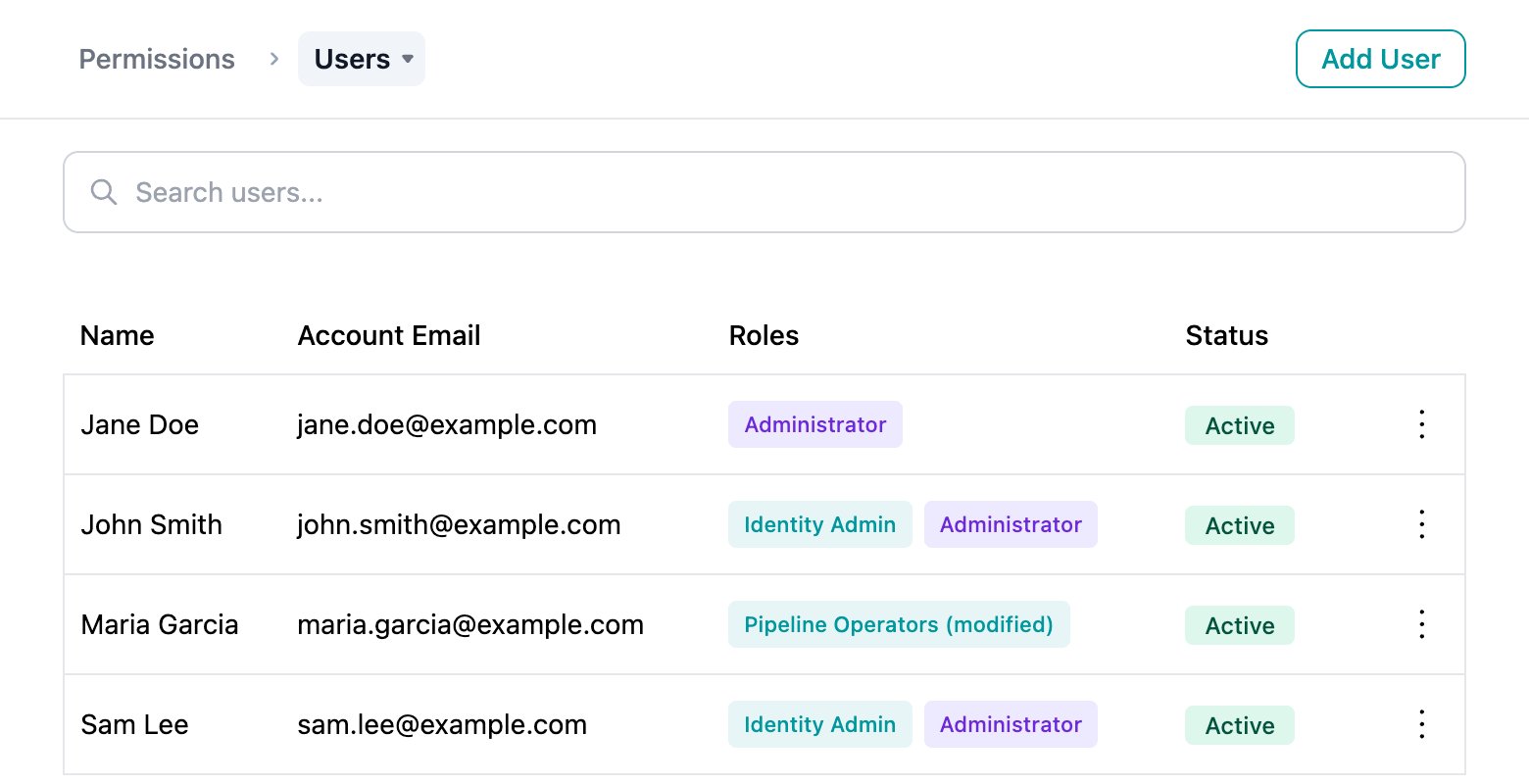
To open these pages, a role must grant you Access on Application Permissions. You also need Read on Manage Users to see the Users view, and Read on Manage Roles to see the Roles view. Views you can’t access don’t appear in the breadcrumb.
Manage roles
View roles
The Roles view lists each role’s name, description, and type (System · read-only or Custom). Click a row to open the role. Use the ⋮ menu on a row to Edit (or View for system roles), Duplicate, or Delete a role.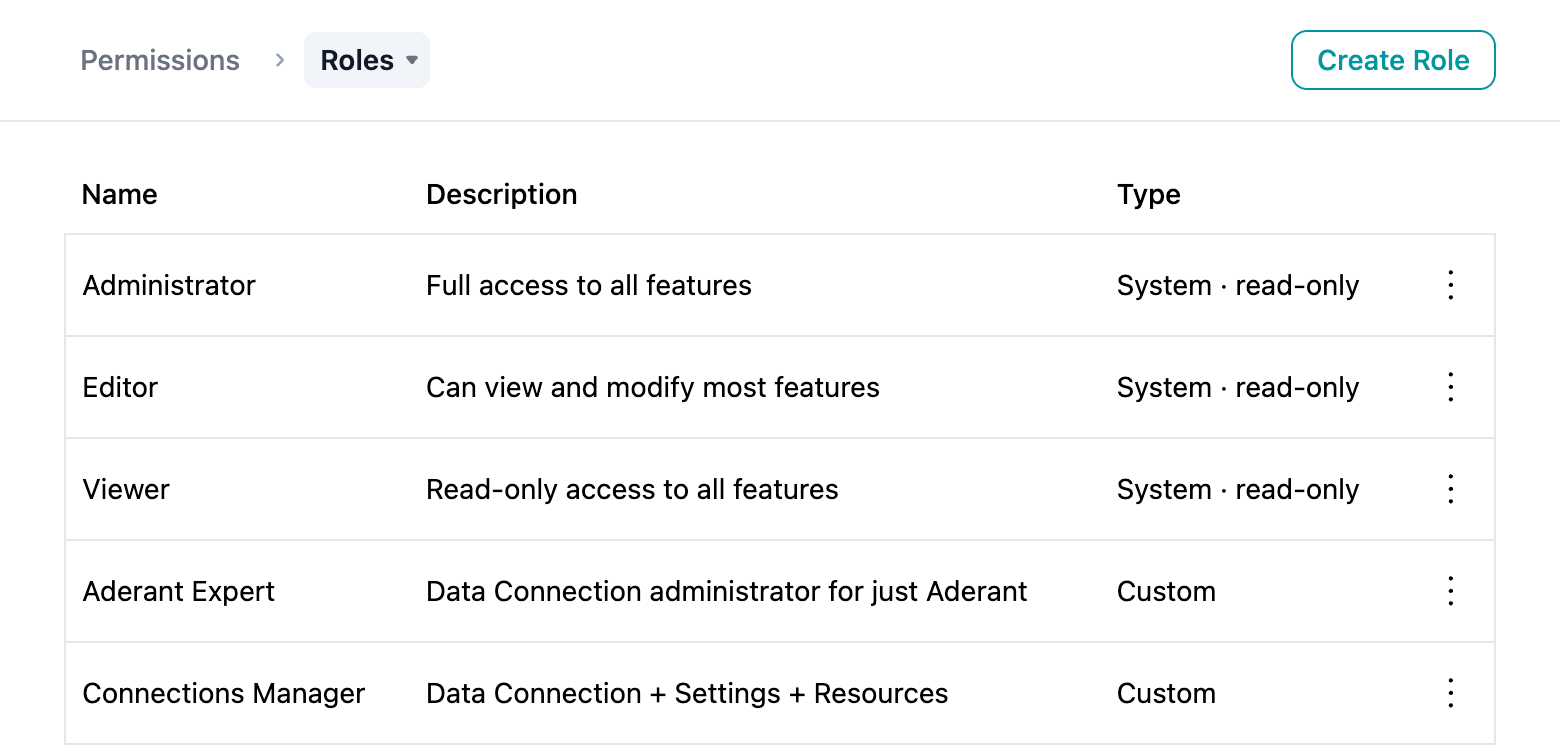
Create a role
- On the Roles view, click Create Role.
- Enter a Role Name and an optional Description. The name must contain at least one letter or number.
- Optional: click Copy from existing role and choose a role to start from its permissions. This copies the permissions only, not the name or description.
- In the Permission Matrix, select the permissions to grant for each feature. See Use the permission matrix.
-
For record-scoped features, set the Record Scope:
- Leave All Records selected to grant the permissions on every record.
- Clear All Records, then use Search and add a record… to choose specific connections or pipelines.
- Click Create Role.
Edit a role
To edit a custom role, click its row or choose Edit from the ⋮ menu. Update the name, description, or permission matrix, then click Save Changes. Changes apply to every user assigned the role. System roles open read-only with the banner System role · read-only. Duplicate a system role to create a custom version you can edit.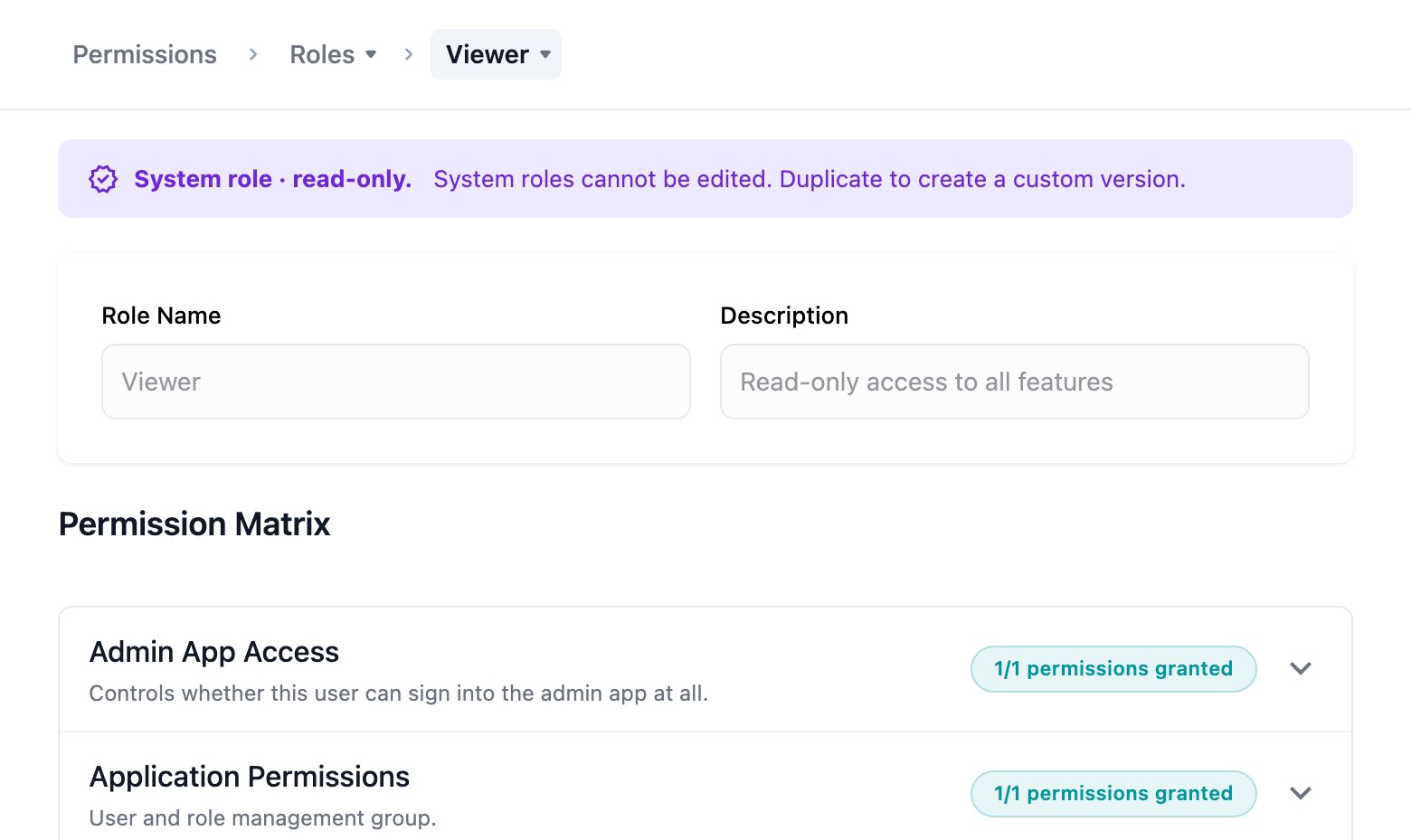
Delete a role
- Choose Delete from the custom role’s ⋮ menu.
- In the Delete Role dialog, click Delete Role.
Use the permission matrix
The Permission Matrix lists one row for each feature group, with the group’s features nested below it. Each row shows how many of the feature’s permissions are granted, such as 3/4 permissions granted. Hover over the count to see which ones. Click a row to expand it and select permissions with the checkboxes. Only the permission types the feature supports are shown.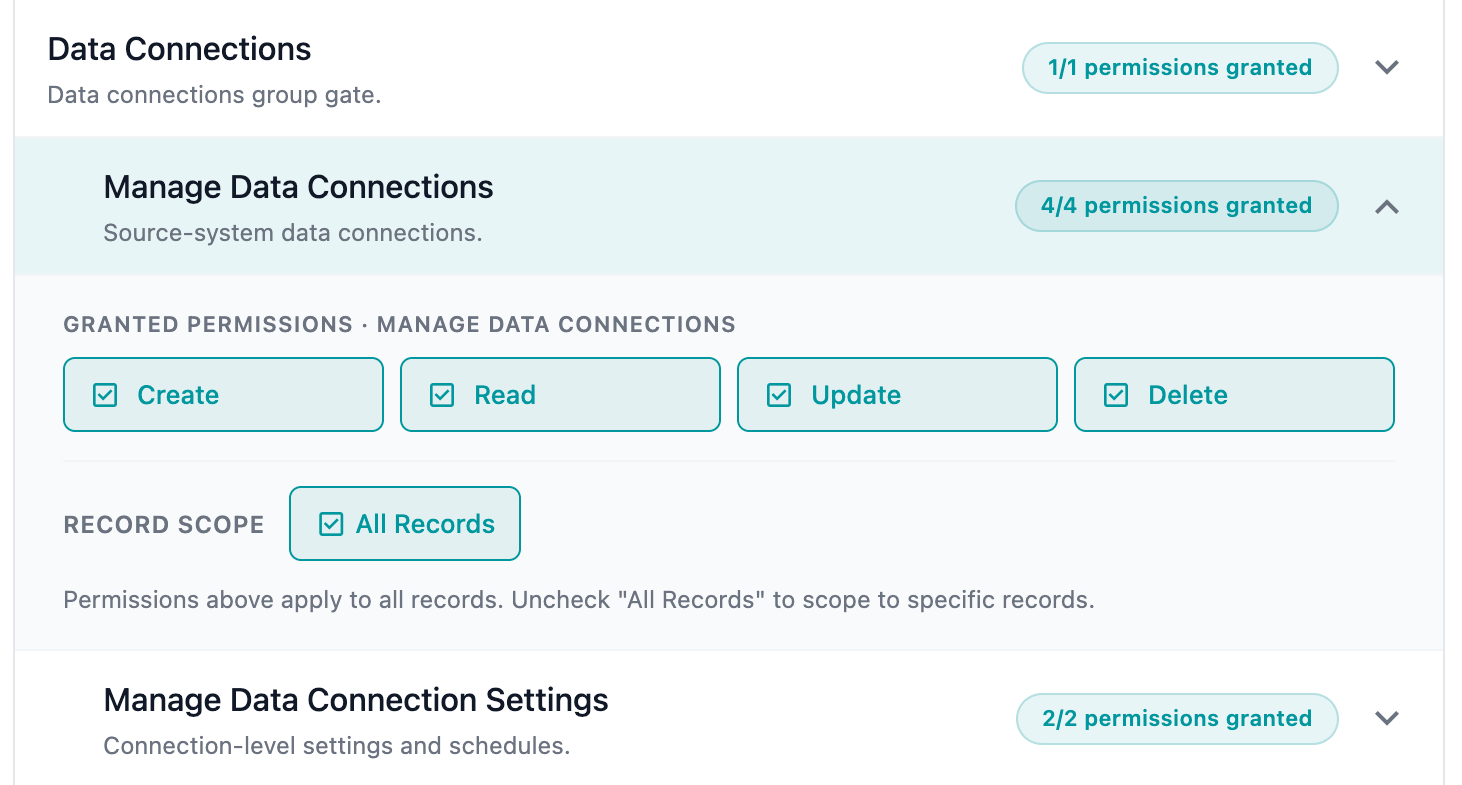
- Granting a feature permission turns on Access for its group and for Admin App Access. For example, granting Read on Manage Firewall Rules also grants Access on Instance Settings and Admin App Access.
- Removing Access from a group clears every feature in that group. Removing Access from Admin App Access clears every feature in the role.
- Turning Access back on restores what was cleared. If you remove a group’s Access by mistake, check it again to restore the previous selections.
Assign roles to users
A user can have one or more roles. Each assignment applies across the instance.During user creation
When you create a user, select one or more roles in the Roles field. If you leave the field empty, the user gets the default Viewer role. See User management.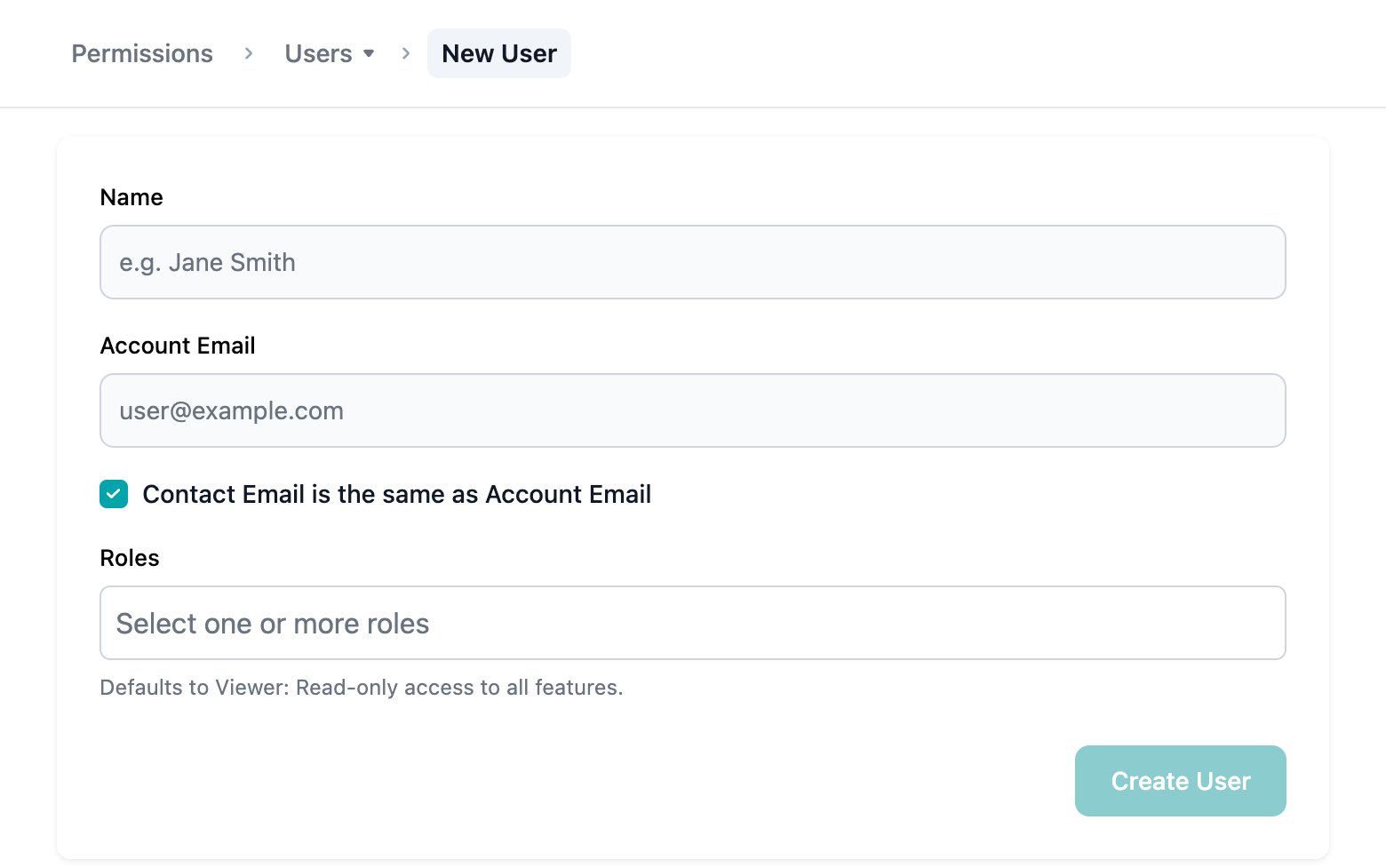
On an existing user
- Open the Users view and click the user.
- In the breadcrumb, switch from Basic Details to Permissions.
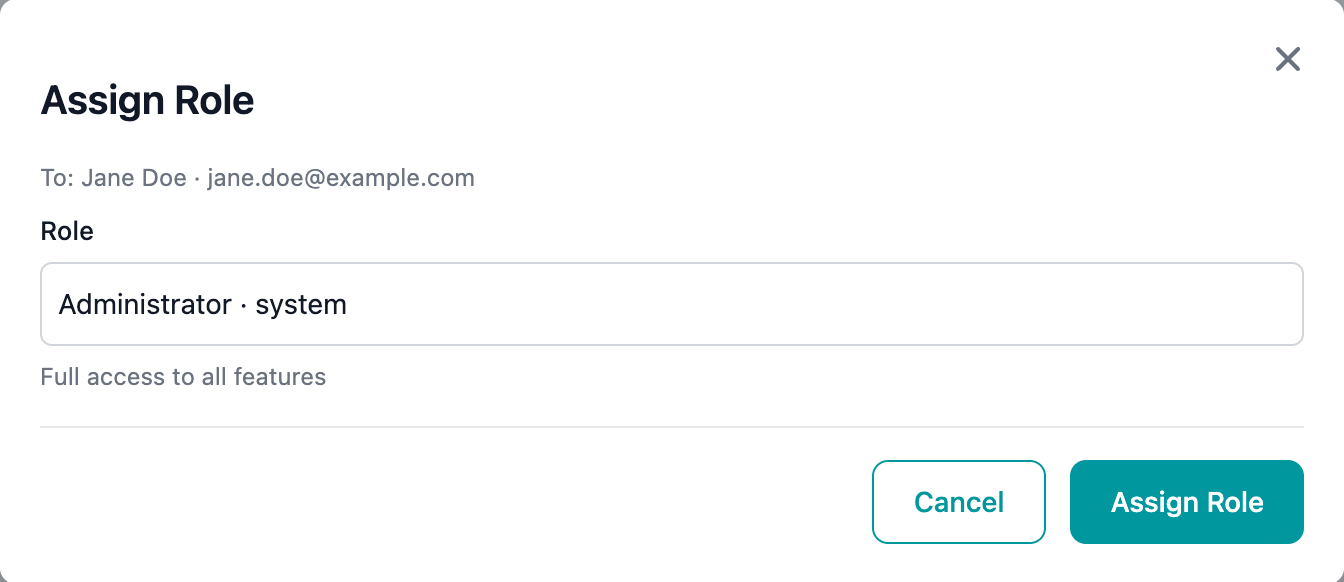
- Click Assign Role.
- Select a role and click Assign Role.
Revoke a role
The Assigned Roles section on the user’s Permissions tab lists the user’s roles. Click the Revoke role icon on a role card to remove it. You can’t revoke a user’s last remaining role. Assign another role first, or delete the user.View a user’s effective permissions
Edit a user’s permissions as a new role
You can adjust a single user’s access directly from their Permissions tab. Because permissions live on roles, your changes are saved as a new role.This requires Create on Manage Roles and Update on Manage Users.
- On the user’s Permissions tab, click Edit permissions.
- Change permissions and record scopes in the matrix.
- Click Save as new role.
- Enter a Role Name and optional Description. Role names must be unique.
- Click Create and replace (or Create and assign if the user has no roles).
Restricted actions
When you don’t have permission for an action, the Admin Portal either hides it or shows it disabled:- Hidden: the button, menu item, or sidebar entry doesn’t appear. For example, Create Role doesn’t appear without Create on Manage Roles.
- Disabled: the button stays visible but grayed out. Hover over it to see a You don’t have access tooltip.
Feature reference
The table lists every feature in the permission matrix, the permission types it supports, and what each system role grants. C, R, U, and D stand for Create, Read, Update, and Delete. Some permissions only work together with another permission. See Permission dependencies before you build a custom role. Each group’s top-level feature (Admin App Access, Application Permissions, Data Connections, Data Pipelines, Instance Settings, and Access Control) supports Access only, and all three system roles grant it.Related documentation
User Management
Create, edit, and delete users
Permission dependencies
Permissions that only work together with another permission
Troubleshooting
Common issues and solutions for user management