
Creating Users
Administrators can add new users from the Users section of the Admin Portal.Step 1: Open the Create User Dialog
- Navigate to Administration → Users
-
Click the New User button in the top-right corner

Step 2: Enter User Information
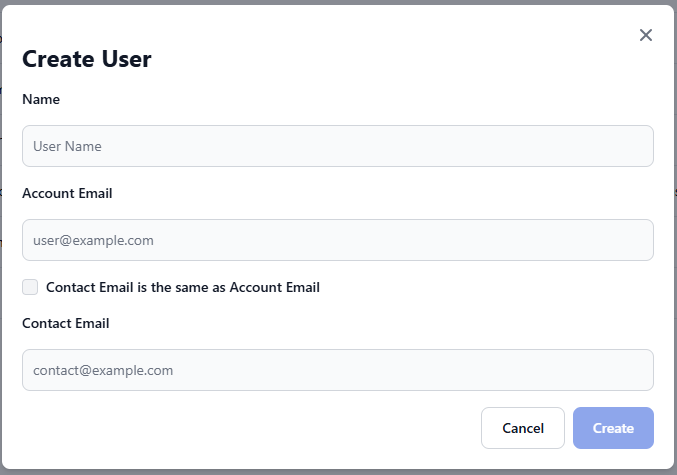
Required Fields
string
required
Enter the user’s full name as it should appear in the system.
string
required
The primary email address for user authentication.
Optional Fields
string
An alternative email for non-authentication communications.Options:
- Leave blank to use the account email for all communications
- Check “Use same as account email” to automatically copy the account email
- Enter a different email for separate communication preferences
- Users are created with an Active status by default.
- There is no invitation workflow — notify new users manually after creation.
- The Account Email must be unique and cannot be changed after activation.
- If Contact Email is left blank, it defaults to the account email.
- No bulk import or role assignment during creation
- No password setup (handled via SSO or first-login reset)
- No custom templates or attributes
- Duplicate or invalid email address
- Missing required fields
Viewing and Searching Users
The Users list displays all active users in your instance. Inactive and deleted users are hidden by default.Status Indicators
User status is displayed with color-coded badges for quick identification:🟢 Active - User can access the system🟡 Pending - User invited but not activated⚫ Inactive - Account temporarily disabled🔴 Deleted - User has been removed
Currently, the interface displays only active users. Deleted and inactive users are filtered from the view.
Search
Use the search bar to find users by **name **or email. Results update in real time. Filtering by user status and bulk operations are not yet supported.Individual Actions
Click a user row to open the edit view, or use the ⋮ actions menu for quick operations such as Edit or Delete (soft delete).Editing Users
Administrators can update user information directly from the list. All edits are logged automatically in the audit trailupdatedAt, updatedBy).
Accessing the Edit User Feature
There are two ways to edit a user:Method 1: Click on User Row
Click anywhere on a user’s row in the user list table to open the edit modal.
Method 2: Actions Menu
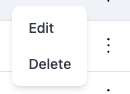
- Click the actions menu (⋮) in the user’s row
-
Select Edit from the dropdown
- Name — updates display name throughout the system
- Account Email — must remain unique; affects login credentials
- Contact Email — optional; defaults to account email
- Roles and permissions are not editable here
- Status changes managed separately
- No bulk edit or version history
Deactivating and Deleting Users
Deleting users in Entegrata uses a soft-delete approach, which marks users as deleted while preserving their data for audit and historical purposes. This ensures data integrity and allows for potential recovery if needed.Soft-deleted users cannot log in or access the system, but their historical data and audit trails remain intact.
Step 1: Access Delete Option
Click the actions menu (⋮) in the user’s row and select Delete.Step 2: Confirm Deletion
A confirmation dialog will appear to prevent accidental deletions.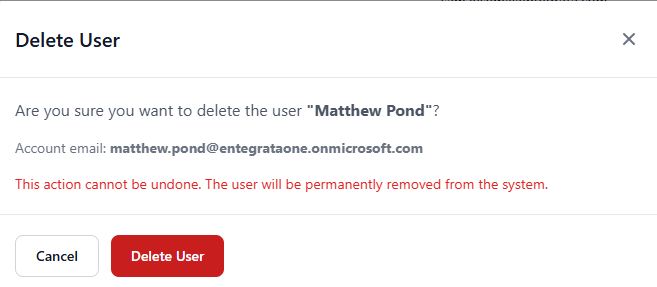
- Status changes to Deleted, ending all sessions and invalidating tokens
- Audit logs and historical data remain intact
- Deletions are recorded with who performed the action and when
- Confirm deletion is appropriate and reassign any owned resources
- Notify relevant team members and document the reason
Related Documentation
User Overview
Understanding user management basics in the platform
Troubleshooting
Common issues and solutions for user management