
Overview
System Versions allows you to view your current Entegrata platform version, check for available updates, and upgrade your instance to newer releases. Keeping your system up to date ensures access to the latest features, security patches, and performance improvements.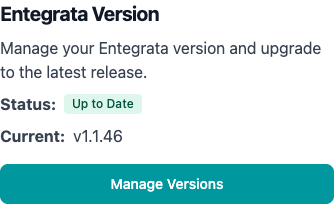
Entegrata uses semantic versioning (e.g., v2.4.1) to clearly communicate the nature and impact of each release. All upgrades are performed through automated infrastructure-as-code, ensuring consistent and reliable deployments.
Understanding System Versions
Version Numbering Scheme
Entegrata follows semantic versioning (SemVer) to provide clear information about each release:number
Significant platform changes that may include:
- New core functionality or architectural changes
- Breaking changes to APIs or data structures
- Major feature additions requiring infrastructure updates
- Potential migration steps or configuration changes
v2.0.0 → v3.0.0number
Feature additions and enhancements that are backward compatible:
- New features and capabilities
- Enhanced existing functionality
- Performance improvements
- New integrations or data sources
- No breaking changes to existing functionality
v2.3.0 → v2.4.0number
Bug fixes and small improvements:
- Bug fixes and stability improvements
- Security patches
- Minor performance optimizations
- Documentation updates
- No new features or breaking changes
v2.4.0 → v2.4.1Understanding Status Badges
The System Version card displays status badges to communicate your update status at a glance:- Upgrade Available
- Up to Date
Badge:Blue “Upgrade Available”Meaning: A newer version of the Entegrata platform is available for your instance.Action: You can upgrade to the latest version at your convenience.
Checking for Available Updates
Automatic Update Checks
The Entegrata platform automatically checks for new versions:- Frequency: Checks occur when you access the System Version settings
- Caching: Results are cached for 12 hours to optimize performance
- Background: Checks happen without requiring manual intervention
The 12-hour cache means you may not immediately see new versions within 12 hours of their release. You can manually trigger a check to bypass the cache.
Manual Update Check
To check for updates immediately:1
Access System Versions
Navigate to Instance → Additional Settings → System Version card.
2
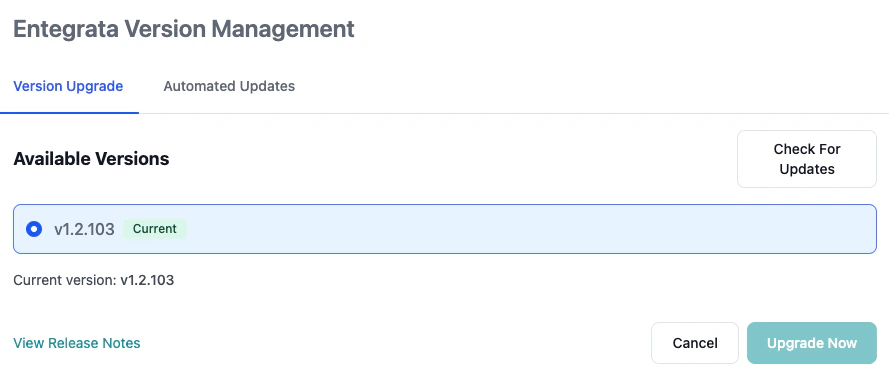
Click Check For Updates
Click the Check For Updates button on the System Version card.
3
Review Results
The system retrieves the latest version information from Entegrata’s release servers.
- If newer versions exist, the status updates to “Upgrade Available”
-
If you’re on the latest version, the badge remains “Up to Date”
4
View Available Versions
Click Manage Versions to see all available versions you can upgrade to.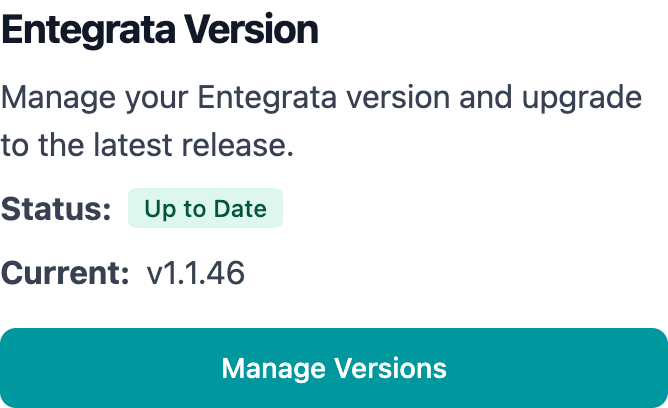
Downtime and Impact
Entegrata version upgrades are designed for minimal disruption:Expected Impact During Upgrades
Minimal Impact Operations:
- ✅ Viewing dashboards and reports
- ✅ Accessing historical data
- ✅ Reading documentation and settings
- ✅ Monitoring system status
- ❌ Making instance configuration changes
- ❌ Creating or modifying firewall rules
- ❌ Uploading customer-managed keys
- ❌ Modifying network connections
- ❌ Initiating additional upgrades
Upgrade Duration
Typical upgrade times by version type:Actual upgrade times depend on your instance size, infrastructure complexity, and Azure region. The loading screen provides real-time status updates throughout the process.
Rollback Considerations
When to Consider Rollback
In rare cases, you may need to revert to a previous version:Troubleshooting
Common Version Management Issues
Version check shows no updates available, but I know a new version exists
Version check shows no updates available, but I know a new version exists
Symptoms: System shows “Up to Date” but you’ve confirmed a newer version is releasedPossible causes:
- 12-hour cache hasn’t expired yet
- New version not yet rolled out to your region
- Your instance has a version hold (rare, support-initiated)
- Click Check For Updates to bypass cache
- Wait 12 hours for automatic cache expiration
- Verify version release on Entegrata support site
- Contact support if issue persists beyond 24 hours of release
Upgrade stuck in Transitioning state
Upgrade stuck in Transitioning state
Symptoms: Upgrade initiated but status doesn’t change for extended periodPossible causes:
- Complex infrastructure changes taking longer than usual
- Azure service delays
- Network connectivity issue with status polling
- Backend service issue
- Wait at least 30-45 minutes for complex upgrades
- Refresh the browser to ensure you’re seeing latest status
- Check the loading screen for any error messages
- Verify network connectivity
- If stuck beyond 1 hour, contact Entegrata support
The system polls status every 30 seconds. If you don’t see updates for several minutes, try refreshing your browser.
Upgrade completed but system behaves unexpectedly
Upgrade completed but system behaves unexpectedly
Symptoms: Upgrade succeeded but features don’t work as expectedPossible causes:
- Browser cache serving old JavaScript/CSS
- New feature requires configuration
- Breaking change requires updates to integrations
- Bug in new version
- Hard refresh browser (Ctrl+Shift+R or Cmd+Shift+R)
- Clear browser cache and cookies
- Review release notes for configuration changes needed
- Check Entegrata support site for known issues
- Try accessing from incognito/private browsing mode
- Contact support with specific behavior descriptions
Version shows correctly but features missing
Version shows correctly but features missing
Symptoms: Version card shows upgraded version but new features aren’t visiblePossible causes:
- Features require feature flags to be enabled
- Features specific to certain instance types
- Permissions don’t grant access to new features
- Incomplete upgrade (partial rollout)
- Review release notes to verify feature availability
- Check if features require additional configuration
- Verify your user role has permissions for new features
- Contact support to enable feature flags if needed
- Wait 24 hours and check again (some features activate gradually)
Cannot see version history or past versions
Cannot see version history or past versions
Symptoms: Only current version is visible, no history of previous versionsPossible causes:
- Version history not tracked in UI (by design)
- Looking in wrong location
- Current design only shows current and available future versions
- Version history can be requested from Entegrata support
- Check Azure infrastructure logs for deployment history
- For audit purposes, contact support for upgrade history report
The System Version interface focuses on forward-looking version management. Historical version data is maintained in backend systems and available through support.
Upgrade failed with error message
Upgrade failed with error message
Symptoms: Upgrade process returned an error and didn’t completePossible causes:
- Pre-requisite check failed
- Infrastructure resource conflict
- Database migration issue
- Network or connectivity problem
- Note the exact error message displayed
- Verify infrastructure health in Azure portal
- Check if instance was in healthy state before upgrade
- Review recent changes to instance configuration
- Contact Entegrata support with error details and timestamp
- Exact error message
- Source version and target version
- Timestamp of upgrade attempt
- Recent changes to instance configuration
- Screenshots of error messages
Related Documentation
Instance Overview
Learn about instance administration concepts and infrastructure state management
Firewall Rules
Manage firewall rules that may be updated during version upgrades
Network Connections
Configure network connectivity for your instance
Data Encryption
Get help with version upgrades or rollback assistance