
What Gets Created
When you activate your subscription, Entegrata automatically provisions the following Azure resources:- Resource Group: Container that organizes all resources for your Entegrata instance
- Managed Identity: Service identity enabling secure authentication between Entegrata components
- Service Bus: Messaging infrastructure for reliable communication between services
- Container App Environment: Platform for running containerized Entegrata services
- Orchestration Service: Component that manages infrastructure deployment
All Azure resources are created in accordance with Microsoft’s security best practices and are configured to meet enterprise security and compliance requirements.
Activating Your Subscription
1
Click Activate Subscription
Click the “Activate Subscription” button to begin the provisioning process.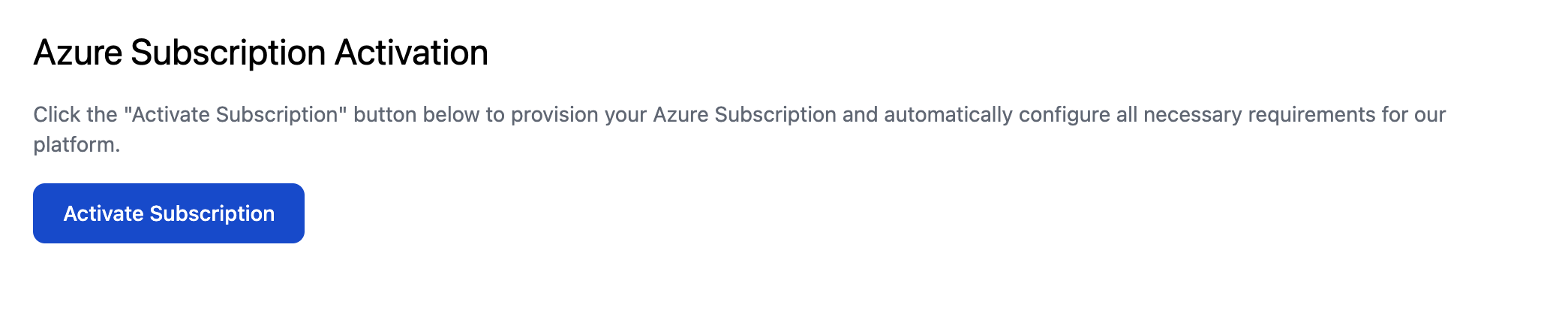
2
Wait for Provisioning to Complete
Once you click the button, you’ll see a loading screen indicating that your Azure infrastructure is being created. This process typically takes 2-5 minutes.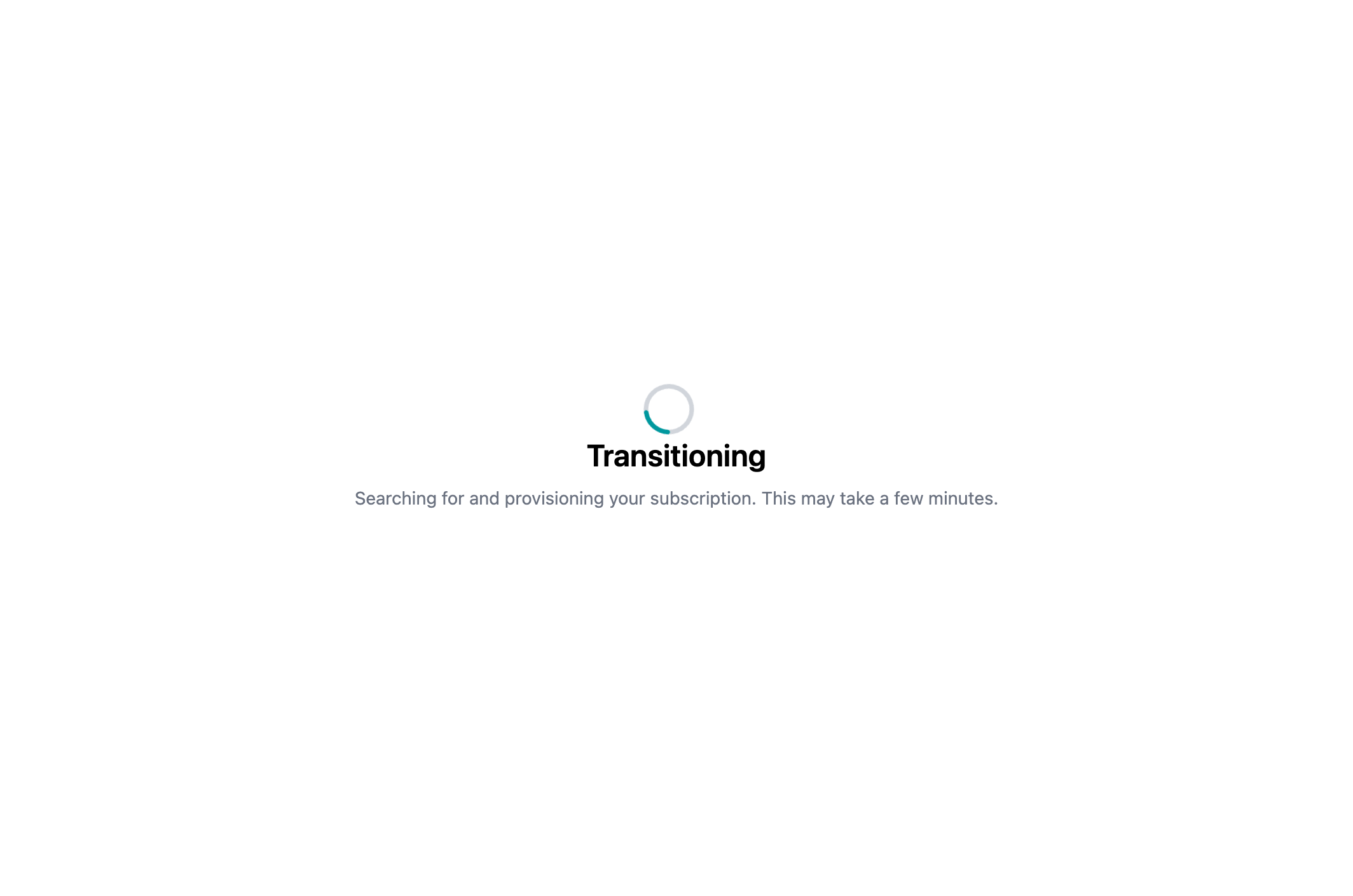
3
Confirmation
When provisioning is complete, you’ll see a confirmation card displaying your Subscription Name, Owner, and ID. The Subscription ID uniquely identifies your subscription and will be used for support and billing purposes.
Make note of your Subscription ID for future reference. You can also find this ID later in the instance details.
Self-Hosted Instances Only: Configure Azure Databricks Access
This section is only required for self-hosted instances. To enable Entegrata to manage access and settings for your subscription, you’ll need to assign the User Access Administrator role to the managed identity and add it as an Account Admin in your Azure Databricks account.Assign User Access Administrator Role to the Managed Identity
- Sign in to the Azure Portal
- Navigate to Subscriptions and select your Entegrata Subscription
- In the left-hand menu, click Access control (IAM)
- Click + Add > Add role assignment
- In the Role dropdown, select User Access Administrator
- In the Assign access to section, choose Managed identity
- Click Select members, then search for and select the managed identity (the name will be displayed in the interface)
- Click Select, then Review + assign to complete the role assignment
Retrieve the Application (Client) ID and Add as Databricks Account Admin
Find the Application (Client) ID:
- In the Azure Portal, go to Microsoft Entra ID > Enterprise Applications
- In the Application type dropdown, select All Applications, then search for the managed identity name
- Select the managed identity from the results
- On the Overview page, copy the Application (client) ID
Add the Managed Identity as a Databricks Account Admin:
- Sign in to the Azure Databricks Account Console
- In the top-right corner, click your username and select Manage Account
- Go to User management
- Choose the Service Principals tab
- Click Add Service Principal and choose the Microsoft Entra ID managed option
- In the New service principal display name field, put the managed identity name
- In the Microsoft Entra application ID, put the client ID that you copied above
- Click Add Service Principal
- Click on your newly added service principal
- Click the Roles tab at the top
- Toggle Account Admin on
- You can now exit out of this console
Troubleshooting
If the subscription activation fails or takes longer than expected:- Ensure you have the necessary Azure permissions to create resources in your subscription
- Verify that your Azure subscription has sufficient quota for the required resources
- Check your network connection
- If the issue persists, contact Entegrata support with your Subscription ID
Next Steps
Once your subscription is successfully activated, you’re ready to configure your network connection.Back to Onboarding Overview
Return to the onboarding overview
Continue to Step 2
Proceed to Step 2: Network Connection Setup