Overview
The Notification Preferences page has two tabs:- Subscriptions sets what you receive.
- Activity shows what arrived.
Notifications are turned on per account. If you don’t see Notification Settings in your account menu, notifications aren’t available to you yet. Submit a ticket to ask for access.
How notifications work
Every notification starts as an event
When something happens on the platform, such as an ingestion error, a failed connection, or a secret about to expire, Entegrata publishes an event. Each event type is listed in All events.One subscription covers email and the product
Turning an event on subscribes you to it. When that event occurs, you receive an email and an entry under Recent notifications on the Activity tab. There is no separate email switch per event, and no bell or inbox elsewhere in the app.Recovery events still reach you
Some events resolve others. Pipeline succeeded resolves Pipeline error, and is marked with a Recovery badge. If you turned a recovery event off, you still receive it when it resolves a failure you were notified about, so you know the issue is fixed.Open Notification Preferences
1
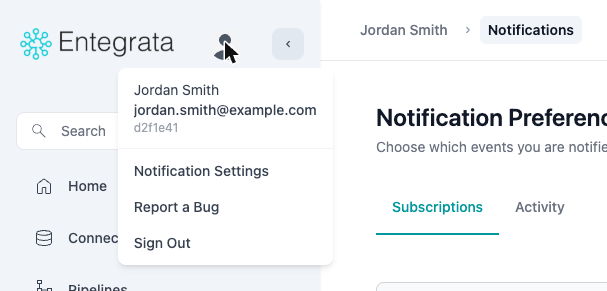
Open your account menu
Click your avatar in the sidebar, next to the Entegrata logo.
2
Open Notification Settings
Click Notification Settings. The Notification Preferences page opens on the Subscriptions tab.
Subscriptions tab
The table lists one event per row, with its name, a short description, and a Notify Me switch.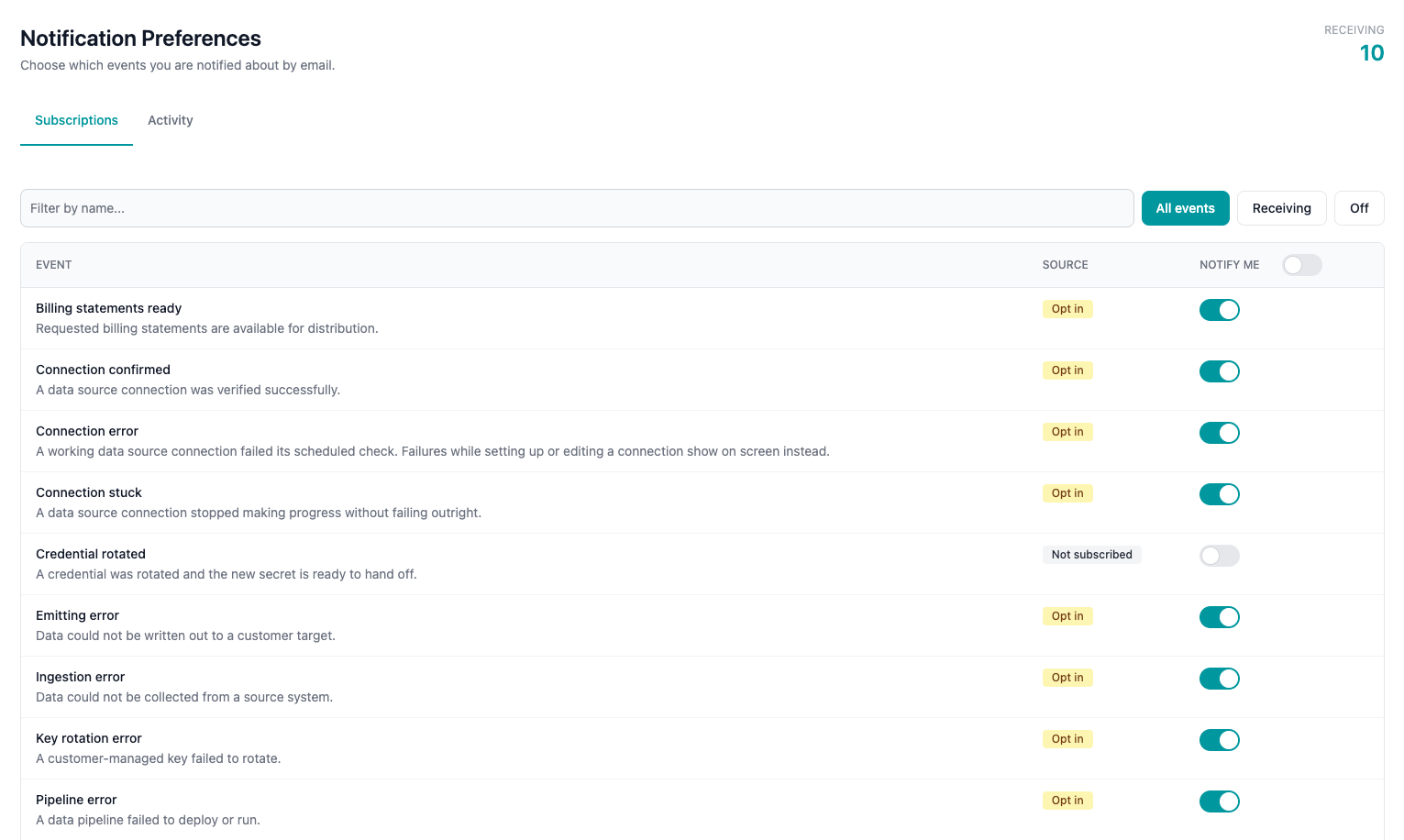
Turn an event on or off
Use the Notify Me switch on a row. The change saves right away, and the Receiving counter updates. If a change can’t be saved, the switch returns to its previous position and an error appears; try again.Turn several events on or off at once
The switch in the Notify Me column header turns every event that matches the current filter and search on or off in one step.Filter and search
- Use the filters above the table to show All events, Receiving, or Off. Pick Off to see what you’re missing.
- Type in Filter by name to search event names and descriptions.
Activity tab
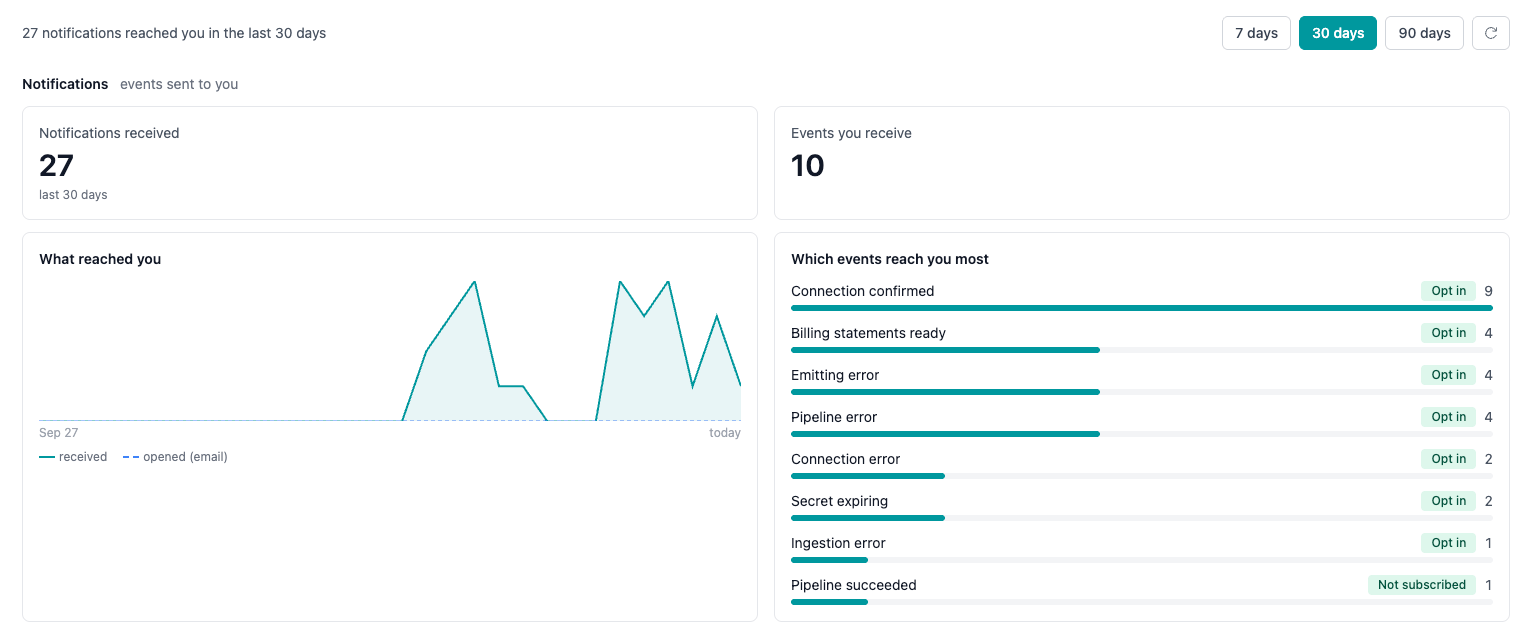
The Activity tab shows the notifications that reached you.- Window: choose 7 days, 30 days, or 90 days. The default is 30 days.
- Notifications received: the number of notifications recorded for you in the product during the window.
- Events you receive: the number of events you’re subscribed to.
- What reached you: a chart of notifications received per day. The dashed line shows emails opened. Hover over a day to see its numbers.
- Which events reach you most: your top events, each with its count.
Email delivery
- Emails sent, Delivered, and Not delivered (bounced or rejected) counts for the window.
- Delivery outcomes breaks the emails into Opened, Delivered, not opened, and Email not delivered. Sent, awaiting confirmation also appears while some emails haven’t been confirmed yet.

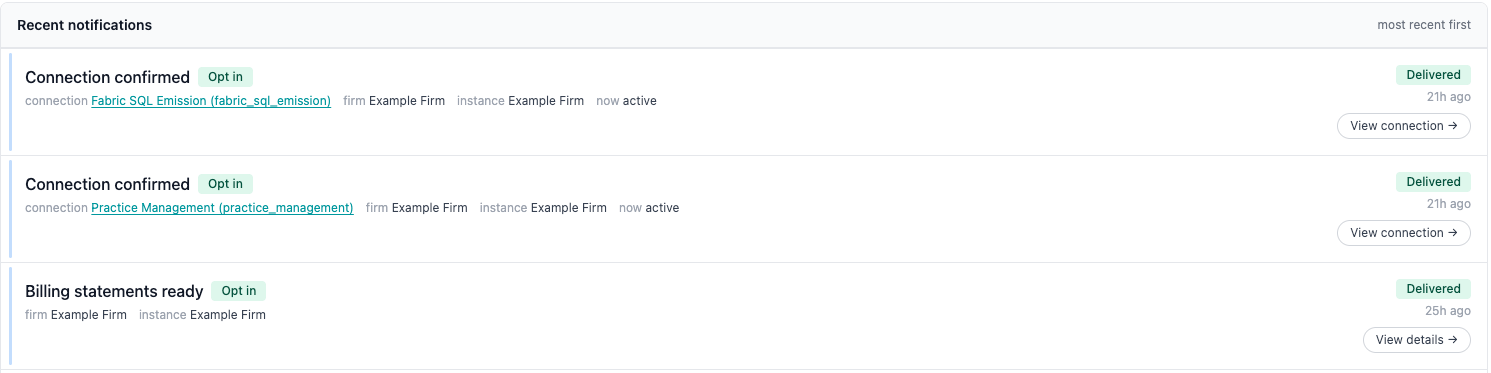
Recent notifications
Recent notifications lists the notifications that reached you, most recent first. Each entry shows:- the event
- what it’s about (for example, the connection or resource), the firm, and the instance
- its delivery status (for example, Delivered or Opened) and how long ago it arrived
- any error the event carried
- a link to the item it’s about, such as View connection →
Common questions
I received a Pipeline succeeded notification that I turned off.
I received a Pipeline succeeded notification that I turned off.
That’s the recovery rule: it resolved a pipeline failure you were notified about.
Does Delivered, not opened mean nobody read it?
Does Delivered, not opened mean nobody read it?
No. Open tracking isn’t available for every email system or client.
An event is missing from the list.
An event is missing from the list.
Entegrata can turn off an event across the platform, and events that are turned off don’t appear on this page.
I set up a connection with the wrong details and got no Connection error.
I set up a connection with the wrong details and got no Connection error.
That’s expected. Connection error only covers a connection that was working and then failed one of the checks Entegrata runs every few hours. When a new connection fails its first test, it isn’t saved, and the error shows on screen while you set it up. A failed test when you edit a connection also shows on screen only. A collection that fails is reported as Ingestion error.