
Overview
Creating a new connection establishes the link between Entegrata and your data source. This process involves selecting a data source type, providing authentication credentials, and configuring connection parameters.Access Requirements
To create connections, you must:- Be logged into the Entegrata Admin Portal
- Have administrative privileges for your instance
- Have valid credentials for the data source you’re connecting to
- Ensure the data source is accessible from Entegrata’s network
Creating a New Connection
Step 1: Navigate to New Connection
- Go to Collectors in the main navigation
- Click the New Connection button in the top-right corner

Step 2: Select Data Source Type
Choose your data source from the available options.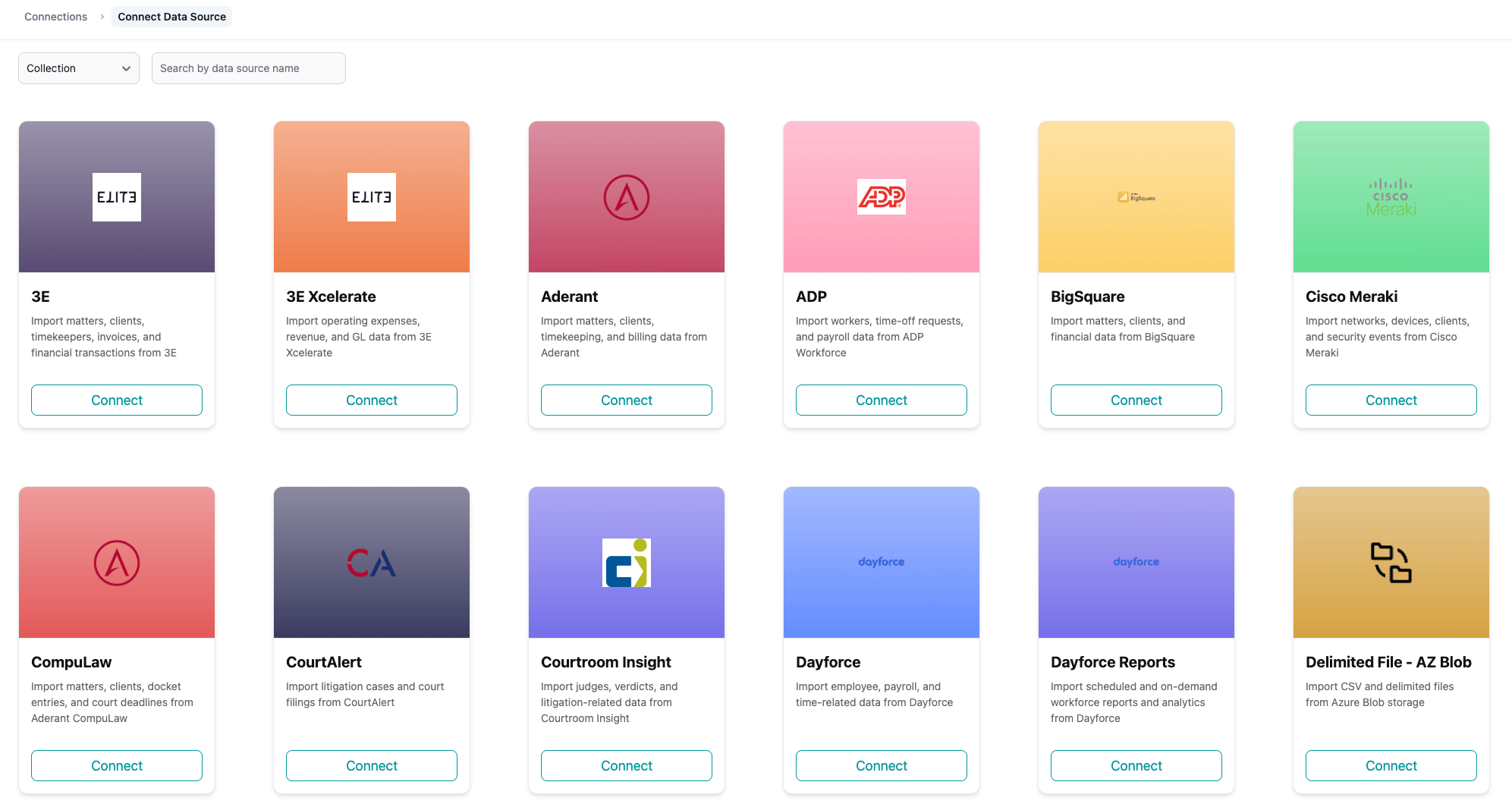
Available Data Sources
The full list of data connectors can be found at https://www.entegrata.comStep 3: Configure Connection Details
After selecting a data source, you’ll see a configuration form with fields specific to that source type.
Universal Fields
string
required
A unique, descriptive name for this connectionBest practices:
- Include environment: “Production SQL - Finance”
- Include purpose: “DealCloud - Deal Data”
- Avoid generic names like “Connection 1”
- Must be unique across all your connections
date
When authentication credentials expire and need renewalWhy set this:
- Receive notifications before credentials expire
- Plan credential rotation in advance
- Avoid unexpected connection failures
Database Connection Fields
For SQL databases (SQL Server, etc.):string
required
Server hostname or IP addressExamples:
sqlserver.company.com192.168.1.100sql.azure.microsoft.com
number
Database server port (defaults to standard port for each database type)Default ports:
- SQL Server: 1433
string
required
Name of the database to connect to
The specific database is required and is used to determine which resources can be discovered and collected. If you need to connect to multiple databases, you can create multiple connections.
Required SQL Permissions
To automatically throttle the collection of data based on the amount of data being collected, Entegrata needs the following permissions:
Azure SQL
Azure SQL
Grant VIEW DATABASE STATE
SQL Server
SQL Server
Grant VIEW SERVER STATE permissions for:
- sys.dm_exec_sessions
- sys.dm_exec_connections
- sys.dm_exec_requests
API Connection Fields
For cloud platforms (DealCloud, Zoom, ADP, UKG, etc.):string
required
Base URL for the API (often pre-filled)
string
required
Authentication token or API key for the platform
string
Your organization or tenant identifier (if applicable)
This is a non-exhaustive list of fields that may be required for each data source type.Your specific data source may require additional fields.Please contact Entegrata Support for assistance if you need help configuring your connection.
Step 4: Configure Authentication
Select the authentication method and provide credentials.SQL Authentication
Standard username and password authentication:
string
required
Database login username
string
required
Database login password (encrypted and stored securely)
Windows Authentication (coming soon)
Domain-based authentication for on-premise SQL Server:string
required
Windows domain name
string
required
Domain username
string
required
Domain password
Azure Entra ID (Managed Identity)
Passwordless authentication for Azure-hosted environments:With Managed Identity, no credentials need to be entered. Authentication is handled automatically by your Azure tenant. Entegrata uses the managed identity assigned to the hosting environment to authenticate directly with your Azure data sources.
Azure Entra Service Principal
Application-based authentication using Azure AD app registration credentials:string
required
Azure Active Directory tenant identifier
string
required
Application (client) ID from Azure AD app registration
string
Client secret from Azure AD app registration
string
Client certificate from Azure AD app registration
Provide either a Client Secret or a Client Certificate — one of the two is required.
Selecting Authentication Type
For data sources that support multiple authentication methods (like SQL Server), choose from the dropdown:
Step 5: Test and Save Connection
- Review all entered information for accuracy
- Click Connect to test the connection and save it
What Happens Next
When you click Connect, Entegrata:1
Validates Input
Checks that all required fields are filled correctly
2
Tests Connection
Attempts to connect to your data source using the provided credentials
3
Saves Configuration
Stores the connection details securely (credentials are encrypted)
4
Initiates Discovery
Begins discovering available resources (tables, views, endpoints)
5
Redirects to Resources
Takes you to the Resources page to view discovered resources
Connection Success
If the connection succeeds, you’ll see a success message and be redirected to the Resources page. The Resources page shows:- All discovered resources
- Discovery status
- Options to enable resources for collection
Connection Failure
If the connection fails, you’ll see an error message explaining why.Common Error Messages
Authentication Failed
Authentication Failed
Cause: Incorrect username, password, or authentication credentialsResolution:
- Verify credentials are correct
- Check for typos or extra spaces
- Ensure the account hasn’t been locked or disabled
- Try logging in directly to the source system with the same credentials
Network Timeout / Cannot Reach Host
Network Timeout / Cannot Reach Host
Cause: Data source is not accessible from Entegrata’s networkResolution:
- Verify the host/IP address is correct
- Check firewall rules allow Entegrata’s IP addresses
- Ensure the database or API service is running
- Test connectivity from another location on the internet
Insufficient Permissions
Insufficient Permissions
Cause: User account lacks necessary permissionsResolution:
- Grant READ permissions on required schemas/tables
- For APIs, ensure the API key has appropriate scopes
- Check database-level and schema-level permissions
- Review the minimum permissions required for your data source type
Database Not Found
Database Not Found
Cause: Specified database name doesn’t exist or isn’t accessibleResolution:
- Verify the database name is spelled correctly
- Check that the database exists on the server
- Ensure the user account has access to that database
SSL/TLS Required
SSL/TLS Required
Cause: Data source requires encrypted connectionResolution:
- Enable SSL/TLS options if available in the connection form
- Contact Entegrata Support if SSL options aren’t visible
- Ensure your data source is configured to accept SSL connections
Post-Creation Steps
After successfully creating a connection:1
Wait for Discovery
Allow automatic discovery to complete (usually under 5 minutes)
2
Review Discovered Resources
Browse the resources found in your data source
3
Enable Resources
Toggle on the specific tables, views, or endpoints you want to collectSee Enabling Resources for details
4
Configure Collection Settings
Set schedules and collection behavior for the connectionSee Collection Settings for details
Best Practices
Use Service Accounts
Create dedicated service accounts with minimum necessary permissions, not personal accounts
Document Credentials
Keep track of which credentials are used for each connection in your organization’s password manager
Set Expiration Dates
Always set secret expiration dates to ensure proactive credential rotation
Test Before Production
Create test connections first to verify configuration before production deployments
Use Read-Only Access
Grant only SELECT/READ permissions to Entegrata - write permissions are not needed
Monitor IP Allowlists
Keep your firewall rules updated if Entegrata’s IP addresses change
Security Considerations
Credential Storage
- All credentials are encrypted at rest using industry-standard encryption
- Passwords are never stored in plain text
- Credentials are only used for connection and collection purposes
Network Security
- Connections use encrypted protocols (TLS/SSL) when supported
- Data in transit is encrypted
- IP allowlisting is recommended for database connections
Permission Management
Recommended permissions:- Databases: SELECT on required schemas/tables
- APIs: Read-only API scopes
- File systems: Read access to required directories
Troubleshooting
If you encounter issues during connection creation, see the Troubleshooting Guide for detailed resolution steps.Next Steps
Collection Settings
Configure schedules and collection behavior
Managing Resources
Enable and configure resources for collection
Discovery
Learn how discovery finds your data
Viewing Connections
Browse and search your connections