
Overview
Enabling resources activates data collection for specific tables, views, or endpoints. Only enabled resources collect data according to their configured schedules.New resources discovered automatically default to Inactive status. You must explicitly enable them to begin collection.
How Resource Enabling Works
When you enable a resource:- The resource toggle turns ON (green)
- Changes are staged (not yet saved)
- Click Save to apply and begin collection
- The resource starts collecting according to its schedule
Enabling Single Resources
1
Locate Resource
Find the resource in the Resources table
2
Click Toggle
Click the toggle switch in the first columnThe toggle turns green (ON)
3
Save Changes
Click the Save button in the floating save bar
Changes are not applied until you click Save. You can toggle multiple resources before saving.
4
Verify Activation
The resource is now active and will collect on its next scheduled time
Enabling Multiple Resources
You can enable several resources at once before saving:1
Toggle Multiple Resources
Click the toggle for each resource you want to enableThe floating save bar shows how many resources have pending changes
2
Review Staged Changes
Check the save bar to confirm the count
3
Save All Changes
Click Save to activate all toggled resources at once
Bulk Import Resources
When a connection has many resources, toggling each one is slow. Bulk Import Resources enables many resources at once — either from a curated preset or from a CSV file you upload. To open it, go to the Resources page and select Bulk Import Resources from the actions menu (next to Refresh Source Schema).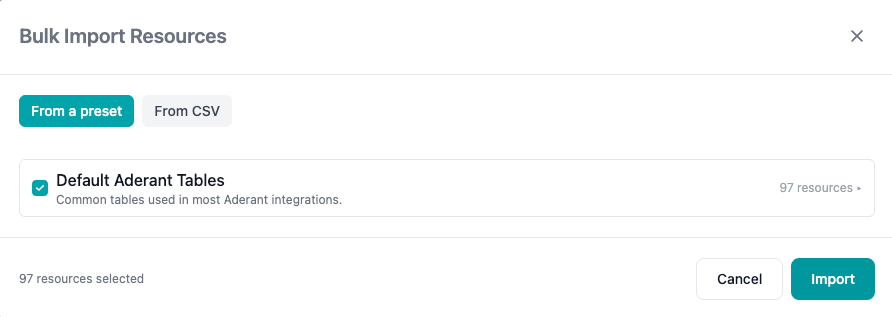
Bulk import enables resources that have already been discovered on the connection. If a resource you expect isn’t listed, run Refresh Source Schema first, then import.
- From a preset
- From a CSV file
Presets are curated bundles of the resources most integrations need, offered for supported data sources (for example, 3E, Aderant, and Iridium).
1
Open the dialog
If presets exist for the connection’s data source, the From a preset tab is selected by default.
2
Select presets
Choose one or more presets. Every resource in a selected preset is checked by default.
3
Refine the selection (optional)
Expand a preset to see its resources and uncheck any you don’t want to enable.
4
Import
Click Import. The selected resources are enabled immediately.
If a data source has no presets defined, only the CSV option is shown.
Unlike single and multiple toggles, bulk import applies as soon as you click Import — there’s no separate Save step. Imported resources begin collecting on their next scheduled time (or trigger a manual collection to test).
Disabling Resources
The same process works in reverse to disable collection:1
Click Toggle to OFF
Click the blue toggle to turn it gray (OFF)
2
Save Changes
Click Save in the floating bar
3
Collection Stops
The resource stops collecting data
- Scheduled jobs are canceled
- Existing data in lakehouse is preserved
Canceling Changes
To discard toggled changes before saving:1
Click Cancel
Click Cancel in the floating save bar
2
Changes Reverted
All toggles return to their saved state
Access Control Requirements
Some resources cannot be enabled without access control configuration: Indicators:- Lock icon next to resource name
- Toggle is disabled (grayed out)
- Tooltip explains access control requirement
- Configure access control for the resource
- See Access Control documentation
- Return to enable the resource once access control is set
Access control ensures only authorized users can query this resource’s data in your lakehouse.
Connection-Level Impact
Remember that connection status affects all resources:First Collection After Enabling
When you first enable a resource:1
Wait for Scheduled Time
Collection starts at the next scheduled interval
- Connection schedule (if resource uses default)
- Resource schedule (if custom override configured)
2
Or Trigger Manually
Don’t want to wait? Trigger a manual collection:
- Click on the resource name
- Click Start a Collection
- See Triggering Collection
3
Monitor First Job
Watch the first collection to verify:
- Authentication works
- Data is accessible
- No configuration errors
Common Workflows
Initial Setup: Enable Core Tables
After creating a connection:1
Review All Resources
Browse the discovered resources list
2
Identify Critical Data
Determine which tables/endpoints contain needed data
3
Enable Core Resources
Toggle ON the essential resources first (customers, products, transactions)
4
Save and Test
Save changes and trigger manual collection to test
5
Enable Additional Resources
After core resources work, enable supplementary data
Temporary Pause: Disable During Maintenance
To temporarily stop collection:1
Disable Affected Resources
Toggle OFF resources undergoing maintenance
2
Save Changes
Apply the changes
3
Perform Maintenance
Complete source system work
4
Re-enable Resources
Toggle back ON and save
For connection-wide pauses, set the connection to Inactive instead of disabling individual resources.
Best Practices
Start Small
Enable a few critical resources first, verify they work, then expand
Test Before Production
Enable and test in a development connection before production
Document Decisions
Keep notes on why certain resources are enabled or disabled
Review Periodically
Regularly review enabled resources to ensure they’re still needed
Troubleshooting
Toggle Won’t Turn On
Symptoms: Click toggle but it doesn’t change Possible causes:- Access control required
- Network issue
- Browser cache problem
- Check for lock icon (access control required)
- Refresh the page and try again
- Check browser console for errors
Changes Not Saving
Symptoms: Click Save but resources don’t activate Possible causes:- Network interruption
- Server error
- Validation failure
- Check for error messages
- Refresh page and check resource status
- Try enabling fewer resources at once
- Contact support if issue persists
Resource Enabled But Not Collecting
Symptoms: Resource is active but no jobs appear Possible causes:- Connection is inactive
- Schedule hasn’t triggered yet
- Verify connection status is Active
- Check schedule timing
- Trigger manual collection to test
- See Troubleshooting
Next Steps
Collection Settings
Configure schedules and load types for enabled resources
Triggering Collection
Manually start collection for testing
Monitoring Jobs
Track collection execution and performance
Troubleshooting
Resolve resource collection issues