
Overview
The Connections page provides a centralized view of all your configured data sources. Use this page to browse connections, check their status, and access detailed configuration.Accessing the Connections Page
- Navigate to Collectors in the main navigation
- The Connections page displays by default
Connections List
The main connections table displays all your configured data sources with key information at a glance.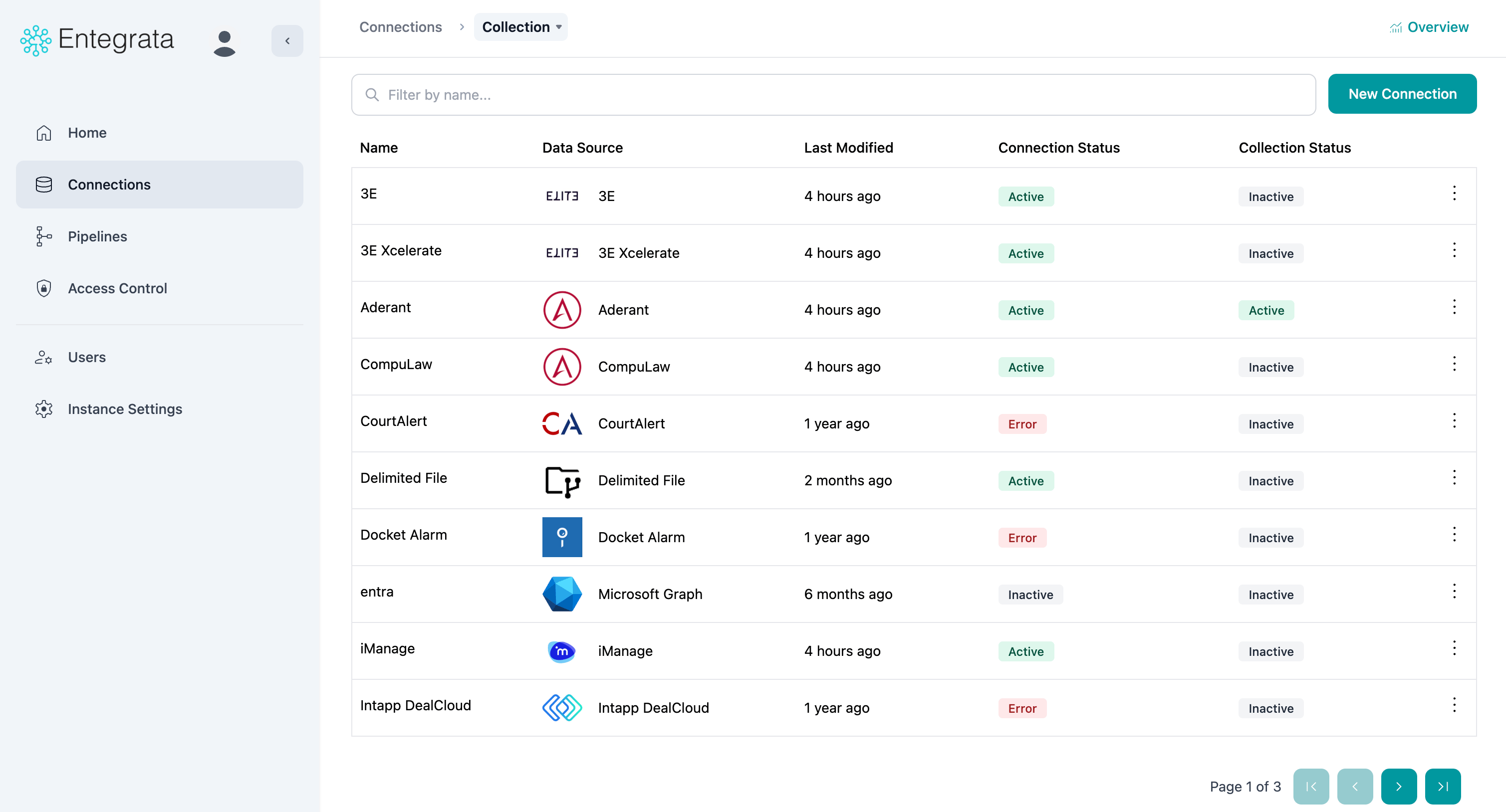
Column Information
string
Unique identifier for the connection (hidden by default, for technical reference)
string
Your custom nickname for this connection, making it easy to identify
badge
The type of data source with an icon (SQL Server, Aderant, DealCloud, etc.)
timestamp
When the connection configuration was last updated
enum
Current connection state:
- Active (Green) - Operational and collecting data
- Inactive (Gray) - Paused, not collecting
- Error (Red) - Authentication or connectivity issues
Searching Connections
Use the search bar to quickly find specific connections by name or data source type.Using Search
1
Locate Search Bar
Find the search input at the top of the connections list
2
Enter Search Term
Type any part of the connection name or data source typeExamples:
- “Production” - Finds all connections with “Production” in the name
- “SQL” - Finds all SQL Server connections
- “DealCloud” - Finds DealCloud connections
3
View Results
The table updates automatically as you type, showing only matching connections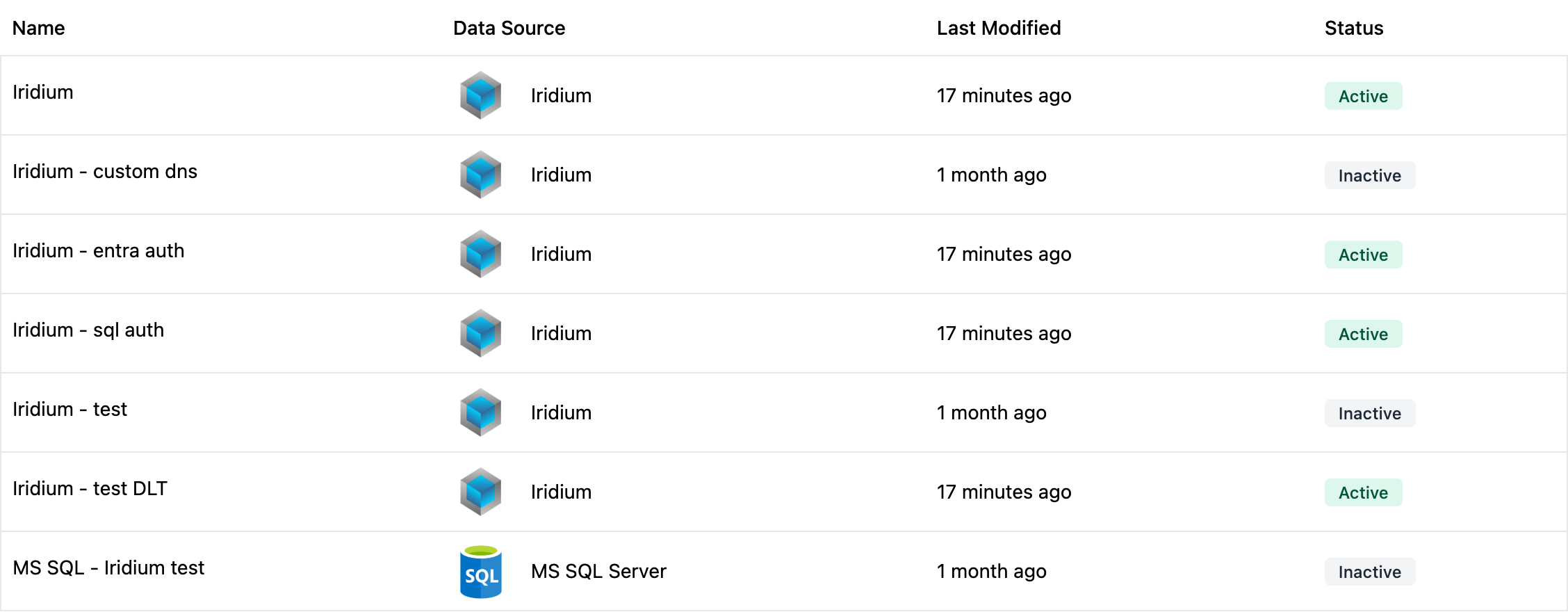
4
Clear Search
Click the X icon or clear the search field to show all connections
Sorting Connections
Click column headers to sort the connections list.Sortable Columns
- Name - Alphabetical A-Z or Z-A
- Data Source - Alphabetical by source type
- Last Modified - Most recent first or oldest first
- Status - Grouped by status type

The sort indicator (up/down arrow) shows which column is currently sorted and in which direction.
Pagination
For accounts with many connections, the table uses pagination.1
View Page Information
See how many connections are displayed and total count at the bottom of the table
2
Navigate Pages
Use the page navigation controls:
- Previous - Go to previous page
- Page numbers - Jump to specific page
- Next - Go to next page
3
Adjust Page Size
Change how many connections appear per page (10, 20, 50, 100)
Viewing Connection Details
Click any connection row to view its resources and detailed configuration.1
Click Connection Row
Click anywhere on the connection row (except action buttons)
2
View Resources Page
You’ll be taken to the Resources page for this connection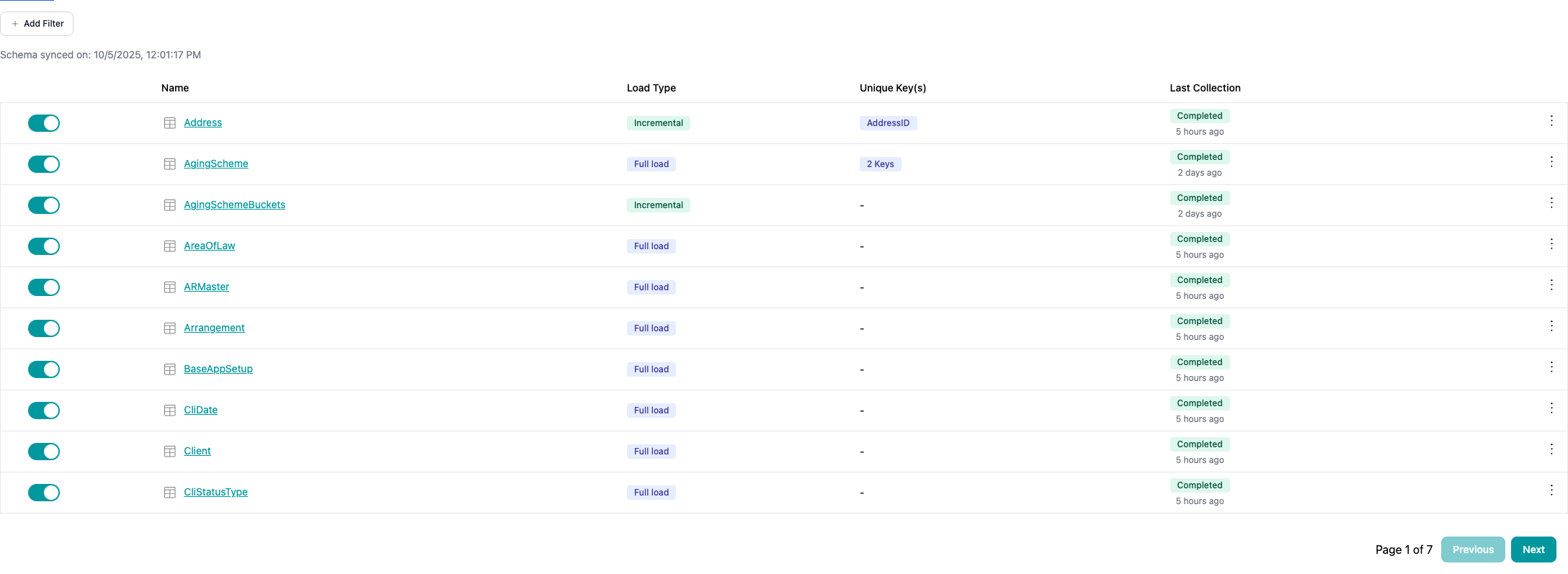
- All discovered resources (tables, views, endpoints, files)
- Resource collection status
- Collection jobs and history
Connection Status Indicators
Understanding status badges helps you quickly identify connection health.Active Status

- Resources can collect according to schedule
- Discovery runs automatically
- No action needed
Inactive Status

- No data collection occurring
- Discovery still runs
- Can be re-activated anytime
Error Status
- Collection failing or cannot connect
- Action required: Update credentials or check connectivity
- See Troubleshooting for resolution steps
Quick Actions
From the connections list, you can perform quick actions without navigating away.Creating a New Connection
Click New Connection in the top-right corner to add a new data source.
See Creating Connections for detailed instructions.
Accessing Connection Settings
Some connection types may offer quick settings access directly from the list (implementation varies).Empty State
If you haven’t created any connections yet, you’ll see an empty state with guidance. Click New Connection to add your first data source.Best Practices
Use Descriptive Names
Name connections clearly (e.g., “Production SQL - Finance DB” instead of “SQL1”)
Check Status Regularly
Review the connections list periodically to catch errors early
Keep Connections Organized
Use consistent naming conventions to make searching easier
Monitor Last Modified
Track when connections were last updated to identify stale configurations
Next Steps
Creating Connections
Add a new data source connection
Editing Connections
Update existing connection settings
Managing Resources
Configure resources within your connections
Troubleshooting
Resolve connection issues