
Overview
The Resources page displays all discovered tables, views, and endpoints within a connection. Use this page to browse available data, check collection status, and access configuration options.Accessing Resources
1
Navigate to Connection
From the Connections page, click on a connection
2
View Resources List
The Resources page displays automatically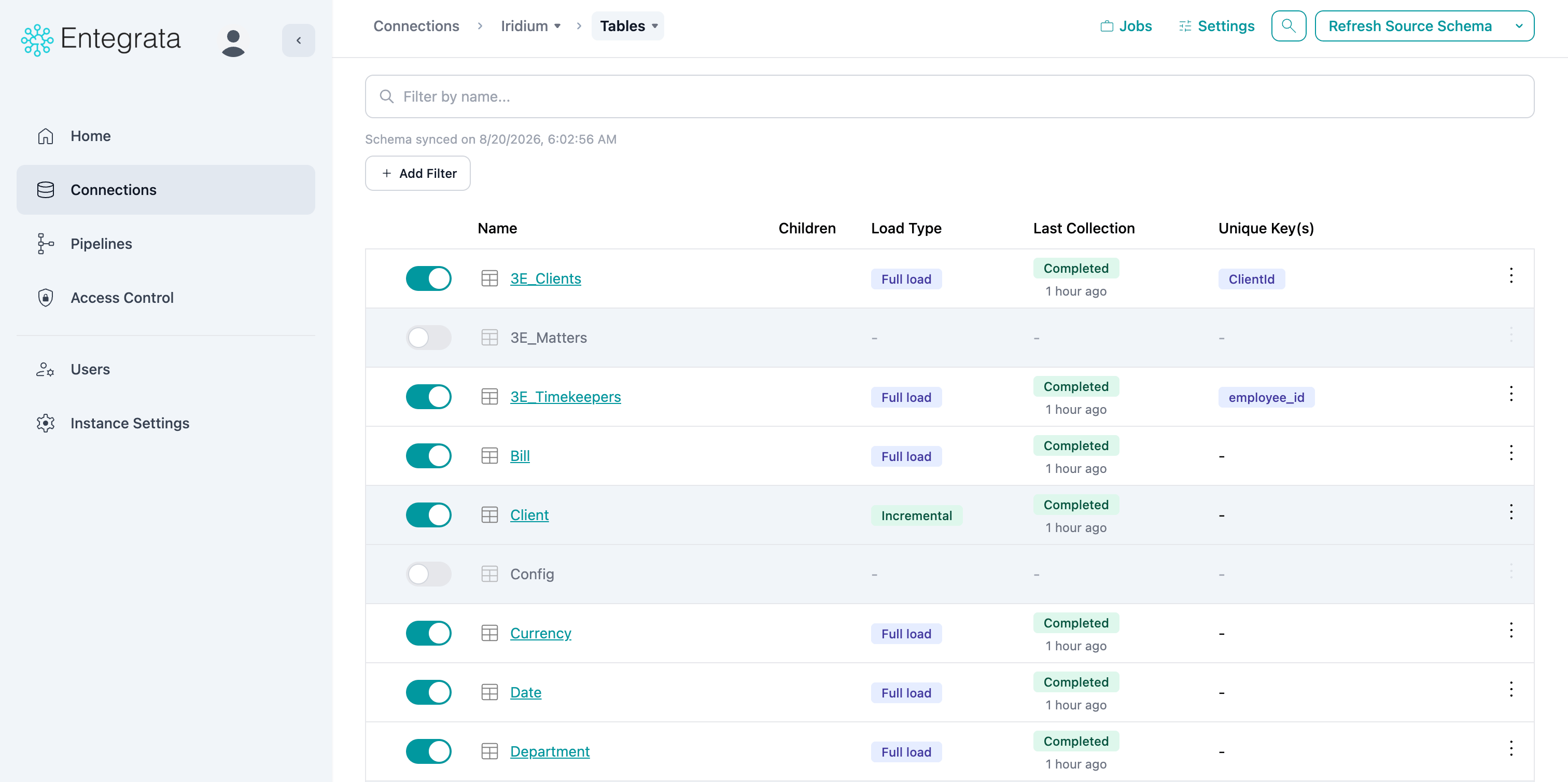
Resources Table
The table shows all discovered resources with key information: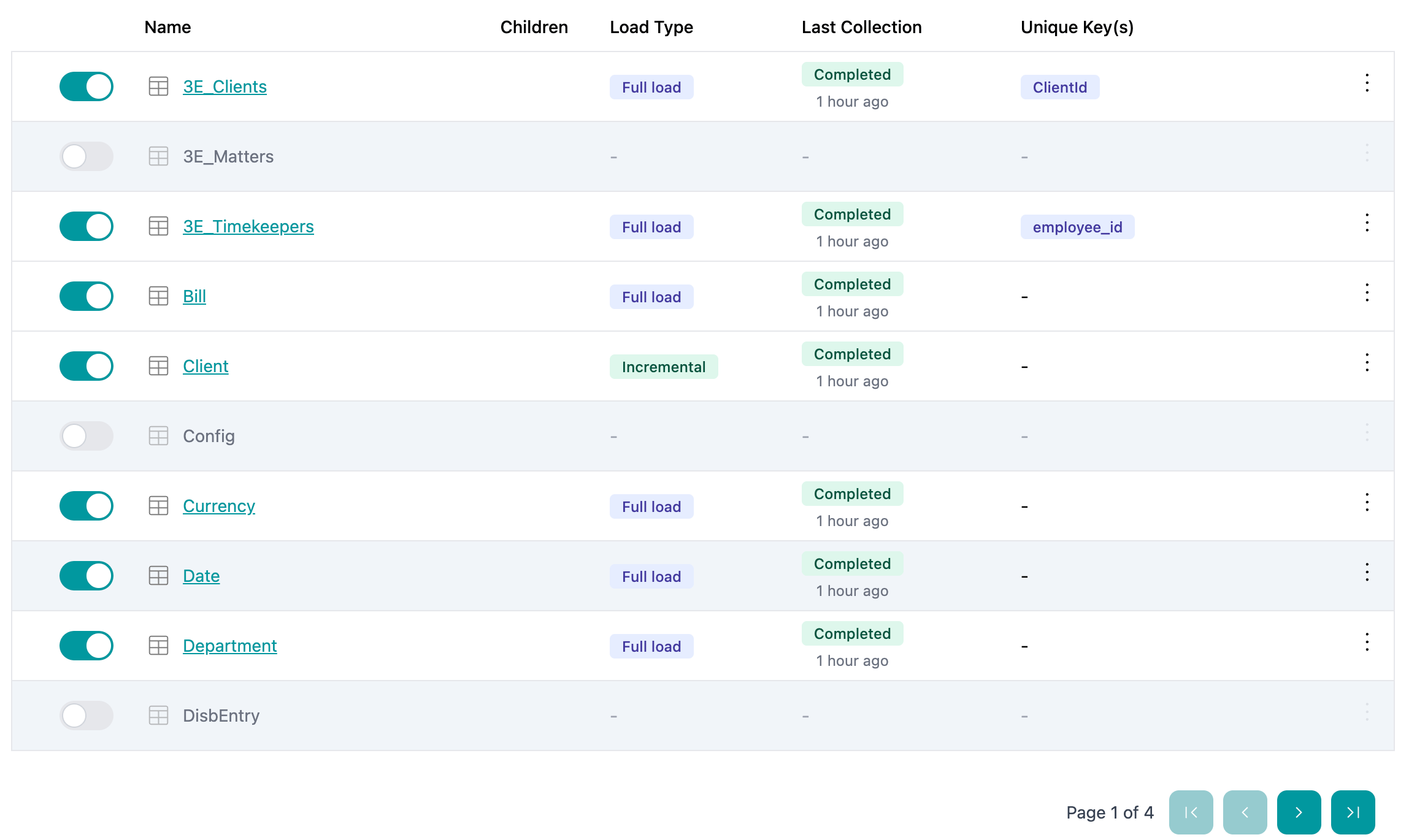
Column Information
control
Enable/disable collection for this resource (first column)
string
Resource name with type icon (Table, View, or Endpoint)
badge
Current load configuration (Full or Incremental)
array
Fields that uniquely identify records
timestamp
When resource was last collected and the job status
action
Quick access to collection settings (gear icon with three dots)
Resource Type Icons
Resources are visually identified by icons:- Table icon - Database table
- View icon - Database view
- Endpoint icon - API endpoint
Searching Resources
Find specific resources using the search bar.1
Enter Search Term
Type any part of the resource name in the search field
2
View Results
The table updates to show only matching resources
Filtering Resources
Use filters to narrow down the resources list.Filter by Status
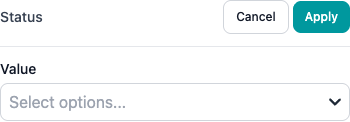
- All Resources - Show everything
- Active Only - Show enabled resources
- Inactive Only - Show disabled resources
Filter by Type
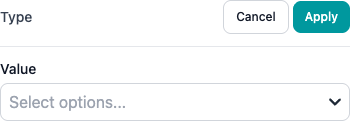
- All Types - Show all resource types
- Tables - Show only database tables
- Views - Show only database views
- Endpoints - Show only API endpoints
Filter by Load Type
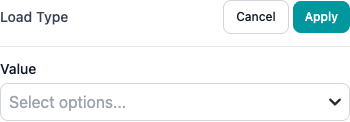
- All Load Types
- Full Load Only
- Incremental Only
Pagination
For connections with many resources:
- View page information (e.g., “Page 1 of 10”)
- Navigate pages with Previous/Next buttons
Last Discovery Timestamp
See when resources were last discovered:
Clicking on Resources
Click a resource name to view detailed information.1
Click Resource Name
Click anywhere on the resource name (blue link)
2
View Resource Details
Navigate to the resource detail page showing:
- All fields/columns
- Field data types and metadata
- Collection jobs for this resource
- Resource-specific collection settings
Load Type Badges
Resources display their configured load type as a badge:
- Full - Copies all data every collection
- Incremental - Copies only changed data
Unique Keys Display
The Unique Key(s) column shows which fields identify unique records:
- Single field: “id”
- Multiple fields: “customer_id, order_date”
Last Collection Status
See when each resource was last collected and whether it succeeded:
- Green checkmark - Last collection succeeded
- Red X - Last collection failed
Empty State
If no resources are discovered: Possible reasons:- Discovery is still running
- Connection has no accessible resources
- User lacks permissions to see resources
- Connection parameters are incorrect
- Wait a few minutes for discovery to complete
- Trigger manual discovery
- Check connection credentials and permissions
- Verify database/schema names in connection settings
Best Practices
Use Search for Large Lists
When you have hundreds of resources, search is faster than scrolling
Filter by Status
Focus on active resources when monitoring, or inactive when looking for new data to enable
Check Last Discovered
If you don’t see expected resources, check when discovery last ran
Click for Details
Click resource names to see full field lists and collection history
Next Steps
Enabling Resources
Turn on collection for resources
Collection Settings
Configure schedules, load types, and filters
Discovery
Learn how resources are discovered
Troubleshooting
Resolve resource issues