
Overview
Creating a new pipeline is the first step in setting up your data integration workflow. This guide walks you through the process of creating a pipeline, from initial setup to configuring trigger settings.Prerequisites
Before creating a pipeline, ensure you have:- Access to the Entegrata Admin Portal
- Appropriate permissions to create pipelines
- Understanding of what data you want to process
- Knowledge of your source data systems (configured in Collector)
Creating a Pipeline
1
Navigate to Pipelines
Log in to the Entegrata Admin Portal and click the Pipelines tab in the main navigation.
2
Click Create New Pipeline
In the pipeline list view, click the Create New Pipeline button in the top-right corner of the page.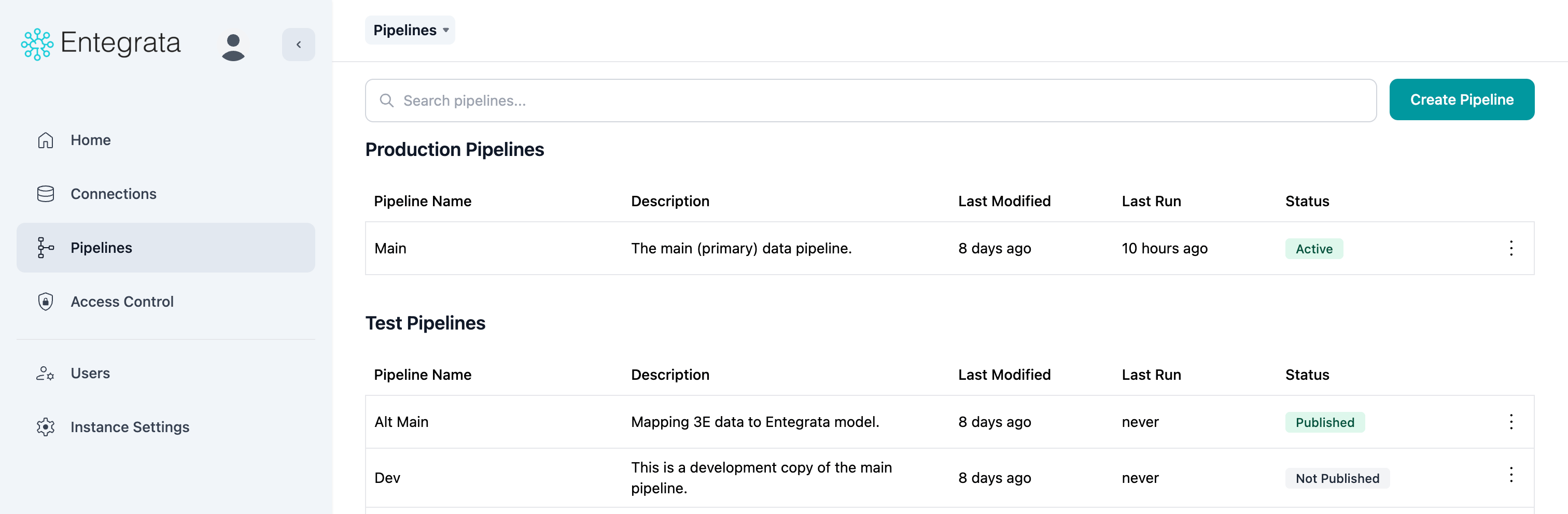
3
Enter Pipeline Details
In the Create New Pipeline dialog, provide the following information: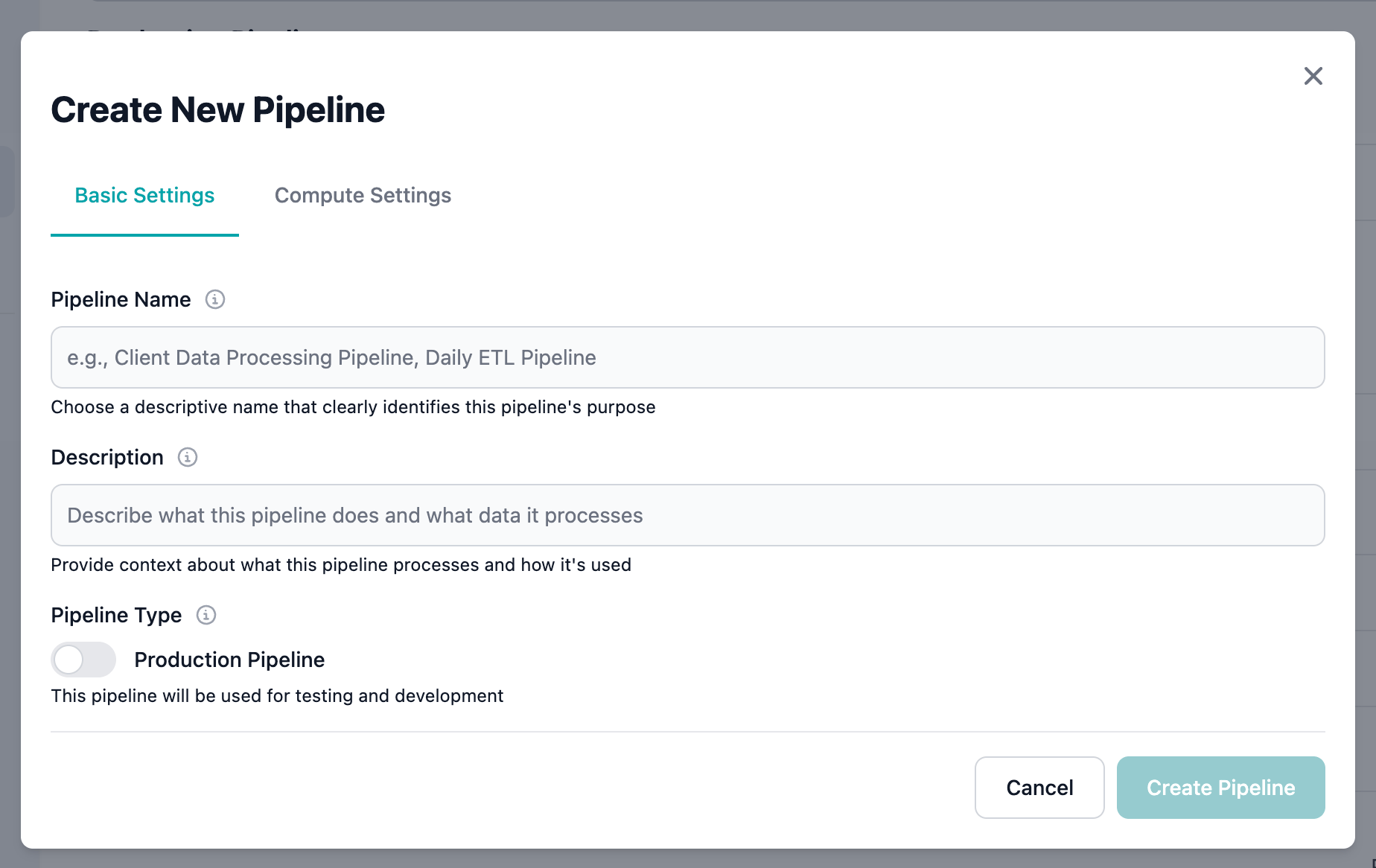
Pipeline Name (Required)
Enter a descriptive name that clearly identifies the pipeline’s purpose.Examples:- “Client Data Processing Pipeline”
- “Daily ETL Pipeline”
- “Historical Account Migration”
- “Real-time Transaction Sync”
Choose business-friendly names that non-technical users can understand. The name will appear in reports, logs, and monitoring dashboards.
Pipeline Key (Auto-generated)
The pipeline key is automatically generated from the name by converting it to lowercase and replacing spaces with underscores.Example: “Client Data Processing Pipeline” becomesclient_data_processing_pipelineYou can customize the key if needed, but it must be unique within your instance and contain only lowercase letters, numbers, and underscores.
4
Add Description
Provide a detailed description of what the pipeline does, what data it processes, and how it fits into your workflows.Example:
“Processes client demographic and contact information from Salesforce CRM. Runs nightly to update Client and Contact data types with changes from the previous 24 hours. Includes validation rules for email addresses and phone numbers.”
5
Select Trigger Type
Choose how the pipeline should be executed:
No Trigger (Default)
Pipeline must be run manually by a user. Best for:- Development and testing
- One-time data migrations
- Ad-hoc processing needs
Manual
Explicitly configured for manual execution only. Same as “No Trigger” but more explicit.Event Driven
Pipeline runs automatically when specific events occur. Best for:- Real-time or near-real-time processing
- Event-based workflows
- Triggered by external systems
6
Review and Create
Review all the information you’ve entered:
- Pipeline name is descriptive and unique
- Description provides sufficient context
- Trigger type matches your use case
7
Confirmation
After successful creation, you’ll see a success message and the pipeline will appear in the pipeline list.The pipeline is created in Draft status, meaning it’s not yet deployed to production. You can now:
- Add data type mappings
- Configure data sources
- Test the pipeline in dry-run mode
After Creating a Pipeline
Once your pipeline is created, follow these next steps:1. Add Data Type Mappings
Click on the pipeline name to open the mapping editor and start adding data types to process.Managing Data Types
Learn how to add and configure data types in your pipeline
2. Configure Data Sources
For each data type, you’ll need to connect to your Collector data sources and select which tables or resources to use.Configuring Sources
Learn how to add and configure data sources for your mappings
3. Map Fields
Use the visual mapping editor to map source fields to data type fields, applying transformations as needed.Mapping Fields
Learn how to map fields between sources and data types
4. Test the Pipeline
Before deploying to production, run the pipeline in dry-run mode to validate your mappings.Running Pipelines
Learn how to test and execute pipelines
Pipeline Creation Tips
Troubleshooting
Can’t Create Pipeline
Problem: The “Create New Pipeline” button is disabled or not visible. Solution:- Verify you have pipeline creation permissions
- Check that you’re logged in with the correct account
- Contact your administrator if permissions are needed
Pipeline Name Already Exists
Problem: Error message indicating the pipeline name is already in use. Solution:- Choose a different, unique name for your pipeline
- Check if a similar pipeline already exists that you could reuse or duplicate
- Add qualifiers to make the name unique (e.g., “V2”, “Test”, or a date)
Pipeline Created But Not Visible
Problem: Pipeline was created successfully but doesn’t appear in the list. Solution:- Refresh the page to reload the pipeline list
- Check if pagination is hiding your pipeline (it may be on another page)
- Use the search bar to find the pipeline by name
- Clear your browser cache if the issue persists
Related Topics
Pipeline Management
Learn about pipeline lifecycle and management
Editing Pipelines
How to modify existing pipeline settings
Duplicating Pipelines
Create copies of existing pipelines
Data Mapping Overview
Next steps: Configure your data mappings