
Overview
Pipeline status controls whether a pipeline can execute automatically on its configured schedule. Managing status allows you to temporarily disable pipelines, control resource usage, and prevent unintended executions during maintenance or troubleshooting.Pipeline Status Types
Pipelines can have several status states:Run Status
status
Pipeline is deployed and enabled for automatic execution based on its trigger configuration. Scheduled pipelines will run at their configured times.
status
Pipeline is deployed but disabled from automatic execution. Can still be run manually but won’t execute on schedule.
Deployment Status
status
Pipeline has not been deployed to production. Cannot execute with real data.
status
Pipeline has been published to production and is ready to execute.
Execution Status
status
Pipeline is currently executing a job.
status
Last execution completed without errors.
status
Last execution encountered errors.
A pipeline can be Deployed and Paused simultaneously. This means it’s ready to run but won’t execute automatically until activated.
Pausing a Pipeline
Pausing a pipeline temporarily disables automatic execution while keeping the deployment intact.When to Pause
Pause pipelines when:- Maintenance Required - Source systems are undergoing maintenance
- Data Quality Issues - Source data has known problems that need resolution
- Resource Management - Reducing processing load during peak times
- Troubleshooting - Investigating errors without impacting schedules
- Temporary Disable - Business process changes require temporary halt
- Cost Control - Reducing compute costs during low-priority periods
1
Navigate to Pipeline List
Log in to the Entegrata Admin Portal and go to the Pipelines tab.
2
Locate the Active Pipeline
Find the pipeline you want to pause. Look for pipelines with Active status.
3
Open Actions Menu
Click the three-dot menu (⋮) in the Actions column for the pipeline.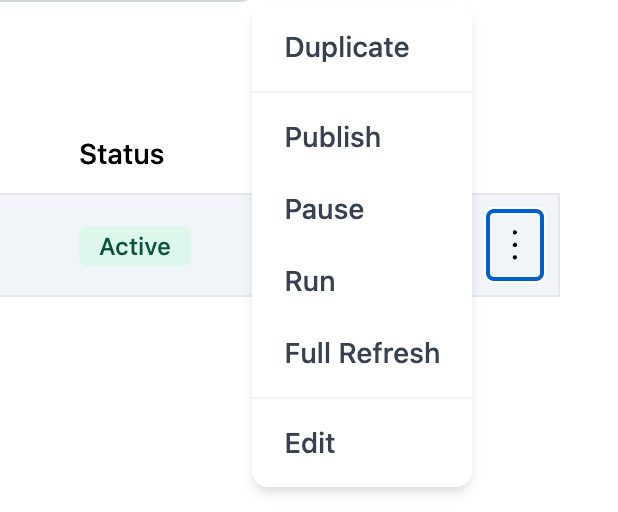
4
Select Pause
From the actions menu, click Pause to disable automatic execution.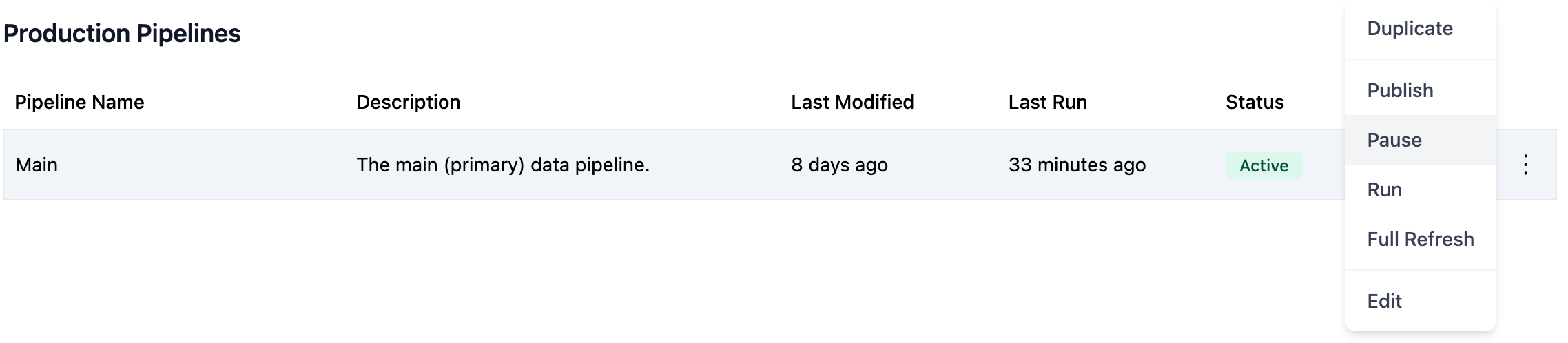
5
Confirm Status Change
The pipeline status immediately changes to Paused. You’ll see:
- Status badge updates to show Paused
- Success confirmation message
- Pipeline remains deployed and can be run manually
Activating a Pipeline
Activating a pipeline enables automatic execution based on its trigger configuration.When to Activate
Activate pipelines when:- Initial Deployment - After deploying and testing a new pipeline
- Resume After Maintenance - Source systems are back online
- Issues Resolved - Data quality or configuration problems are fixed
- Scheduled Enable - Enabling during appropriate business hours
- After Updates - Reactivating after redeployment with changes
1
Navigate to Pipeline List
Go to the Pipelines tab in the Entegrata Admin Portal.
2
Locate the Paused Pipeline
Find the pipeline you want to activate. Look for pipelines with Paused status.
3
Verify Pipeline Is Ready
Before activating, ensure:
- Pipeline is deployed (not Draft)
- Mappings are complete and tested
- Source systems are accessible
- Trigger schedule is configured correctly
- You’re ready for automatic execution
4
Open Actions Menu
Click the three-dot menu (⋮) in the Actions column.
5
Select Activate
From the actions menu, click Activate to enable automatic execution.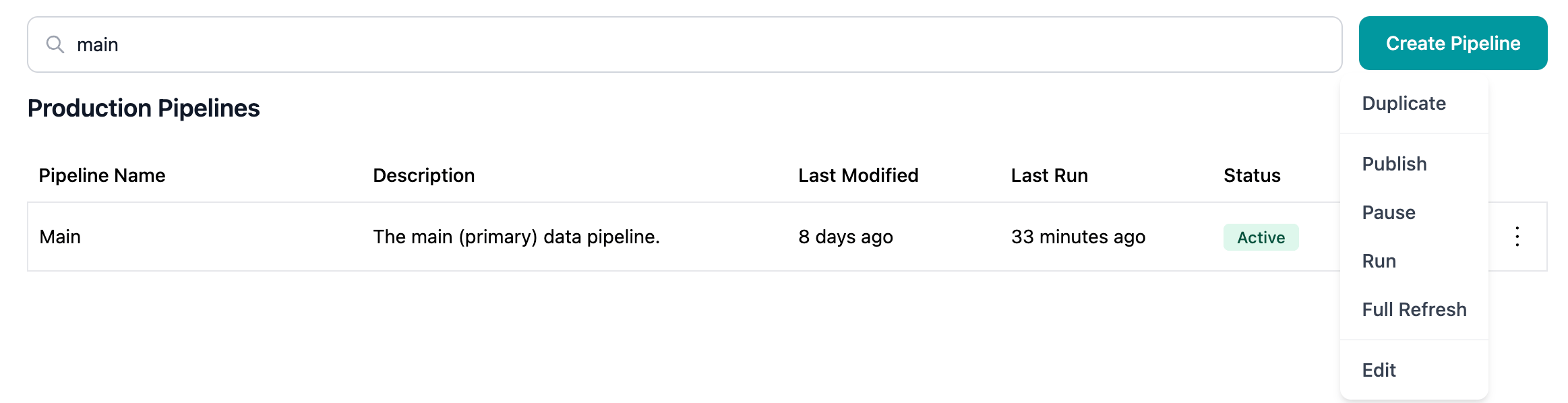
6
Confirm Status Change
The pipeline status changes to Active. You’ll see:
- Status badge updates to show Active
- Success confirmation message
- Pipeline will now run automatically on schedule
7
Monitor Next Scheduled Run
After activating:
- Note the next scheduled execution time
- Monitor the first automatic run closely
- Verify execution completes successfully
- Check data quality in warehouse
The pipeline won’t run immediately upon activation. It will execute at the next scheduled time according to its cron expression.
Manual Execution During Pause
Even when paused, you can still run pipelines manually:- Paused status only affects automatic/scheduled execution
- Manual “Run” action remains available in the actions menu
- Useful for testing or one-off processing needs
- Does not change the Paused status
This allows you to disable scheduled runs while maintaining the ability to run pipelines on-demand for testing or special situations.
Status Management Best Practices
Status Transition Rules
Understanding valid status transitions:You cannot directly change a Draft pipeline to Active. You must first deploy the pipeline, then activate it.
Monitoring Pipeline Status
Status Dashboard
The pipeline list provides an at-a-glance view of all pipeline statuses:- Status badges show current state with color coding
- Last Run column shows when pipeline last executed
- Last Modified column shows when configuration changed
Filtering by Status
To find pipelines with specific statuses:- Use the search bar with status keywords
- Sort by status column
- Look for color-coded status badges
Bulk Status Management
Currently, pipelines must be paused or activated individually. For managing multiple pipelines:Planned Approach
- List Critical Pipelines - Document which pipelines must remain active
- Group by Schedule - Identify pipelines that run at similar times
- Coordinate Changes - Update multiple pipelines in sequence
- Verify All Changes - Check each pipeline after status update
For Large-Scale Changes
If you need to pause/activate many pipelines:- Plan during maintenance window
- Document sequence of operations
- Have team members assist with parallel updates
- Verify critical pipelines first
Contact your administrator if you regularly need to pause/activate many pipelines. Bulk operations may be possible through API or scripts.
Troubleshooting Status Management
Can’t Pause Pipeline
Problem: Pause option is not available or disabled. Solutions:- Verify pipeline is currently Active (can’t pause if already Paused or Draft)
- Check you have appropriate permissions
- Ensure you’re not inside the pipeline editor (must be in list view)
- Refresh page and try again
Pipeline Still Running After Pause
Problem: Paused pipeline continues executing on schedule. Solutions:- Verify status actually changed to Paused (check badge)
- Wait for current execution to complete (pause doesn’t stop running jobs)
- Check if multiple pipelines with similar names exist (paused wrong one)
- Refresh page to see current status
Can’t Activate Pipeline
Problem: Activate option not available or pipeline won’t activate. Solutions:- Verify pipeline is Deployed (must deploy Draft pipelines first)
- Check pipeline has trigger configuration (manual-only pipelines don’t need activation)
- Ensure you have activation permissions
- Verify pipeline is not already Active
Pipeline Activated But Not Running
Problem: Active pipeline doesn’t execute on schedule. Solutions:- Verify trigger type is Scheduled (not Manual or No Trigger)
- Check cron expression is valid and next run time hasn’t passed
- Ensure schedule timezone is correct
- Review execution logs for errors preventing scheduled start
- Confirm source systems are accessible
Related Topics
Running Pipelines
Execute pipelines manually regardless of status
Deploying Pipelines
Deploy before activating pipelines
Creating Pipelines
Configure triggers when creating pipelines
Pipeline Management
Back to pipeline management overview