
Overview
Deleting a pipeline permanently removes it from your instance, including all data type mappings, execution history, and configuration. This operation cannot be undone, so it’s important to understand the implications before proceeding.When to Delete a Pipeline
Consider deleting pipelines in these situations:Pipeline No Longer Needed
- Business process has changed and data is no longer required
- Data source has been decommissioned
- Pipeline was replaced by a newer version
- Testing or development pipeline that served its purpose
Duplicate or Incorrect Pipeline
- Pipeline was created by mistake
- Duplicate exists that serves the same purpose
- Name or configuration is incorrect and easier to recreate than fix
Cleanup and Organization
- Removing old test pipelines
- Consolidating redundant pipelines
- Decluttering pipeline list for better management
Before deleting a production pipeline, consider pausing it first and monitoring for a period to ensure it’s truly not needed.
What Gets Deleted
When you delete a pipeline, the following are permanently removed:- Pipeline Configuration - Name, description, trigger settings, and metadata
- Data Type Mappings - All configured data type relationships
- Field Mappings - All source-to-target field mapping configurations
- Data Sources - Primary and related source configurations
- Transformation Logic - COALESCE, CONCAT, CASE expressions, and custom SQL
- Execution History - All past run logs and status information
- Deployment - DLT scripts are removed from warehouse
What Is NOT Deleted
Deleting a pipeline does NOT remove:- Data in Warehouse - Already-processed data remains in your data warehouse tables
- Data Types (Entities) - The data type definitions remain available for other pipelines
- Source Systems - Collector connections and source data are unaffected
- Other Pipelines - No impact on other pipelines, even if they use similar data types
Deleting a pipeline removes the processing logic but preserves the data that was already created. You may need to manually clean up warehouse tables if desired.
Deleting a Pipeline
1
Navigate to Pipeline List
Log in to the Entegrata Admin Portal and go to the Pipelines tab.
2
Locate the Pipeline
Find the pipeline you want to delete using the search bar or by browsing the list.
3
Verify Pipeline Can Be Deleted
Before proceeding, verify:
- This is the correct pipeline (check name and description carefully)
- No active jobs are running
- Dependencies on this pipeline’s data are understood
- Stakeholders have been notified if needed
- You have a backup or duplicate if you might need it later
4
Open Actions Menu
Click the three-dot menu (⋮) in the Actions column for the pipeline you want to delete.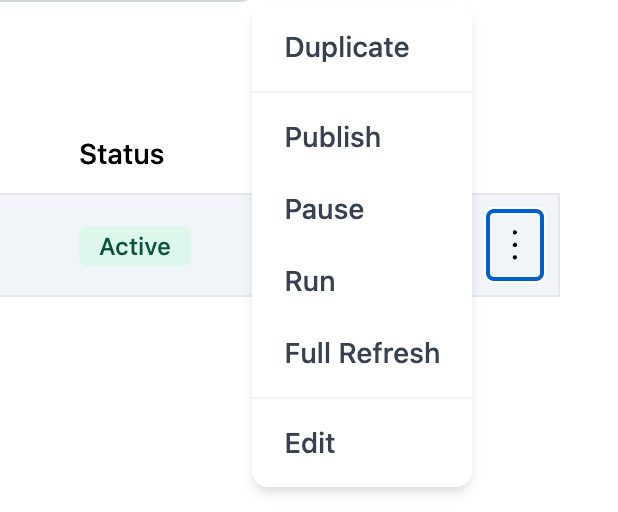
5
Select Delete
From the actions menu, click Delete to open the deletion confirmation dialog.
6
Review Deletion Warning
The confirmation dialog displays: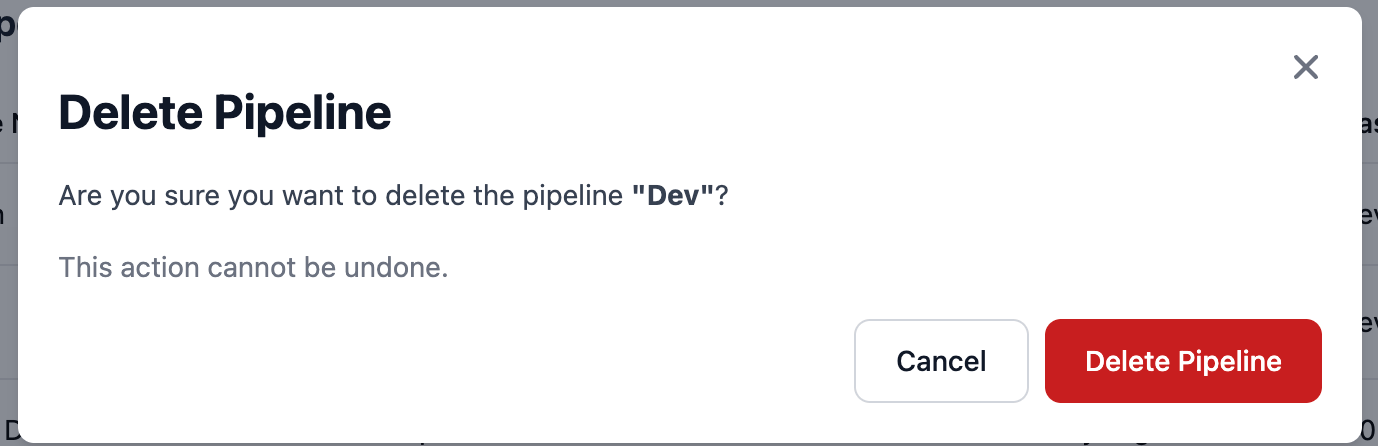
- Pipeline name being deleted
- Warning that deletion is permanent
- Information about what will be removed
- Option to proceed or cancel
7
Confirm Deletion
If you’re certain you want to delete the pipeline, click Delete Pipeline in the confirmation dialog.The deletion process begins and completes within a few seconds.
8
Verify Deletion
After successful deletion:
- Success confirmation message appears
- Pipeline is immediately removed from the pipeline list
- Pipeline no longer appears in search results
- Associated DLT scripts are removed from warehouse
9
Clean Up Warehouse Tables (Optional)
If desired, manually remove warehouse tables that were populated by the deleted pipeline:
- Connect to your data warehouse
- Identify tables created by the pipeline (usually named after data types)
- Drop or archive tables as needed
- Update any downstream dependencies
This is optional. Leaving tables in place won’t cause issues but may consume storage space.
Deletion Best Practices
Alternative to Deletion
Instead of deleting, consider these alternatives:Pause the Pipeline
If you’re unsure about deleting:- Pause the pipeline to stop automatic execution
- Keep configuration for future reference
- Can be reactivated if needed
- No permanent data loss
Managing Pipeline Status
Learn how to pause pipelines instead of deleting
Archive with Naming
Rename the pipeline to indicate it’s archived:- Prefix name with “ARCHIVED - ”
- Add archive date to description
- Pause to prevent execution
- Keeps configuration accessible
Duplicate for Backup
Create an archive duplicate before deleting:- Duplicate the pipeline
- Name it clearly as a backup
- Pause the duplicate
- Delete the original
- Keep backup for a defined period (30-90 days)
Impact of Deletion
Understanding the impact helps avoid surprises:No Impact On
- Other Pipelines - Deletion doesn’t affect other pipelines
- Data Types - Entity definitions remain available
- Existing Data - Data already in warehouse is unaffected
- Source Systems - Collector connections unchanged
- User Permissions - Access controls remain the same
Impacts
- Cannot Run - Pipeline can no longer execute
- Configuration Lost - Mapping logic is permanently deleted
- History Gone - Execution logs and history are removed
- Scripts Removed - DLT scripts deleted from warehouse
- Reports May Break - If reports depend on real-time data from this pipeline
Recovery After Accidental Deletion
If you accidentally delete a pipeline:Immediate Steps
- Don’t panic - The data in your warehouse is still there
- Check for backups - Look for duplicate pipelines that might be backups
- Review documentation - Check if mapping logic was documented elsewhere
- Contact team - See if anyone else has a copy or remembers the configuration
Recreation Options
If no backup exists:- Recreate from memory - If recently worked with the pipeline
- Reverse engineer - Examine existing warehouse data and infer mappings
- Contact support - Entegrata support may have backup capabilities
- Restore from source control - If pipeline configuration was versioned externally
Entegrata does not provide built-in “undo” for pipeline deletion. Prevention through duplication and pausing is the best strategy.
Troubleshooting Deletion
Can’t Delete Pipeline
Problem: Delete option is not available or disabled. Solutions:- Verify you have delete permissions
- Check if pipeline is currently running (wait for completion)
- Ensure you’re viewing the pipeline list (not inside pipeline editor)
- Try refreshing the page
Deletion Fails with Error
Problem: Error message when attempting to delete. Solutions:- Verify no jobs are currently running
- Check if pipeline has active locks or dependencies
- Try pausing first, then deleting
- Contact support if error persists
Pipeline Still Appears After Deletion
Problem: Pipeline shows in list after deletion confirmation. Solutions:- Refresh the page to update the list
- Clear browser cache
- Check if you’re viewing a cached or filtered view
- Verify deletion actually completed (check for error messages)
Deleted Wrong Pipeline
Problem: Accidentally deleted the wrong pipeline. Solutions:- Check if a duplicate or backup exists
- Review team documentation for mapping details
- Contact Entegrata support immediately for recovery options
- Recreate pipeline from available documentation
- Learn from mistake: always duplicate before deleting
Deletion Checklist
Before deleting any pipeline, use this checklist:- Verified this is the correct pipeline (checked name and description)
- Confirmed pipeline is no longer needed
- Notified stakeholders who consume this pipeline’s data
- Checked for downstream dependencies (reports, dashboards, other pipelines)
- Created a duplicate backup if there’s any uncertainty
- Documented reason for deletion
- Obtained necessary approvals (if required by organization)
- Pipeline is not currently running
- Reviewed warehouse table cleanup requirements
- Scheduled follow-up to clean up warehouse tables (if needed)
Related Topics
Duplicating Pipelines
Create backups before deleting
Managing Status
Pause as an alternative to deletion
Creating Pipelines
Recreate deleted pipelines
Pipeline Management
Back to pipeline management overview