
Overview
Field mapping is the core of creating data pipelines in Entegrata. You define how data from your source systems maps to the standardized fields in your entities. This guide covers everything from simple direct mappings to understanding data type compatibility and handling common mapping scenarios.Understanding Field Mapping
What is Field Mapping?
Field mapping creates a connection between:- Source Field: A column from your data source (e.g.,
customer_namefrom CRM) - Entity Field: A standardized field in your entity (e.g.,
Name)
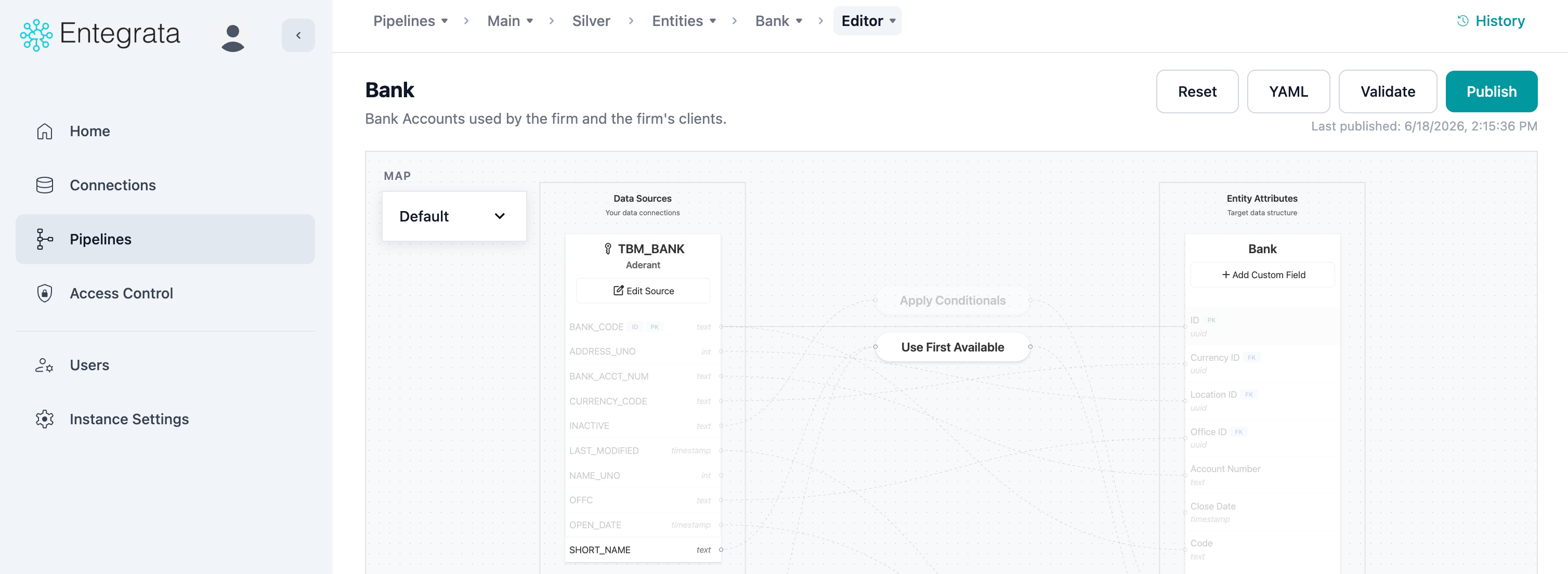
Direct Field Mapping (Visual View)
Basic Connection
1
Open the Mapping Editor
Navigate to your entity and open the mapping editor. Ensure you have at least one data source configured.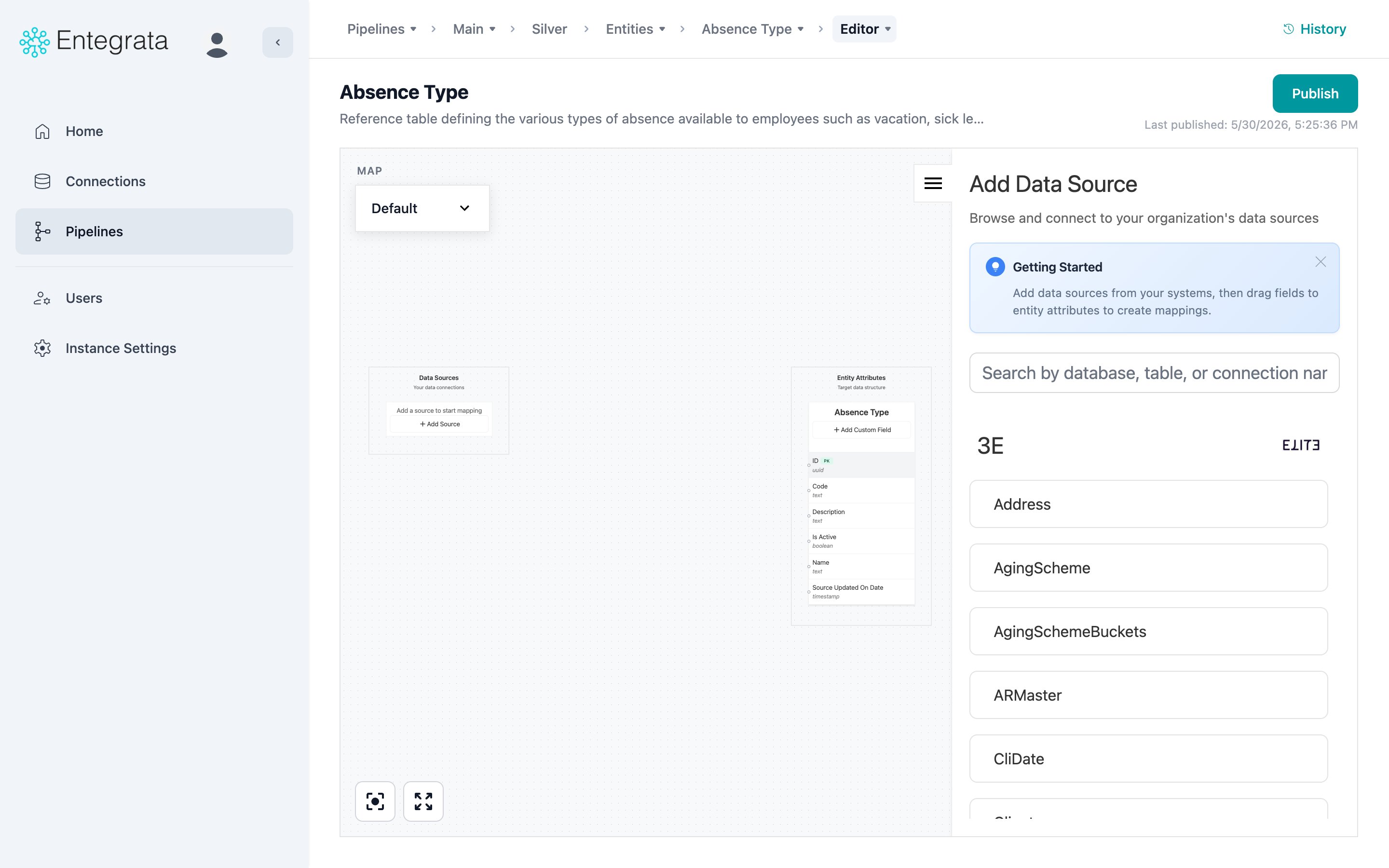
2
Locate Source Field
Find the source field you want to map. You can add new fields to your source node through the Edit Source modal’s Fields tab, which lets you search and select from available columns.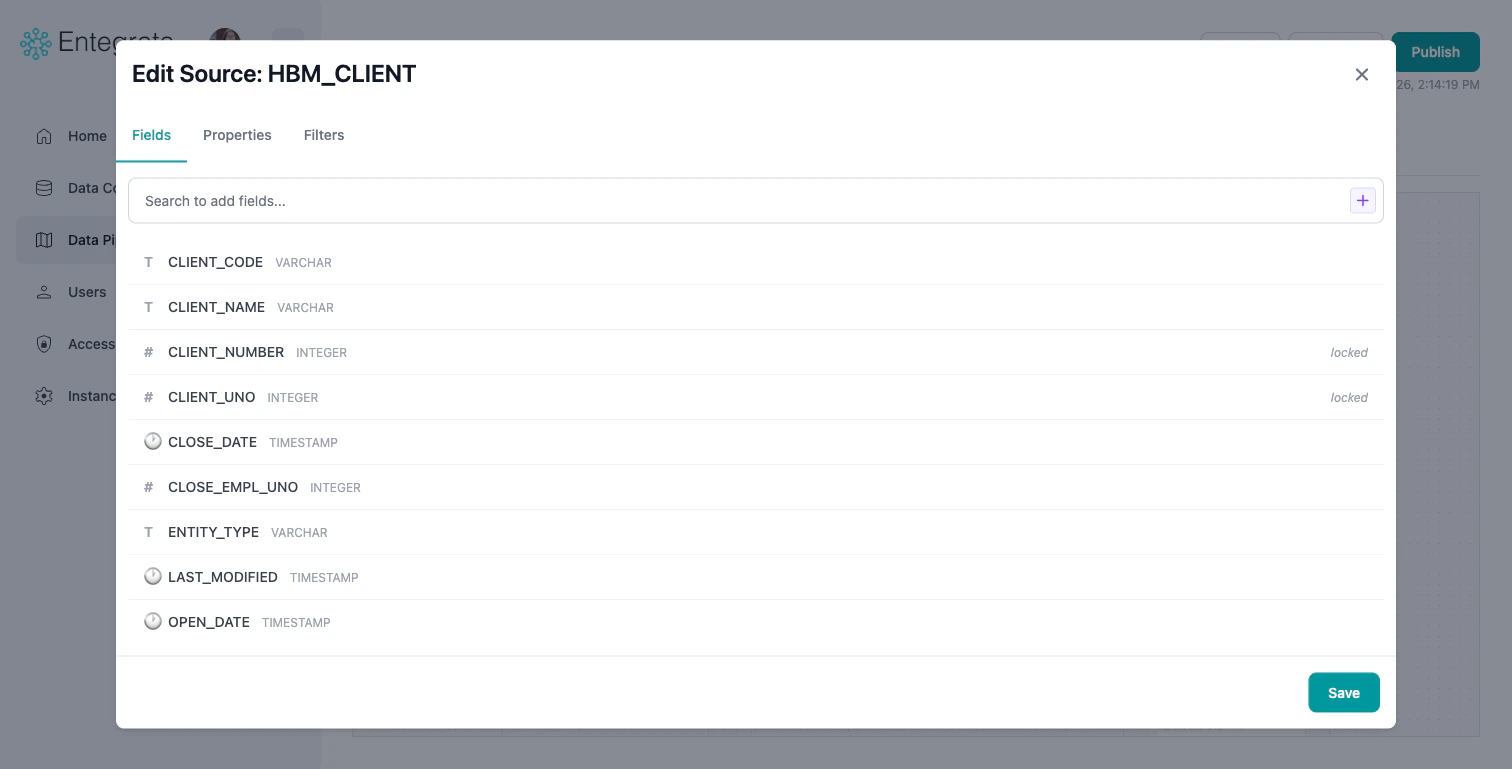
3
Locate Target Entity Field
On the right side, find the entity field you want to map to. Entity fields are shown with their data types.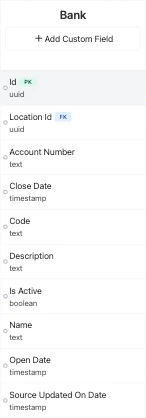
4
Drag to Connect
Click and hold on the source field, then drag to the entity field. Release to create the connection.An animated line appears showing the mapping relationship.
Alternative: Edit Field Modal
Instead of dragging, you can configure mappings through the Edit Field modal:1
Click Entity Field
Click on the entity field you want to map. This opens the Edit Field modal.
2
Open Data Source Tab
Switch to the Data Source tab in the modal.
3
Select Source and Field
Use the source and field dropdowns to select where the data comes from. The mapping is applied when you click Save.
Understanding Data Type Compatibility
Automatic Type Conversion
Entegrata automatically converts between compatible data types:Mapping from Multiple Sources
When you have related sources, you can map fields from any of them:1
Identify Field Sources
Each source node is labeled. Fields show which source they come from.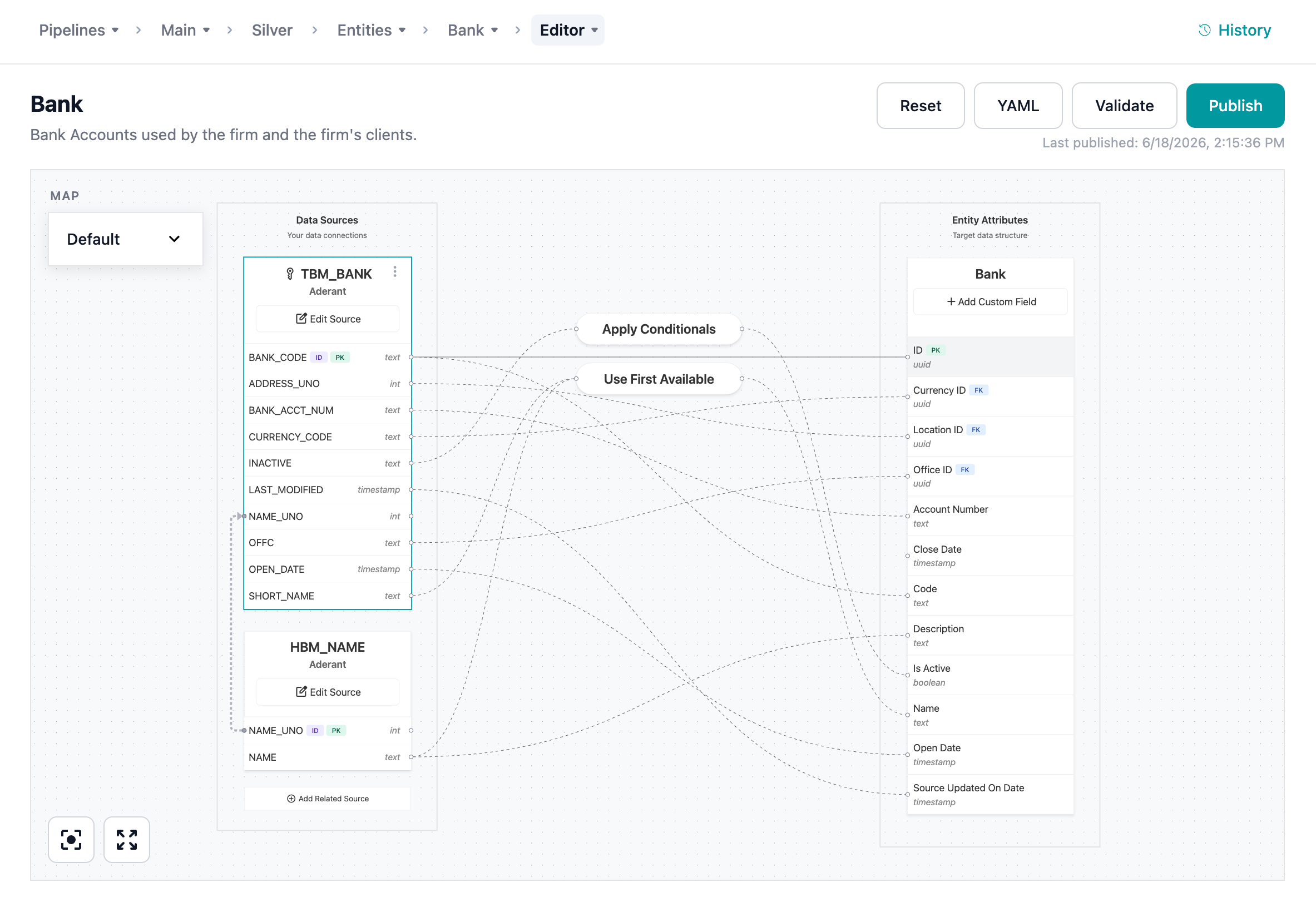
2
Map from Any Source
Connect entity fields to fields from either:
- Primary source
- Any related source
3
Handle Null Values
When mapping from related sources (joined with LEFT JOIN), some records may have null values.Consider: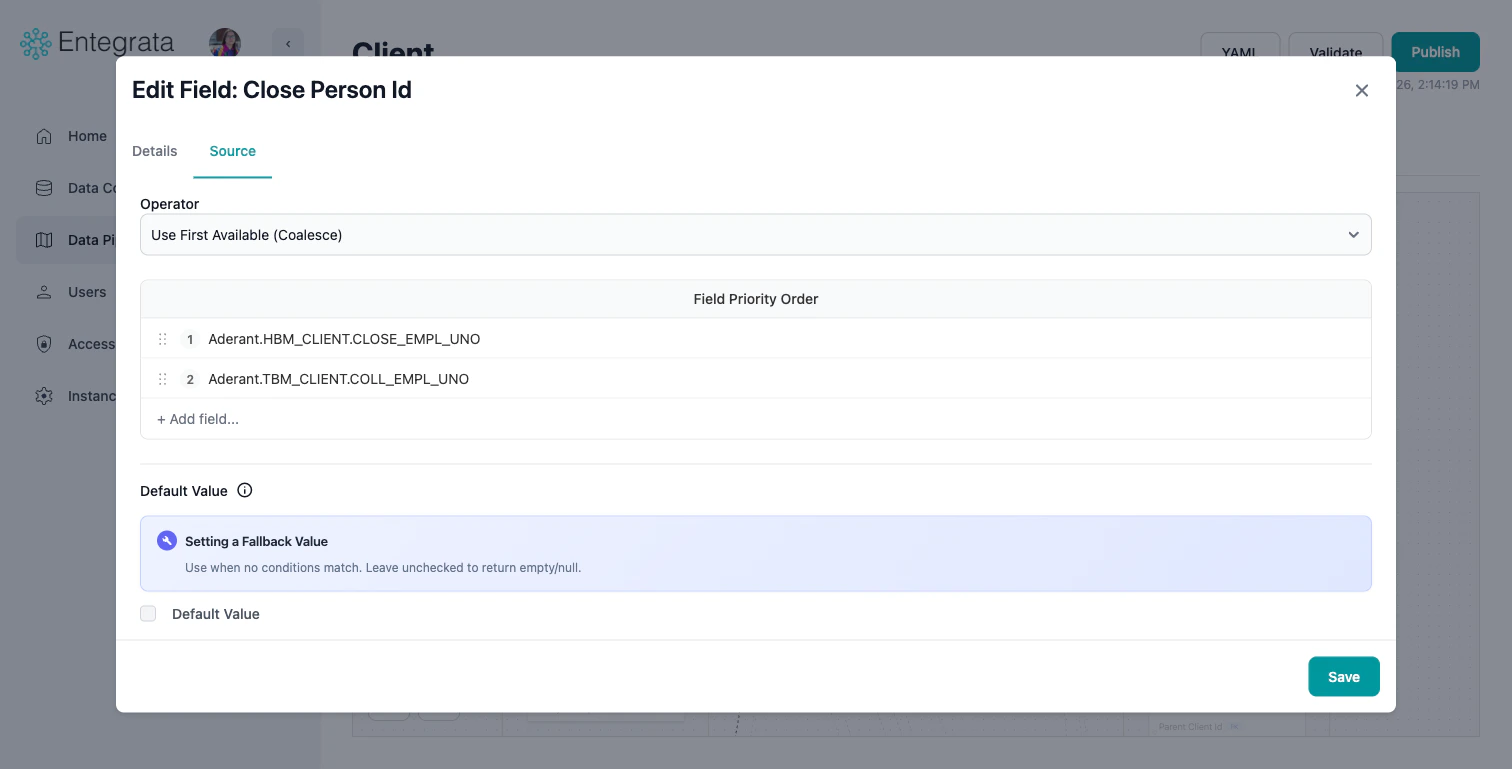
- Using COALESCE to provide fallback values
- Setting default values
Common Mapping Patterns
Name Fields
Combining first and last name: Option 1: Use CONCAT transformationAddress Fields
Mapping complete addresses: Single Field Address:Date and Time Fields
Common date/time mapping scenarios: Date Only:Boolean/Flag Fields
Mapping yes/no or true/false values: String to Boolean: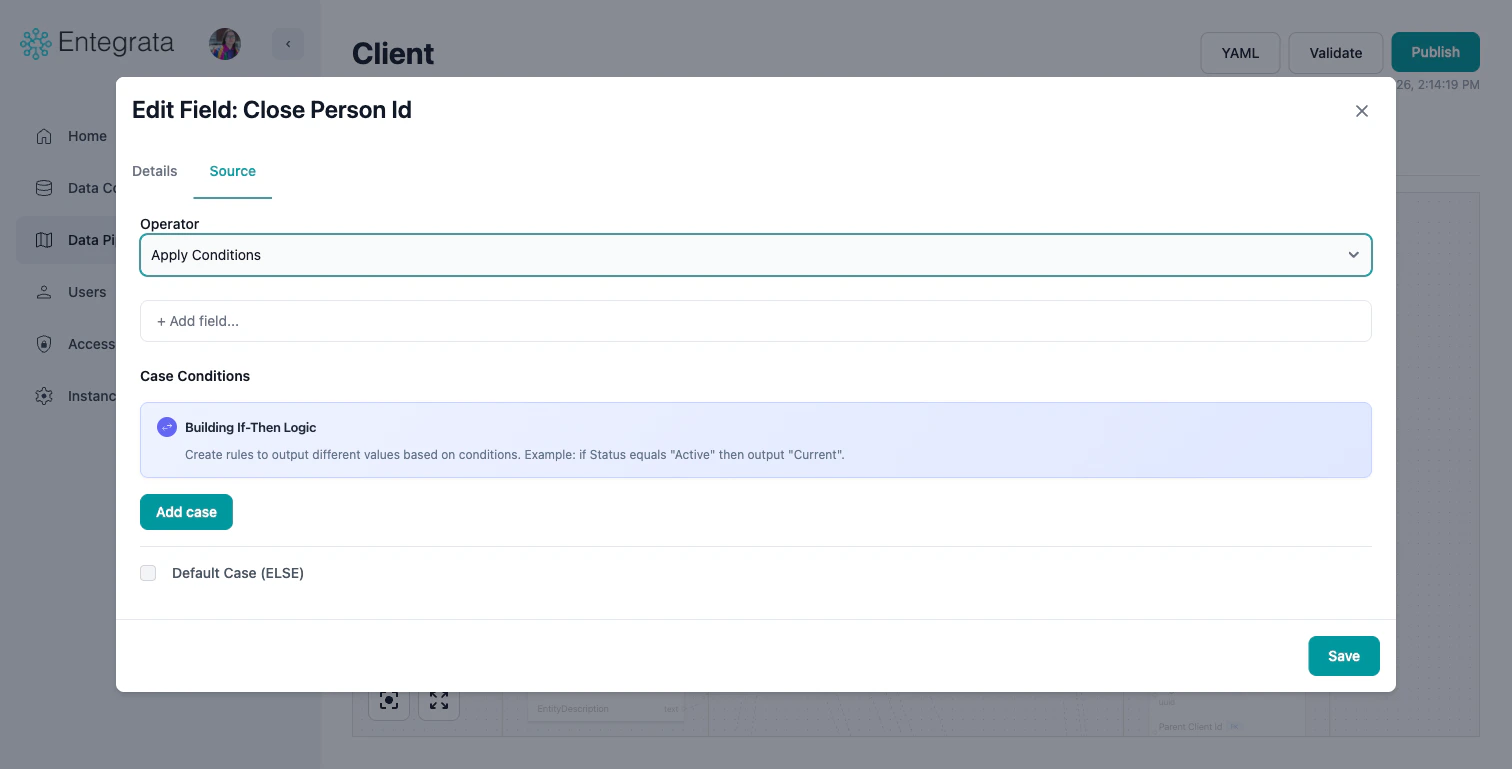
Numeric Fields
Mapping numbers with precision: Integer to Decimal:Unmapping Fields
To remove a field mapping:Visual View
1
Select Connection Line
Click on the connection line between source and entity field.
2
Delete Connection
Press Delete key, or right-click the connection line and select Delete.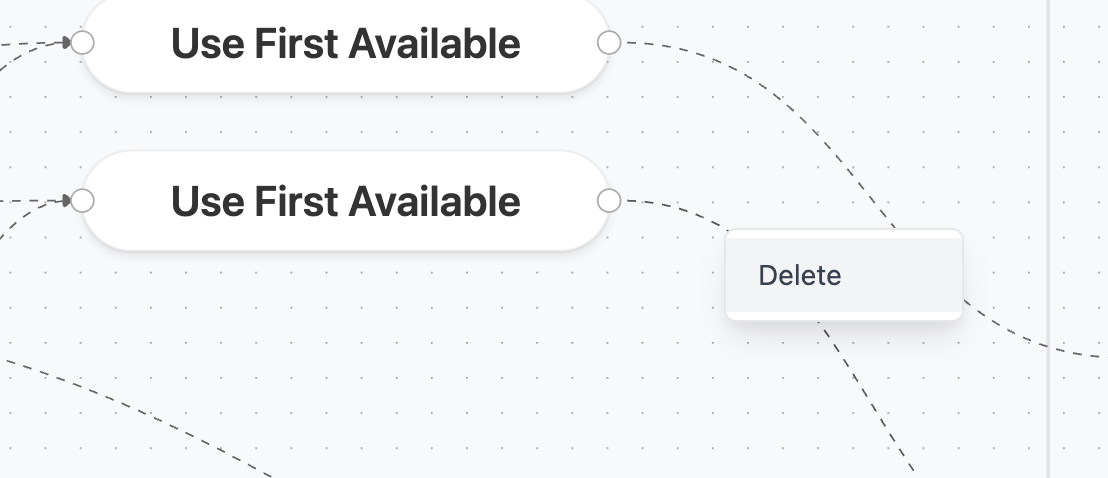
3
Confirm if Prompted
If the field is required, you’ll be asked to confirm removal.
Remapping Fields
To change an existing mapping:Visual View
1
Delete Old Connection
Remove the existing connection as described above.
2
Create New Connection
Drag from the new source field to the entity field.
Troubleshooting
Cannot Map Field
Issue: Dragging a field doesn’t create a connection. Solutions:- Check if entity field is already mapped (unmap first)
- Verify data types are compatible
- Ensure source node is properly connected
Missing Fields in Dropdown
Issue: Expected source field doesn’t appear in dropdown. Solutions:- Refresh source schema
- Verify you’re looking at the correct source
- Check if field name has special characters (may be escaped)
- Ensure source connection is active
- Ensure field is enabled on the resource
Best Practices
Related Topics
Data Mapping Editor
Learn about the visual mapping editor interface
Multi-Field Mapping
Advanced transformations with COALESCE, CONCAT, CASE
Field Management
Add, edit, and configure entity fields
Default Values
Set default values for entity fields