
Overview
Duplicating a pipeline creates a complete copy including all data type mappings, field configurations, and transformation logic. This is useful for creating variations of existing pipelines, testing changes without affecting production, or setting up similar pipelines for different data sources.Duplication copies the pipeline structure and mappings but creates a new, independent pipeline. Changes to the duplicate won’t affect the original, and vice versa.
What Gets Duplicated
When you duplicate a pipeline, the following are copied:- Pipeline Metadata - Name (with “Copy of” prefix) and description
- Data Type Mappings - All configured data types in the pipeline
- Data Sources - Primary and related source configurations
- Field Mappings - All field-to-field mappings and transformations
- Default Values - Any default values configured for fields
- Transformation Logic - COALESCE, CONCAT, CASE expressions, and custom SQL
What Is NOT Duplicated
The following are NOT copied when duplicating:- Execution History - The duplicate has no run history
- Deployment Status - Duplicate starts in Draft status (not deployed)
- Pipeline Key - A new unique key is generated
- Created/Modified Dates - Duplicate has its own timestamps
Duplicating a Pipeline
1
Navigate to Pipeline List
Log in to the Entegrata Admin Portal and go to the Pipelines tab.
2
Find the Source Pipeline
Locate the pipeline you want to duplicate using the search bar or by browsing the list.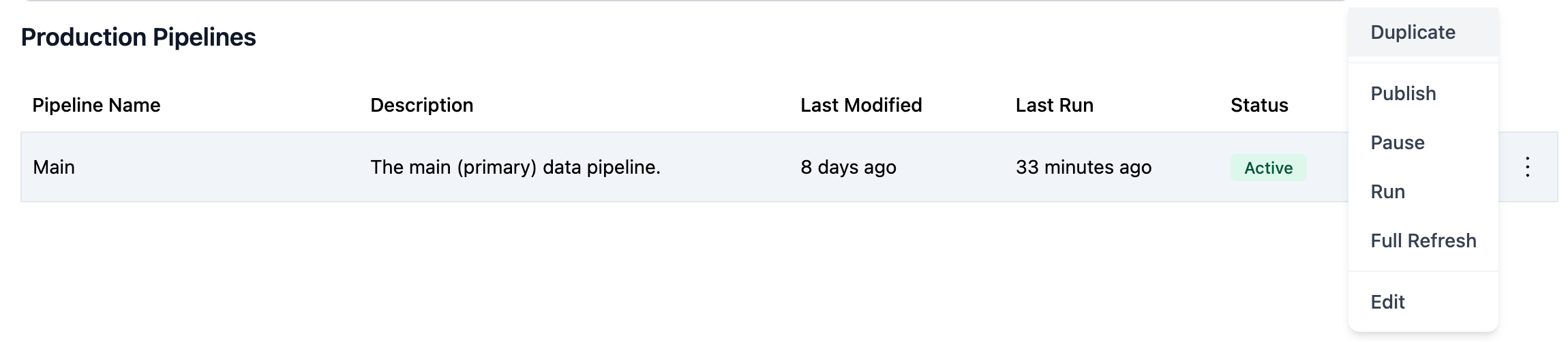
3
Open Actions Menu
Click the three-dot menu (⋮) in the Actions column for the pipeline you want to duplicate.
4
Select Duplicate
From the actions menu, click Duplicate to open the Duplicate Pipeline dialog.
5
Review Pre-filled Information
The Duplicate Pipeline dialog opens with information from the source pipeline:Pipeline Name: Automatically prefixed with “Copy of ” plus the original name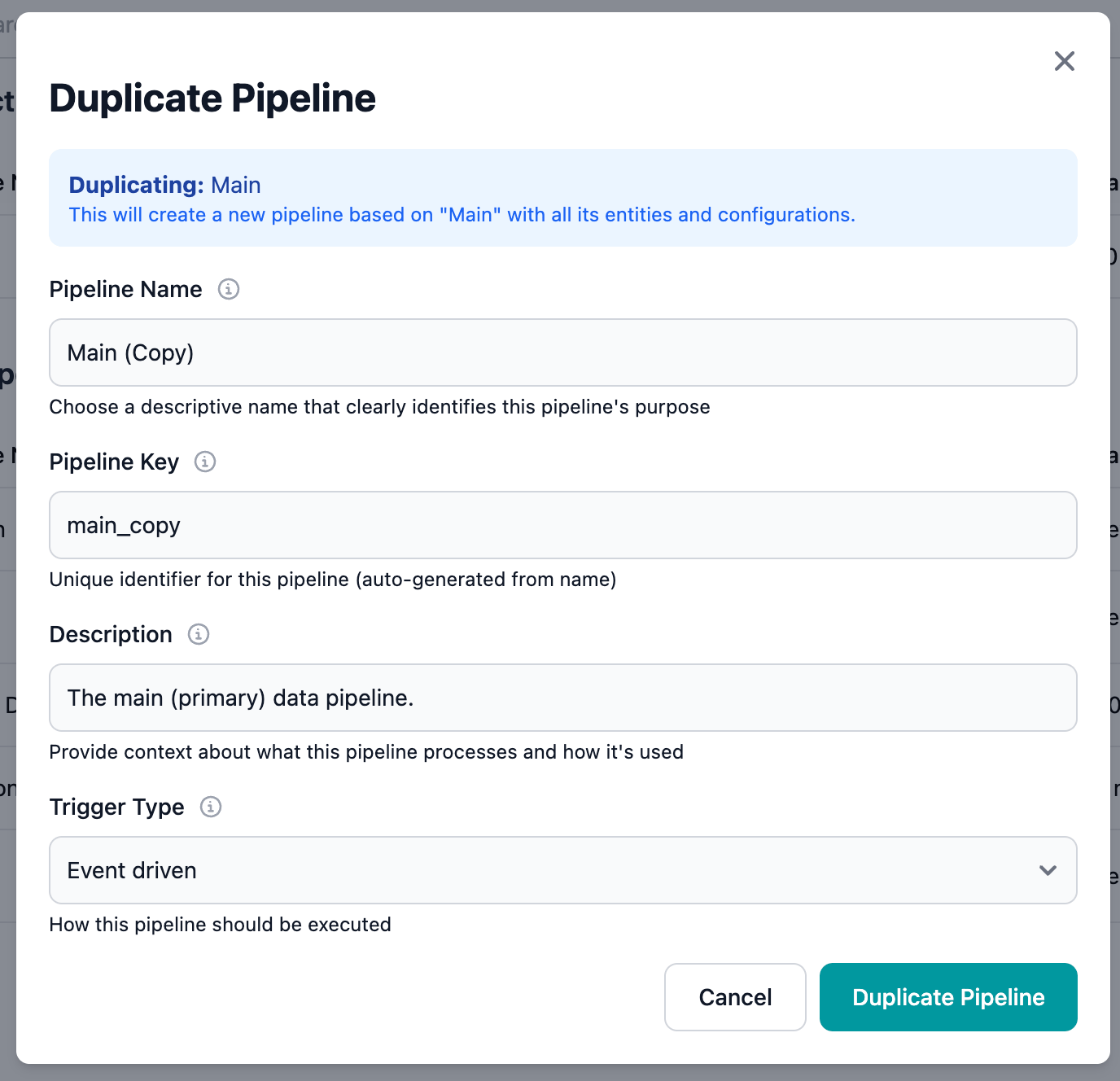
- Example: “Copy of Client Data Processing Pipeline”
- Example:
copy_of_client_data_processing_pipeline
6
Customize the New Pipeline
Update the fields to customize your duplicate:
Update Pipeline Name
Change the name to something more meaningful than “Copy of…”. Consider:- Purpose of the duplicate (testing, different environment, etc.)
- Differences from the original
- Version indicators if applicable
- “Client Data Processing Pipeline - Test”
- “Client Data Processing Pipeline v2”
- “Client Data Processing Pipeline - UK Region”
Update Pipeline Key
The key auto-generates from the name, but you can customize it if needed. Ensure it’s unique and follows naming conventions (lowercase, underscores, no special characters).Update Description
Modify the description to explain:- Relationship to the source pipeline
- Purpose of this duplicate
- Key differences or customizations
- Intended use case
7
Configure Trigger Settings
Set the trigger type for your duplicate:
- No Trigger - Manual execution only (recommended for test pipelines)
- Manual - Explicitly manual (same as No Trigger)
- Event Driven - Triggered by events
8
Create the Duplicate
After reviewing and customizing all fields, click Create Pipeline to duplicate.The duplication process may take a few moments as all mappings are copied.
9
Verify the Duplicate
After successful duplication, you’ll see a confirmation message. The new pipeline appears in the pipeline list with:
- Your custom name
- Draft status (not deployed)
- No execution history
- Current date as Created date
10
Review Duplicated Mappings
Click on the duplicate pipeline name to open it and verify that all data type mappings were copied correctly:
- All data types present
- Source configurations intact
- Field mappings preserved
- Transformation logic copied
Common Use Cases for Duplication
1. Testing Changes
Duplicate a production pipeline to test modifications without risking the production configuration. Workflow:- Duplicate the production pipeline
- Name it “Pipeline Name - Test”
- Make your changes to the duplicate
- Test thoroughly in dry-run mode
- Once validated, apply the same changes to production
- Delete or keep the test pipeline for future use
2. Environment-Specific Pipelines
Create pipeline variations for different environments (Development, Staging, Production). Example:- Original: “Client Processing - Production”
- Duplicate: “Client Processing - Staging”
- Modify source connections to point to staging data sources
3. Regional Variations
Duplicate pipelines for processing data from different regions or business units. Example:- Original: “Client Pipeline - US”
- Duplicate: “Client Pipeline - EMEA”
- Adjust source connections and any region-specific transformations
4. Version Control
Create versioned copies when making significant architectural changes. Example:- Original: “Portfolio Pipeline v1”
- Duplicate: “Portfolio Pipeline v2”
- Implement new mapping approach in v2 while keeping v1 available for rollback
5. Historical Archive
Duplicate a pipeline before major refactoring to preserve the original configuration. Example:- Original: “Legacy Client Pipeline”
- Duplicate: “Legacy Client Pipeline - Archive 2024-Q3”
- Refactor the original, keeping the archive for reference
After Duplication
Once you’ve duplicated a pipeline, typical next steps include:1. Modify as Needed
Make any necessary changes to the duplicate:- Update data sources to point to different systems
- Adjust field mappings or transformations
- Add or remove data types
- Change business logic
2. Test Thoroughly
Run the duplicate in dry-run mode to ensure it works as expected:Running Pipelines
Learn how to test and execute pipelines
3. Deploy When Ready
Once tested and validated, deploy the duplicate to production:Deploying Pipelines
Learn how to deploy pipelines to production
4. Manage the Original
Decide what to do with the original pipeline:- Keep both if serving different purposes
- Delete the original if the duplicate replaces it
- Archive the original for reference
Duplication Best Practices
Troubleshooting
Duplication Fails
Problem: Error message when trying to duplicate a pipeline. Solution:- Verify you have permissions to create pipelines
- Check if the proposed pipeline name or key already exists
- Ensure the source pipeline is not corrupted or partially configured
- Try duplicating a different pipeline to see if the issue is specific to one pipeline
Missing Mappings After Duplication
Problem: Some data types or field mappings didn’t copy to the duplicate. Solution:- Verify the source pipeline had complete mappings before duplication
- Check if archived or deleted data types were excluded from duplication
- Re-duplicate if mappings are critical, or manually recreate missing mappings
- Contact support if duplication consistently misses mappings
Duplicate Runs Against Wrong Data Source
Problem: Duplicate pipeline is processing data from the original’s sources instead of new sources. Solution:- Open the duplicate pipeline’s mapping editor
- For each data type, verify and update the source connections
- Check both primary and related sources
- Save changes and test in dry-run mode
Can’t Edit Duplicate After Creation
Problem: Unable to modify the duplicate pipeline after creation. Solution:- Refresh the page to ensure the duplicate was fully created
- Verify you have edit permissions
- Check if the pipeline is locked by another operation
- Try accessing the pipeline after a few moments (background processes may still be completing)
Duplicate Has Same Key as Original
Problem: Error about duplicate pipeline key. Solution:- The system should auto-generate a unique key, but if not:
- Customize the pipeline key in the duplication dialog
- Ensure the key is unique across all pipelines in your instance
- Use underscores instead of spaces or special characters
Related Topics
Creating Pipelines
Learn how to create pipelines from scratch
Editing Pipelines
How to modify pipeline metadata
Deleting Pipelines
Learn how to delete pipelines safely
Running Pipelines
Test and execute duplicated pipelines