
Introduction
Data mapping is the core of Entegrata pipelines. It defines how source data from your Collector systems transforms into standardized data types in your warehouse. The visual mapping editor provides an intuitive interface for configuring these transformations without writing code.Data mapping in Entegrata uses a declarative, configuration-based approach. You define what the mapping should do, and the system generates optimized DLT (Delta Live Tables) scripts that execute the transformations.
What is Data Mapping?
Data mapping consists of configuring:- Data Types (Entities) - The standardized schemas you’re populating (e.g., Client, Contact, Account)
- Data Sources - The Collector tables or resources providing source data
- Field Mappings - How individual source fields map to data type fields
- Transformations - Logic applied during mapping (formatting, concatenation, conditional logic)
- Default Values - Values used when source data is missing or null
Key Concepts
Data Types vs. Entities
Throughout Entegrata, you’ll see these terms used interchangeably:- Data Type - The standardized schema definition (preferred term in user interface)
- Entity - Technical term for the same concept (used in backend systems)
We use “data types” in documentation to align with business terminology. Think of them as the types of data your organization works with: Clients, Accounts, Transactions, etc.
Primary vs. Related Sources
Each data type mapping can use multiple sources:required
The main table or resource containing the core data for this data type. Every data type mapping must have exactly one primary source.
Additional tables joined to the primary source to enrich data. You can have zero or more related sources.
- Primary Source:
CRM_Clientstable (contains client IDs, names, status) - Related Source 1:
CRM_Addressestable (joined by client_id for address information) - Related Source 2:
CRM_Industriestable (joined by industry_id for industry details)
Data Type Fields
Each data type has a defined schema with fields that must be populated:required
Fields that must have a value (either from a mapping or default value). Pipeline cannot deploy if required fields are unmapped.
optional
Fields that can be left unmapped or null without blocking deployment.
automatic
Fields automatically populated by Entegrata (e.g., record IDs, timestamps). Cannot be manually mapped.
The Mapping Workflow
A typical data mapping workflow follows these stages:1
Add Data Type
Select which data type this pipeline should process (e.g., Client, Contact, Account).
2
Configure Primary Source
Use the Add Source Wizard to select a source from your Collector, configure its primary key, and set up a record identifier.
3
Add Related Sources (Optional)
Add additional sources through the wizard and configure record matching to define how they join to the primary source.
4
Map Required Fields
Map all required fields from source to target, ensuring no required fields are left unmapped.
5
Map Optional Fields
Map additional fields as needed for your use case.
6
Apply Transformations
Add business logic like concatenation, conditional mapping, or data formatting.
7
Set Default Values
Configure default values for fields that might be missing in source data.
8
Test and Validate
Run in dry-run mode to validate mappings without writing to production.
9
Deploy
Publish the mapping to generate DLT scripts and enable execution.
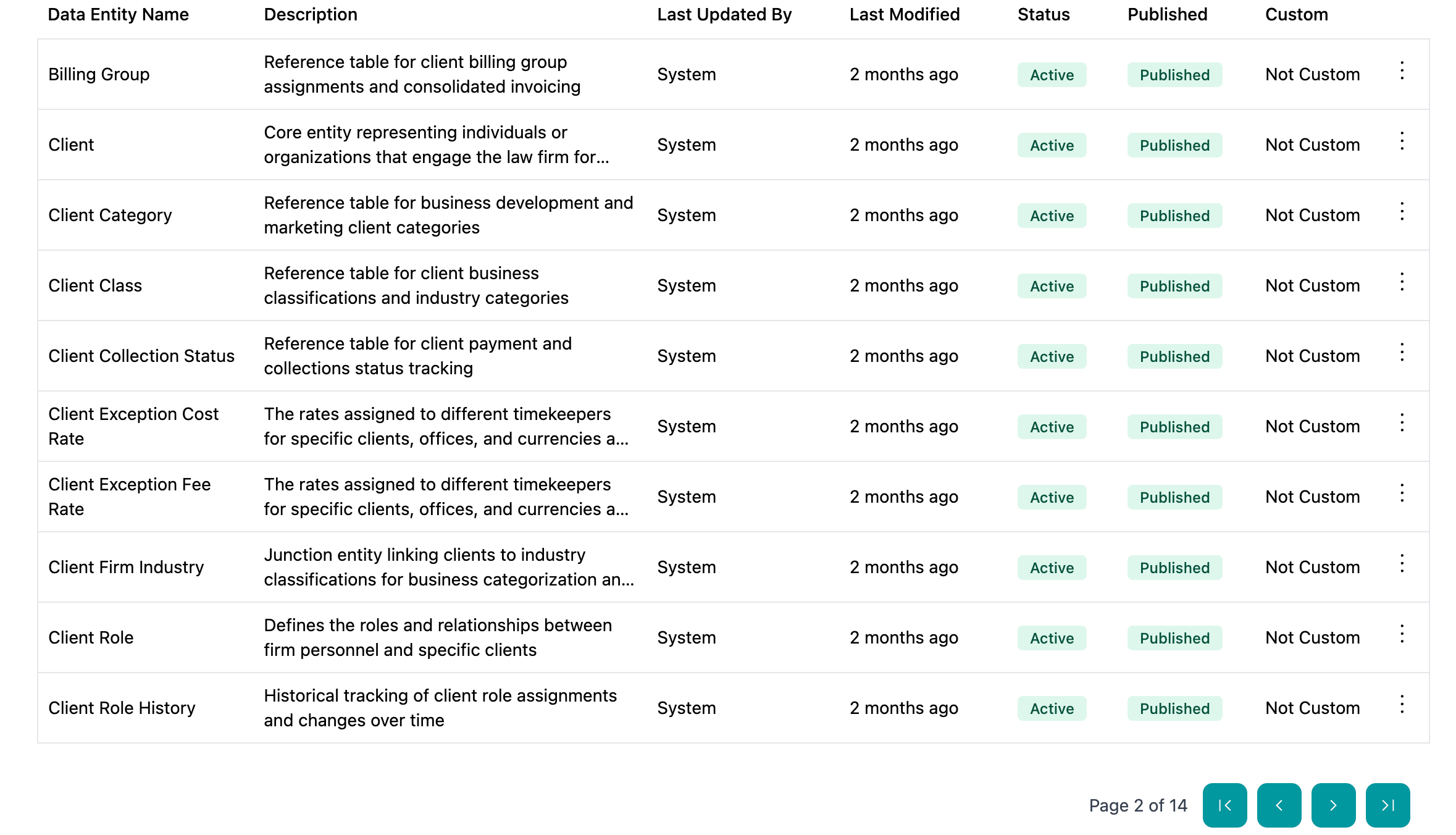
Mapping Editor Interface
The mapping editor is organized into several sections:Data Type List (Left Panel)
Shows all data types configured in the current pipeline:- Click a data type to view/edit its mappings
- Add new data types with the ”+” button
- See deployment status and configuration completeness
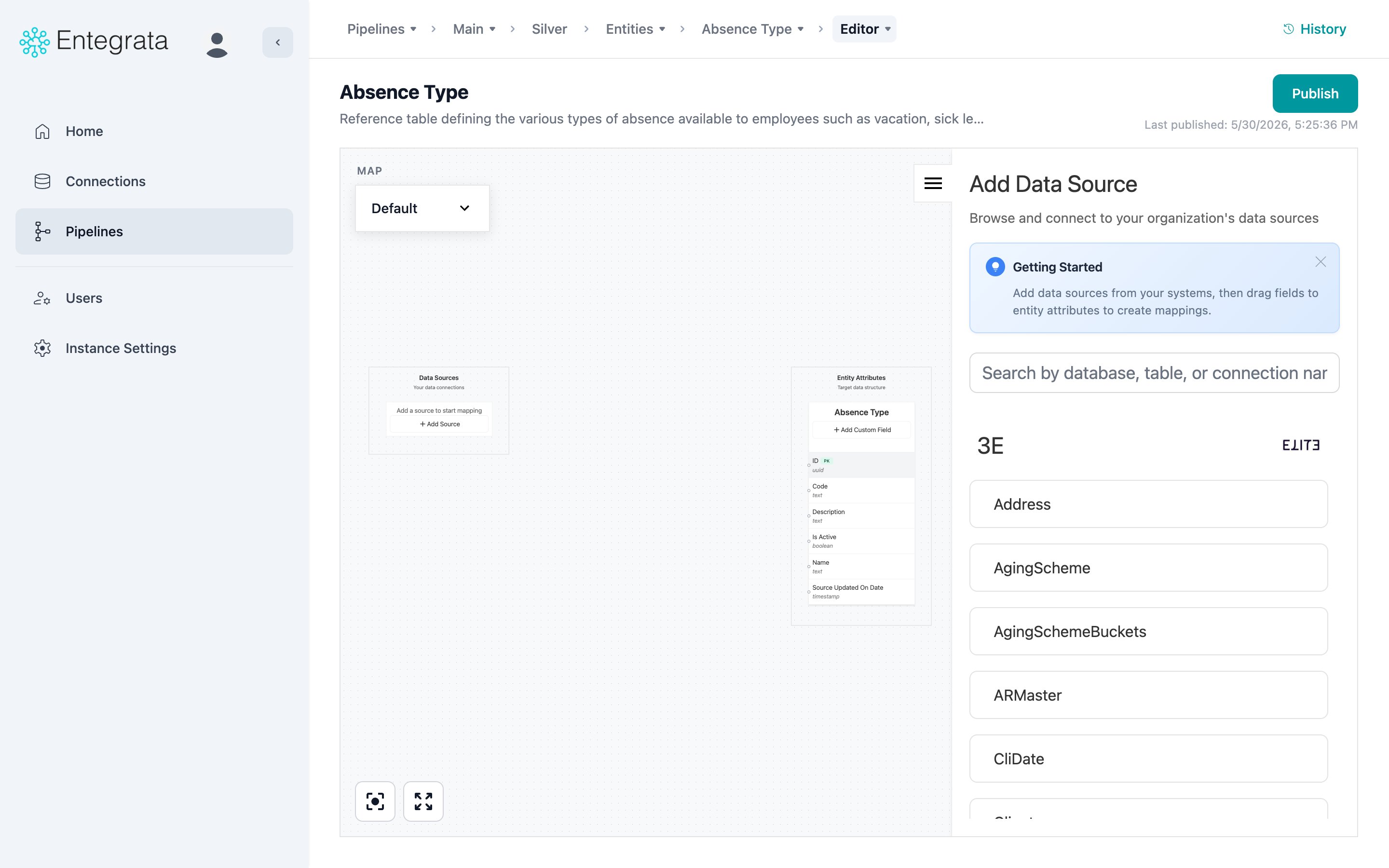
Mapping Editor
Primary interface for configuring data mappings per entity:- Configure sources and fields
- Identify and configure relationships between sources
- Map source fields to entity fields
- Setup complex field mapping logic
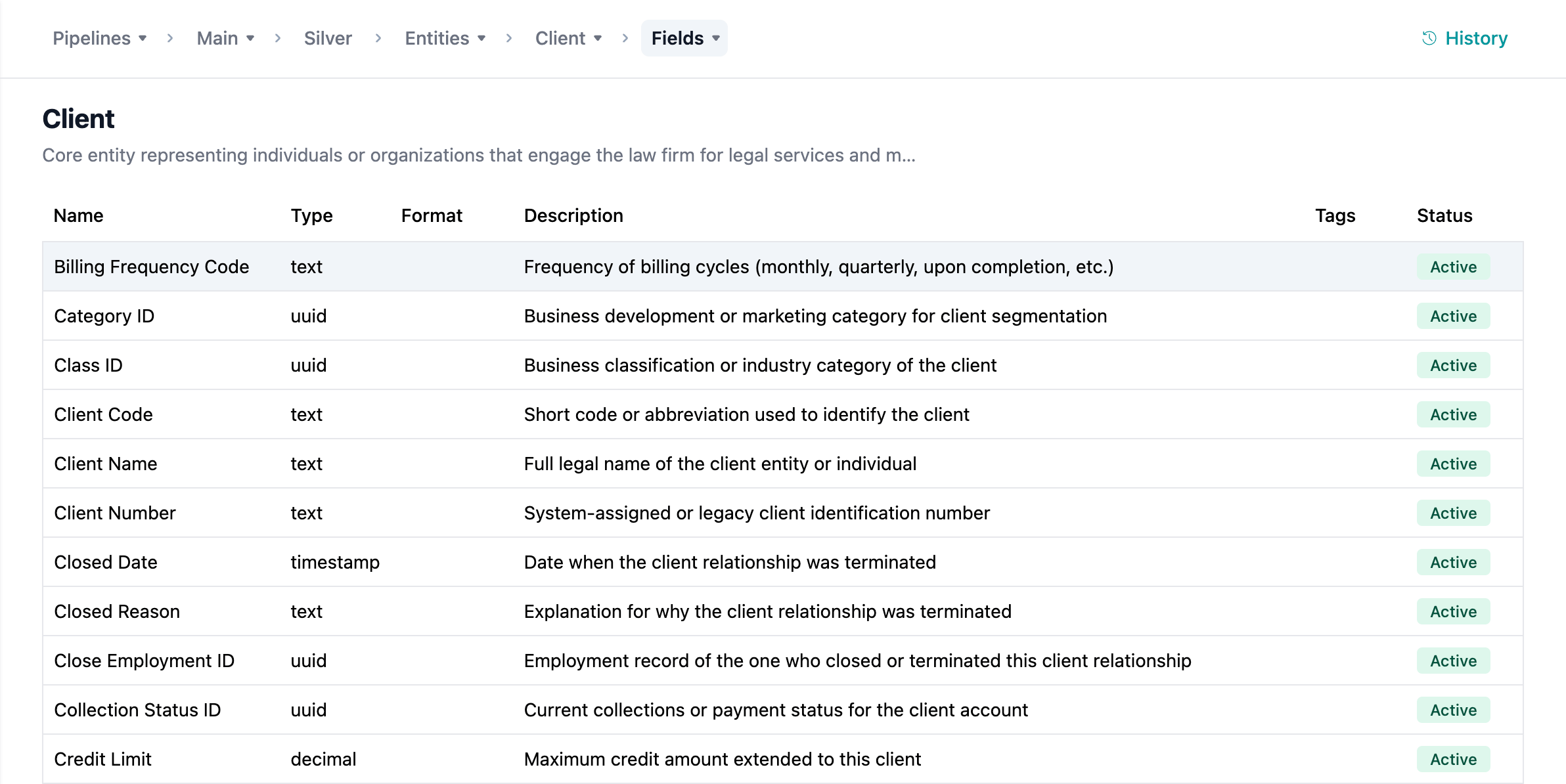
Entity Field List Mapping
A table view of all fields for an entity:- Quick view of all metadata for all fields on an entity
- Shows all fields on an entity across all data maps
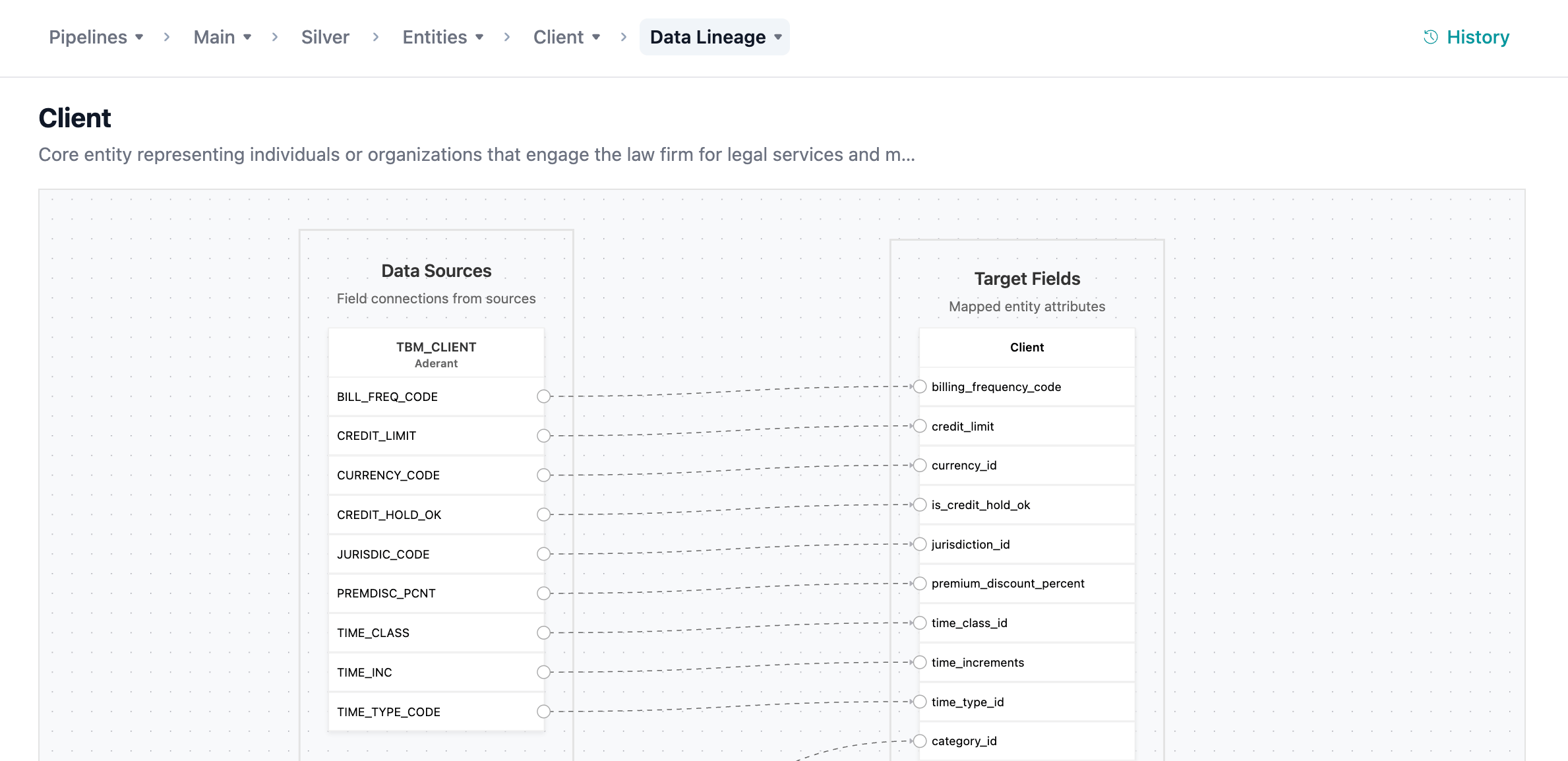
Entity Lineage
A view of the sources and fields mapped to an entity:- A convenient, clutter-free way to view source to entity mappings
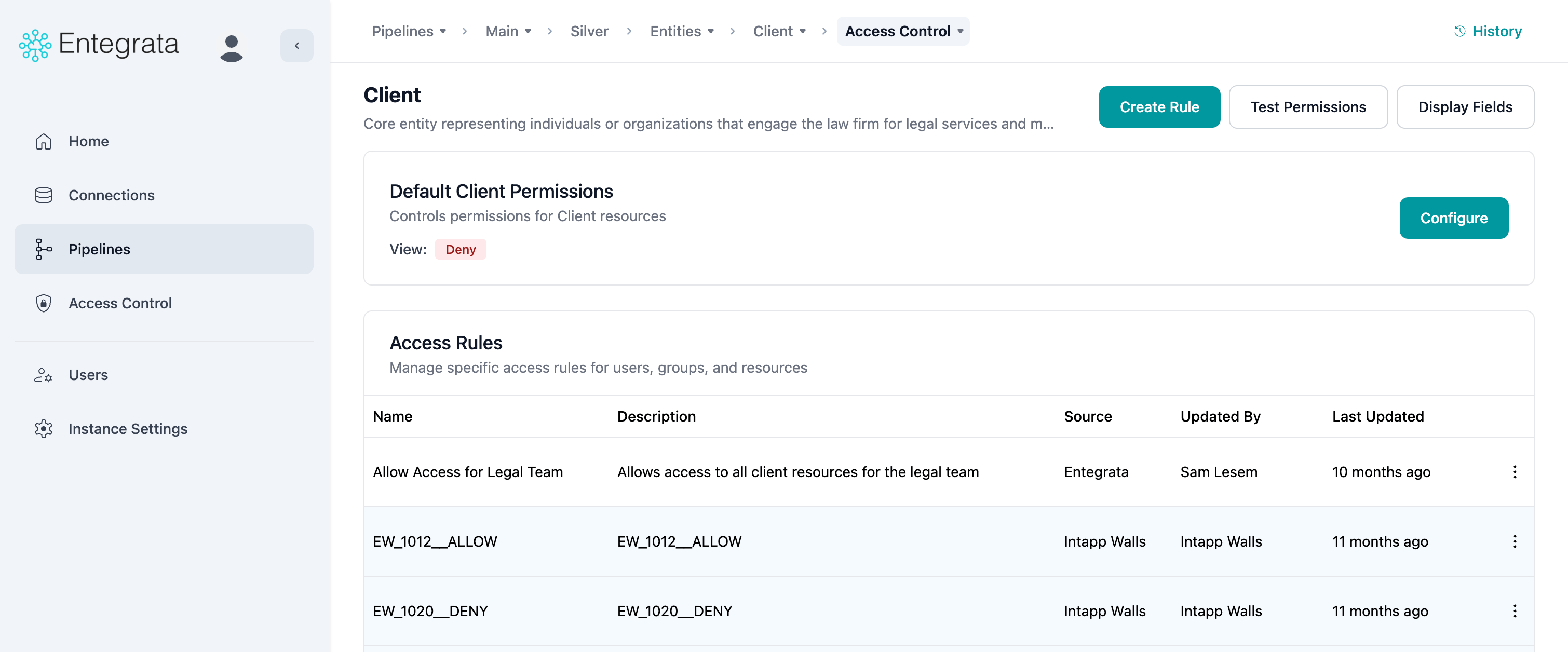
Entity Access Control
A view of access controls rules applied to an entity:- Explore access control rules applied to an entity
- Check source of access control rules applied to an entity
Mapping Capabilities
Simple Direct Mapping
Map a single source field directly to a data type field: Example: MapCRM_Clients.client_name to Client.name
Multi-Field Mapping
Combine multiple source fields into one target field: COALESCE Example: Use the first non-null value from multiple sourcesConditional Mapping
Apply different logic based on source data values: CASE Example: Map status codes to descriptive valuesType Conversion
Automatically convert between data types:- String to number
- String to date/timestamp
- Number to string
- Date format conversions
Default Values
Provide fallback values when source data is missing: Static Default: Use a fixed value (e.g., “Unknown”, 0, current timestamp) Expression Default: Use a SQL expression (e.g.,CURRENT_DATE(), UUID())
Data Quality and Validation
Entegrata provides several data quality features:Required Field Validation
- Ensures all required fields have mappings or defaults
- Prevents deployment of incomplete configurations
- Highlights missing mappings in the editor
Type Compatibility Checking
- Validates source and target data types are compatible
- Warns about potential type conversion issues
- Suggests appropriate type casting
Null Handling
- Configure how NULL values are handled
- Use COALESCE for multiple fallback options
- Set defaults for fields that can’t be null
Data Preview
- See sample data from sources before mapping
- Verify transformations work with real data
- Identify data quality issues early
Always use dry-run mode to validate mappings with actual data before deploying to production.
Mapping Strategies
Start-to-Finish Approach
Best for new data types or simple mappings:- Map all required fields first
- Map commonly used optional fields
- Add transformations and defaults
- Test and deploy
Incremental Approach
Best for complex data types or evolving requirements:- Map minimal required fields to get started
- Deploy and test with real data
- Add more fields incrementally
- Redeploy after each addition
Template-Based Approach
Best for similar data types across multiple pipelines:- Create a reference mapping in one pipeline
- Duplicate pipeline to new environments or regions
- Adjust source connections and field specifics
- Maintain consistency across deployments
Common Mapping Patterns
Full Name from Components
Combine first, middle, and last names:Email with Fallback
Use primary email, falling back to secondary:Status Normalization
Convert various status codes to standard values:Date Formatting
Convert string dates to proper date types:ID Generation
Create unique identifiers from multiple fields:Performance Considerations
Efficient Source Queries
- Use filters in source configuration to reduce data volume
- Select only needed columns from sources
- Leverage indexes on join columns
Transformation Complexity
- Simple mappings perform better than complex CASE statements
- Pre-aggregate data in sources when possible
- Use materialized views for frequently joined related sources
Incremental Processing
- Configure change tracking to process only new/modified records
- Use timestamp fields for incremental logic
- Balance frequency vs. data volume
Best Practices
Exploring Data Mapping
Ready to start mapping data? Explore these detailed guides:Managing Data Types
Learn how to add and configure data types in your pipeline
Configuring Sources
Connect primary and related data sources
Mapping Fields
Map individual fields between source and target
Advanced Mapping
Use COALESCE, CONCAT, and CASE for complex mappings
Field Management
Understand data type field properties and requirements
Default Values
Configure fallback values for missing data
Related Topics
Publishing Mappings
Deploy mappings to generate DLT scripts
Entity Lineage
See which source columns feed each entity field
Access Controls
Understand data type access controls
Running Pipelines
Execute pipelines to process mapped data