
Overview
Deploying a pipeline publishes all configured data type mappings to your production data warehouse, generating optimized Delta Live Tables (DLT) scripts that transform source data according to your mapping configurations. Deployment is required before a pipeline can execute with real data.Deployment is a one-way process that generates production-ready code. Always test your mappings thoroughly with dry runs before deploying.
What Deployment Does
When you deploy a pipeline, the system:- Validates Configuration - Checks that all mappings are complete and valid
- Generates DLT Scripts - Creates optimized SQL/Python code for data transformations
- Publishes to Warehouse - Deploys scripts to your Databricks environment
- Updates Status - Changes pipeline status from Draft to Deployed
- Enables Execution - Makes the pipeline available for running (manual or scheduled)
Deployment Status
Pipelines have one of these deployment statuses:status
Pipeline has been created but not yet deployed. Cannot execute with real data.
status
Pipeline has been published to production and is ready to execute.
After deployment, any changes to data type mappings require redeployment to take effect in production.
Prerequisites
Before deploying a pipeline, ensure:- Mappings Are Complete - All data types have configured field mappings
- Sources Are Configured - Primary and related sources are properly connected
- Required Fields Are Mapped - All mandatory fields have valid mappings or defaults
- Testing Is Done - Dry runs have been performed and validated
- Permissions Are Granted - You have deployment permissions
Deploying a Pipeline
1
Navigate to Pipeline List
Log in to the Entegrata Admin Portal and go to the Pipelines tab.
2
Locate the Pipeline
Find the pipeline you want to deploy.
3
Verify Mappings Are Ready
Before deploying, click the pipeline name to review:
- All intended data types are configured
- Field mappings are complete
- Sources are properly connected
- Transformations are tested
4
Return to Pipeline List
Navigate back to the pipeline list after verifying mappings.
5
Open Actions Menu
Click the three-dot menu (⋮) in the Actions column for the pipeline you want to deploy.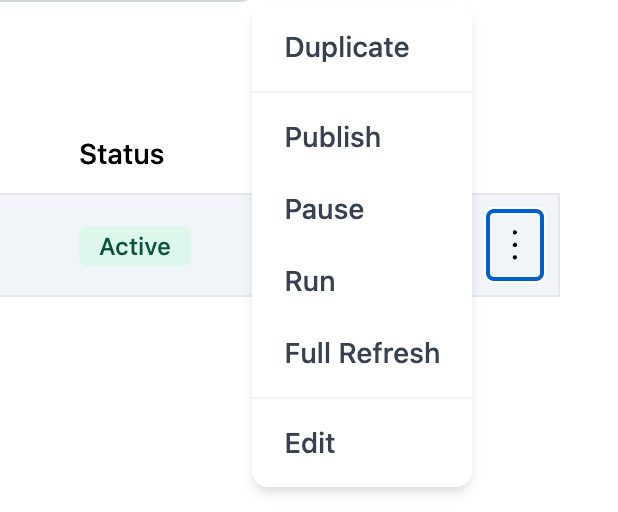
6
Select Deploy
From the actions menu, click Deploy to open the deployment confirmation dialog.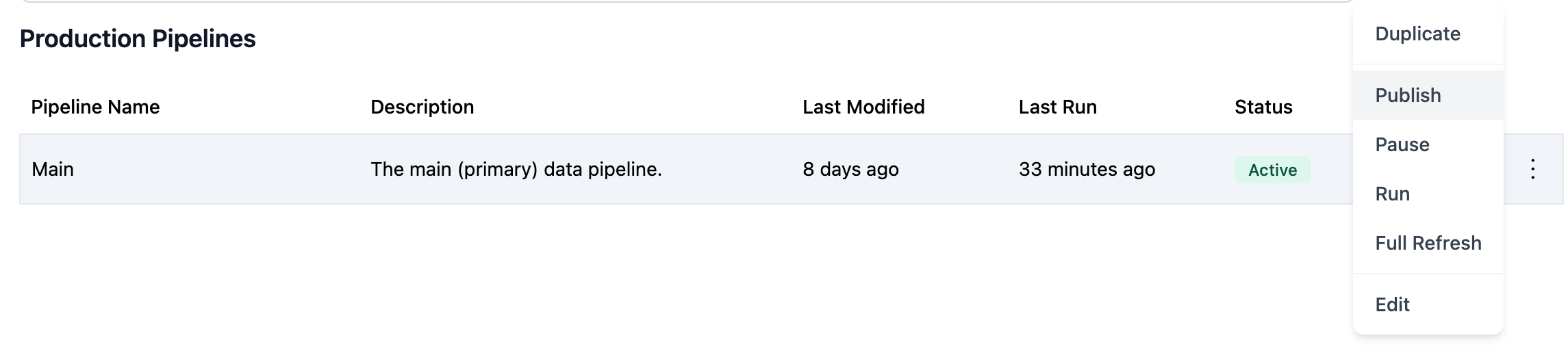
7
Review Deployment Information
The deployment confirmation dialog shows:
- Pipeline name
- Number of data types that will be deployed
- Warning about replacing existing deployment (if applicable)
8
Confirm Deployment
Click Deploy Pipeline to proceed with deployment.The deployment process begins and may take several minutes depending on:
- Number of data types being deployed
- Complexity of field mappings
- Size of transformation logic
9
Wait for Completion
Monitor the deployment progress. During deployment:
- A loading indicator shows deployment is in progress
- You cannot modify the pipeline
- Other operations on the pipeline are blocked
Do not close the browser or navigate away during deployment. Wait for the confirmation message.
10
Verify Deployment Success
Upon successful deployment, you’ll see:
- Success confirmation message
- Pipeline status changes to Deployed
- Last Modified timestamp is updated
- Pipeline is now ready to run
After Deployment
Once a pipeline is deployed, you can:Run the Pipeline
Execute the pipeline to process data using your deployed mappings.Running Pipelines
Learn how to execute deployed pipelines
Activate for Scheduled Runs
If the pipeline has a scheduled trigger, activate it to enable automatic execution.Managing Pipeline Status
Learn how to activate pipelines for scheduled execution
Monitor Execution
Track pipeline runs and review execution logs to ensure everything works as expected.Make Updates
If you need to change mappings after deployment:- Modify the mappings in the pipeline editor
- Test with dry run
- Deploy again to publish changes
Changes to mappings are not reflected in production until you redeploy. Draft changes don’t affect running pipelines.
Redeployment
Redeploying an already-deployed pipeline follows the same process as initial deployment. Use redeployment when:Mapping Changes
After modifying field mappings, transformations, or data sources.Adding Data Types
After adding new data type mappings to an existing pipeline.Fixing Errors
After correcting mapping errors discovered during execution.Schema Updates
After changes to source or target schemas that require mapping updates.Deployment Validation
The deployment process validates:Required Fields
- All mandatory data type fields have mappings or default values
- No orphaned field references
Source Connections
- All referenced sources are accessible
- Source tables/resources exist
Transformation Logic
- SQL expressions are syntactically correct
- Functions used are supported
- Type conversions are valid
Data Type Configuration
- Data types are properly configured
- No circular dependencies
- Primary keys are defined
If validation fails, deployment is aborted and you’ll see specific error messages. Fix the errors and try deploying again.
Deployment Best Practices
Deployment Strategies
Blue-Green Deployment
For critical pipelines, use a blue-green strategy:- Blue (Current): Keep existing deployed pipeline running
- Green (New): Create duplicate pipeline with changes
- Test Green: Thoroughly test the new version
- Switch: Deactivate blue, activate green
- Monitor: Watch green for issues
- Cleanup: Delete blue after green is validated
Phased Deployment
For complex changes, deploy in phases:- Phase 1: Deploy subset of data types
- Validate: Test phase 1 thoroughly
- Phase 2: Deploy additional data types
- Validate: Test phase 2 thoroughly
- Continue: Add remaining data types incrementally
Rollback Strategy
Always have a rollback plan:- Before Deployment: Duplicate pipeline as backup
- After Deployment: Keep backup active initially
- If Issues Arise: Reactivate backup pipeline
- Fix Issues: Correct problems in new version
- Redeploy: Try again after fixes
Troubleshooting Deployment
Deployment Fails with Validation Errors
Problem: Deployment is blocked due to validation errors. Solutions:- Review error messages for specific issues
- Check that all required fields are mapped
- Verify source connections are accessible
- Fix transformation syntax errors
- Ensure data types are properly configured
Deployment Hangs or Takes Too Long
Problem: Deployment process doesn’t complete or runs for excessive time. Solutions:- Wait at least 10-15 minutes for complex pipelines
- Check network connection stability
- Refresh page after 15+ minutes to see if it completed
- Contact support if consistently hanging
Deployment Succeeds But Pipeline Fails
Problem: Deployment completes successfully but pipeline execution fails. Solutions:- Deployment validates configuration, not runtime execution
- Run dry run to identify execution issues
- Check source data availability and quality
- Review transformation logic with actual data
- Verify warehouse permissions for writing data
Can’t Deploy (No Deploy Option)
Problem: Deploy option is not available in actions menu. Solutions:- Verify you have deployment permissions
- Check if pipeline is already deployed (may need to redeploy instead)
- Ensure pipeline has at least one data type mapping configured
- Verify you’re not in the middle of editing the pipeline
Deployed But Changes Not Reflected
Problem: After deployment, changes aren’t visible in pipeline execution. Solutions:- Ensure you redeployed after making changes
- Wait a few minutes for deployment to propagate
- Run the pipeline fresh (not continuing previous run)
- Clear any cached query plans in warehouse
- Verify changes were saved before deploying
Related Topics
Running Pipelines
Execute deployed pipelines
Managing Status
Activate deployed pipelines for scheduled runs
Data Mapping
Configure mappings before deployment
Duplicating Pipelines
Create backups before major deployments