
Overview
After creating a pipeline, you may need to update its name, description, or other metadata. This guide explains how to edit pipeline properties while preserving all configured data mappings and execution history.Editing a pipeline only updates its metadata (name and description). To modify data type mappings, trigger settings, or execution behavior, use the appropriate specialized operations described in related guides.
What Can Be Edited
When editing a pipeline, you can modify:- Pipeline Name - The display name shown in the pipeline list and throughout the interface
- Description - The detailed explanation of the pipeline’s purpose and function
What Cannot Be Edited
The following properties cannot be changed through the edit operation:- Pipeline Key - The unique identifier is set at creation and cannot be changed
- Trigger Type - Must be configured through separate trigger management
- Data Type Mappings - Managed through the mapping editor interface
- Created Date - Historical metadata that cannot be modified
If you need to change properties that cannot be edited, consider duplicating the pipeline and creating a new version with the desired configuration.
Editing a Pipeline
1
Navigate to Pipeline List
Log in to the Entegrata Admin Portal and go to the Pipelines tab.
2
Locate the Pipeline
Find the pipeline you want to edit using the search bar or by browsing the list. You can search by pipeline name for faster access.
3
Open Actions Menu
Click the three-dot menu (⋮) in the Actions column for the pipeline you want to edit.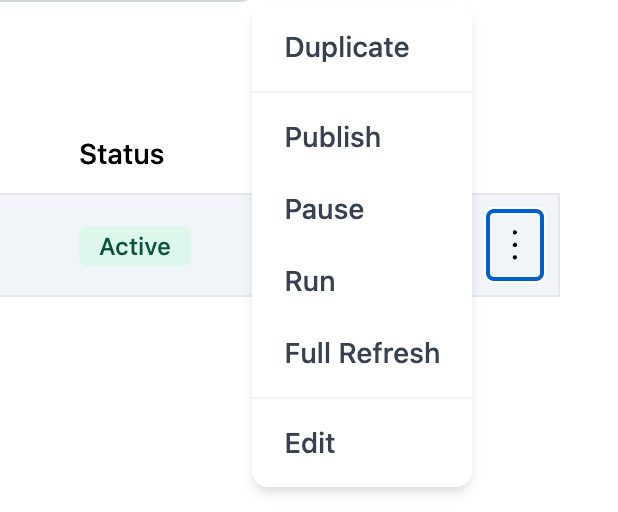
4
Select Edit
From the actions menu, click Edit to open the Edit Pipeline dialog.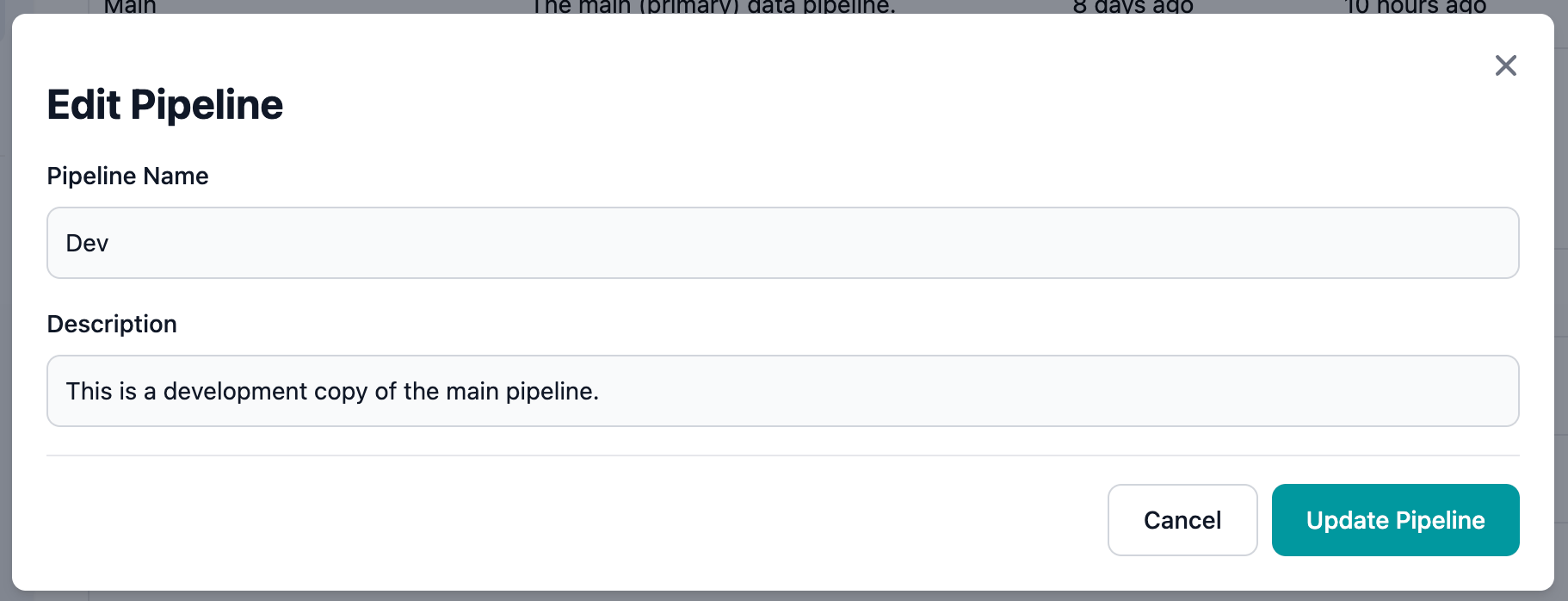
5
Update Pipeline Name
In the Edit Pipeline dialog, modify the Pipeline Name field as needed.
Naming Guidelines
- Use descriptive, business-friendly names
- Include key information about purpose and scope
- Follow your organization’s naming conventions
- Keep names reasonably concise (under 50 characters recommended)
- “Client Master Data Daily Sync”
- “Portfolio Holdings Weekly Aggregation”
- “Transaction History Incremental Load”
6
Update Description
Modify the Description field to update or add details about the pipeline’s function.
Description Best Practices
Include information about:- What data this pipeline processes
- Which source systems are involved
- How often it runs (if scheduled)
- Any special business rules or transformations
- Dependencies or prerequisites
- Contact person or team responsible
7
Review Changes
Before saving, review your changes to ensure:
- The new name is unique and descriptive
- The description provides sufficient context
- No critical information was accidentally removed
8
Save Changes
Click Update Pipeline to save your changes.The pipeline will be updated immediately, and you’ll see a success confirmation message.
9
Verify Update
After saving, verify the changes appear correctly in the pipeline list. The “Last Modified” timestamp will be updated to reflect when the edit was made.
When to Edit a Pipeline
Consider editing a pipeline when:Business Requirements Change
Update the name or description to reflect new business processes or organizational changes. Example: “Client Onboarding Pipeline” becomes “Client and Account Onboarding Pipeline” after expanding scope.Improving Clarity
Refine names and descriptions to make them more understandable to new team members. Example: “Daily Pipeline 1” becomes “Client Daily Incremental Refresh”Adding Documentation
Enhance descriptions with additional context discovered during operations or troubleshooting. Example: Adding notes about special handling for international phone numbers.After Scope Changes
Update pipeline metadata after adding or removing data types to keep documentation current. Example: After adding Account data type, update description to mention both Client and Account processing.Edit vs. Other Operations
Understanding when to use Edit versus other pipeline operations:Impact of Editing
Editing a pipeline has minimal impact on operations:What Is Affected
- Display Name - Updated everywhere the pipeline name appears
- Description - Updated in pipeline details and documentation
- Last Modified Date - Updated to current timestamp
- Audit Log - New entry recorded for the edit operation
What Is NOT Affected
- Execution History - Past runs remain associated with the pipeline
- Data Mappings - All configured mappings remain unchanged
- Deployment Status - Pipeline deployment status is preserved
- Scheduled Runs - Pipeline continues running on schedule
- Performance - No impact on execution speed or data processing
Editing a pipeline does not require redeployment. Changes to metadata are reflected immediately without affecting the deployed DLT scripts.
Editing Multiple Pipelines
Currently, pipelines must be edited individually. To update multiple pipelines efficiently:- Use Consistent Naming Patterns - Easier to apply bulk updates later if needed
- Document Changes - Keep a changelog of significant pipeline updates
- Plan Updates - Group related pipelines and update them in batches
- Communicate Changes - Notify team members of naming or description changes
Troubleshooting
Can’t Edit Pipeline
Problem: Edit option is not available or disabled in the actions menu. Solution:- Verify you have edit permissions for pipelines
- Check if the pipeline is locked by another user
- Ensure you’re viewing the pipeline list (not inside a pipeline)
- Contact your administrator if permissions are needed
Changes Not Saved
Problem: After clicking “Update Pipeline,” changes don’t appear to be saved. Solution:- Refresh the page to reload the pipeline list
- Verify the success message appeared after clicking Update
- Check if there were any validation errors
- Ensure you didn’t accidentally click Cancel instead of Update
Pipeline Name Already Exists
Problem: Error message indicating the new name is already in use by another pipeline. Solution:- Choose a different, unique name
- Add qualifiers to differentiate (version numbers, dates, environment)
- Check if the existing pipeline can be deleted or renamed instead
Lost Changes
Problem: Accidentally closed the edit dialog without saving. Solution:- Changes are not saved unless you click “Update Pipeline”
- Reopen the edit dialog and re-enter your changes
- Consider copying your description text before opening the dialog to avoid retyping
Best Practices
Related Topics
Creating Pipelines
Learn how to create new pipelines from scratch
Duplicating Pipelines
Create copies of existing pipelines
Pipeline Management
Back to pipeline management overview
Deleting Pipelines
Learn how to safely delete pipelines