
Overview
Multi-field mapping allows you to combine or transform data from multiple source fields into a single entity field. Entegrata provides powerful operators that handle common data combination scenarios without requiring code. This guide covers all multi-field operators and how to use them effectively in your data pipelines.Available Operators
Operator Overview
COALESCE Operator
What is COALESCE?
COALESCE returns the first non-null value from a list of fields. It’s perfect for providing fallback values when preferred data might be missing. Syntax:COALESCE(field1, field2, field3, ..., defaultValue)
Common Use Cases
Email Address Fallback:Creating a COALESCE Transformation
1
Connect Multiple Input Fields
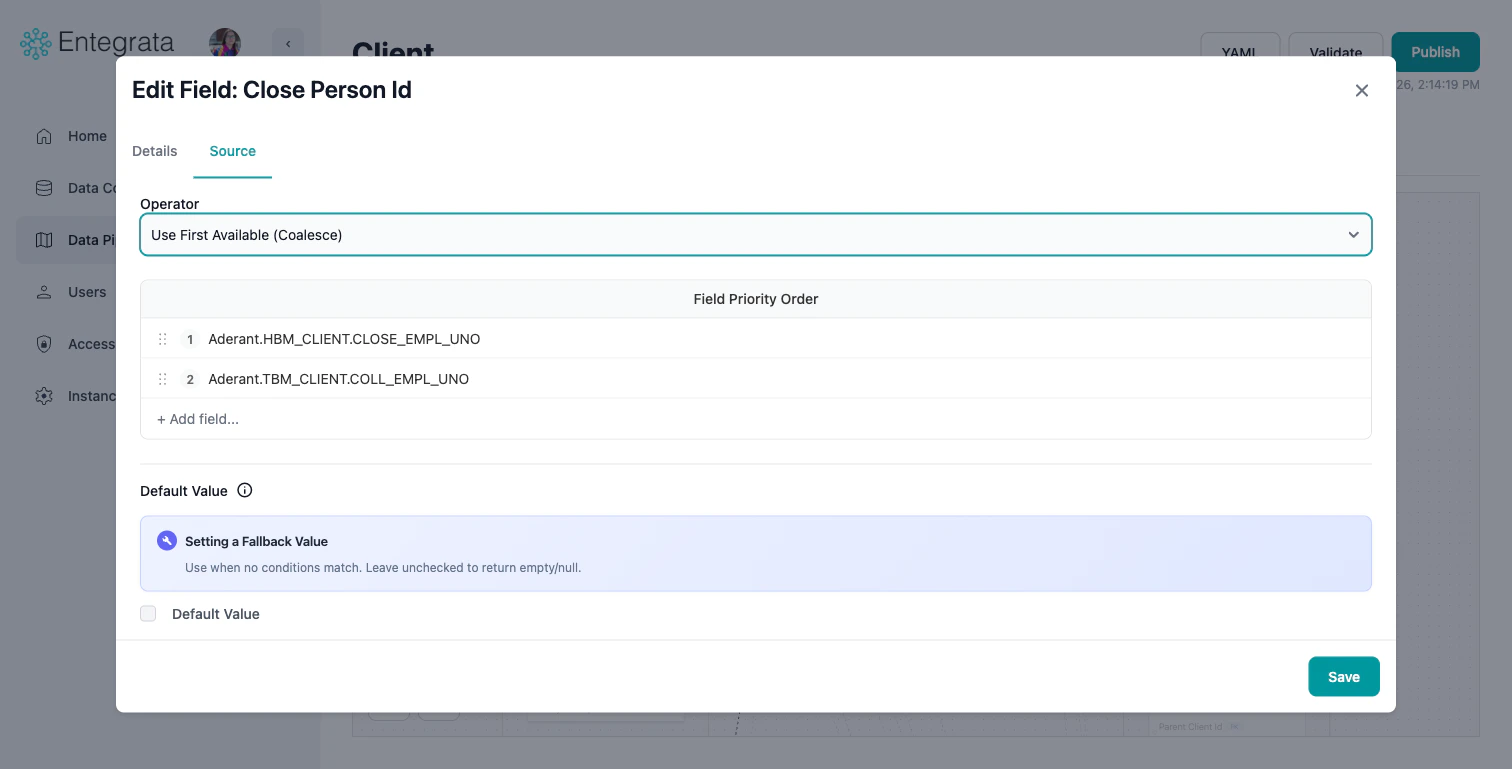
Drag a second source field to an entity field that is already mapped. This automatically creates a logic node on the canvas, defaulting to a Use First Available (Coalesce) operation. Alternatively, click the entity field to open the Edit Field modal and configure the operator on the Data Source tab.
2
Verify Field Priority Order
The order matters - COALESCE checks fields left to right. You can view and change the order of the inputs by dragging the fields listed in the Field Priority Order section.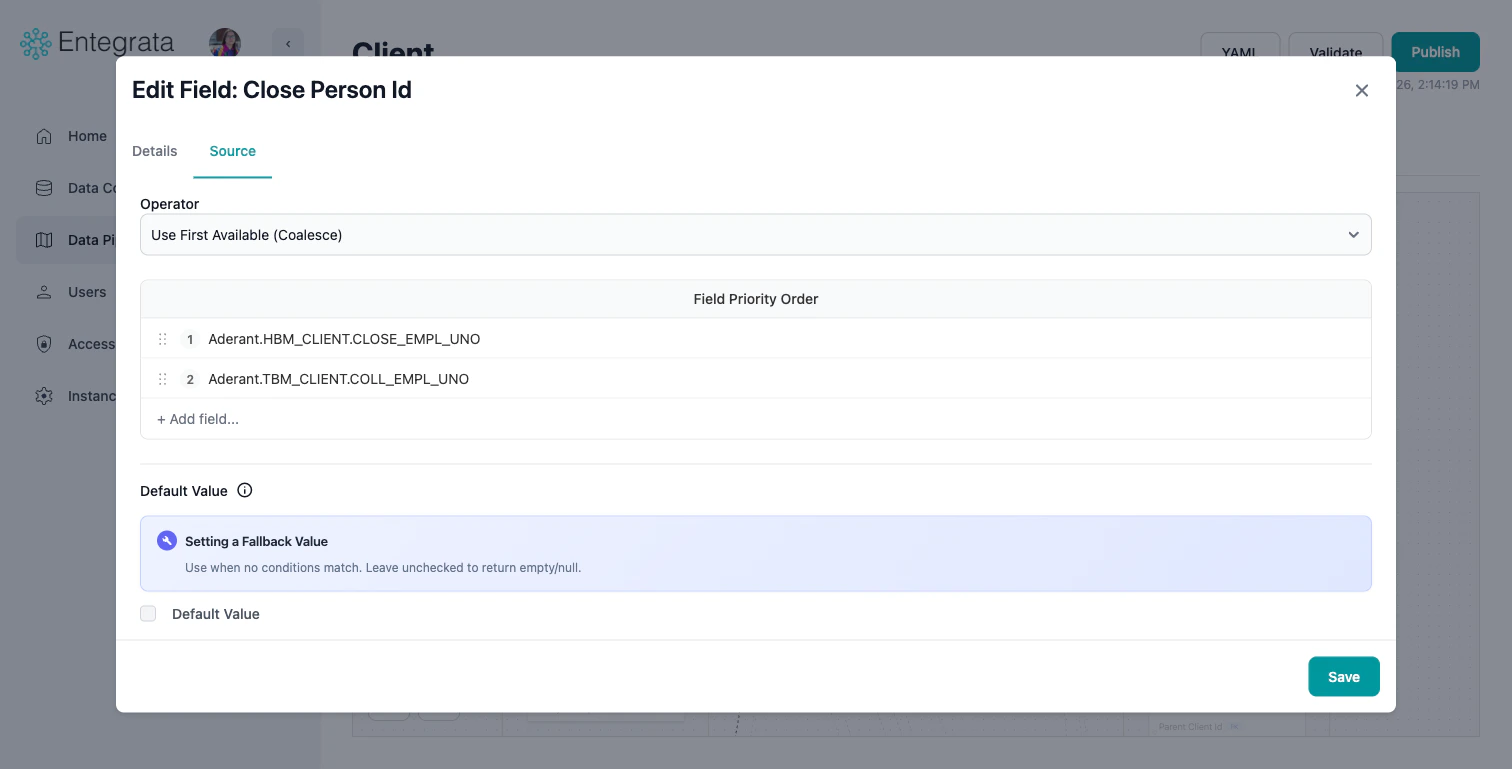
3
Set Default Value (Optional)
Check the Default Value checkbox and enter a fallback value to use if all input fields are null.
COALESCE Best Practices
CONCAT Operator
What is CONCAT?
CONCAT combines multiple text values into a single string. You can add separators, prefixes, and suffixes. Syntax:CONCAT(field1, separator, field2, separator, field3, ...)
Common Use Cases
Full Name:Creating a CONCAT Transformation
1
Connect Multiple Input Fields
Drag a second source field to an entity field that is already mapped. This automatically creates a logic node on the canvas, defaulting to a Use First Available (Coalesce) operation. Alternatively, click the entity field to open the Edit Field modal and configure the operator on the Data Source tab.
2
Select Concat Combination Option
In the Edit Field modal’s Data Source tab, select Join Text (Concat) from the Operator dropdown.
3
Verify Text Combination Order
The order matters - CONCAT appends fields left to right. You can view and change the order of the inputs by dragging the fields listed in the Text Combination Order section.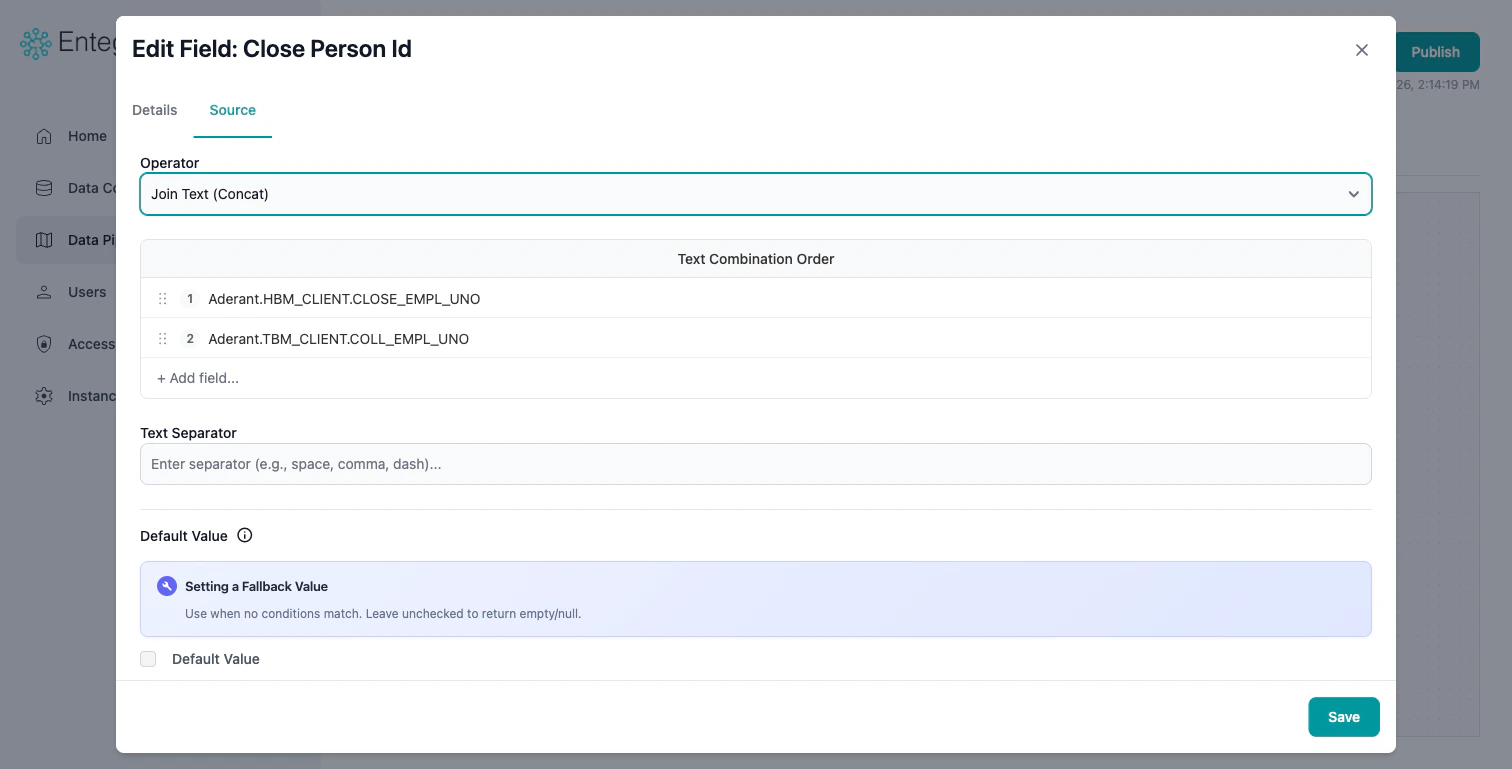
4
Configure Text Separator
In the Text Separator field, enter the character(s) to insert between each field value (e.g., a space, comma, or dash).
CASE Operator
What is CASE?
CASE provides if-then-else conditional logic. Transform values, categorize data, or apply complex business rules based on conditions. Syntax:Common Use Cases
Status Categorization:Creating a CASE Transformation
1
Connect Multiple Input Fields
Drag a second source field to an entity field that is already mapped. This automatically creates a logic node on the canvas, defaulting to a Use First Available (Coalesce) operation. Alternatively, click the entity field to open the Edit Field modal and configure the operator on the Data Source tab.
2
Select CASE Combination Option
In the Edit Field modal’s Data Source tab, select Apply Conditions from the Operator dropdown.
3
Build First Condition
In the Edit Field modal’s Data Source tab, click Add case to create a new condition: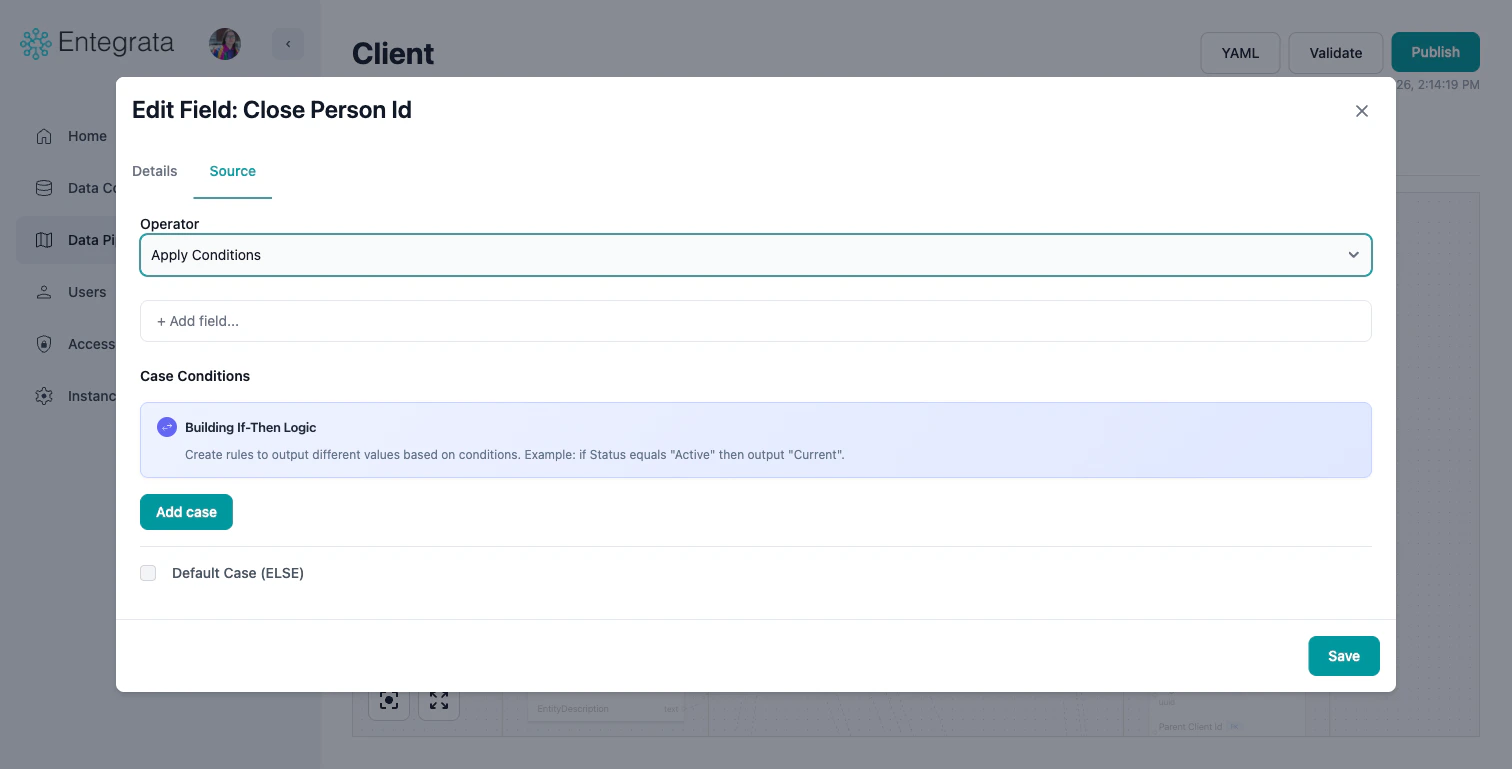
- When: Define the condition to evaluate (field, operator, and value)
- Then: Specify the output value when the condition is true
- Check Default Case (ELSE) to set a fallback value when no conditions match
4
Add More Cases
Click Add case to add additional conditions. Cases are evaluated in order from top to bottom.
5
Set Default Case
Check Default Case (ELSE) at the bottom and enter the fallback value returned when no conditions match.
Available Operators in CASE
CASE Best Practices
Troubleshooting
COALESCE Returns Unexpected Nulls
Issue: COALESCE still returns null even with multiple input fields. Solutions:- Verify input field order
- Check that at least one input has non-null values in sample data
- Add a literal default value as last input
- Preview each input field separately to verify data
CONCAT Produces Extra Separators
Issue: Concatenated string has separators where fields were null. Solutions:- Enable “Skip nulls” option in CONCAT settings
- Use COALESCE on inputs to convert nulls to empty strings
- Consider using CASE to handle null scenarios differently
CASE Always Returns ELSE Value
Issue: No conditions seem to match. Solutions:- Verify field data types match comparison values
- Check for whitespace in string comparisons
- Use case-insensitive operators for text
- Preview source data to see actual values
- Check operator choice (= vs CONTAINS vs STARTS WITH)
Related Topics
Mapping Fields
Learn basic field-to-field mapping
Field Management
Configure entity field properties and data types
Default Values
Set default values for fields
Data Mapping Editor
Complete guide to the mapping editor interface