
Overview
Data types (also called entities) are the foundation of your data pipeline. Each data type represents a business concept like customers, orders, or products. In Entegrata, you define data types and map them to your source data, creating a unified view across all your systems. This guide covers the complete lifecycle of managing data types in your Entegrata instance.Understanding Data Types
A data type in Entegrata represents:- A unified business concept (e.g., “Customer”, “Invoice”, “Product”)
- The fields and structure of that concept
- Mappings to one or more data sources
- Access controls determining who can view the data
- Lineage information showing data flow
Creating a New Data Type
1
Navigate to Data Types
From the admin portal navigation, select Data Mappings or Pipelines to access the data type management interface.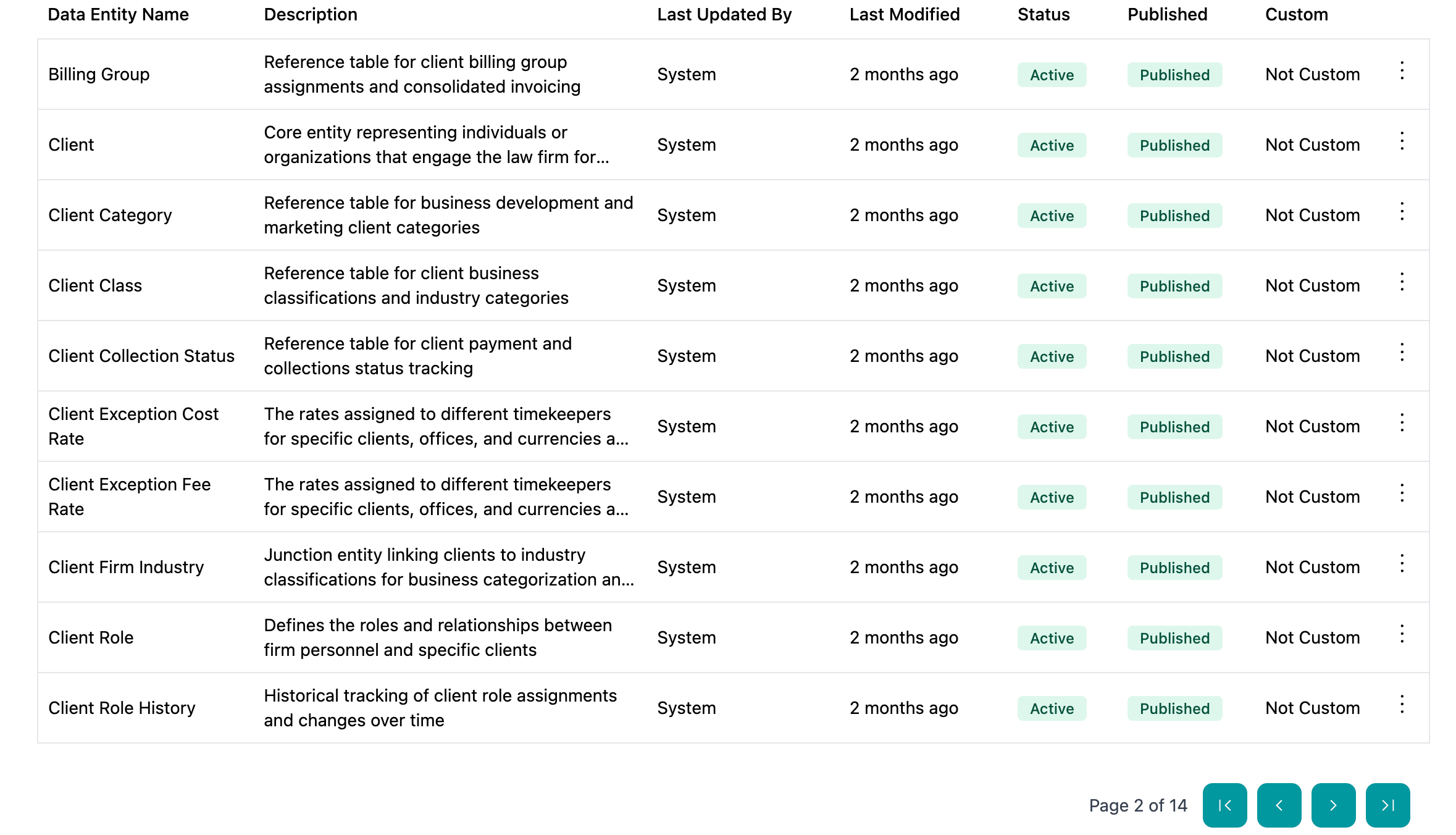
2
Click Create New Data Type
Click the New Data Type or Create Entity button in the top right corner of the data types list.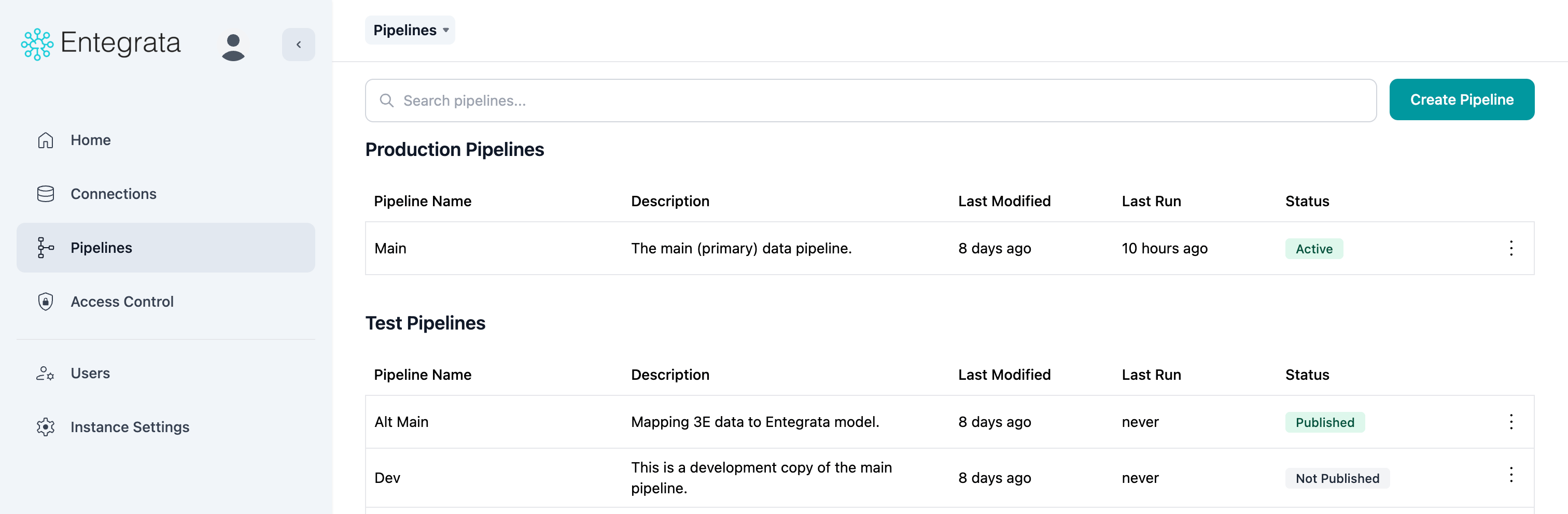
3
Configure Basic Information
In the creation dialog, provide: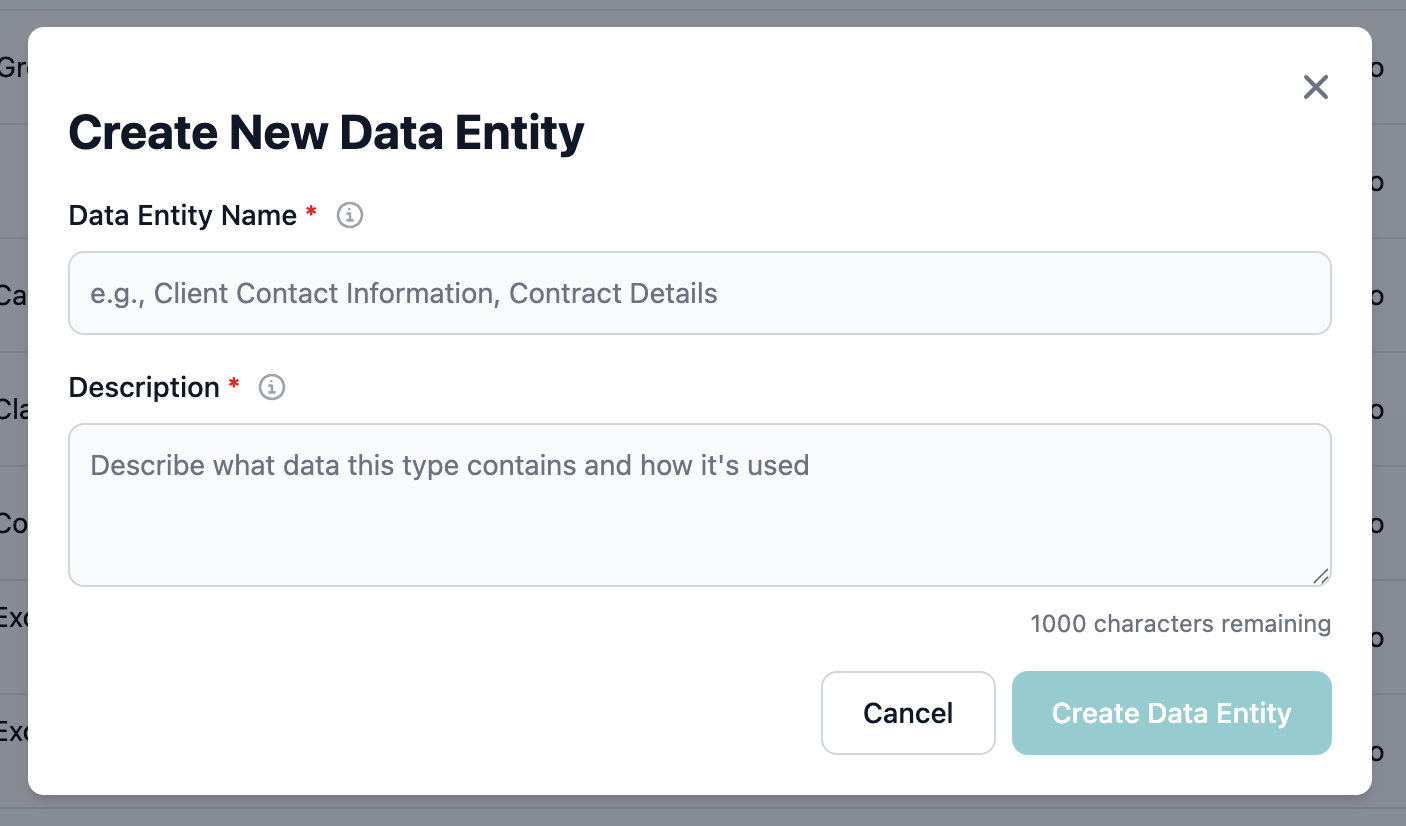
- Name: A clear, singular name for your data type (e.g., “Customer”, “Order”)
- Description: A brief explanation of what this data type represents
- Icon (optional): Select an icon to help identify this data type visually
- Category (optional): Group related data types together
4
Create the Data Type
Click Create to save your new data type. You’ll be taken to the entity list view.
Editing an Existing Data Type
Updating Basic Properties
1
Select the Data Type
Find the entity you want to edit in the list view.
2
Open Edit Modal
Click the Edit option under the entity’s option menu.
3
Modify Properties
Update any of the following: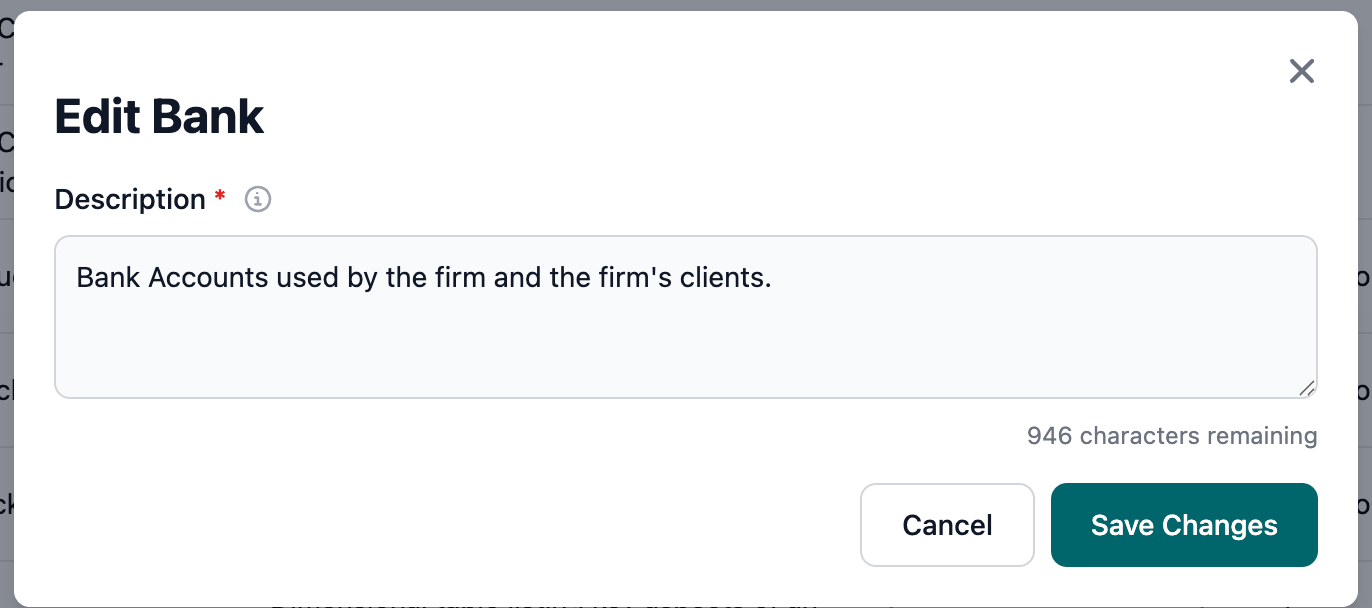
- Name
- Description
4
Save Changes
Click Save to apply your changes. These updates take effect immediately and don’t require republishing.
Modifying Field Structure
To add, remove, or change fields in your data type, see the Field Management guide.Updating Mappings
To change how source data maps to your data type fields, see the Mapping Fields guide.Archiving Data Types
Archiving removes a data type from active use without deleting historical data.1
Open the Data Type
Navigate to the data type you want to archive.
2
Archive Option
Click the Archive option in the options menu for the entity.
3
Confirm Archive
Review the warning message and confirm that you want to archive this data type.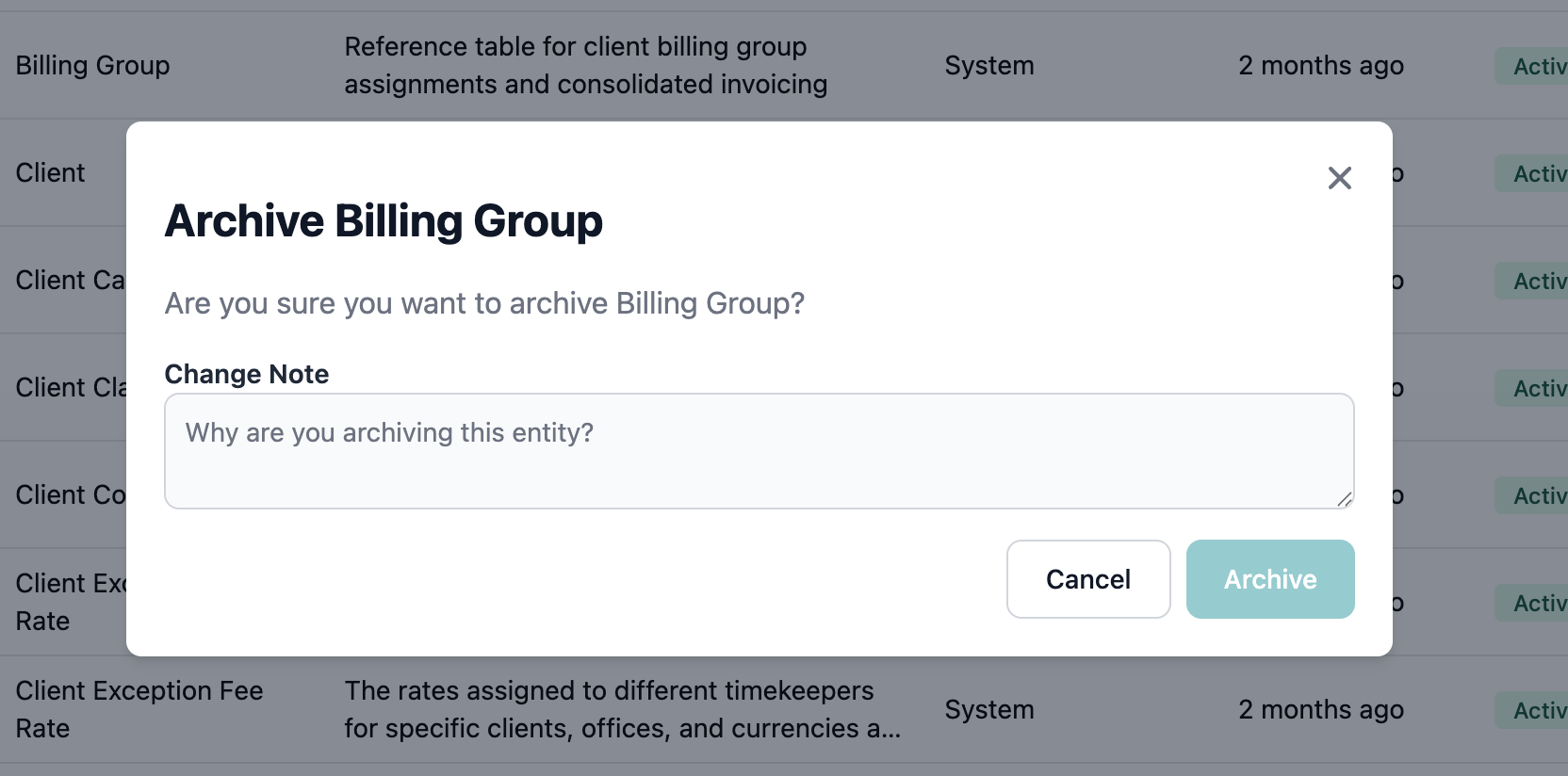
4
Complete Archive
Click Archive to complete the process. The data type will be moved to the archived status.
Best Practices
Troubleshooting
Cannot Archive Data Type
Issue: The archive option is grayed out or unavailable. Solutions:- Check if you have admin permissions
- Verify no active dependencies exist
- Ensure the data type is published (only published types can be archived)
Archive Failed with Dependencies
Issue: Archive fails with message about dependent objects. Solutions:- Check for reports or dashboards using this data type
- Look for other data types with relationships to this one
- Remove or update dependencies first, then archive
Unarchive Not Restoring Data
Issue: After unarchiving, no data appears in the data type. Solutions:- Verify source connections are still active
- Check that credentials haven’t expired
- Republish the mapping to restart data processing
- Review field mappings for any broken references
Related Topics
Field Management
Learn how to add and configure fields in your data types
Mapping Fields
Map source data to your data type fields
Access Controls
Control who can view and edit your data types
Publishing Mappings
Deploy your data type mappings to production