Overview

Data lineage shows the complete journey of your data - from source systems through transformations to final entities. Entegrata provides visual lineage tracking to help you understand data flow, troubleshoot issues, and maintain compliance. This guide covers how to view and interpret lineage information for your entities and fields.

Understanding Data Lineage

What is Data Lineage?

Data lineage traces the lifecycle of data:
  • Origin: Where data comes from (source systems, tables, fields)
  • Transformations: How data is modified (CONCAT, CASE, COALESCE, etc.)
  • Dependencies: What data depends on other data
  • Destination: Where data ends up (entities, fields, downstream systems)
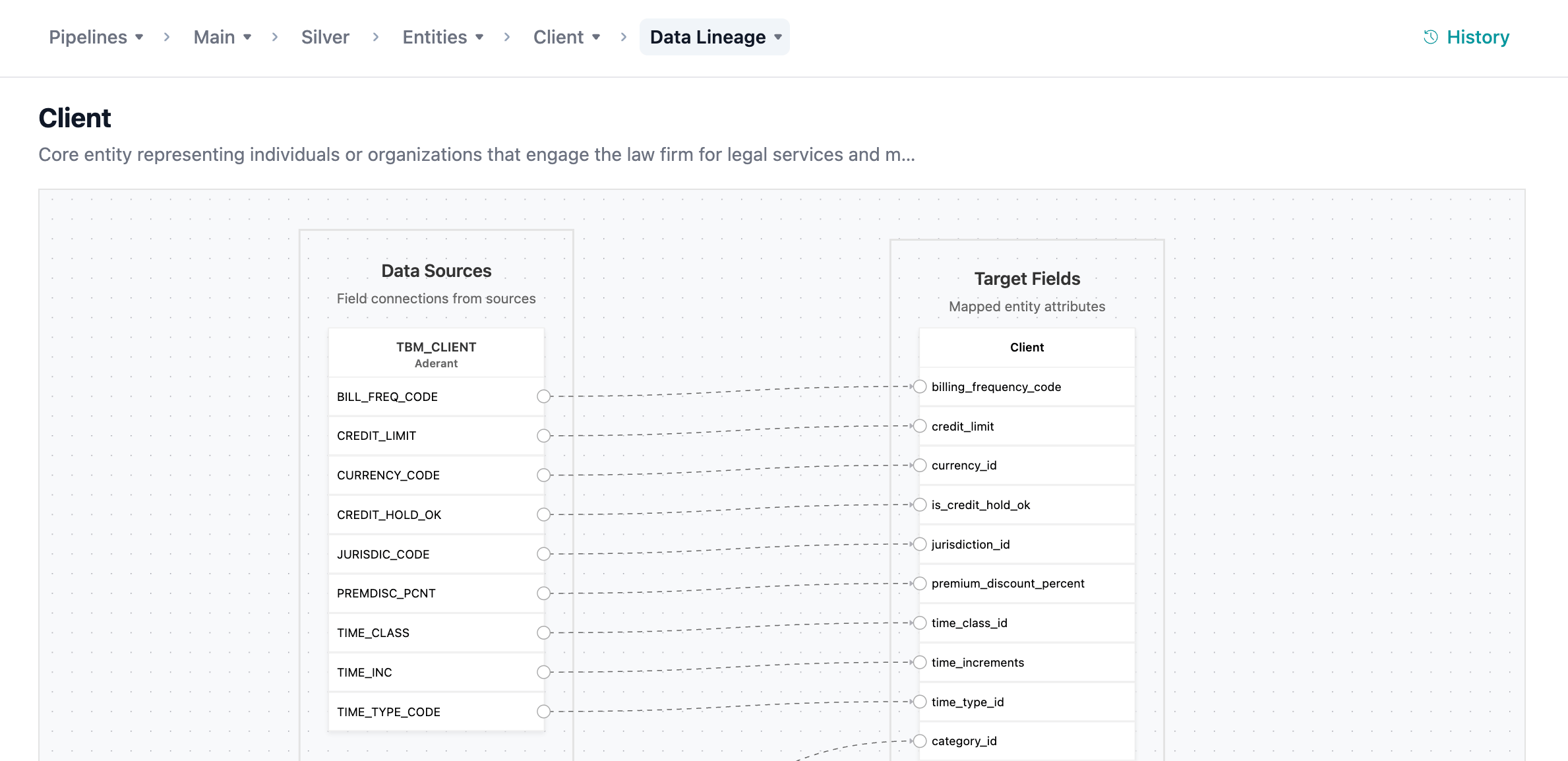
Complete lineage diagram showing source to destination

Why Lineage Matters

Troubleshooting:
  • Trace data quality issues back to source
  • Understand unexpected values
Impact Analysis:
  • See what breaks if you change a source
  • Identify downstream dependencies before changes
  • Plan migrations and updates safely
Compliance:
  • Document data provenance for regulations
  • Track sensitive data through systems
  • Audit data access and usage
Documentation:
  • Understand existing pipelines
  • Onboard new team members
  • Maintain institutional knowledge

Viewing Entity Lineage

Accessing Lineage View

1

Open Entity

Navigate to your entity in the data pipeline section.
2

Click Lineage Tab

In the entity view, click the Lineage tab or the lineage icon.
3

View Lineage Diagram

The lineage visualization appears, showing:
  • Source systems and tables (left)
  • Your entity and fields (right)
  • Flow connections between all elements
Complete lineage diagram showing source to destination

Using Lineage for Troubleshooting

Tracing Data Quality Issues

1

Identify Problem

You notice incorrect data in an entity field.Example: Customer names are showing as “NULL NULL”
2

Open Field Lineage

Navigate to the entity and open lineage view for the problematic field.
3

Trace Backward

Follow the lineage upstream to identify:
  • Which source field(s) provide the data
  • Where the issue is introduced
4

Check Each Step

Examine each node in the path:
  • Check transformation logic (is CONCAT handling nulls correctly?)
  • Verify join conditions (are records matching?)
5

Identify Root Cause

The lineage helps pinpoint:
  • Bad source data
  • Incorrect transformation logic
  • Failed joins
  • Missing default values
6

Fix and Verify

Make corrections and use lineage to verify the fix flows through correctly.

Impact Analysis for Changes

1

Plan Change

You need to modify a source field or table.Example: Renaming a source column
2

View Downstream Impact

Open downstream lineage for the source field.
3

Identify Affected Entities

The lineage shows:
  • All entities using this source field
  • Indirect dependencies
4

Plan Updates

Create a list of all mappings that need updating:
  • Direct field mappings
  • Transformations using the field
  • Validation rules referencing it
5

Make Changes Systematically

Update each affected mapping, using the lineage as your checklist.

Lineage for Compliance

Data Privacy Compliance

Track sensitive data through your systems:
1

Tag Sensitive Fields

In source systems or entity fields, add tags like “PII”, “PHI”, “Confidential”.
2

View Tagged Lineage

Filter lineage to show only fields with specific tags.
3

Trace Sensitive Data

Follow lineage to see:
  • Where sensitive data originates
  • Where it’s stored
  • Who has access
4

Document Data Flow

Export lineage as compliance documentation showing handling of regulated data.

Audit Trail

Lineage includes audit information:
  • Who created each mapping
  • When it was created or modified
  • What changes were made
  • Why (from publish notes)

Lineage Best Practices

Documentation
  • Add descriptions to all entities and fields
  • Document transformation logic clearly
  • Tag fields appropriately
  • Keep publish notes detailed
Troubleshooting
  • Start with field-level lineage to narrow down issues
  • Check each node in the path systematically
  • Verify source data quality first
  • Look for null handling issues in transformations
Change Management
  • Always check downstream impact before changes
  • Use lineage to create update checklists
  • Communicate changes to affected stakeholders
  • Verify changes with lineage after updates
Compliance
  • Tag sensitive data at the source
  • Regularly review lineage for compliance
  • Export lineage for audit documentation
  • Track data retention through lineage
  • Monitor access patterns through lineage metadata

Lineage Limitations

Current Limitations:
  • Lineage shows design-time flow, not runtime data paths
  • External transformations (outside Entegrata) not included
  • Very complex transformations may be simplified in visualization
  • Cross-workspace lineage requires additional configuration
  • Historical lineage shows current state only, not previous versions

Troubleshooting Lineage

Lineage Not Showing

Issue: Lineage view is blank or incomplete. Solutions:
  • Ensure entity has been published at least once
  • Refresh the page
  • Check that you have permission to view lineage
  • Verify sources are still connected
  • Try exporting - may show more than visualization

Missing Connections

Issue: Some connections don’t appear in lineage. Solutions:
  • Check if fields are actually mapped
  • Verify transformations are saved
  • Republish the entity to refresh lineage
  • Look for indirect connections (via intermediate transformations)