
Overview
Entity fields define the structure of your data types. Each field has properties like name, data type, and validation rules that determine how data is stored and used. This guide covers everything you need to know about managing fields in your entities.Understanding Entity Fields
What is an Entity Field?
An entity field represents a single piece of information in your data type:- Customer Entity: Name, Email, Phone, Address fields
- Order Entity: OrderID, OrderDate, Amount, Status fields
- Product Entity: SKU, Name, Price, Category fields
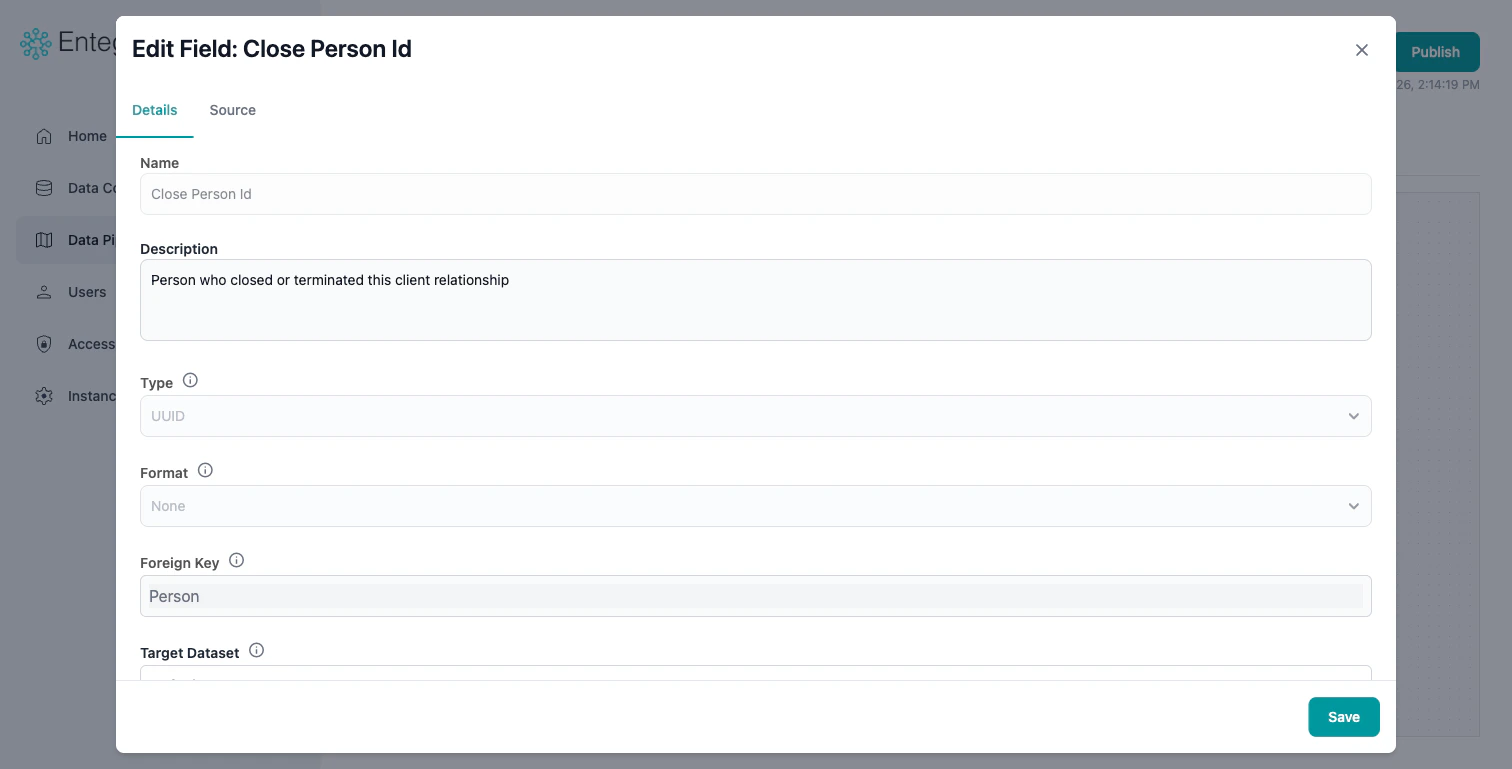
- Name: The field identifier
- Description: Any comments or documentation for the field
- Type: What kind of data it holds (UUID, Text, Integer, Timestamp, etc.)
- Format: Display formatting rule (Currency, Percent, Email, etc.)
- Foreign Key: Link to another entity type
- Tags: Custom labels for categorization
Viewing Entity Fields
Field List View
Access the complete field list for your entity:1
Open Entity
Navigate to your entity in the data pipeline section.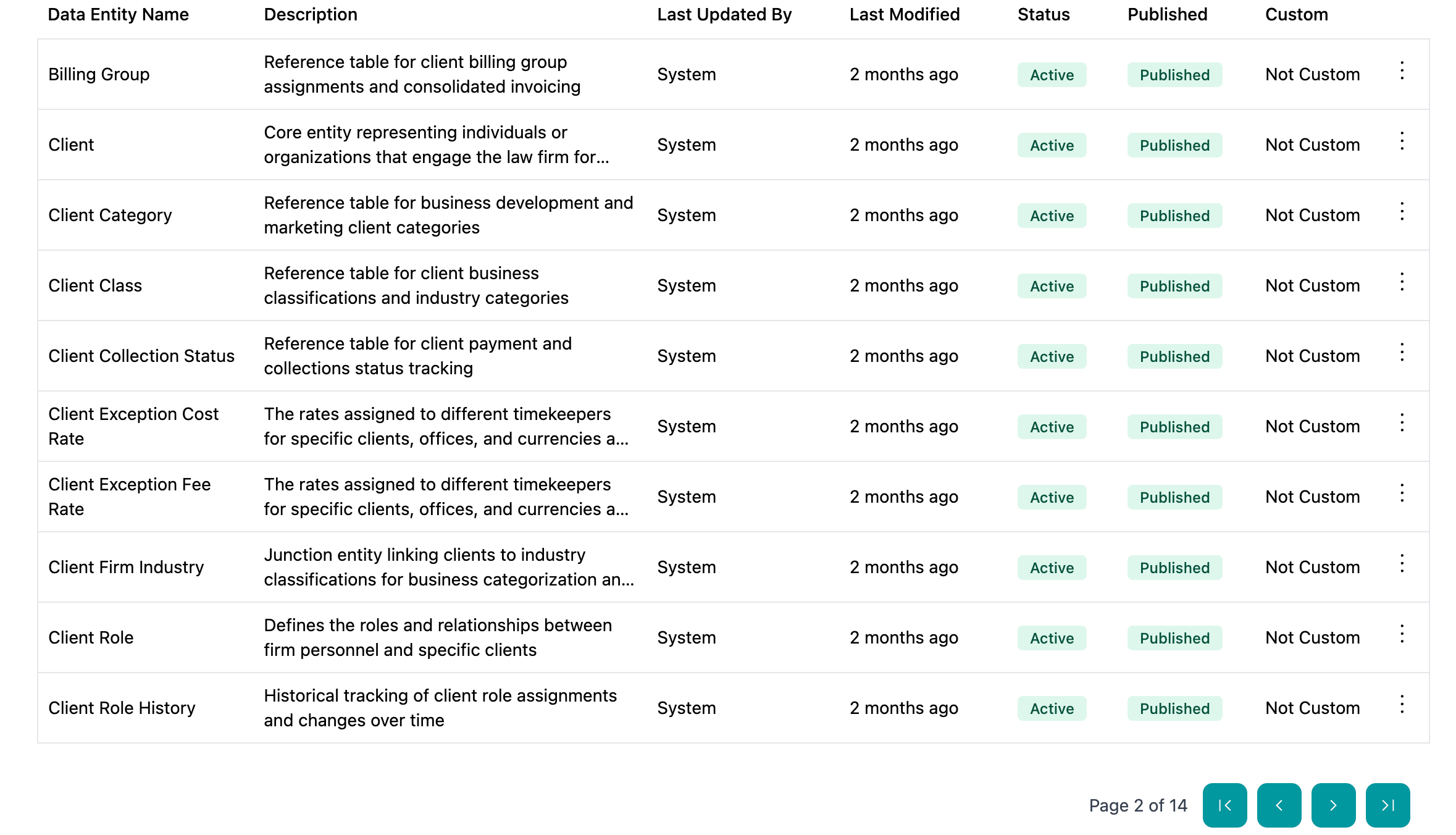
2
Select Fields Tab
Navigate to the Fields tab at the top of the page.
3
View Field List
The field list appears in a table showing the following information: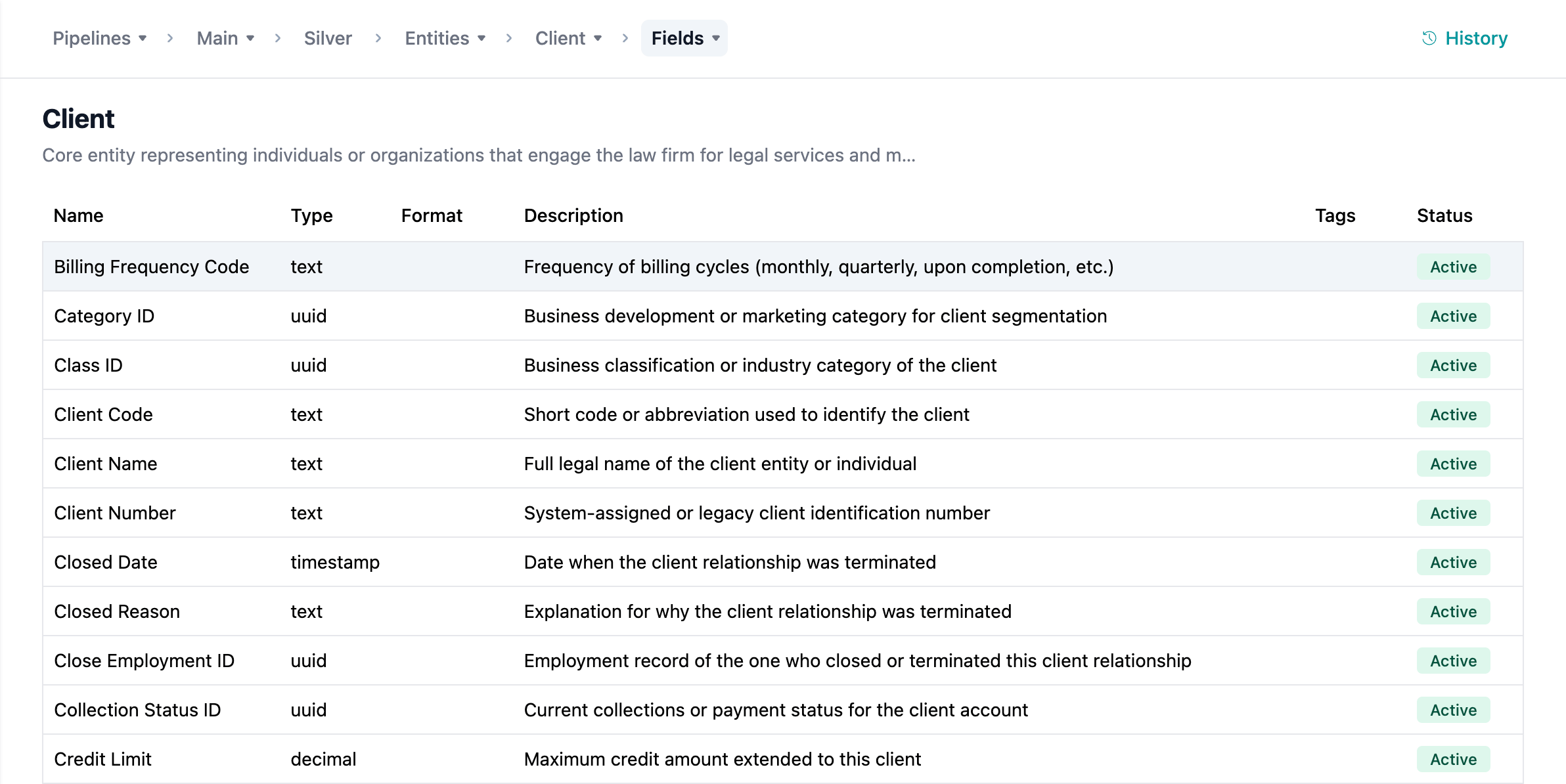
- Field name
- Data type
- Data Formatting Rule
- Description
- Tags
- Status
4
Search Fields
Use the search box to quickly find fields by name.
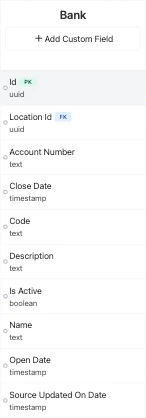
Visual Canvas View
Fields also appear in the visual mapping editor:- On the entity node (right side of canvas)
- With connection lines showing mappings
Adding New Fields
1
Open Mapping Editor
Click Add Custom Field button in the entity node (right side).
2
Enter Field Name
Provide a clear, descriptive name:
- Use business-friendly terms
- Avoid technical abbreviations
- Use consistent naming conventions (camelCase or snake_case)
- Example: “CustomerName” not “cust_nm”
3
Select Data Type
Choose the appropriate data type for your field. See Data Types section below for details.
4
Configure Properties
Set additional properties:
- Description: Document the field’s purpose
- Format: The formatting rule to be applied to values displayed for this field
5
Set Default Value (Optional)
Provide a default value used when source data is null. See Default Values guide for details.
Data Types
Available Data Types
Entegrata supports comprehensive data types for various data scenarios:String
For any data you wish to be represented as text.Numeric Types
Date and Time Types
Boolean
Complex Types
Choosing the Right Data Type
Editing Existing Fields
1
Open Edit Field Modal
Click on the field in the entity node on the canvas, or click a field in the Fields tab list. This opens the Edit Field modal.
2
Modify Field Configuration
On the Field Configuration tab, update properties:
- Name (with caution - may break existing mappings)
- Description
- Format
- Tags
3
Modify Data Source (Optional)
On the Data Source tab, change how the field gets its value:
- Select a different source field
- Change the operator (Use First Available, Join Text, Apply Conditions, etc.)
- Adjust field priority order or conditions
Safe vs. Risky Changes
Safe Changes (no impact on data):- Updating description
- Changing display name
- Changing field name
- Changing data type
Deleting Fields
You may delete custom fields on your entities if you no longer need them or have made breaking updates to your source data systems. Entegrata’s canonical fields may not be deleted, but they can be unmapped.1
Select Field
Click on the field you want to delete.Make sure this field is a custom field that you created. Non-custom fields may not be deleted.
2
Open Delete Dialog
Right-click and select Delete Field.
3
Confirm Deletion
Type the field name to confirm deletion and click Delete Permanently.
Alternatives to Deletion
Consider these alternatives:- Archive: Hide field from views but preserve data
- Remove Mapping: Keep field definition but stop populating it
System Fields
Entegrata automatically adds system fields to every entity. These fields are the minimum required fields for Entegrata to operate as intended.System fields cannot be edited or deleted. They’re automatically maintained by Entegrata.
Best Practices
Troubleshooting
Cannot Add Field
Issue: Add Field button is disabled or not working. Solutions:- Verify you have edit permissions
- Check if entity is currently publishing (wait for completion)
- Ensure entity is not archived
- Try refreshing the page
Field Changes Not Reflected
Issue: Modified field properties don’t seem to take effect. Solutions:- Clear browser cache and refresh
- Verify changes were saved (look for save indicator)
- Check if you need to republish entity
- Try logging out and back in
Data Type Mismatch Errors
Issue: Errors when mapping source data to field after changing data type. Solutions:- Preview source data to verify compatibility
- Add type conversion in mapping
- Use CASE expression to handle edge cases
- Consider reverting data type change
- Check for null values causing issues
Related Topics
Mapping Fields
Map source data to entity fields
Default Values
Set default values for fields
Multi-Field Mapping
Advanced transformations with multiple fields
Managing Entities
Create and manage data types