
Overview
As your pipeline library grows, efficiently finding specific pipelines becomes essential. Entegrata provides search and filtering capabilities to help you quickly locate pipelines based on name, status, and other criteria.Search Functionality
The pipeline list includes a search bar that allows you to filter pipelines by name in real-time.Accessing Search
The search bar is located at the top of the pipeline list view, just below the page title and “Create New Pipeline” button.
How Search Works
The search functionality provides:- Real-time filtering - Results update as you type
- Partial matching - Find pipelines containing your search term anywhere in the name
- Case-insensitive - Search works regardless of capitalization
- Instant results - No need to press Enter or click a search button
Search currently filters by pipeline name only. Searching descriptions, keys, or other fields is not supported at this time.
Using the Search Bar
1
Navigate to Pipeline List
Go to the Entegrata Admin Portal and click the Pipelines tab.
2
Locate the Search Bar
Find the search input field at the top of the pipeline list, below the page header.
3
Enter Search Terms
Click in the search bar and start typing your search query. Results filter automatically as you type.Search Examples: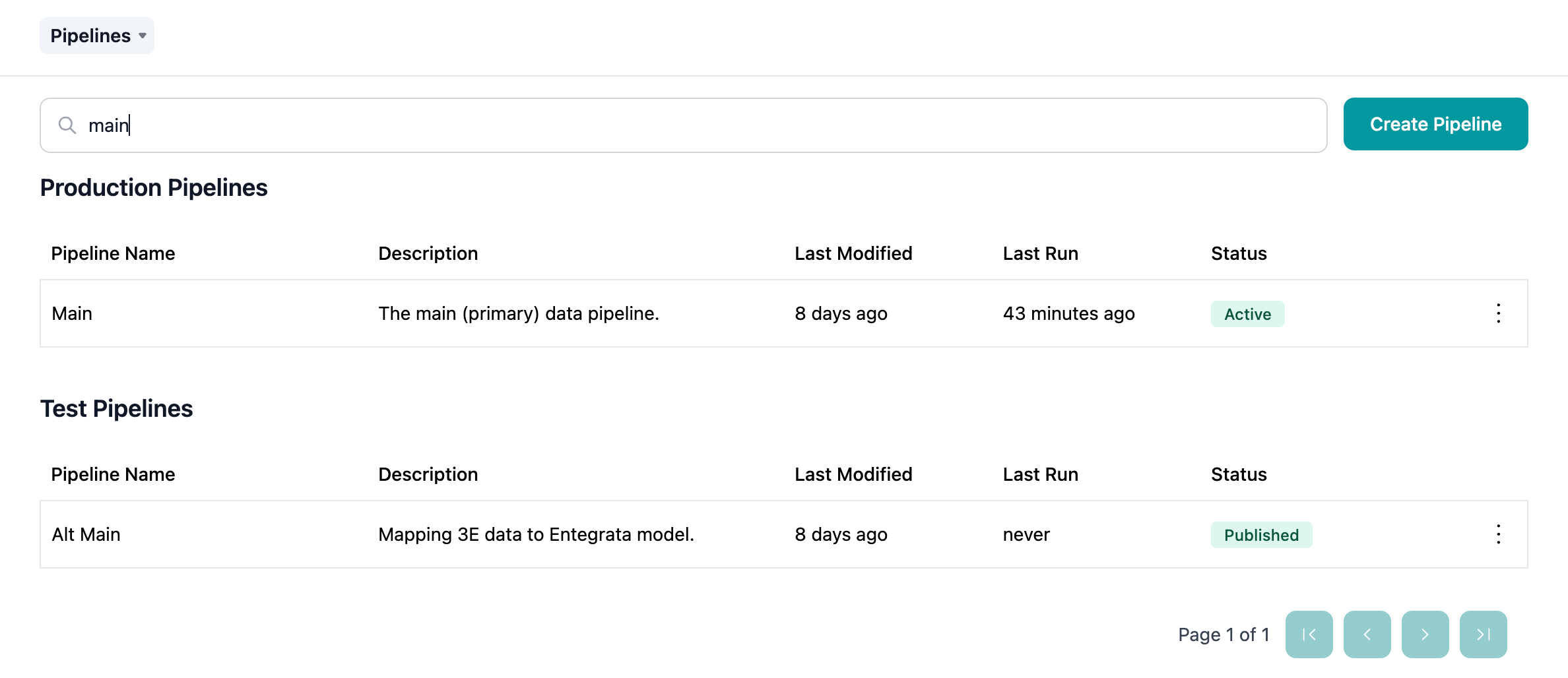
- “client” - Shows all pipelines with “client” in the name
- “daily” - Shows all pipelines with “daily” in the name
- “test” - Shows all test pipelines
- “v2” - Shows all version 2 pipelines
4
Review Filtered Results
The pipeline list automatically updates to show only matching pipelines. All columns and actions remain available for filtered results.
Search Strategies
Finding Specific Pipelines
When you know the exact pipeline name or a unique part of it: Example: Searching for “Client Data Processing”- Type: “client data” or “processing”
- Result: Finds the specific pipeline quickly
Finding Groups of Related Pipelines
Use common naming elements to find groups: Example: Finding all test pipelines- Type: “test”
- Result: All pipelines with “test” in the name
- Type: “daily”
- Result: All pipelines that run daily
Finding Pipelines by Version
If you use version numbers in pipeline names: Example: Finding all version 2 pipelines- Type: “v2” or “version 2”
- Result: All pipelines marked as version 2
Finding Pipelines by Data Domain
If you include data domains in names: Example: Finding all client-related pipelines- Type: “client”
- Result: Client Data Pipeline, Client Migration, etc.
- Type: “portfolio”
- Result: All pipelines processing portfolio data
Search Best Practices
Pagination and Search
The pipeline list supports pagination to handle large numbers of pipelines efficiently.How Pagination Works with Search
- Without Search - Navigate through all pipelines using page controls
- With Active Search - Navigate through filtered results only
- Page Reset - Starting a new search resets to page 1
- Results Per Page - Typically 10 pipelines per page
When you search, the page automatically resets to page 1 of the filtered results. This ensures you see all matching pipelines starting from the beginning.
Combining Search with Sorting
While viewing search results, you can still use column sorting:- Perform your search to filter pipelines
- Click column headers to sort filtered results
- Sort by:
- Name (alphabetically)
- Last Modified (most/least recent)
- Last Run (most/least recent)
- Status
Alternative Finding Methods
Beyond search, use these methods to locate pipelines:Recently Modified
Sort the full list by “Last Modified” column (click header) to see:- Pipelines you or others recently changed
- New pipelines at the top
- Oldest pipelines at the bottom
Recently Run
Sort by “Last Run” column to see:- Active pipelines that ran recently
- Idle pipelines that haven’t run in a while
- Never-run pipelines (useful for finding orphaned test pipelines)
Status-Based Organization
Visually scan for status badge colors:- Green - Active, successful pipelines
- Yellow - Paused pipelines
- Red - Failed pipelines
- Gray - Draft pipelines
- Blue - Running pipelines
Manual Browsing
For smaller pipeline lists (under 50):- Scan the full list visually
- Group mentally by naming patterns
- Use browser find (Ctrl+F or Cmd+F) to search current page
Troubleshooting Search
No Results Found
Problem: Search returns no pipelines. Solutions:- Check spelling of search terms
- Try shorter or more general search terms
- Remove extra spaces
- Try searching for different parts of the pipeline name
- Clear search and verify the pipeline exists in the full list
Wrong Pipelines in Results
Problem: Search returns pipelines you didn’t expect. Solutions:- Search is partial match - “test” finds “Latest Client Pipeline”
- Make search more specific
- Use unique terms from the pipeline name
- Consider if unexpected results share terminology
Search Not Updating
Problem: Typing in search bar doesn’t filter results. Solutions:- Ensure you’re typing in the correct search input field
- Refresh the page
- Clear browser cache
- Check for JavaScript errors in browser console
- Try a different browser
Search Cleared Unexpectedly
Problem: Search terms disappear or reset. Solutions:- Navigating between pages may reset search (by design)
- Leaving and returning to Pipelines tab clears search
- Page refresh clears search
- This is expected behavior - search is session-based
Future Search Enhancements
While current search is name-only, potential future enhancements may include:- Description Search - Find pipelines by description content
- Multi-field Search - Search across name, description, and keys
- Advanced Filters - Filter by status, last run date, trigger type
- Saved Searches - Save common search queries
- Search History - Quick access to recent searches
- Regex Support - Advanced pattern matching
Feature requests for search improvements can be submitted through the Support Portal.
Search Tips by Use Case
Finding Test Pipelines for Cleanup
Goal: Identify test pipelines to delete Strategy:- Search “test”
- Sort by Last Run
- Identify pipelines that haven’t run in 30+ days
- Review and delete as appropriate
Finding Pipelines by Source System
Goal: Find all pipelines using a specific data source Strategy:- Include source system name in pipeline names
- Search for source system (e.g., “salesforce”, “sap”, “workday”)
- Review all pipelines using that source
Finding Pipelines to Update
Goal: Find pipelines that need configuration updates Strategy:- Search for pipelines by version (e.g., “v1”)
- Or search for pipelines by data domain
- Sort by Last Modified
- Update outdated configurations
Finding Failed Pipelines
Goal: Identify pipelines needing attention Strategy:- Don’t use search initially
- Sort by Status to group failed pipelines
- Or sort by Last Run and look for red badges
- Address failures systematically
Related Topics
Pipeline Management
Back to pipeline management overview
Creating Pipelines
Name pipelines for easy searching
Editing Pipelines
Update names to improve searchability
Deleting Pipelines
Remove pipelines found through search