
Overview
The Automap button in the mapping editor generates suggestions for every map of the data type you have open. It applies the strongest suggestions for you and leaves the rest for you to review. To learn how suggestions are rated, see the Automap Overview.Required permissions
- Data Pipelines: Access
- Manage Silver Entities: Update
- Manage Production Pipelines or Manage Dev Pipelines, for the pipeline: Update
Run Automap
1
Open the data type
Open the pipeline, then open the data type in the mapping editor.
2
Click Automap
Click the floating Automap button. While it works, the button reads Mapping….
3
Read the summary
A summary message reports what Automap did, for example: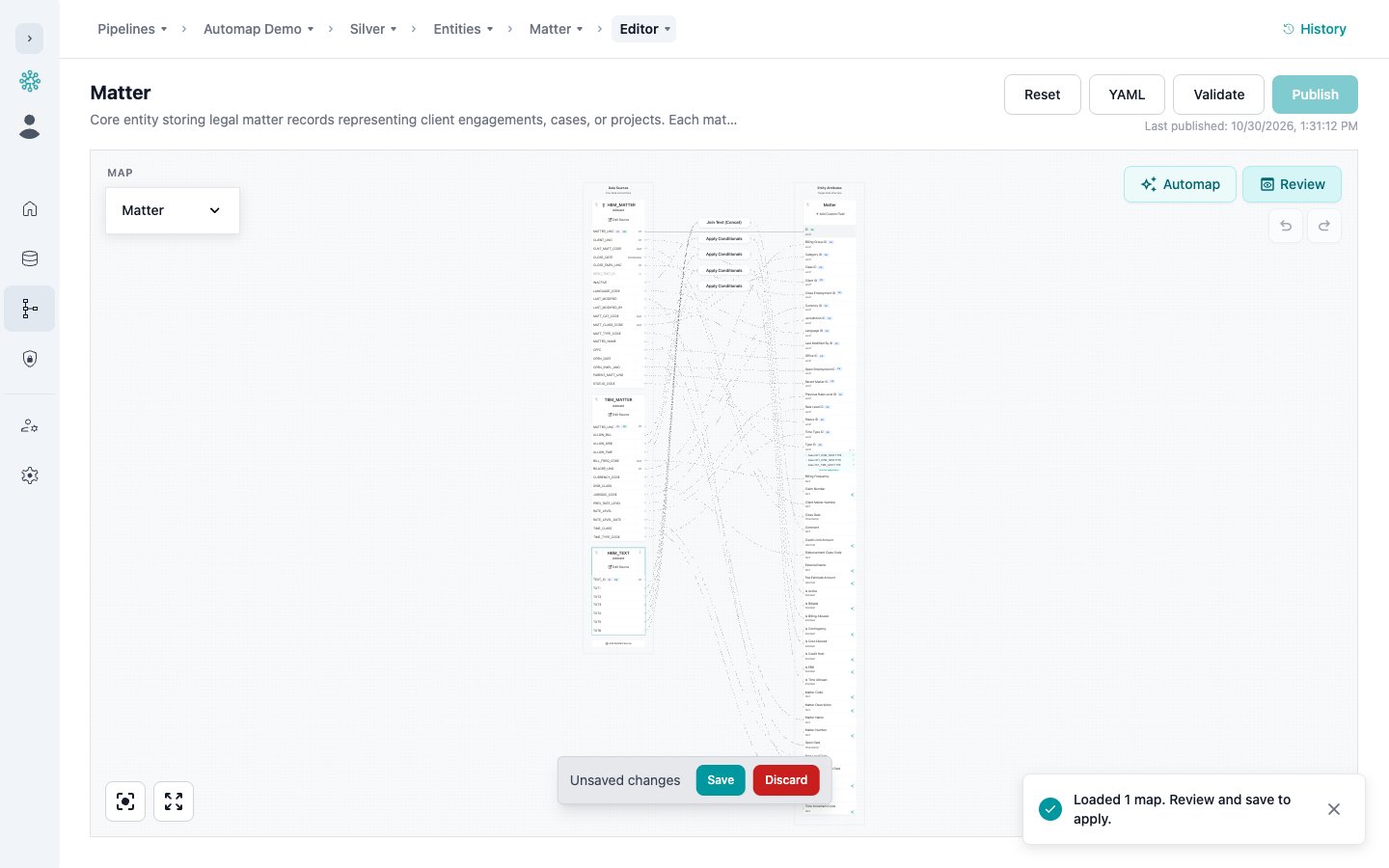
Loaded 2 maps, 1 new. Review and save to apply.The summary also lists any maps that need your attention:
- need a manual choice: Automap found more than one reasonable option
- need a primary source: pick one, as described below
- left unchanged — no match found: Automap had no confident suggestions for the map
- skipped as duplicates: a suggested new map would have duplicated an existing one
4
Review and save
Review the remaining suggestions (see Review Suggestions), then click Save.
- The map on the canvas gets its suggestions applied directly, so you can see them.
- Other existing maps are updated in the background and saved as unsaved local changes. Switch to each map to check it before you save.
- New maps are added when Automap finds a source pattern that none of your maps cover. They stay previews until you save.
Configure Joins
Sometimes a suggestion maps a field from a table that isn’t on the canvas yet. If Automap found a high-confidence join path for that table, it adds the table as a related source and joins it for you. If it didn’t, Configure Source Join opens. When there are several joins to set up, the title counts them, for example (1 of 3).1
Choose a join path
If Automap found several possible paths, select the one that best fits your data.
2
Fill in the join fields
Set Primary Key Fields, Source Identifier Field, Join To, and Target Identifier Field. See Configuring Sources for how identifiers and joins work.
3
Confirm or skip
Click Confirm Join to add the related source, or Skip to leave the field unmapped for now.
Review Suggestions
Click Review next to Automap to open Automap Details. It has two tabs:- Suggested
- Applied
Every field that still has suggestions, with its top candidate. Narrow the list with the band chips (high, medium, low) or the Filter by field name… box.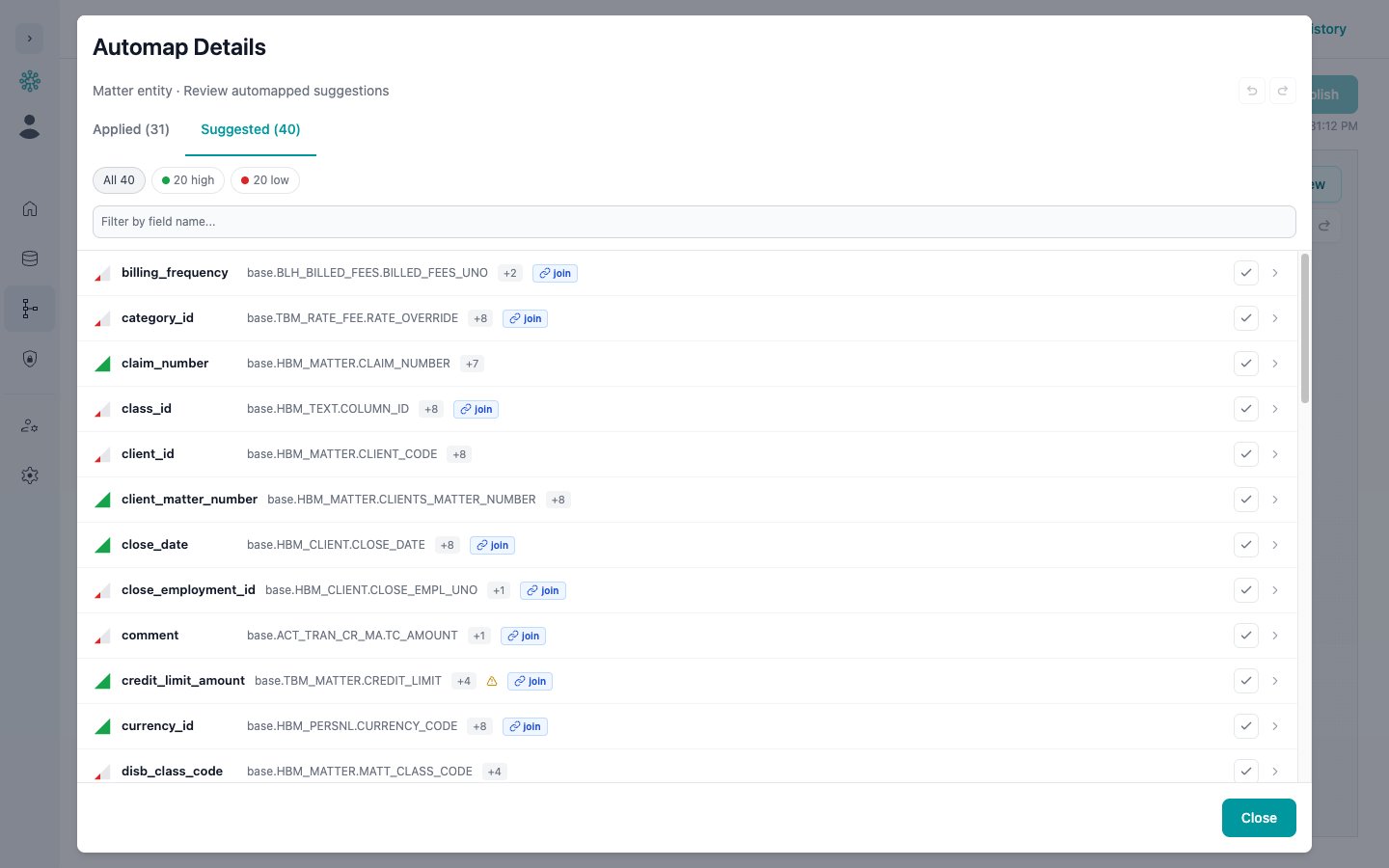
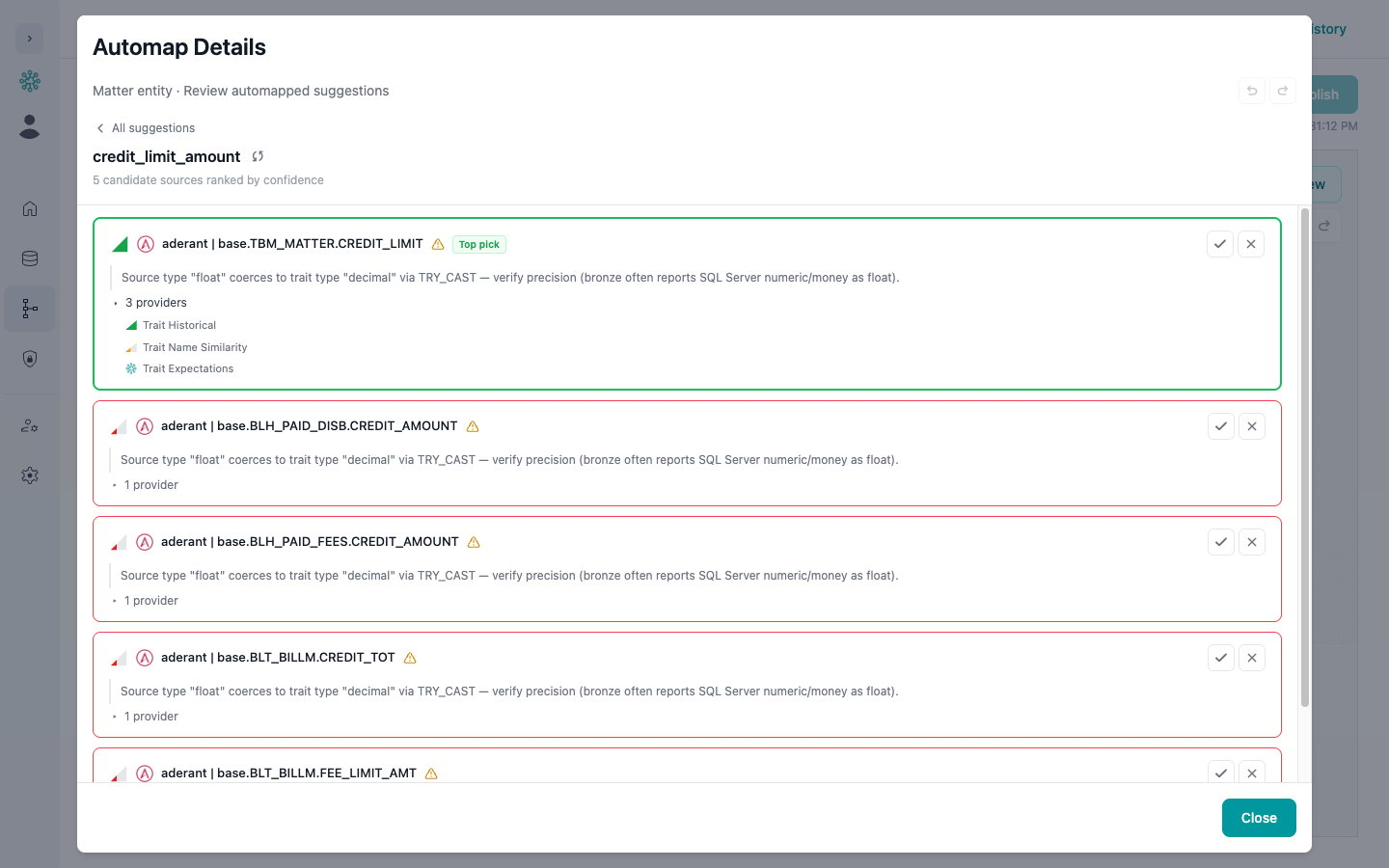
- Click the check button on a row to accept its top suggestion.
- Click a row to see every candidate for that field, ranked, with the first marked Top pick. Each candidate shows its confidence, contributing signals, and any comments. Accept one, or click X to dismiss it.
Table Filter Suggestions
If table filter suggestions are enabled for your instance, they show up in Automap Details and in the Filters tab of the source’s edit modal. Each one shows the Current: and Suggested: filter.- Accept applies the suggested filter.
- Edit applies it and opens the source’s Filters tab so you can adjust it.
- Dismiss hides the suggestion.
Saving Your Work
Every suggestion that Automap applies or you accept is an unsaved edit on the canvas:- The save bar appears, the same as for manual edits. Click Save to write the changes to the pipeline, or Discard to drop them.
- Undo (Ctrl+Z) and Redo (Ctrl+Shift+Z) next to Automap step through accepts, dismissals, reverts, automatic applies, and filter changes, up to 50 steps.
- Saved mappings behave like any other mapping. Publish and deploy them as usual.
Troubleshooting
The Automap Button Is Missing
- Check that your role has Update on Manage Silver Entities and on this pipeline.
- Automap works on silver data types only.
No Suggestions Found
- Every active field on the data type may already be mapped.
- The source tables may not be in your catalog yet. Enable the resources and run a collection, then try again.
- Automap may have found no confident primary source. Add one from the source catalog, then run Automap again.
A Suggestion Is Wrong
Click Revert on the Applied tab, or use Undo. Then map the field by hand. See Mapping Fields.Related Topics
Automap Overview
How suggestions are rated and applied
Automap a Pipeline
Step through every unmapped data type in a pipeline
Data Mapping Editor
The visual mapping editor
Configuring Sources
Primary sources, related sources, and joins